

- An account holder is a client or sales lead who creates an account on your store.
Creating a support ticket
- Log in to the store account.
- Click the Support menu tab.

Support tab
- Click the Open new ticket button.
- Add a subject.
- Click the field and select a department. (optional)
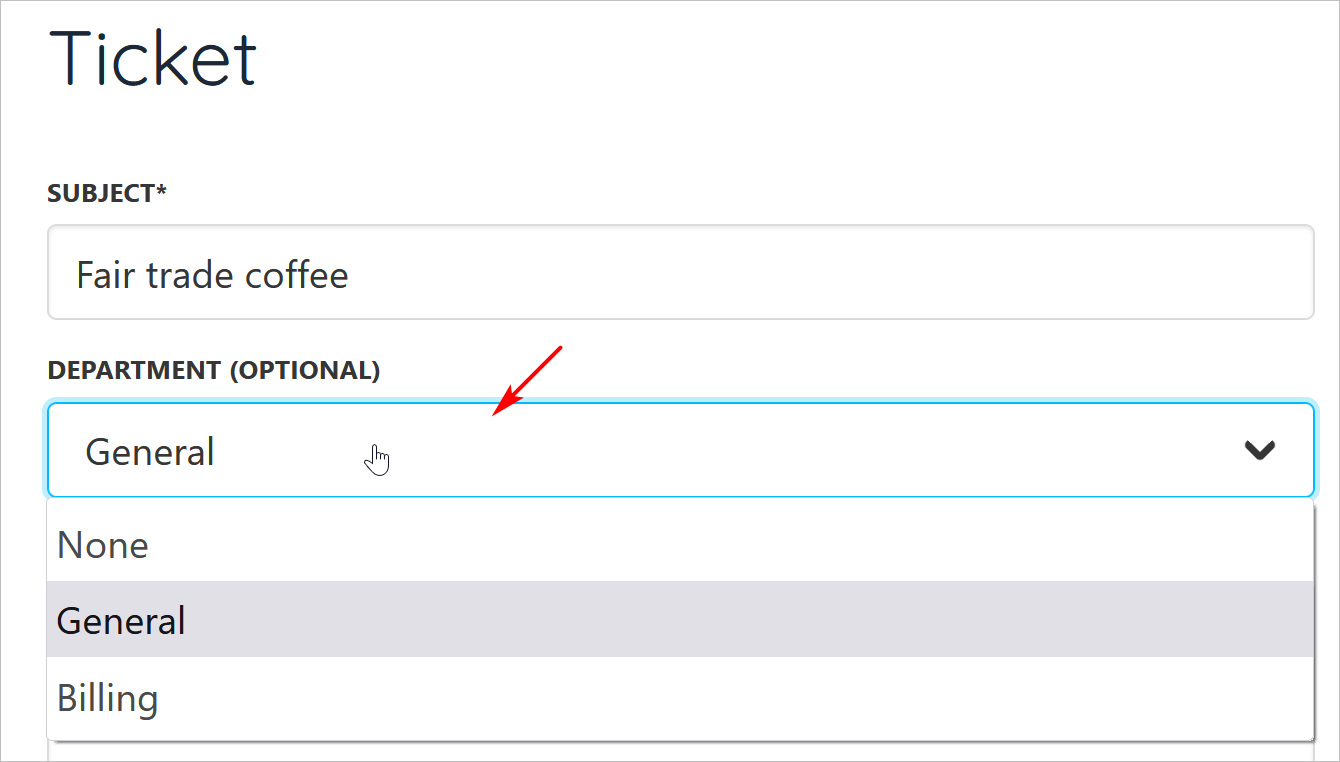
Select department
- Enter a message.
- Add an attachment. (optional)
- Click the Create ticket button.
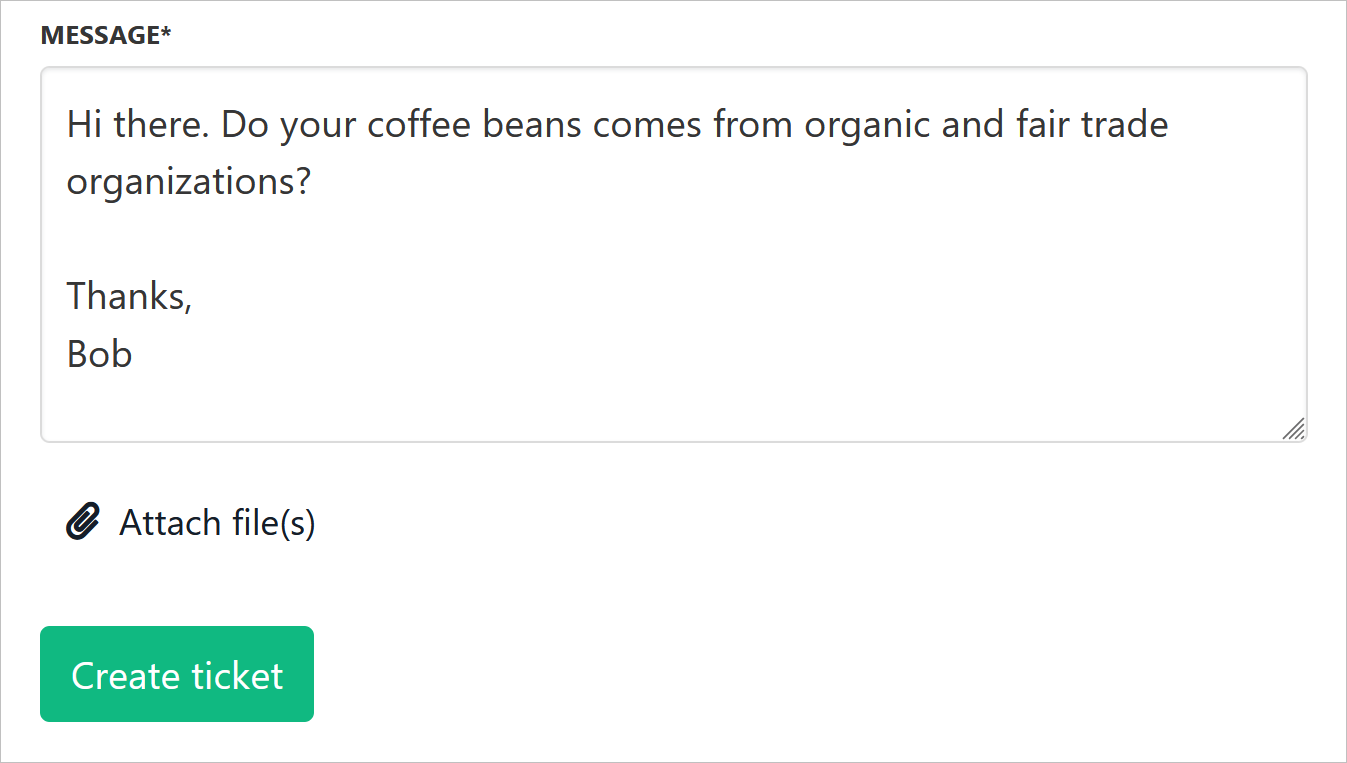
Create ticket button
- The ticket displays on the screen.
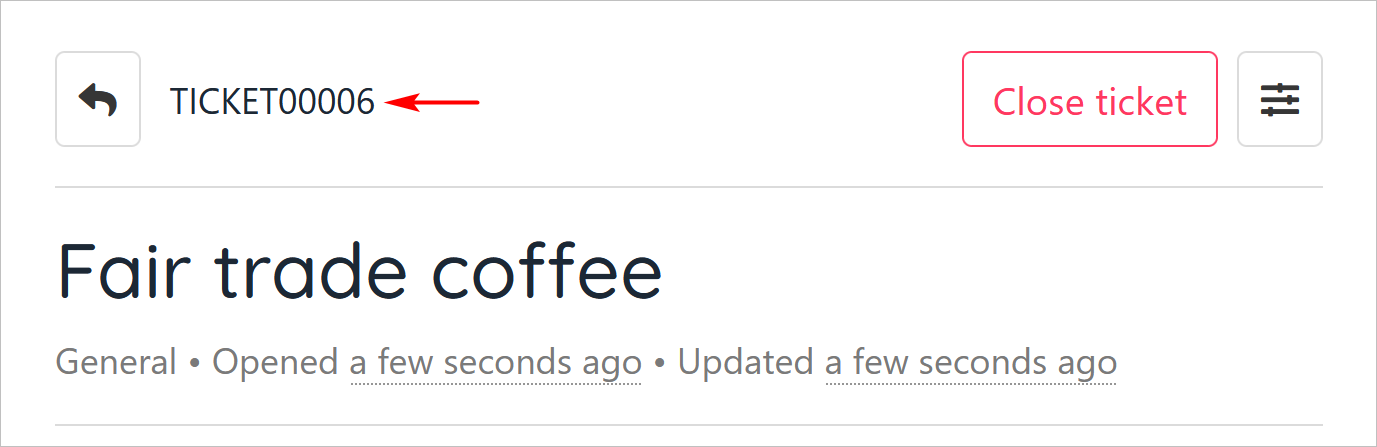
Ticket displays
Editing a ticket subject
- Click the three-bar icon.
- Click Edit subject.
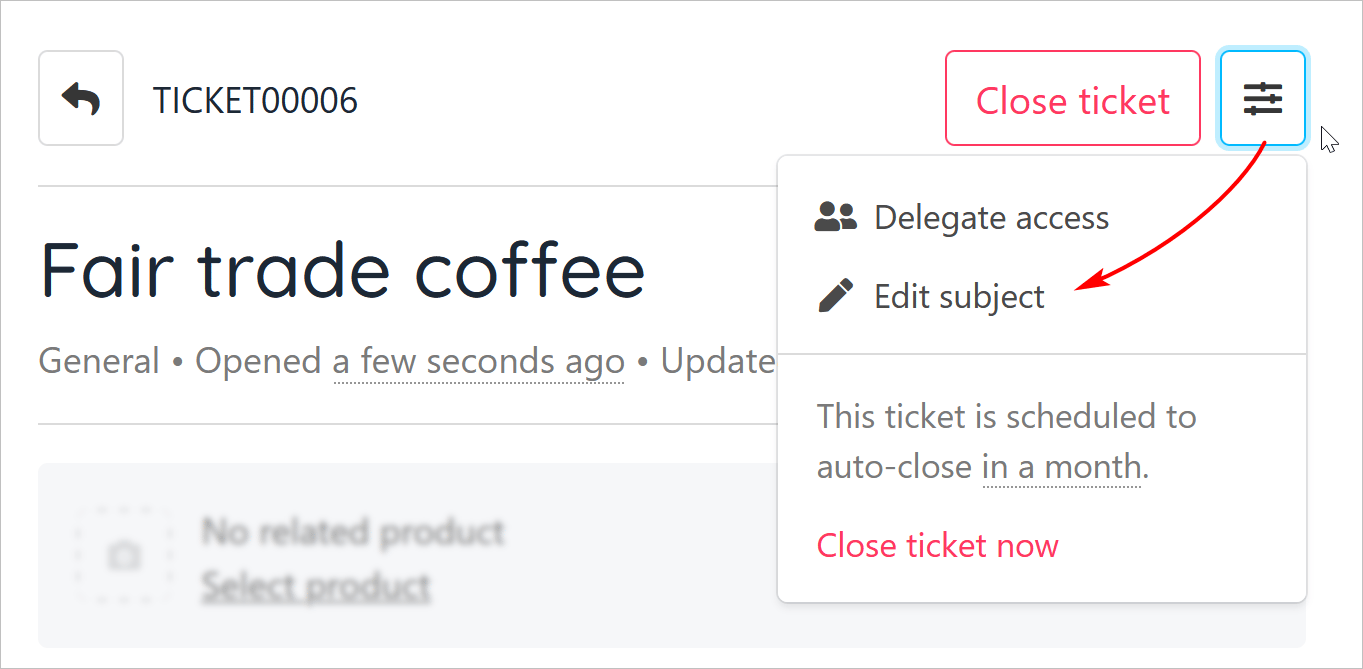
Edit Subject
- Change the subject.
- Click Save.
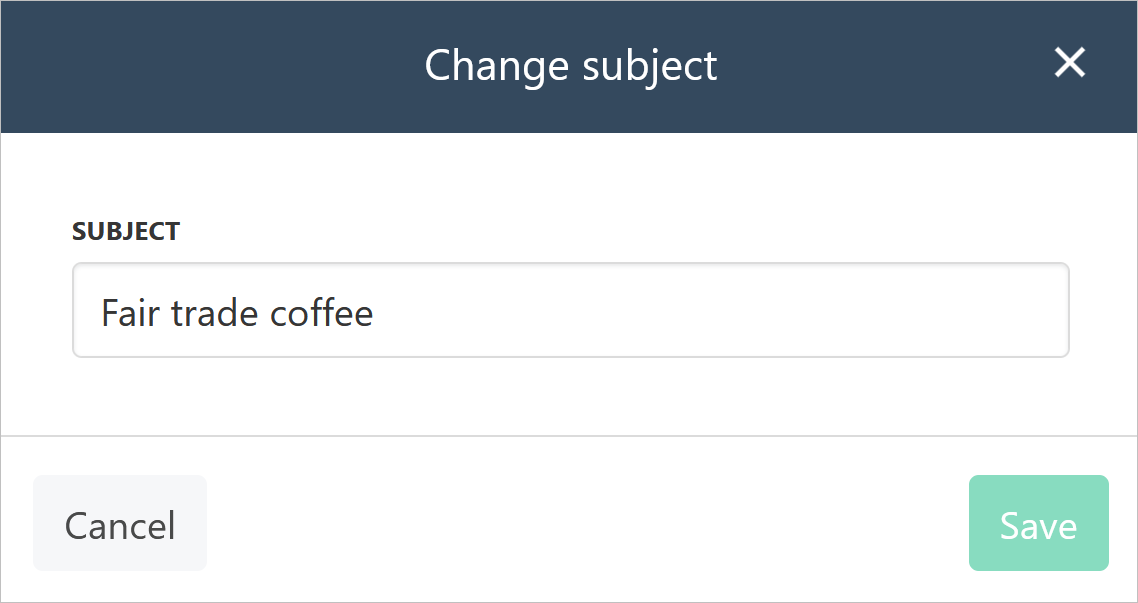
Change subject
Editing a ticket message
- Scroll down to the ticket text.
- Click the three-dot icon.
- Click Edit.
- Change the message.
- Click Save.
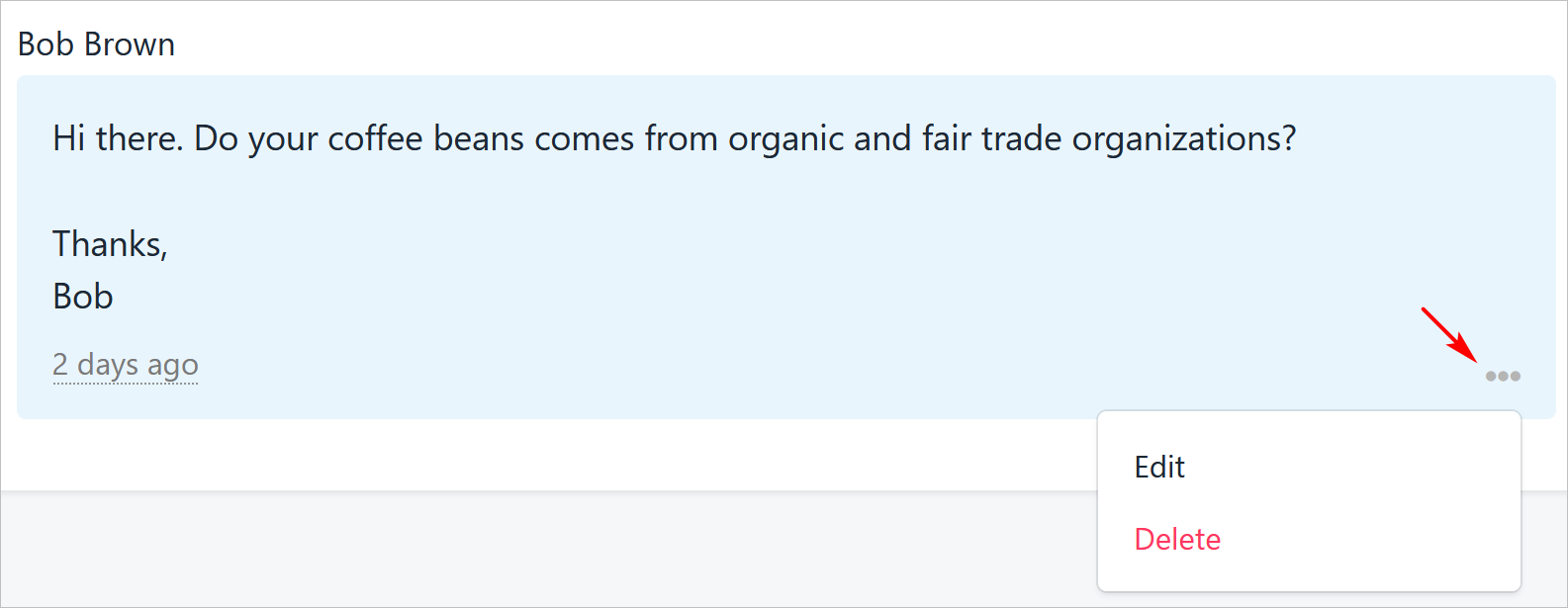
Click three-dot icon
Closing a ticket
The final status of a ticket is called Closed. That means no further communication can take place on this message. Account holders can close a ticket anytime. There are two ways to close a ticket.- Click the Close ticket button.
- Click the three-bar icon and then click Close ticket now.
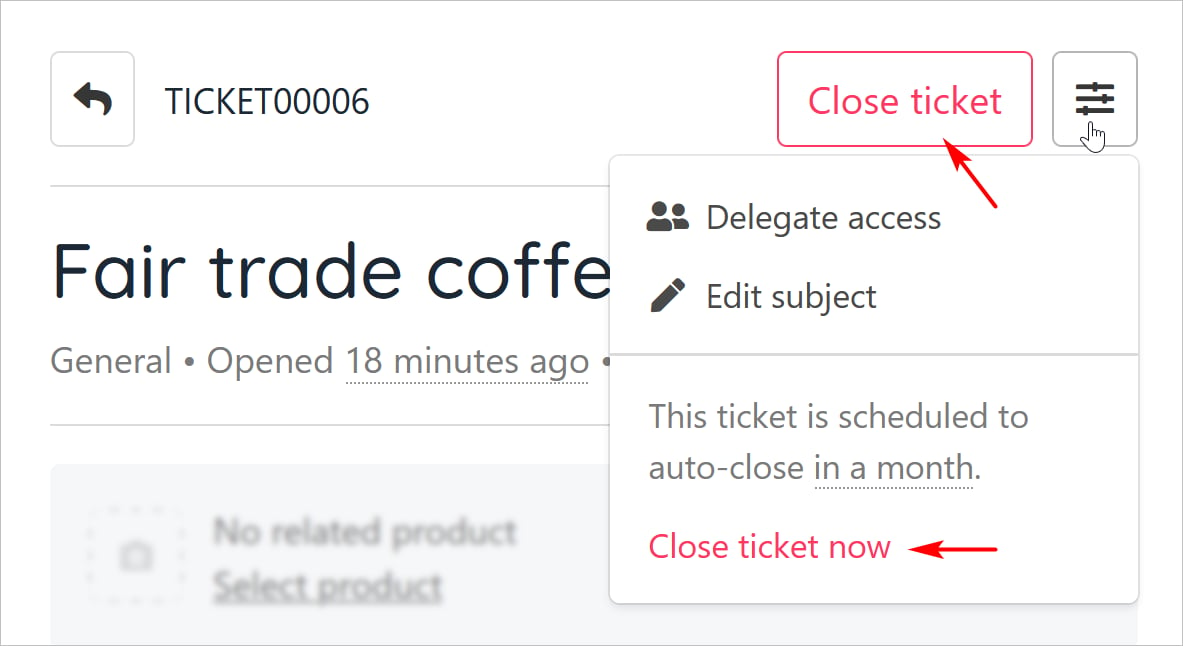
Close ticket button
Viewing tickets
The account holder’s store dashboard shows a list of active tickets and their current status. The list does not display Closed tickets.- To see the discussion thread inside a ticket, click a name on the dashboard list.
- To see a list of all Active and Closed tickets, click View all.
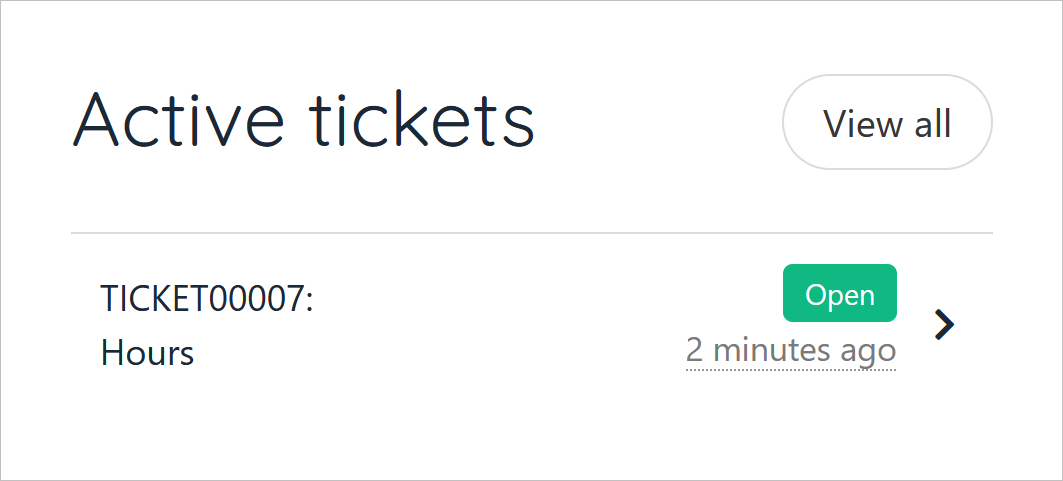
View all
- Click a menu tab to see Active or Closed tickets.
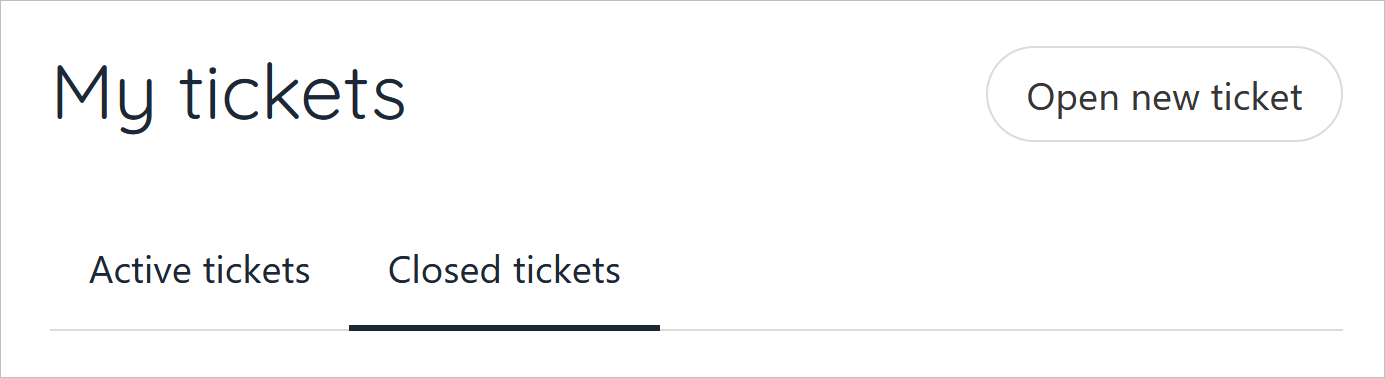
Active or Closed tickets
Adding delegates to a ticket
Clients and leads (who have a store account) can invite other account holders to join the ticket as a delegate. A delegate can read posted messages in a ticket thread and submit messages, too.- On the account dashboard, click an active ticket.
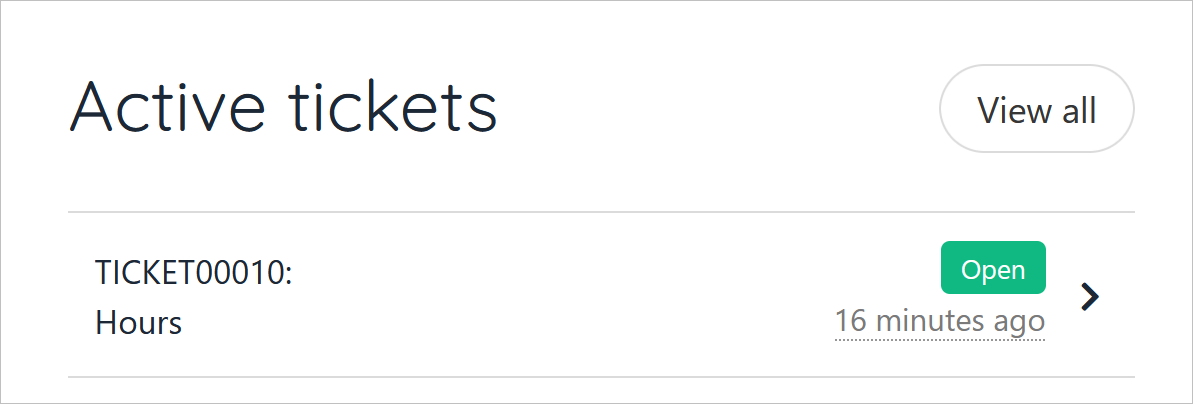
Active ticket
- Click the three-line icon.
- Select Delegate access on the drop-down menu.
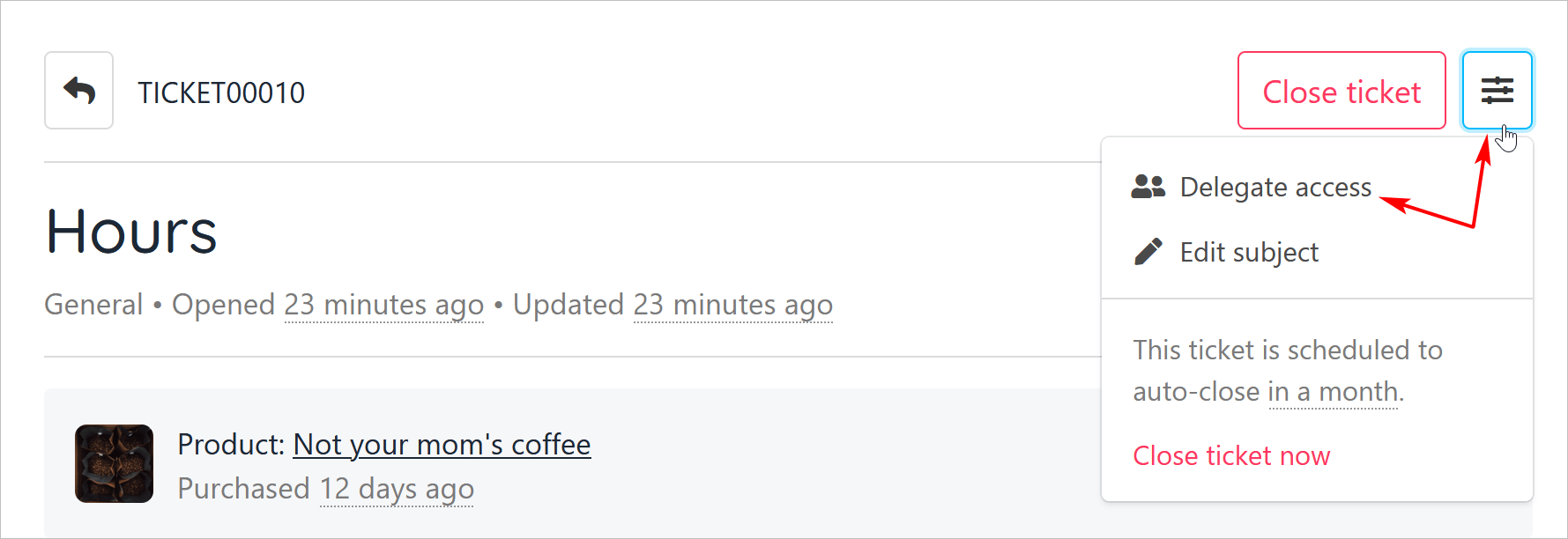
Select Delegate access
- On the Ticket delegate access panel, click Invite delegate.
- Enter the person’s email address in the popup window.
- Click Send invite.
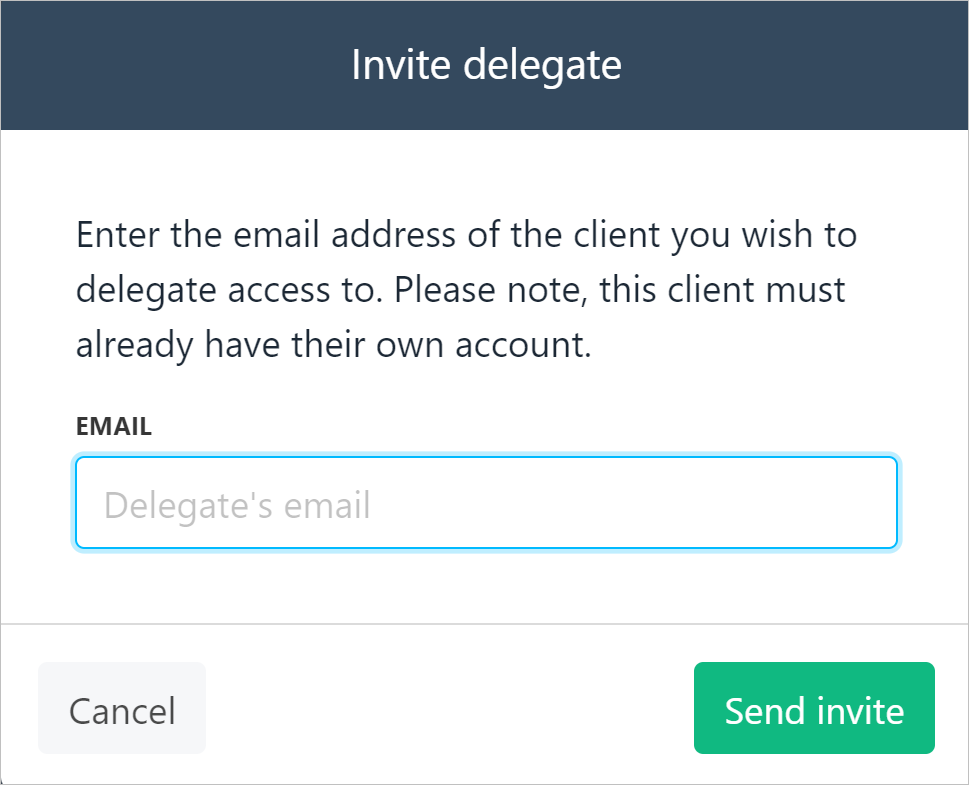
Enter email address
- Upmind sends the person an email message with an invite and displays their name with the Invited status.
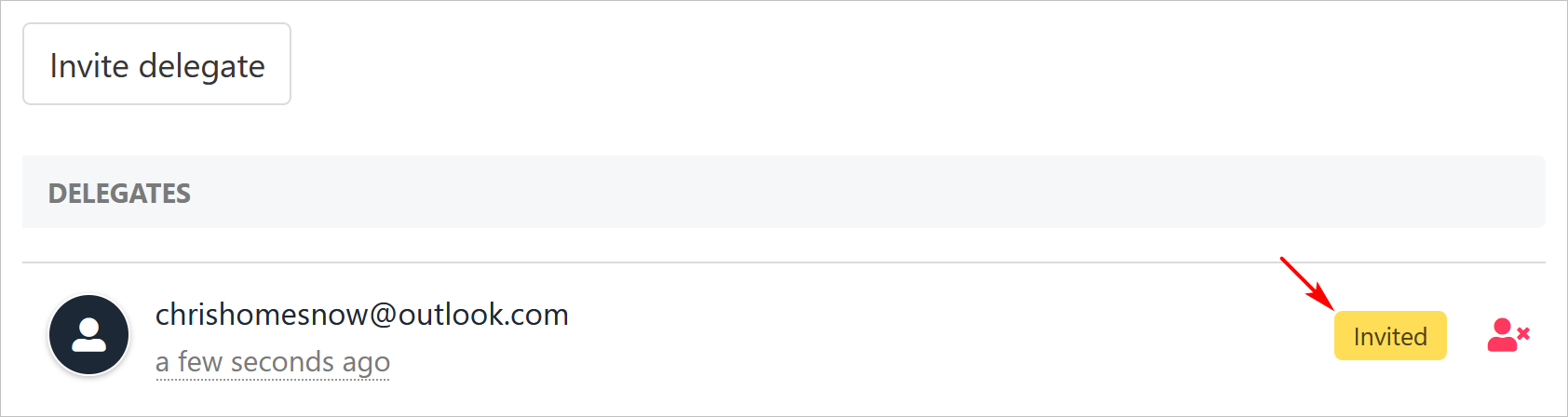
Delegate name and Invited status

New status
Removing delegate access
To remove delegate access to a ticket:- Click the three-line icon.
- Select Delegate access on the drop-down menu.
- Click the Revoke access icon.

Revoke access icon
Upmind immediately removes delegate access to a ticket after the account holder clicks the Revoke icon.
The delegate experience
The delegate’s dashboard shows active tickets including tickets with delegate access.- Tickets with delegate access have a share icon.
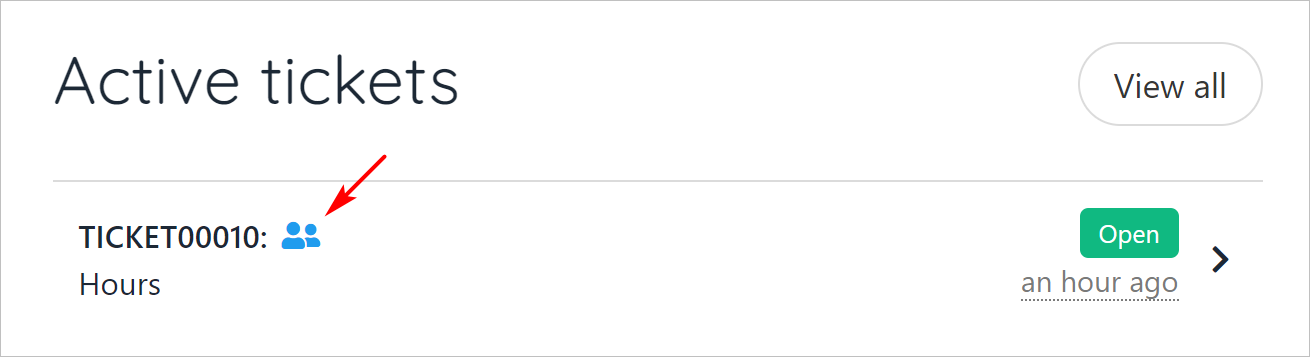
Share icon
- To read a thread, click the active ticket tile.
- To add a message, enter text and click Post reply.
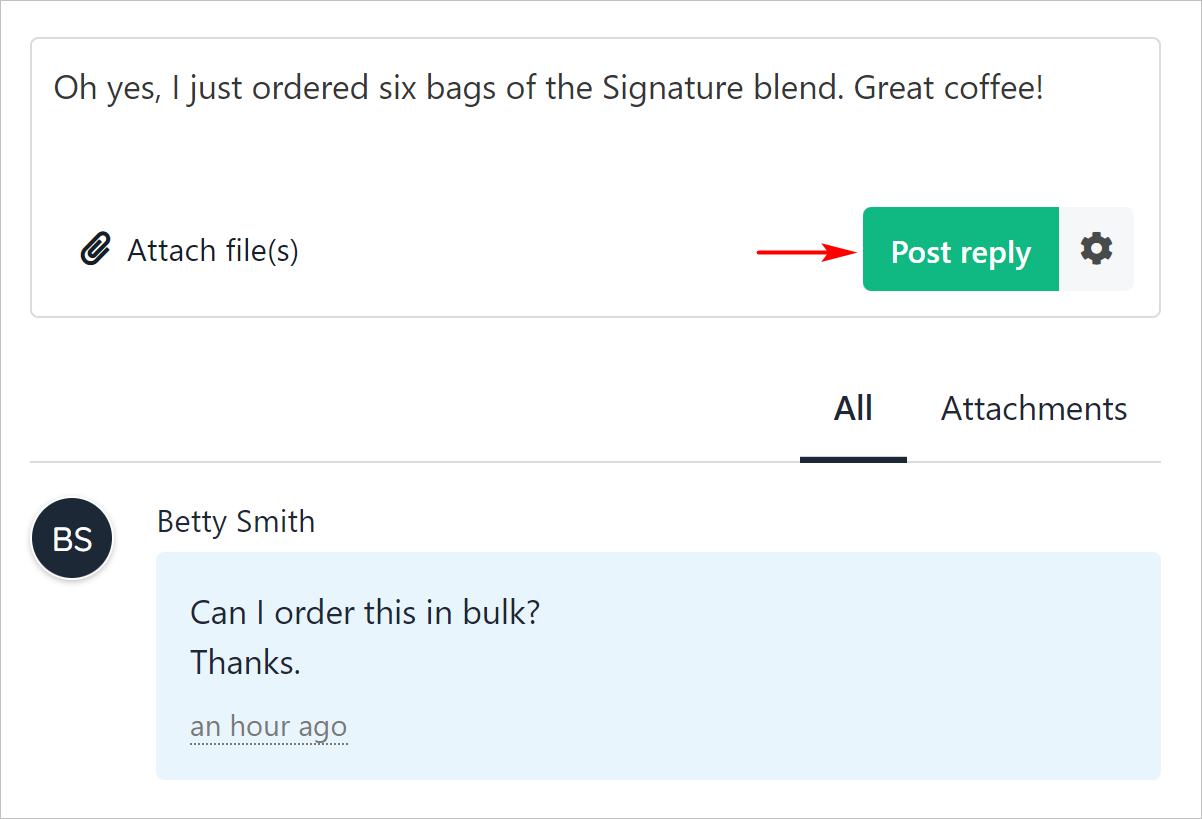
Click Post reply

Revised ticket status
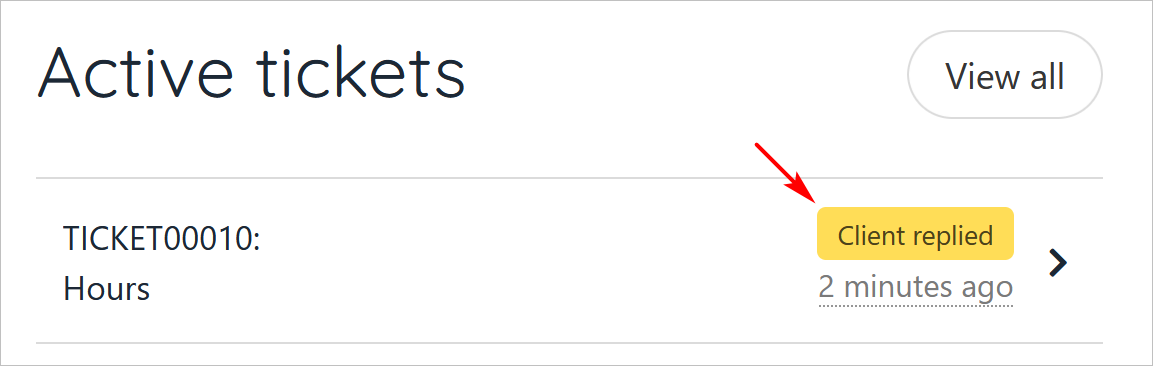
Account holder's page