

Global cancellation settings
You can set the default behaviour for all subscription cancellations.Access subscription options
- Log in to Upmind admin.
- Go to Settings > Subscription Options under Branding and Customisation.
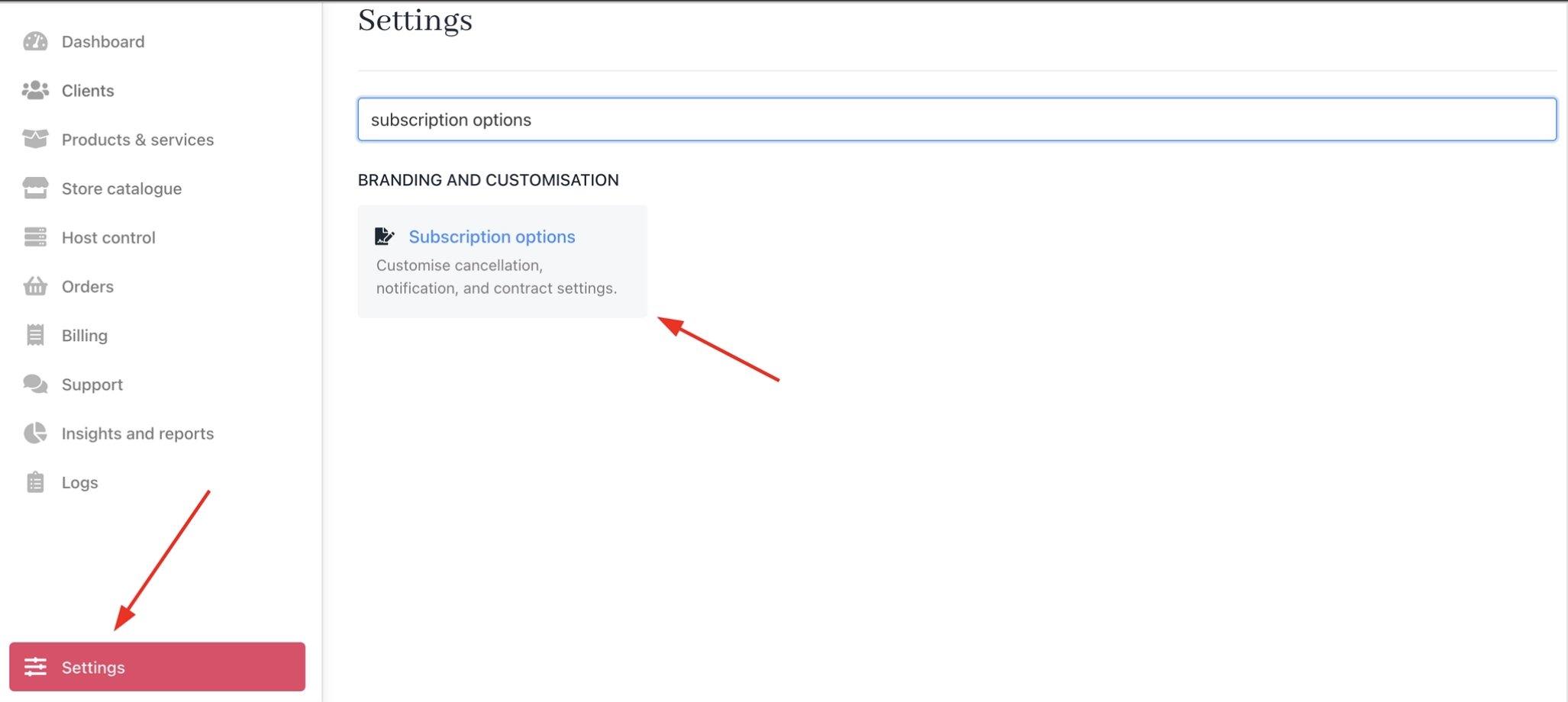
Settings > Branding and Customisation > Subscription Options
Cancellation terms options
Upmind supports two cancellation points for subscriptions.- Immediate cancellation: The subscription is cancelled right away, and the service stops immediately.
- End of billing term cancellation: The subscription remains active until the end of the current billing period and then stops.
- Prevent clients from cancelling paid invoices: Blocks cancellation until the current term ends. This is for services that require full payment periods.
- Auto-accept requests for overdue invoices: Approves cancellations on unpaid invoices.
- Open support ticket automatically: Creates a ticket assigned to a specific department.
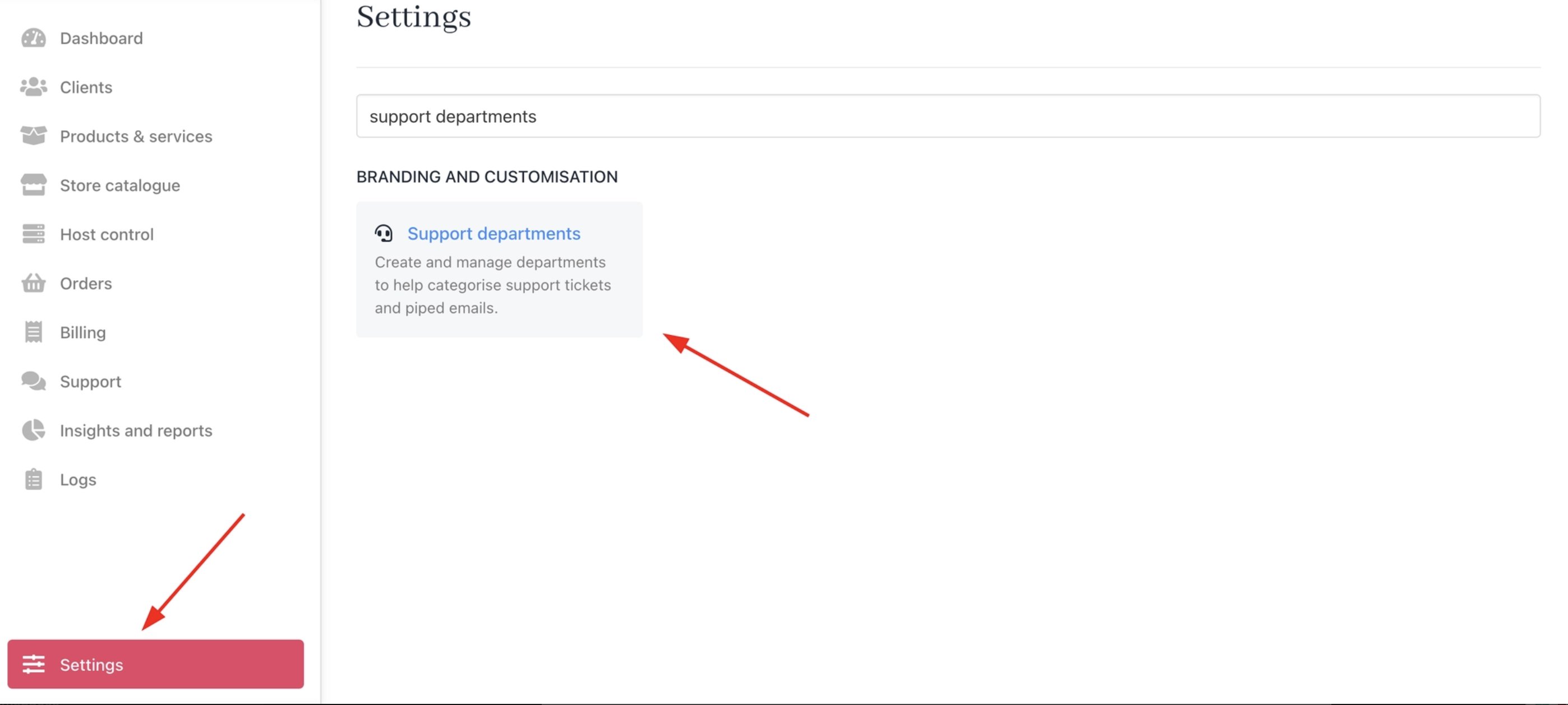
Settings > Support Department
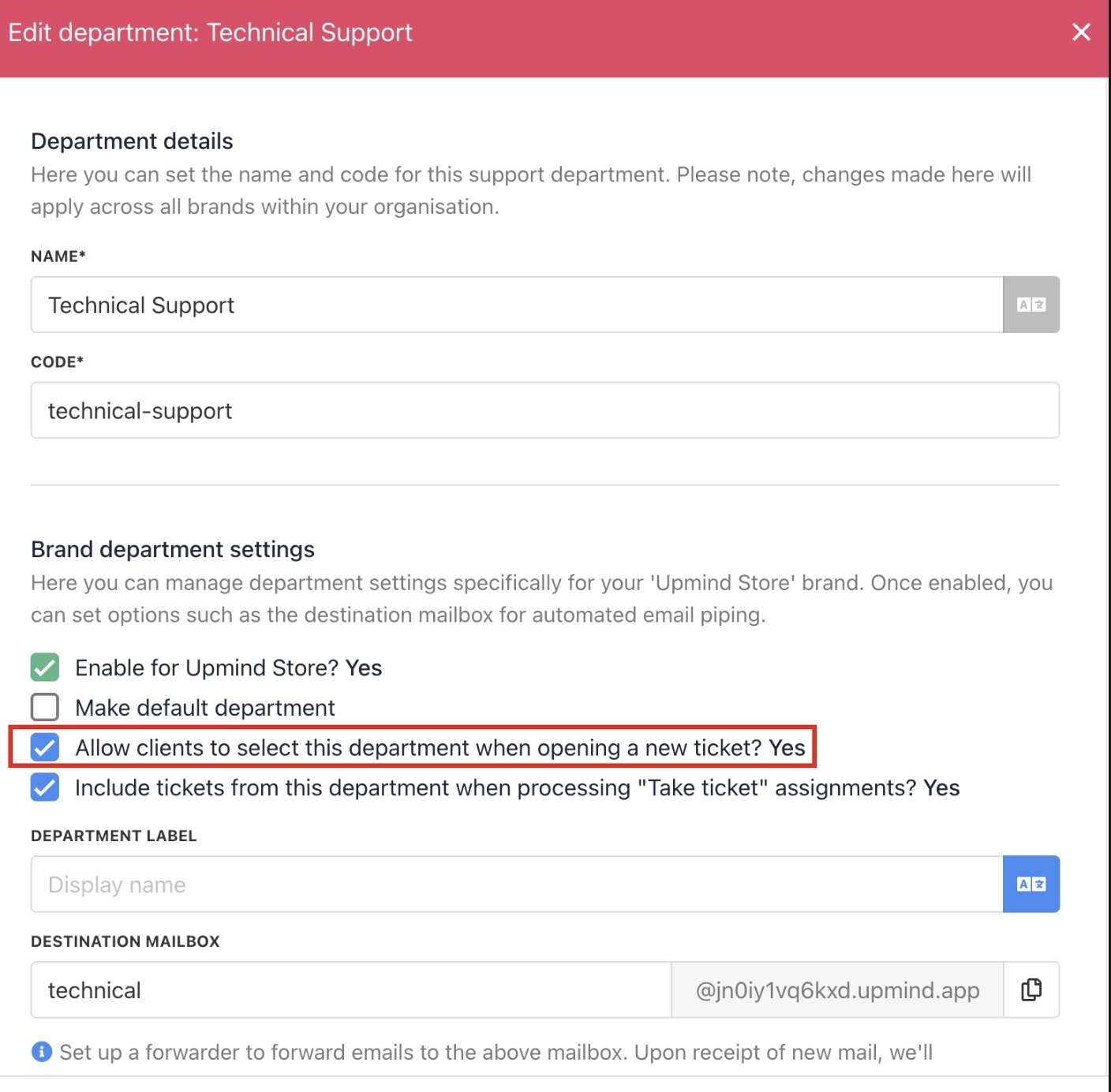
Enable allow clients to select this department when creating a ticket
- Allow Immediate Cancellation Requests: When off, clients can only cancel at the end of the billing term. Applies to client-side requests only.
When assigning a cancellation ticket department, make sure Allow clients to select this department when creating a ticket is enabled.Settings → Support Departments → [Your Department]If disabled, clients see an error: “There was an error while creating a ticket for this invoice.”
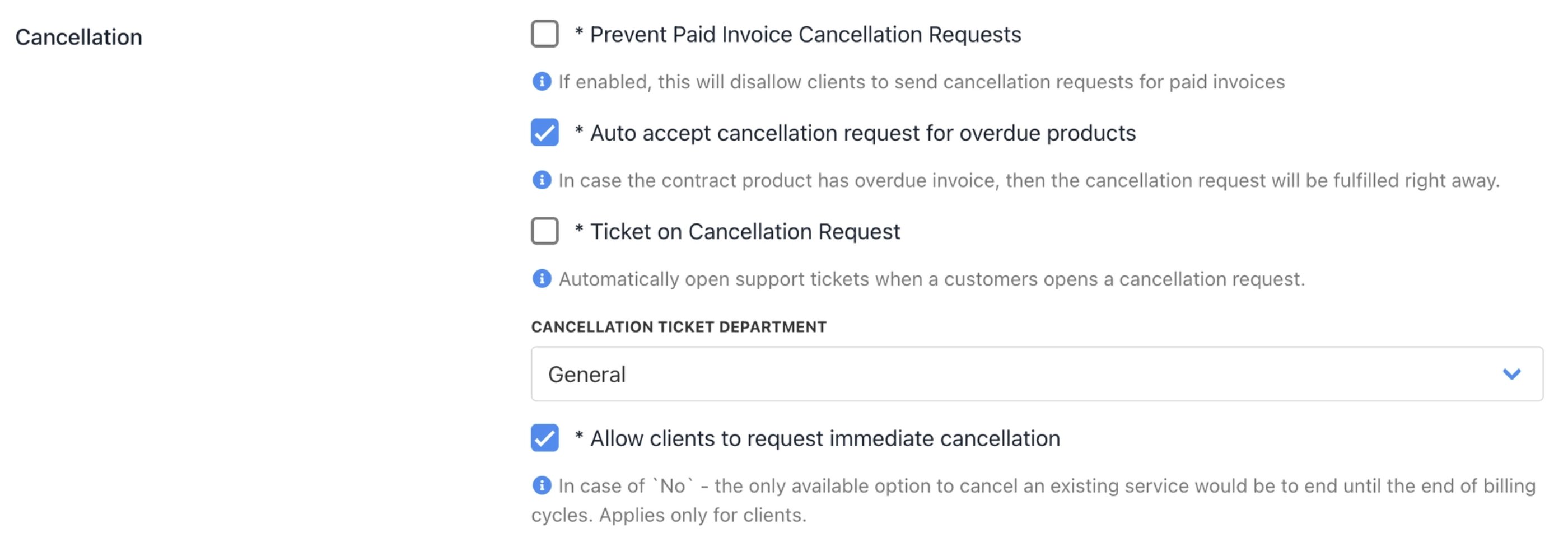
Manage cancellation requests from Cancellation
Client-level overrides are available under Automation Overrides. For more details, follow this guide.
Contract terms (strict mode)
- Strict Reconciliation Mode: Evaluates contracts by paid invoices. This suspends or cancels unpaid ones or allows next-due-date mode for incomplete histories.
- Cancel Unpaid Invoices on Auto-renew Off: Cancels future unpaid invoices when auto-renew turns off. Fully cancels the contract if the invoice contains only those products.
- Block Charges on Pending Cancellations: Stops charge attempts on invoices with pending cancellation requests.
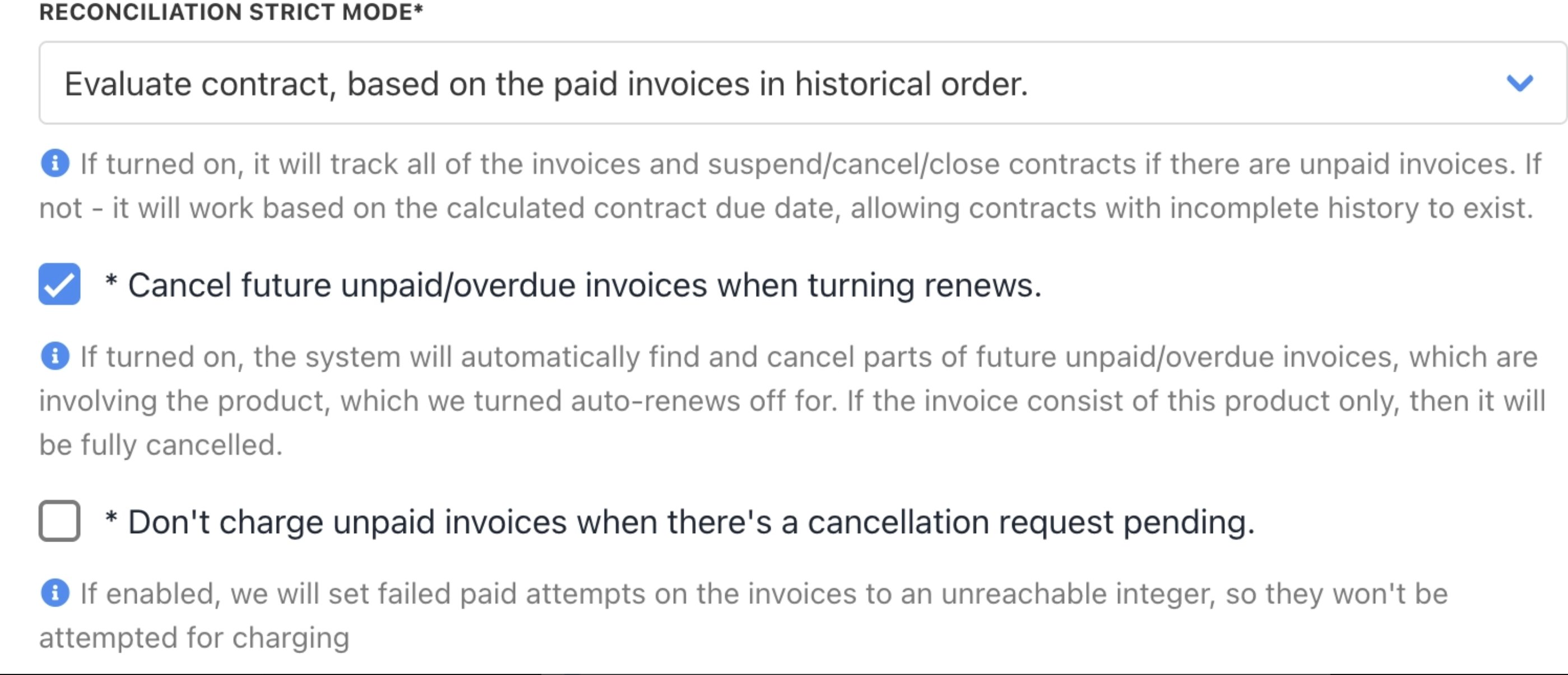
Configure strict mode
- Cancel Unpaid Invoices on Contract Close: Auto-cancels all unpaid contract invoices during automatic contract closure.
- Cancel Unpaid Invoices on Contract Cancel: Auto-cancels all unpaid contract invoices during automatic contract cancellation.
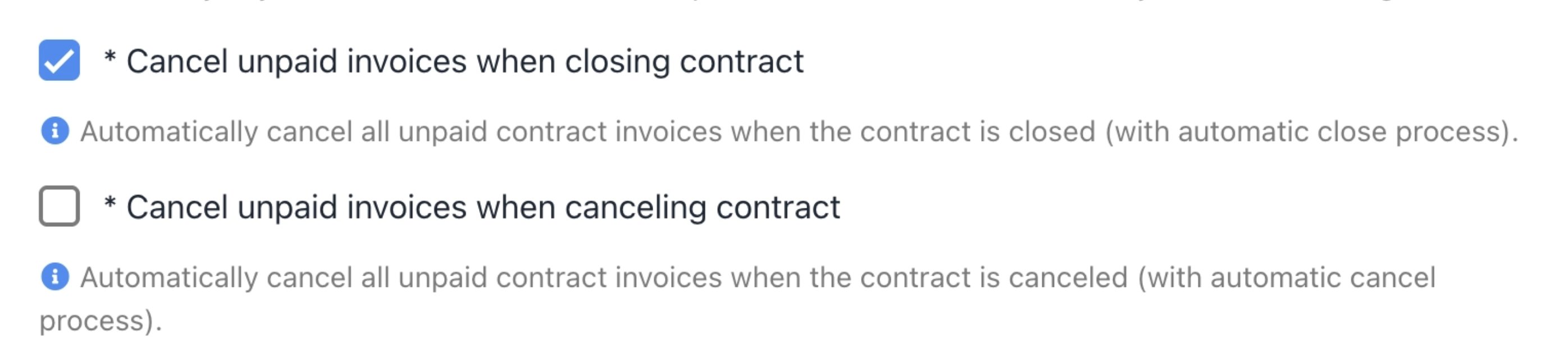
Unpaid invoice cancellations
How to cancel a subscription
Client cancellation process
Clients cancel from their account dashboard.- Log in to the client area.
- Go to Products & Services > Subscriptions.
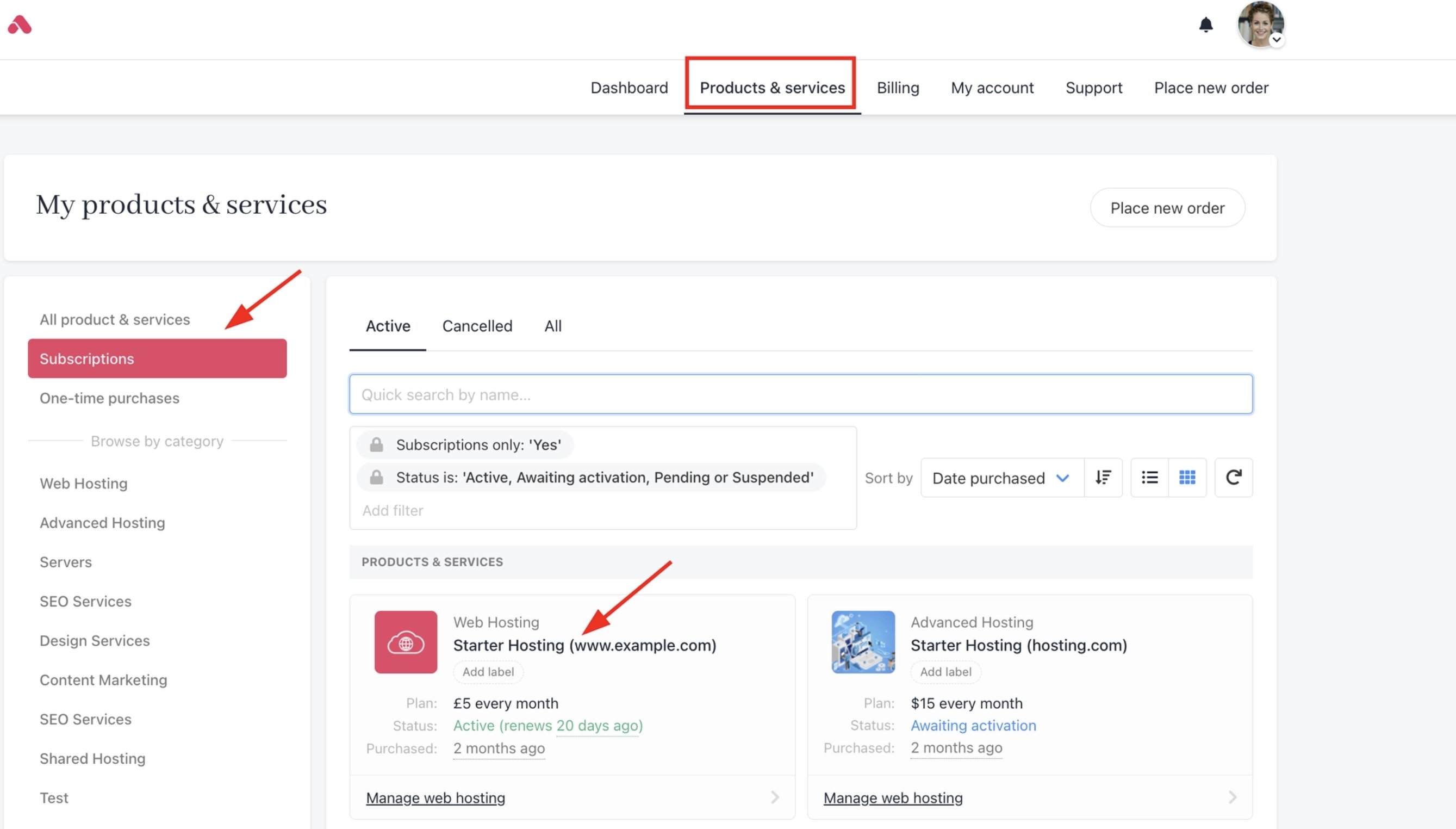
Products & Services > Subscriptions
- Click the product > Billing tab.
- Click Cancellation Options.
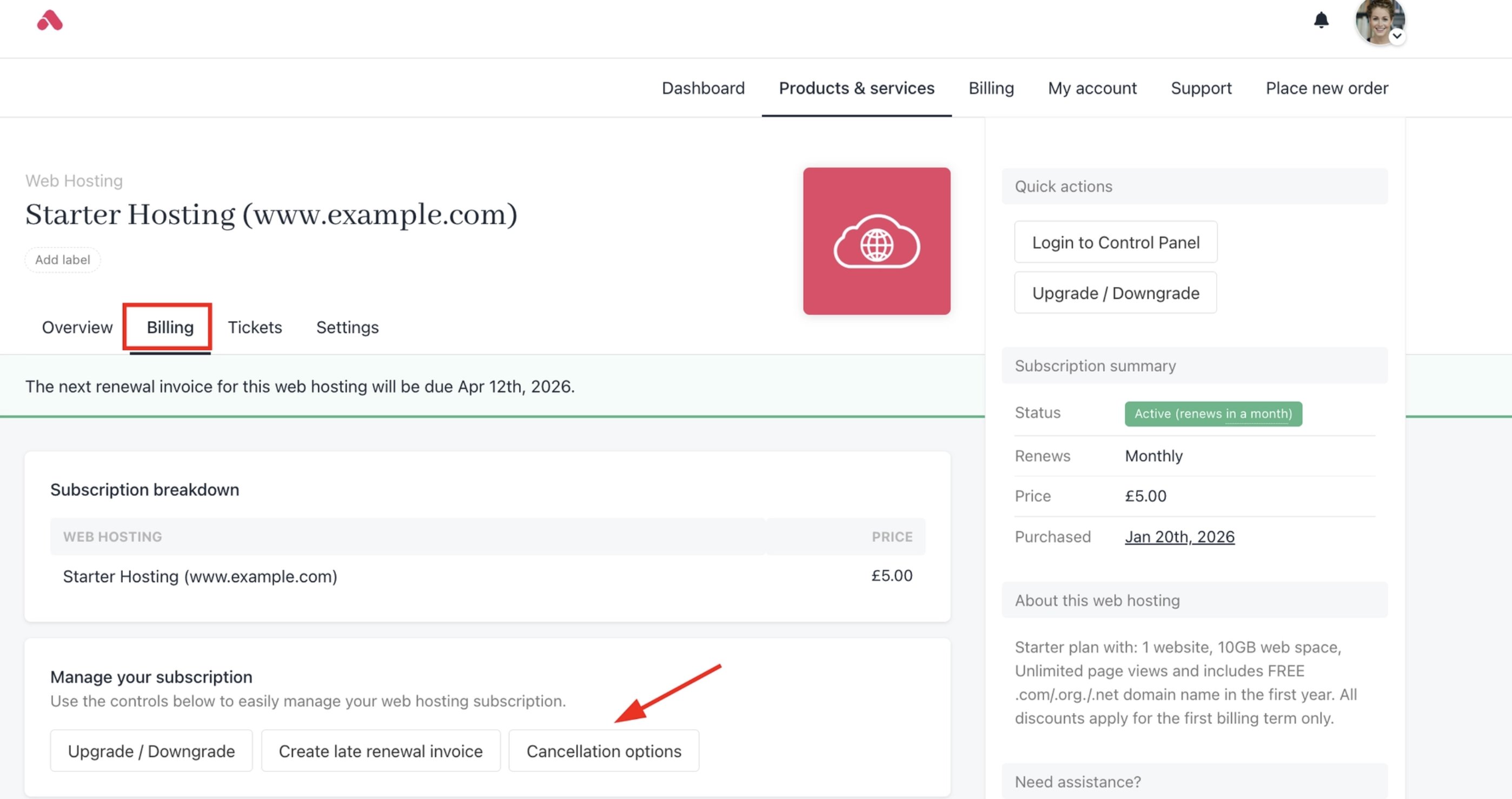
Billing > Cancellation Options
- Choose Immediate Cancellation or End of Billing Term.
- Enter reason (required).
- Submit a request.
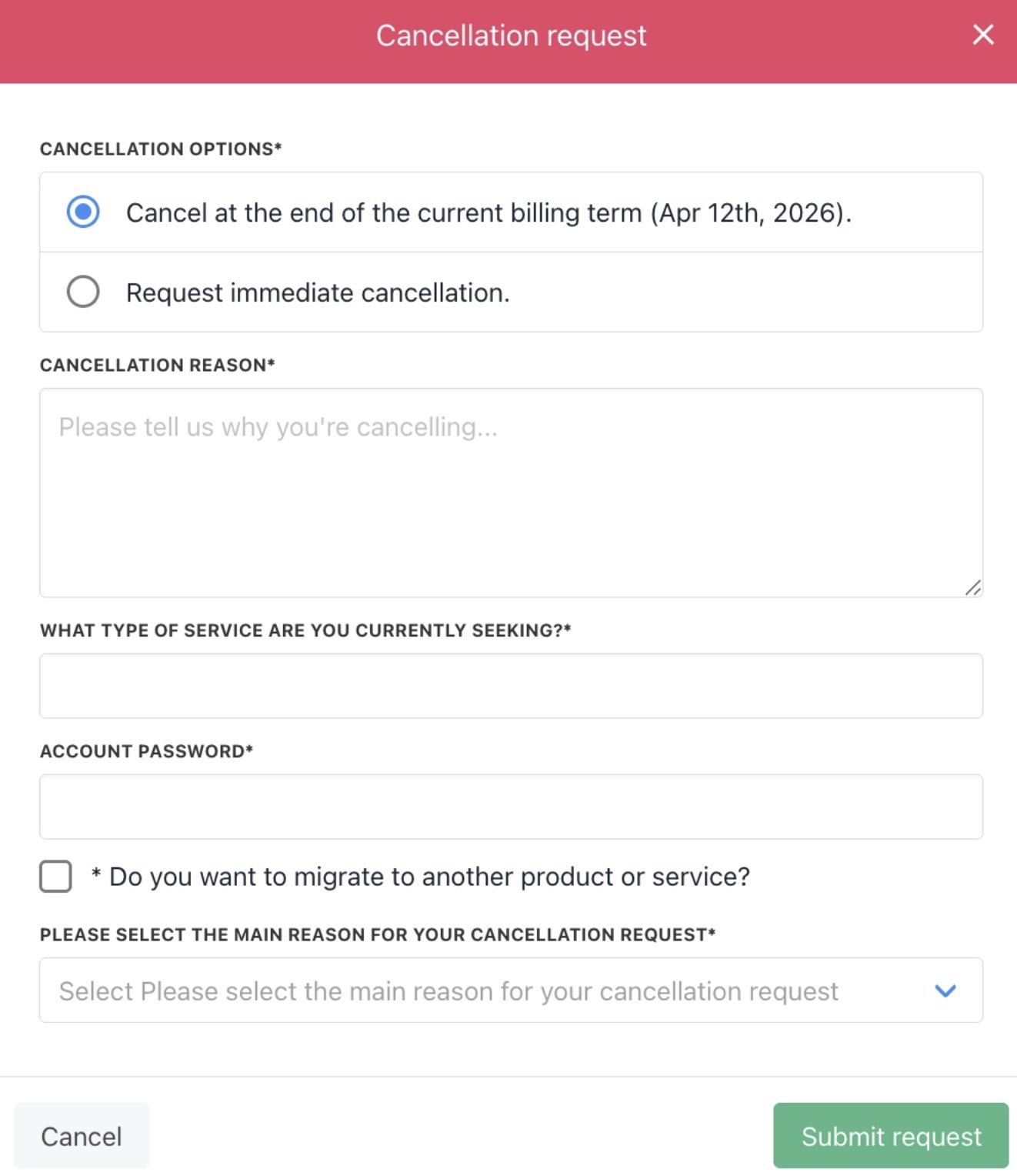
Submit cancellation request
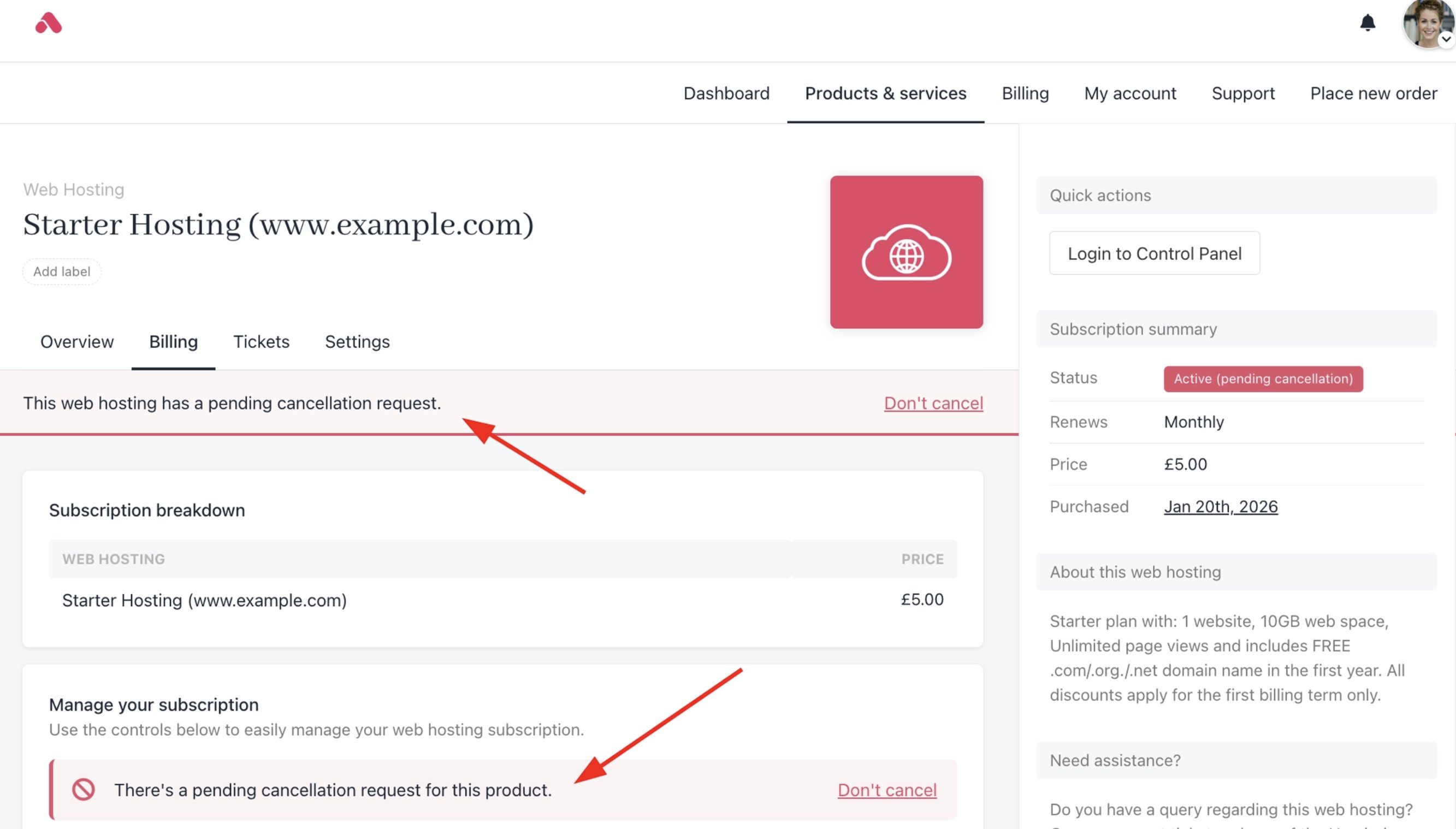
Cancellation request
Product & service cancellation options
These are options available to the admin or staff. You can access these options from Product Catalogue > Chosen Product or Service > Product Automation.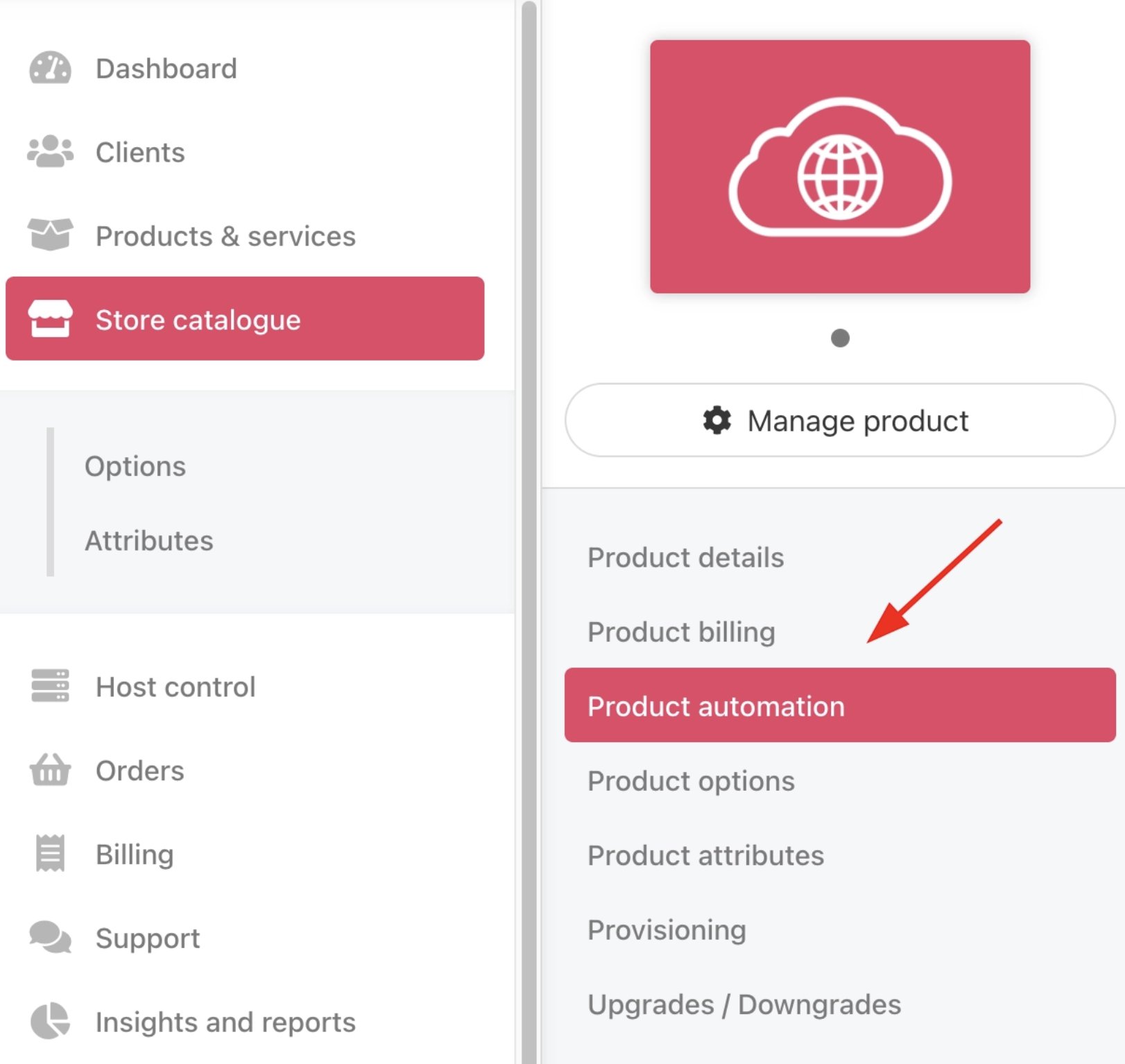
Product Catalogue > Chosen Product or Service > Product Automation
- Cancel Anytime: Allows cancellation requests at any point during the billing term.
- Automatically Accept Cancellation Requests: Automatically approves requests for this product. Automated acceptance issues no refunds. You can only do so if you issue it manually.
- Use Brand Recommended Money Back Period Value: Applies the brand’s recommended money back period from global settings to this product.
- Recommended Money Back Period: Number of days for refunds on immediate cancellations, set at the brand level.
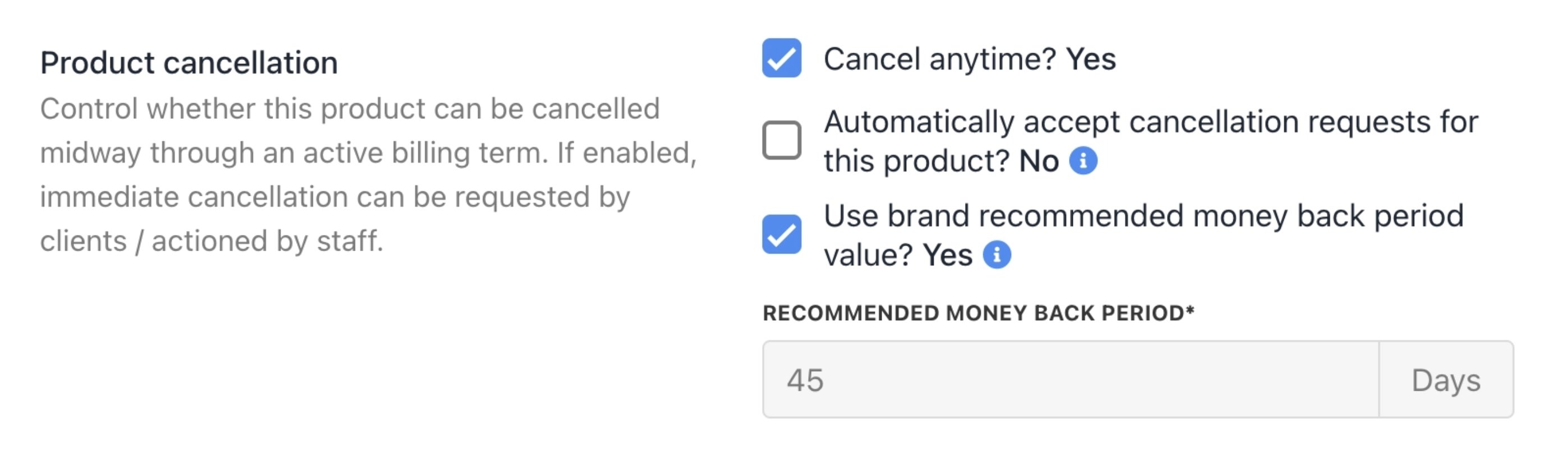
Product cancellation
Admin cancellation actions
Admin or staff can cancel subscriptions from the admin dashboard. Cancel from the client profile- Go to Products & Services > Subscriptions.
- Use a menu tab (e.g. Active, Awaiting for payment, etc.) to filter results. (optional)
- Find the subscription contract > Manage.
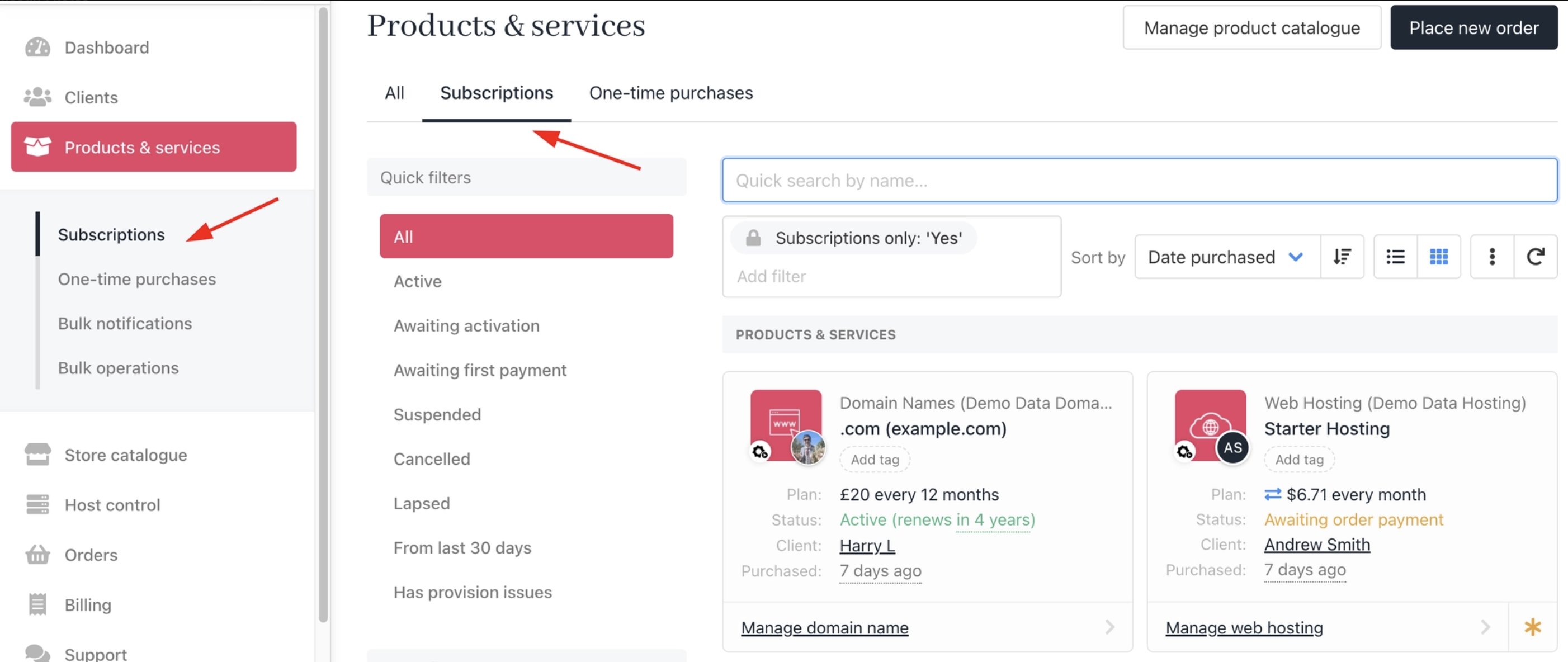
Products & Services > Subscriptions
- Under Quick Actions, choose Cancellation Options and submit the request.

Quick actions > Cancellation options
Subscription status update
For paid invoices
After submitting the cancellation, Upmind changes the subscription status to Lapsed.
Lapsed status
For unpaid invoices
When you cancel with immediate effect, the status changes to Cancelled. The client will receive a notification.
Cancelled status
You can reactivate a cancelled or lapsed contract. For more details on How to Modify a Subscription Contract, follow this guide.