

- pay invoices
- issue credit notes or refunds
- change due dates
Opening a client subscription page
- Log in to Upmind.
- Click Products & Services on the left menu.
- Make sure the Subscriptions menu tab is selected.
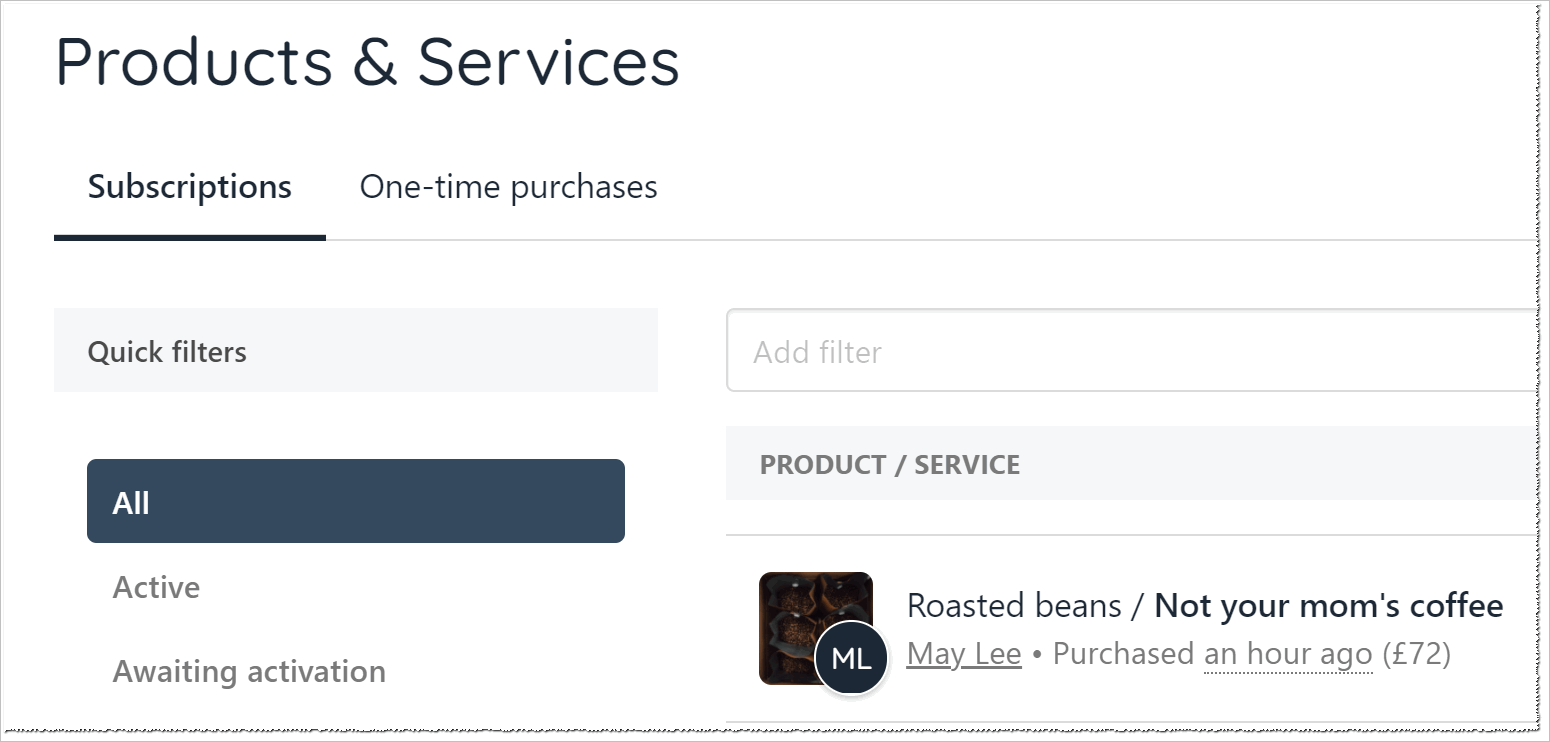
Click Subscriptions tab
- Scroll through the list and click the client subscription you want to review or modify. The Overview page displays.
Managing invoices
- Click the Invoices menu tab.
- Click the invoice you want to review or modify.
- Scroll down the page and locate the QUICK ACTIONS heading.
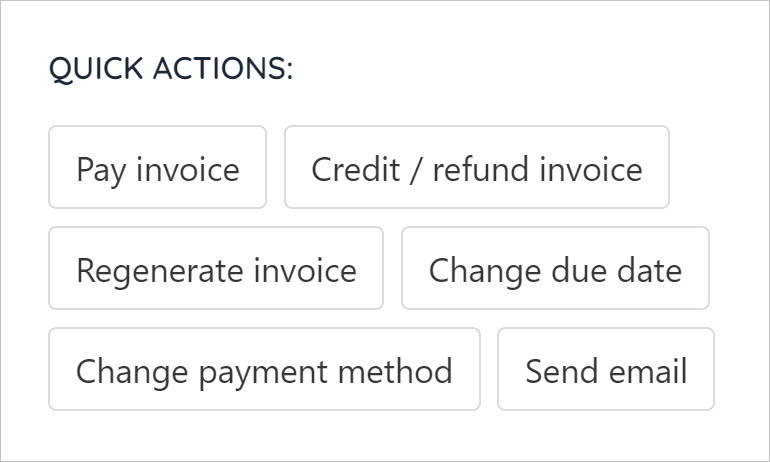
QUICK ACTIONS heading
Paying invoices
- Click the Pay invoice button.
- Fill the fields on the pop-up window.
- Select Pay.
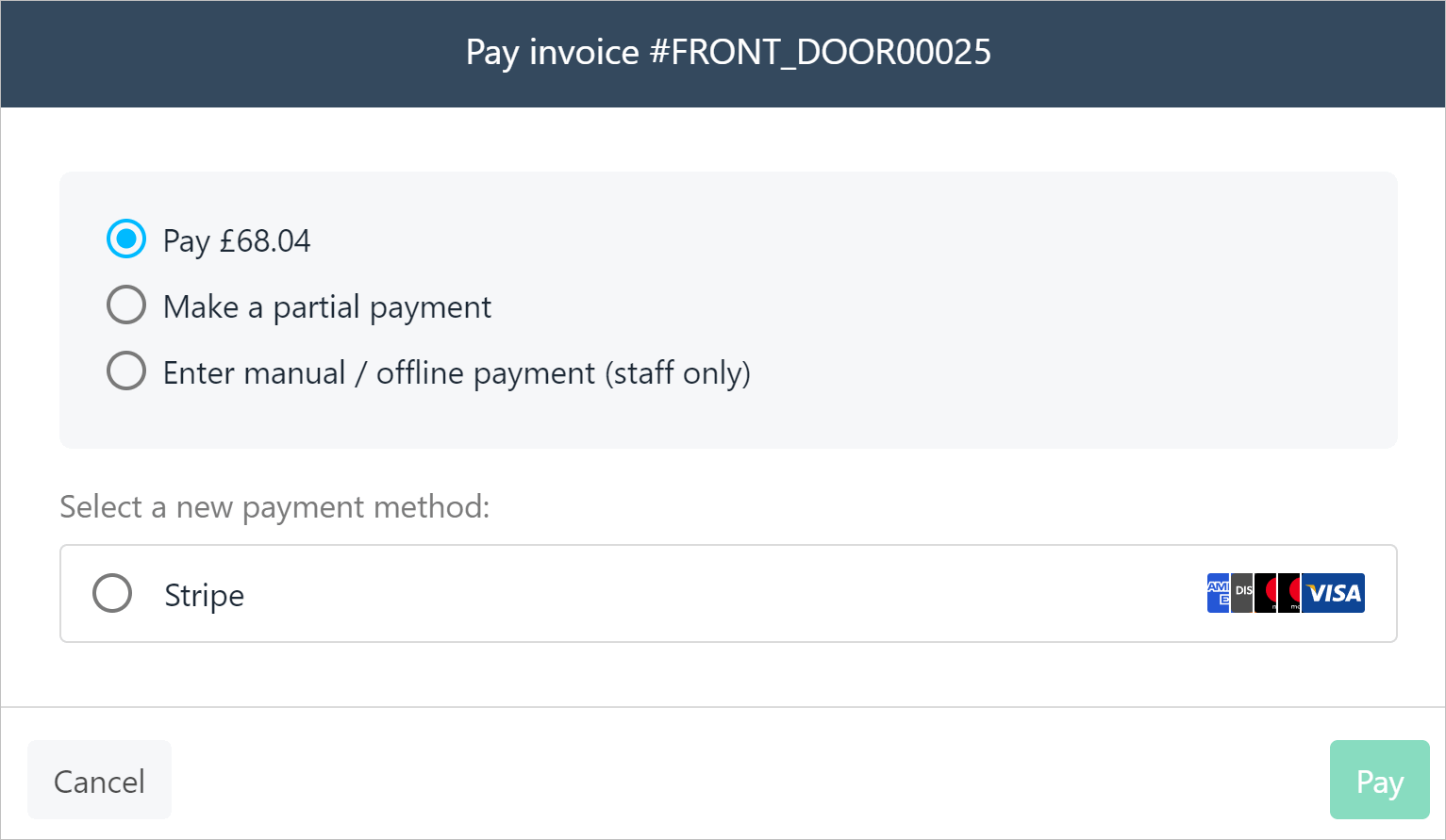
Select Pay
Issuing a credit or refund
- Click the Credit/refund invoice button.
- Fill the fields in the window.
- Click Submit.
You can issue a full or partial credit/refund.
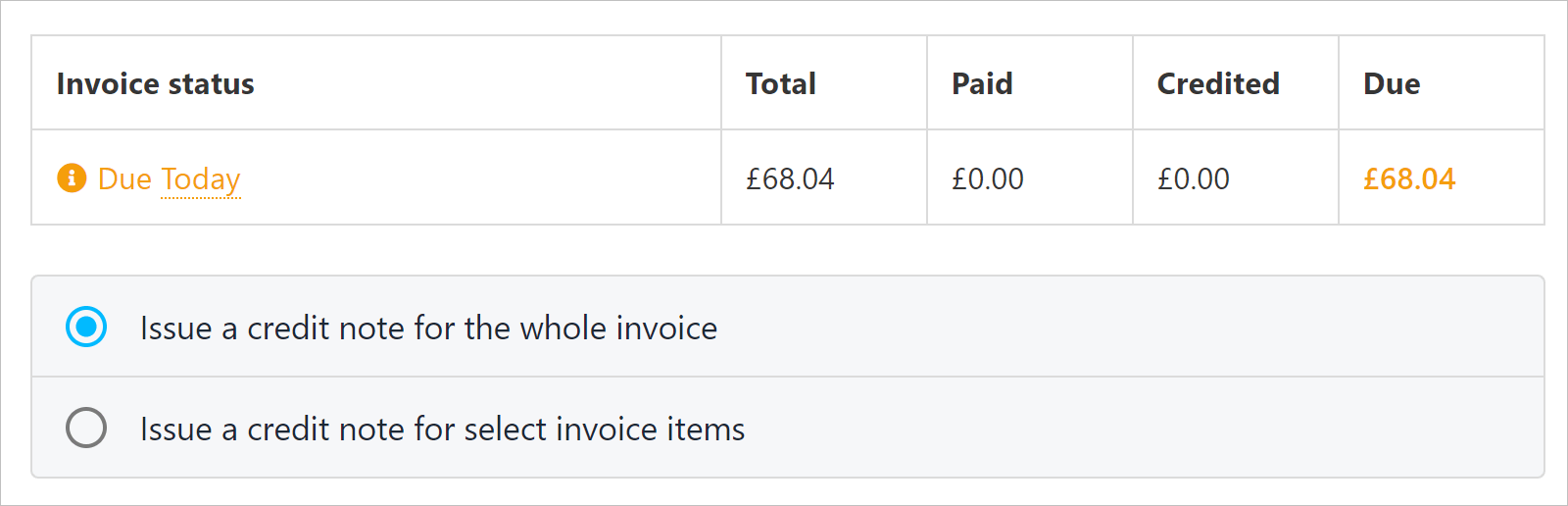
Click Credit/refund
Resending an invoice
Use this feature to resend invoices. You can also update details like company name and address.- Click the Regenerate invoice button.
- Fill the fields in the window.
- Click Regenerate.
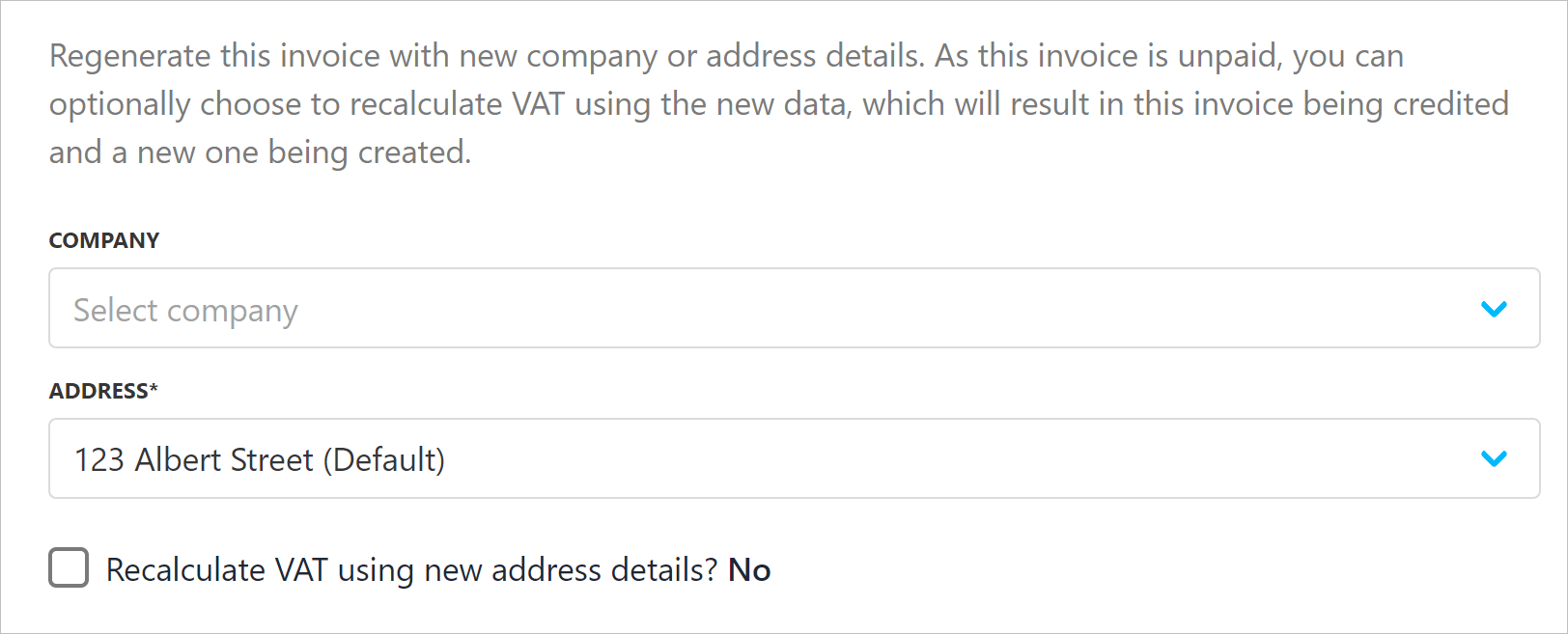
Click Regenerate invoice button
Changing the due date
- Click the Change due date button.
- Select a new date on the calendar.
- Click Save.
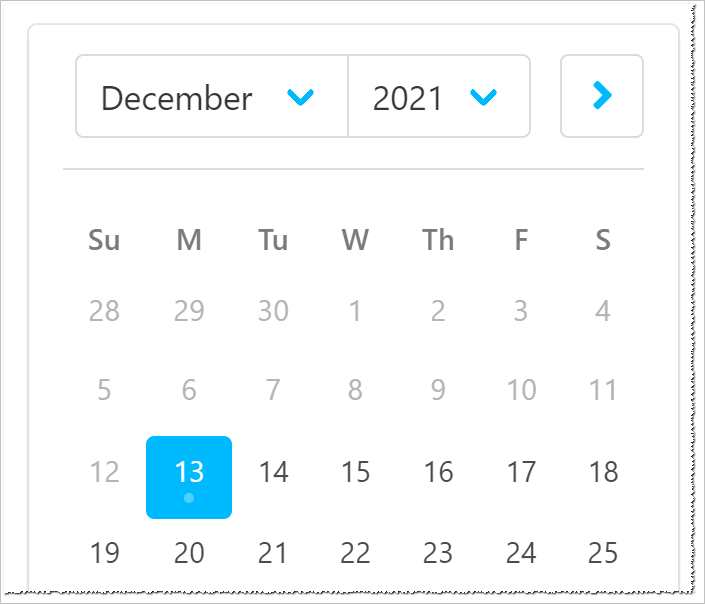
Change due date
Changing the payment method
- Click the Change payment method button.
- Choose a new method and fill the fields.
- Click Save.
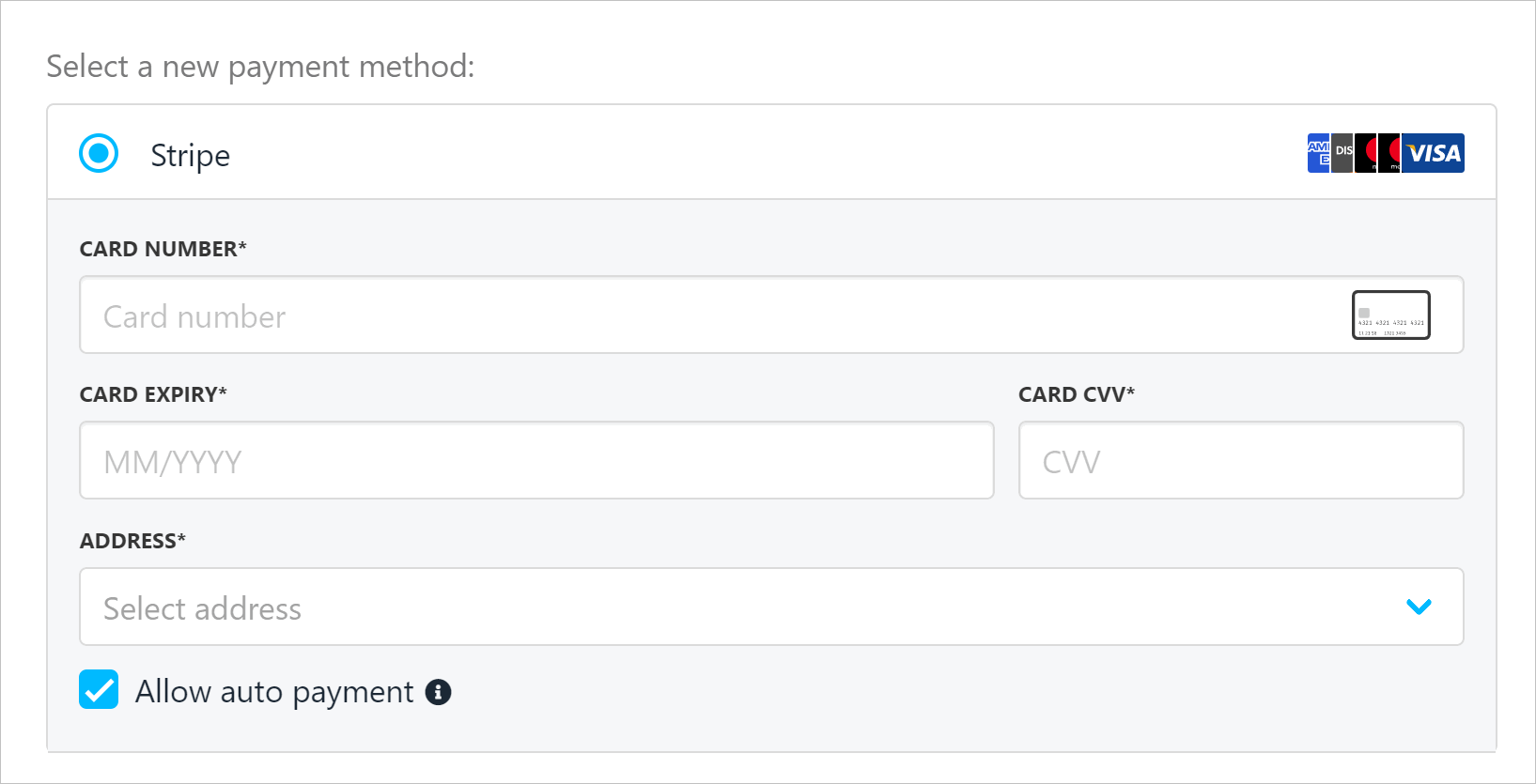
Click Change payment method
Customising invoice settings
Admins and store staff can change invoice settings for a specific subscription client.- Click the Settings menu tab.
- Scroll down the page and adjust the settings.
Changing payment method
- As discussed above.
Recurring invoice generation
Use the sliding scale to set the date when a new invoice should be generated relative to the end of the current subscription contract.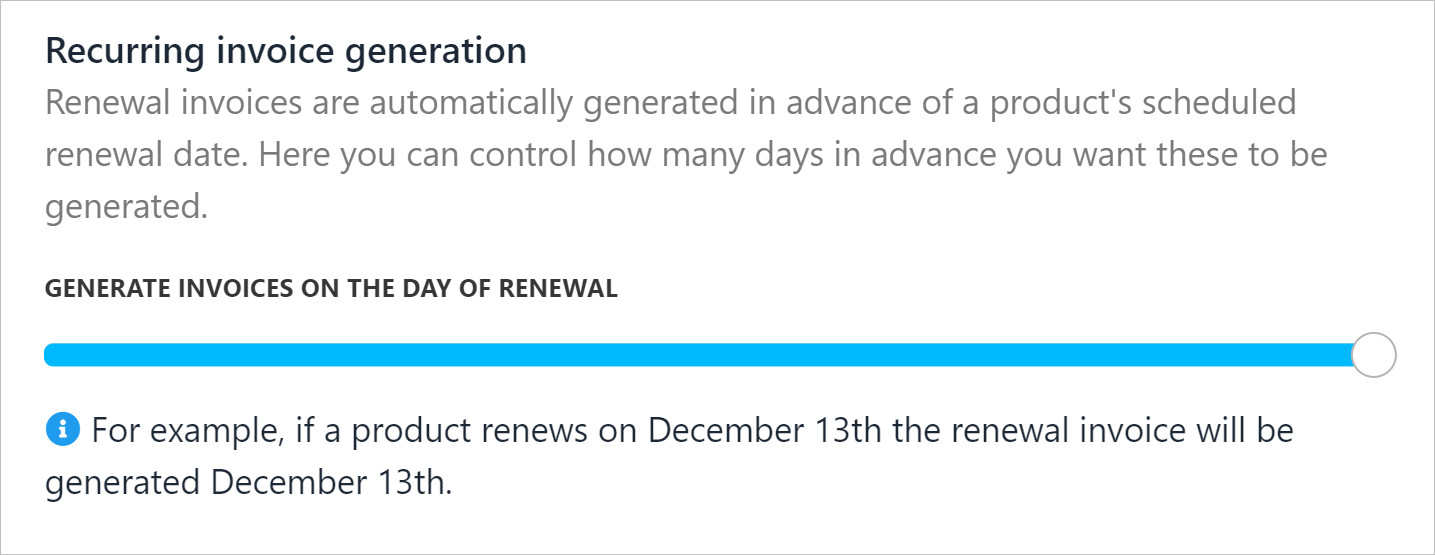
Change invoice due date
Recurring invoice due dates
Use the sliding scale to set the due date of a new invoice relative to the end of the current subscription contract.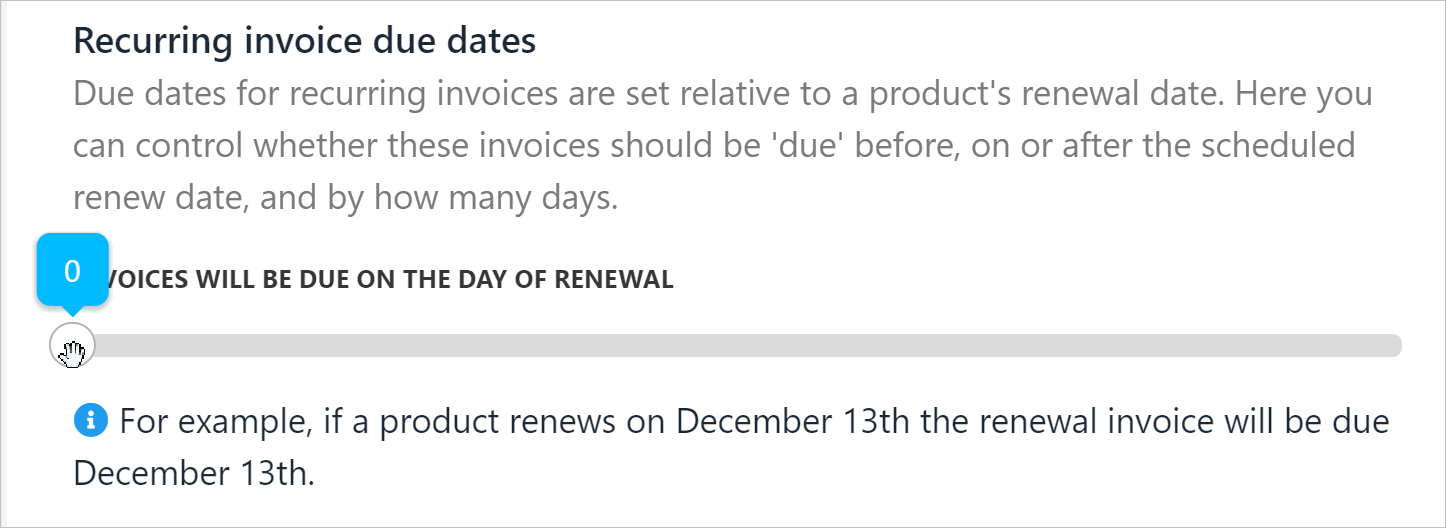
Set due date of new invoice
Changing intervals
Use the sliding scales to override default intervals for contract suspension, cancellation and termination.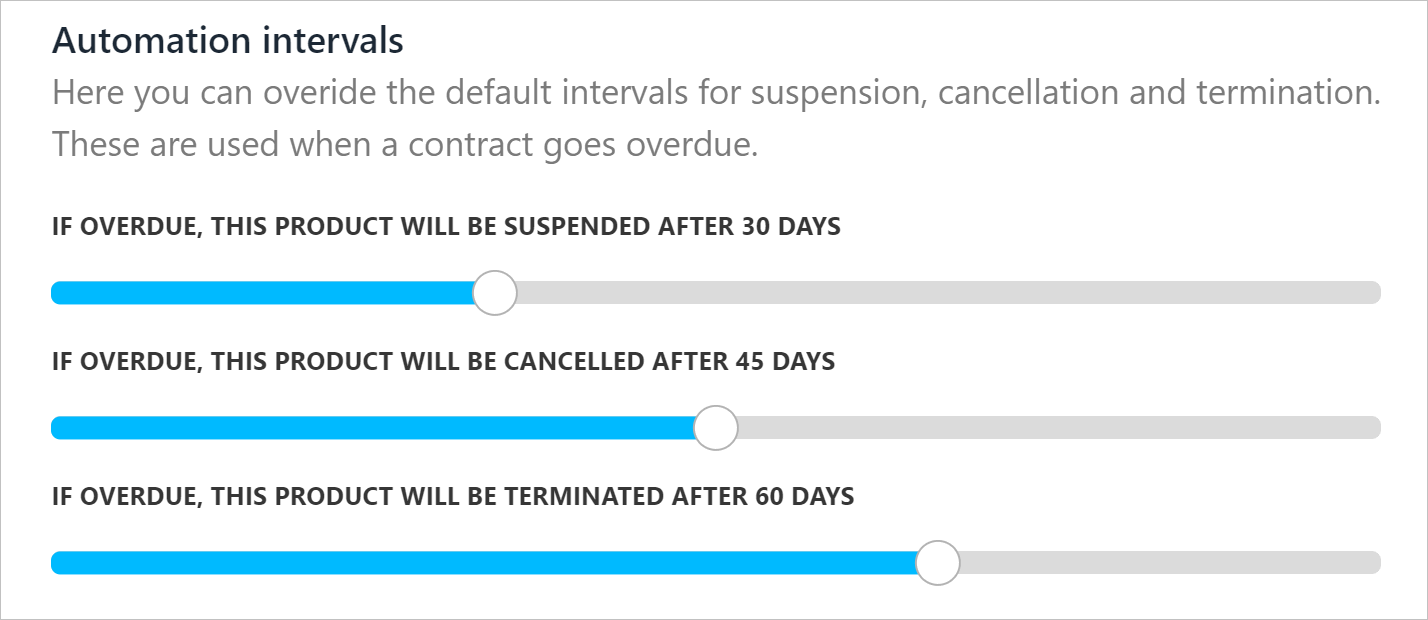
Override default intervals