

Using actions in the admin area
For more information on Parameters and Return Data for the actions, check our GitHub. To manage the provisioning actions in the Admin area, follow these steps:-
Go to the
Client Profile. - Select Products & Services and choose the relevant product.
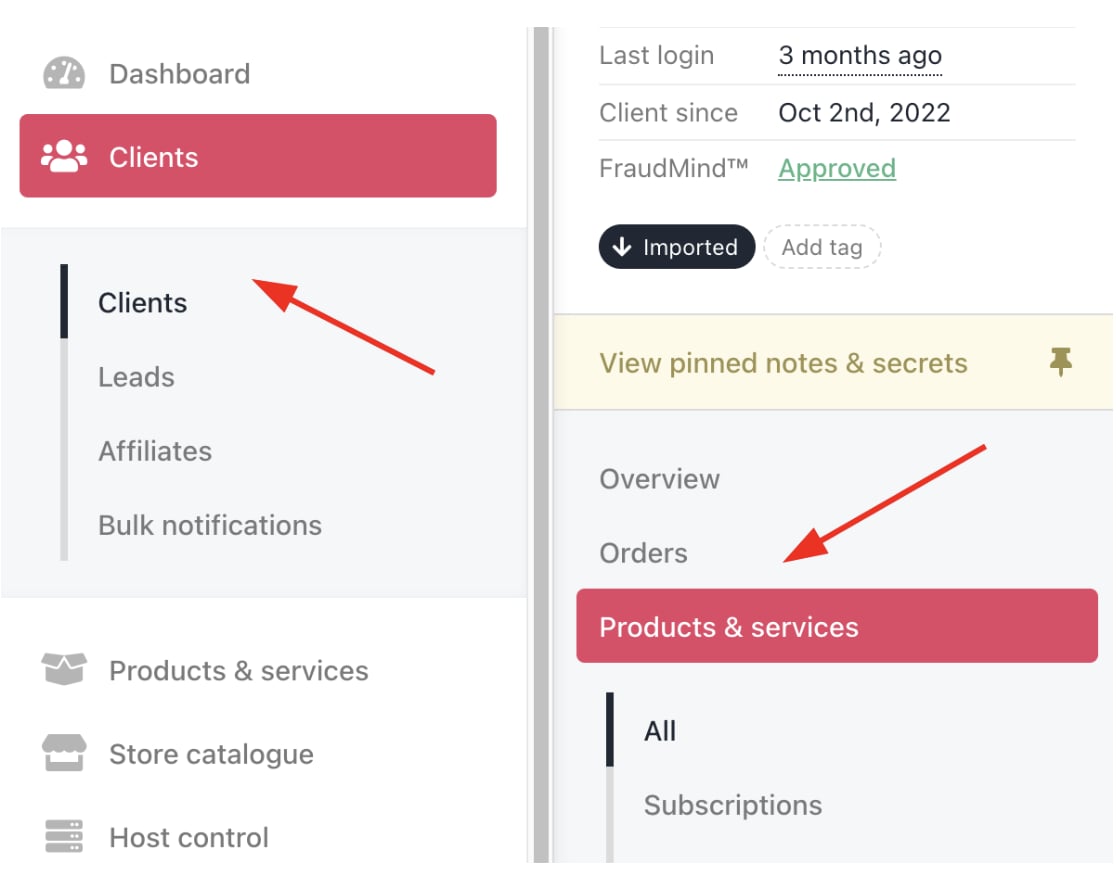
Products & services from the admin area
- Click the Manage tab.

Manage tab
Actions
The admin area lets you manage key actions for client products and services efficiently. You can make quick edits to any of the functions to keep everything up to date.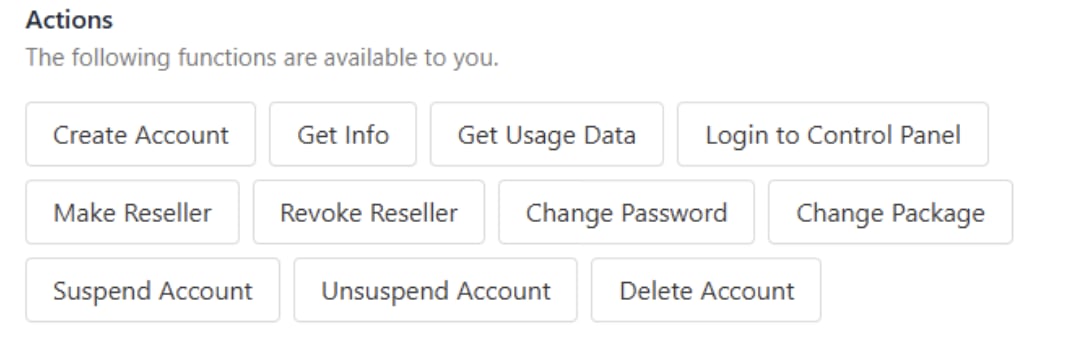
Actions for Web hosting
Web hosting provision actions
Domain names provision actions
Auto login provision actions
SEO provision actions
Website builders provision actions
Software licenses provision actions
Servers provision actions
Office tools provision actions
If you are using a provisioning system that integrates with Upmind (like cPanel in this guide), you’ll see additional configuration options:
Provision configuration
You must have an existing account with your provisioning provider, then enter its credentials and details to configure and connect your provisioning system.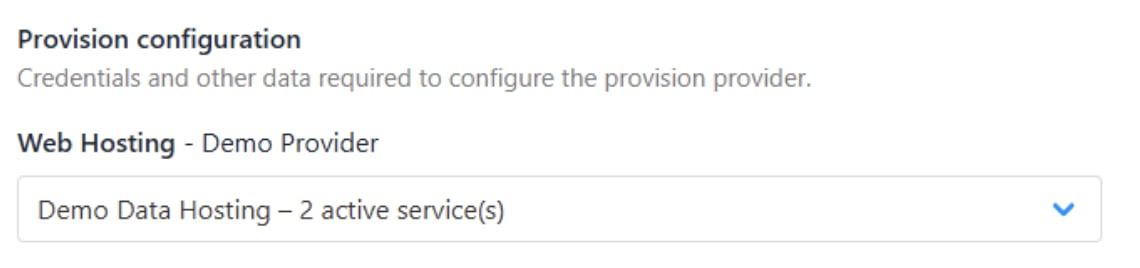
Provision configuration for web hosting
Provision fields
Provision fields include order and product settings that store key details about each item. These are mostly filled in automatically when a new account is created, saving time and reducing errors.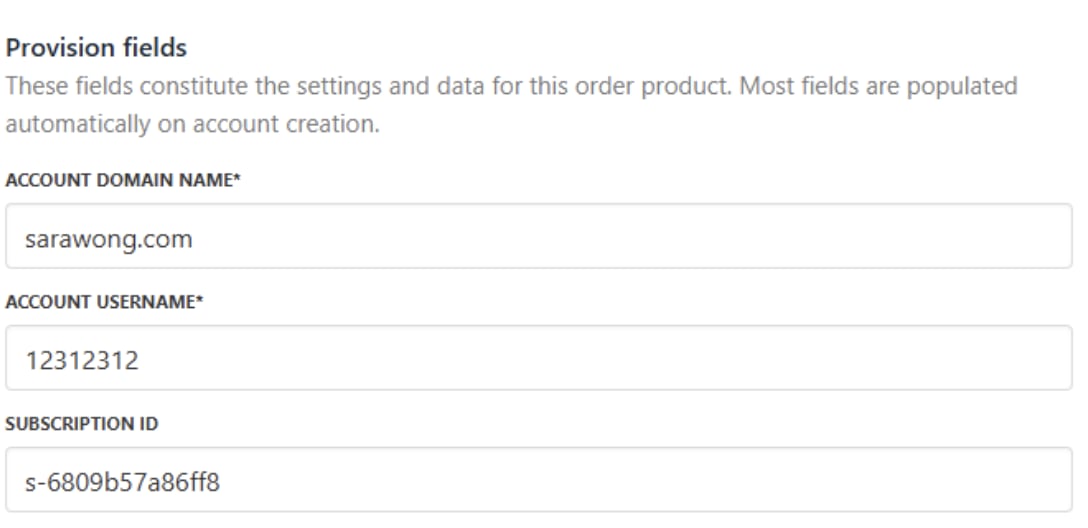
Provision fields for Web hosting
Logs
Provision logs track all system and team actions with timestamps, statuses, and details. This organised record helps with identifying issues, troubleshooting, auditing, and maintaining a transparent history of every event.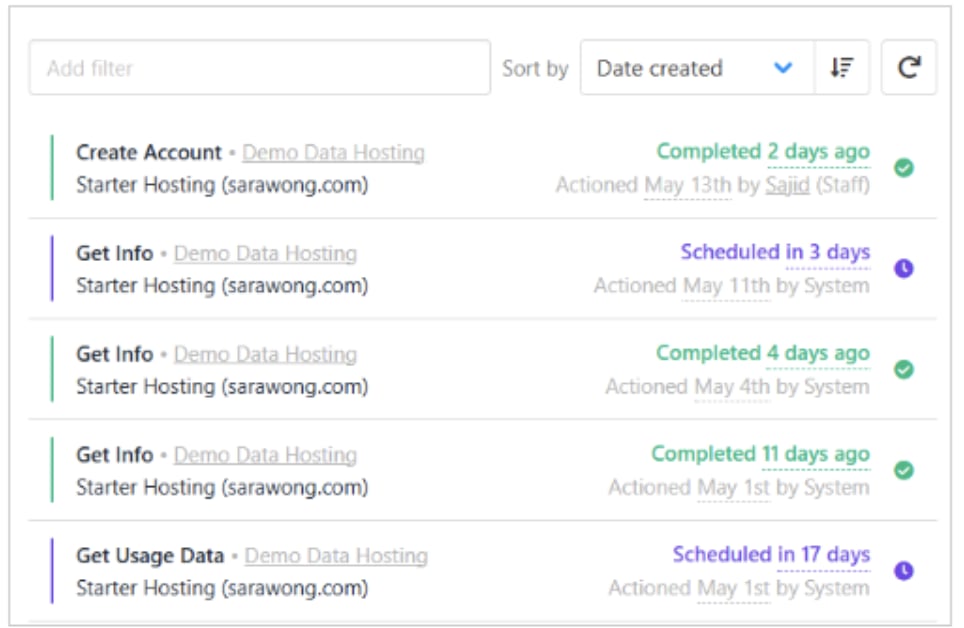
Provision logs for Web hosting

View error message
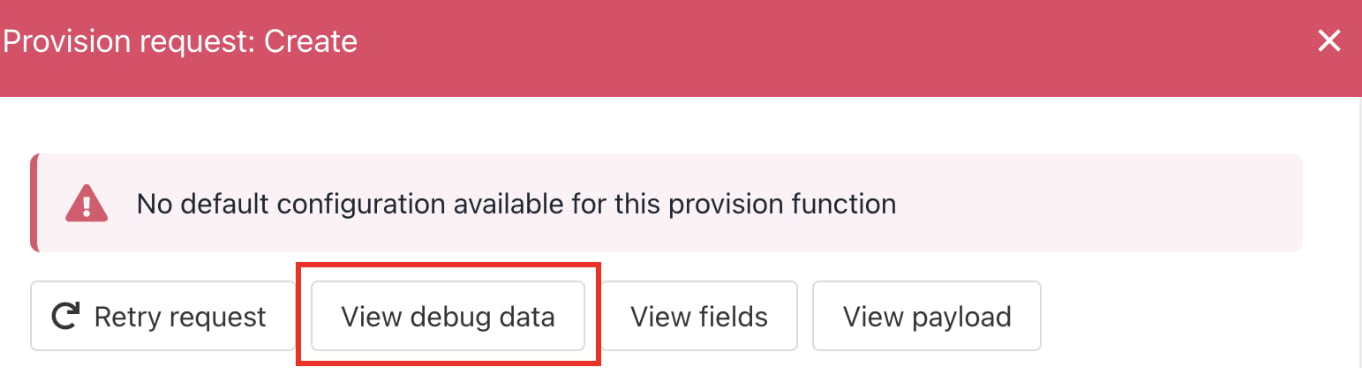
View debug data
Using actions in the client area
When you manage provision actions in the client area, it is designed to give both clients and teams a clear, secure, and organised way to manage product information, communicate smoothly, and protect sensitive data. To get to the actions, follow these steps:-
Log in to the
Client Areaportal. - Go to Products & Services and select the product you want to manage.

Products & services from the client area
Product details
Provides all the essential information about your product in one place. In the case of a web hosting package, it includes specifics like the Domain Name, Username, and IP Address. Having these details handy helps you understand exactly what your hosting plan offers, making it easier to manage your account and ensure it meets your needs.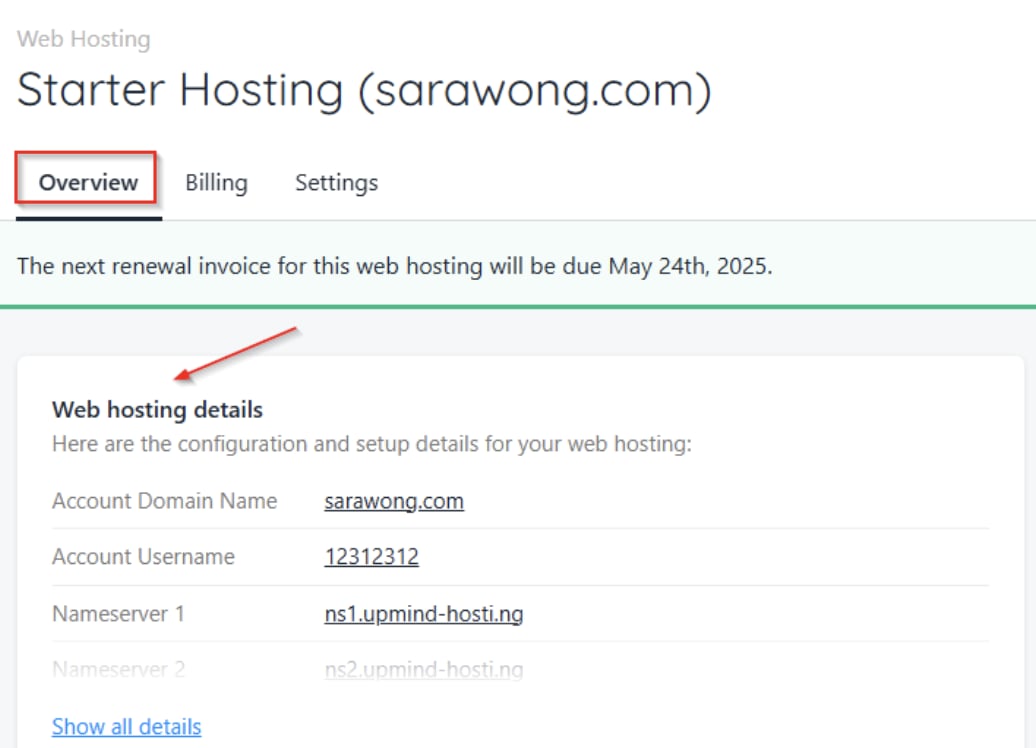
Product details for web hosting
Managing your product
Managing your product is easy from the Upmind client area. In the case of a hosting product, you can update your hosting password anytime to keep your account secure and log in to your control panel directly from the dashboard for quick access to tools and settings. These actions will differ depending on the type of product and provisioning.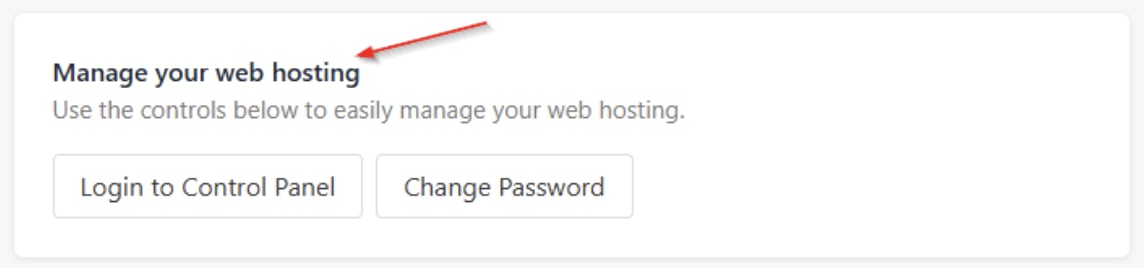
Manage your product