

- Add one or more domain providers to your account (see Registrar Guides to review configuration instructions for individual registries or registrars)
- Read the recommended billing settings.
- Fill in the fields on the Domain names > Settings page.
What is a TLD
TLD stands for Top Level Domains. It refers to the extension at the end of a domain (e.g., .com, .net, .ninja). Each TLD may have separate rules and registration conditions and is provided by a number of different registries. You usually sell domains (if you are not ICANN accredited) through a domain wholesaler such as OpenSRS, Hexonet, or Enom. However, you may also go directly to the registry, such as Nominet or CentralNIC. Each registry and/or wholesaler may offer different prices for each domain, and so Upmind offers an advanced level of configuration options when selling domains.Which domain registrar to use?
Upmind is provider agnostic. We have integrations for the following. We include sign-up links to their website. As we add more registrars, they will be added to the list below.
You can integrate with multiple domain registrars. You can also integrate with the same registrar multiple times (for instance if you have two separate Enom accounts).
Creating a TLD product
- Log in to your admin account.
- Click Host control on the side menu.
- Click the Add new TLD button. A side panel opens.
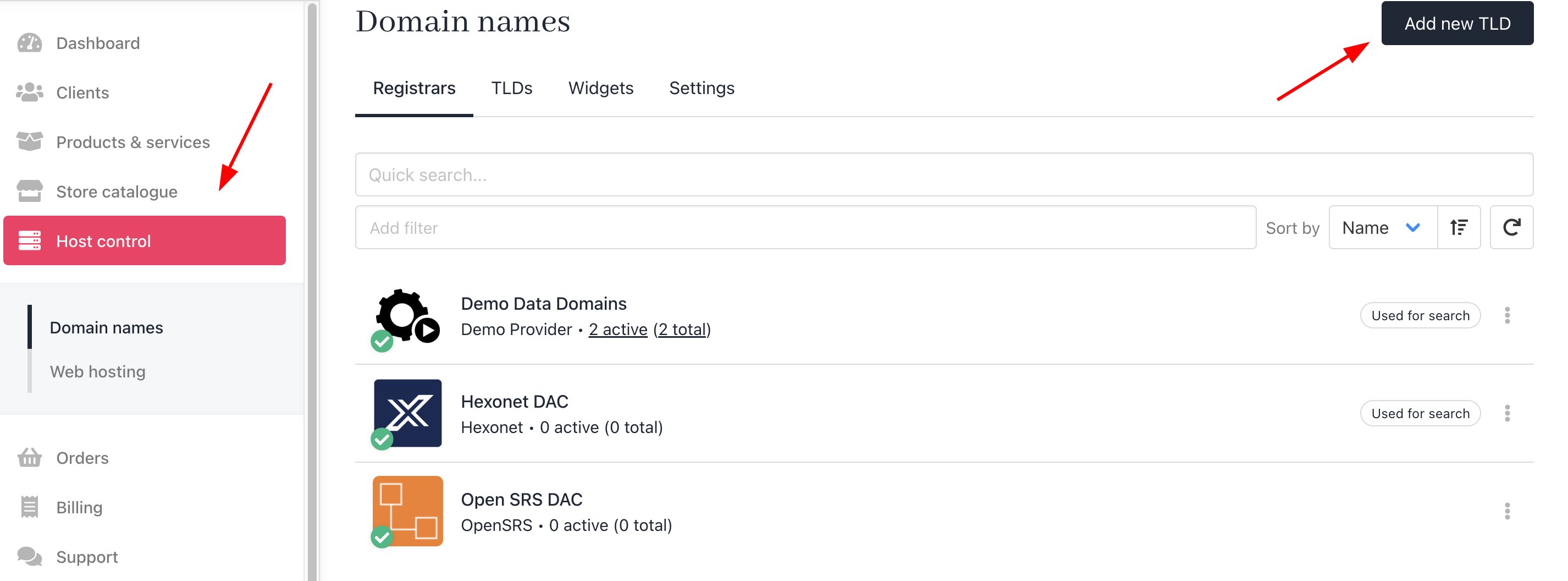
Host Control > Add new TLD
- On the side panel, enter the TLD you want to add to your offerings and click Next.
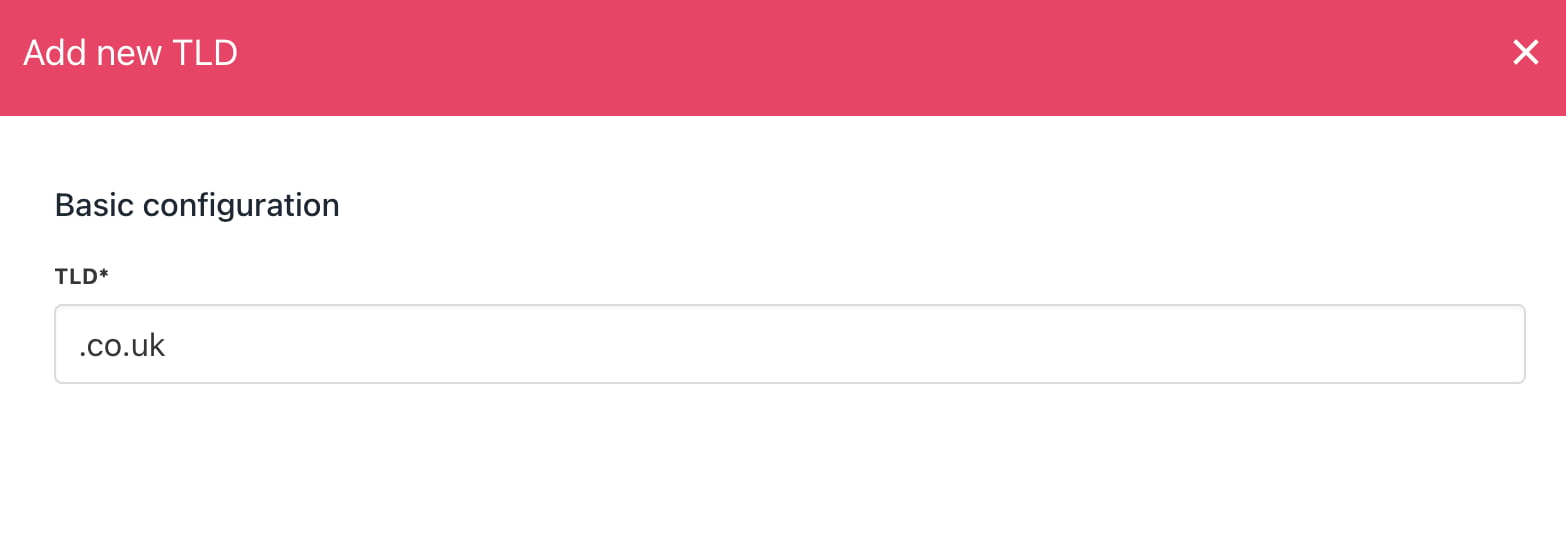
Enter TLD
Configuring the product
On the configuration panel, select the domain provider for this TLD. Next, review the default settings for three fields and customise as required.- Late renew: A grace period to renew an expired TLD.
- Max registration period: Ten years is the industry standard, but you can change this setting.
- Redemption period: This is the period following the late renew period. If the domain name is not purchased during the redemption period, it typically returns to the public and is available for registration.
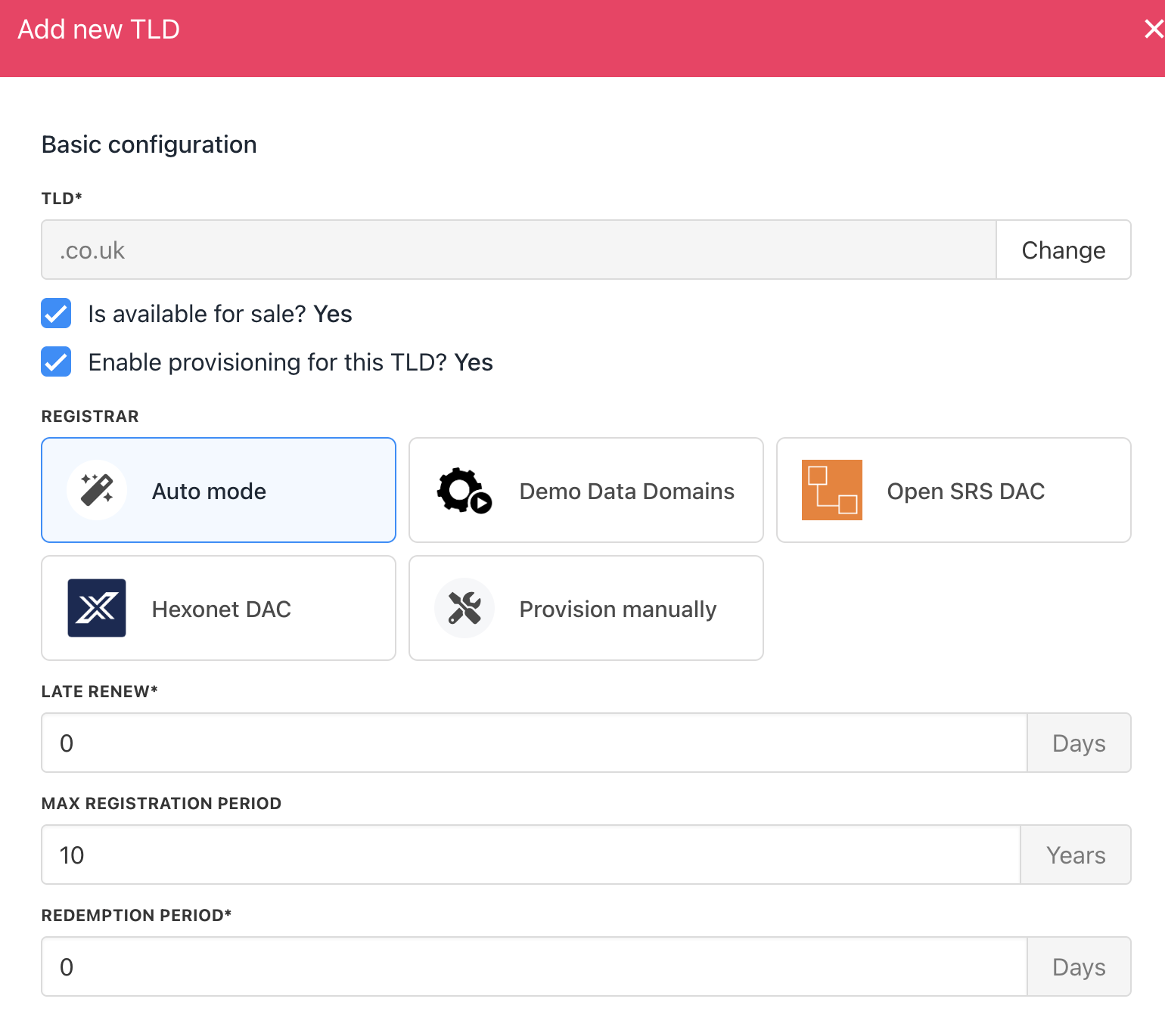
Configure TLD
Late renew periods and redemption periods can vary by registrar and registry. Ask your registry/registrar about the periods for each TLD product you offer.
Recurring invoice generation
These are advanced settings. We suggest leaving the defaults.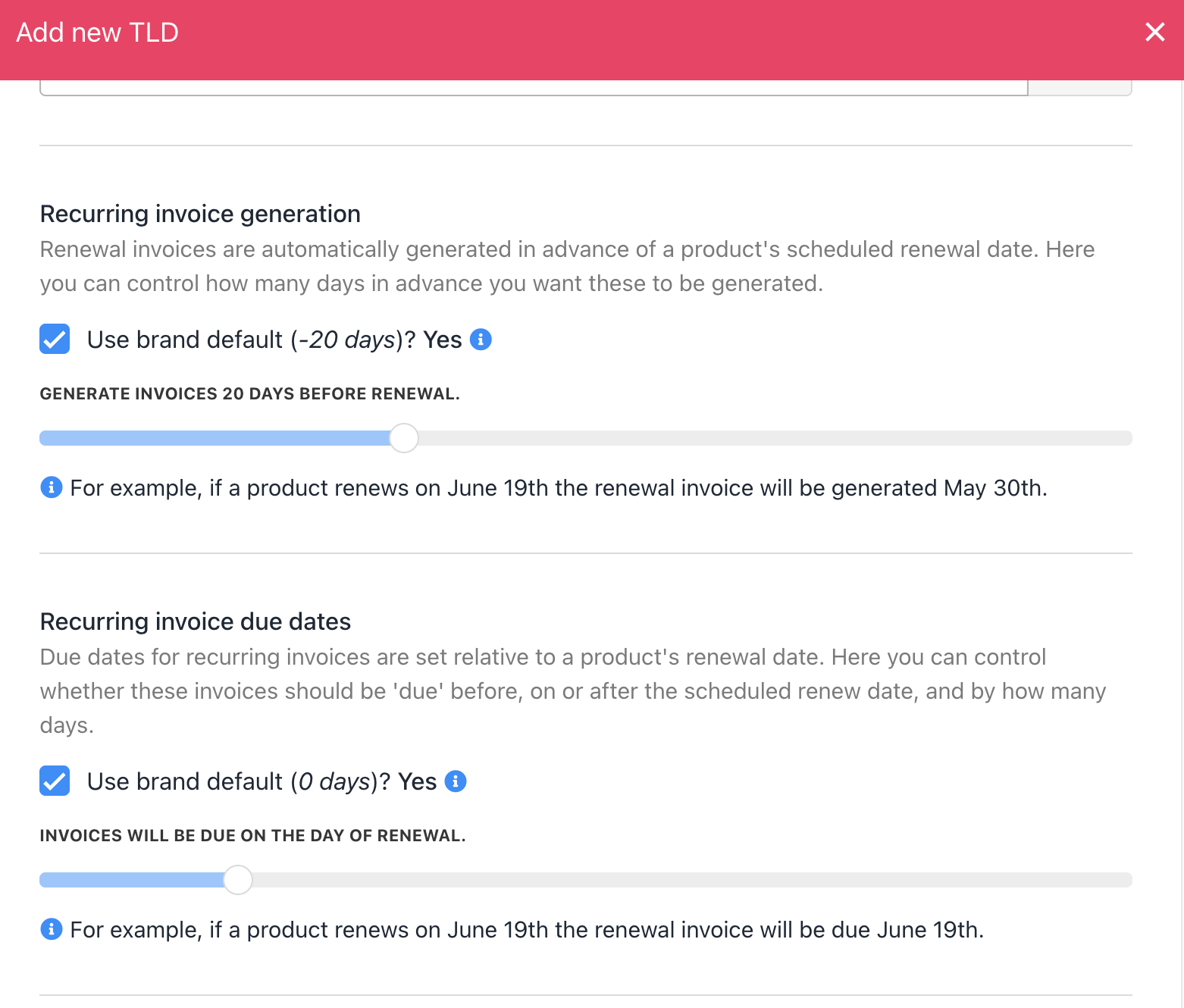
Recurring invoice
Pricing configuration
Enter a price for the TLD. You can add pricing for a single year or enter figures for the maximum registration period (optional but recommended).- Scroll down to the Pricing configuration heading.
- Click the Advanced button.
- Select Auto-populate prices.
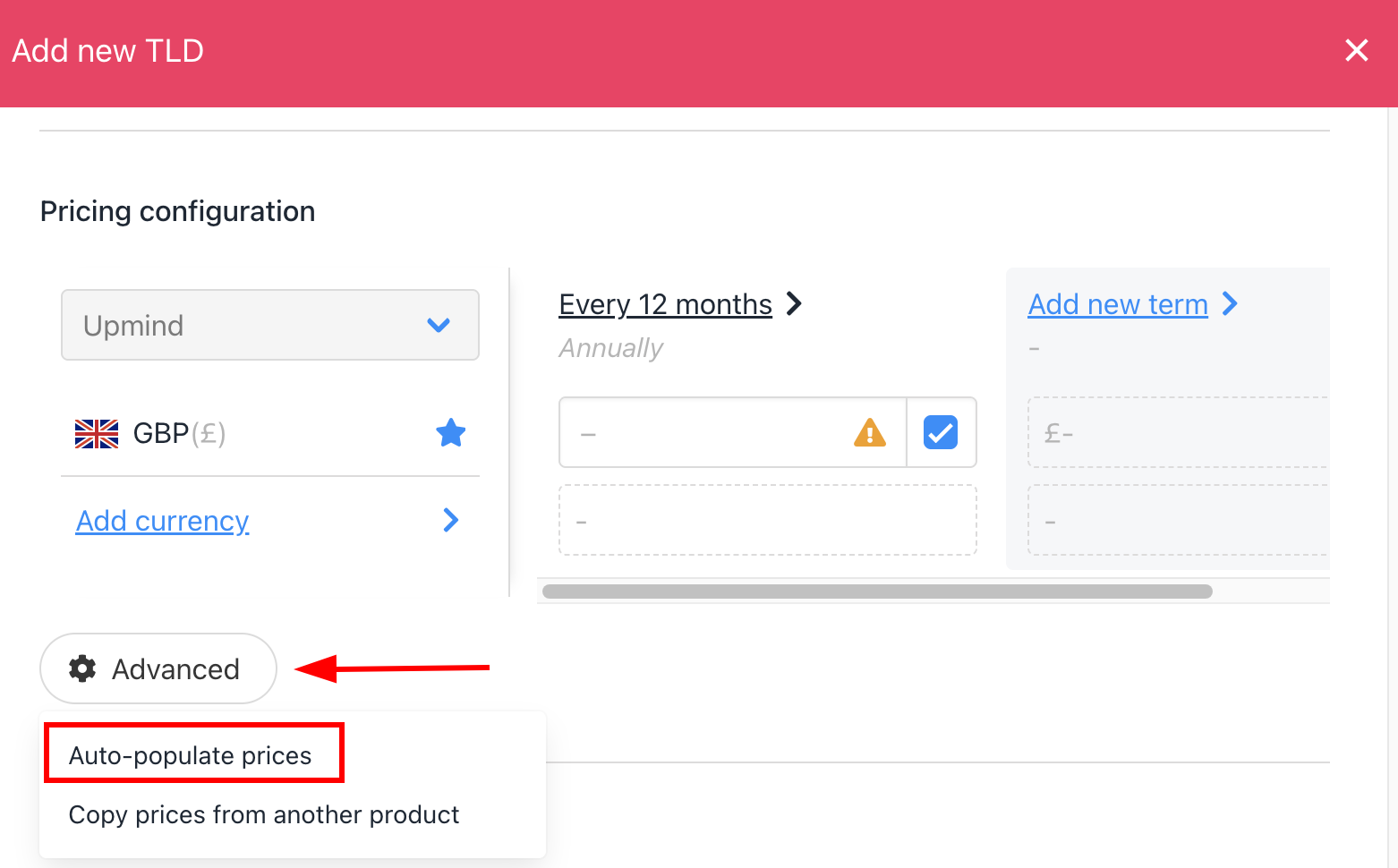
Pricing configuration
- Check the Overwrite box.
- Add a price for the default currency.
- Click Add currency (optional).
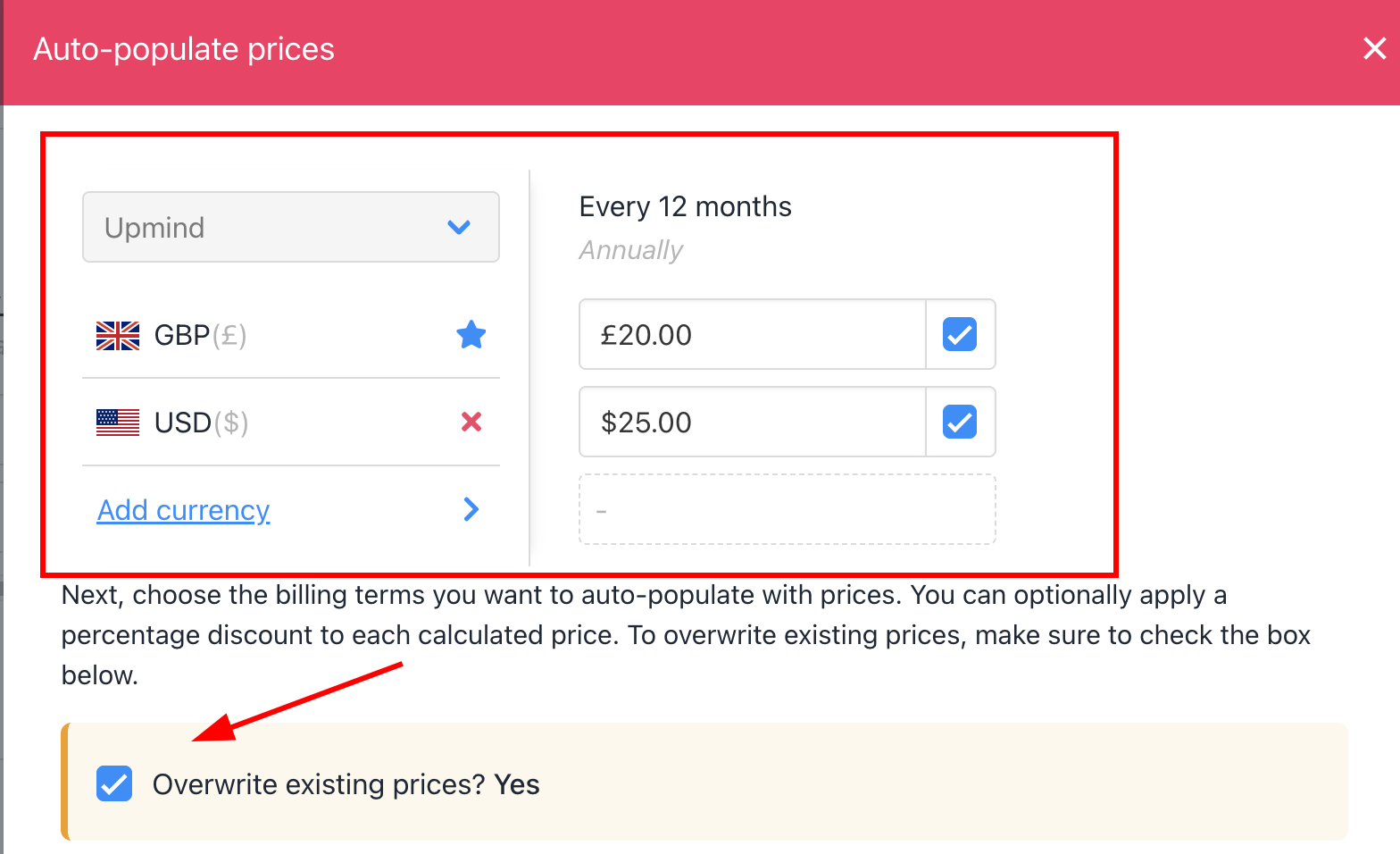
Add currency
- Scroll down to review prices for each term and currency.
- Click the Auto-populate prices button at the bottom of the page.
- Click Create.
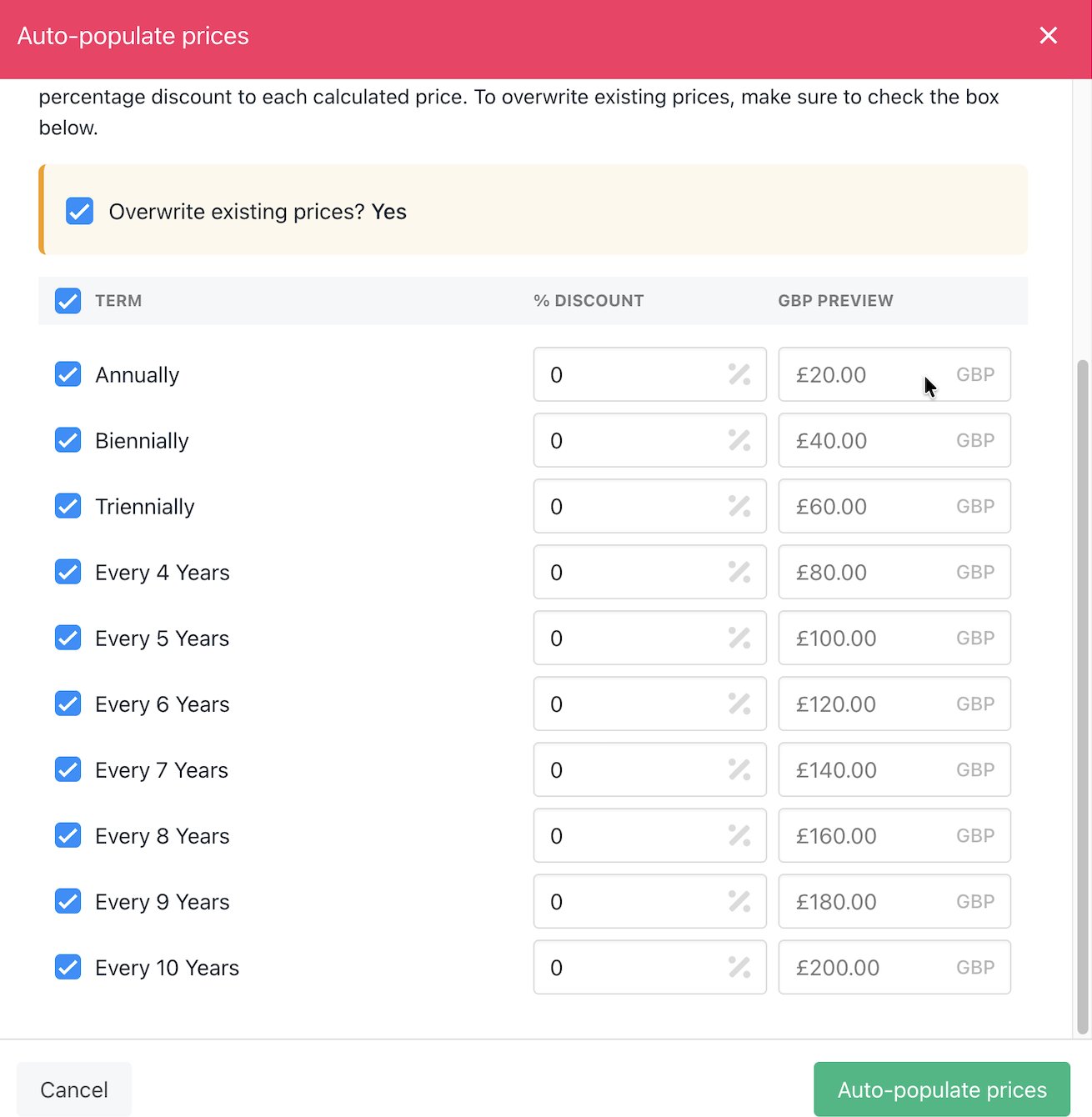
Check terms
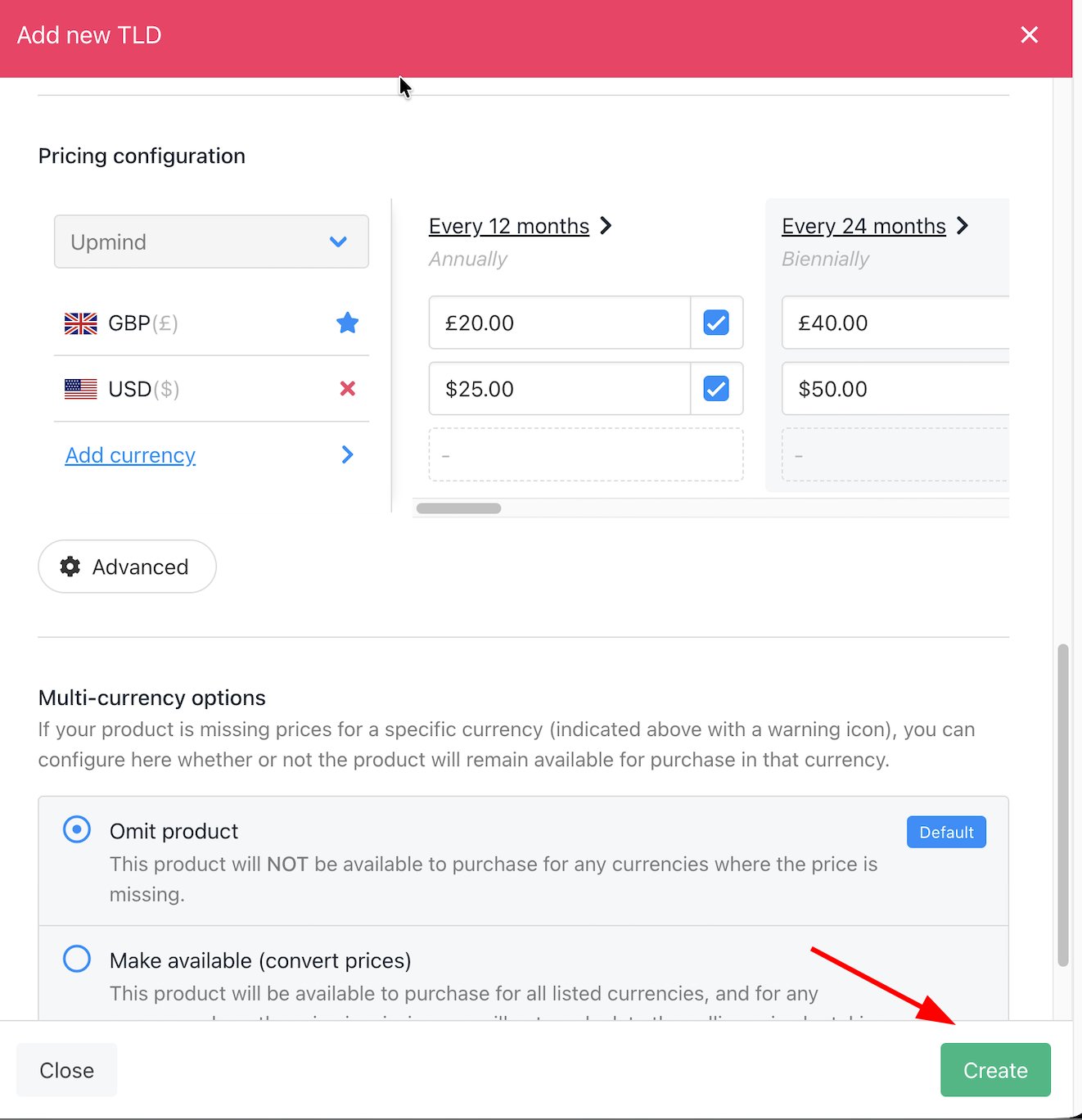
Click create
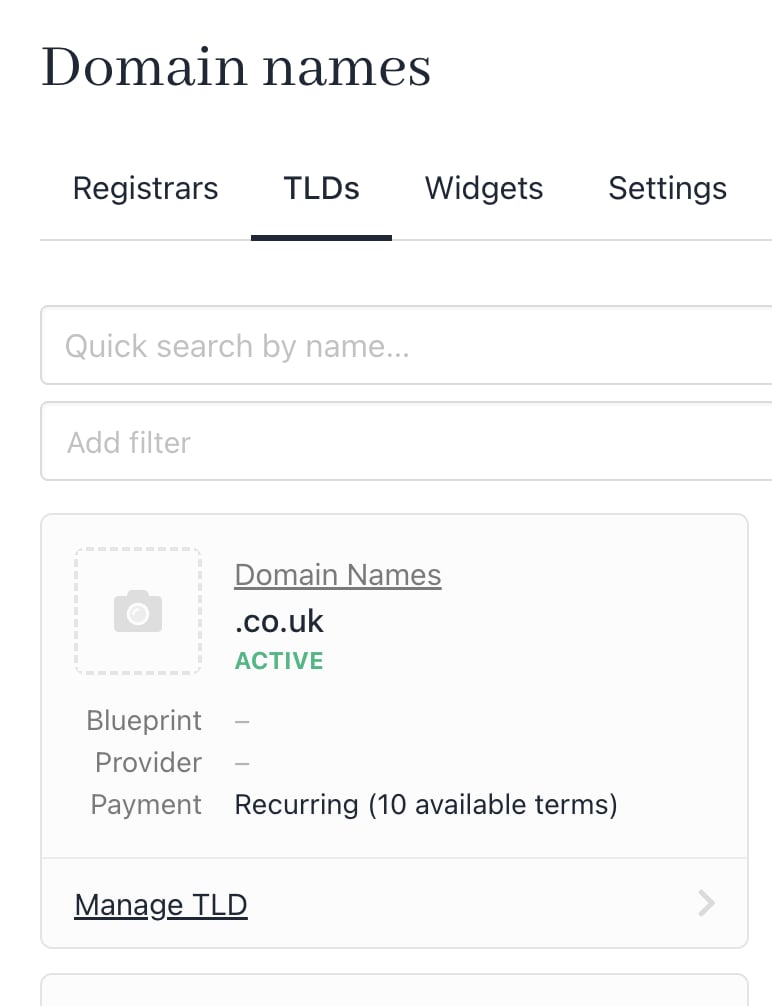
New TLD created
What the client sees
To test the integration, we open our sample Upmind store. On the left side of the screen, the Domain Names category automatically displays and shows one product. We enter a domain name in the search bar. The site displays all the available options along with the new TLD that we just created.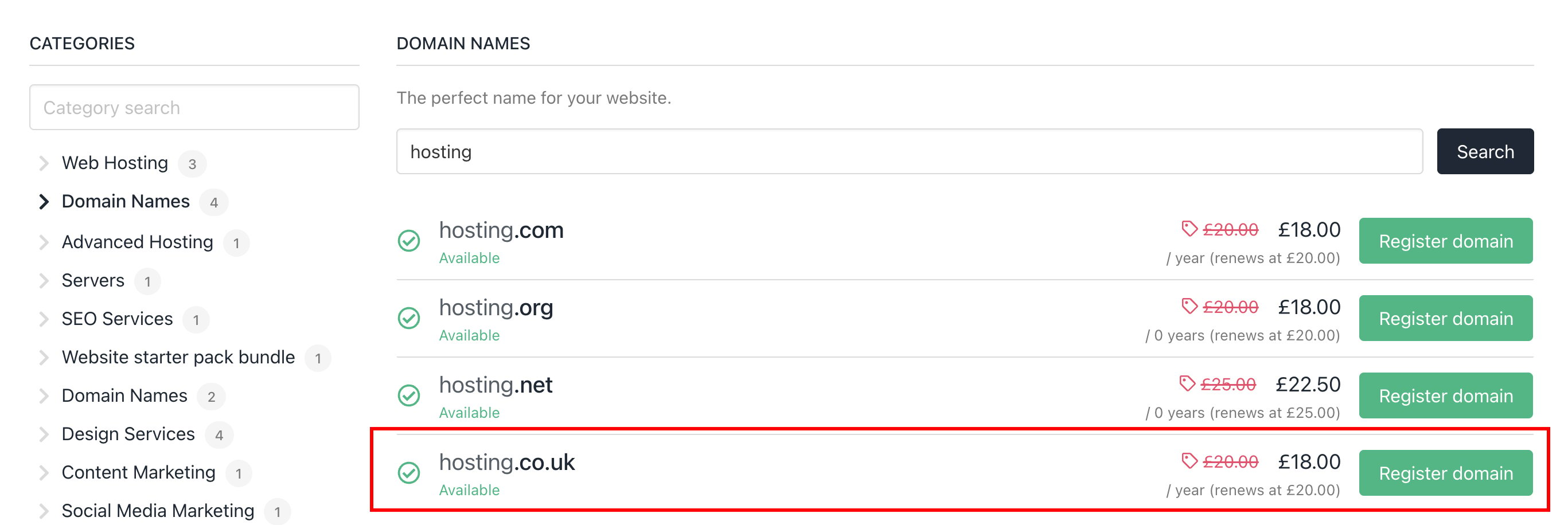
Domain name search
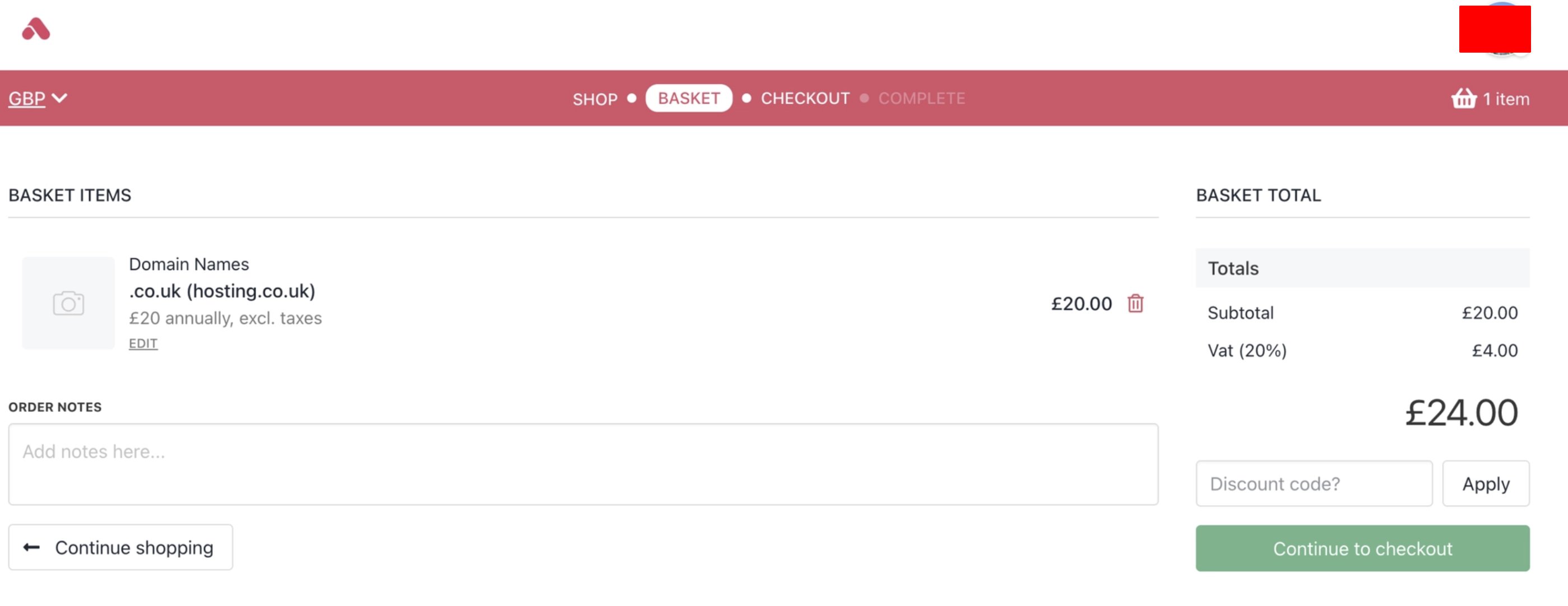
Proceed to checkout
- Click the Products & Services menu tab and select a domain.
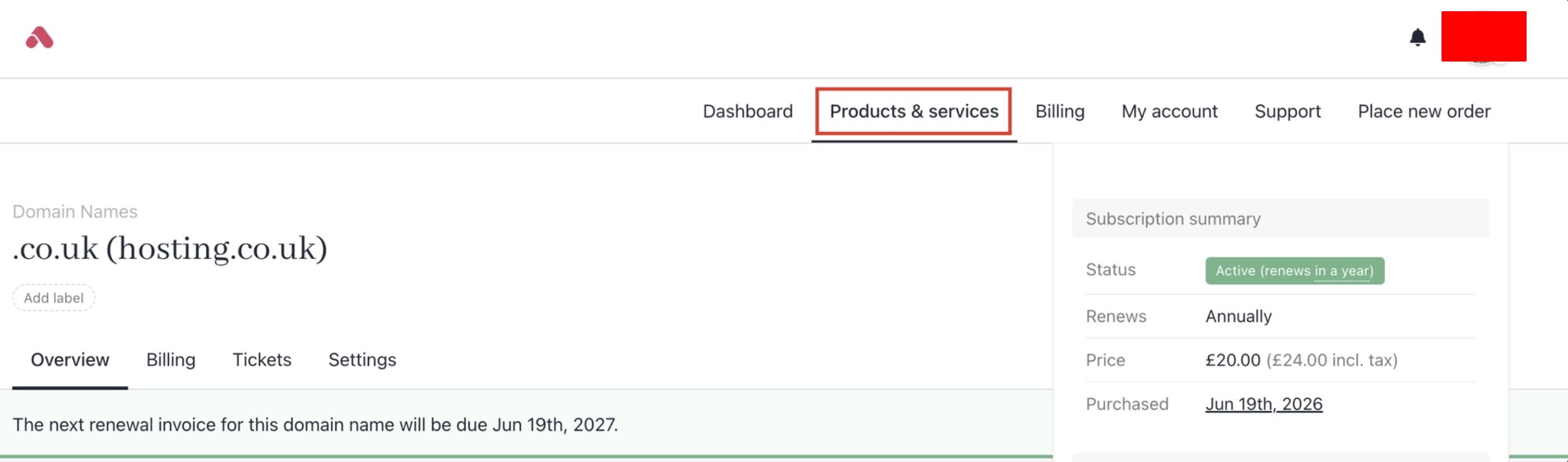
Products & Services
- Then scroll down to the Manage section.
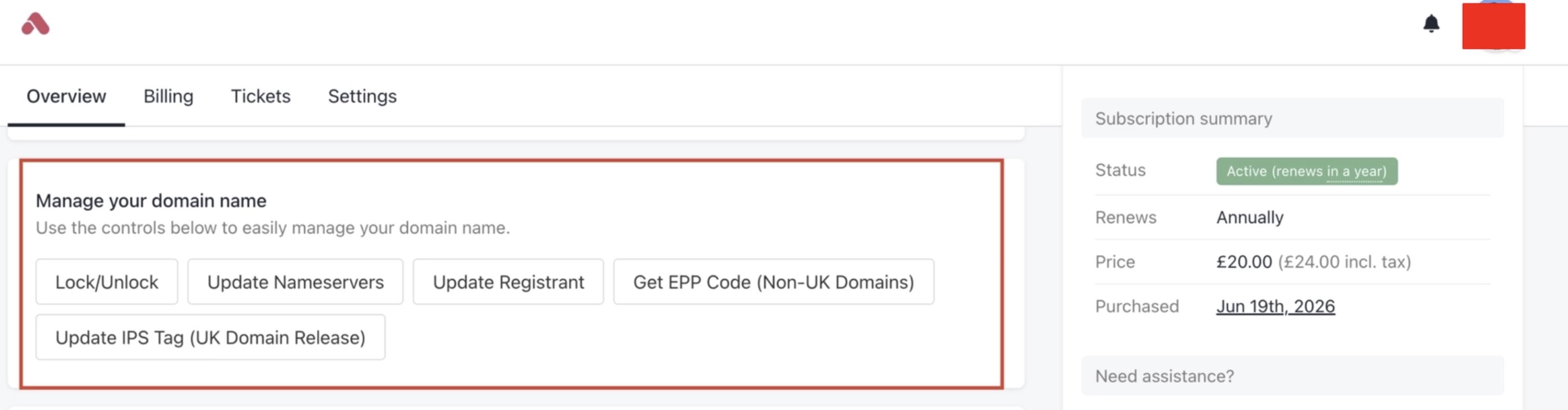
Manage your product
What the admin sees
Like any product, admins can see TLD purchases on the Upmind dashboard.- On the side menu, click Products & services.
- Click a product tile. The product page displays.
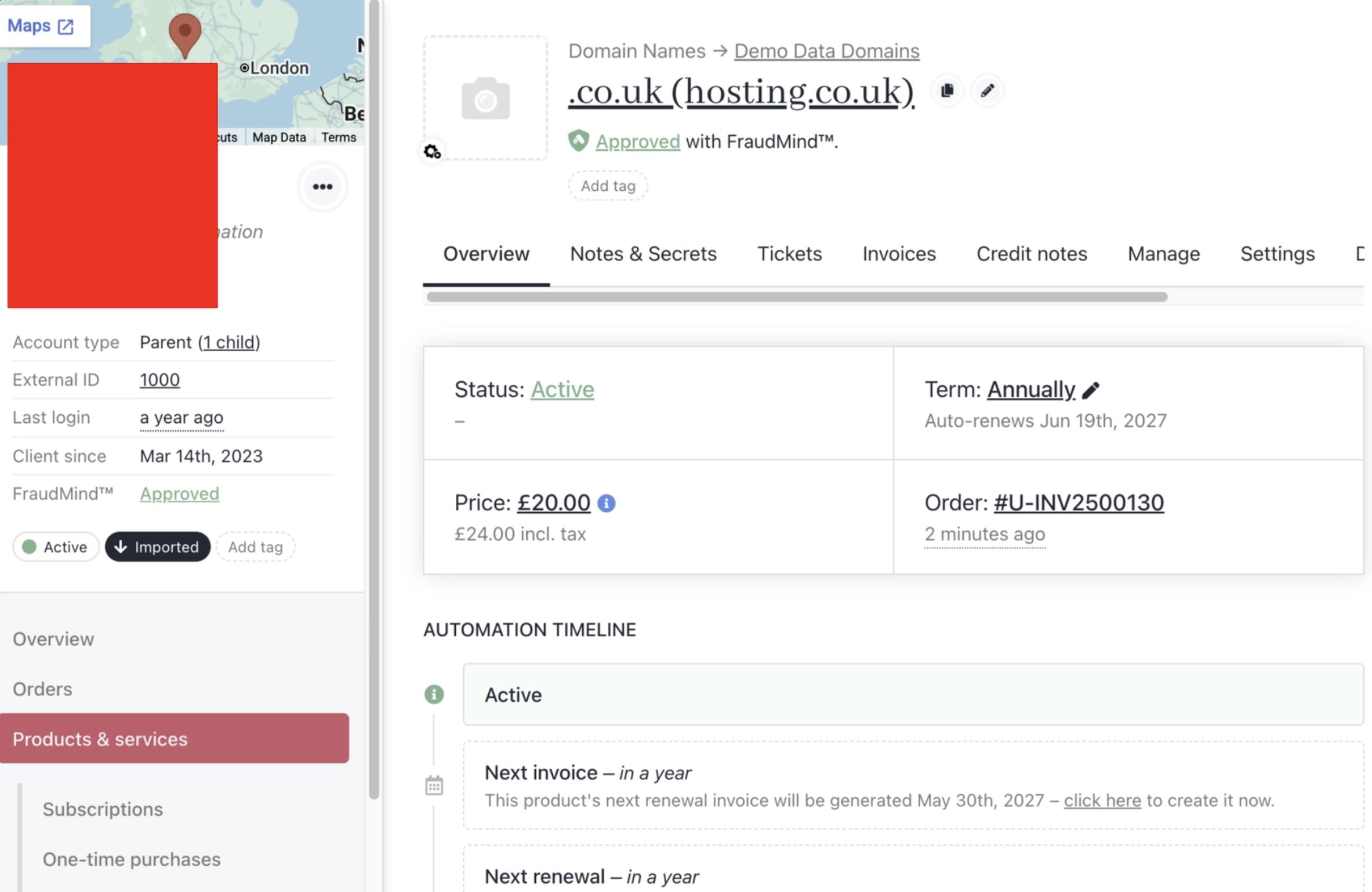
TLD product admin view