

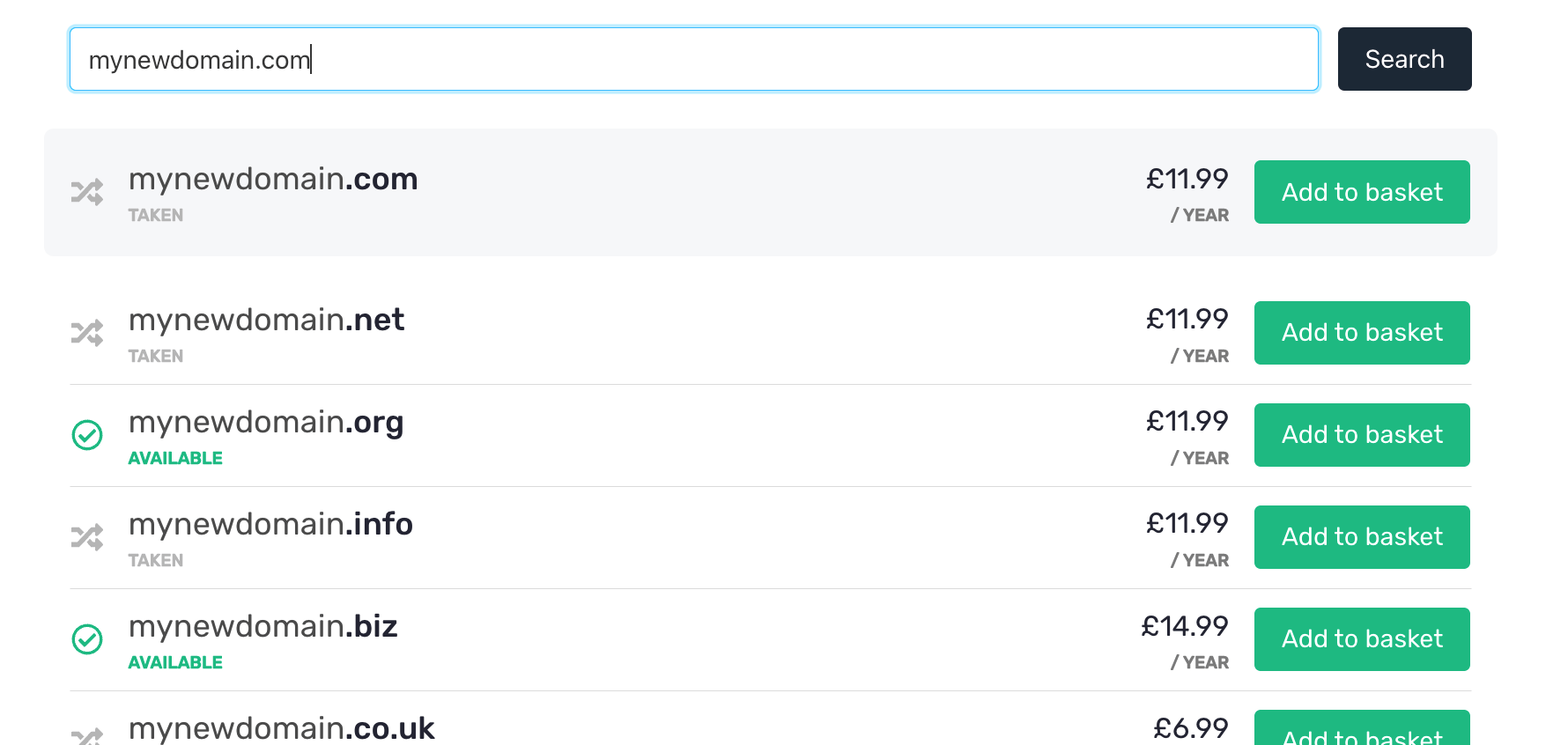
Domain Availability Checker
The code snippet
To generate your code snippet, go to Host Control > Domain names > Widgets.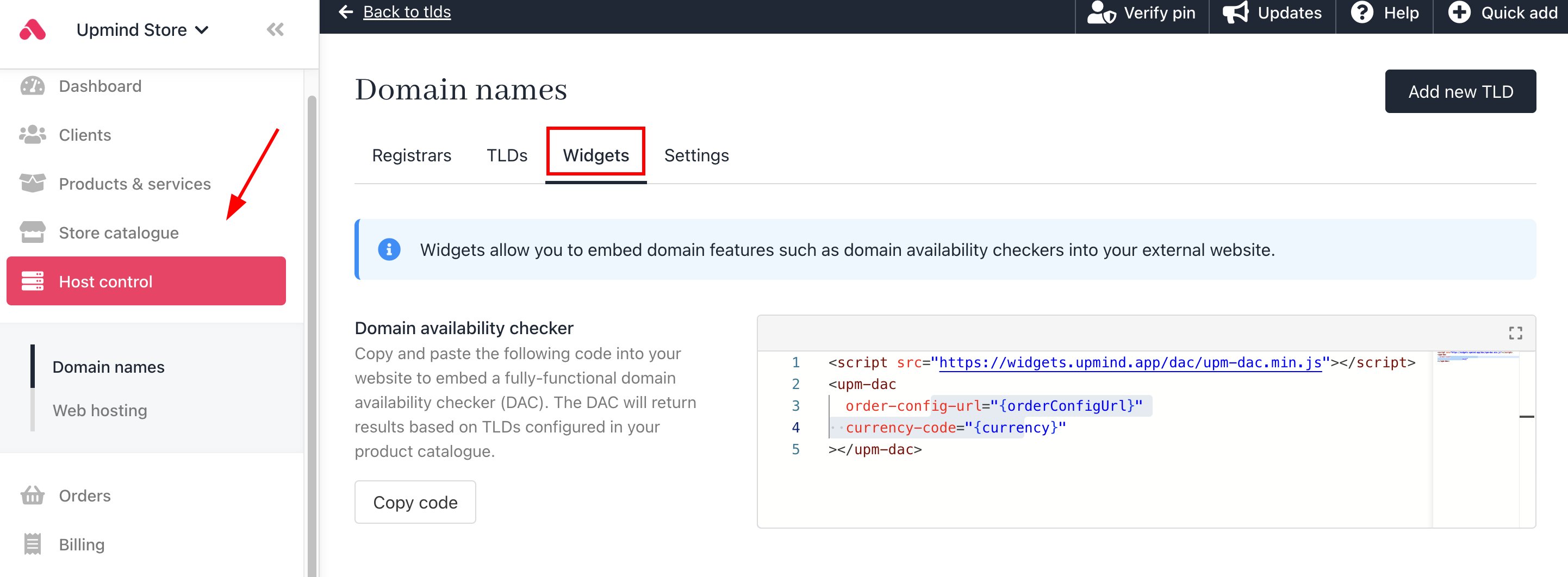
Host Control > Domain names > Widgets
- Replace {orderConfigUrl} with your shop URL example, your store URL is: my.upmind.com/order/product, with “https://” added in front of your website name. (See HTML code example below)
- Replace the {currency} with your currency code (e.g., USD)
Associate your website domain with Upmind
To make the domain checker work, you need to add your domain to the list of domains under Settings > Domains. You do not need to change your DNS records. If your domain is not added to the domains list, then the domain search will not function.Enable/disable Domain Availability Checker
You can enable or disable the domain availability checker.- Go to Host Control > Domain Names > Registrars.
- Select Enable use in domain search.
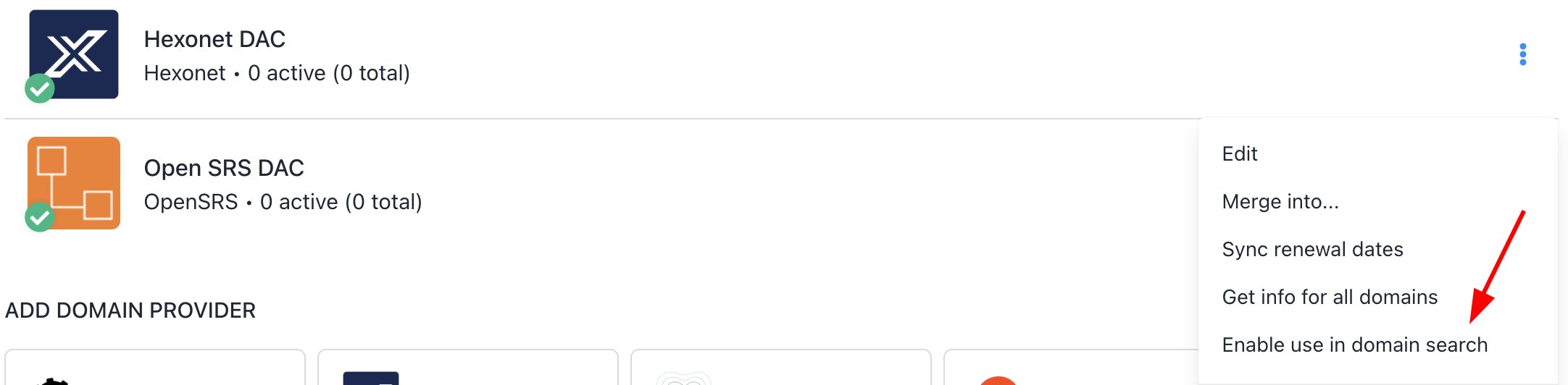
Enable use in domain search
- A visual indicator will show whether domain availability checking is enabled or not.

Enabled for checking
- You can choose to disable it again.
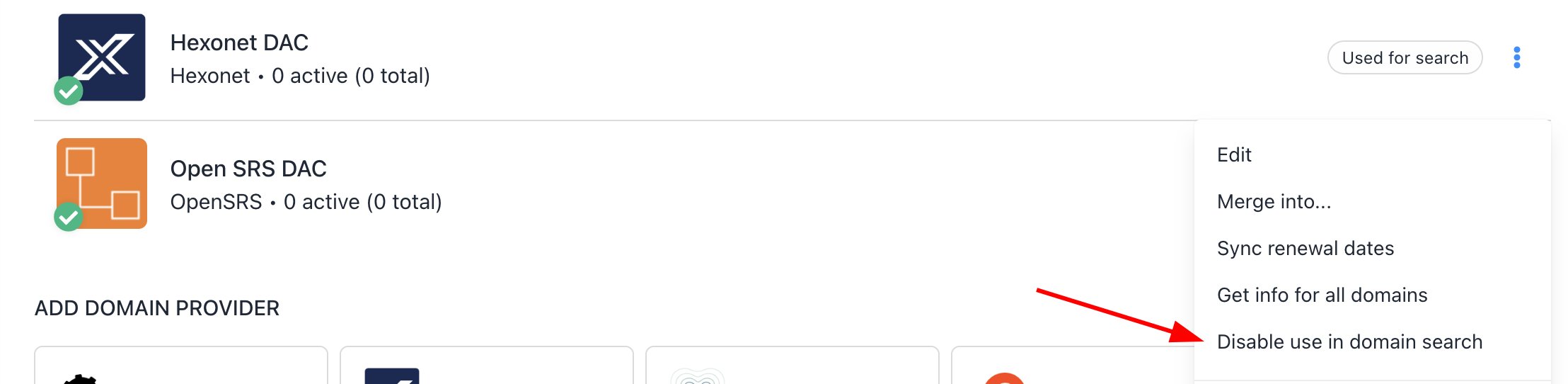
Disable option