

Pax8 M365 required credentials
You will require the following credentials:- Client ID: OAuth application identifier from Pax8.
- Client Secret: Secret key for API authentication.
Get Pax8 M365 credentials
Pax8 API uses OAuth 2.0 authentication.- Log in to .
Pax8 login
- Get Client ID and Client Secret from Pax8 dashboard.
- Exchange credentials for access token.
- Use token for API requests.
Configuring Pax8 M365 provisioning in Upmind
- In Upmind, go to Settings > Provision Configurations
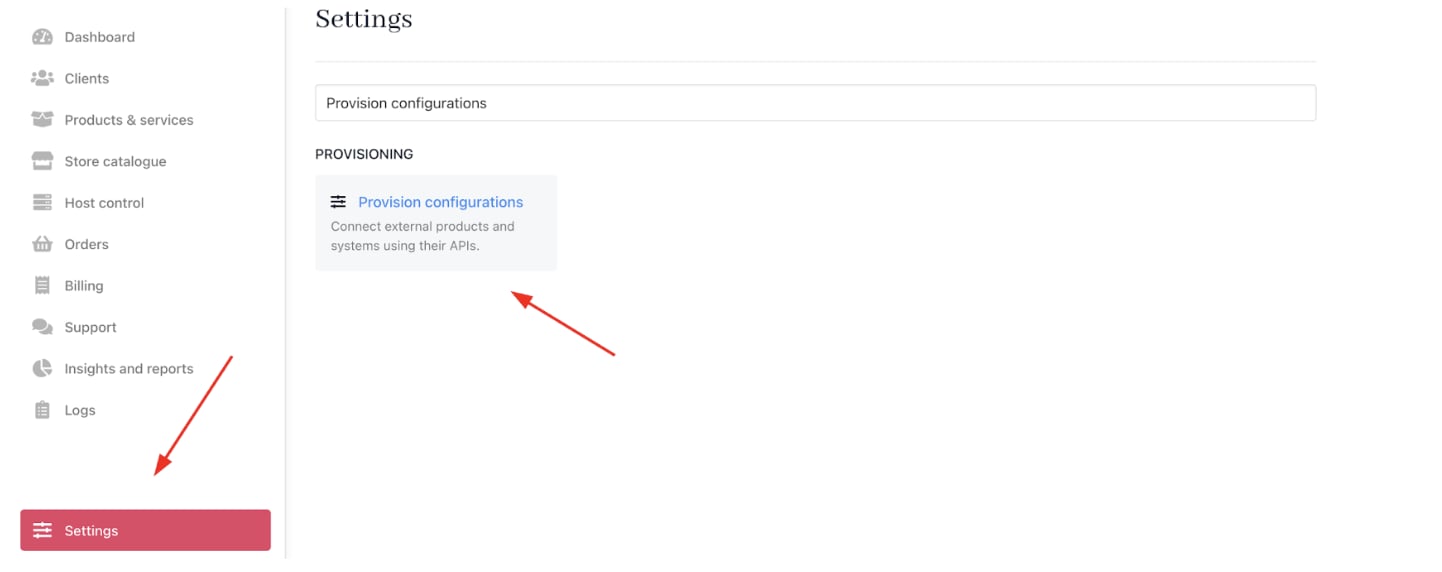
Settings > Provision configurations
- Click on Add New Configuration.

Add new configuration
- Provide a Name (e.g., Pax8 M365 Licensing Provision).
- Select Software Licenses as the product type.
- Choose Pax8 M365 as the provisioning provider.
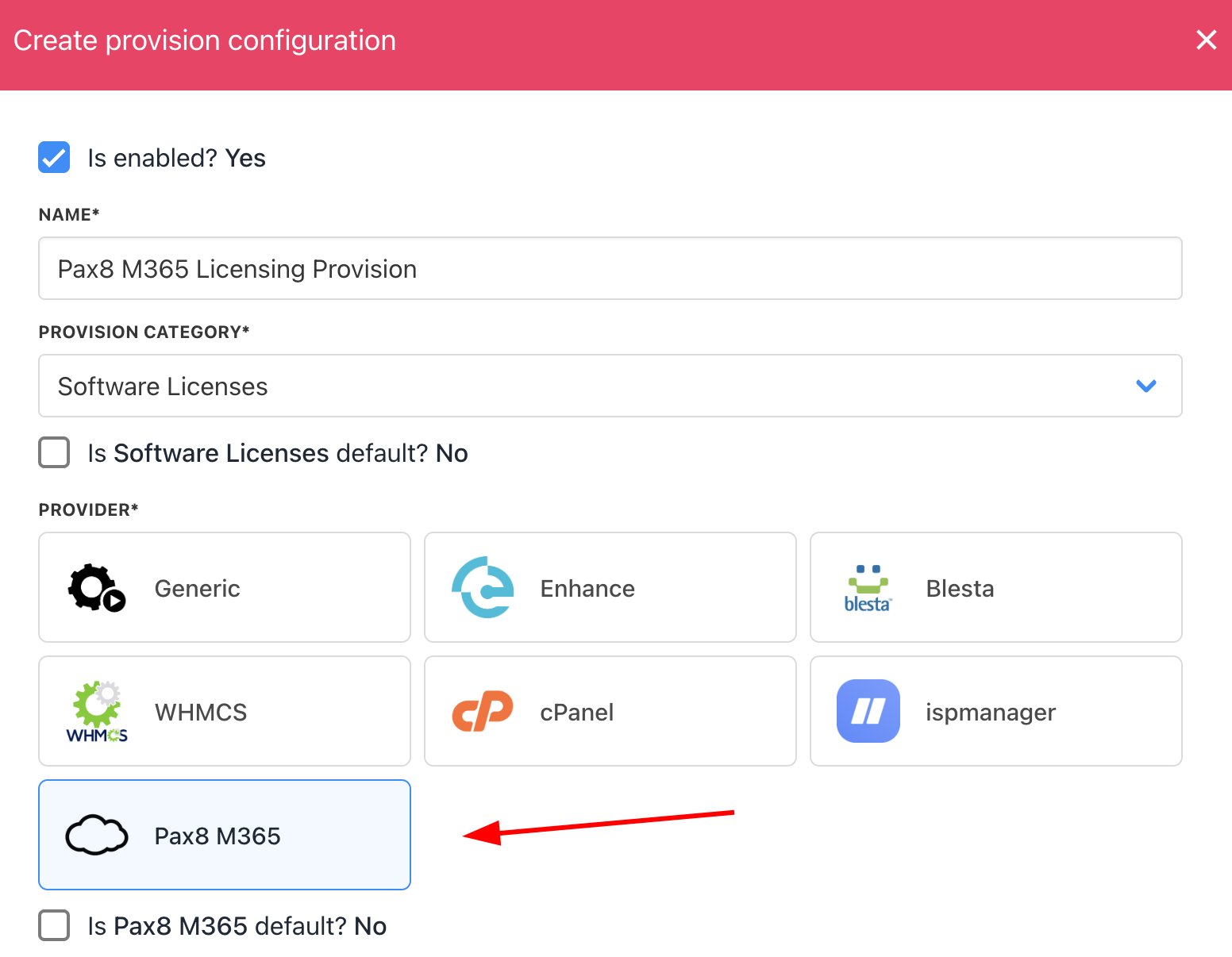
Choose Pax8 M365
- Enter the Client ID and Client Secret.
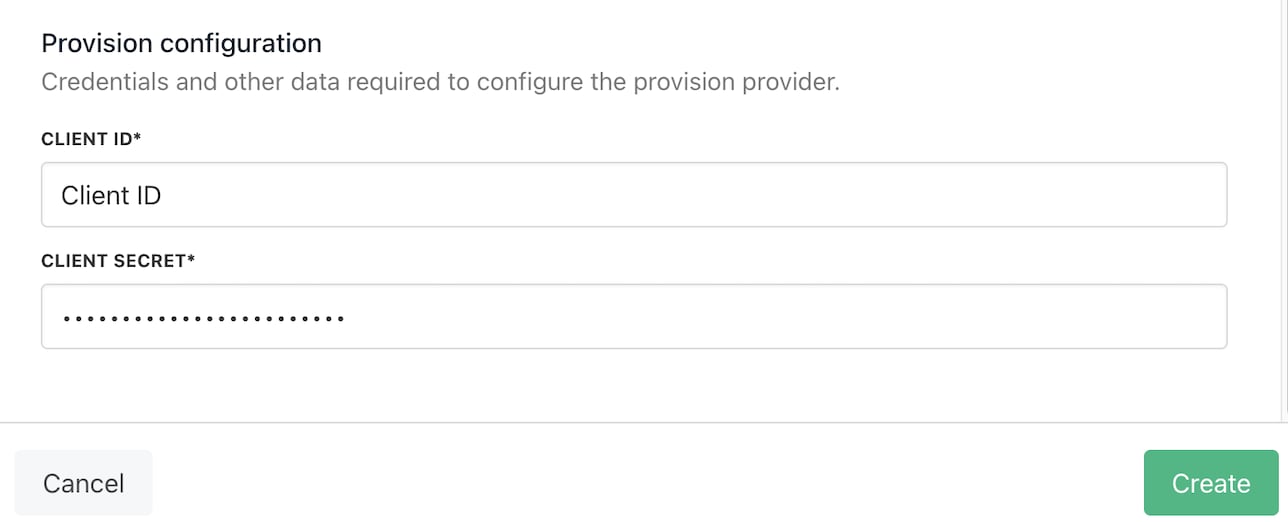
Fill in the details
- Click Create.
Creating Pax8 M365 licensing products in Upmind
- Go to Store Catalogue > Products in Upmind.
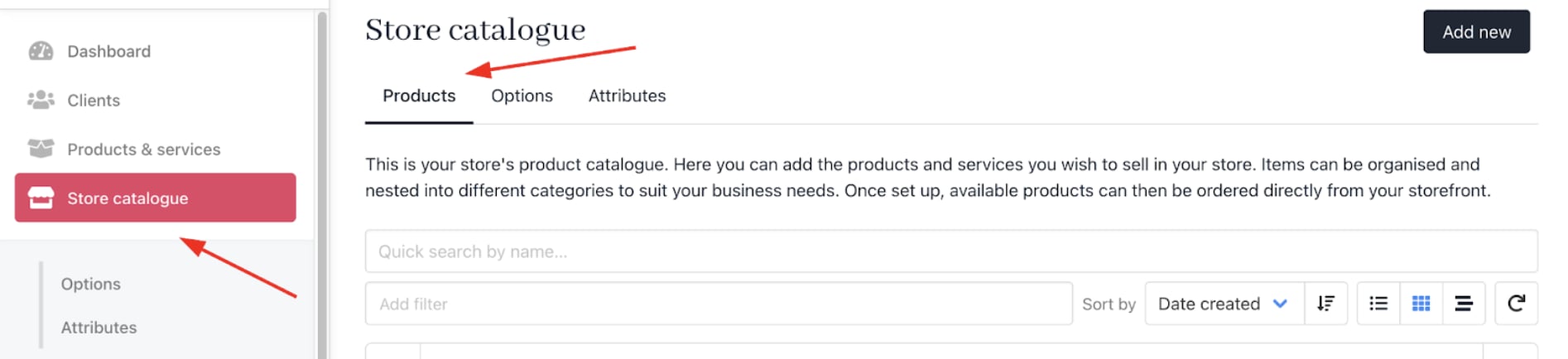
Store Catalogue > Products
- Click Add New.
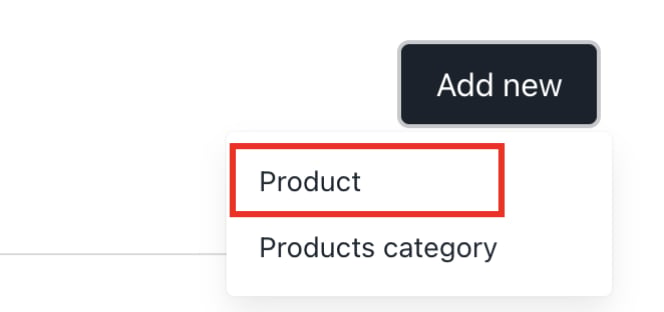
Add new
- Choose the category and fill in the details.
- Then click Create.
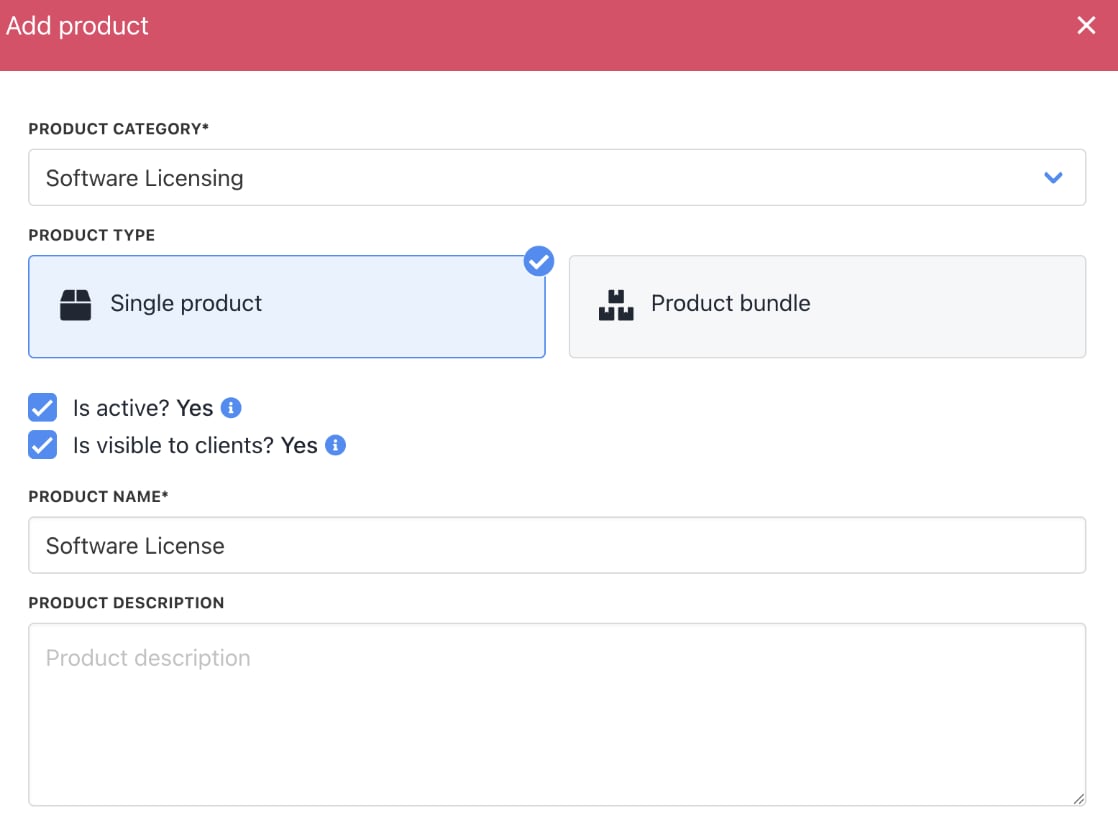
Fill in product details
- On
Provisioning, set the Provision Blueprint to Software Licenses.
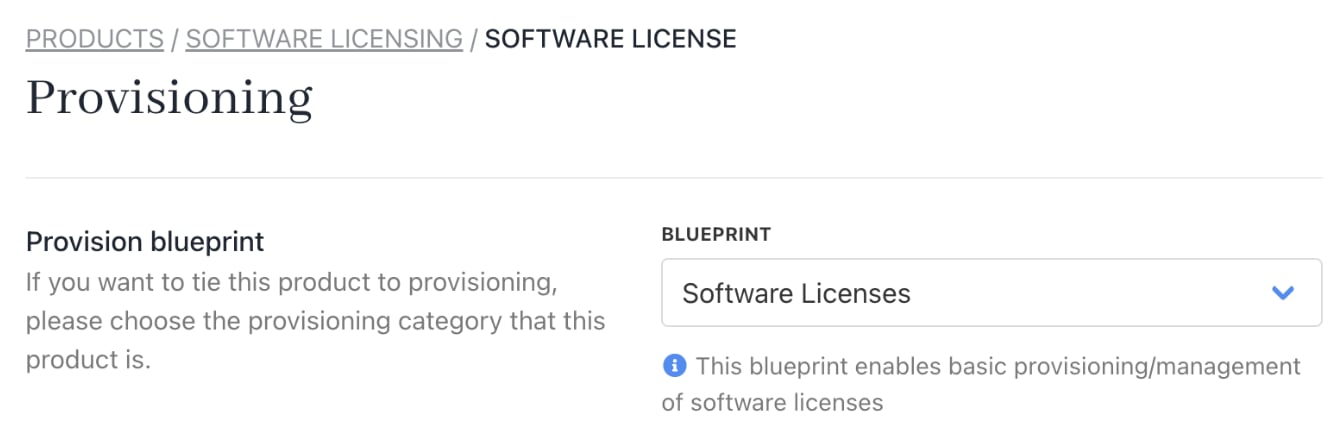
Provision blueprint
- Set the Provision Provider to Pax8 M365.
- Choose the Configuration Mode and Provider Configuration.
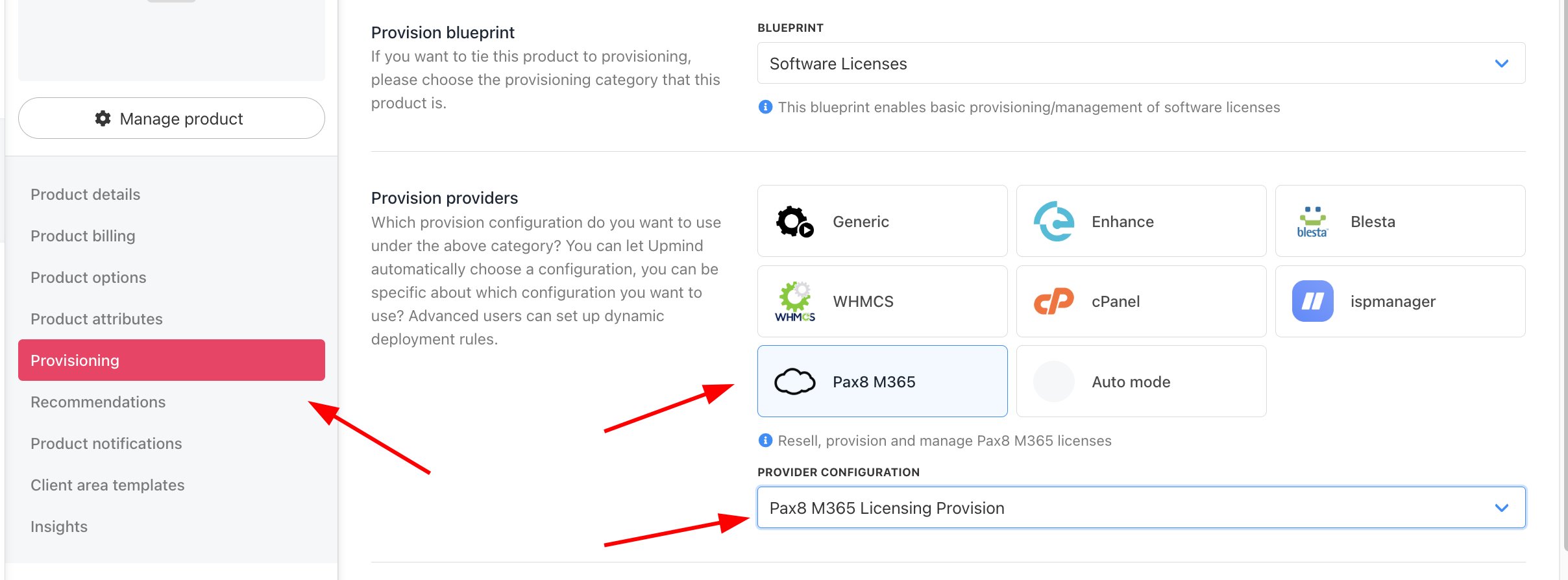
Set provision provider
- Enter the Package Identifier. Use either the licence name (e.g., Pax8 Product SKU) or the licence Product ID (e.g., 55227).

Complete other product details
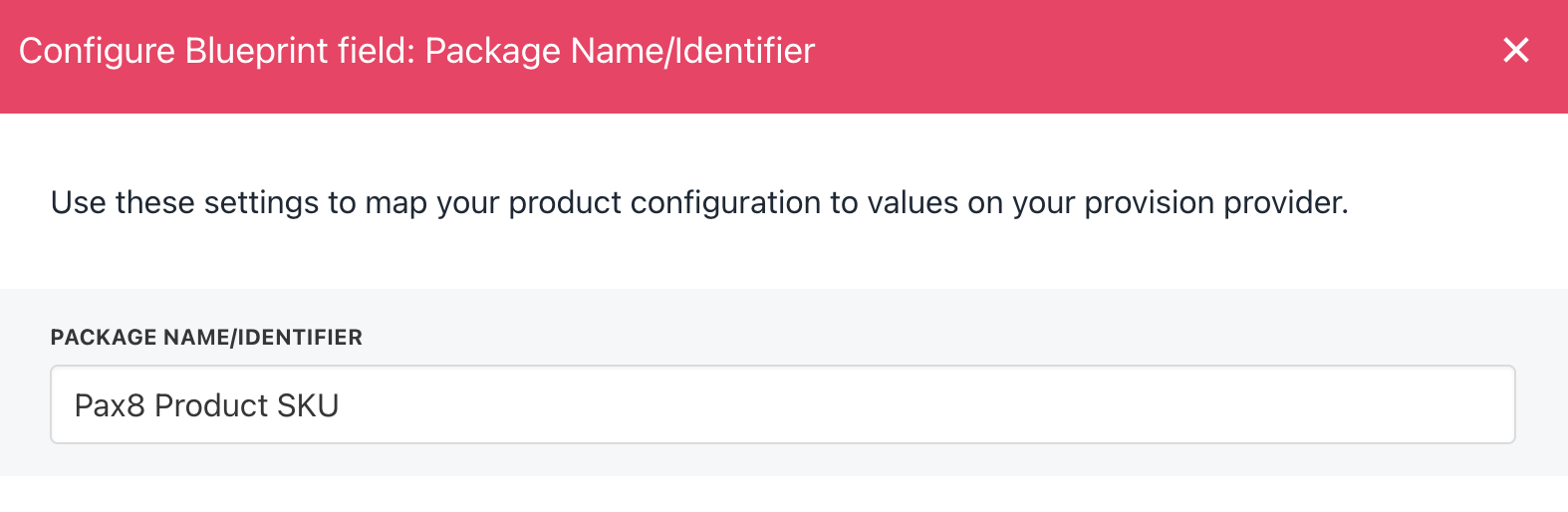
Enter package identifier
- Save the product.
Supported actions
Upmind manages the complete lifecycle of Pax8 Microsoft 365 licenses and subscriptions, including:- Create – Provision a new licence or subscription.
- Retrieve Usage – View usage data for an active licence or subscription.
- Renew – Reactivate a previously deactivated licence or subscription.
- Suspend – Deactivate (cancel) an active licence or subscription.
- Unsuspend – Restore a suspended licence or subscription.
- Terminate – Permanently cancel a licence or subscription.