

How to enable 2FA as an Admin/Staff
- Go to My Account > Security.
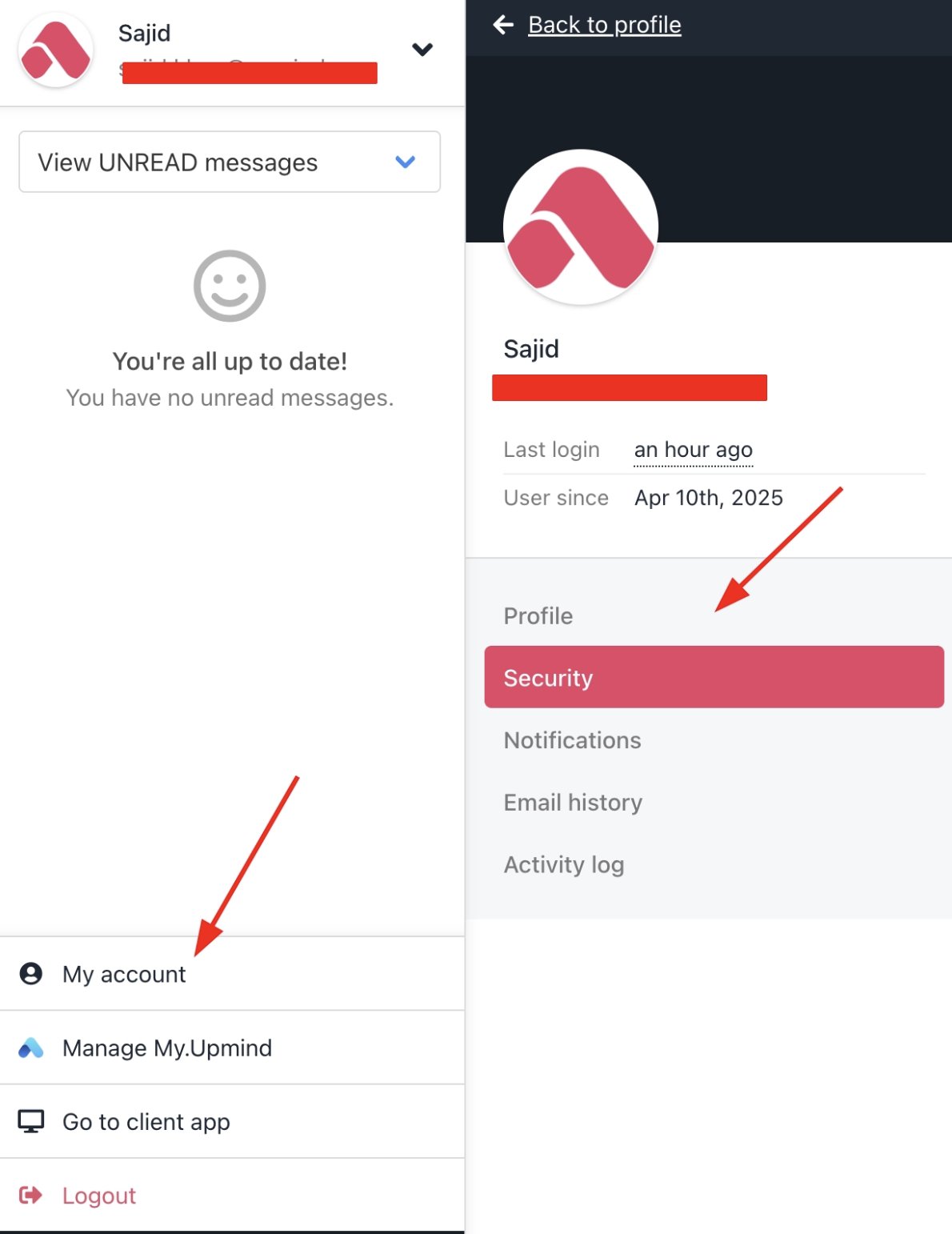
My Account > Security
- Scroll down to Two-Factor Authentication and click Enable.
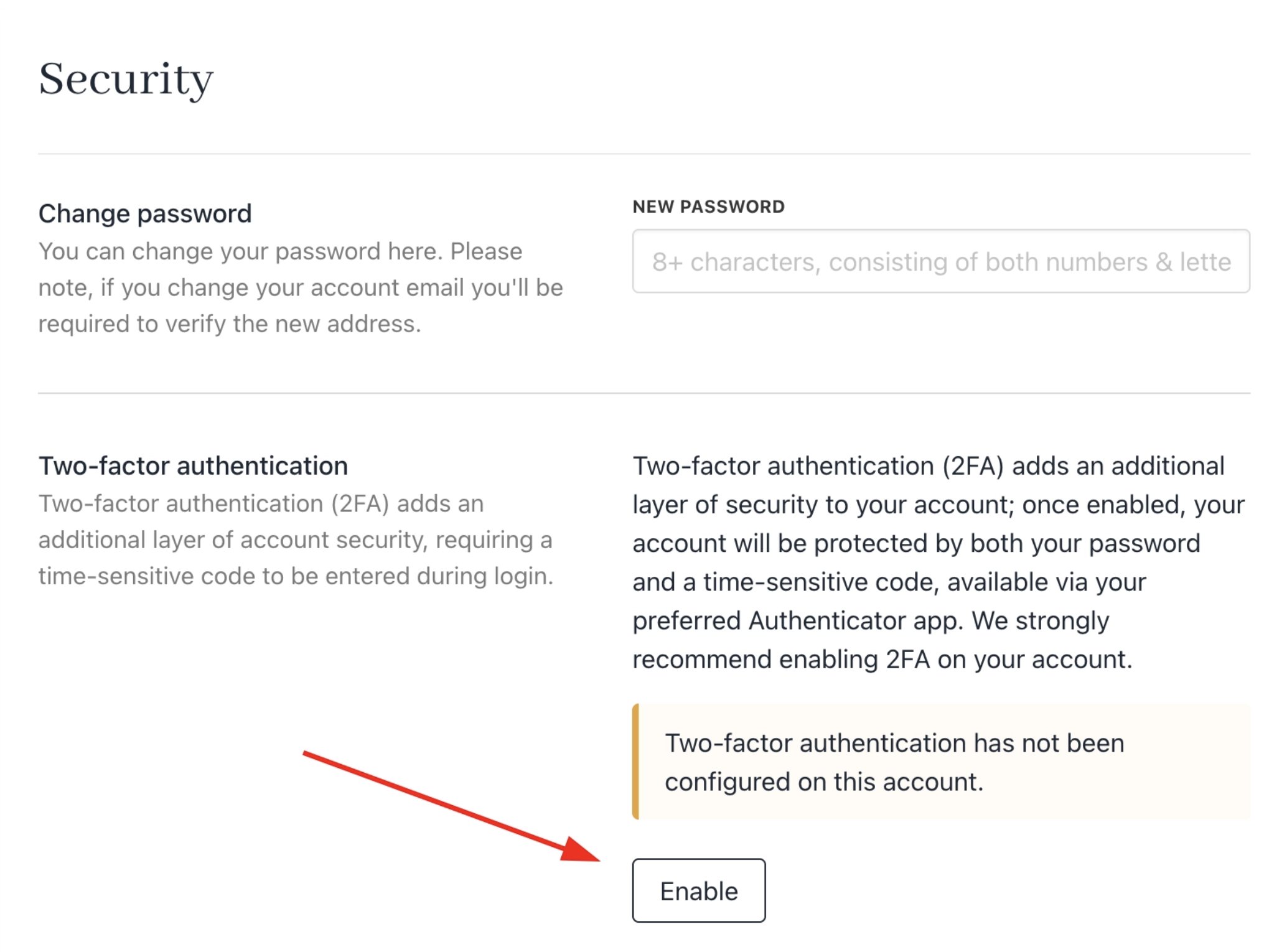
Enable 2FA
- Open your authenticator app (e.g., Google Authenticator) on your mobile device and scan the QR code, or use the provided link.
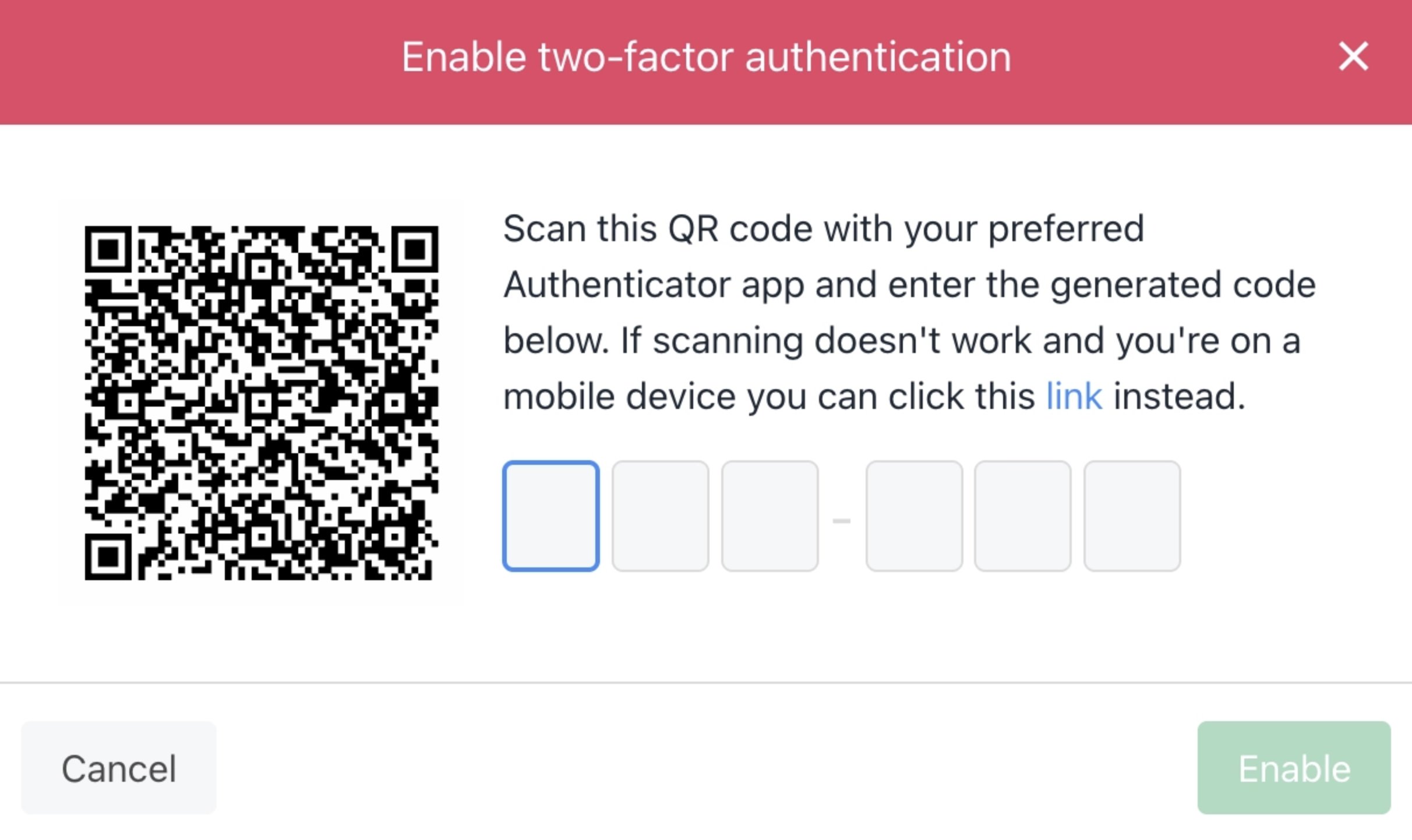
Enter code
- Enter the generated code in the field and click Enable.
Authenticator apps generate a new code every 30 seconds. Enter it before it expires.
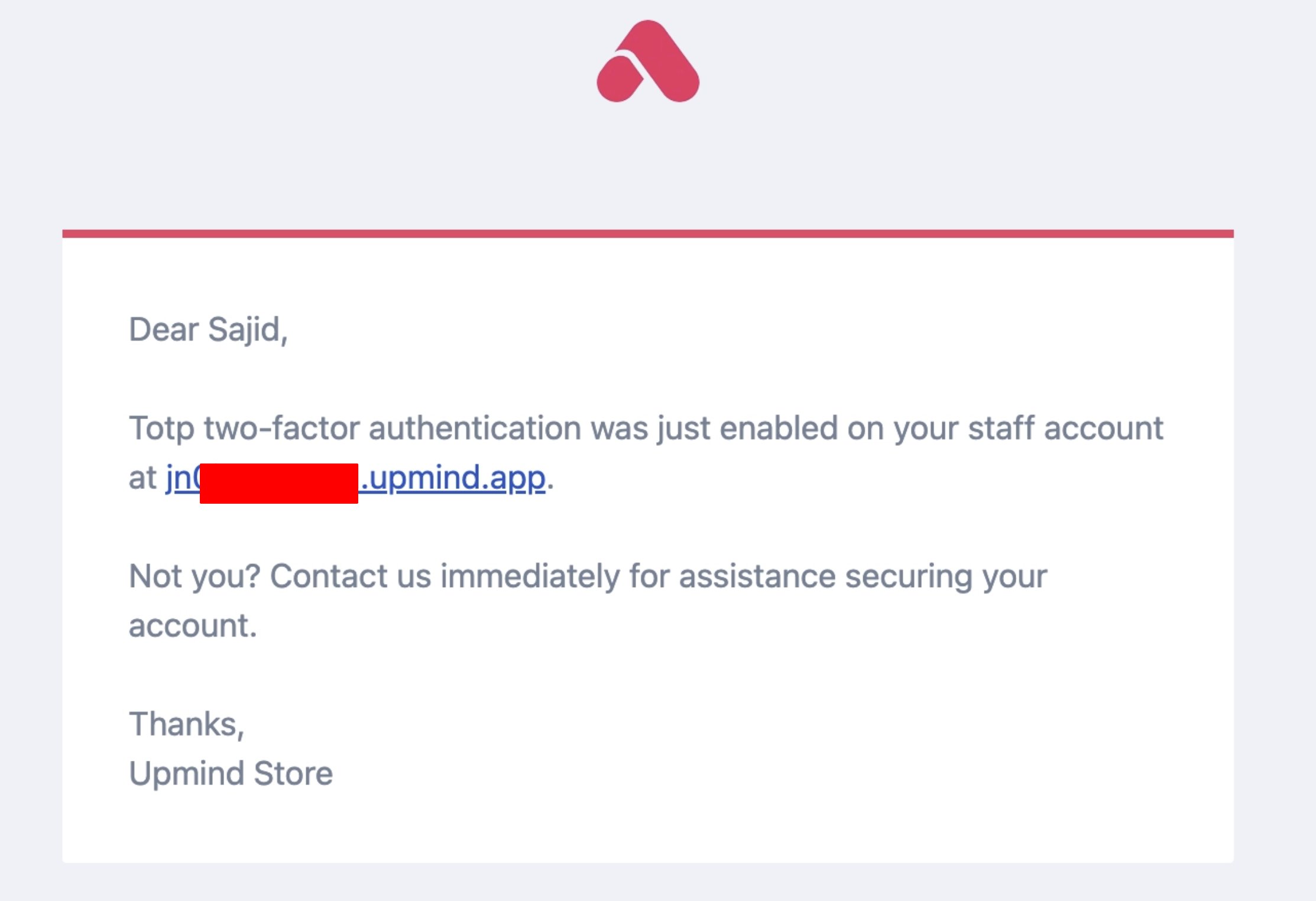
2FA enabled email
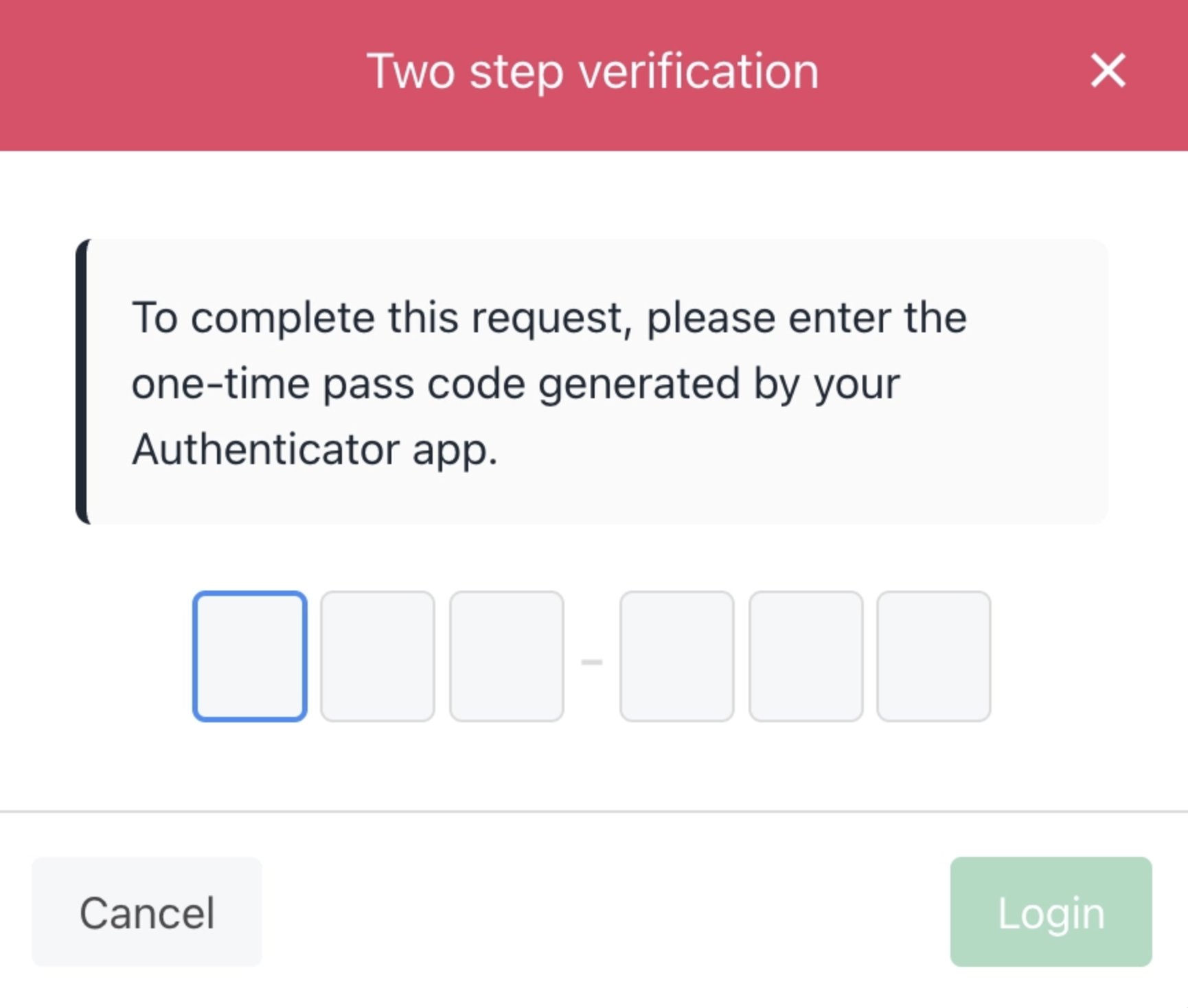
Required 2FA on login
How to disable 2FA as an Admin/Staff
- Go to My Account > Security and click Disable.
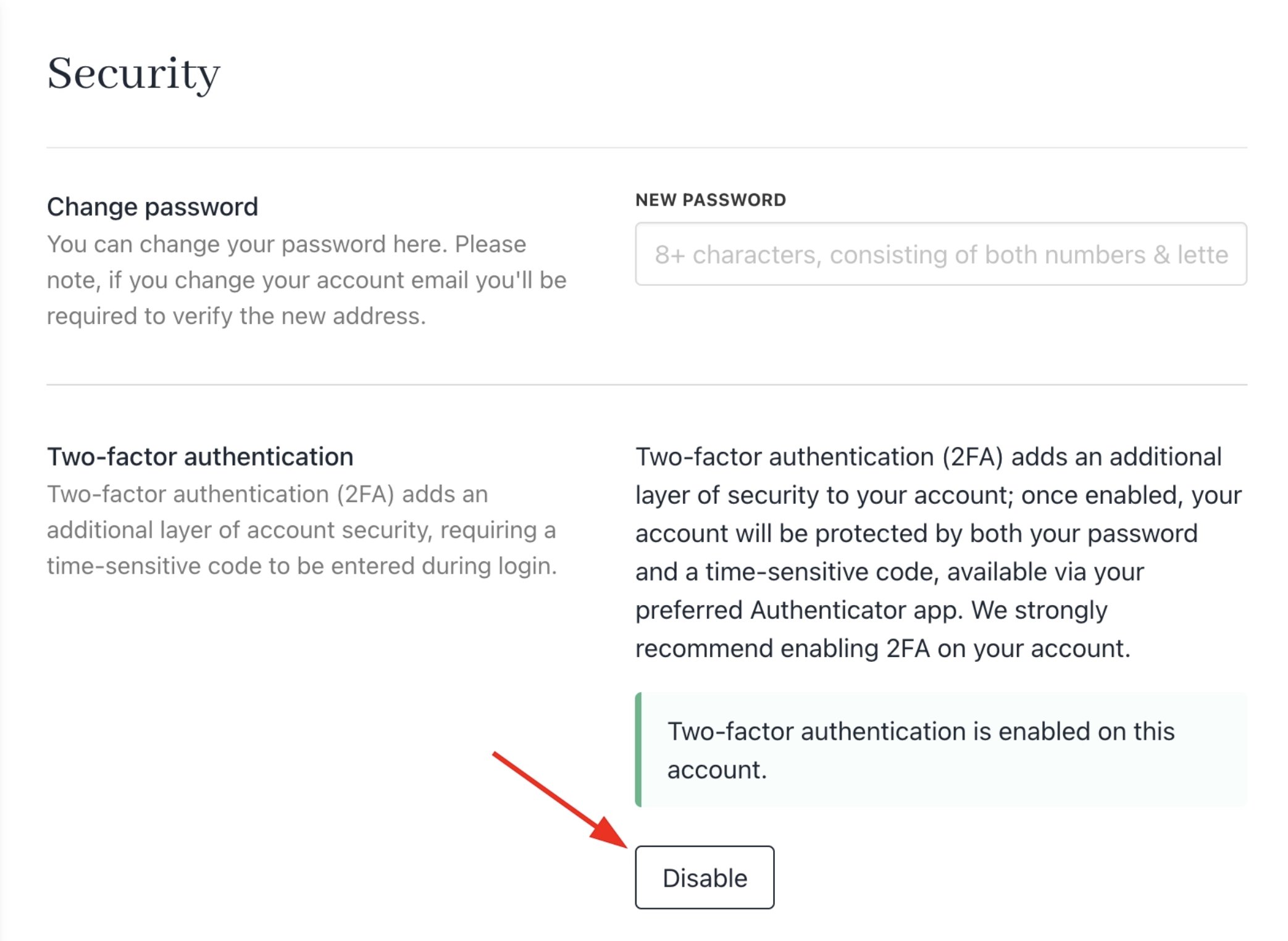
Disable 2FA
- Open your authenticator app and find the current code for your Upmind account.
- Enter the code in the provided field on the Security page.
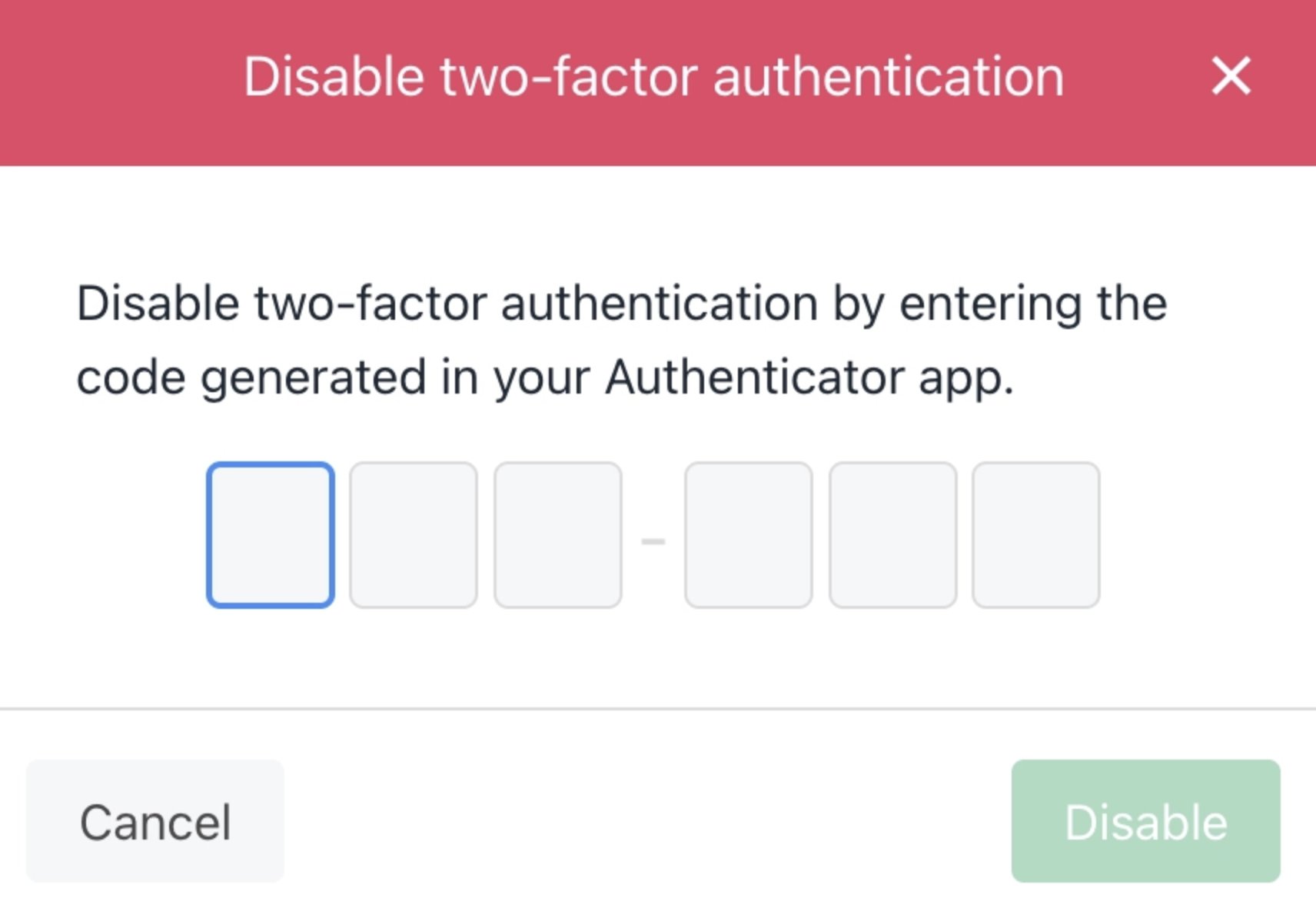
Enter code
- Click Disable on the confirmation pop-up to confirm.
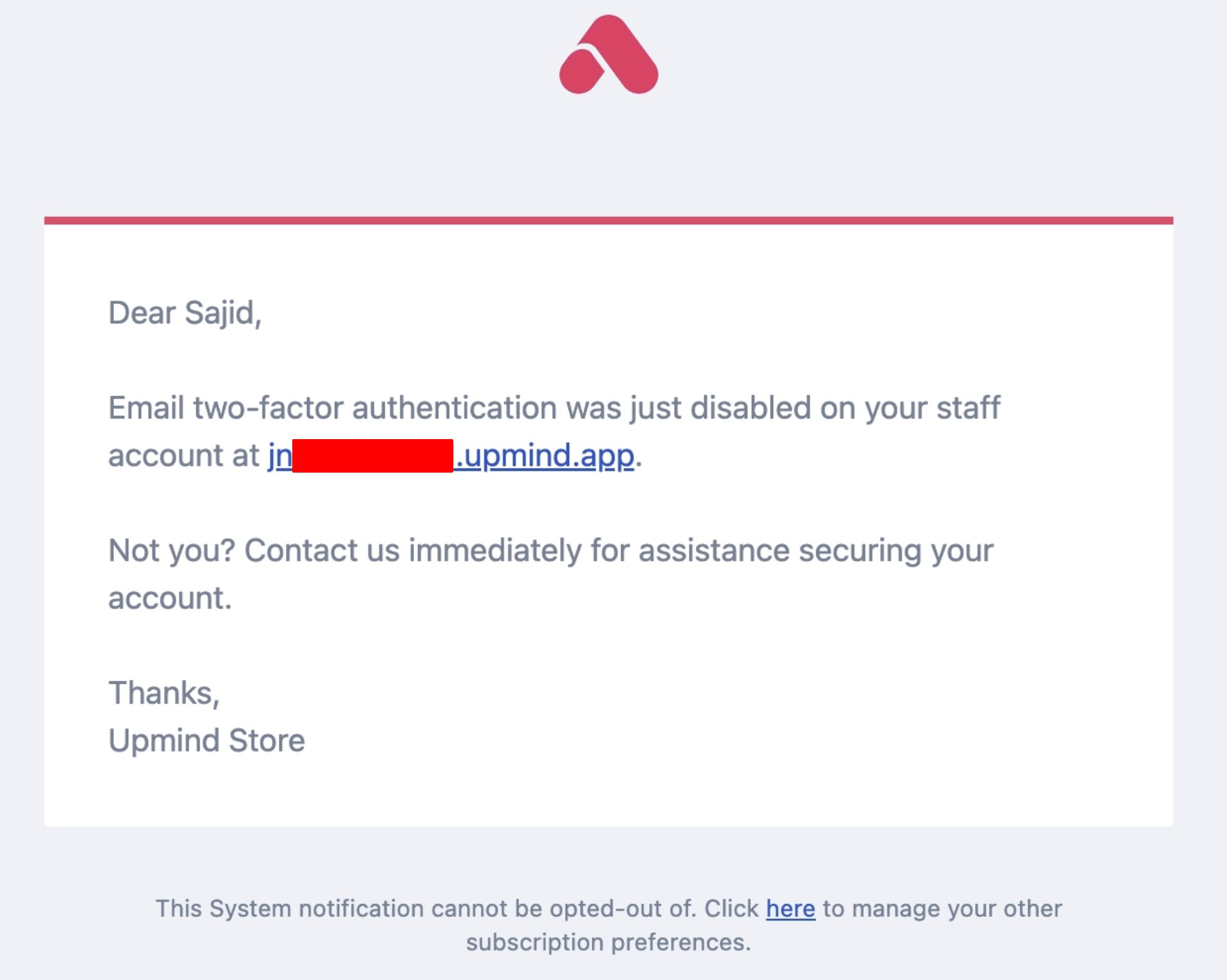
2FA disabled email
Enforcing 2FA for Clients
Admin/Staff can require all clients to set up 2FA when they log in.- Go to Settings > Client Auth Providers under Users and Permissions.
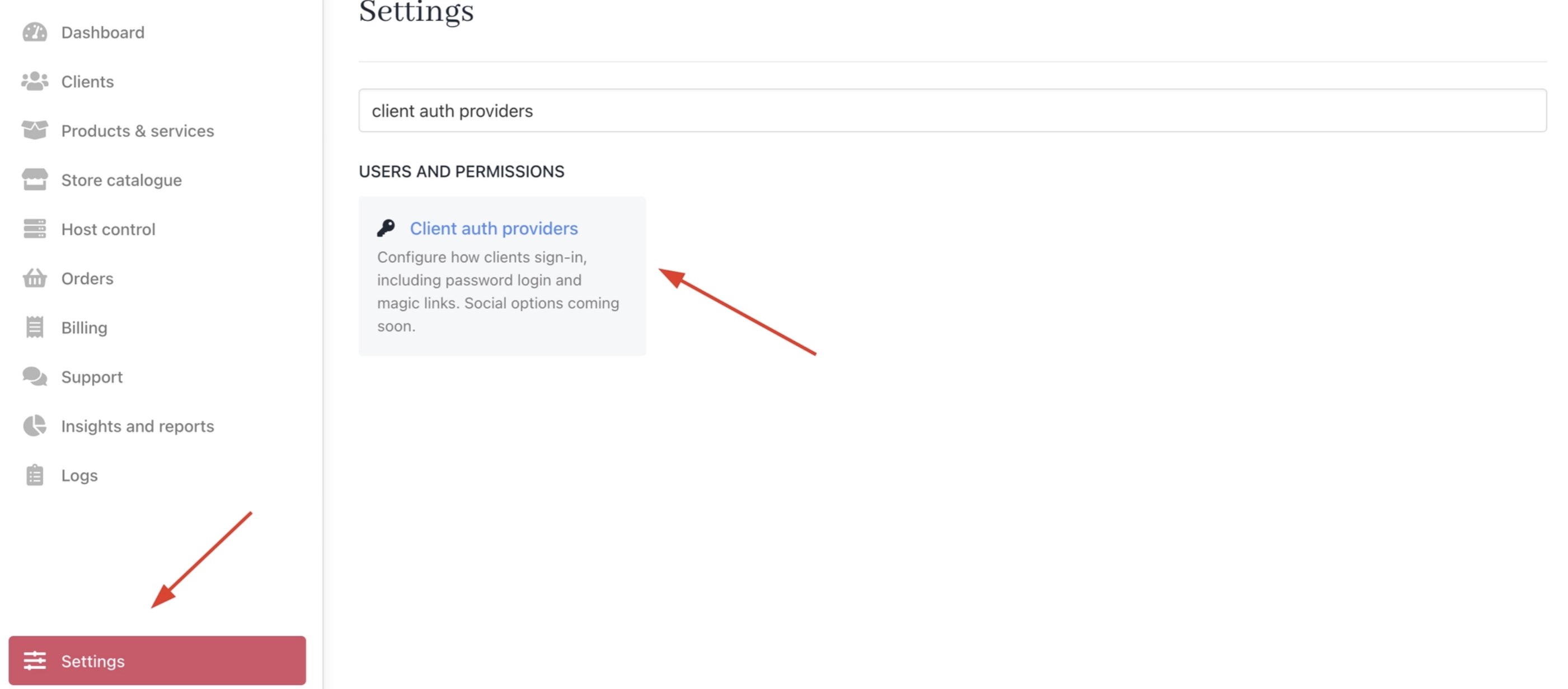
Settings > Client auth providers
- Click the three dots (⋮) next to the relevant auth provider and select Edit.
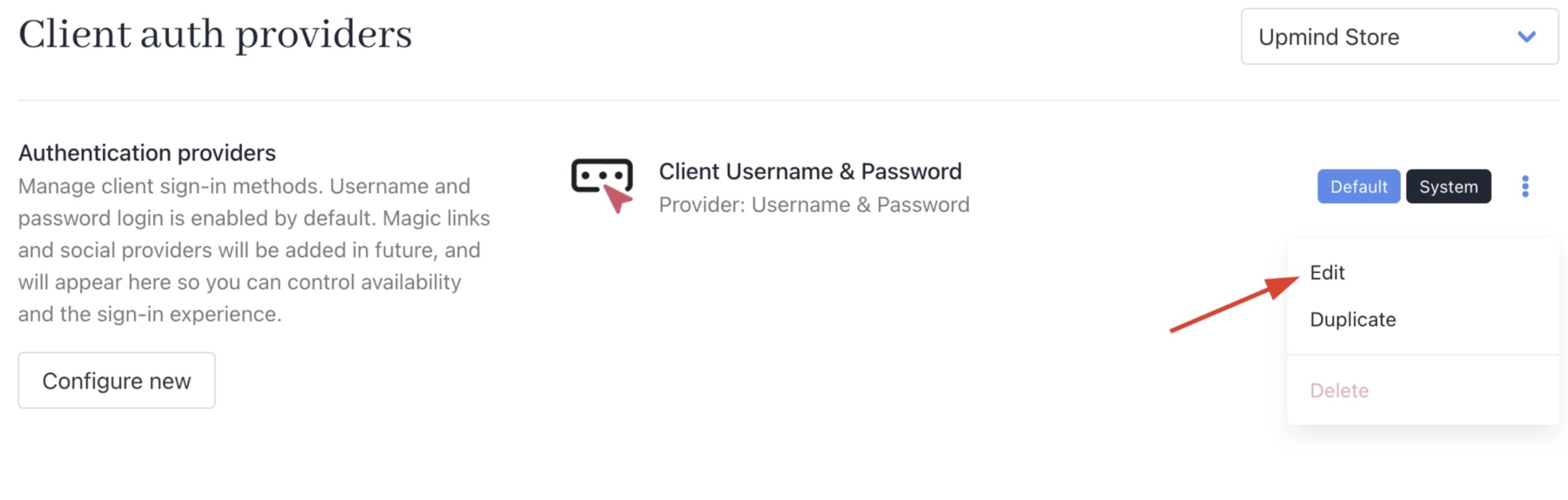
Click edit
- Toggle on Enforce 2FA on Login.
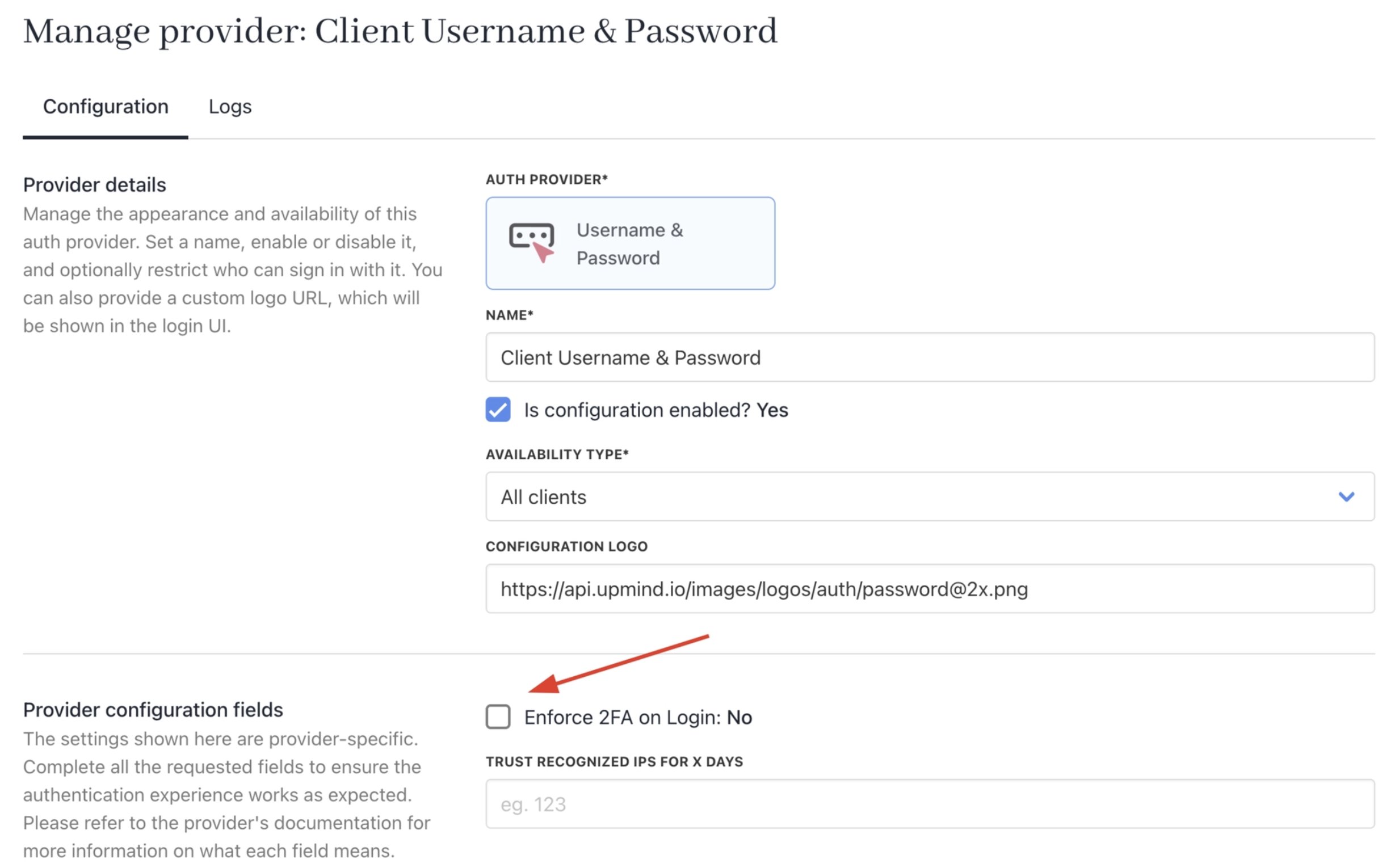
Enforce 2FA on login
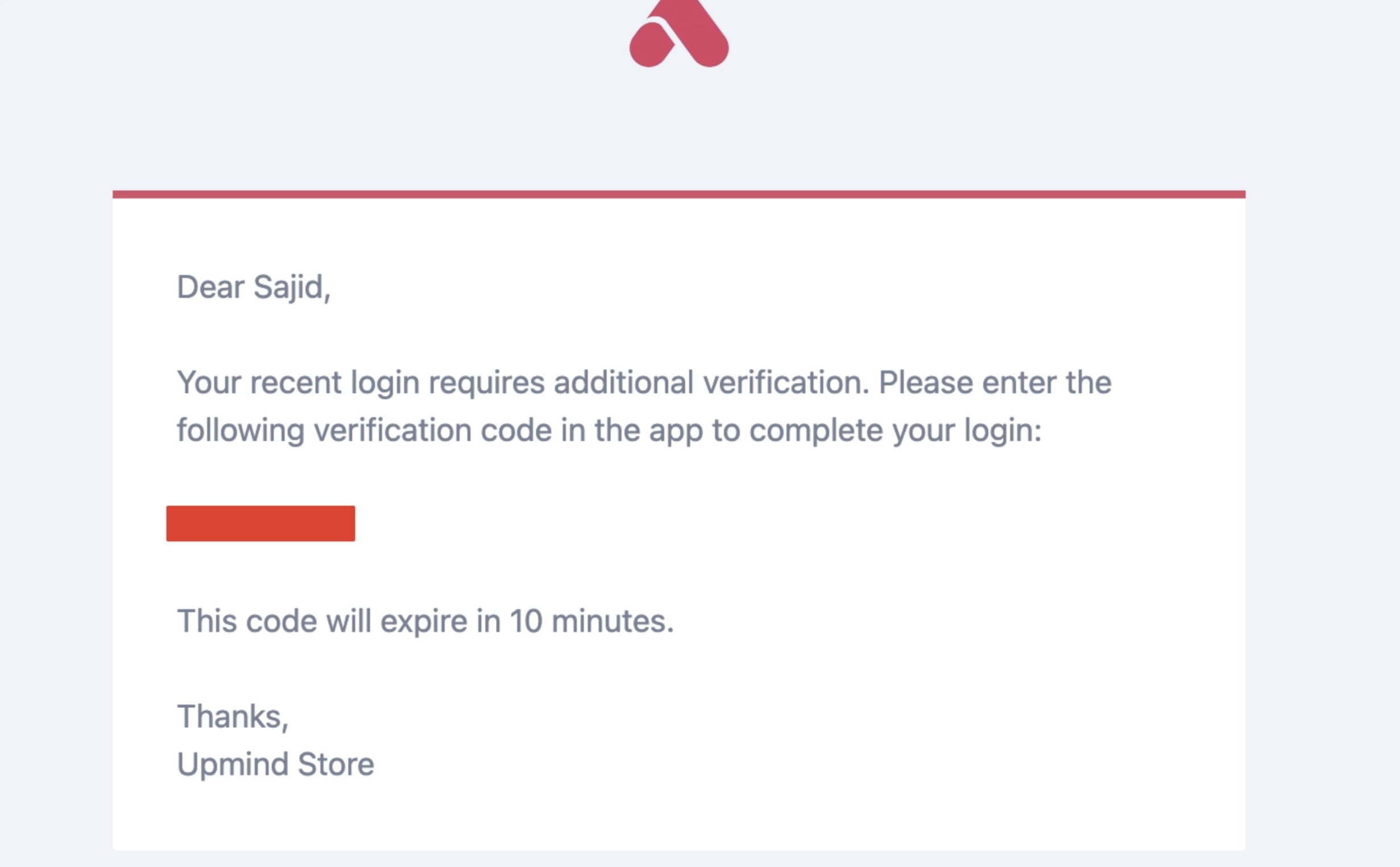
Verification code email
Impersonating a Client to activate 2FA
Admins/Staff can impersonate a client account to activate 2FA on their behalf.- Select the client and impersonate them.
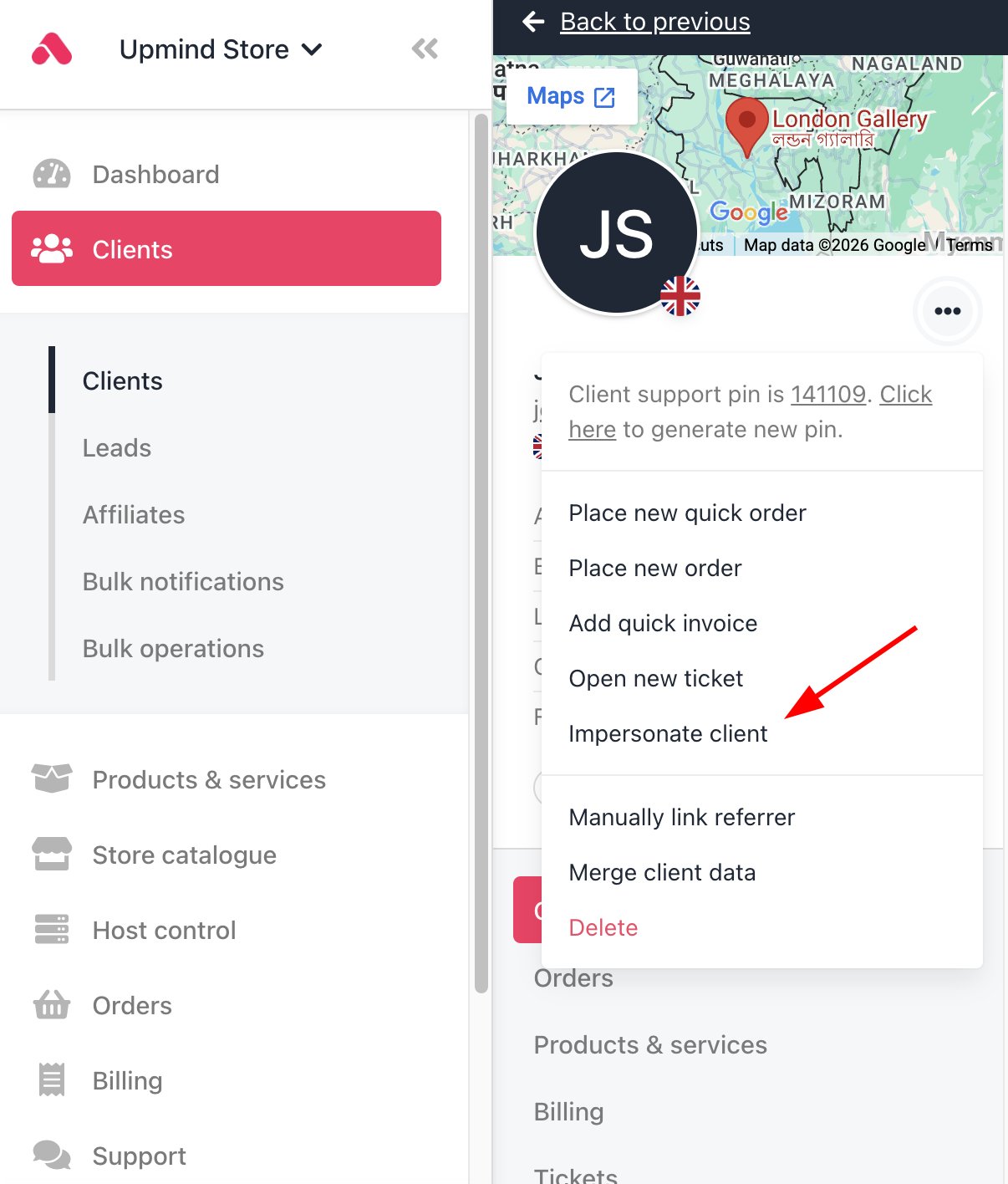
Impersonate client
- Go to My Account > Security.
- Follow the same steps under Enabling 2FA above.
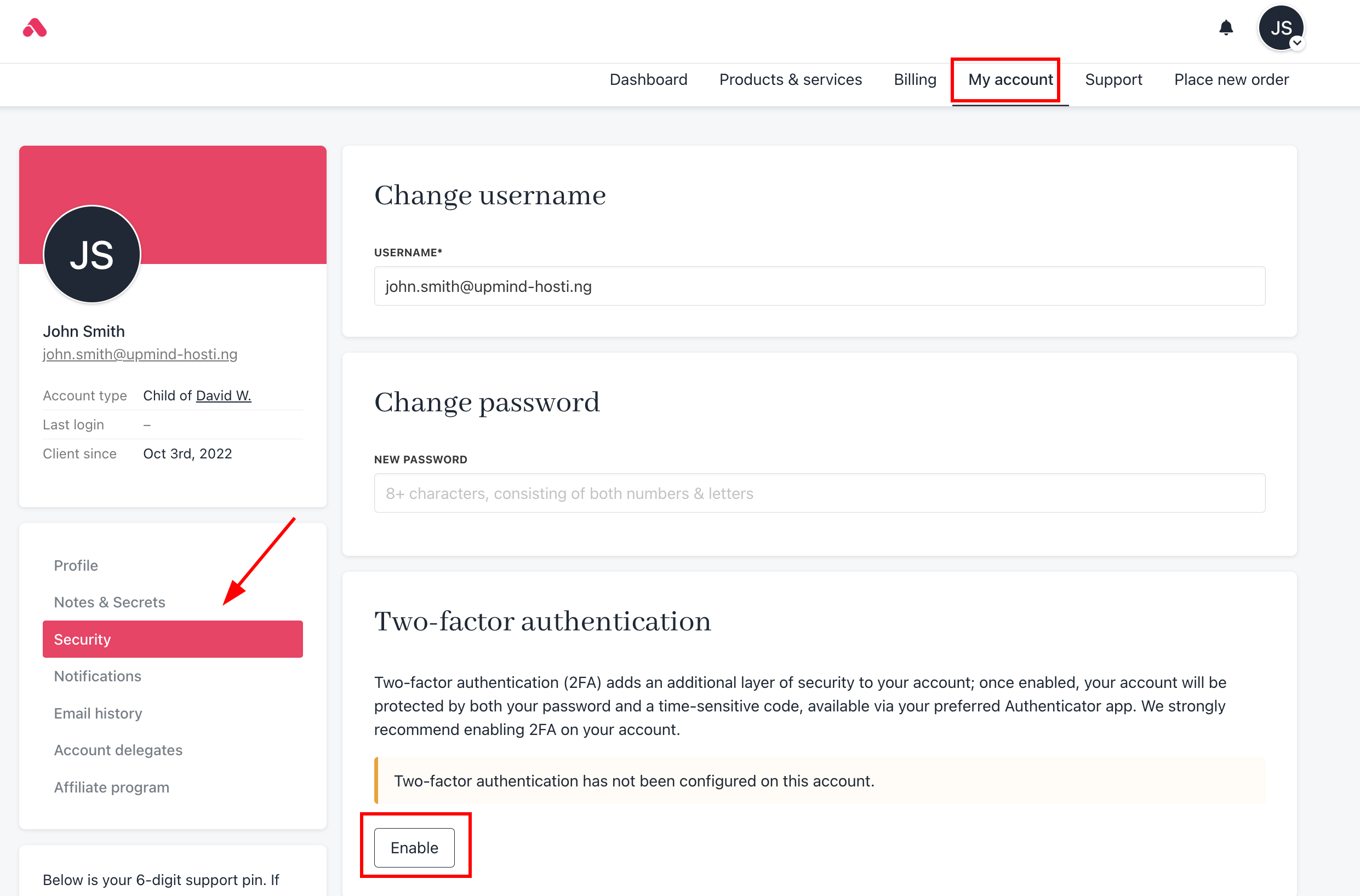
Enable 2FA for clients
When staff impersonates a client to make changes, 2FA verification is not required from the staff side. So, only the client triggers the 2FA check when changing their own credentials.
2FA when changing your password or email
Upmind requires a verification code any time an admin or staff member changes their own password or email address. This is enabled by default across all brands.Updating password from account security
When you submit a password or email change, Upmind will send a 6-digit verification code to your current email address. The request won’t go through until you enter that code.- Submit the password or email change as normal from My Account > Security.
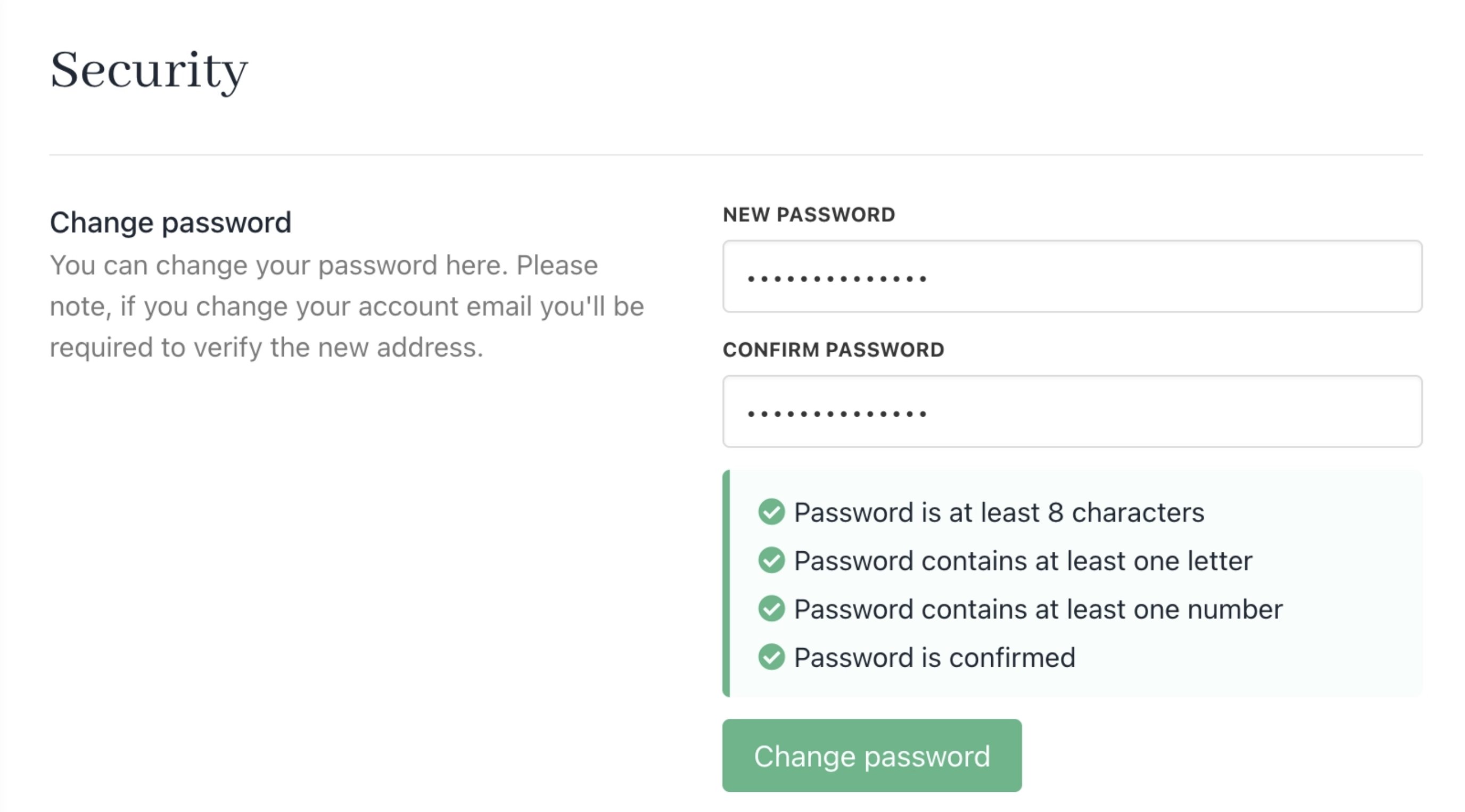
Change password
- Enter the 6-digit code you received in the verification field.
- Submit again to complete the change.
This verification step does not apply when an administrator changes another staff member’s credentials. It only applies when you are changing your own.
Resetting password from login
- Click Forgotten your password.
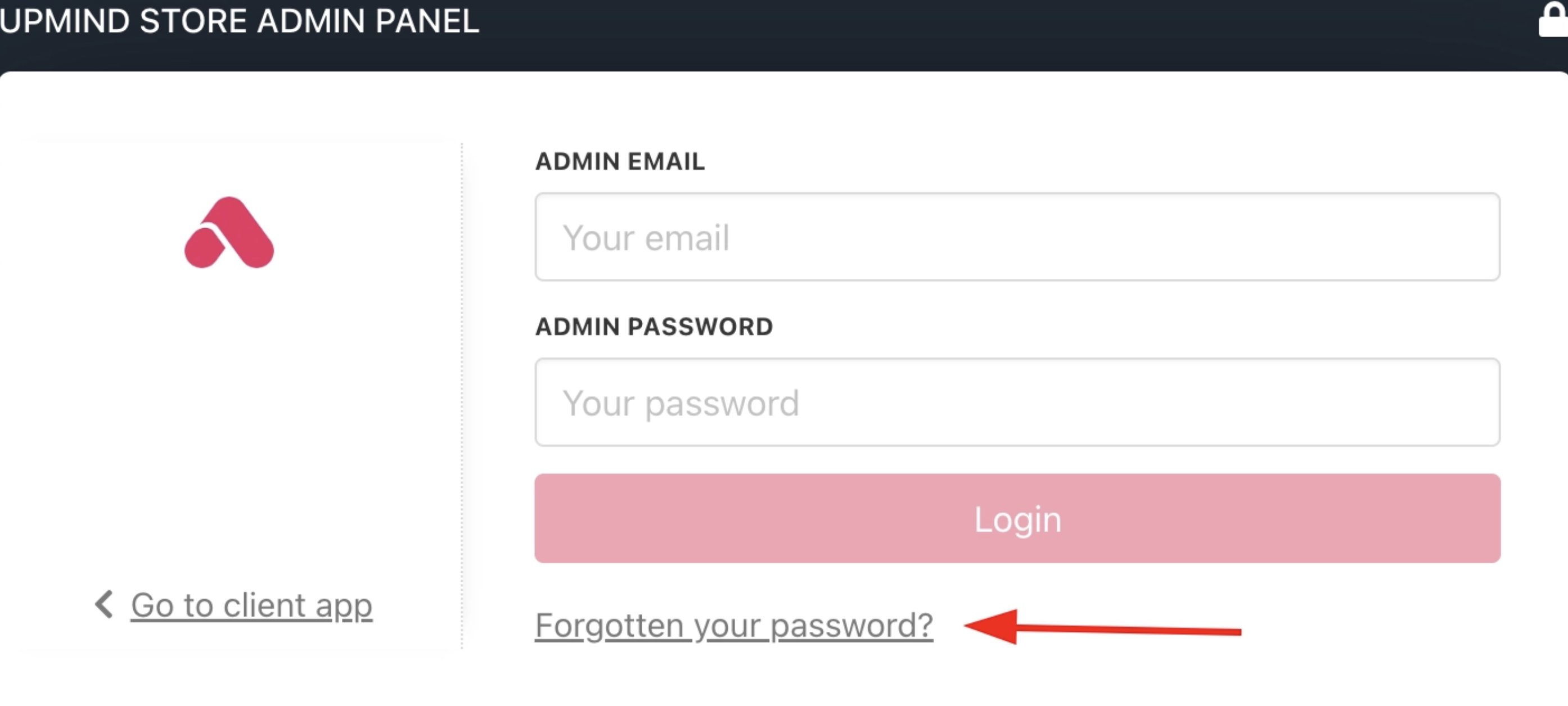
Forgotten your password
- You will receive an email to reset your password. Click the link.
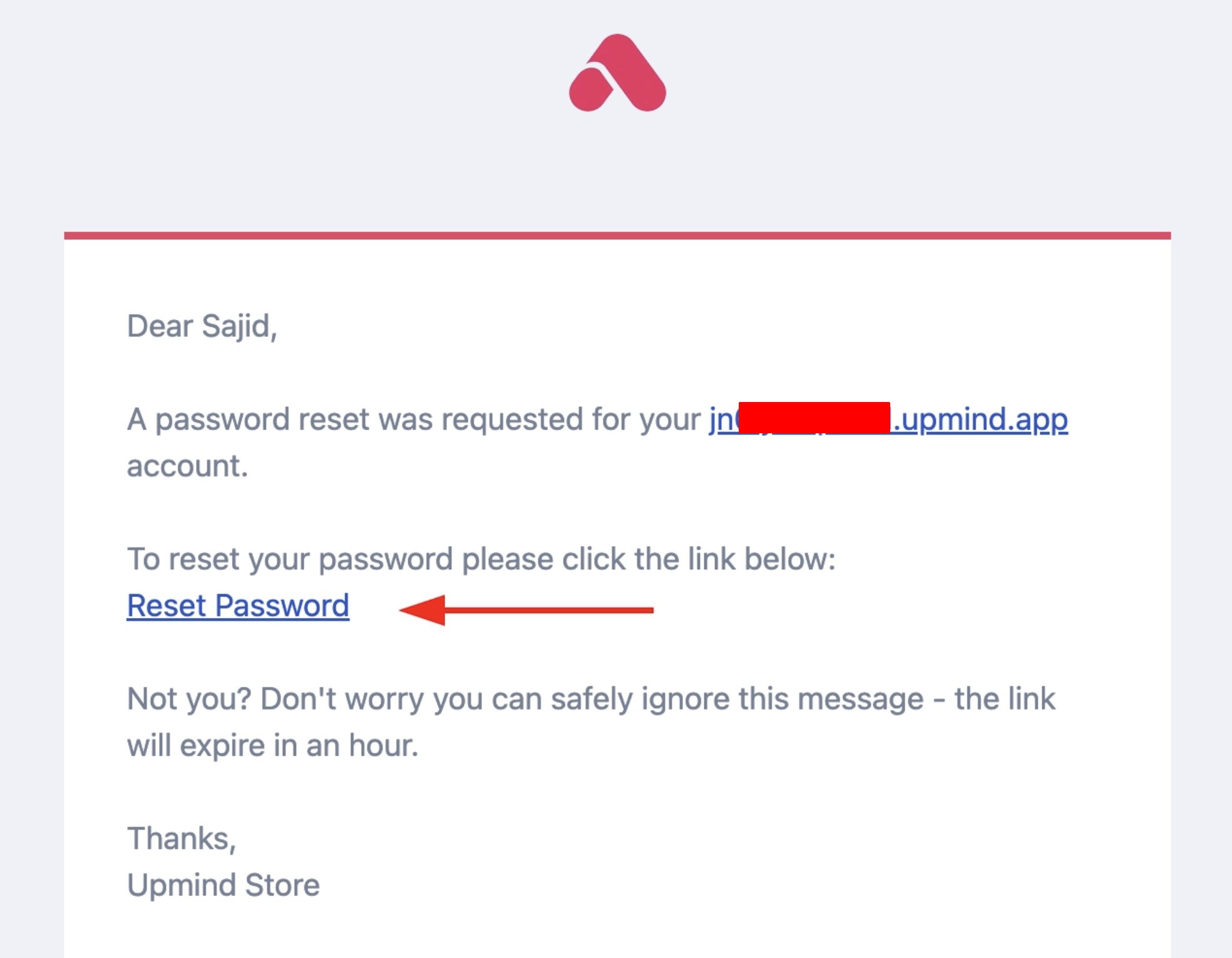
Reset password email
- Now, when you try to reset your password, you will be prompted to enter your 2FA code.
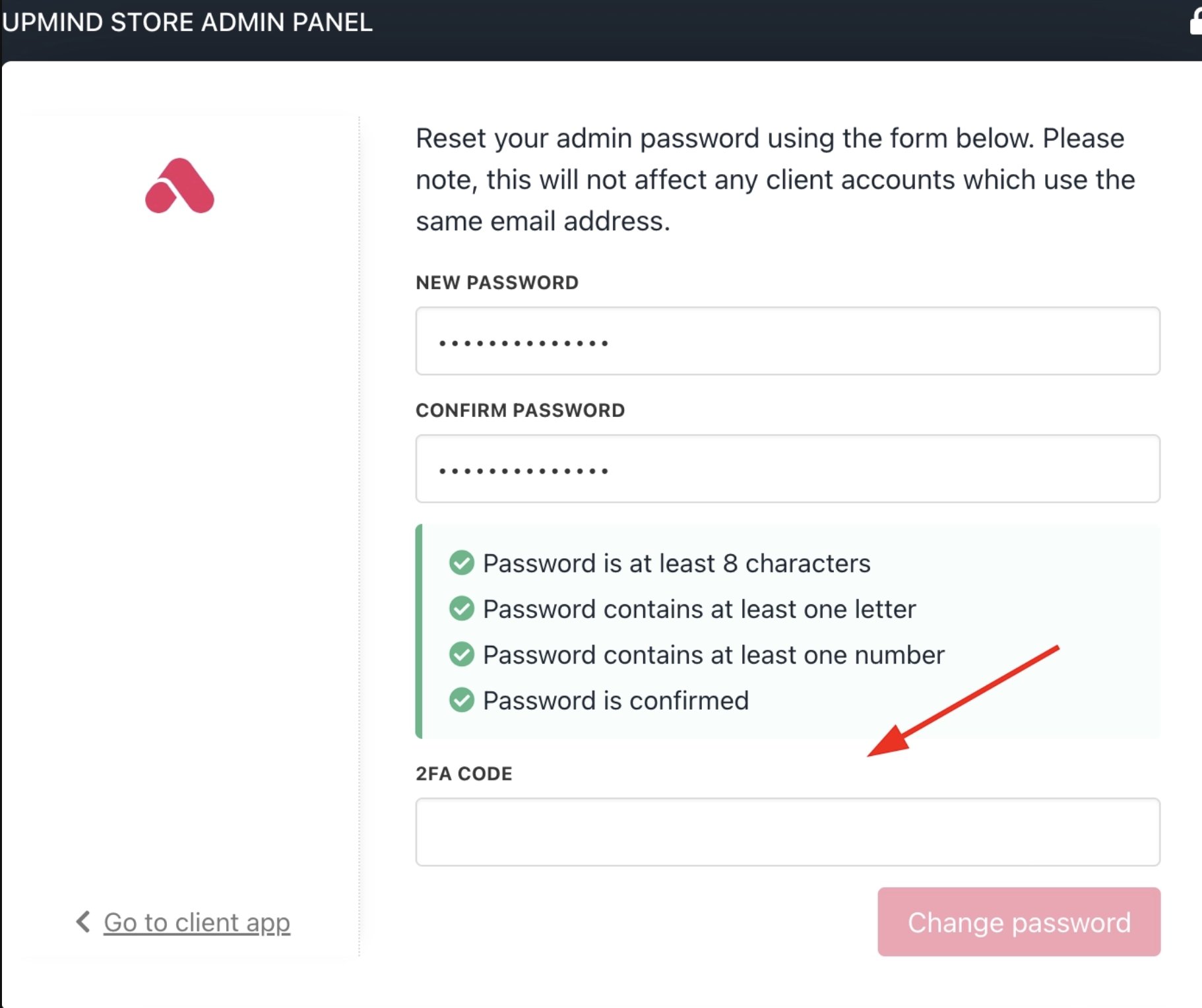
2FA code prompt
Resetting 2FA after losing your authenticator
If you lose access to your authenticator app, another account administrator can reset your 2FA from the admin panel. If no other administrator is available, send an email to support@upmind.com from the address registered on your Upmind account and the support team will help restore your access.Enforcing email verification before checkout
You can require clients to verify their email address before they can place an order. This helps confirm contact information and reduces the risk of fraudulent orders.How it works
The verification check applies at the start of the checkout process, and it does not block registration. Clients can register, return to their basket, and browse without verifying, but they must complete email verification before they can proceed to checkout. To enable this setting- Go to Settings > Security under Branding and Customisation.
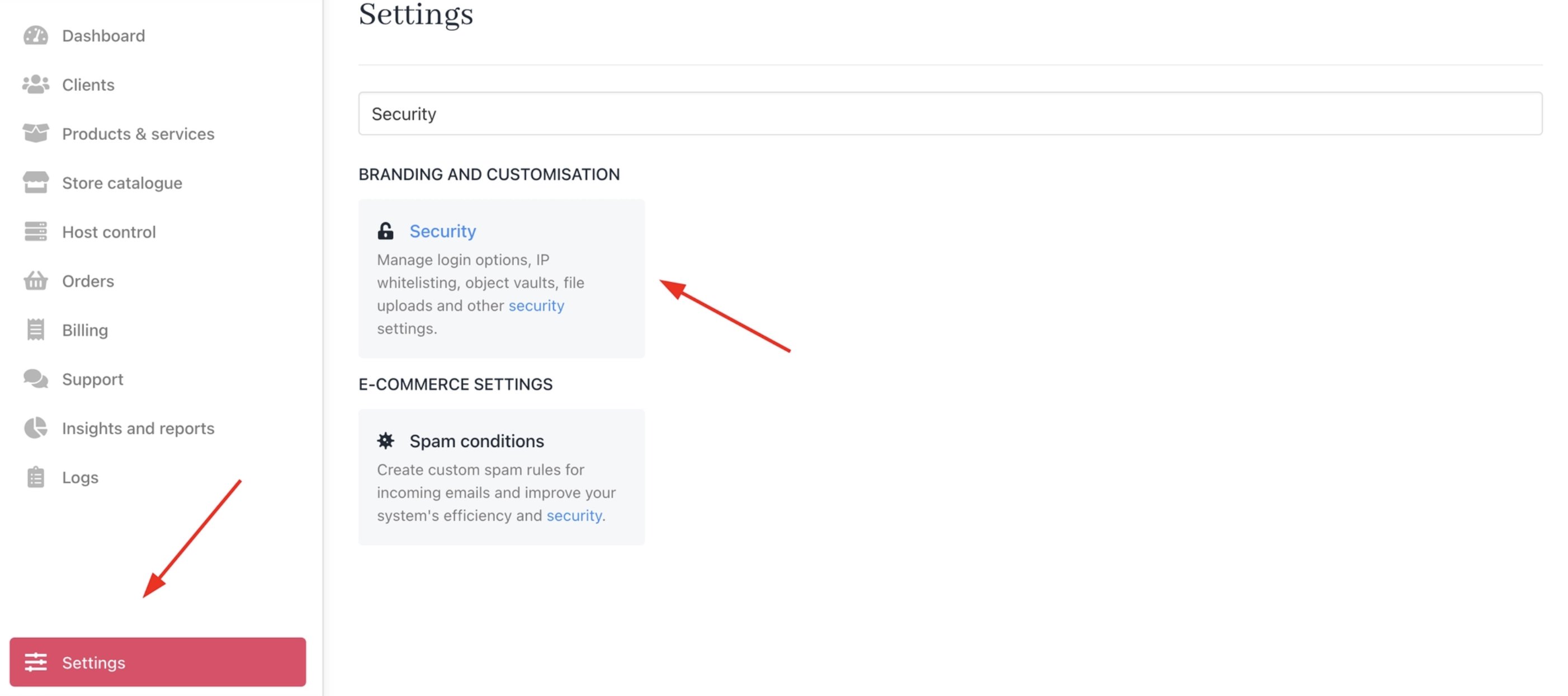
Settings > Security
- Enable Require a verified email to place an order.

Require a verified email to place an order
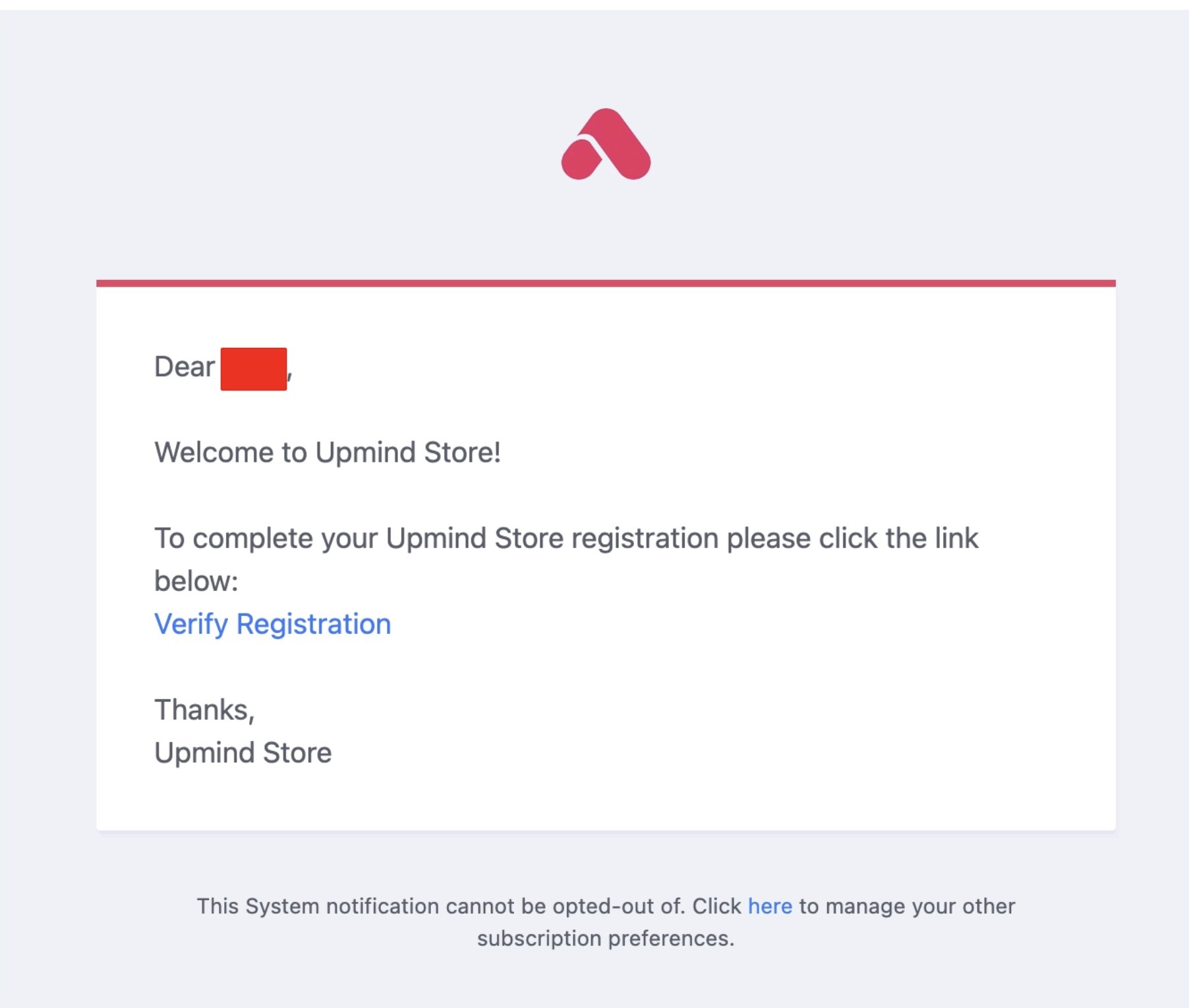
Clients can verify their email beforehand during registration
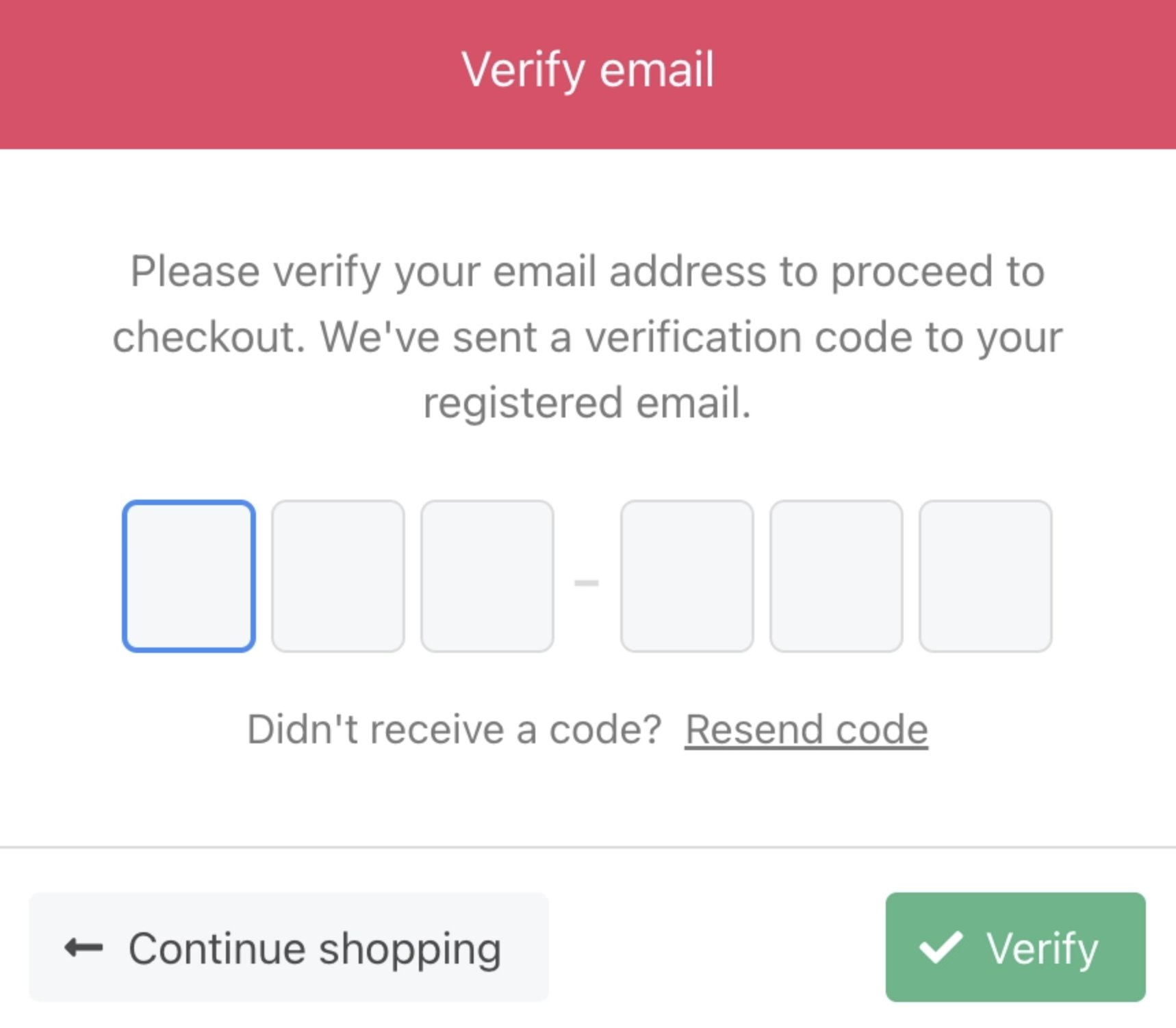
Clients will need to verify their email during checkout