

Before you start, make sure you have two apps on your mobile device - a QR code scanner and an authenticator app such as Google Authenticator or Authy.
How to enable 2FA as a client
- Go to the Security section of your account and scroll down to Two-Factor Authentication.
- Click Enable.
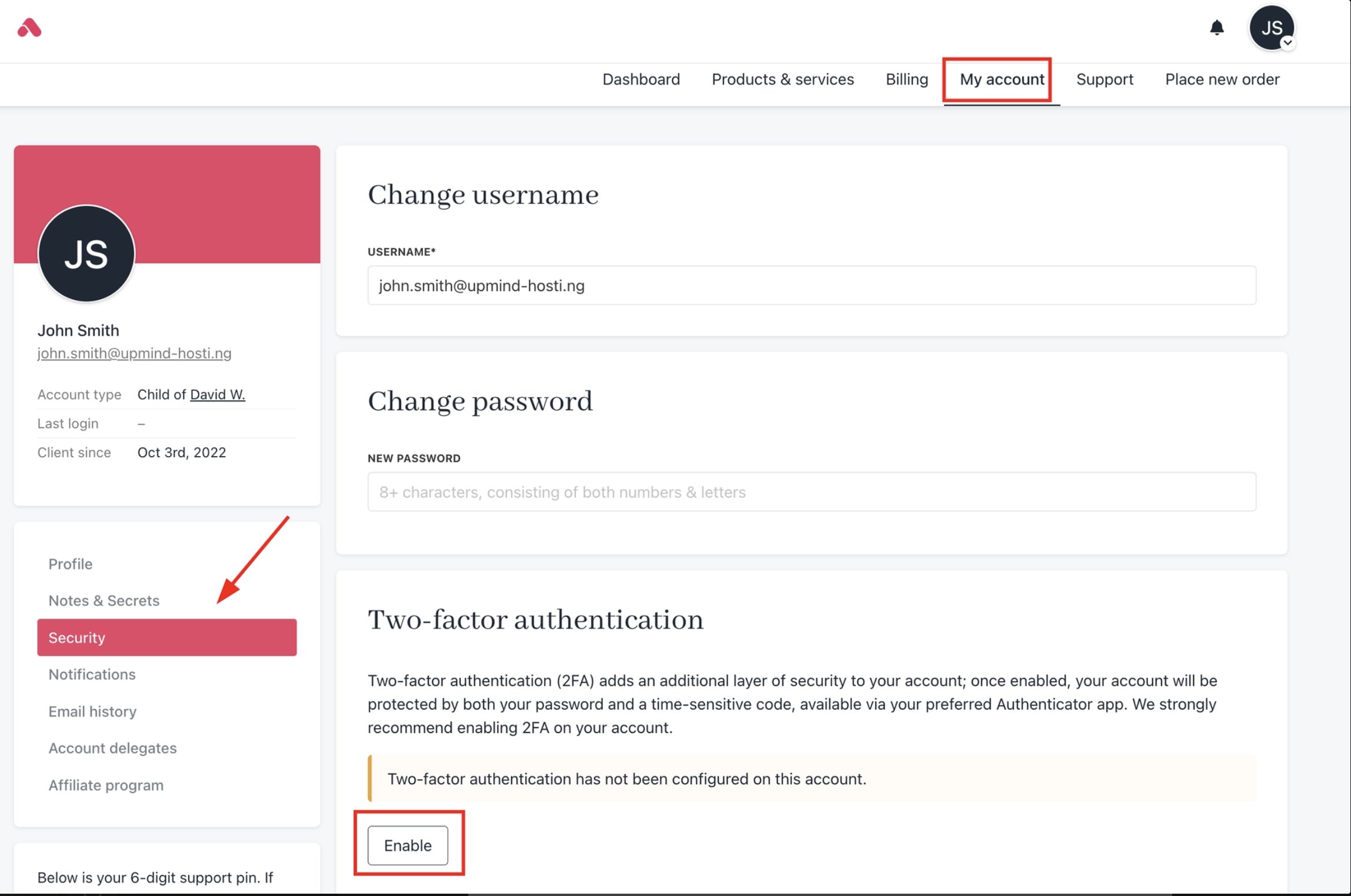
My account > Security
- Scan the QR code using your authenticator app.
- Copy the generated code from your app.
- Enter the code in the provided field.
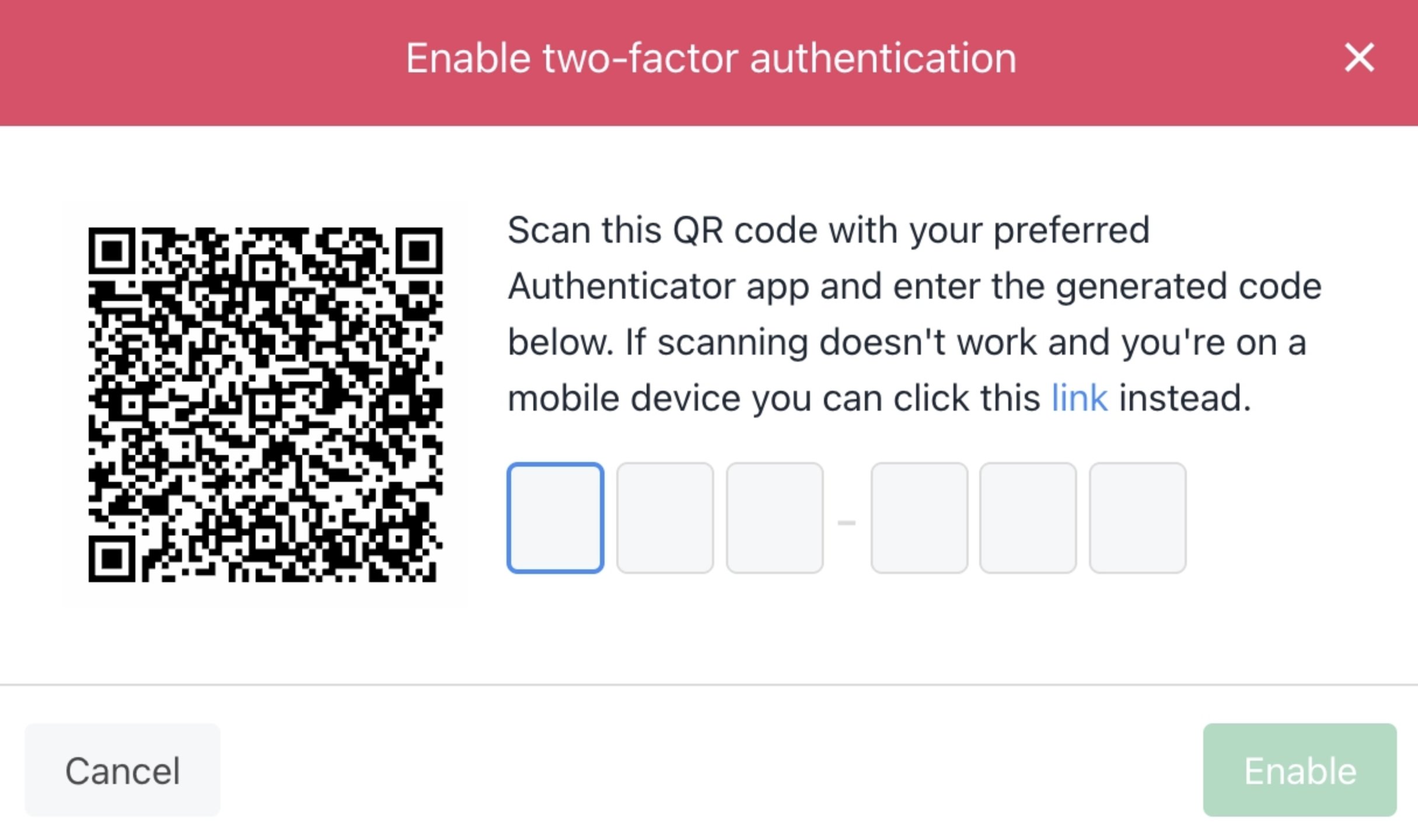
Enter code
- Click Enable to activate two-factor authentication.
Authenticator apps generate a new code every 30 seconds. Enter it before it expires.
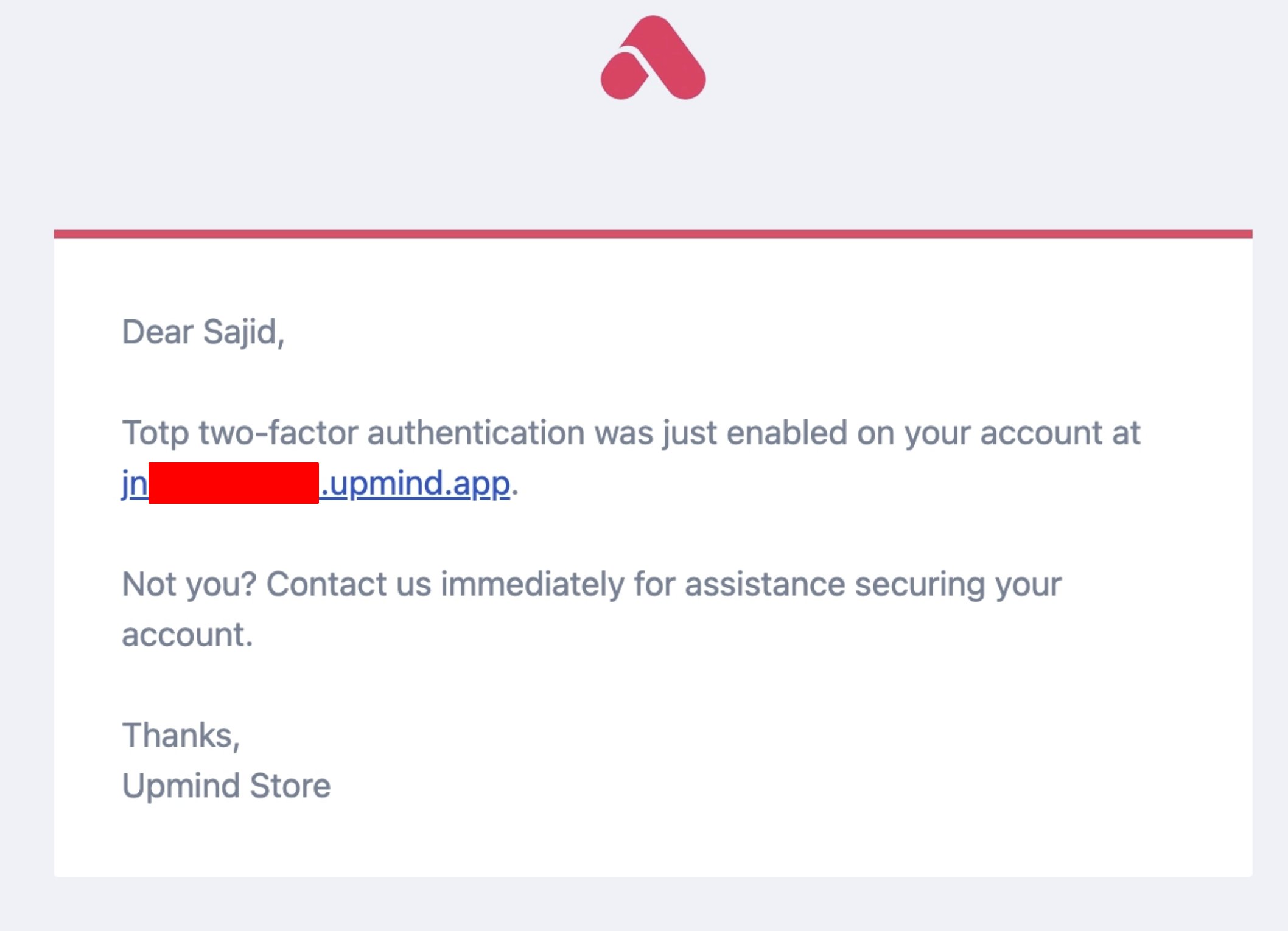
2FA enabled email
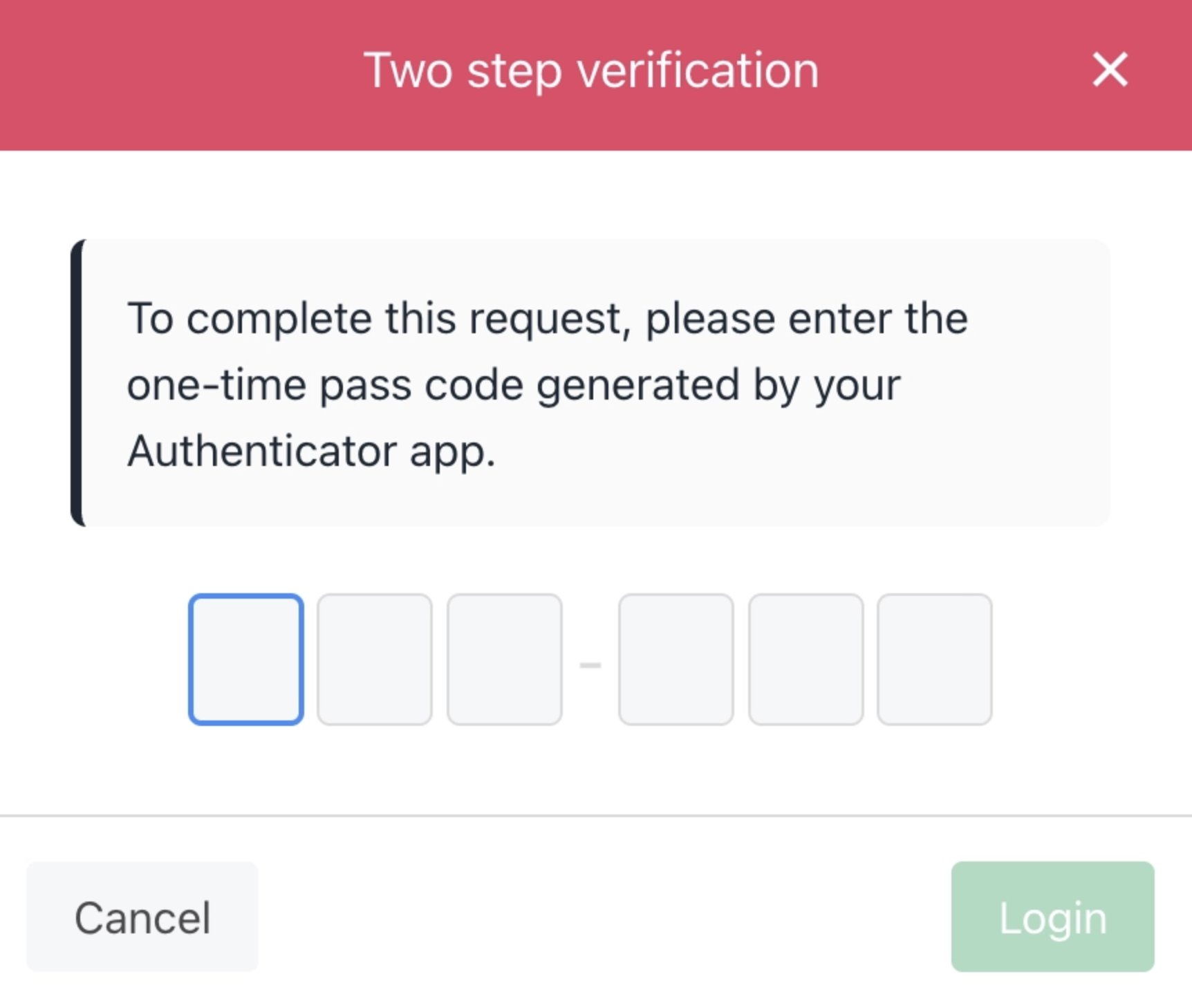
Required 2FA on login
How to disable 2FA as a client
- Go to the Security page and click Disable.
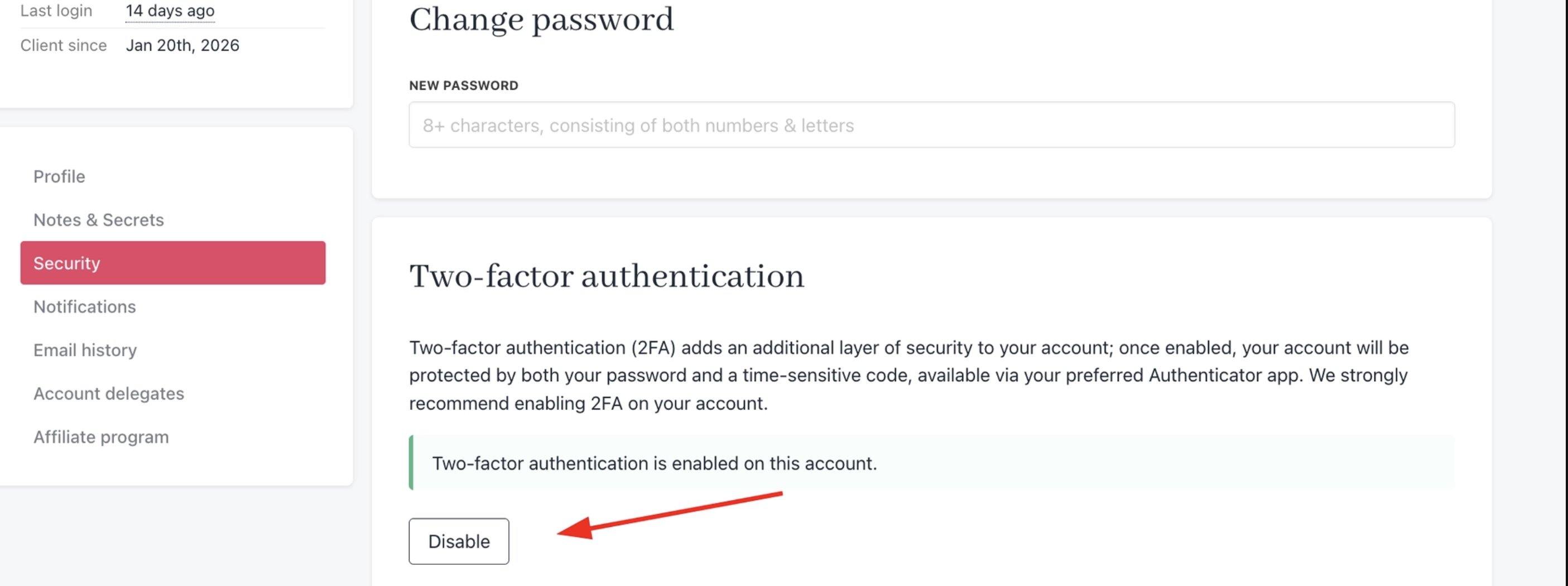
Disable 2FA
- Open your authenticator app and find the current code for your Upmind account.
- Enter the code in the provided field on the Security page.
- Click Disable on the confirmation pop-up to confirm.
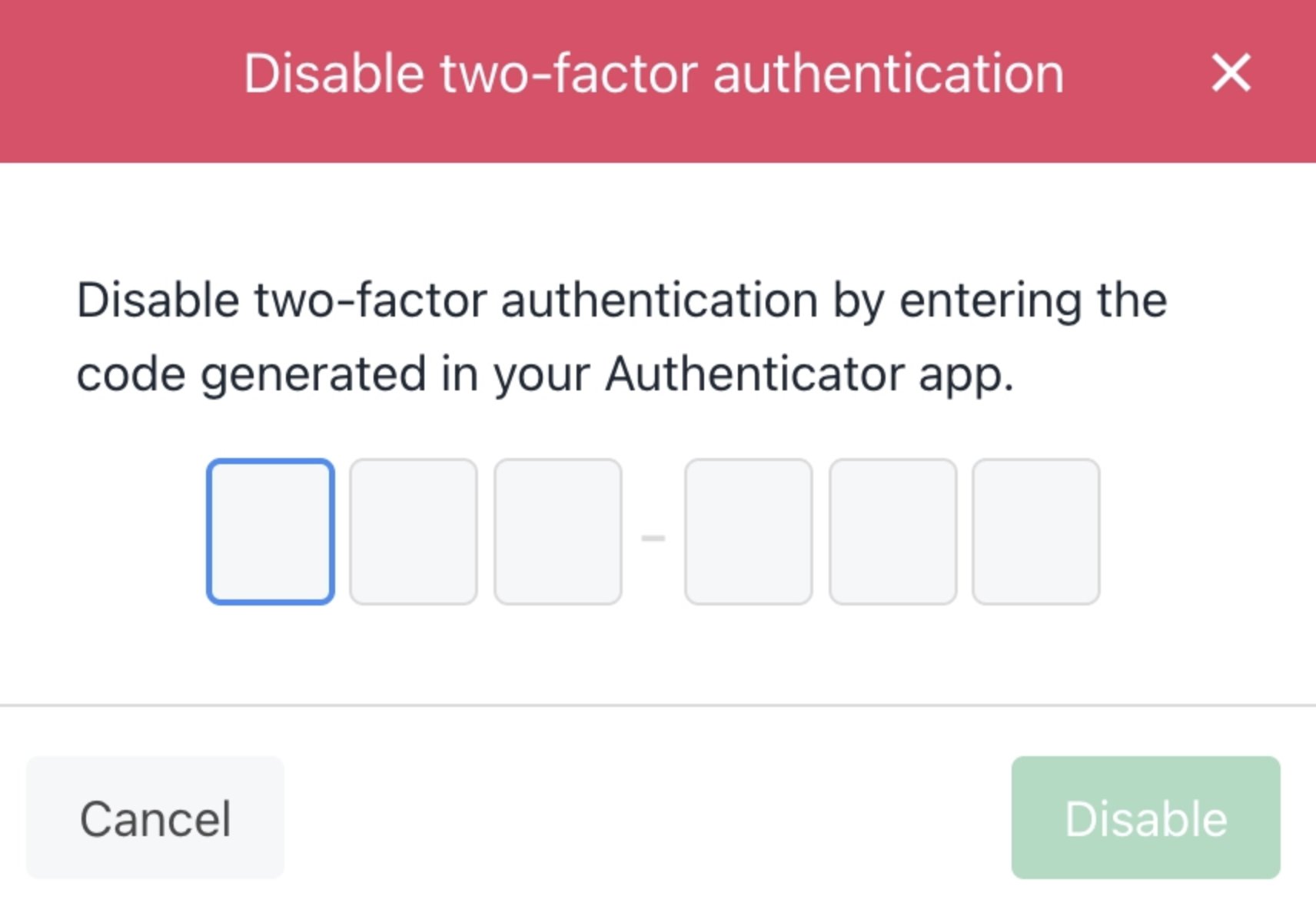
Enter code
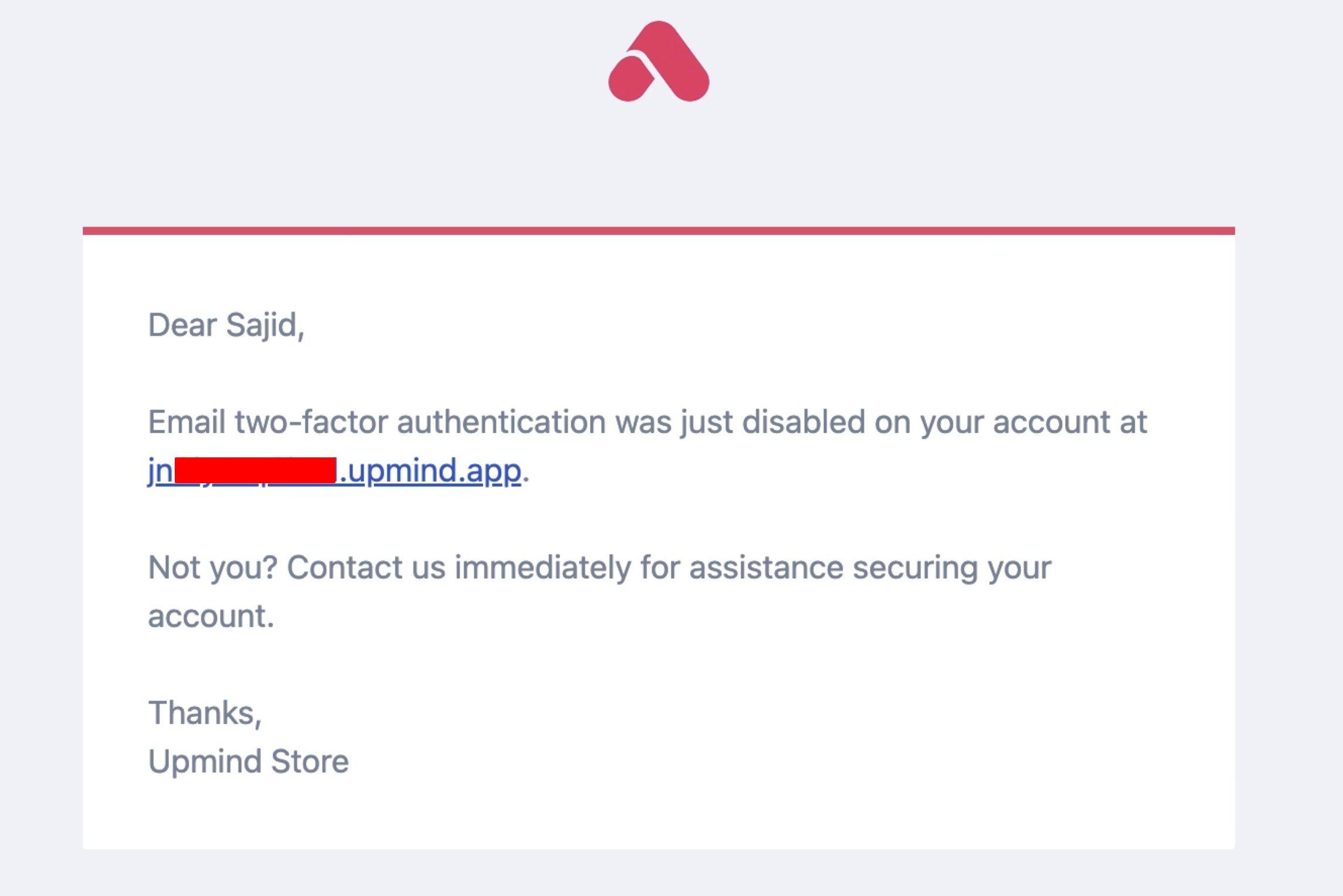
2FA disabled email
2FA when changing your password or email
Upmind requires a verification code any time you change your own password or email address. This is a built-in security measure that applies even if you already have an authenticator app set up.Updating password from account security
When you submit a password or email change, Upmind will send a 6-digit verification code to your current email address. The request won’t go through until you enter that code.- Submit the password or email change as normal from My Account > Security.
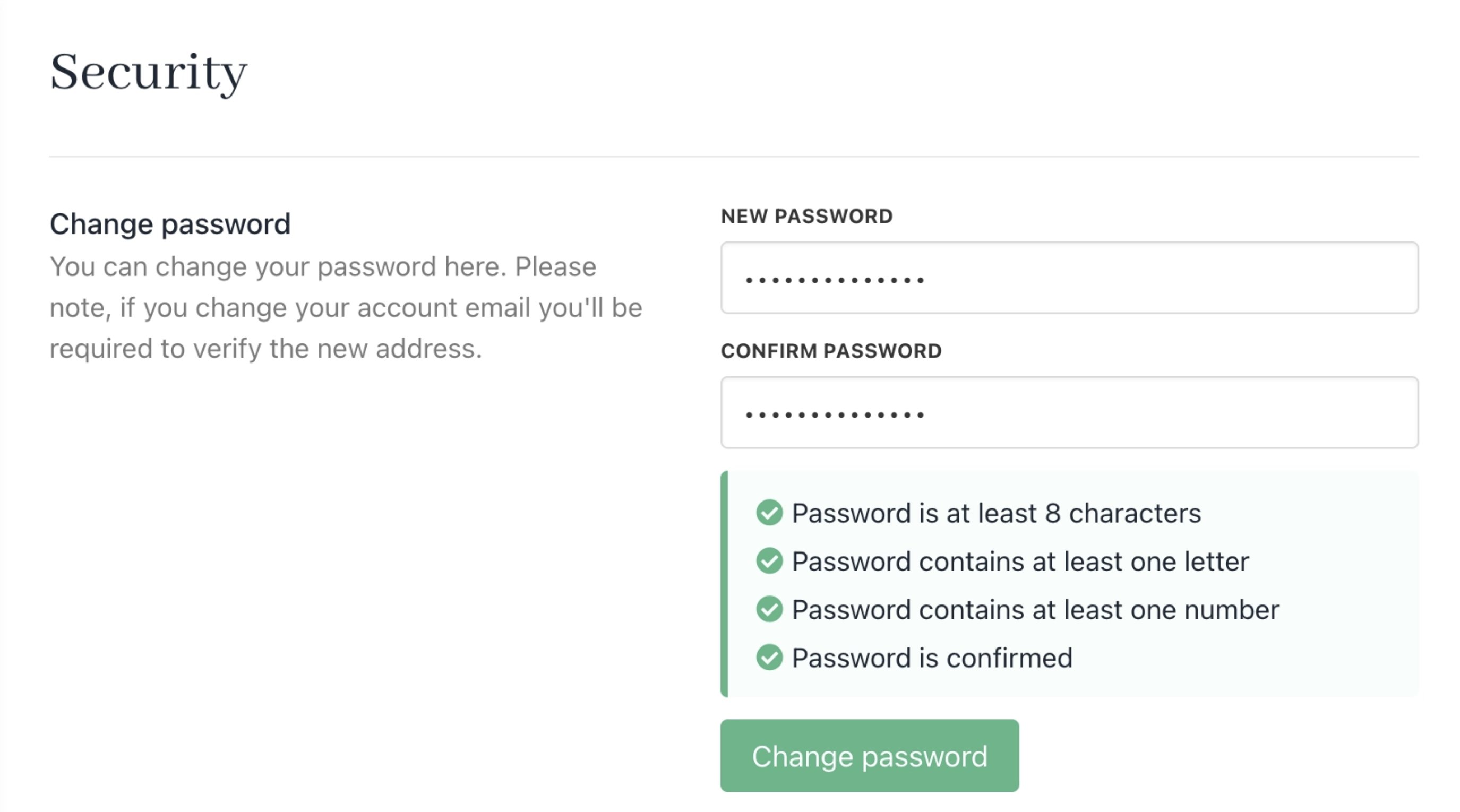
Change password
- Enter the 6-digit code you received in the verification field.
- Submit again to complete the change.
If your account is managed by an admin or staff member, they can make changes to your credentials without needing to complete this step on your behalf.
Resetting password from login
- Click Forgotten your password.
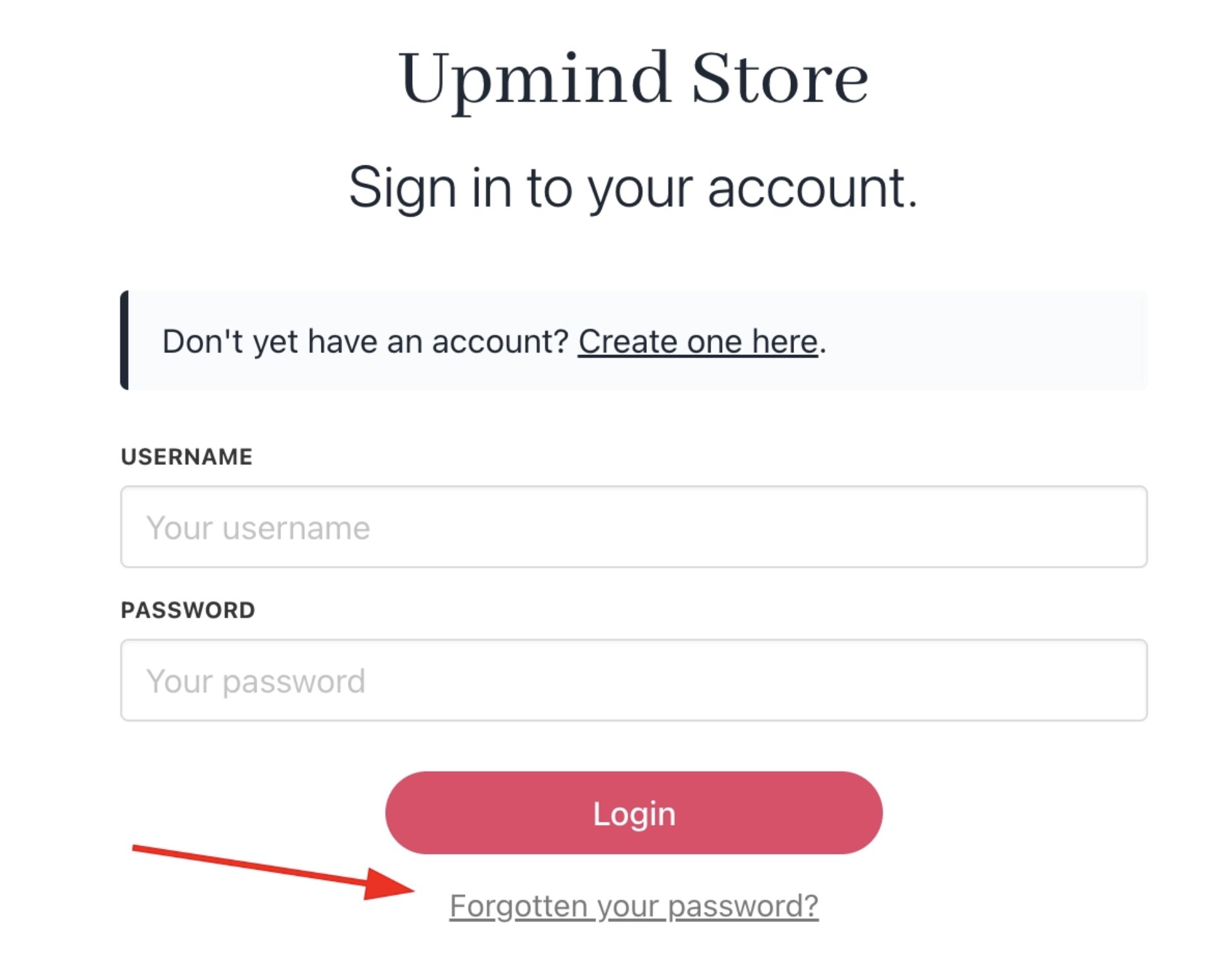
Forgotten your password
- You will receive an email to reset your password. Click the link.
- Now, when you try to reset your password, you will be prompted to enter your 2FA code.
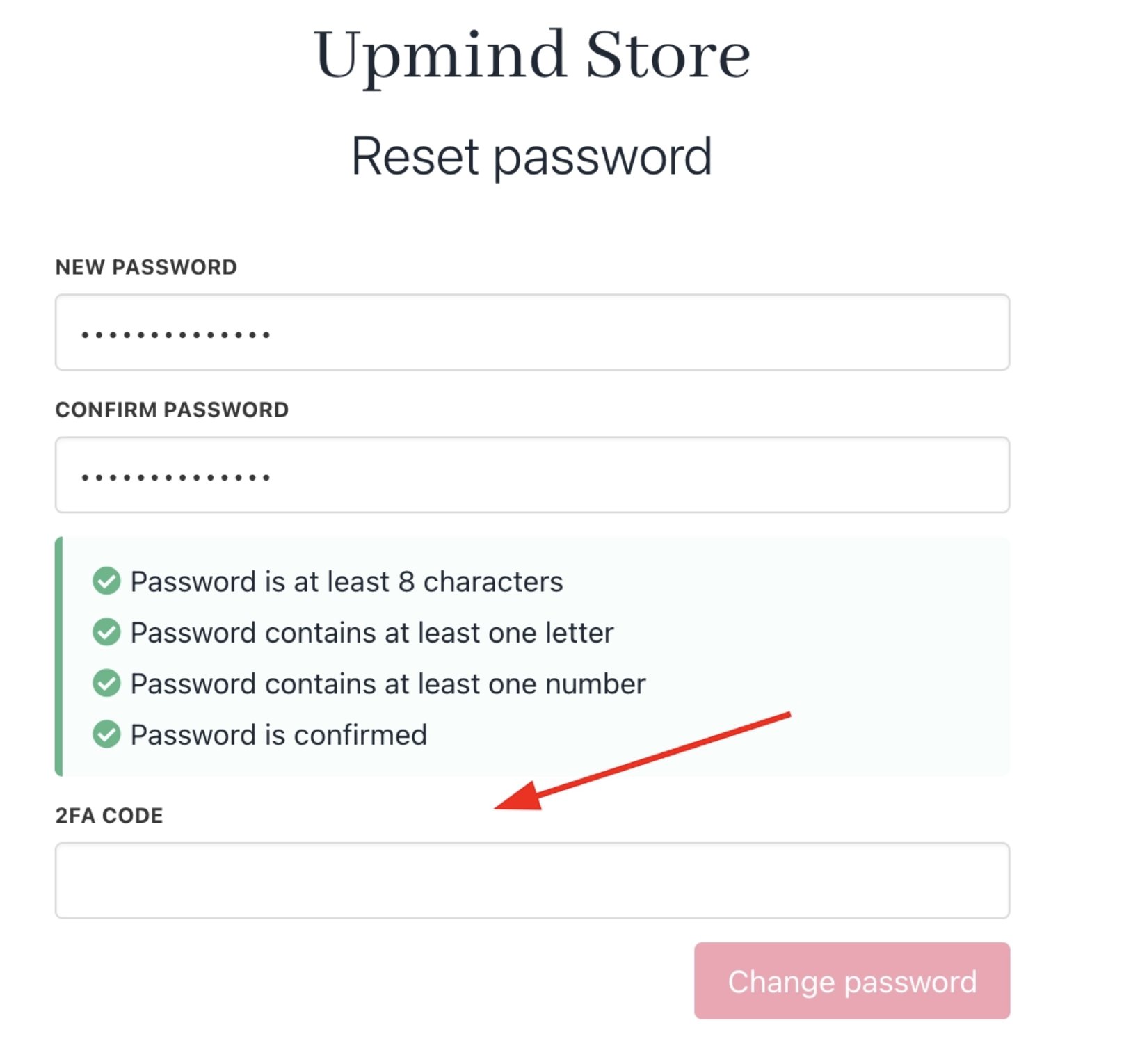
2FA code prompt