

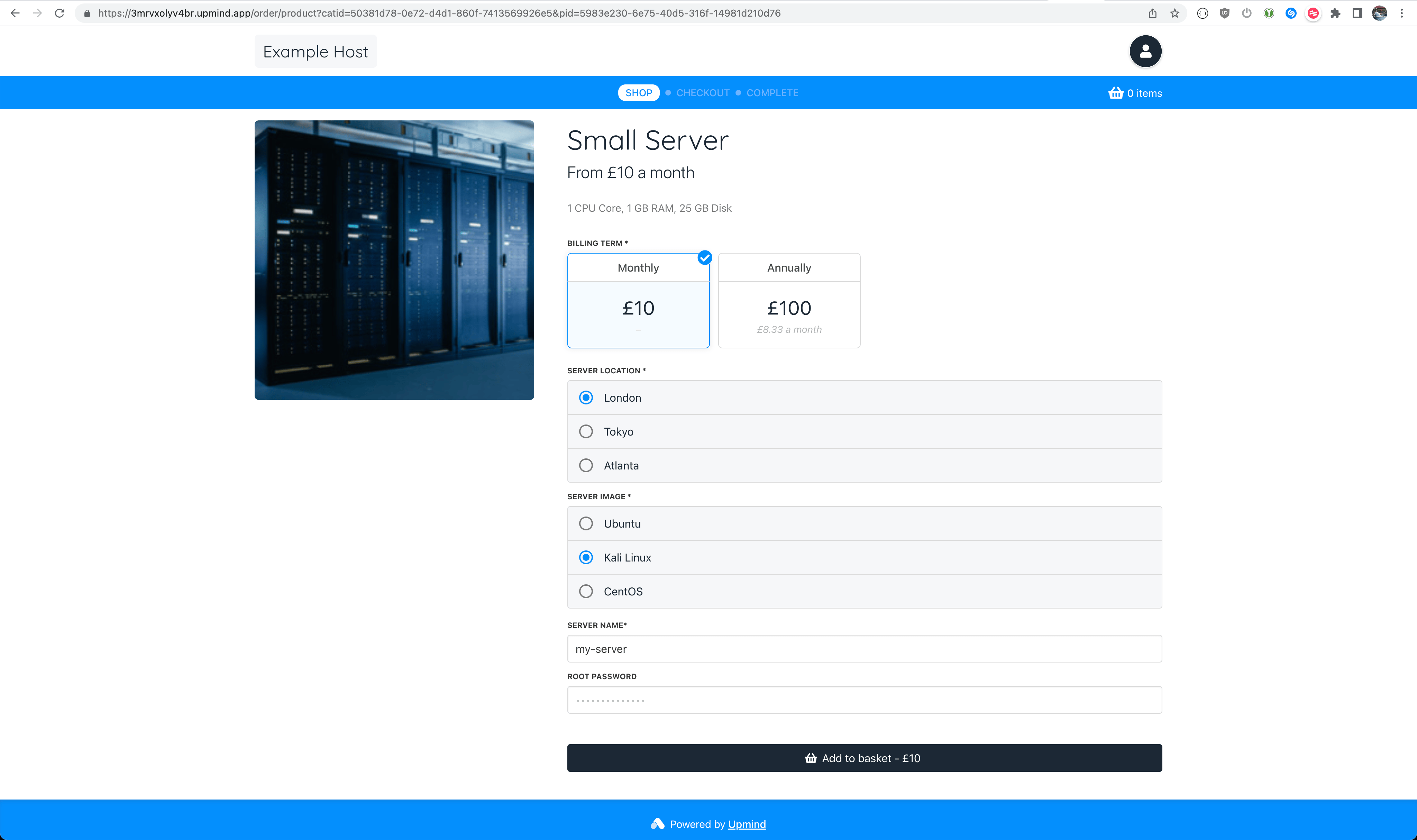
Customer Server Configuration View
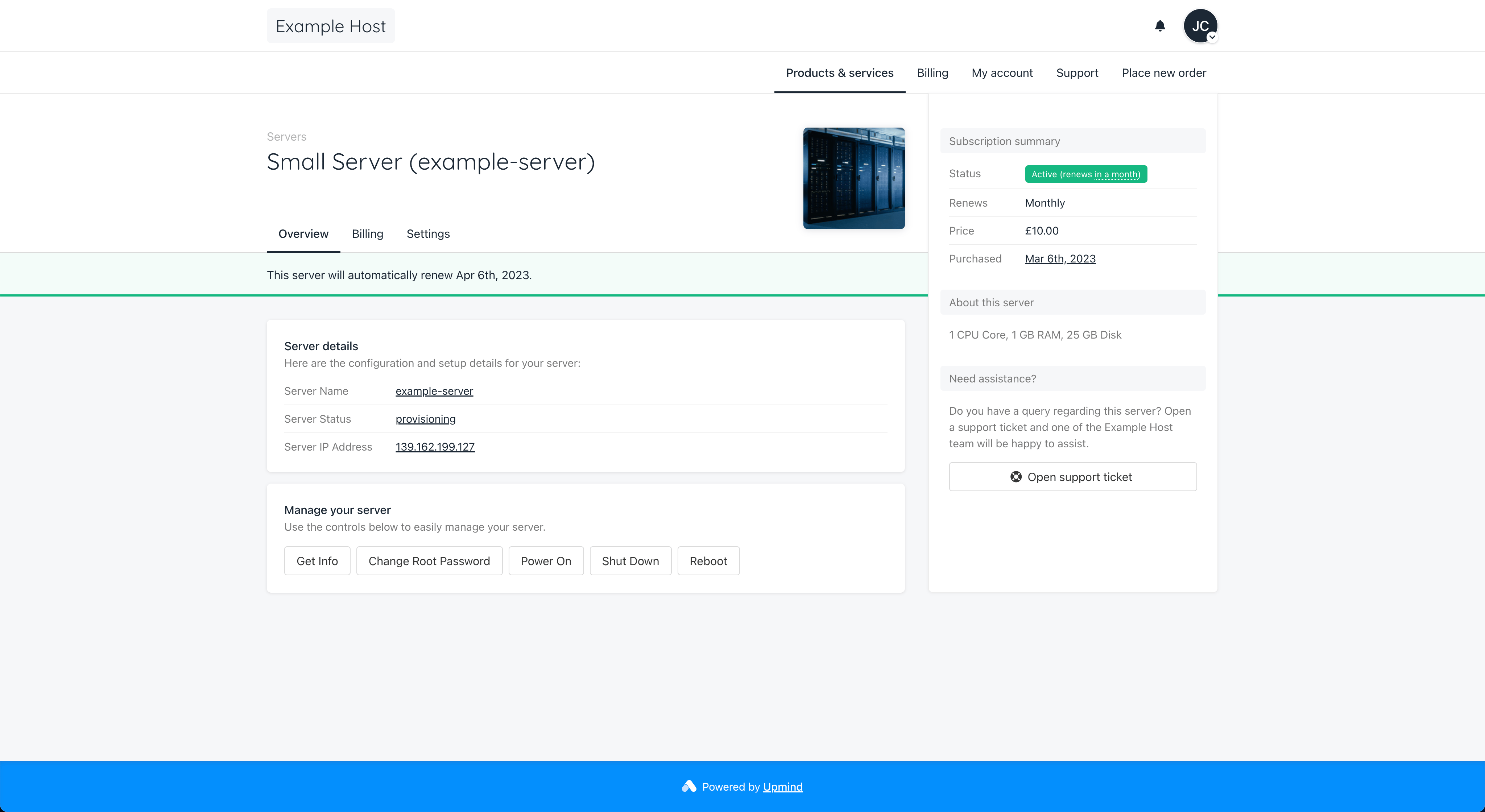
Customer Server Management View
Create a Provision Configuration
First, you should create a Provision Configuration in your Upmind settings. You will need to create an API/access token in your Linode dashboard to do this.Create an API Token in Linode
- Log in to Linode (cloud.linode.com)
- Navigate to My Profile -> API Tokens (https://cloud.linode.com/profile/tokens)
- Click to create a Personal Access Token with the following options:
- Label of your choice
- Expiry: Never
- Access: Select All Read/Write
- Click Create Token and copy the Personal Access Token
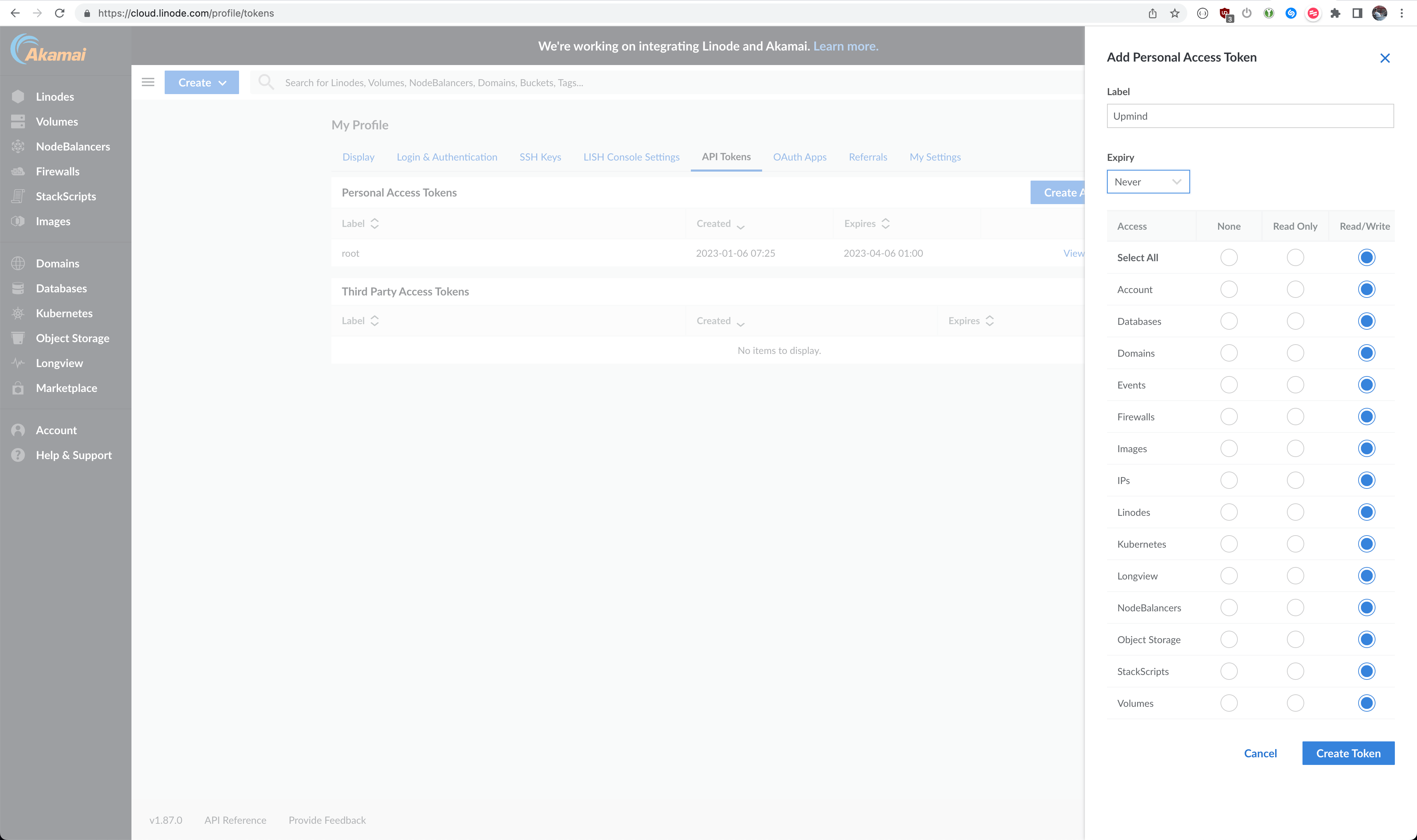
Create a Personal Access Token
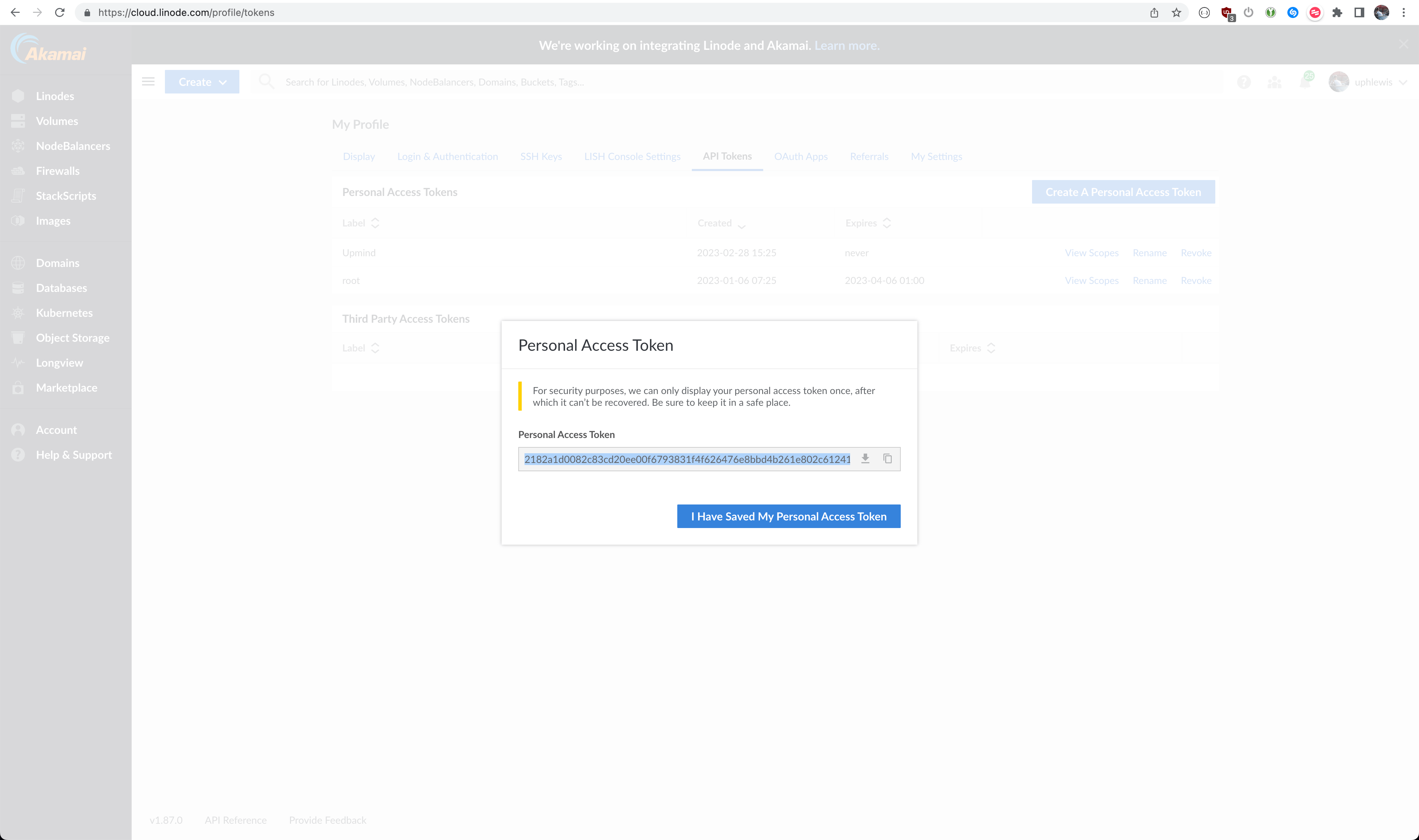
Copy the Personal Access Token
Create a Provision Configuration in Upmind
- Go to Settings -> Provision configurations
- Click to Add new configuration with the following options:
- Name of your choice
- Provision Category: Servers
- Provider: Linode
- Access Token: (Paste your Linode Personal Access Token)
- Click Create and now you’re ready to create Linode products in Upmind
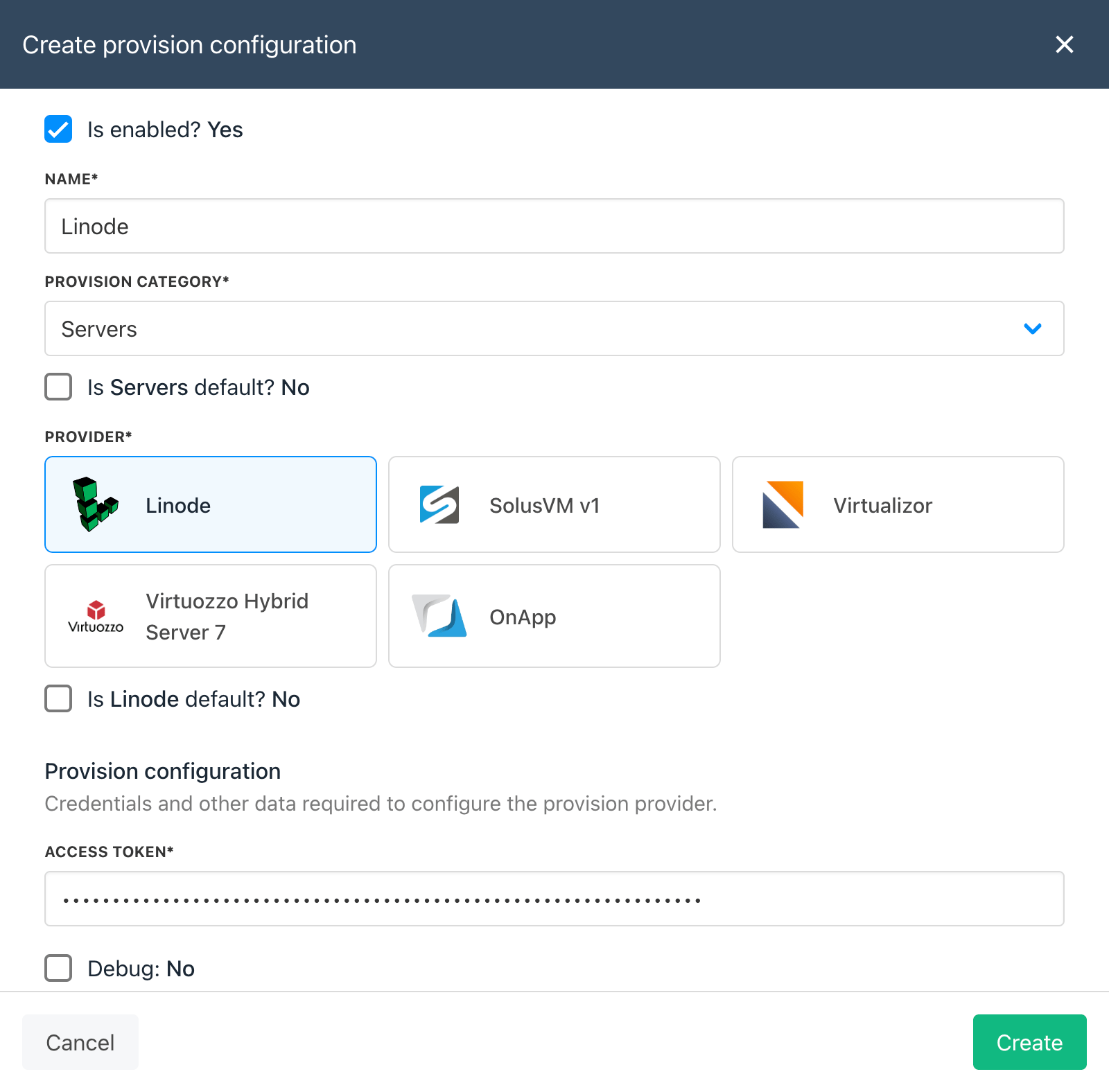
Create provision configuration
Create a Product
This guide will cover how to configure the Provisioning section on your Upmind Products to automate the provisioning of Linode servers. For more information on configuring Products in general, please refer to How to Create Products.- Go to Settings -> Product catalogue
- Add new or edit an existing Product
- Go to the Provisioning section and select the following options:
- Provision Blueprint: Servers
- Provision Provider:
- Any Provider: No
- Select Linode
- Provider Configuration: (Select the provision configuration you created earlier)
- Click save
- Scroll down to Provision fields and configure the Server Location, Server Image & Server Size (explained below)
Provision Fields
You may wish to create Product Options or Product Attributes to allow customers to select the Location and Image of their server so you only need one main product for each Size (Linode type) you want to sell. Refer to the sections below for what to type for Server Location, Server Image and Server Size.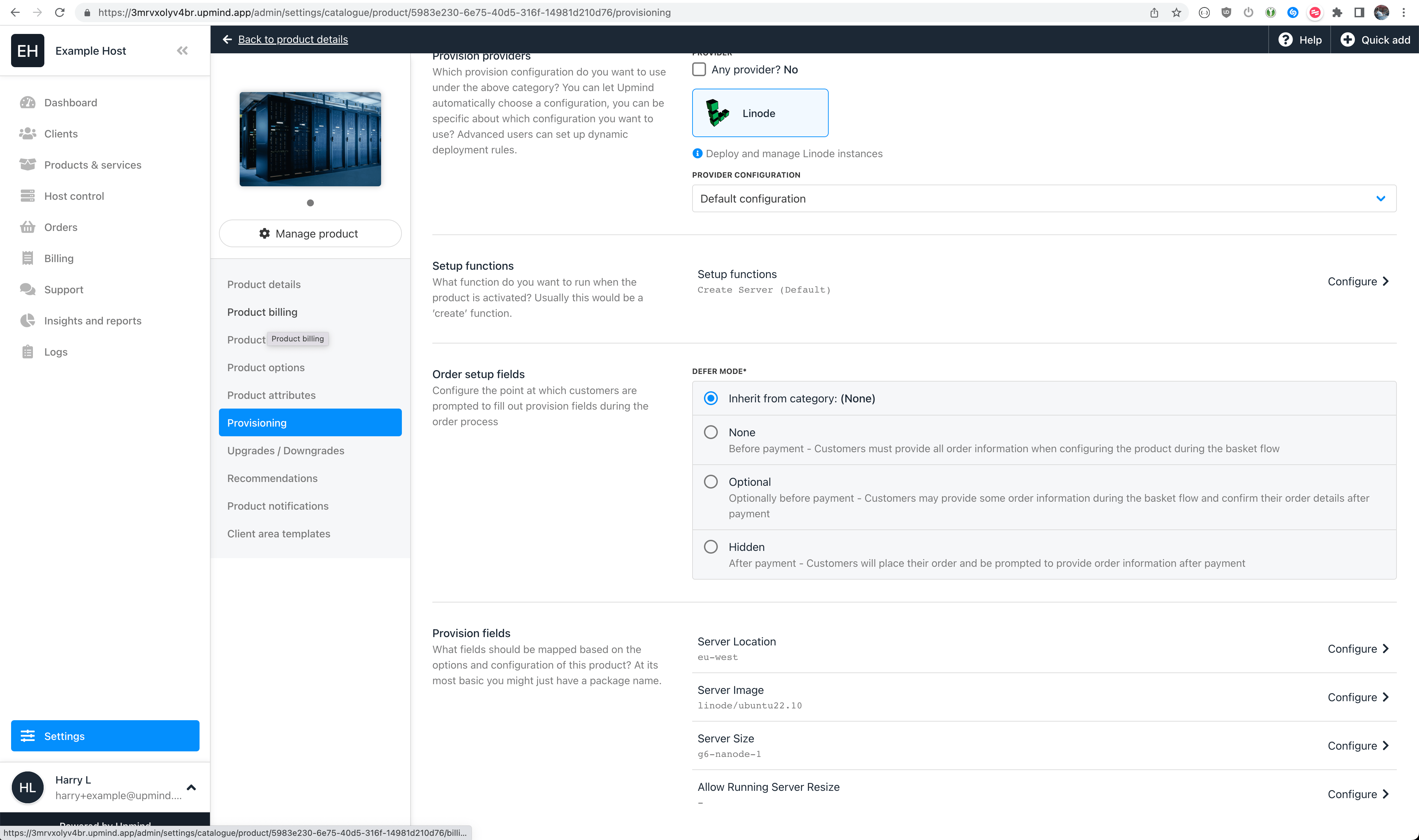
Basic Product Provision Fields
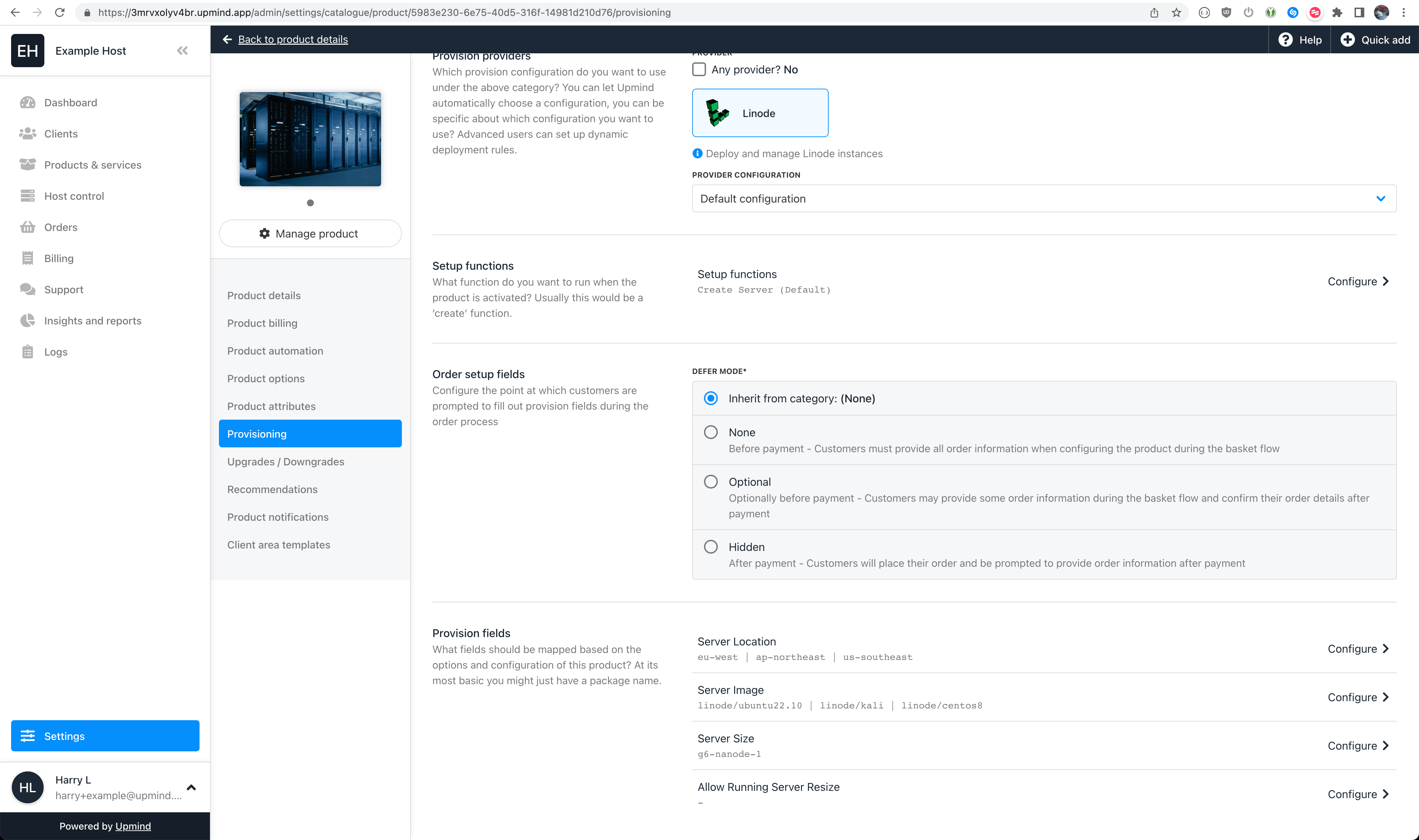
Dynamic Product Provision Fields (Using Product Attributes)
Server Location
This field configures which Region new Linodes will be provisioned in. You should type the Region ID in the Server Location field in Upmind. The following table lists Linode Regions available at the time of writing: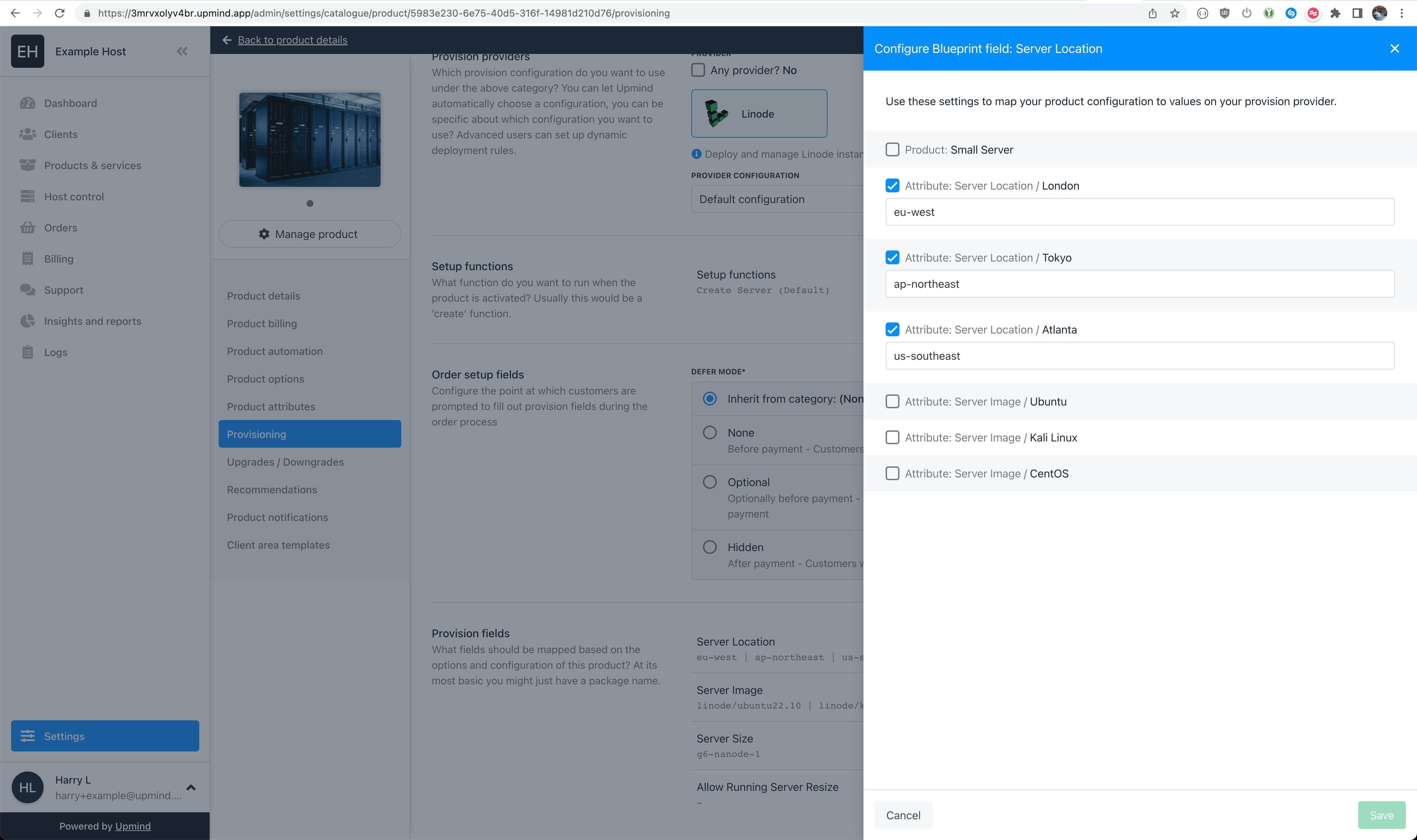
Server Location Provision Field Values
Server Image
This field configures which Image (operating system / version) is used to create new Linodes. You should type the Image ID in the Server Image field in Upmind. To use a custom image you’ve stored in your Linode account (https://cloud.linode.com/images) you can use the Image ID if you know it, or the Label you assigned to it. The following table lists default Linode Images available at the time of writing: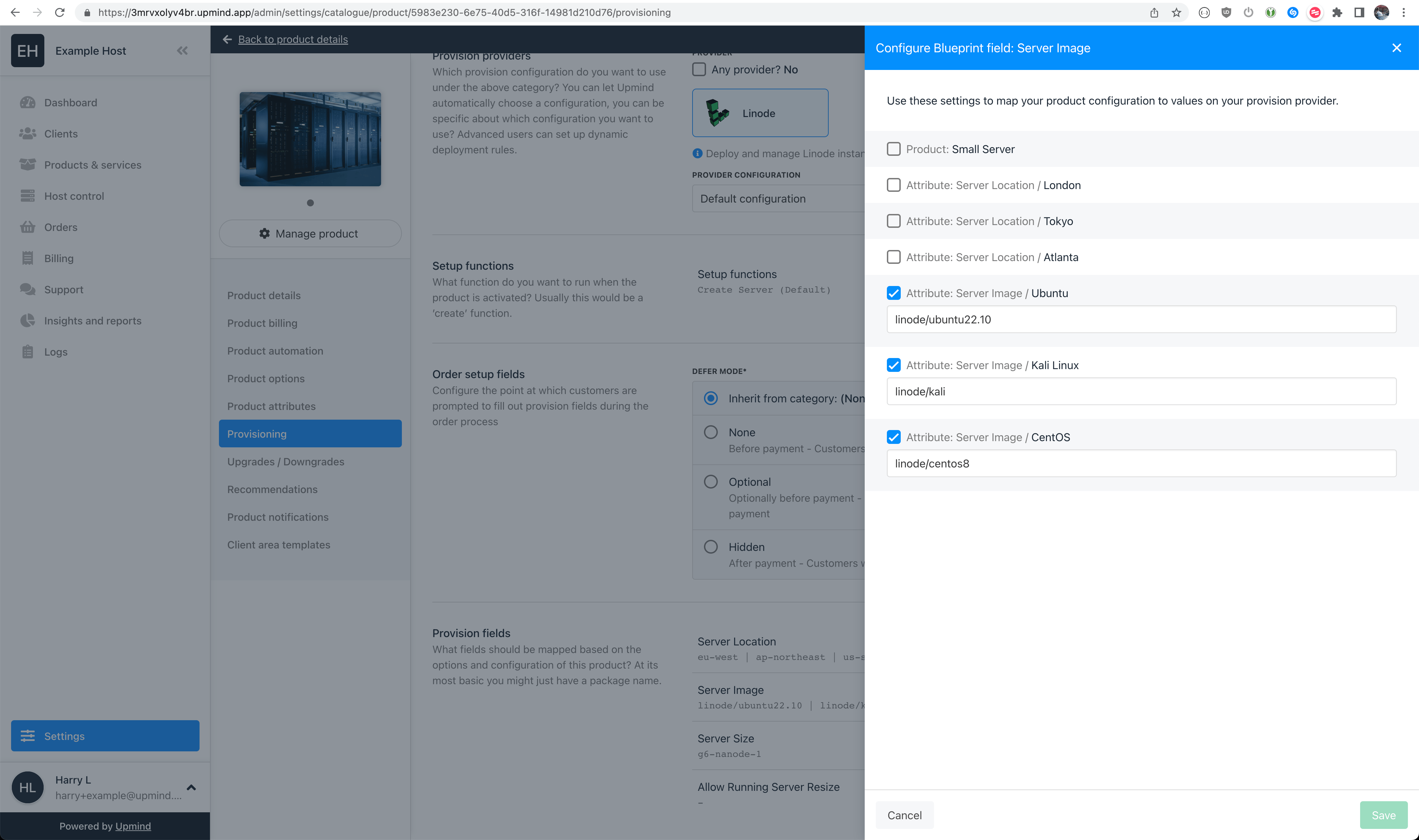
Server Image Provision Field Values
Server Size
This field configures which Linode Type is used when creating new Linodes. You should type the Linode Type ID in the Server Size field in Upmind. The following table lists Linode Types available at time of writing: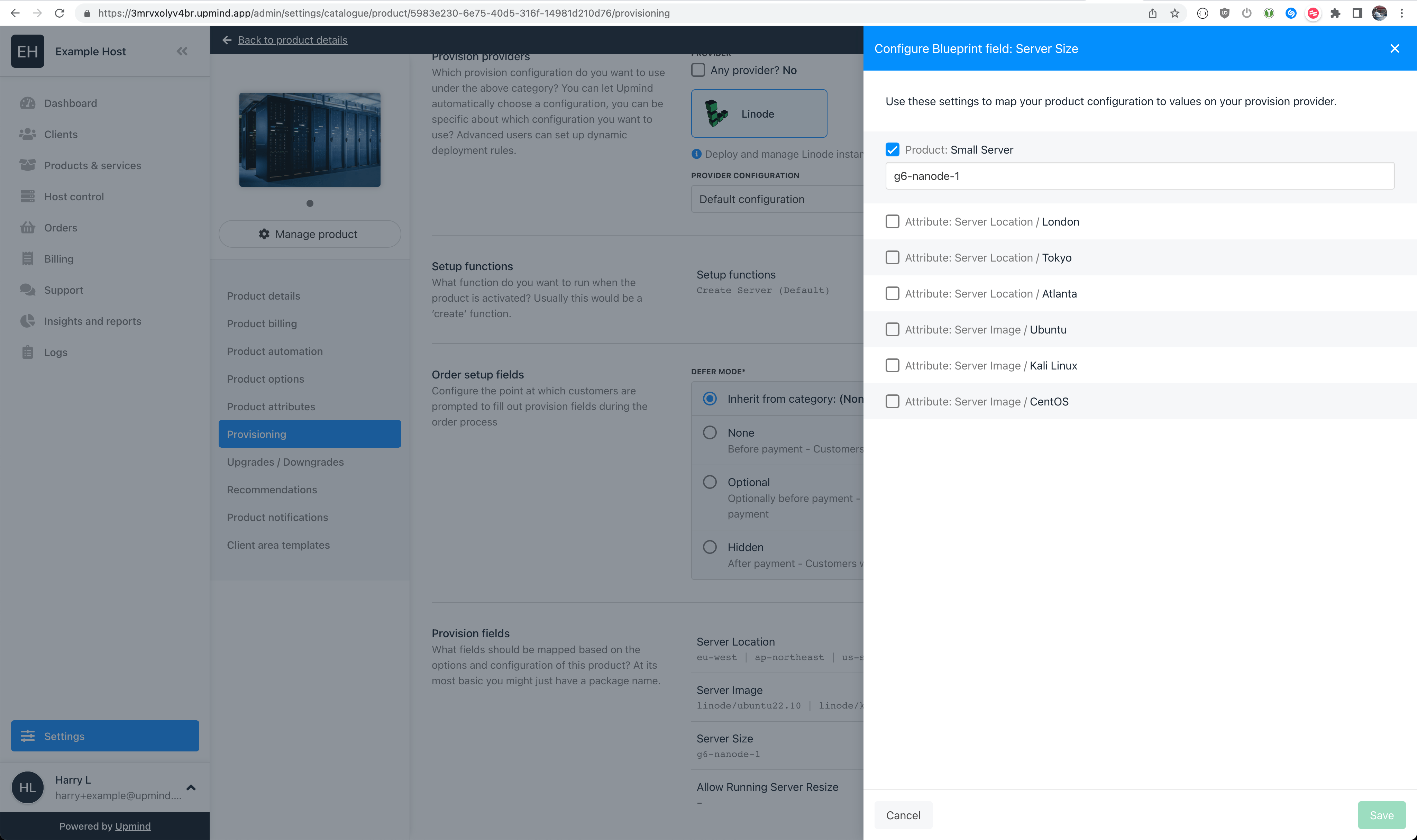
Server Size Provision Field Value