> ## Documentation Index
> Fetch the complete documentation index at: https://docs.upmind.com/llms.txt
> Use this file to discover all available pages before exploring further.
# Managing Ticket Flows and Optimisations
In this guide, we’ll walk you through how to manage ticket flows from both the Staff User and Admin perspectives. This includes how staff users handle tickets and how admins configure ticket assignment settings.
## Assigning Departments to Staff Users
You can assign specific departments to your staff users. If a staff user is not assigned to a department, they won’t be able to see tickets from that department.
To assign a department to a staff user, follow these steps:
1. Navigate to `Settings` → `Staff Users`.
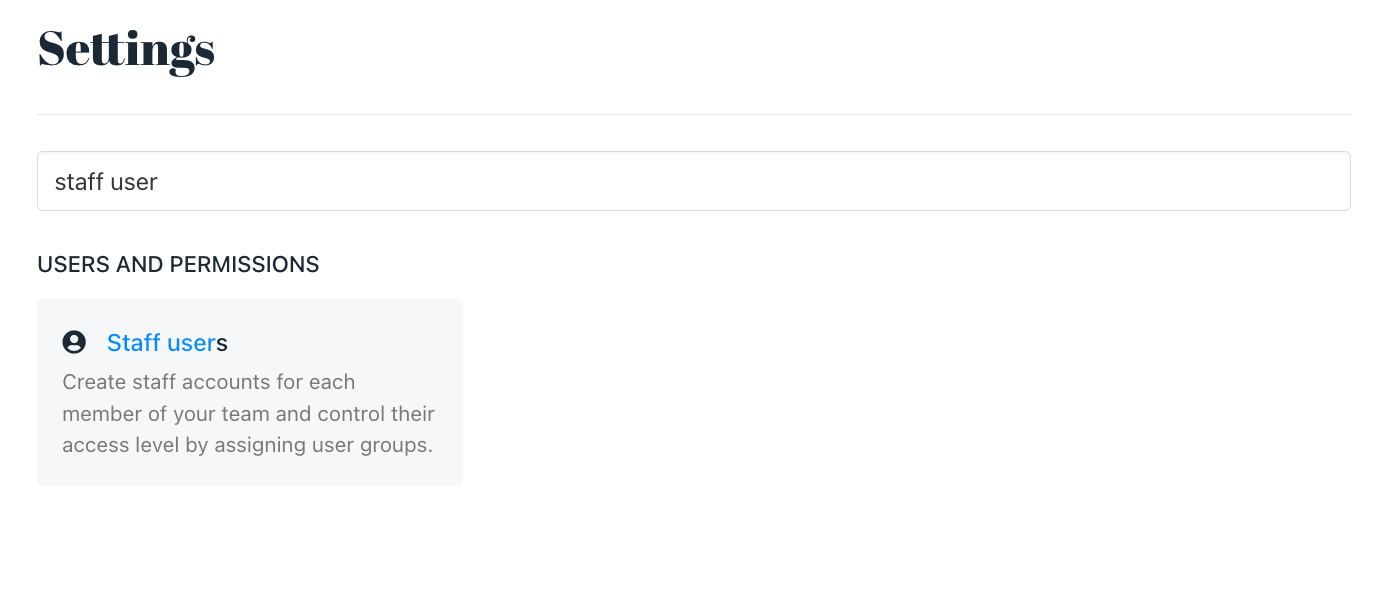 2. Select a staff user and click `Manage user`.
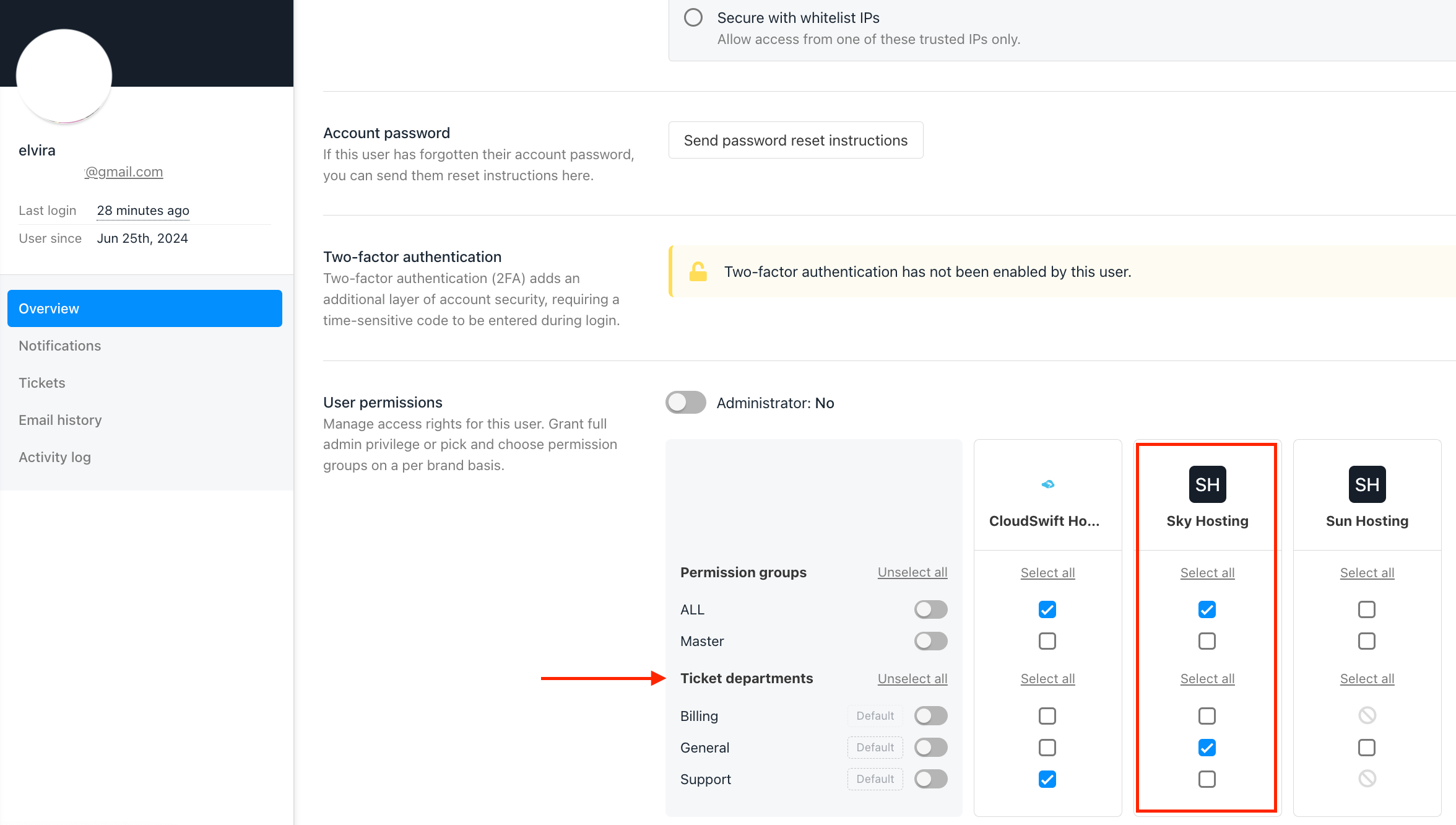
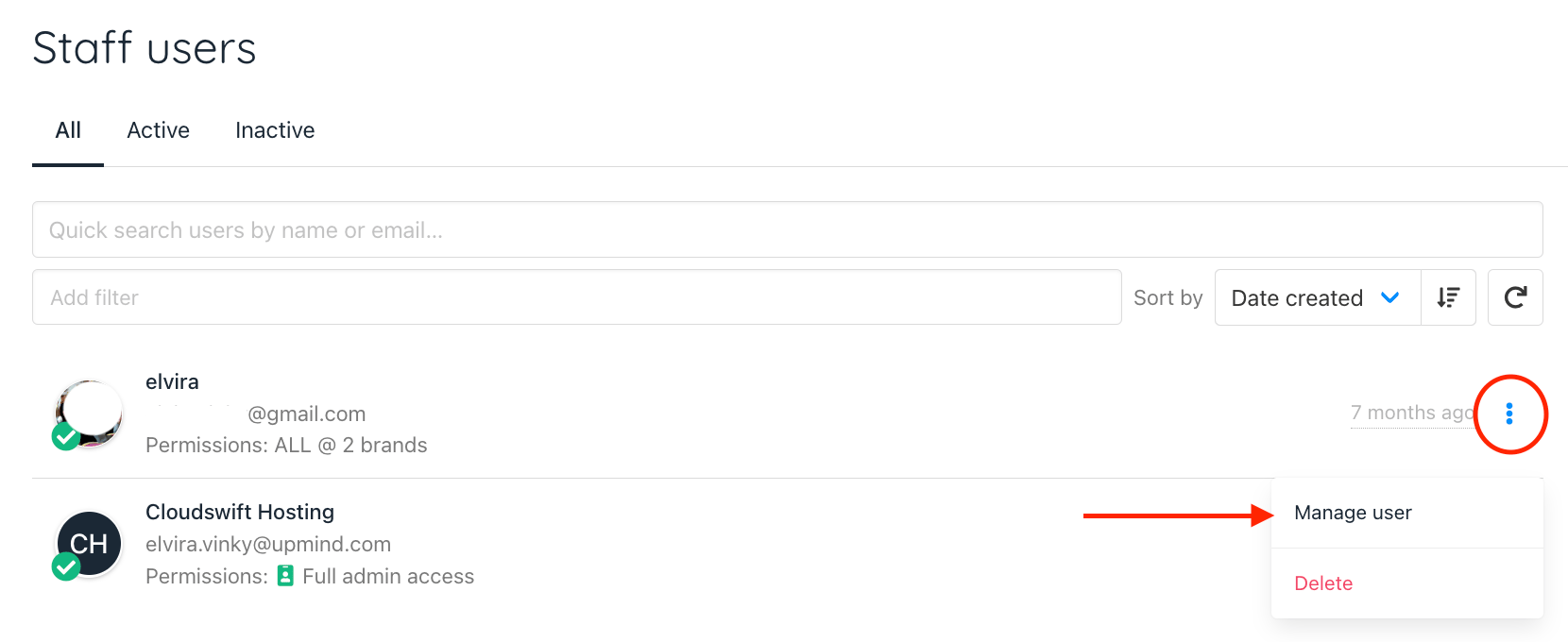 3. In the new screen, go to the Overview tab, scroll down to `User Permissions`, and assign them to specific groups or departments.
* **Permission Group:** These are groups you create under `Settings → Staff Group`, and they control what each staff user can access. [\[Refer to our guide here for further details\]](/setup-and-configuration/staff-users/how-to-create-user-groups#creating-a-user-group)
* **Ticket Department:** These are the departments you’ve set up under `Settings → Support Departments`. [Check the guide here to create a support department.](/using-upmind/service-desk/how-to-create-support-department) This option allows you to manage and assign departments to staff users, ensuring they only handle tickets from their designated departments.
3. In the new screen, go to the Overview tab, scroll down to `User Permissions`, and assign them to specific groups or departments.
* **Permission Group:** These are groups you create under `Settings → Staff Group`, and they control what each staff user can access. [\[Refer to our guide here for further details\]](/setup-and-configuration/staff-users/how-to-create-user-groups#creating-a-user-group)
* **Ticket Department:** These are the departments you’ve set up under `Settings → Support Departments`. [Check the guide here to create a support department.](/using-upmind/service-desk/how-to-create-support-department) This option allows you to manage and assign departments to staff users, ensuring they only handle tickets from their designated departments.
 ## How to Remove "List All Tickets" for Staff
This feature prevents staff from picking and choosing tickets themselves.
1. Go to Settings.
2. Click on Staff Groups > then click Edit.
## How to Remove "List All Tickets" for Staff
This feature prevents staff from picking and choosing tickets themselves.
1. Go to Settings.
2. Click on Staff Groups > then click Edit.
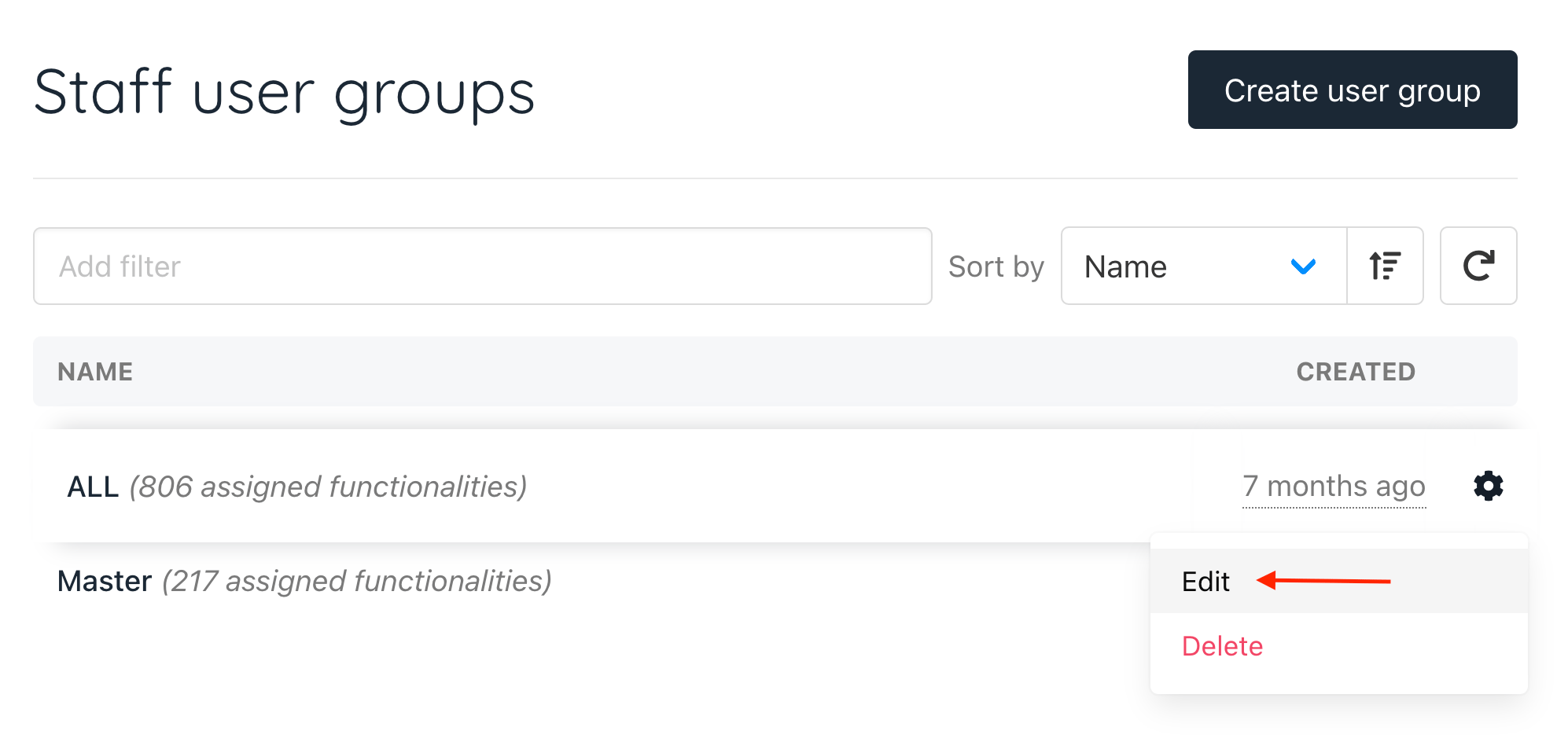 3. Uncheck the List Tickets and Unassigned Tickets options.
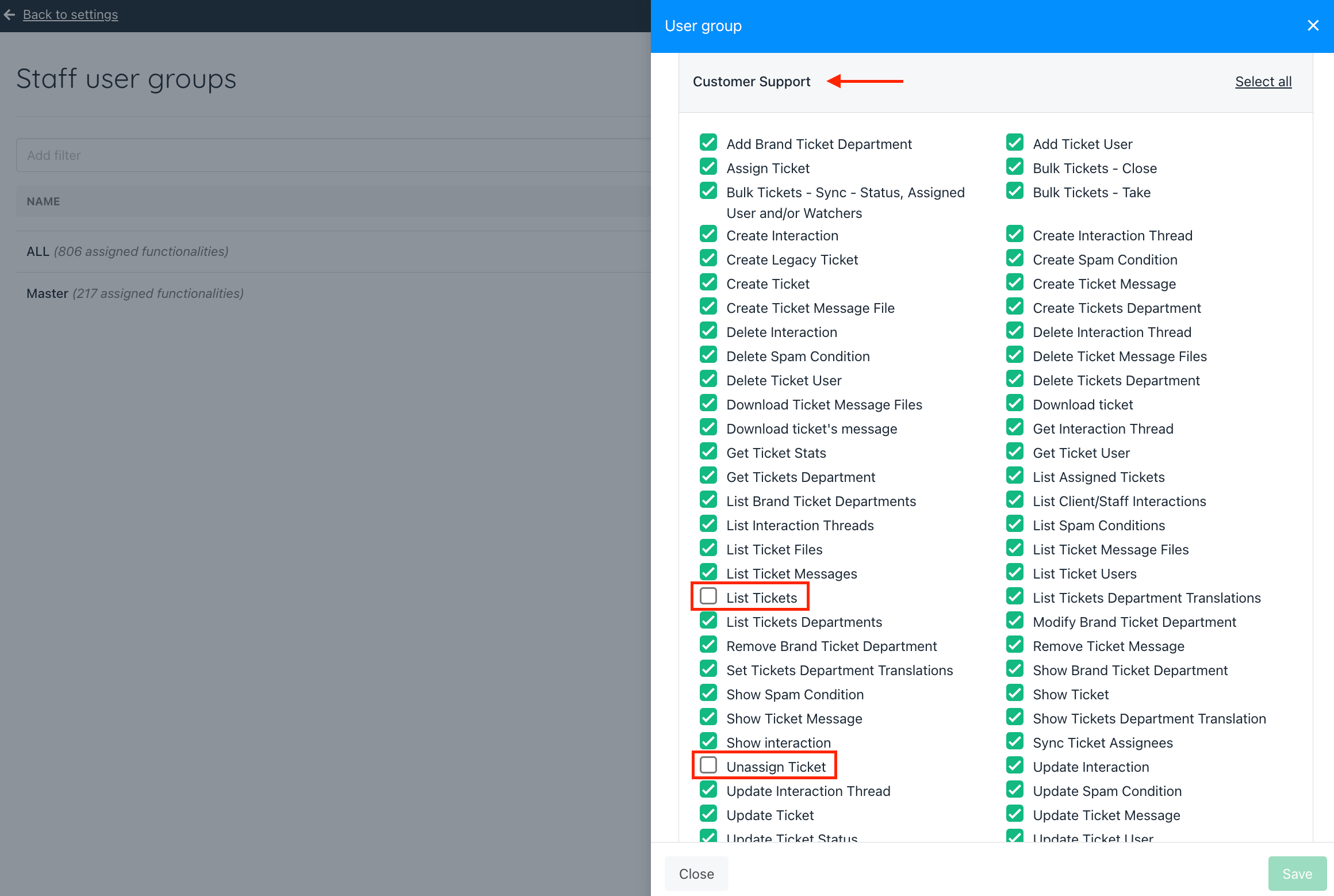 Once these options are unchecked, in the Support Menu, staff will no longer see the **All Tickets** and **Unassigned Tickets** sections. They will only see tickets that are assigned to them.
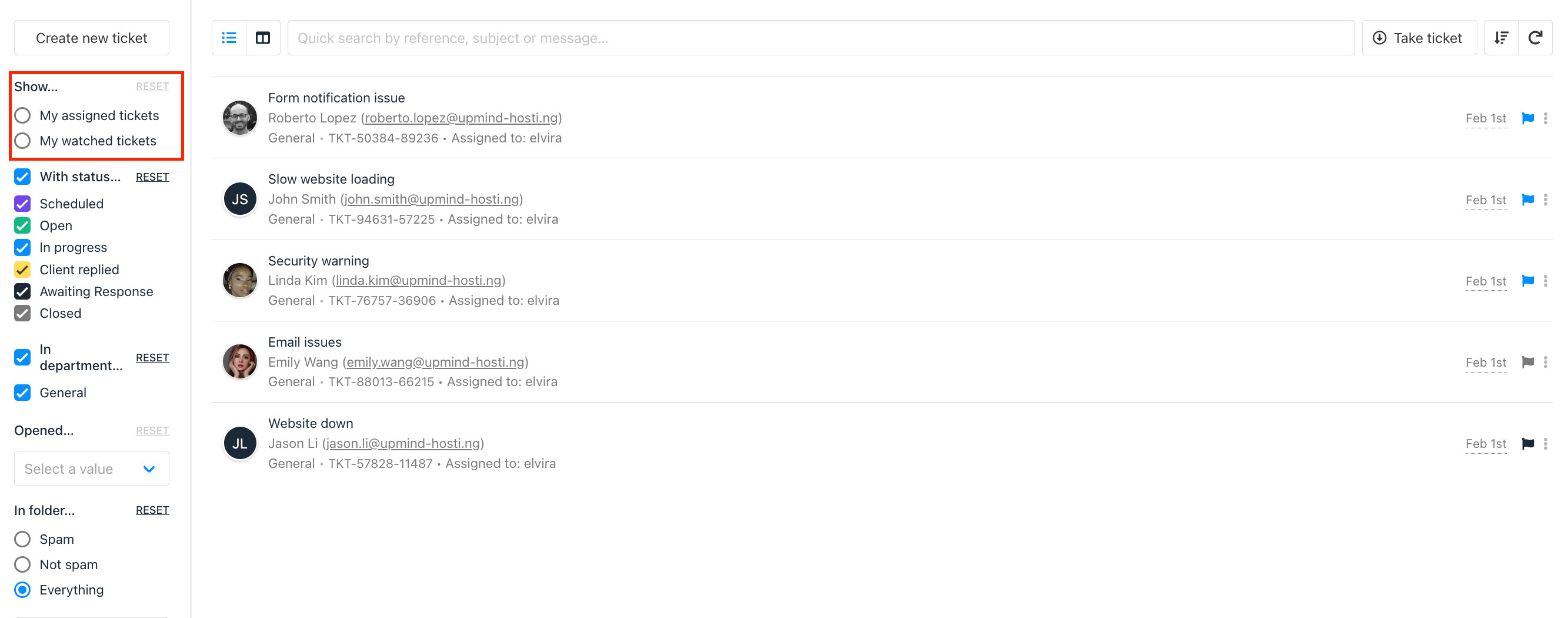 Additionally, staff will have the Take Ticket option (explained in the next section).
## How Staff Take Unassigned Tickets
In the Support menu, there is a feature called **Take Ticket**. This allows staff to pick up unassigned tickets from their assigned department.
**How It Works:**
1. Once a staff is assigned to a department, they can use the Take Ticket button.
2. Clicking Take Ticket will automatically assign them the first available unassigned ticket in their department.
**Example Scenario**
1. **Before Clicking "Take Ticket"**
* The staff is assigned to the Support Department.
* There are unassigned tickets available.
Additionally, staff will have the Take Ticket option (explained in the next section).
## How Staff Take Unassigned Tickets
In the Support menu, there is a feature called **Take Ticket**. This allows staff to pick up unassigned tickets from their assigned department.
**How It Works:**
1. Once a staff is assigned to a department, they can use the Take Ticket button.
2. Clicking Take Ticket will automatically assign them the first available unassigned ticket in their department.
**Example Scenario**
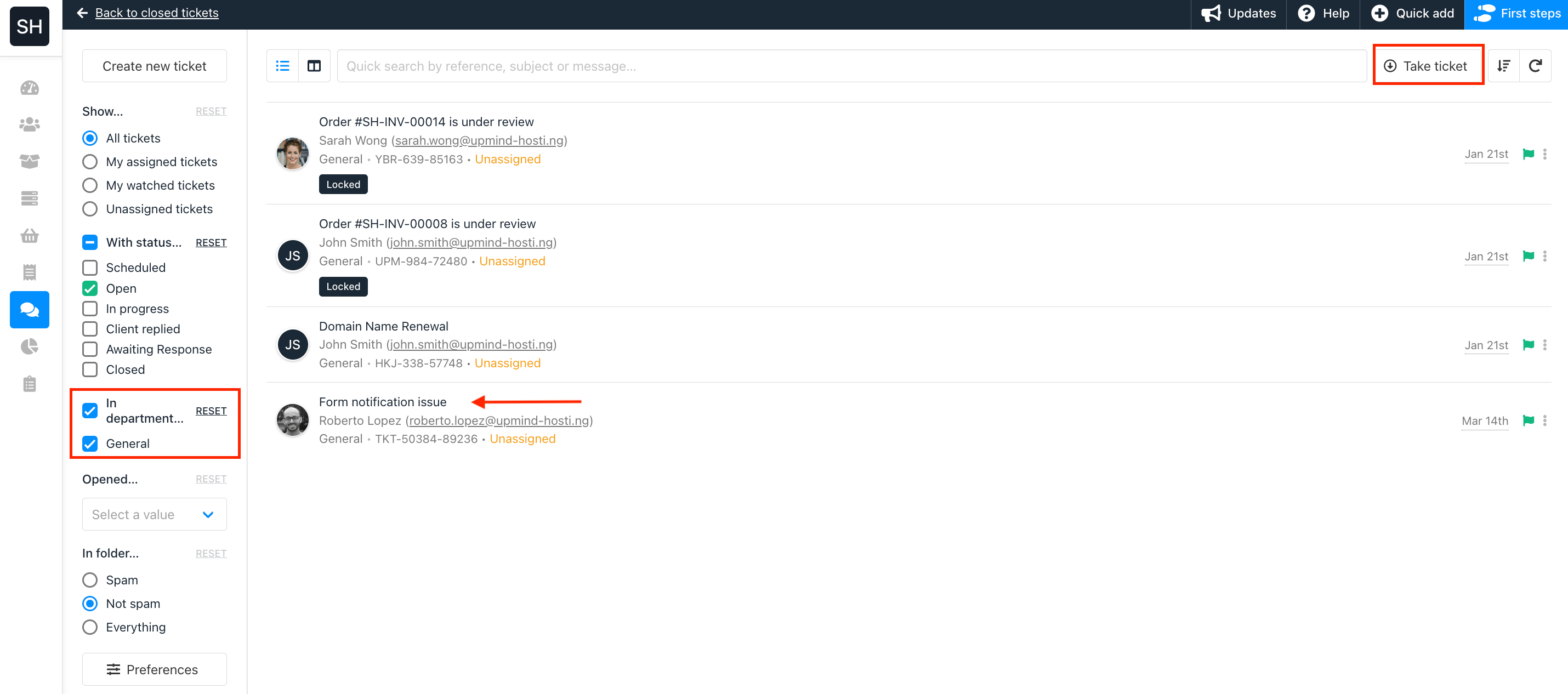
1. **Before Clicking "Take Ticket"**
* The staff is assigned to the Support Department.
* There are unassigned tickets available.
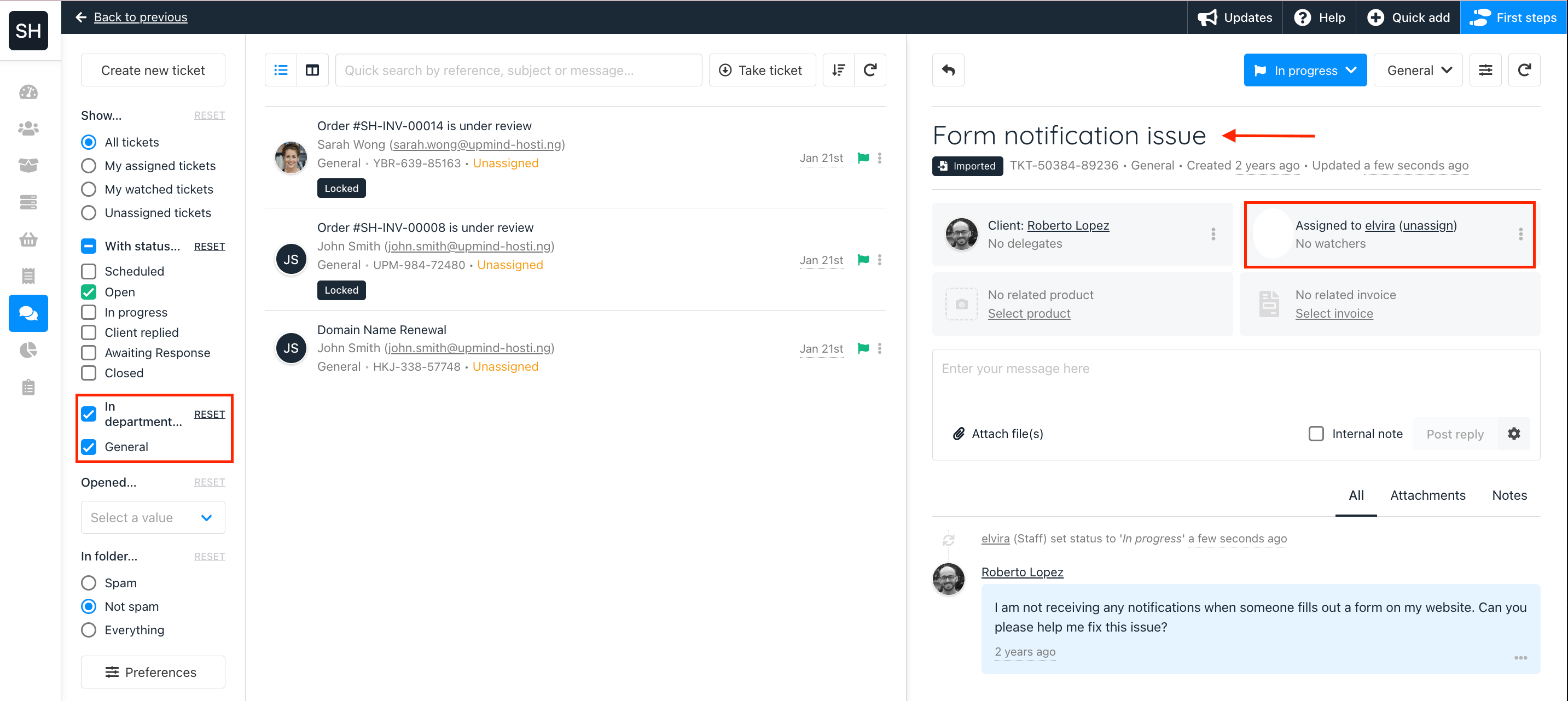
 2. **After Clicking "Take Ticket"**
* The system assigns the staff the first unassigned ticket in their department.
* They can now proceed to handle the ticket.
2. **After Clicking "Take Ticket"**
* The system assigns the staff the first unassigned ticket in their department.
* They can now proceed to handle the ticket.
 ## As an Admin: How to View Staff Ticket
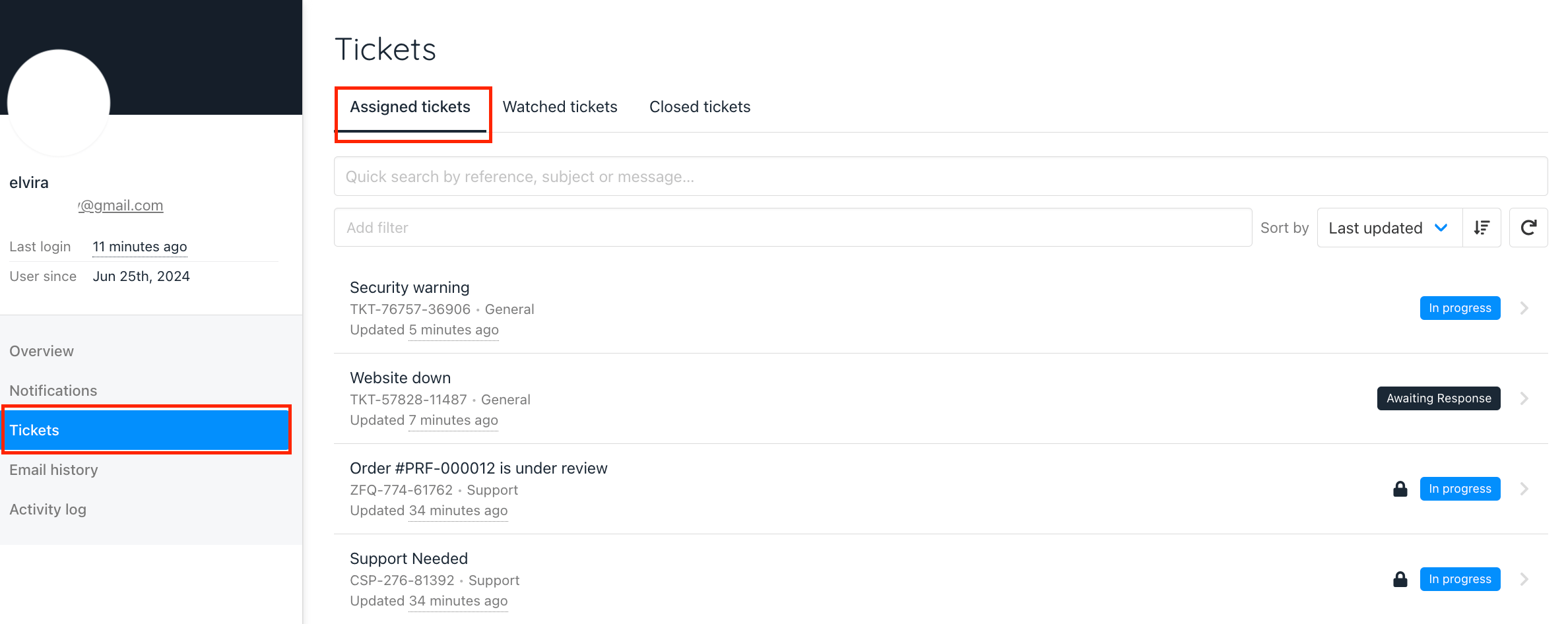
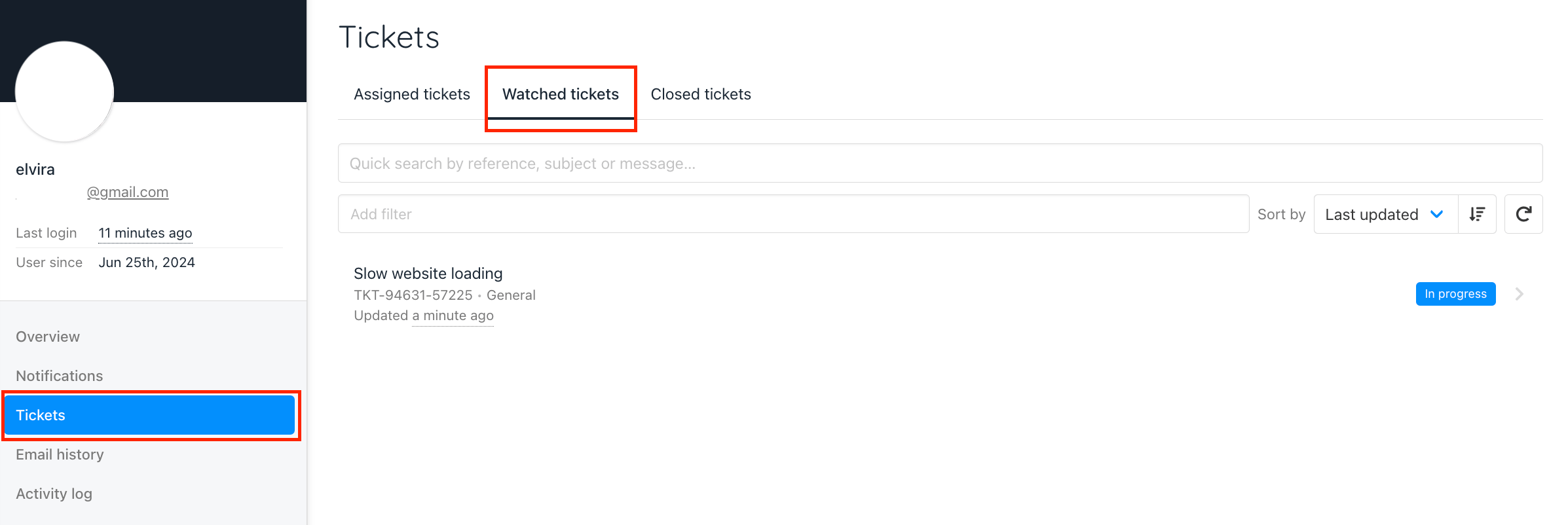
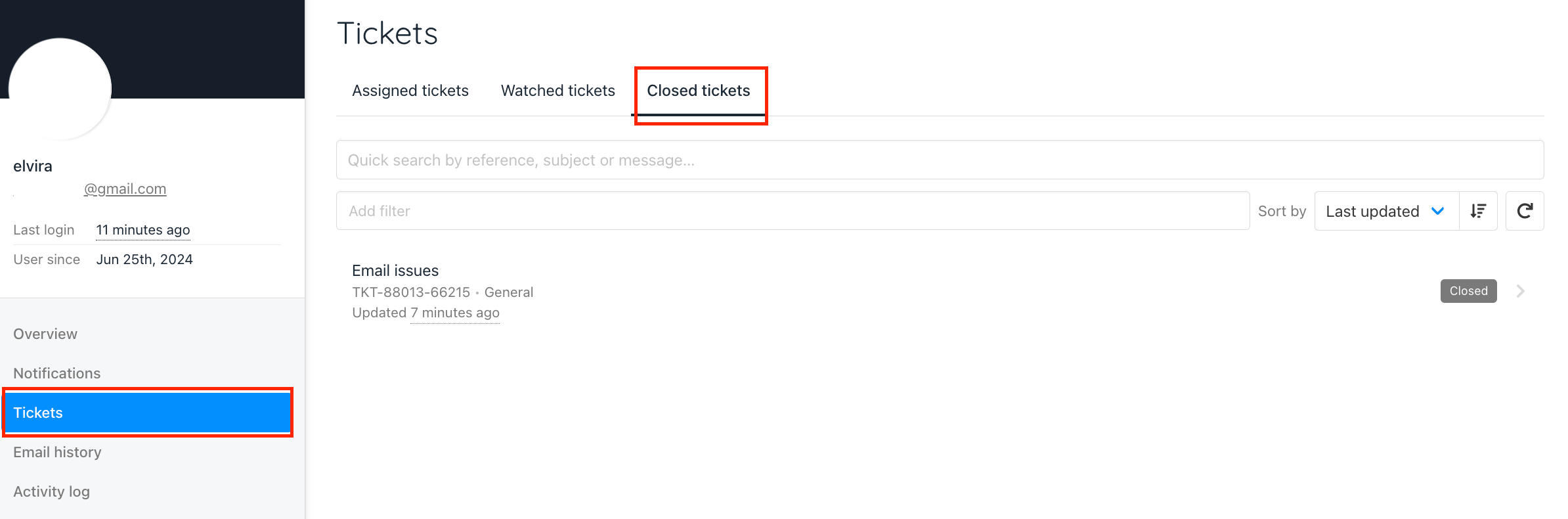
Admins can see each staff’s **assigned, watched, and closed tickets** under: `Settings → Staff Users`. This allows admins to track workload, monitor ticket progress, and ensure fair ticket distribution.
### How to Check a Staff User’s Tickets:
1. Go to `Settings` → `Staff Users`.
2. Select a staff user and click `Manage User`.
3. In the Ticket tab, you’ll find:
* **Assigned tickets – Tickets assigned to them.**
* **Watched tickets – Tickets they are involved in.**
* **Closed tickets – Tickets they’ve closed**
## As an Admin: How to View Staff Ticket
Admins can see each staff’s **assigned, watched, and closed tickets** under: `Settings → Staff Users`. This allows admins to track workload, monitor ticket progress, and ensure fair ticket distribution.
### How to Check a Staff User’s Tickets:
1. Go to `Settings` → `Staff Users`.
2. Select a staff user and click `Manage User`.
3. In the Ticket tab, you’ll find:
* **Assigned tickets – Tickets assigned to them.**
* **Watched tickets – Tickets they are involved in.**
* **Closed tickets – Tickets they’ve closed**
 In addition to ticket management, we also offer features for ticket scheduling and locking tickets. For more details, check the guides below:
* [How to Schedule a Ticket](/using-upmind/service-desk/ticket-scheduling)
* [How to Lock a Ticket](/using-upmind/service-desk/how-to-lock-a-ticket)
In addition to ticket management, we also offer features for ticket scheduling and locking tickets. For more details, check the guides below:
* [How to Schedule a Ticket](/using-upmind/service-desk/ticket-scheduling)
* [How to Lock a Ticket](/using-upmind/service-desk/how-to-lock-a-ticket)