> ## Documentation Index
> Fetch the complete documentation index at: https://docs.upmind.com/llms.txt
> Use this file to discover all available pages before exploring further.
# How to Lock a Ticket
To prevent your clients from closing unresolved tickets, you can lock the ticket through the admin area.
1. Go to Support page.
2. Select the ticket you want to lock.
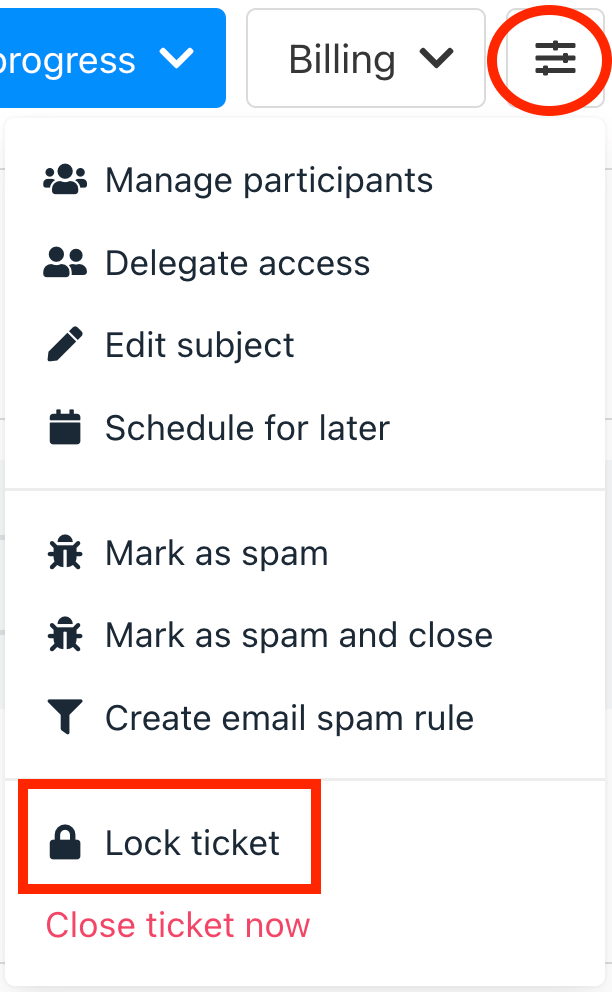
3. Click the three-line icon and select **Lock ticket**.
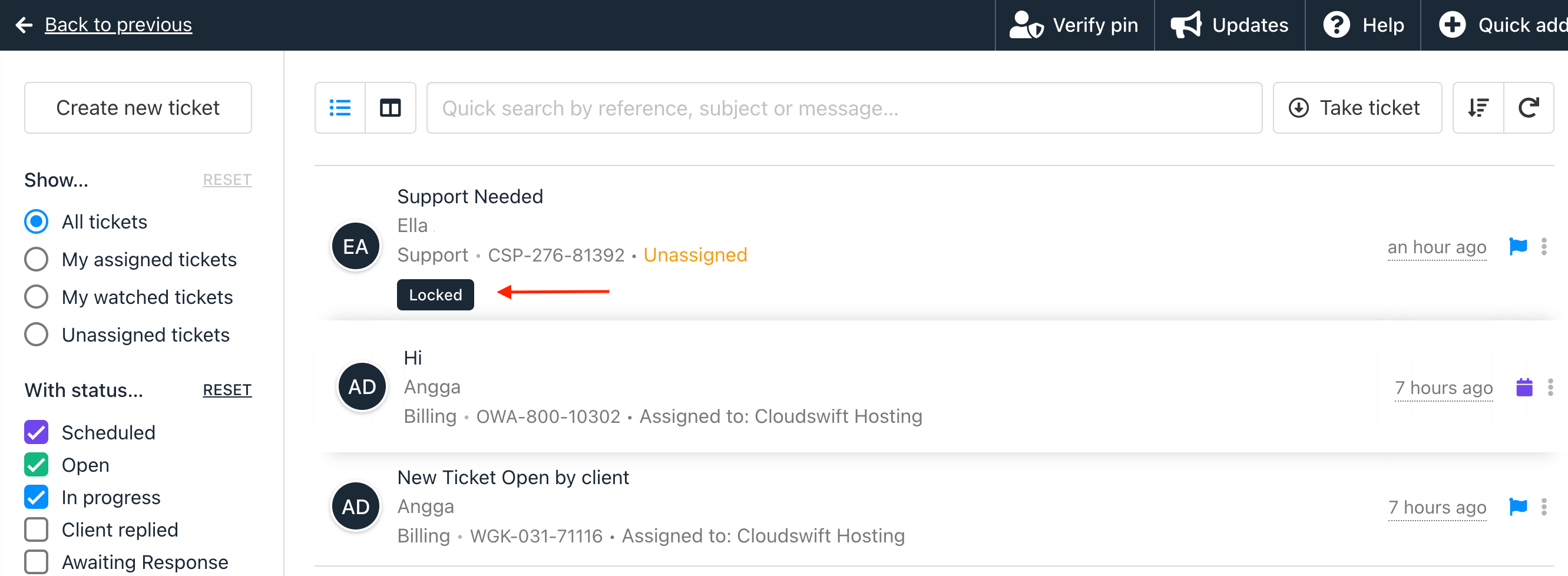
 4. The locked ticket icon will appear on the support page.
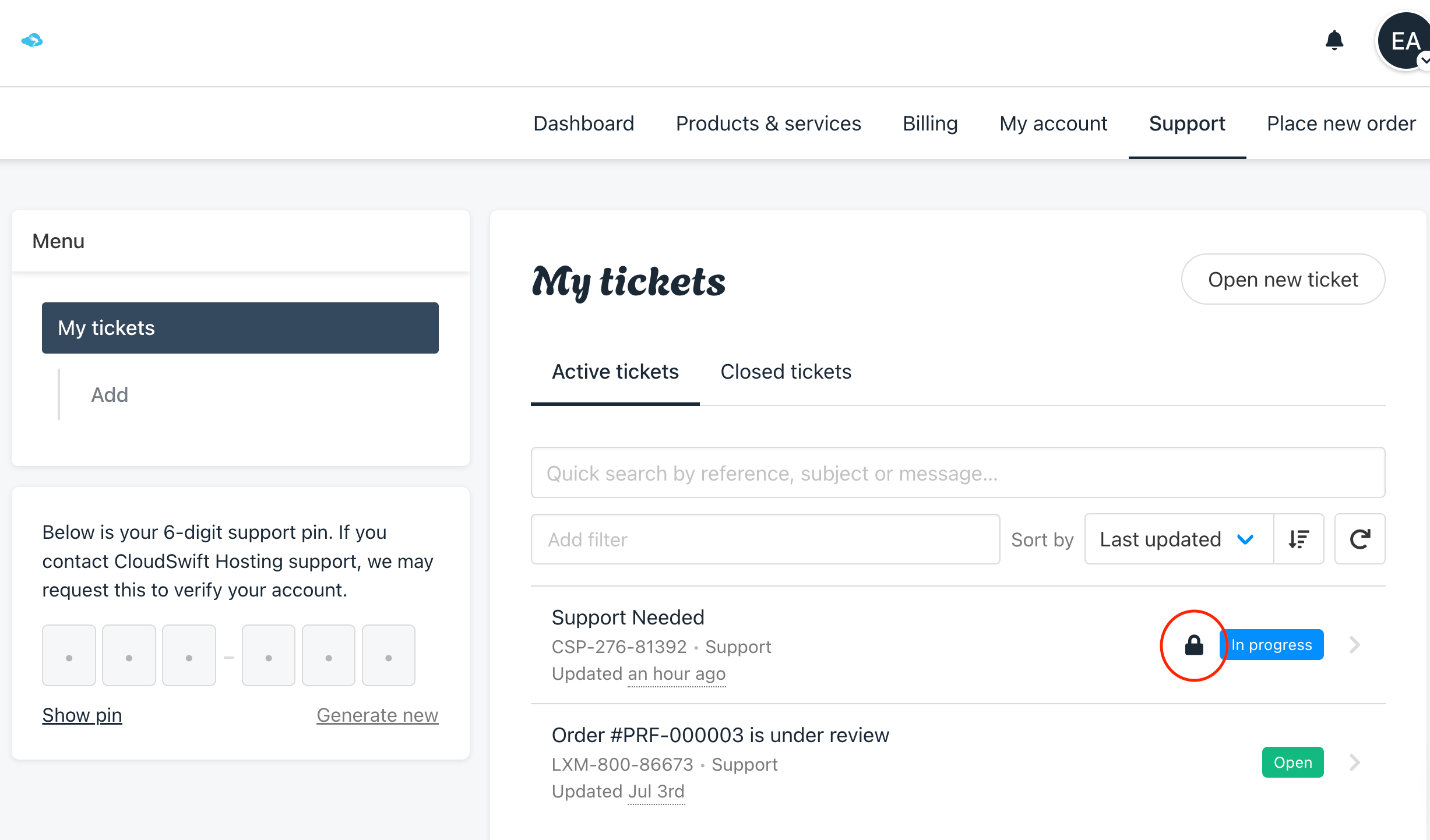
 Your client will also know if the ticket is locked, as it will be displayed in the client area as well.