> ## Documentation Index
> Fetch the complete documentation index at: https://docs.upmind.com/llms.txt
> Use this file to discover all available pages before exploring further.
# How to Enable a Support PIN
## Enabling the Support PIN
In a world of spoofing, phishing, spam, and bots, it makes sense to add a layer of security to your support system. That's why we brought a support PIN to Upmind. With a few clicks, you can protect your clients, reduce time spent on dead-end support requests, and allocate scarce resources to real clients who need help. This article explains how to enable and use this feature.
## Enabling the support PIN
1. Log in to your admin account.
2. Click Settings.
3. On the Settings page, click the **Service desk** tile.
4. Scroll down the Service desk page to the **Support** heading.
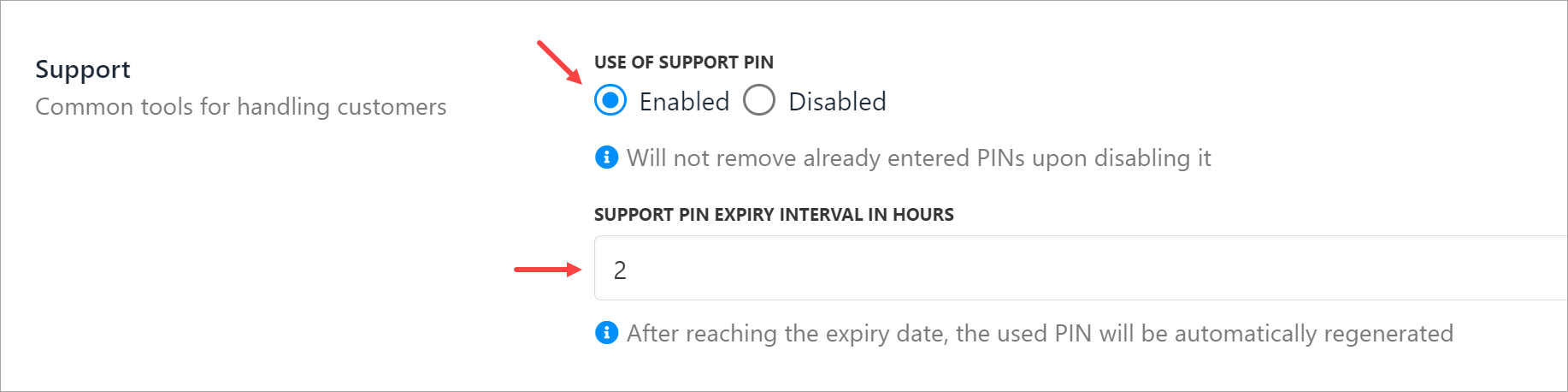
5. Switch on the **USE OF SUPPORT PIN** toggle.
6. Enter a number in the interval field (in hours) to auto-generate a new PIN.
7. Click Save.
### UI changes
After you click Save, Upmind implements two UI changes.
On the admin side, Upmind adds a **Verify pin** tab to the top menu bar. Click this tab when you want to verify a client PIN.
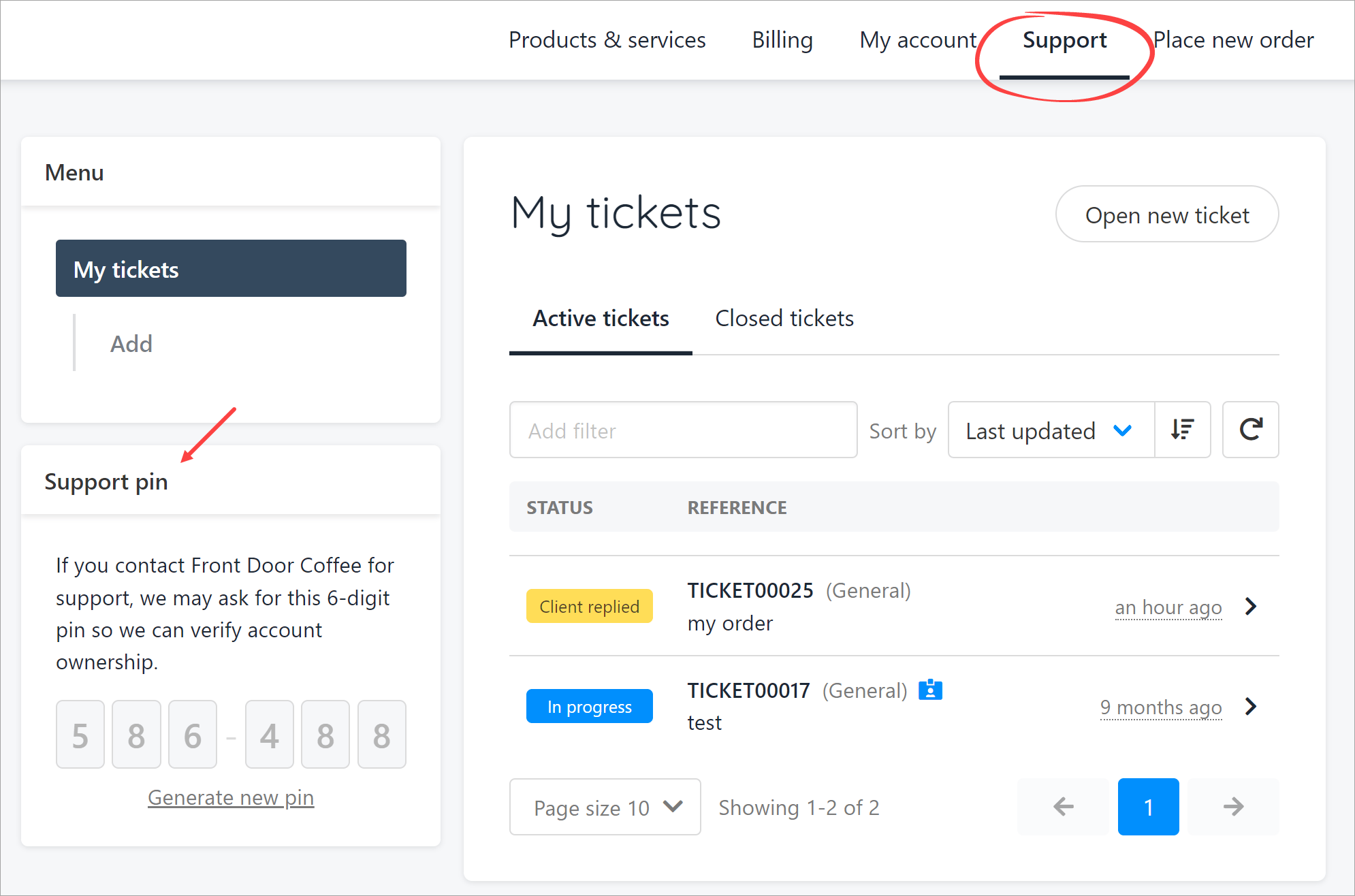
On the client side, Upmind adds a support PIN box. The client clicks the **Support** menu tab to display the PIN.
## Verifying a PIN
There are many ways to verify a client with the support PIN. You could use it during a live chat, when handling a support ticket, or even during a live phone call. The use case below demonstrates the communication flow in response to a client ticket.
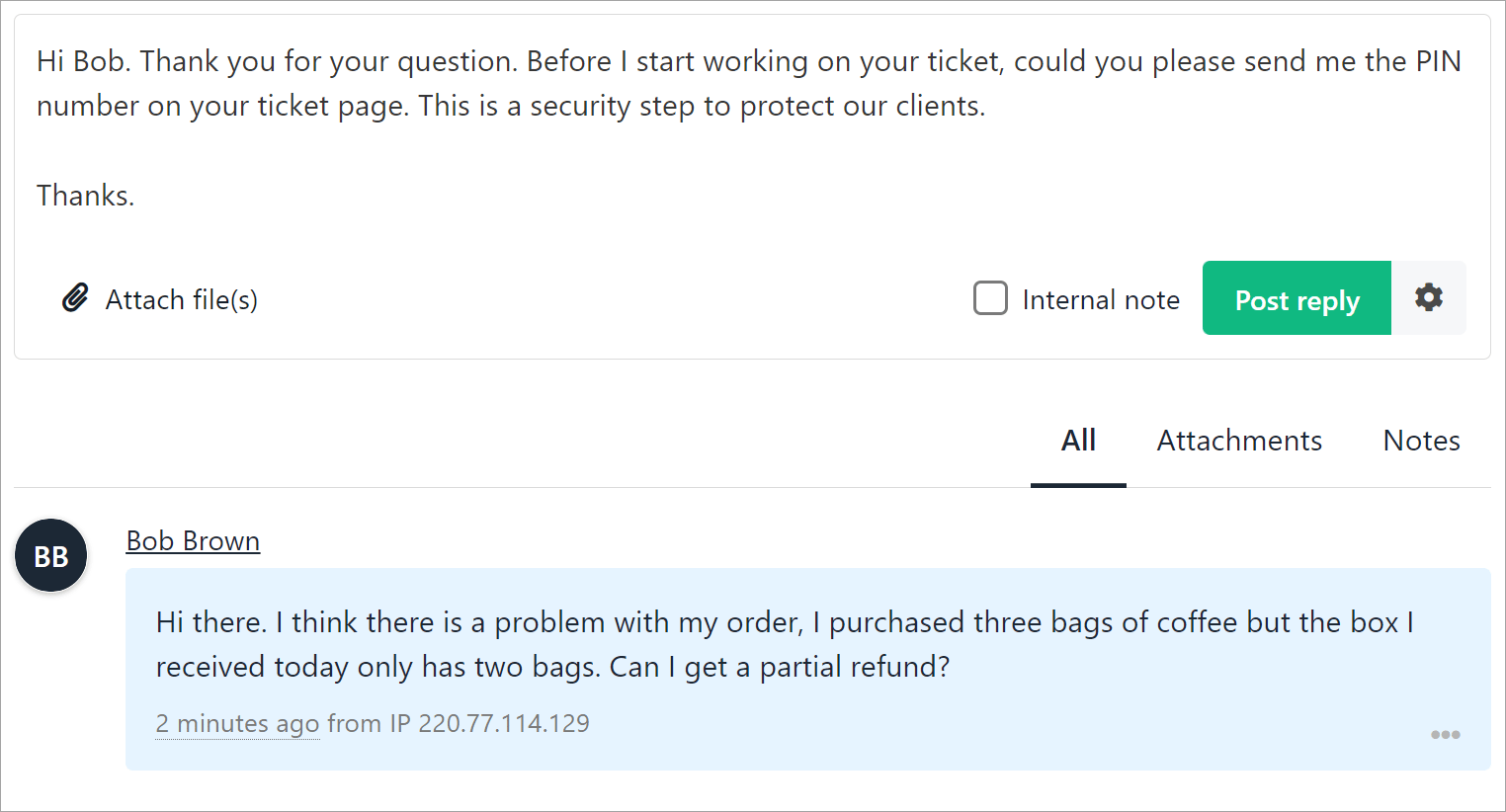
1. The admin (or user) opens a ticket and asks the client to send the PIN.
2. The client locates the number and sends the PIN in a response post.
3. The admin copies the number, clicks the **Verify Pin** tab, and pastes the six digits into the box.
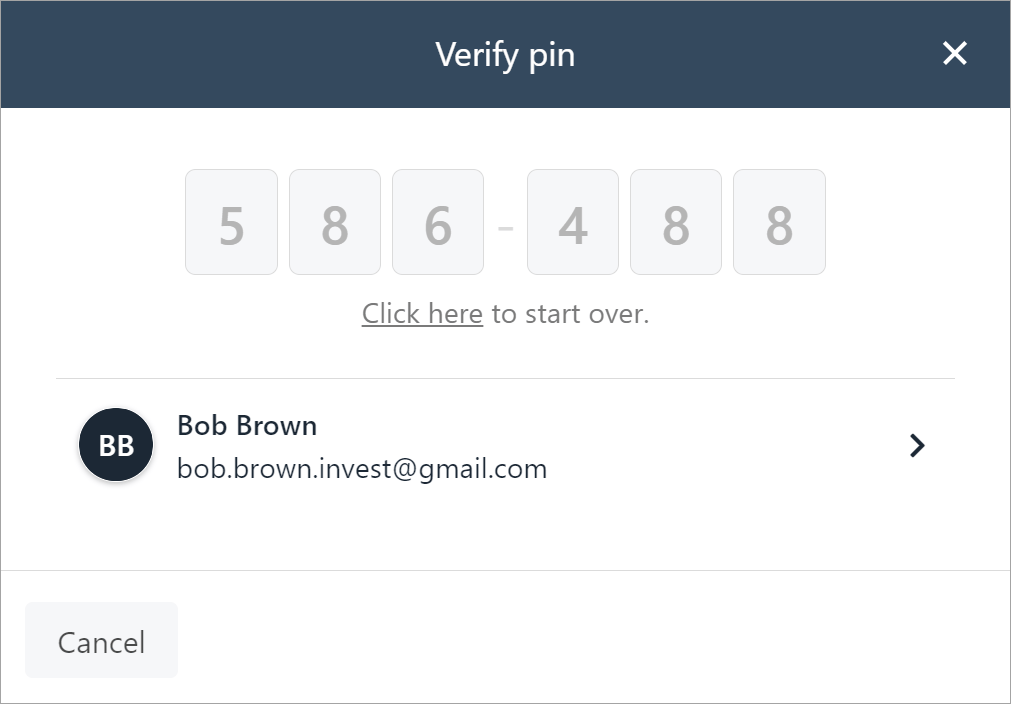
If valid, Upmind displays the client's name and email address to verify the account holder. The admin clicks the client's name to open the **Client overview** page, which displays the client's history (e.g. purchases, tickets, etc.).
### Failed verification
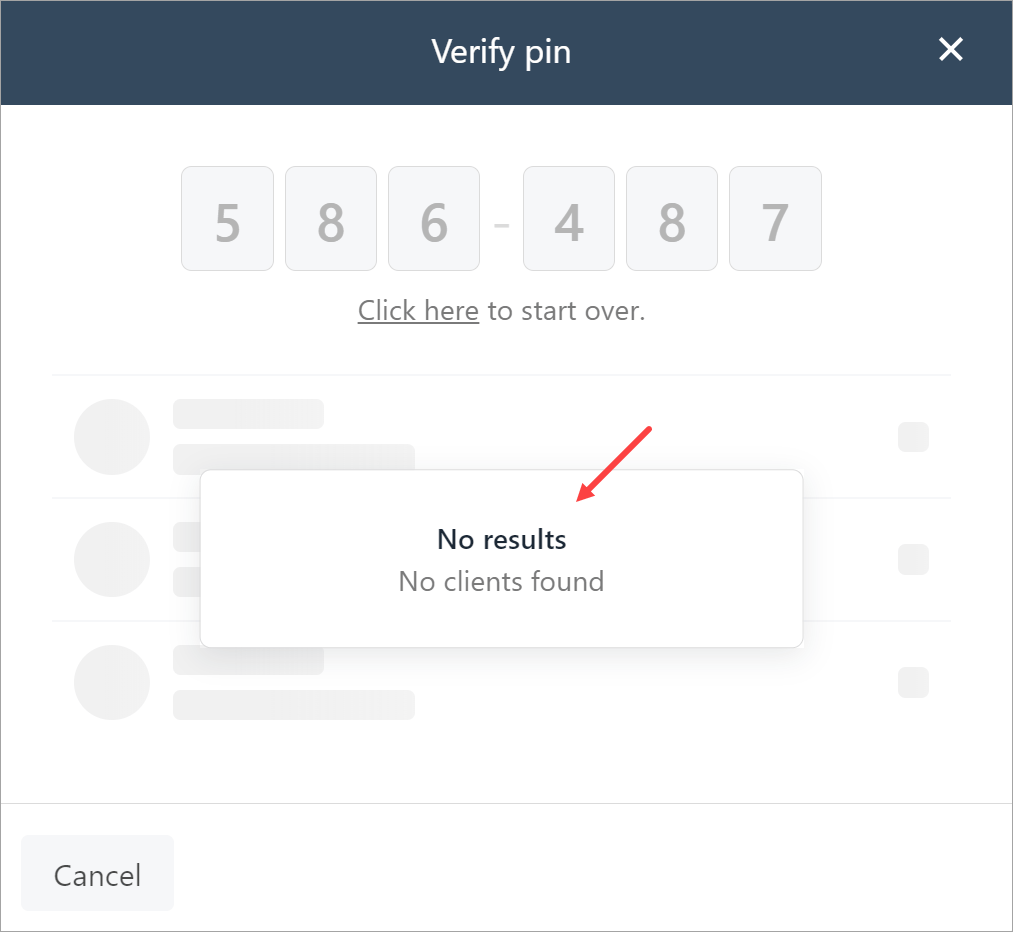
If the PIN verification fails, Upmind displays a **No results** window. At this point, you could ask the client to re-generate the PIN and try again. One more failure likely means the client is not an account holder and does not require support resources.
 ### UI changes
After you click Save, Upmind implements two UI changes.
On the admin side, Upmind adds a **Verify pin** tab to the top menu bar. Click this tab when you want to verify a client PIN.
### UI changes
After you click Save, Upmind implements two UI changes.
On the admin side, Upmind adds a **Verify pin** tab to the top menu bar. Click this tab when you want to verify a client PIN.
 On the client side, Upmind adds a support PIN box. The client clicks the **Support** menu tab to display the PIN.
 ## Verifying a PIN
There are many ways to verify a client with the support PIN. You could use it during a live chat, when handling a support ticket, or even during a live phone call. The use case below demonstrates the communication flow in response to a client ticket.
1. The admin (or user) opens a ticket and asks the client to send the PIN.
## Verifying a PIN
There are many ways to verify a client with the support PIN. You could use it during a live chat, when handling a support ticket, or even during a live phone call. The use case below demonstrates the communication flow in response to a client ticket.
1. The admin (or user) opens a ticket and asks the client to send the PIN.
 2. The client locates the number and sends the PIN in a response post.
3. The admin copies the number, clicks the **Verify Pin** tab, and pastes the six digits into the box.
If valid, Upmind displays the client's name and email address to verify the account holder. The admin clicks the client's name to open the **Client overview** page, which displays the client's history (e.g. purchases, tickets, etc.).
2. The client locates the number and sends the PIN in a response post.
3. The admin copies the number, clicks the **Verify Pin** tab, and pastes the six digits into the box.
If valid, Upmind displays the client's name and email address to verify the account holder. The admin clicks the client's name to open the **Client overview** page, which displays the client's history (e.g. purchases, tickets, etc.).
 ### Failed verification
If the PIN verification fails, Upmind displays a **No results** window. At this point, you could ask the client to re-generate the PIN and try again. One more failure likely means the client is not an account holder and does not require support resources.
### Failed verification
If the PIN verification fails, Upmind displays a **No results** window. At this point, you could ask the client to re-generate the PIN and try again. One more failure likely means the client is not an account holder and does not require support resources.