> ## Documentation Index
> Fetch the complete documentation index at: https://docs.upmind.com/llms.txt
> Use this file to discover all available pages before exploring further.
# How to Customise the Ticket & Support System
> Create unique departments, add message forwarding, and more
This article shows you how to configure your store's ticketing system. You also learn how to generate a ticket when a client sends a message to your domain's email account.
Not sure how to find clients' tickets? See [How to Open and Assign Client Tickets](/using-upmind/service-desk/how-to-open-and-assign-client-tickets).
## Opening the Tickets & Support page
1. Log in to Upmind.
2. Click the Settings button.
3. Click the Service desk tile.
## Setting Ticket Reference
Customise the prefix that displays with every ticket number. The default setting is TICKET.
To change the default:
1. Enter a name in the field.
2. Click Save.
 ## Customising Ticket System Settings
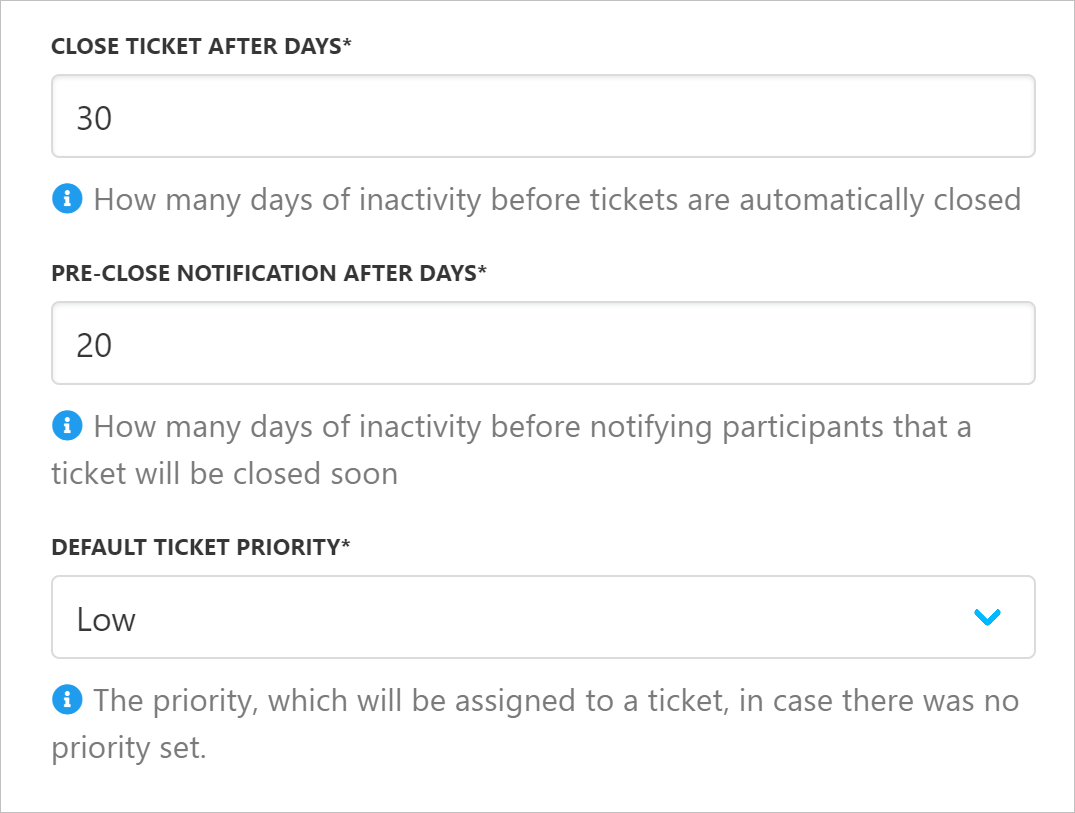
Customise the default settings for three fields. (optional)
**CLOSE TICKET AFTER DAYS**
* Automatically close a ticket after X number of days of inactivity.
**PRE-CLOSE NOTIFICATION AFTER DAYS**
* Automatically notify a party that a ticket will be closed after X number of days of inactivity.
**DEFAULT TICKET PRIORITY**
* Automatically set ticket priority to this level if the party does not choose a priority level.
## Customising Ticket System Settings
Customise the default settings for three fields. (optional)
**CLOSE TICKET AFTER DAYS**
* Automatically close a ticket after X number of days of inactivity.
**PRE-CLOSE NOTIFICATION AFTER DAYS**
* Automatically notify a party that a ticket will be closed after X number of days of inactivity.
**DEFAULT TICKET PRIORITY**
* Automatically set ticket priority to this level if the party does not choose a priority level.
 ## Enabling Support PIN
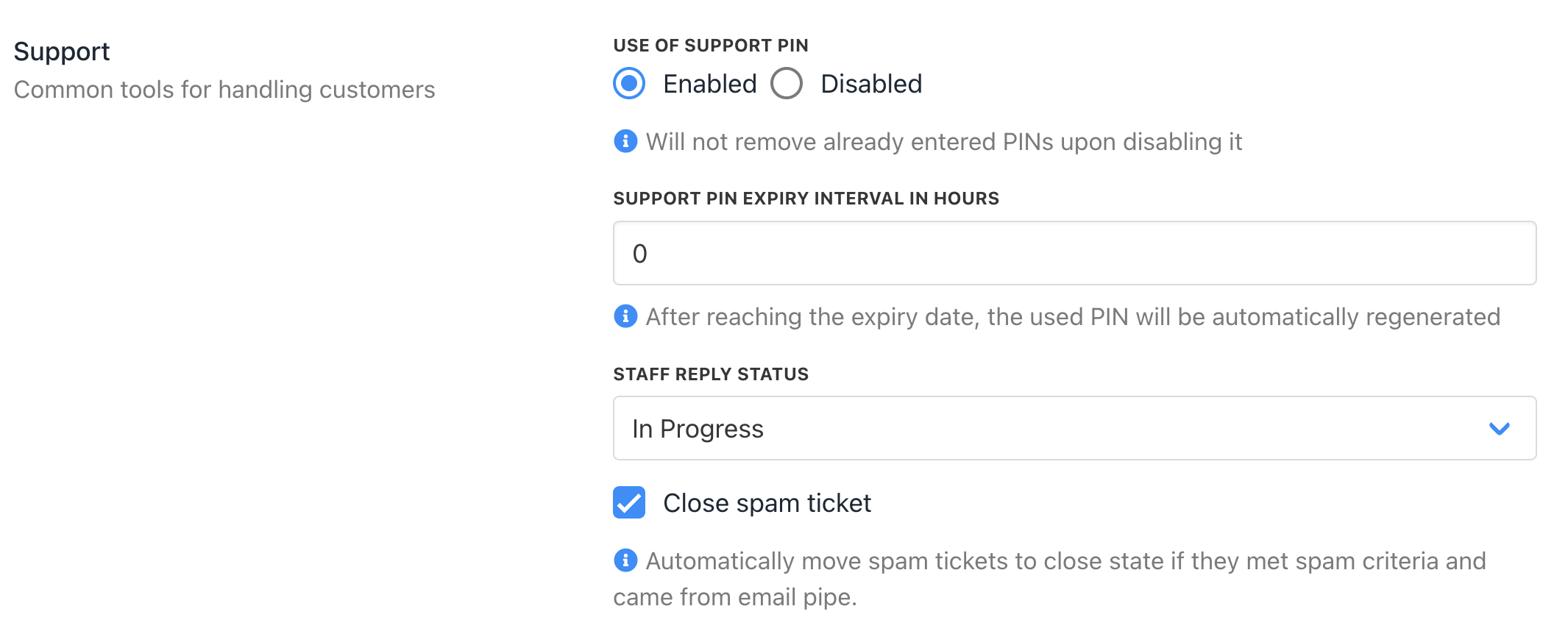
The Client Support PIN is a unique code used to securely verify your client's identity when they contact customer support. [You can enable or disable](/using-upmind/service-desk/how-to-enable-a-support-pin) this feature under Settings -> Service Desk.
You can also set the expiration interval, which will allow the system to automatically generate a new PIN once the current one expires.
## Enabling Support PIN
The Client Support PIN is a unique code used to securely verify your client's identity when they contact customer support. [You can enable or disable](/using-upmind/service-desk/how-to-enable-a-support-pin) this feature under Settings -> Service Desk.
You can also set the expiration interval, which will allow the system to automatically generate a new PIN once the current one expires.