> ## Documentation Index
> Fetch the complete documentation index at: https://docs.upmind.com/llms.txt
> Use this file to discover all available pages before exploring further.
# How to Create Support Department
> Create unique departments
You can create additional departments for the ticket system (e.g. billing, refunds, technical support). Each department can have a separate Upmind email account and be enabled/disabled for clients.
## **Reviewing the Default Options**
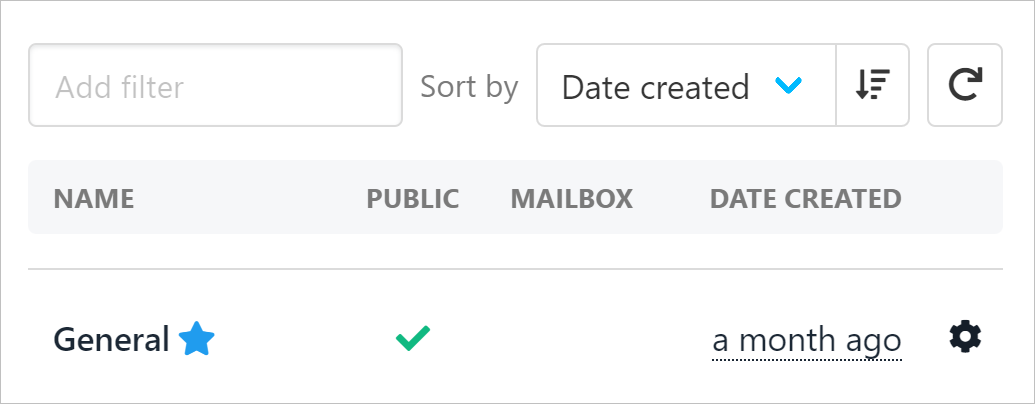
Each Upmind store comes with a working public ticket system that your clients can use right away.
* The ticket system has one department (called General).
* If you're fine with the default settings, no further action is required.
 ## **Creating Support Departments**
1. Go to Settings
2. Find the Support Department Tile
3. Then, click Create Department.
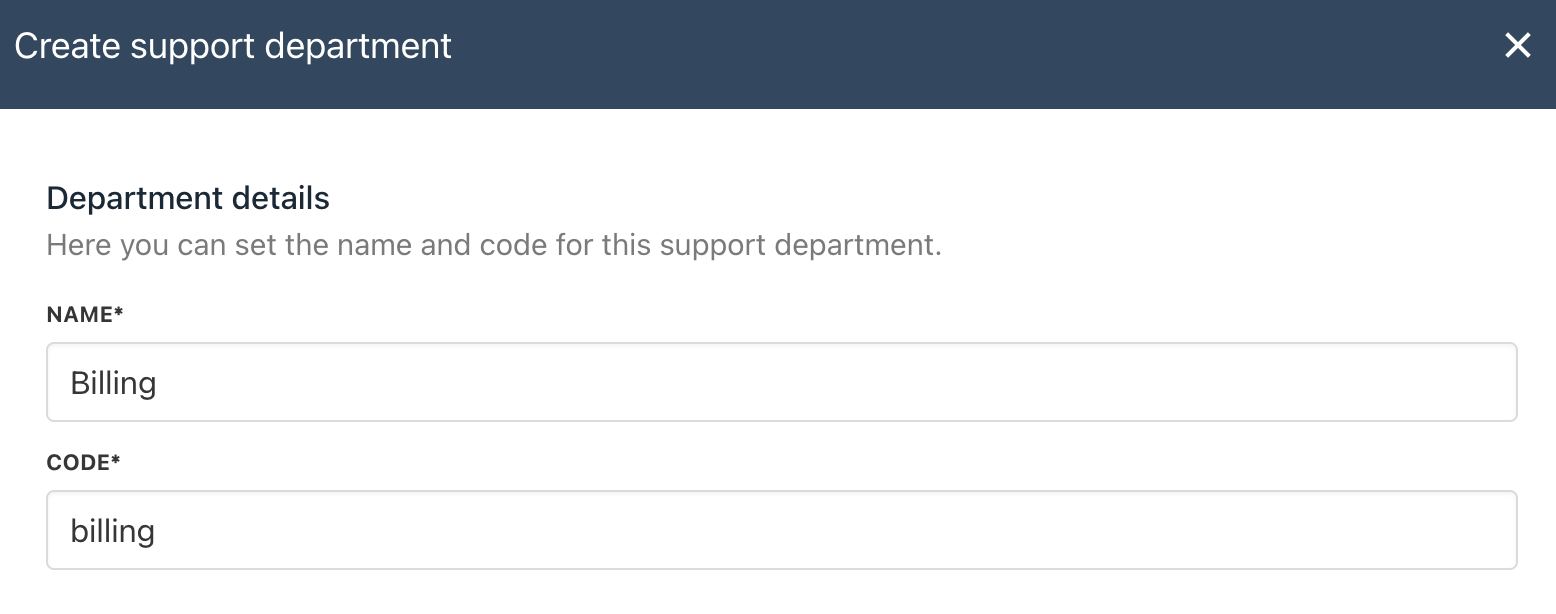
4. Fill in the Name; the code will be automatically filled once you enter the name. Then, click Create.
## **Creating Support Departments**
1. Go to Settings
2. Find the Support Department Tile
3. Then, click Create Department.
4. Fill in the Name; the code will be automatically filled once you enter the name. Then, click Create.
 5. You need to toggle the button to enable the department.
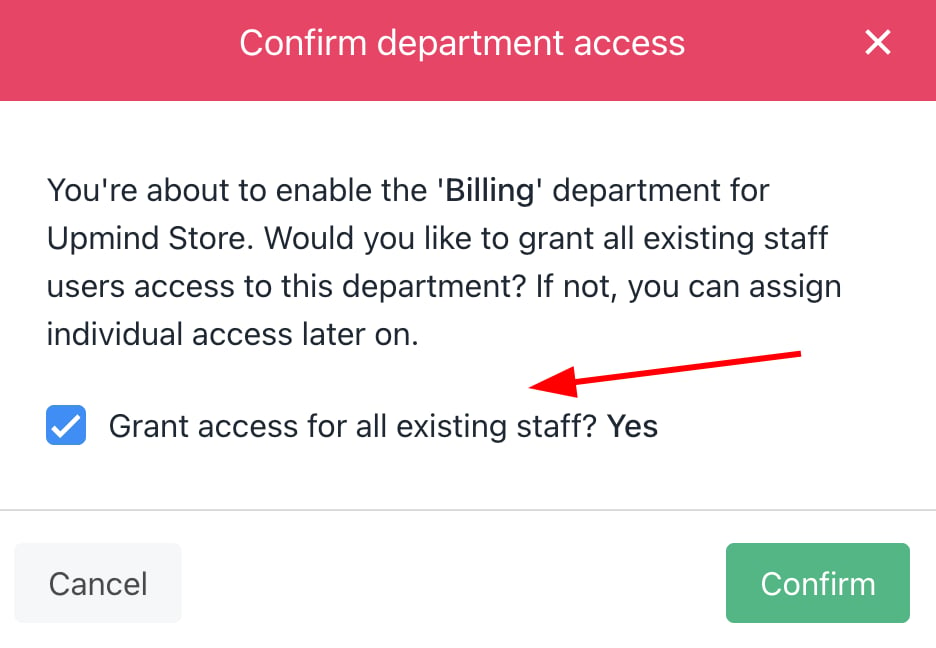
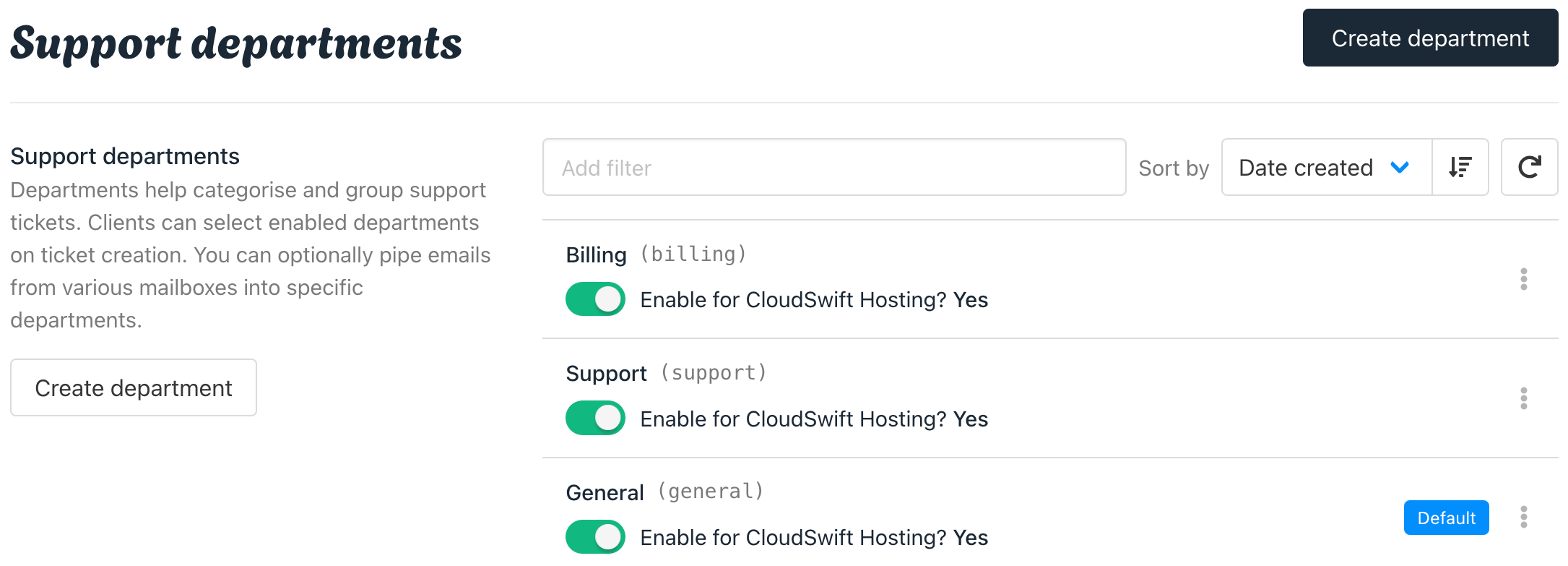 6. When you toggle the button, you will see the option to grant staff access when enabling support departments.
 ## **Editing Support Departments**
If you want to Edit the department, you can follow:
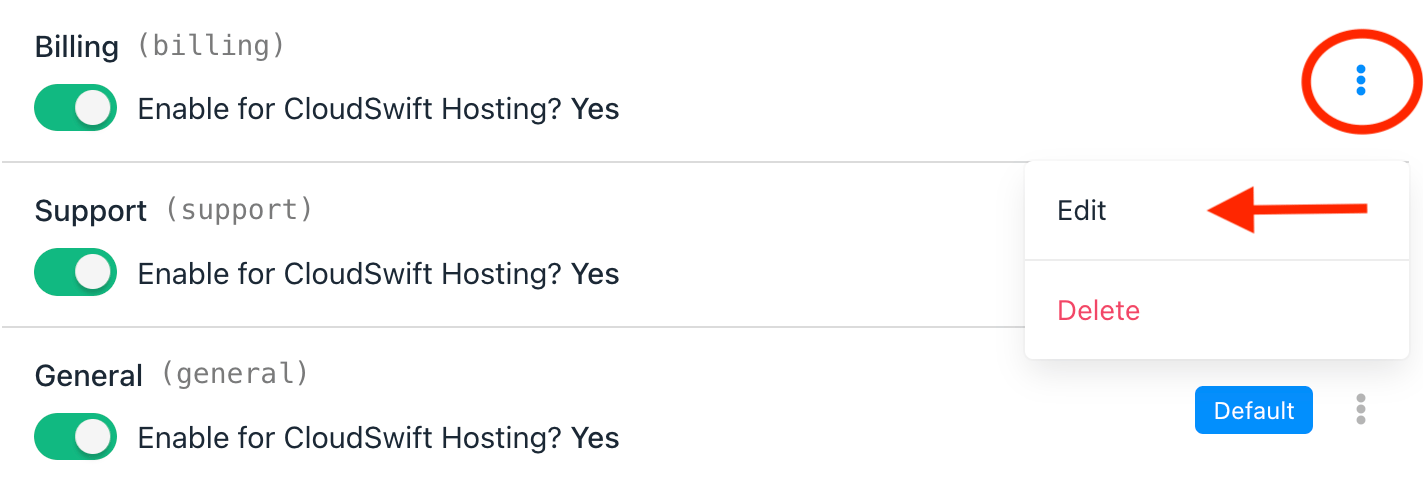
1. Click the three buttons, then click edit.
## **Editing Support Departments**
If you want to Edit the department, you can follow:
1. Click the three buttons, then click edit.
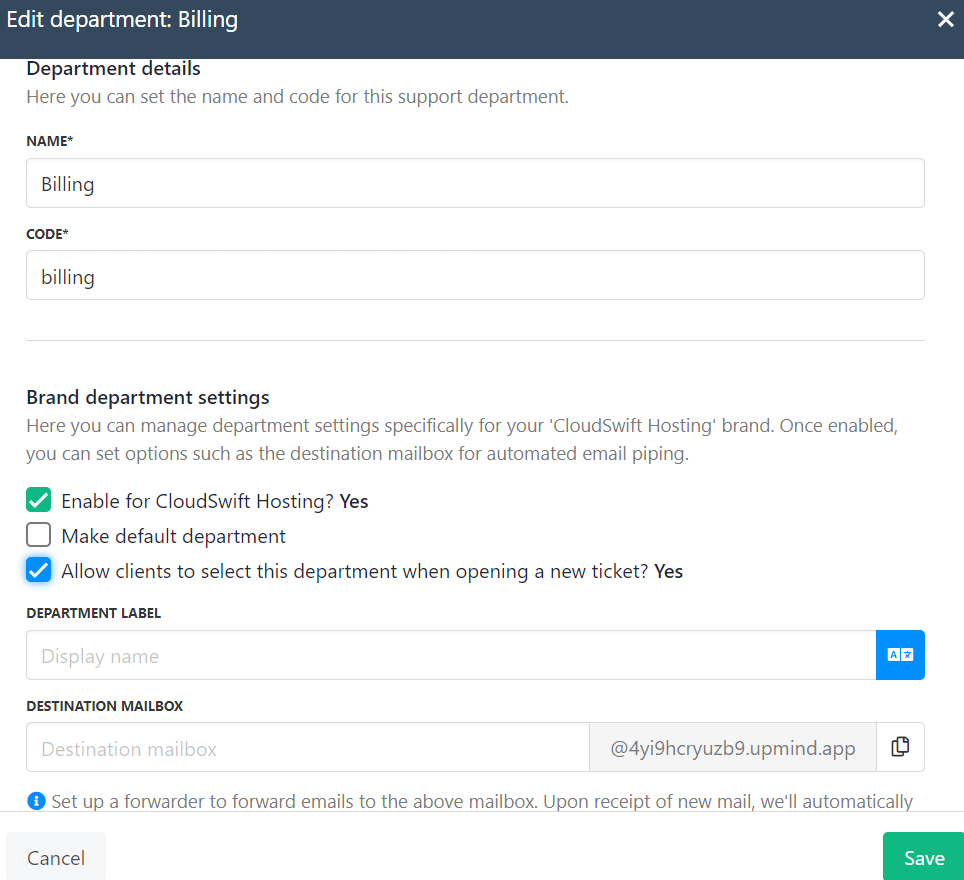
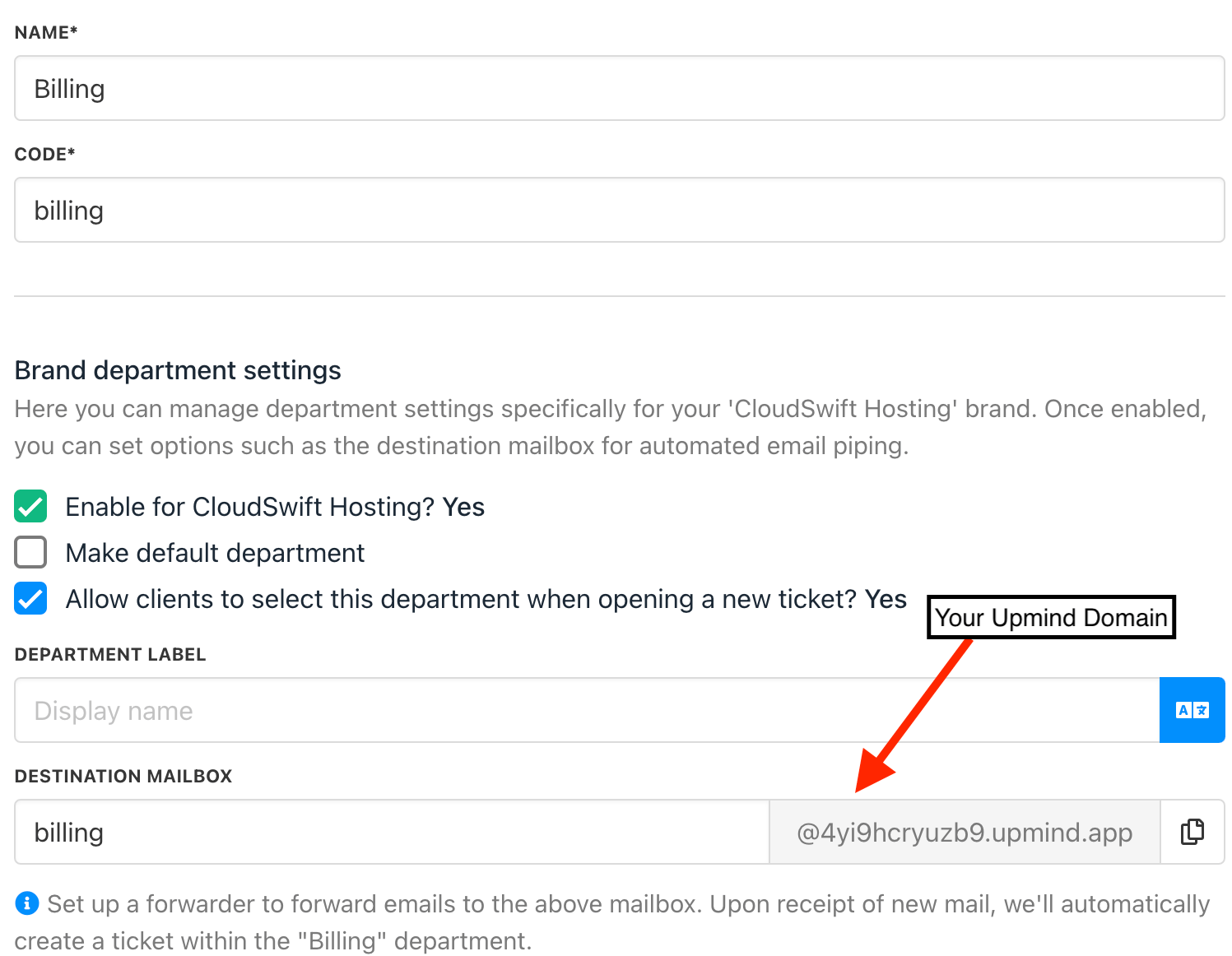
 2. On the next screen, you can set the Brand Department Settings. You also can manage the [destination mailbox](/setup-and-configuration/email-configuring-and-sending/how-does-email-work-in-upmind) for automated email piping based on the department.
 ## **Managing your Department by Brand**
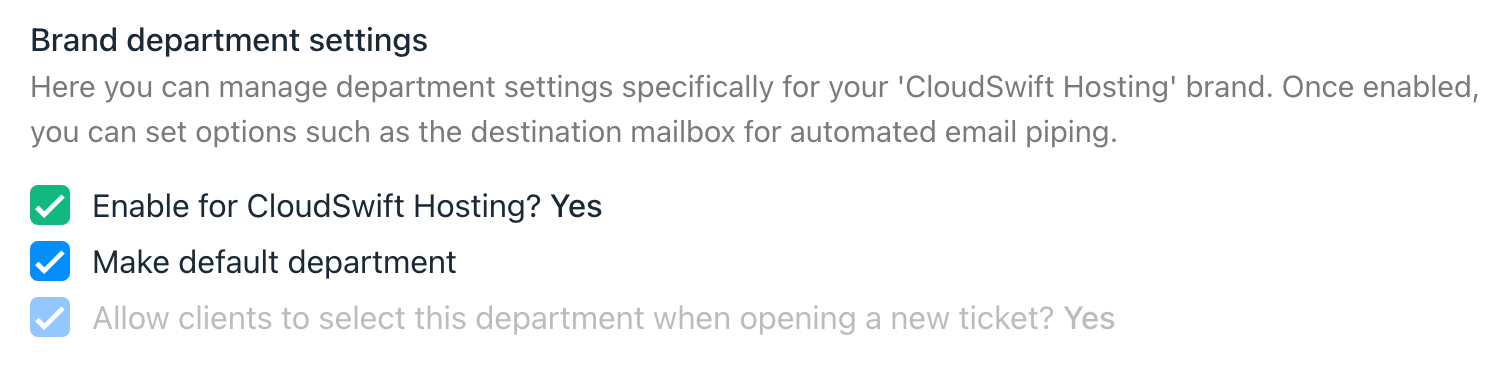 Within the Brand Department Settings, there are options you can select by clicking:
* By default, all the tickets will be coming to General, so once you create another department and decide to make it the default, you can tick the box “Make default department”.
* Ensure that you tick the box to “Allow the client to select this department when opening the ticket”. It will be shown in your client area.
## **Adding a Department Email Address**
On the same page, create a separate Upmind email address for each department.
1. Enter the department name.
2. Click Save.
Create an action to send a notification when this Upmind department receives an email message. Learn [Notifications](/setup-and-configuration/notifications/notifications-overview) here.
Within the Brand Department Settings, there are options you can select by clicking:
* By default, all the tickets will be coming to General, so once you create another department and decide to make it the default, you can tick the box “Make default department”.
* Ensure that you tick the box to “Allow the client to select this department when opening the ticket”. It will be shown in your client area.
## **Adding a Department Email Address**
On the same page, create a separate Upmind email address for each department.
1. Enter the department name.
2. Click Save.
Create an action to send a notification when this Upmind department receives an email message. Learn [Notifications](/setup-and-configuration/notifications/notifications-overview) here.
 ## **Creating a Forwarded Message Mailbox**
If you own your own domain, you can forward email messages to an Upmind department email.
Here's an example.
You have a domain called [bigcookies.com](http://bigcookies.com). You want to forward messages sent to [billing@bigcookies.com](mailto:billing@bigcookies.com) to an Upmind department email account.
1. Open your hosting account dashboard (e.g. cPanel).
2. Go to the forwarding section.
3. Create a forwarder to send [billing@bigcookies.com](mailto:billing@bigcookies.com) messages to [billing@4yi9hcryuzb9.upmind.app](mailto:billing@4yi9hcryuzb9.upmind.app).
Email forwarding may not work if the Upmind email address uses dashes or hyphens. Because the Upmind email address is based on your Upmind organisation name, we suggest that you create an organisation name without dashes or hyphens.
## **What do clients see in the client area?**
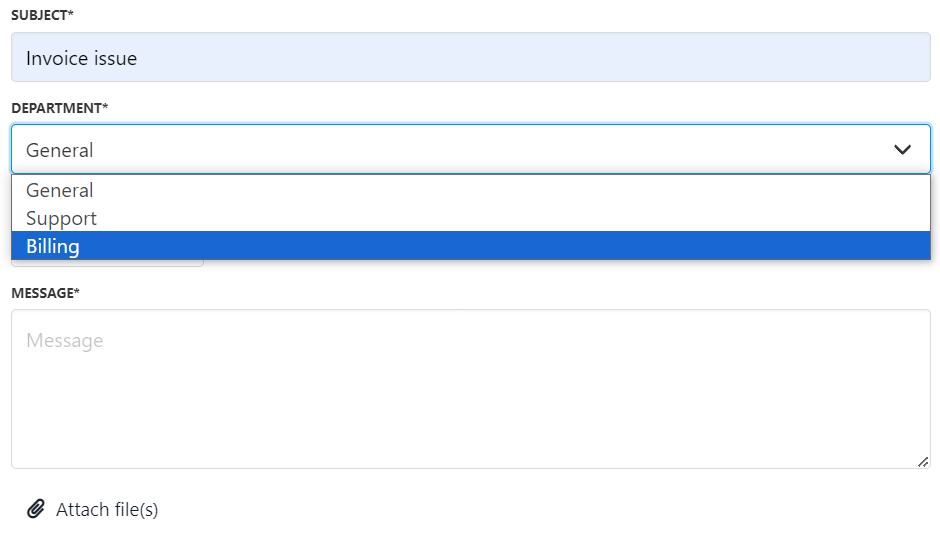
If your client wants to [create a ticket](/using-upmind/service-desk/how-do-my-clients-create-tickets), they can select which department they refer to (it could be General, Billing, or Support based on your department created).
1. Log in to the client area
2. Go to Support.
3. Click Open new ticket
## **Creating a Forwarded Message Mailbox**
If you own your own domain, you can forward email messages to an Upmind department email.
Here's an example.
You have a domain called [bigcookies.com](http://bigcookies.com). You want to forward messages sent to [billing@bigcookies.com](mailto:billing@bigcookies.com) to an Upmind department email account.
1. Open your hosting account dashboard (e.g. cPanel).
2. Go to the forwarding section.
3. Create a forwarder to send [billing@bigcookies.com](mailto:billing@bigcookies.com) messages to [billing@4yi9hcryuzb9.upmind.app](mailto:billing@4yi9hcryuzb9.upmind.app).
Email forwarding may not work if the Upmind email address uses dashes or hyphens. Because the Upmind email address is based on your Upmind organisation name, we suggest that you create an organisation name without dashes or hyphens.
## **What do clients see in the client area?**
If your client wants to [create a ticket](/using-upmind/service-desk/how-do-my-clients-create-tickets), they can select which department they refer to (it could be General, Billing, or Support based on your department created).
1. Log in to the client area
2. Go to Support.
3. Click Open new ticket
 4. Then, the client can select which department they refer to