> ## Documentation Index
> Fetch the complete documentation index at: https://docs.upmind.com/llms.txt
> Use this file to discover all available pages before exploring further.
# Bulk Support Ticket Updates
> Manage multiple client tickets at once without going one by one.
The bulk ticket update feature in Upmind's Service Desk lets you act on several tickets for a specific client in one go. Instead of opening and closing tickets individually, you can update their status, reassign staff, add notes, or mark tickets as spam across a client's full ticket list at once.
## What you can do in bulk
From the client's ticket section, you can apply the following actions to multiple tickets at the same time:
* Change ticket status (e.g., Open, Closed, In Progress).
* Lock and unlock the ticket.
* Mark tickets as spam.
* Change the department.
* Assign or unassign a staff member.
* Add a note or message.
## How to bulk update client tickets
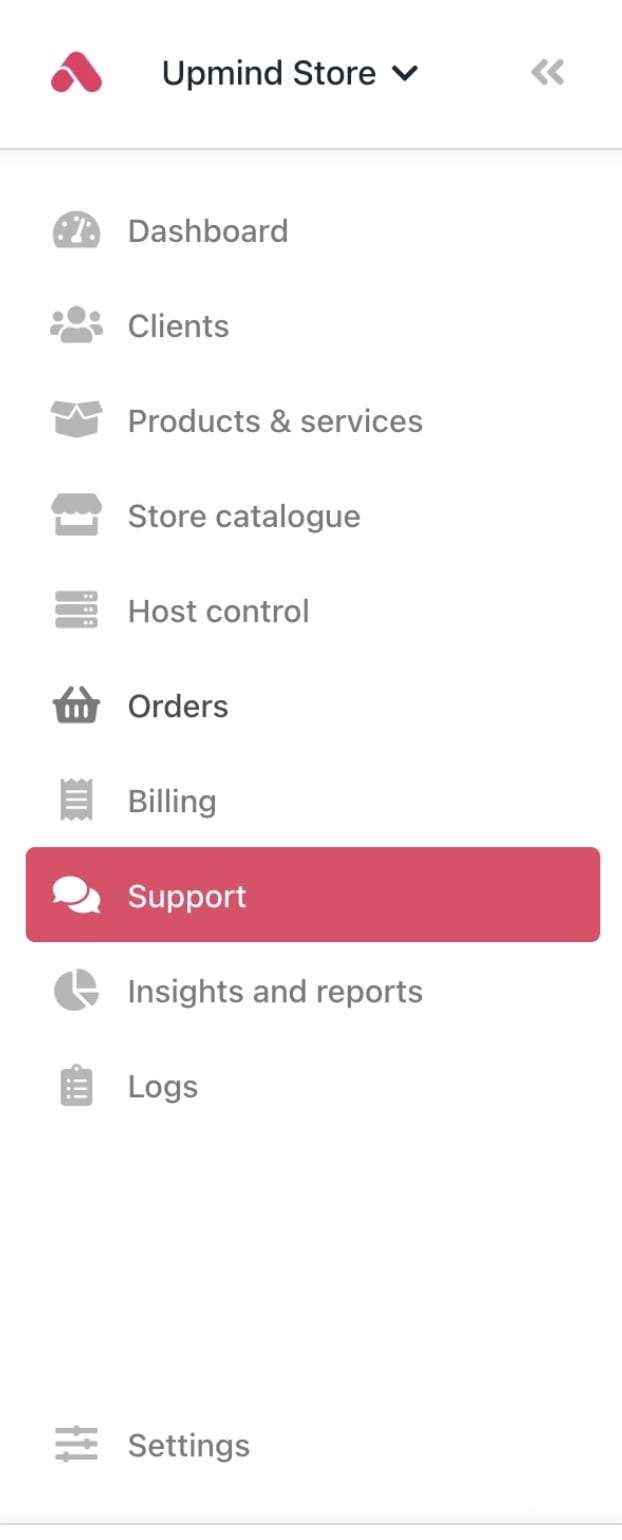
1. Go to the **Service Desk** from your Upmind dashboard.
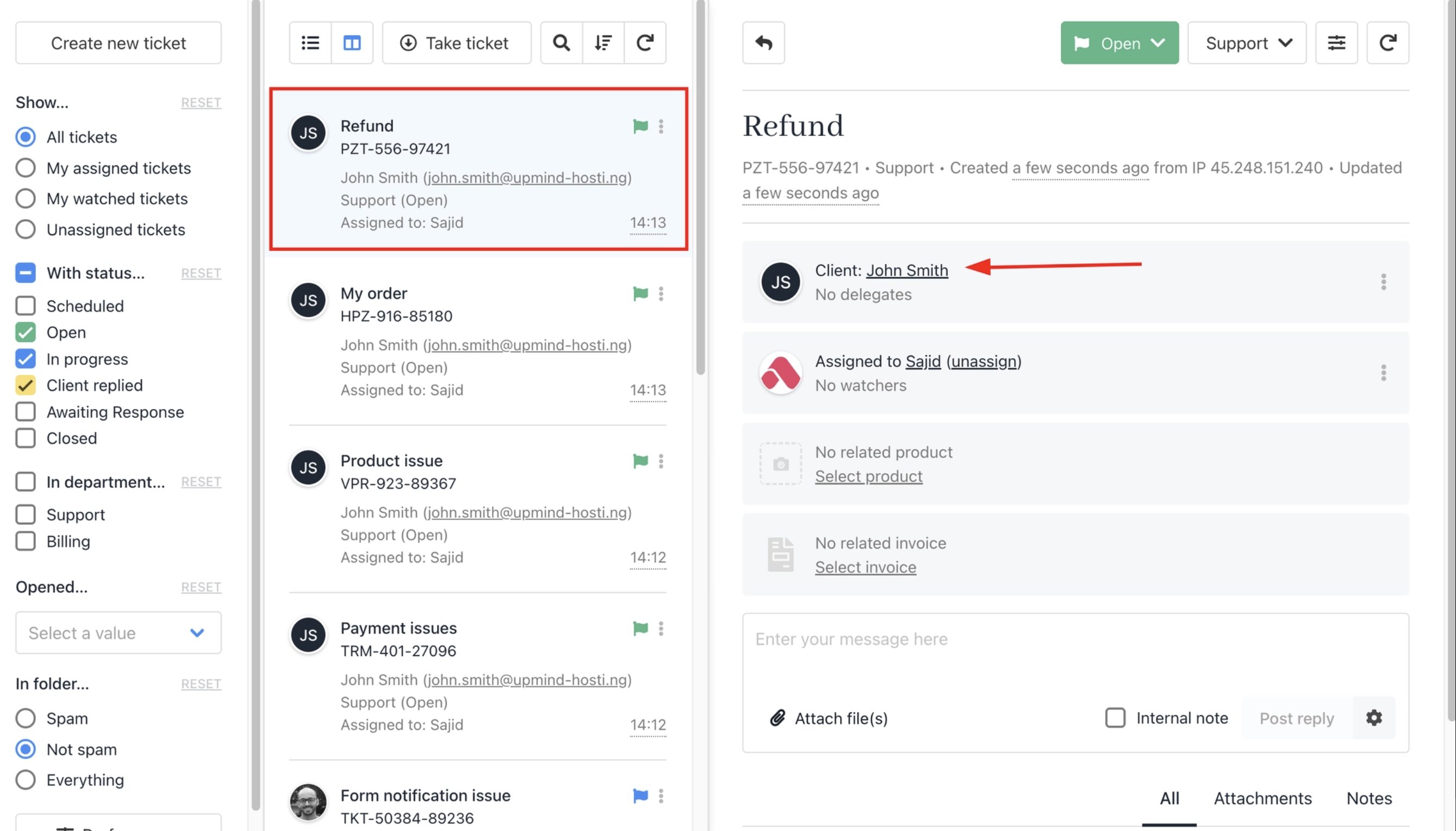
 2. Open any ticket belonging to the client whose tickets you want to manage.
3. Click the **client profile** within the ticket view to open their profile panel.
2. Open any ticket belonging to the client whose tickets you want to manage.
3. Click the **client profile** within the ticket view to open their profile panel.
 4. Navigate to the **Ticket** section within the client profile.
5. Click the **three-dot menu** (⋯) in the top right of the ticket section.
4. Navigate to the **Ticket** section within the client profile.
5. Click the **three-dot menu** (⋯) in the top right of the ticket section.
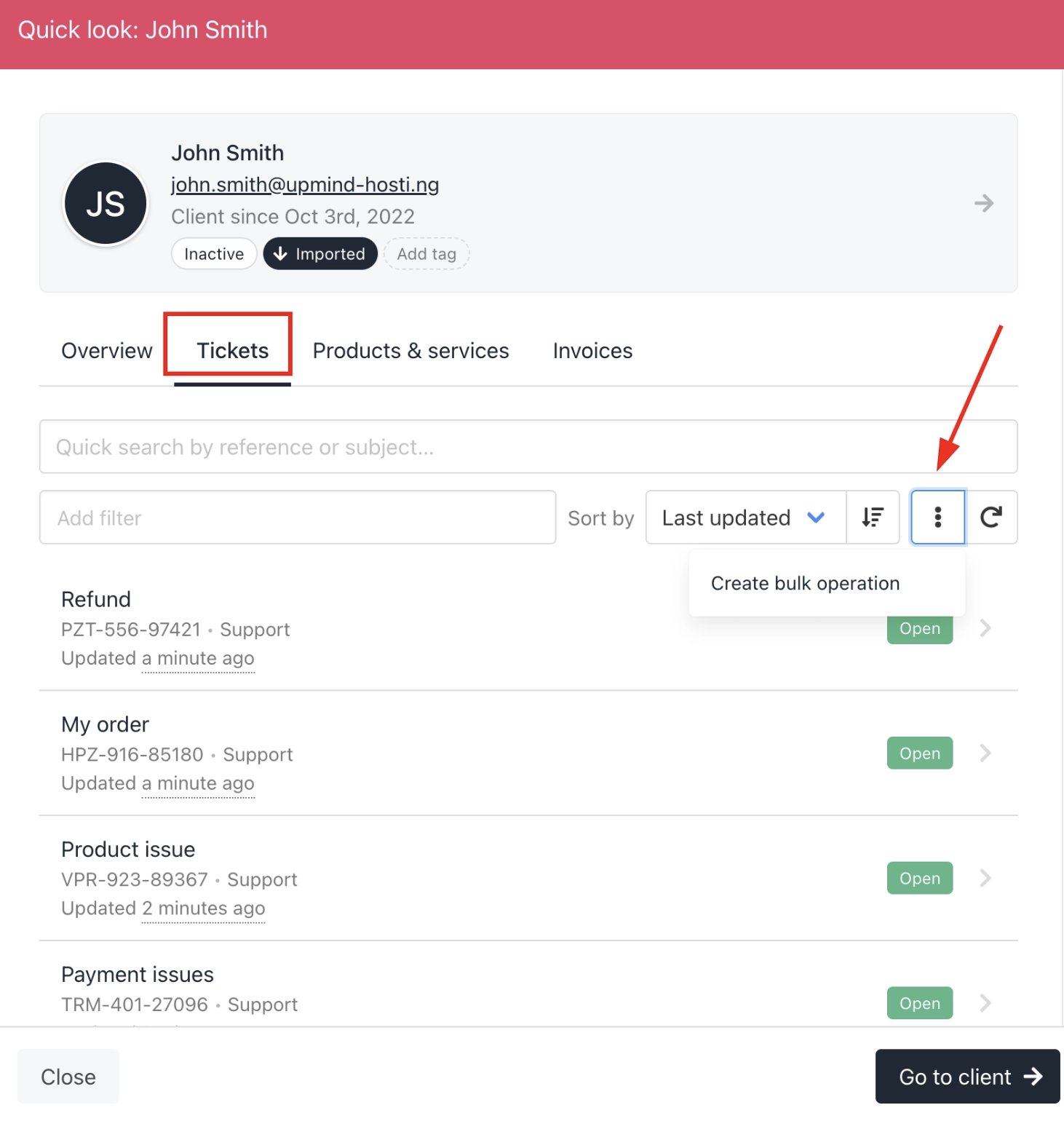 6. Select **Create Bulk Operation** from the menu.
7. You can choose to do the bulk action on all tickets.
8. Or you can also select the tickets you want to update by checking them off.
6. Select **Create Bulk Operation** from the menu.
7. You can choose to do the bulk action on all tickets.
8. Or you can also select the tickets you want to update by checking them off.
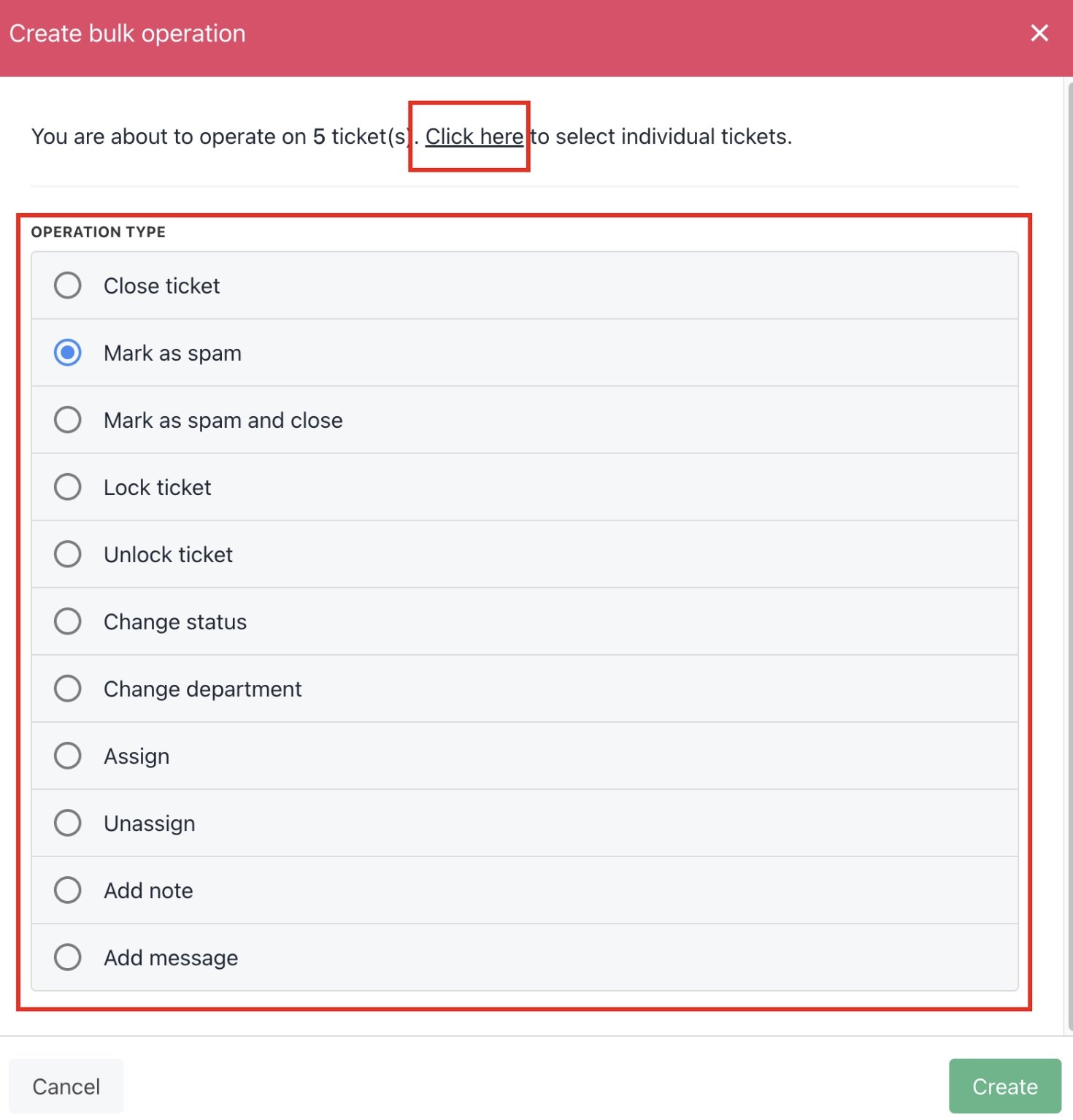
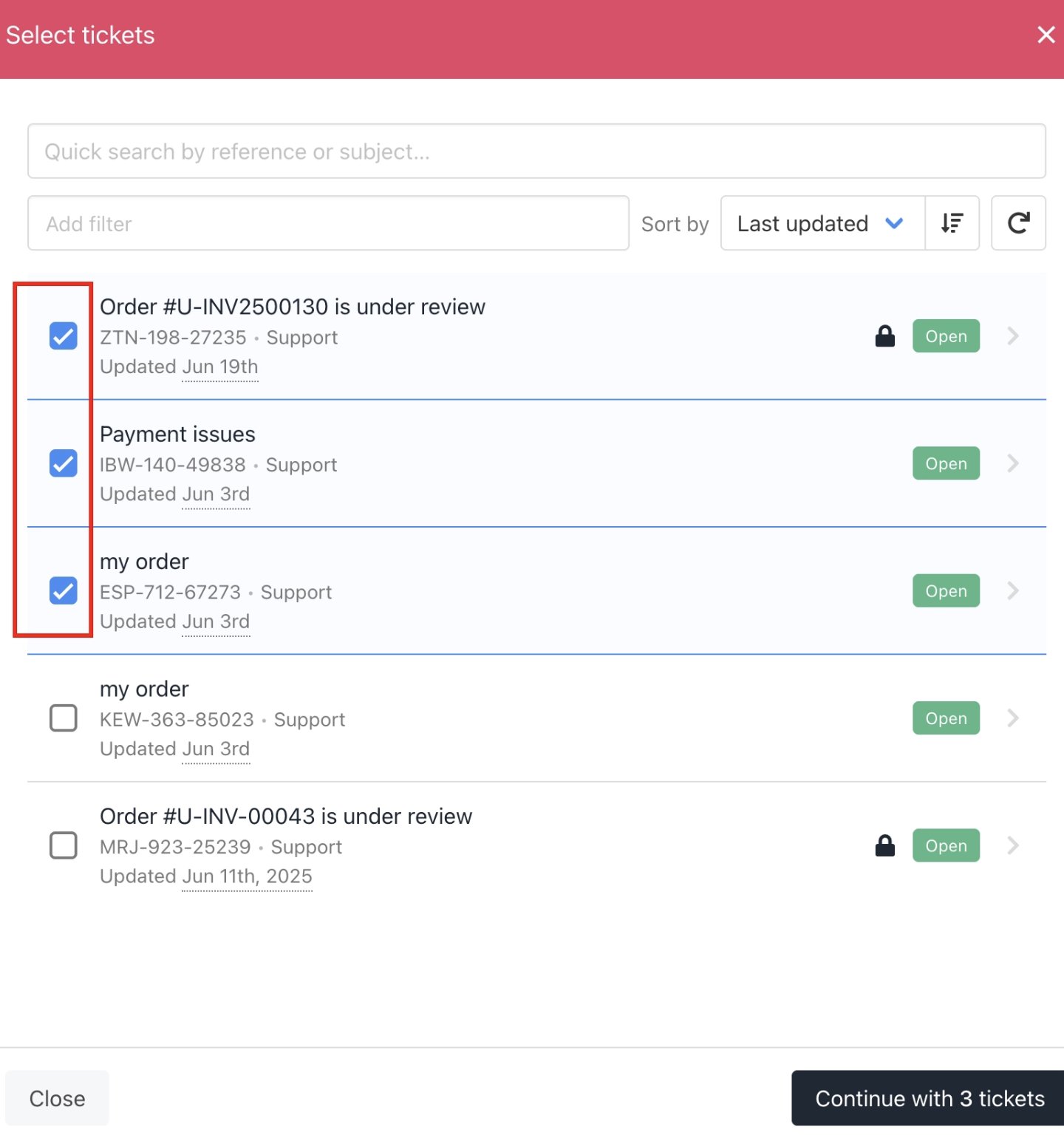 9. Confirm to apply the changes.
This feature works at the **client level**, not across all tickets in the Service Desk globally. The bulk actions apply only to tickets belonging to the specific client you are viewing.
This makes it particularly useful for situations like spam tickets from a single client, where you can select all relevant tickets and close or mark them at once rather than handling each one separately.
### Close all tickets for a client
If you need to close every ticket status (open, in progress, and awaiting response) for a specific client at once, there is a dedicated button for this at the client level.
1. Go to the client's profile.
2. Open the **Tickets** tab.
3. Click the **Close All** button to close all open tickets for that client in one action.
9. Confirm to apply the changes.
This feature works at the **client level**, not across all tickets in the Service Desk globally. The bulk actions apply only to tickets belonging to the specific client you are viewing.
This makes it particularly useful for situations like spam tickets from a single client, where you can select all relevant tickets and close or mark them at once rather than handling each one separately.
### Close all tickets for a client
If you need to close every ticket status (open, in progress, and awaiting response) for a specific client at once, there is a dedicated button for this at the client level.
1. Go to the client's profile.
2. Open the **Tickets** tab.
3. Click the **Close All** button to close all open tickets for that client in one action.
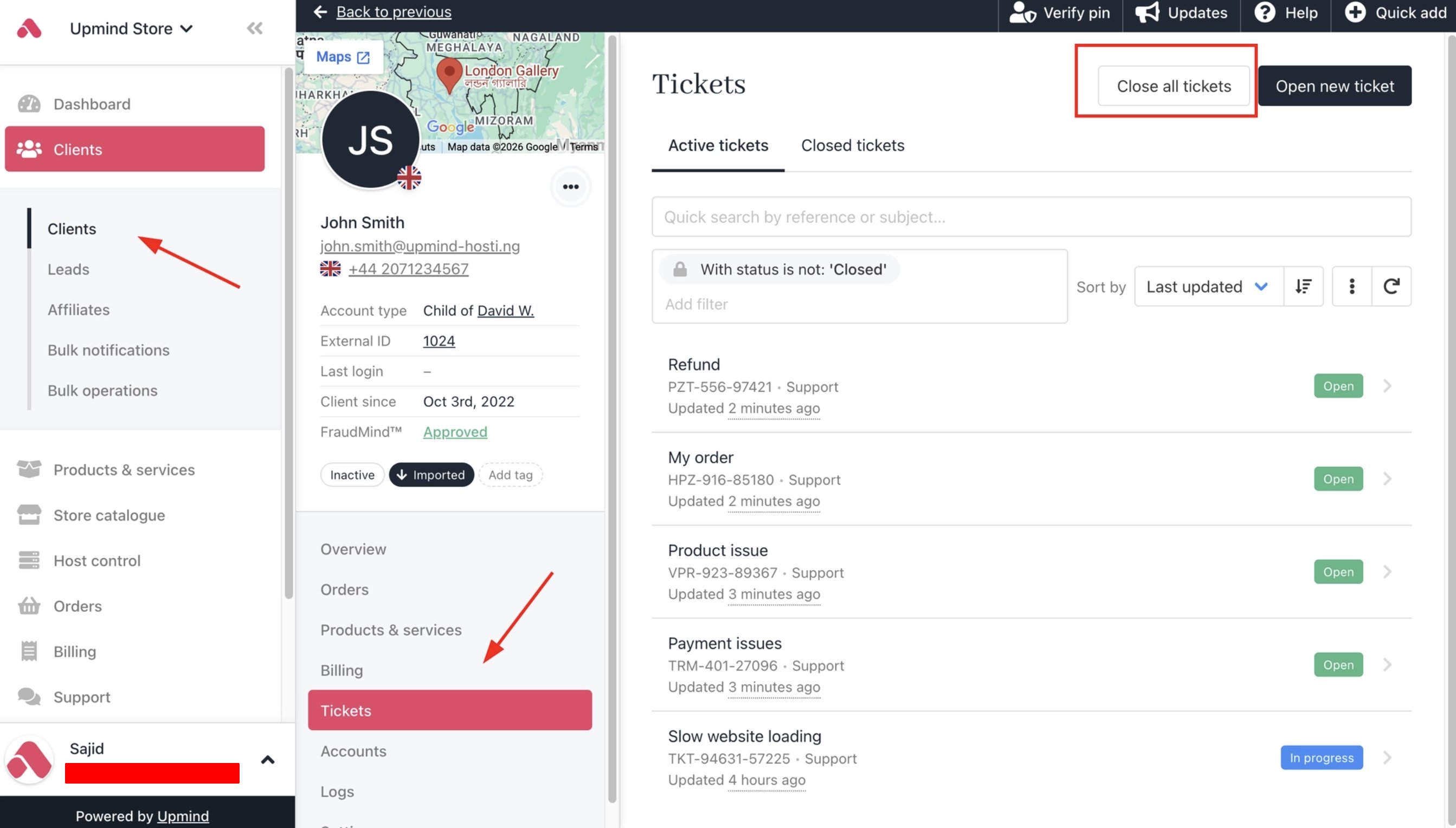 This is separate from the bulk update feature and only handles closing.
For other actions like reassigning, changing status, or marking as spam, use the bulk update flow described above.
This is separate from the bulk update feature and only handles closing.
For other actions like reassigning, changing status, or marking as spam, use the bulk update flow described above.