> ## Documentation Index
> Fetch the complete documentation index at: https://docs.upmind.com/llms.txt
> Use this file to discover all available pages before exploring further.
# Supported Event Types
> Types of events tracked and reported by Upmind
Upmind supports tracking of key e-commerce and user interaction events through two main methods:
1. **Google Tag Manager (GTM)** for client-side tracking: For an easy, no-code setup that reliably tracks user interactions and e-commerce events while avoiding issues with ad blockers.
2. **Measurement Protocol** for server-side tracking: When you require backend event tracking for enhanced data accuracy and integration.
It’s important to choose one method to ensure consistent and accurate data collection.
This guide explains how to set up GA4 e-commerce tracking using **Google Tag Manager**. For **Measurement Protocol** instructions, refer to [Google's documentation](https://developers.google.com/analytics/devguides/collection/protocol/ga4/sending-events?client_type=firebase).
## **Setting up GA4 e-commerce tracking with Google Tag Manager**
You can use Google Tag Manager for client-side tracking to ensure accurate 'purchase' event recording despite ad or cookie blockers and eliminate extra script tags.
To know how to set up Google Tag Manager with Upmind, see this [guide](/using-upmind/reporting/how-to-set-up-google-tag-manager-with-upmind#/).
Upmind pushes the following recommended GA4 events:
* view\_item
* purchase
* remove\_from\_cart
* add\_payment\_info
* add\_to\_cart
* sign\_up
### **Additional Upmind custom events**
Upmind also pushes several first-party events prefixed with *upmind*, which help track specific user actions within the platform:
* upmind.logout
* [upmind.actor](http://upmind.actor)\_identified
* upmind.modal\_open
## **Configuring Google Tag Manager**
To send e-commerce transactions to `Google Analytics`, add tags and triggers in `Google Tag Manager` to fire tags for all [recommended e-commerce events](https://developers.google.com/analytics/devguides/collection/ga4/reference/events?client_type=gtm), enabling data collection for item views, cart additions, checkouts, purchases, and other actions.
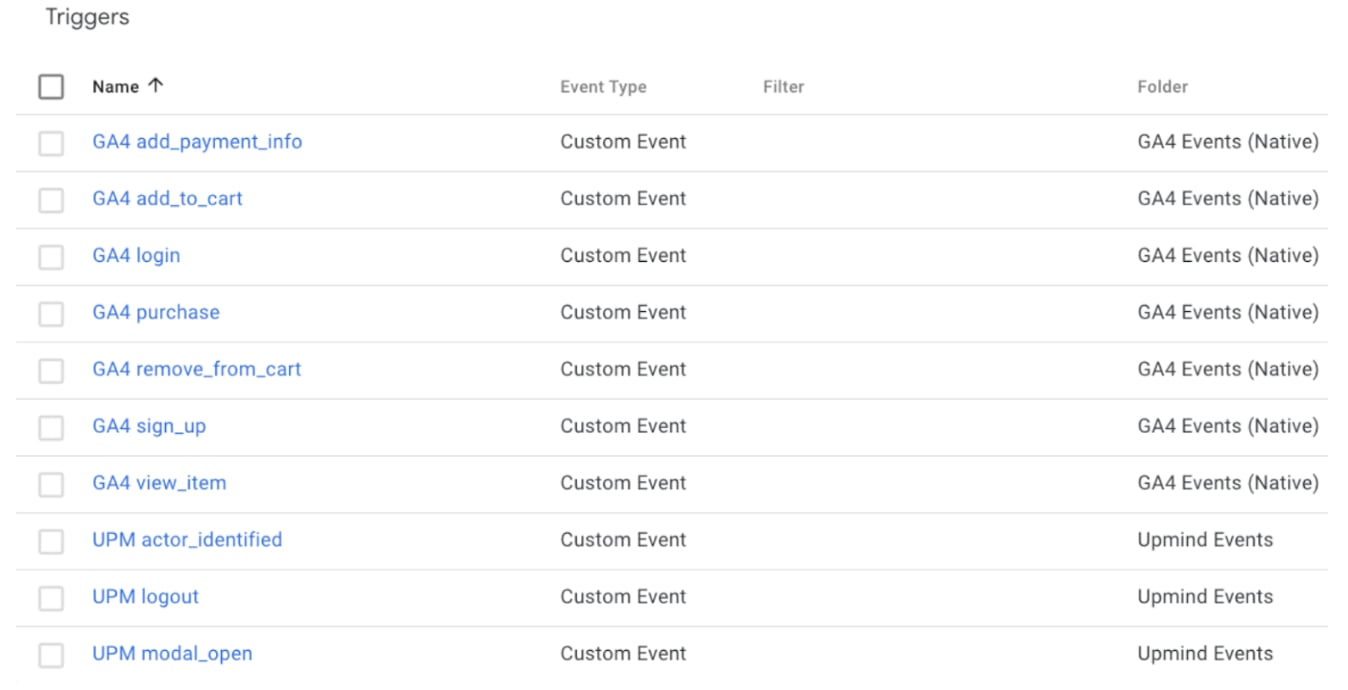
**Recommended triggers to add to Google Tag Manager**
| **Triggers Name** | **Event Type** |
| ---------------------- | -------------- |
| GA4 add\_payment\_info | Custom Event |
| GA4 add\_to\_cart | Custom Event |
| GA4 login | Custom Event |
| GA4 purchase | Custom Event |
| GA4 remove\_from\_cart | Custom Event |
| GA4 sign\_up | Custom Event |
| GA4 view\_item | Custom Event |
| UPM actor\_identified | Custom Event |
| UPM logout | Custom Event |
| UPM modal\_open | Custom Event |
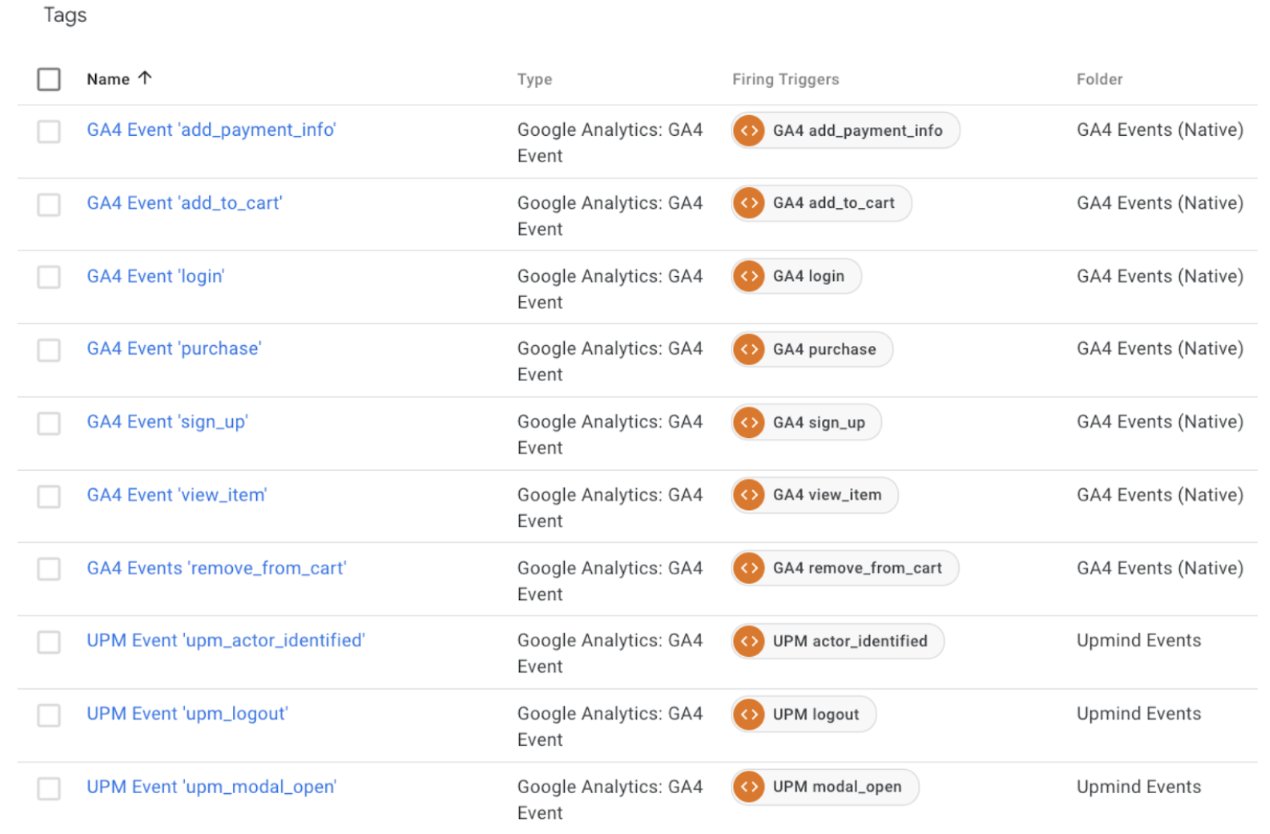
**Recommended tags to add to Google Tag Manager**
| **Tags Name** | **Type** | **Firing Triggers** |
| ---------------------------------- | --------------------------- | ---------------------- |
| GA4 Event 'add\_payment\_info' | Google Analytics: GA4 Event | GA4 add\_payment\_info |
| GA4 Event 'add\_to\_cart' | Google Analytics: GA4 Event | GA4 add\_to\_cart |
| GA4 Event 'login' | Google Analytics: GA4 Event | GA4 login |
| GA4 Event 'purchase' | Google Analytics: GA4 Event | GA4 purchase |
| GA4 Event 'sign\_up' | Google Analytics: GA4 Event | GA4 sign\_up |
| GA4 Event 'view\_item' | Google Analytics: GA4 Event | GA4 view\_item |
| GA4 Event 'remove\_from\_cart' | Google Analytics: GA4 Event | GA4 remove\_from\_cart |
| UPM Event 'upm\_actor\_identified' | Google Analytics: GA4 Event | UPM actor\_identified |
| UPM Event 'upm\_logout' | Google Analytics: GA4 Event | UPM logout |
| UPM Event 'upm\_modal\_open' | Google Analytics: GA4 Event | UPM modal\_open |
## **Setting up e-commerce tracking and creating triggers and tags in Google Tag Manager**
### **Create GA4 property in Google Analytics**
1. Log in to `Google Analytics` with your Google account or create one if needed.
2. Click **Admin**, select **Property**, then go to `Property Details`.
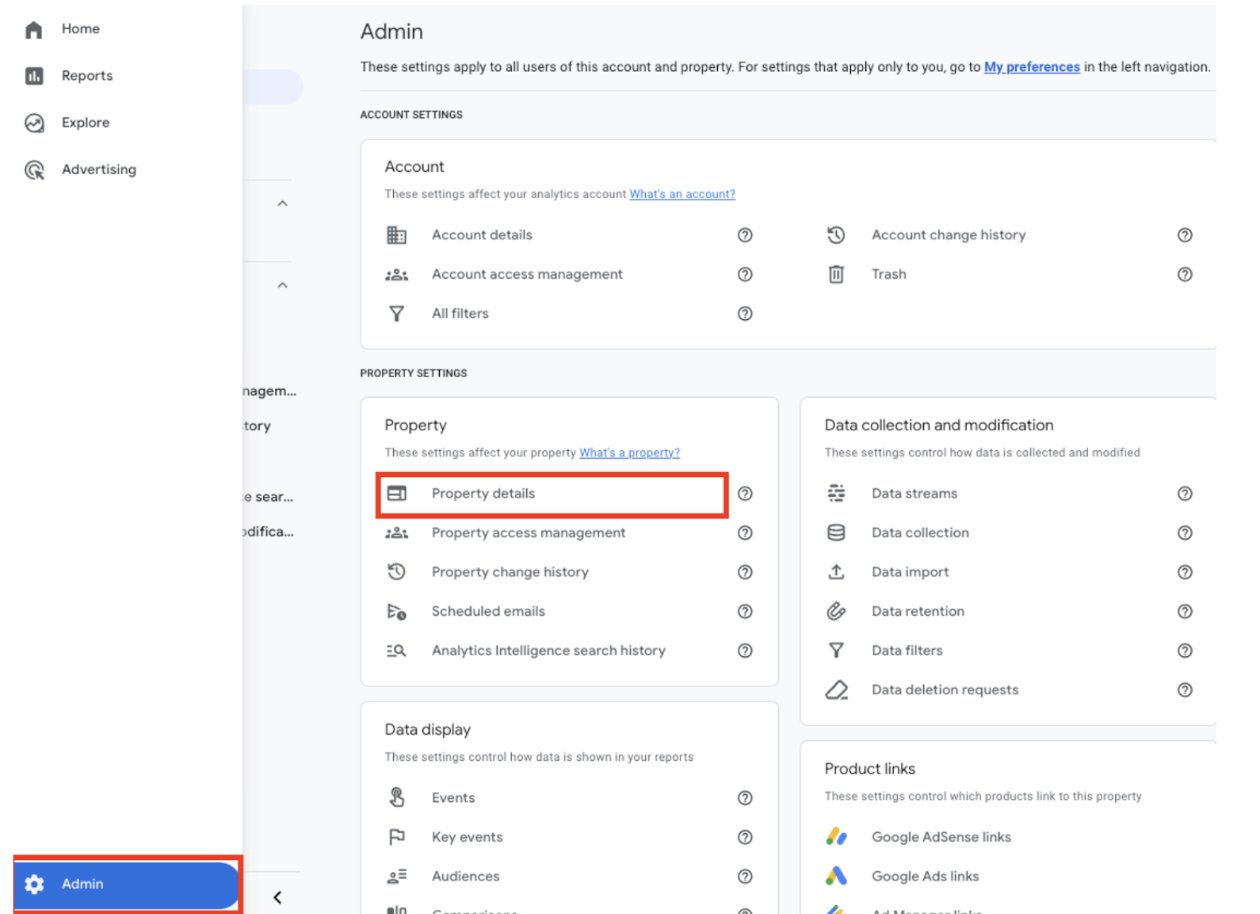 3. Enter a property name, industry category, reporting time zone, and currency.
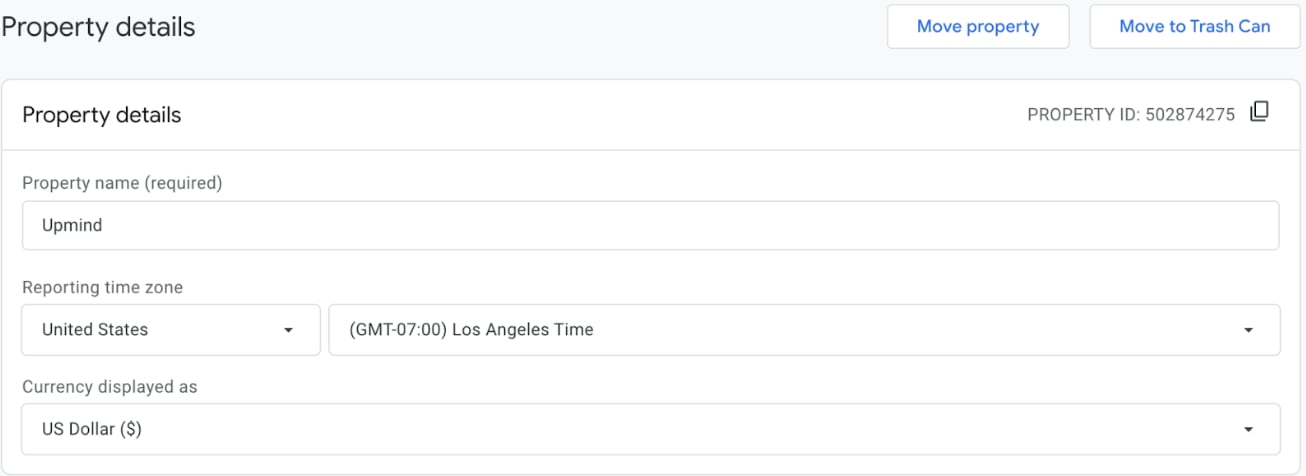 4. Click **Create**.
### **Create triggers in Google Tag Manager**
1. Log in to Google Tag Manager and select the container to connect with Google Analytics.
2. Click **Triggers** in the left menu, then **New**.
4. Click **Create**.
### **Create triggers in Google Tag Manager**
1. Log in to Google Tag Manager and select the container to connect with Google Analytics.
2. Click **Triggers** in the left menu, then **New**.
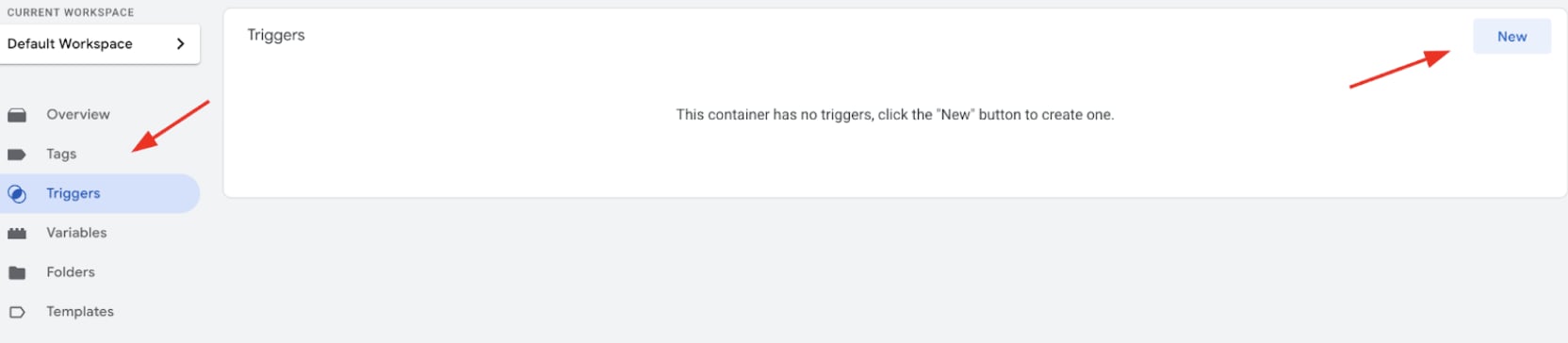 Set **Trigger Configuration** to **Custom Event** and enter each recommended GA4 event as the **Event Name**.
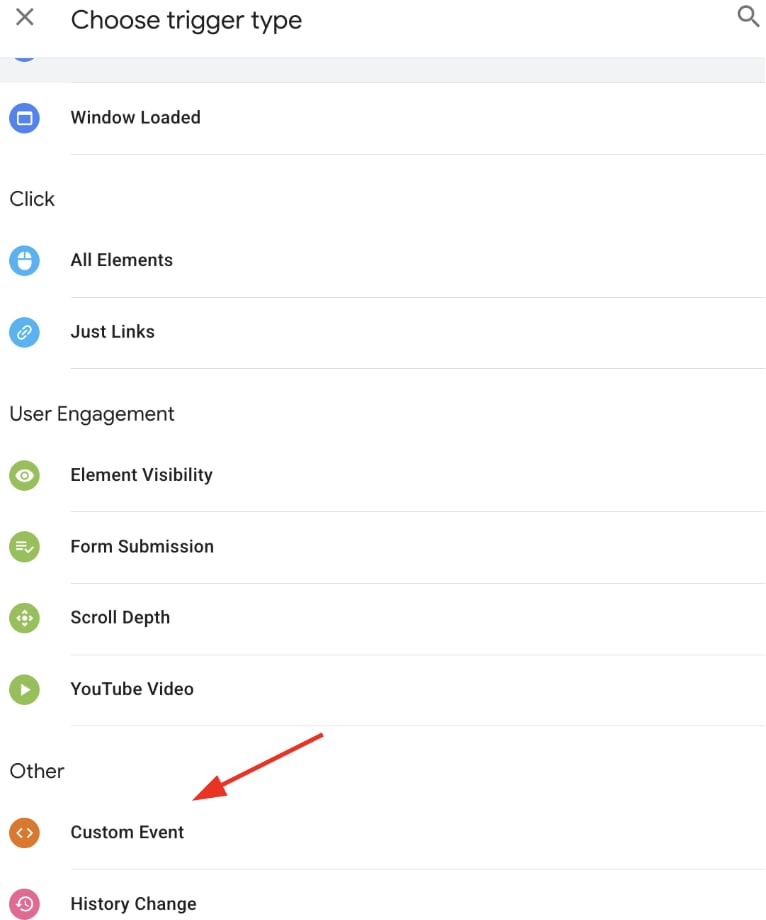 4. Click **Save** and repeat to add all recommended triggers, including UPM modal\_open.
### **Create tags in Google Tag Manager**
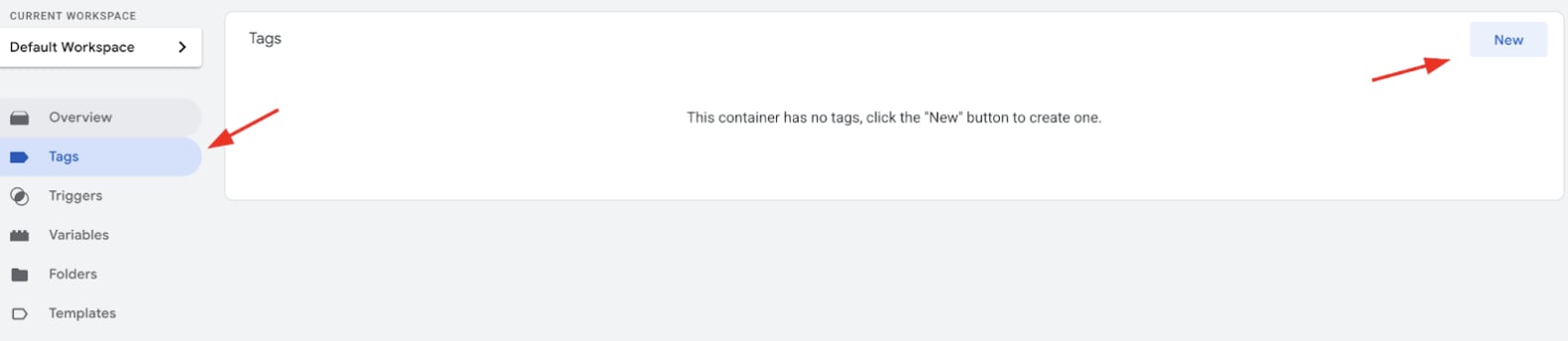
1. In the left menu, click **Tags**, then **New** to create a tag that sends data to Google Analytics for each trigger.
4. Click **Save** and repeat to add all recommended triggers, including UPM modal\_open.
### **Create tags in Google Tag Manager**
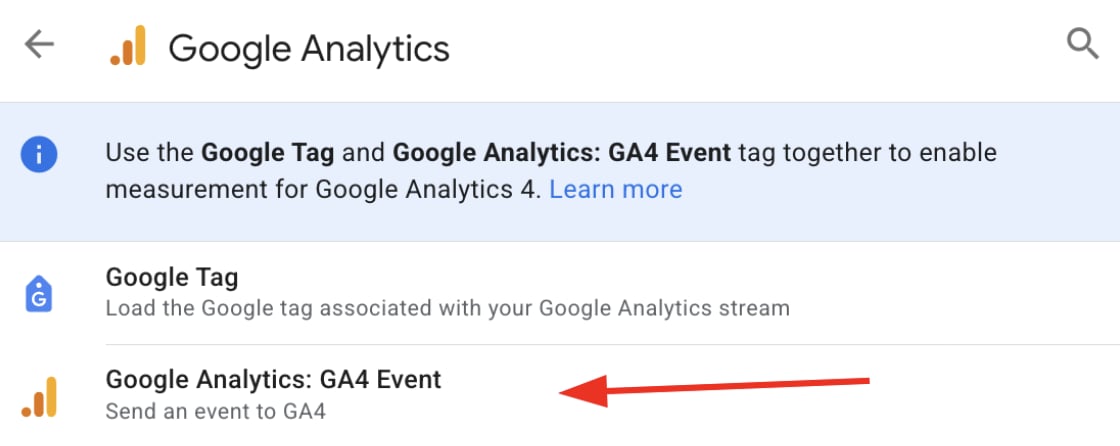
1. In the left menu, click **Tags**, then **New** to create a tag that sends data to Google Analytics for each trigger.
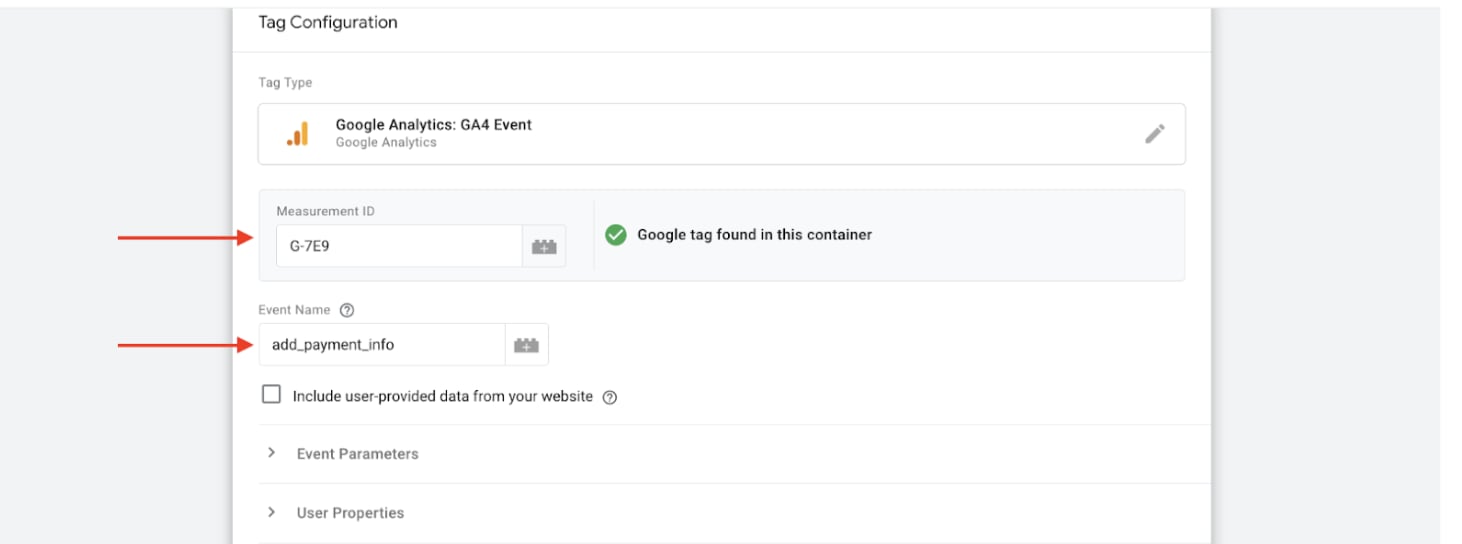
 2. Enter your **Google Measurement ID** and add each recommended GA4 event name individually.
 3. Under **More Settings**, check **Send E-commerce Data** and select **Data Layer** as the source to send all e-commerce details automatically.
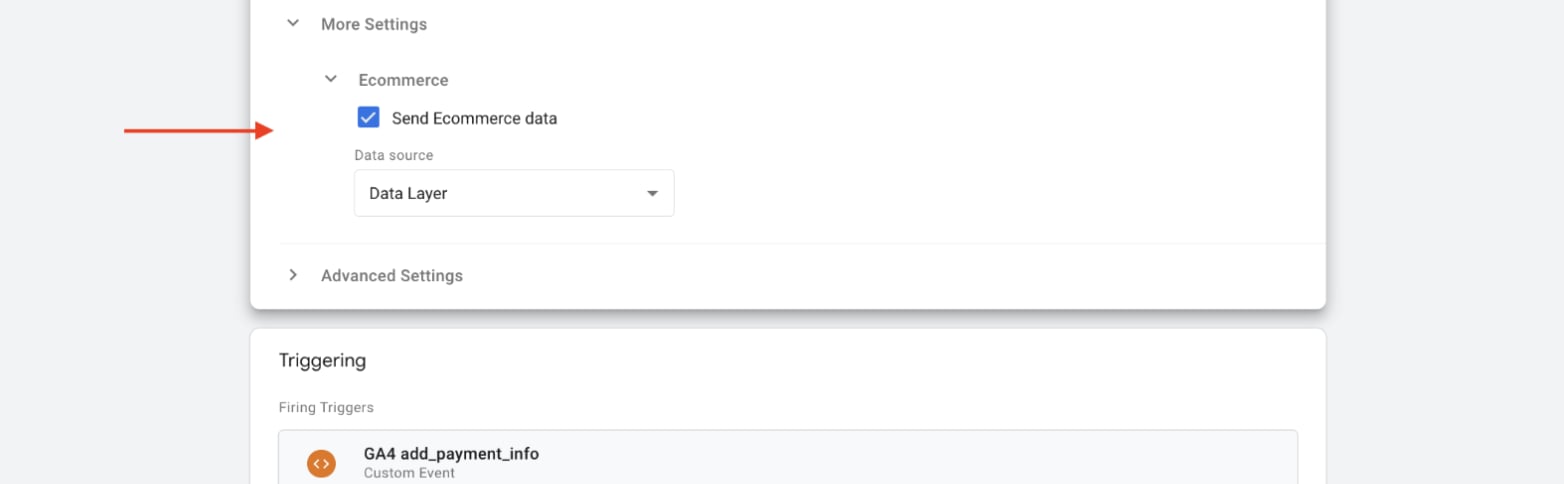 4. Assign the corresponding trigger for each event, such as **GA4 add\_payment\_info** for the **add\_payment\_info** event.
5. Click **Save** and repeat to add all recommended tags, including the UPM event **upm\_modal\_open**.
### **Review, test, and publish**
1. Review triggers and tags for correct configuration.
4. Assign the corresponding trigger for each event, such as **GA4 add\_payment\_info** for the **add\_payment\_info** event.
5. Click **Save** and repeat to add all recommended tags, including the UPM event **upm\_modal\_open**.
### **Review, test, and publish**
1. Review triggers and tags for correct configuration.
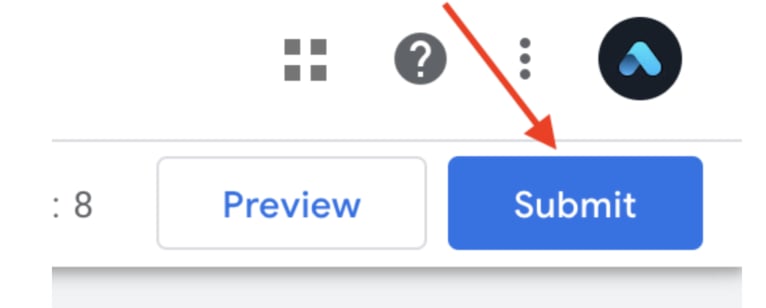
 2. Use Preview mode to test, then click **Submit** to activate the tag.
 3. Add a version name and description (e.g., GA4 Purchase Event Setup), then click **Publish**.
### **Add credentials to Upmind**
You can add [Google Tag Manager](/using-upmind/reporting/how-to-set-up-google-tag-manager-with-upmind#/) and [Google Analytics](/using-upmind/reporting/how-to-set-up-google-analytics-with-upmind#/) credentials to Upmind:
1. Log in to your Upmind account.
2. Go to **Settings** > **Analytics and Tracking**.
3. Enter your **GTM Container ID**, **Google Measurement ID**, and **API Secret**.
3. Add a version name and description (e.g., GA4 Purchase Event Setup), then click **Publish**.
### **Add credentials to Upmind**
You can add [Google Tag Manager](/using-upmind/reporting/how-to-set-up-google-tag-manager-with-upmind#/) and [Google Analytics](/using-upmind/reporting/how-to-set-up-google-analytics-with-upmind#/) credentials to Upmind:
1. Log in to your Upmind account.
2. Go to **Settings** > **Analytics and Tracking**.
3. Enter your **GTM Container ID**, **Google Measurement ID**, and **API Secret**.
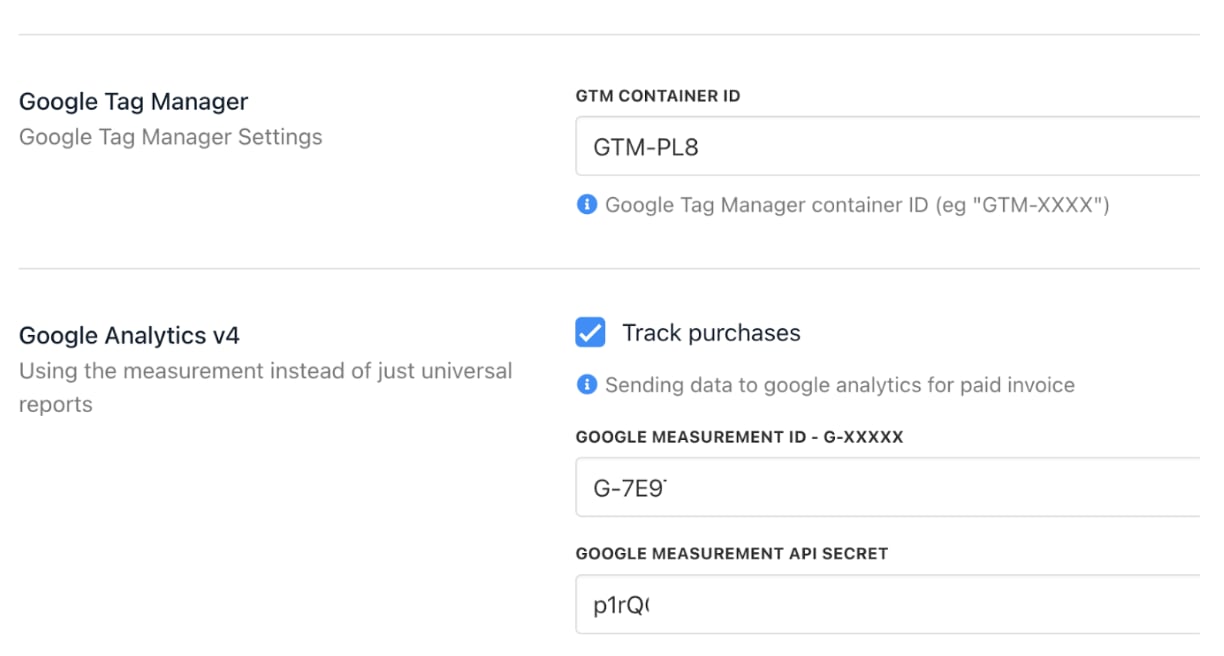 Verify tracking by making test purchases and monitoring Google Analytics event reports.