> ## Documentation Index
> Fetch the complete documentation index at: https://docs.upmind.com/llms.txt
> Use this file to discover all available pages before exploring further.
# Setting up Export to Amazon S3 in Upmind
> Configuring automated report exports to Amazon S3 storage
Backing up data or exporting reports to external storage is straightforward with Upmind’s Amazon S3 integration.
## Enabling Amazon S3 export
1. Log in to the Upmind Admin Panel.
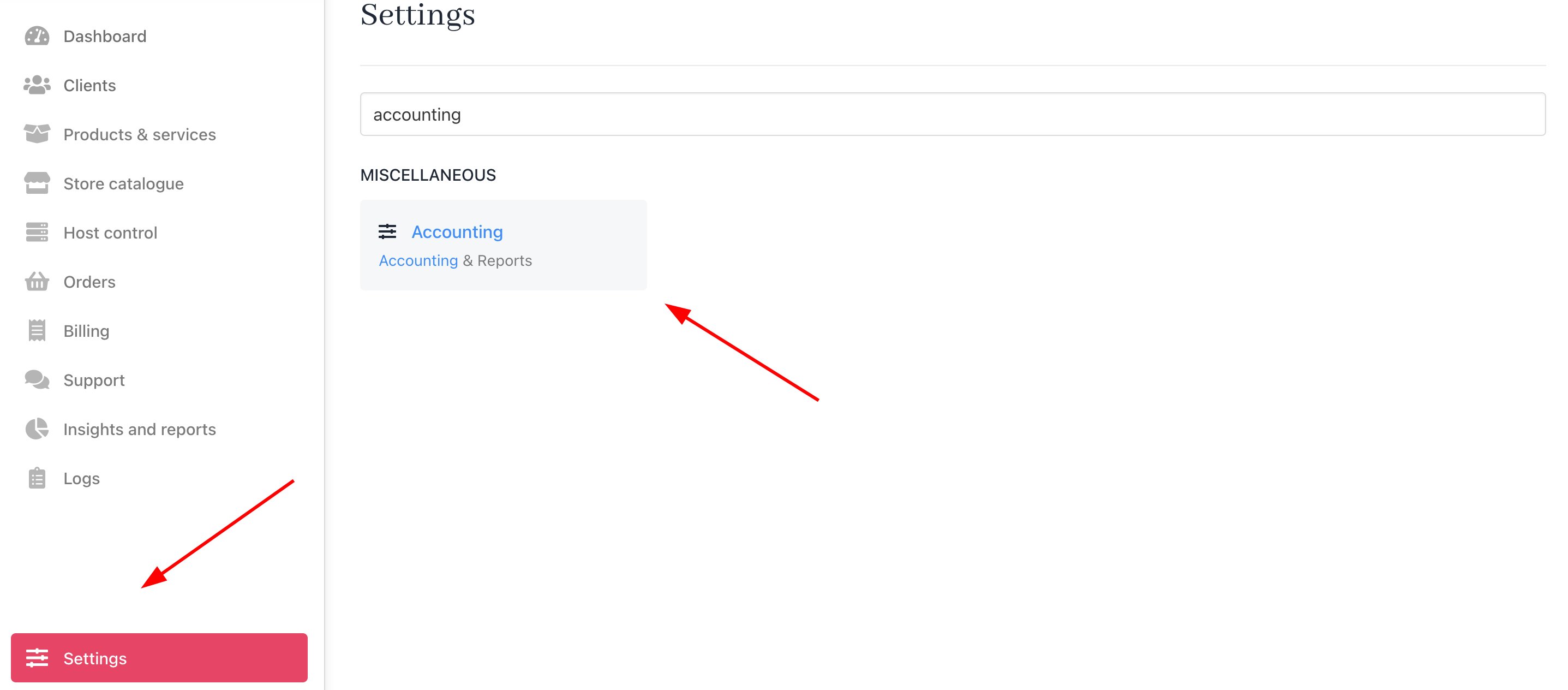
2. Navigate to **Settings** > **Accounting** under **Miscellaneous**.
 3. Enable **External Storage Provider** and **Schedule Report Generation**.
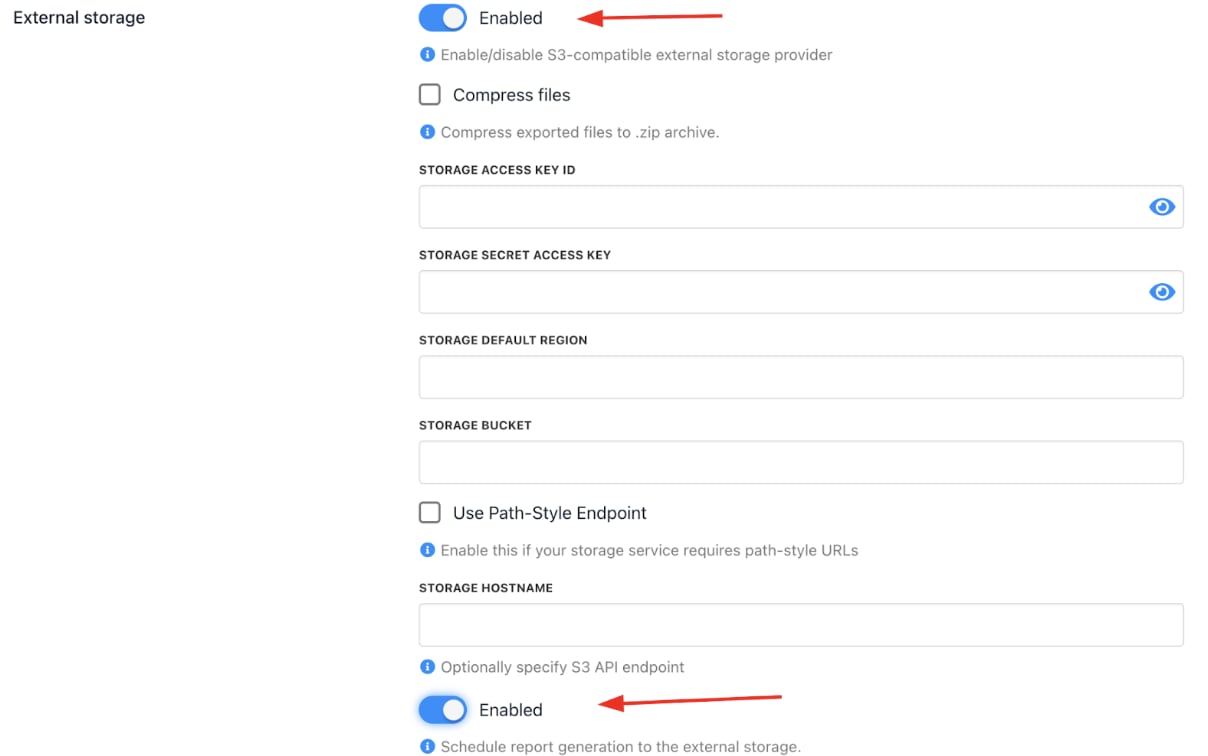 4. Provide your **Amazon S3** credentials:
* Storage Access Key ID
* Storage Secret Access Token
* Default Region
* Bucket Name
* Storage Hostname (Optional - S3 API endpoint)
5. Schedule report exports by choosing frequency (daily, weekly) and selecting reports to include.
6. **Save** changes.
Upmind will automatically upload the specified reports to your Amazon S3 bucket according to your schedule.
4. Provide your **Amazon S3** credentials:
* Storage Access Key ID
* Storage Secret Access Token
* Default Region
* Bucket Name
* Storage Hostname (Optional - S3 API endpoint)
5. Schedule report exports by choosing frequency (daily, weekly) and selecting reports to include.
6. **Save** changes.
Upmind will automatically upload the specified reports to your Amazon S3 bucket according to your schedule.