> ## Documentation Index
> Fetch the complete documentation index at: https://docs.upmind.com/llms.txt
> Use this file to discover all available pages before exploring further.

# How to Set Up Google Tag Manager with Upmind

> Integrate Google Tag Manager code to gain actionable insights

Google Tag Manager (GTM) lets you collect website data and manage tracking tags efficiently. You can integrate GTM with your Upmind store.

## Create a GTM Account and Container

1. Visit the `Google Tag Manager` website at [https://tagmanager.google.com/](https://tagmanager.google.com/).

2. Sign in with your Google account or create one if necessary.

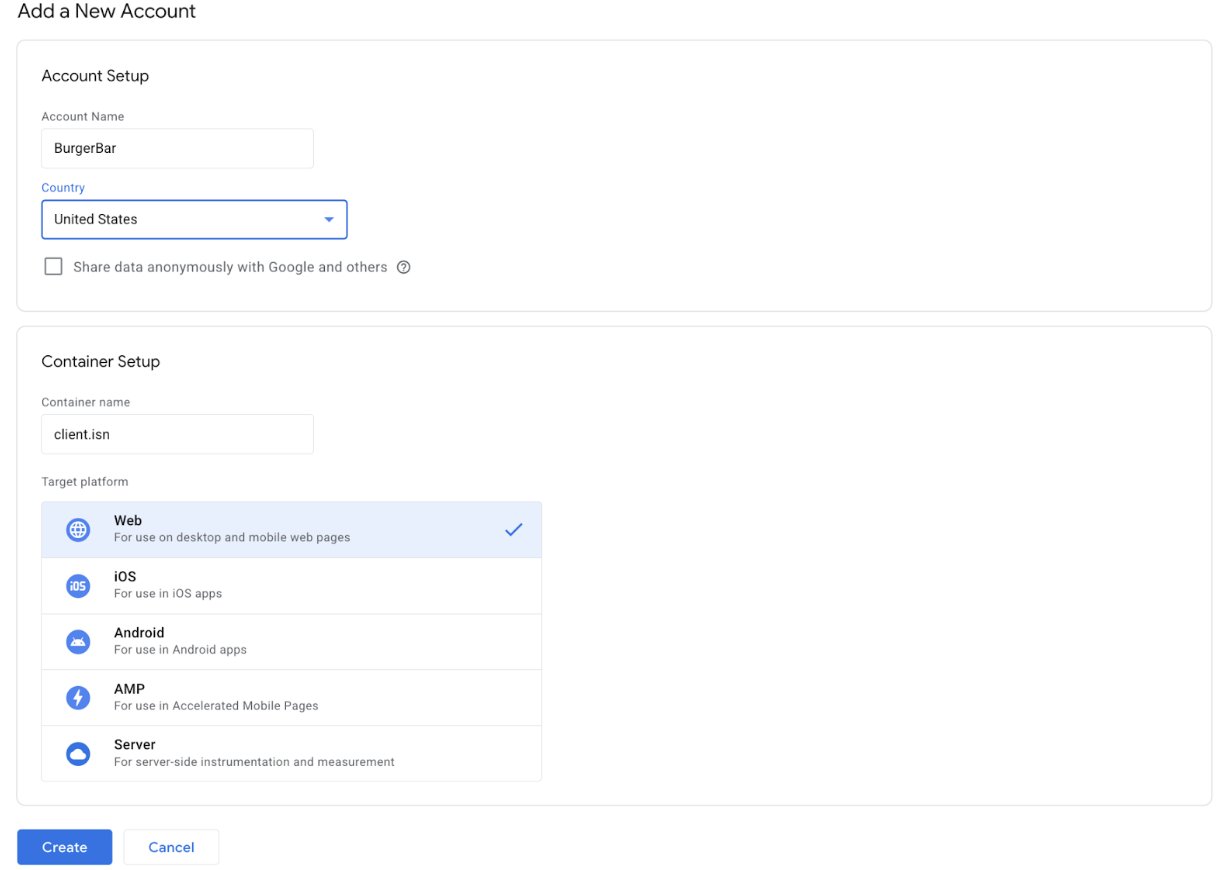
3. Set up a new container:

* Enter a descriptive name reflecting your Upmind store domain.

* Select the appropriate target platform: Web, iOS, Android, or AMP.
<Frame caption="Configure details">
  <img src="https://mintcdn.com/upmind/z5ofg3t7by4uN44v/images/fb/f0170ddcdd6a18c6.png?fit=max&auto=format&n=z5ofg3t7by4uN44v&q=85&s=fc1947720e7dc4164b0ce7cea15c859b" alt="Configure details" width="1230" height="870" data-path="images/fb/f0170ddcdd6a18c6.png" />
</Frame>

4. After container creation, copy the `GTM Container ID` provided (formatted like GTM-XXXXXXX).

<Frame caption="GTM Container ID">
  <img src="https://mintcdn.com/upmind/JUoAg6onJmXk_-rR/images/fb/e05d959d68073363.png?fit=max&auto=format&n=JUoAg6onJmXk_-rR&q=85&s=b9e0cd597206a4ebd12e4bd47df5b9a2" alt="GTM Container ID" width="1530" height="72" data-path="images/fb/e05d959d68073363.png" />
</Frame>

## Configure GTM in Upmind

1. Log in to your Upmind admin panel.

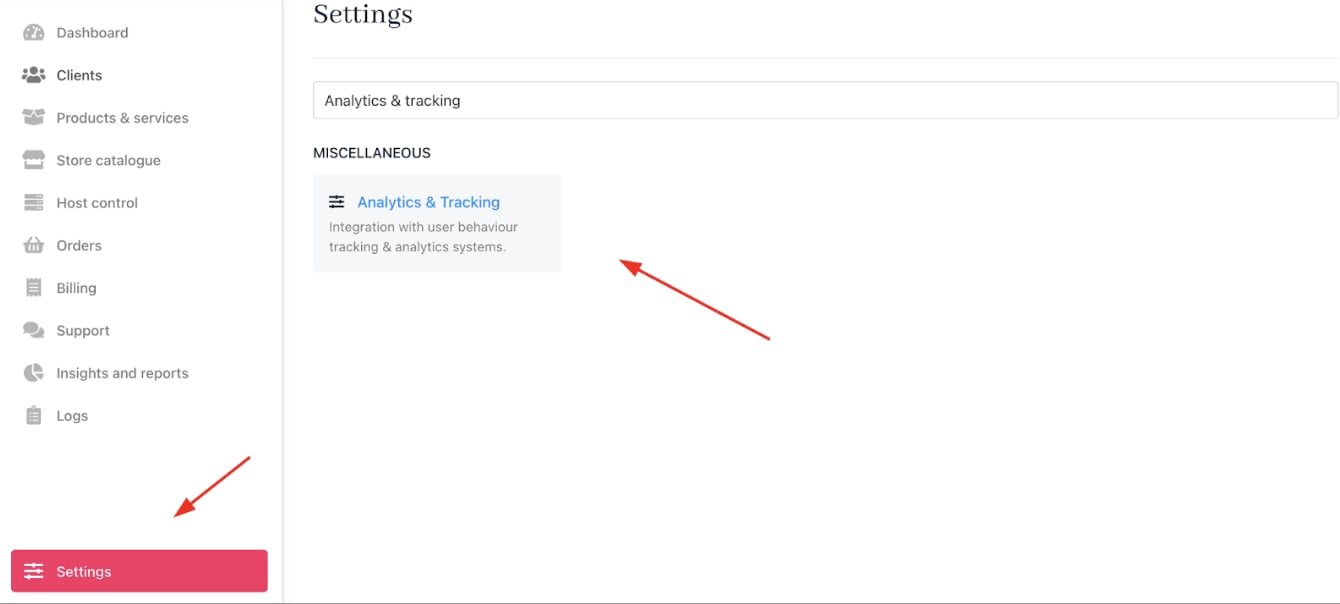
2. Navigate to **Settings** > **Analytics & Tracking** under **Miscellaneous**.
<Frame caption="Settings > Miscellaneous > Analytics & Tracking">
  <img src="https://mintcdn.com/upmind/1xguIfYUrfespmVI/images/fb/7c1e58537a45c7f6.png?fit=max&auto=format&n=1xguIfYUrfespmVI&q=85&s=6b1ebdcb2df3b128bad1d477a74dc0a1" alt="Settings > Miscellaneous > Analytics & Tracking" data-og-width="1340" width="1340" data-og-height="604" height="604" data-path="images/fb/7c1e58537a45c7f6.png" data-optimize="true" data-opv="3" srcset="https://mintcdn.com/upmind/1xguIfYUrfespmVI/images/fb/7c1e58537a45c7f6.png?w=280&fit=max&auto=format&n=1xguIfYUrfespmVI&q=85&s=89850b872c1c30bb1acf1360855b18a8 280w, https://mintcdn.com/upmind/1xguIfYUrfespmVI/images/fb/7c1e58537a45c7f6.png?w=560&fit=max&auto=format&n=1xguIfYUrfespmVI&q=85&s=8cfa9533698ed77a7b82d9fbfe5285fb 560w, https://mintcdn.com/upmind/1xguIfYUrfespmVI/images/fb/7c1e58537a45c7f6.png?w=840&fit=max&auto=format&n=1xguIfYUrfespmVI&q=85&s=f3edbc6e432790ca4b6e4064035d9887 840w, https://mintcdn.com/upmind/1xguIfYUrfespmVI/images/fb/7c1e58537a45c7f6.png?w=1100&fit=max&auto=format&n=1xguIfYUrfespmVI&q=85&s=be378b88a74d9ff0d6acf423e4e6ed59 1100w, https://mintcdn.com/upmind/1xguIfYUrfespmVI/images/fb/7c1e58537a45c7f6.png?w=1650&fit=max&auto=format&n=1xguIfYUrfespmVI&q=85&s=dc76f1b6ece75cc7454a54b5535bd2c2 1650w, https://mintcdn.com/upmind/1xguIfYUrfespmVI/images/fb/7c1e58537a45c7f6.png?w=2500&fit=max&auto=format&n=1xguIfYUrfespmVI&q=85&s=cfd364795688732615f0b07f62075a1d 2500w" />
</Frame>

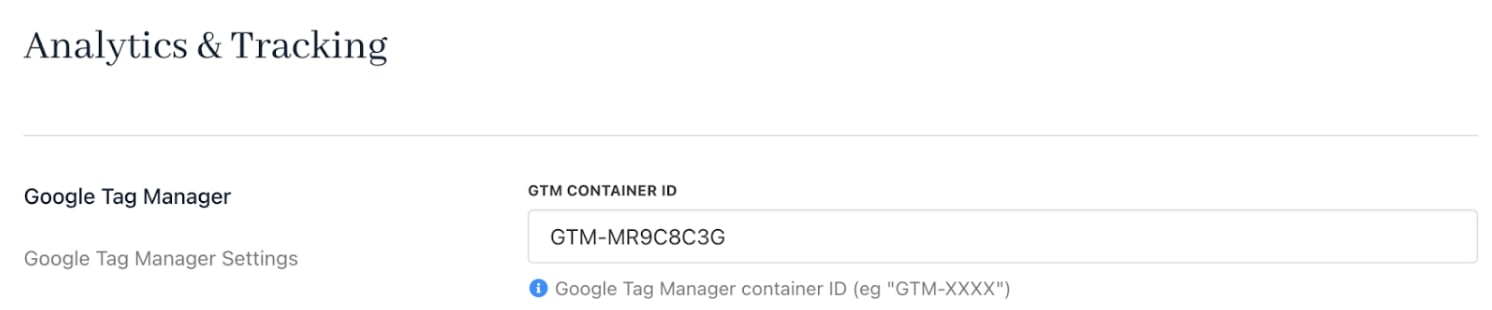
3. Paste your **GTM Container ID** into the designated field.

4. **Save** your settings.
<Frame caption="Paste the GTM Container ID">
  <img src="https://mintcdn.com/upmind/z5ofg3t7by4uN44v/images/fb/f15a3dbe267a1fbb.png?fit=max&auto=format&n=z5ofg3t7by4uN44v&q=85&s=52c98afacdb5804b152ddd0b160537c0" alt="Paste the GTM Container ID" width="1492" height="310" data-path="images/fb/f15a3dbe267a1fbb.png" />
</Frame>

Once configured, GTM will begin tracking visitor interactions on your website, laying the groundwork for advanced analytics.
