> ## Documentation Index
> Fetch the complete documentation index at: https://docs.upmind.com/llms.txt
> Use this file to discover all available pages before exploring further.
# How to Get the GTM Script URL
> Locate and use your Google Tag Manager Script URL in Upmind
Upmind supports adding a custom GTM script URL to simplify tag management and analytics integration. This guide is optional, as the script is already included inside the container ID.
## Steps to retrieve your GTM script URL
1. Log in to `Google Tag Manager` (go to ).
2. Sign in using your Google account credentials.
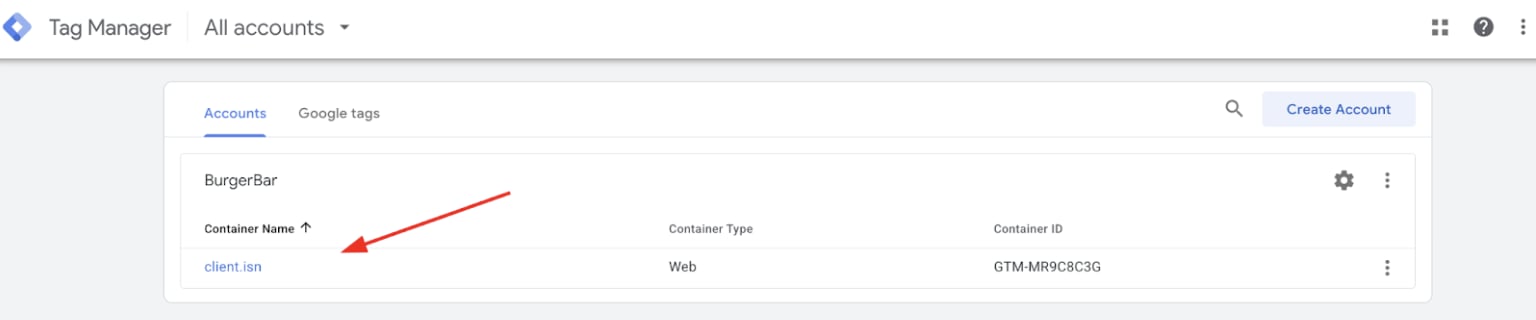
3. Select the **Container** associated with the website or app you want to track from your GTM dashboard. If you have not created one, follow this .
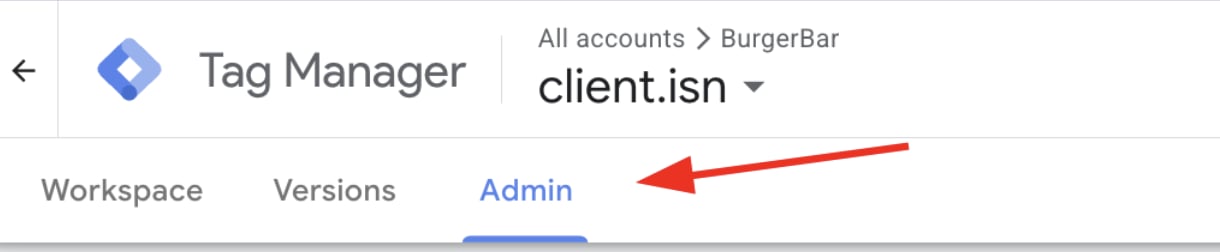
 4. Locate and click the **Admin** button in the top left corner of the screen. The `Admin` area contains settings for your account and containers.
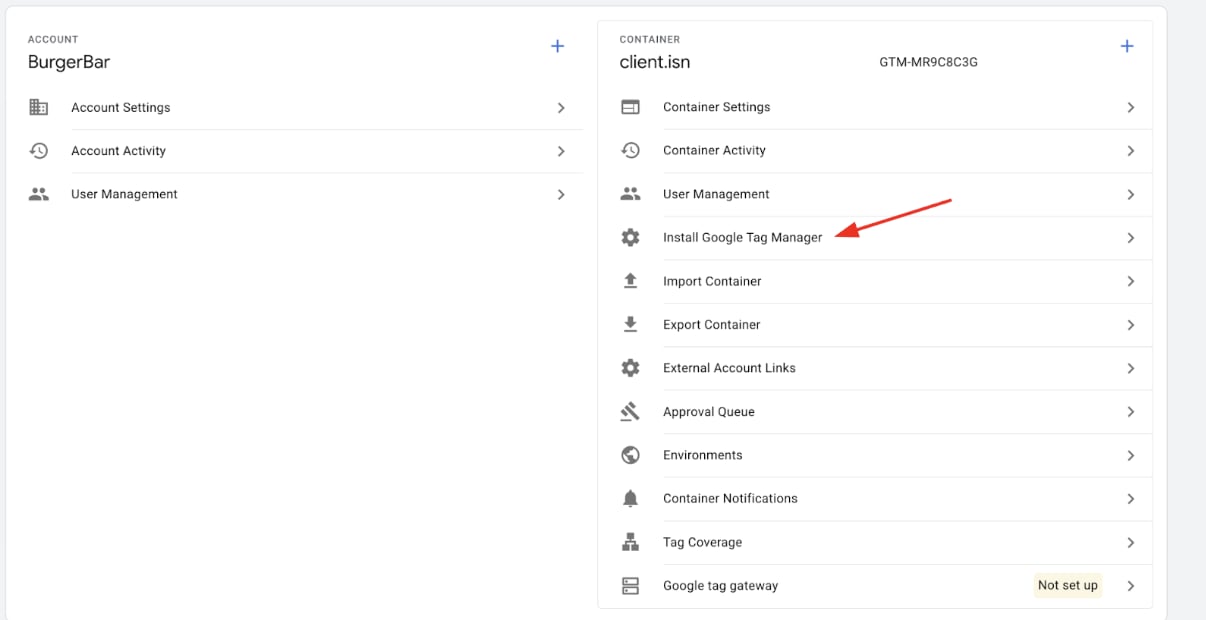
 5. Under the `Container` column, click on **Install Google Tag Manager**. This opens a popup displaying the GTM installation code snippets needed on your website.
 6. Identify the `GTM Script URL`. Within the popup, you will see two pieces of JavaScript code.
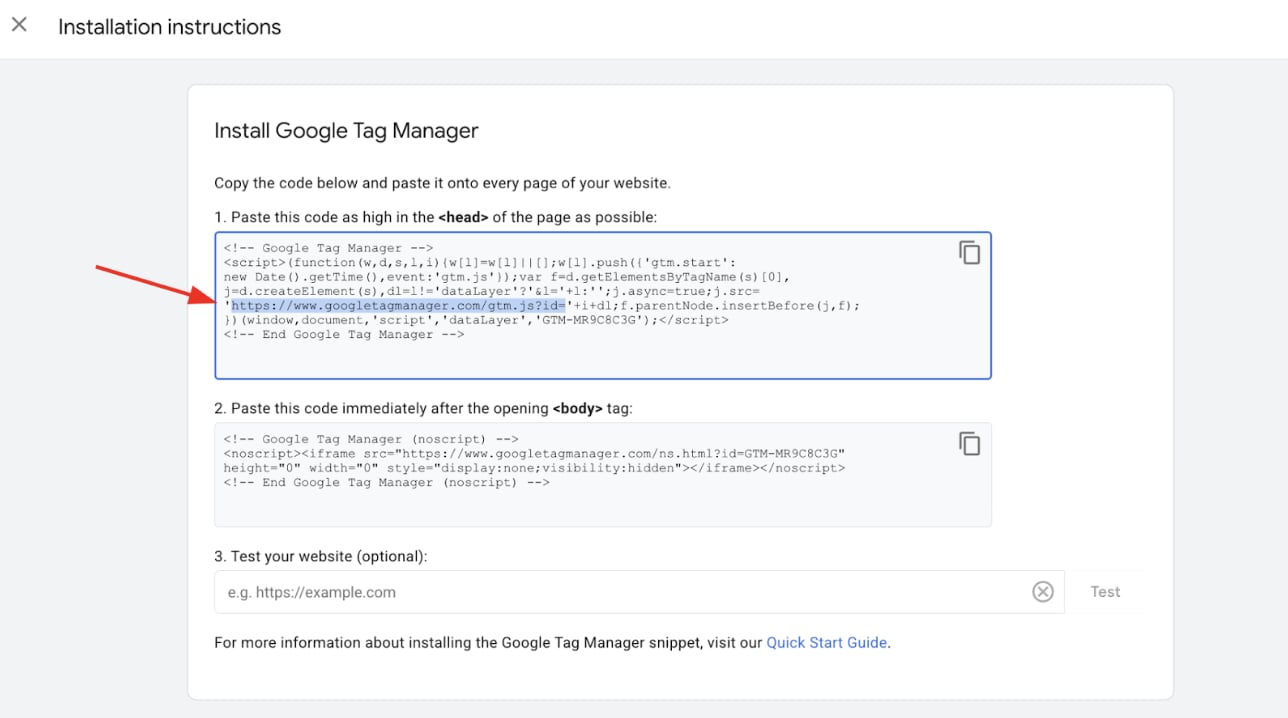 The relevant GTM script URL is inside the \< script > tag and typically looks like:
[https://www.googletagmanager.com/gtm.js?id=GTM-XXXXXX](https://www.googletagmanager.com/gtm.js?id=GTM-XXXXXX)
The `GTM-XXXXXX` is your container ID and will differ for your account.
7. Highlight the `GTM Script URL` within the \< script > tag and copy it to your clipboard.
## How to use the GTM script URL in Upmind
1. Log in to your Upmind admin panel.
2. Navigate to **Settings** > **Miscellaneous** > **Analytics & Tracking**.
The relevant GTM script URL is inside the \< script > tag and typically looks like:
[https://www.googletagmanager.com/gtm.js?id=GTM-XXXXXX](https://www.googletagmanager.com/gtm.js?id=GTM-XXXXXX)
The `GTM-XXXXXX` is your container ID and will differ for your account.
7. Highlight the `GTM Script URL` within the \< script > tag and copy it to your clipboard.
## How to use the GTM script URL in Upmind
1. Log in to your Upmind admin panel.
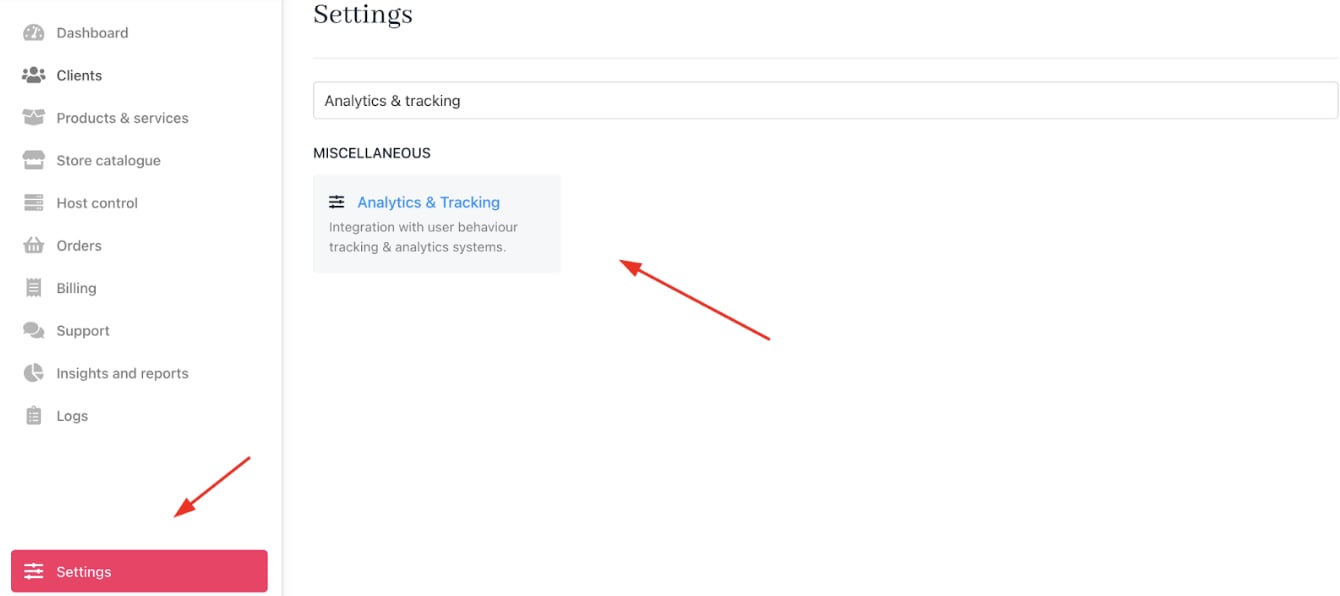
2. Navigate to **Settings** > **Miscellaneous** > **Analytics & Tracking**.
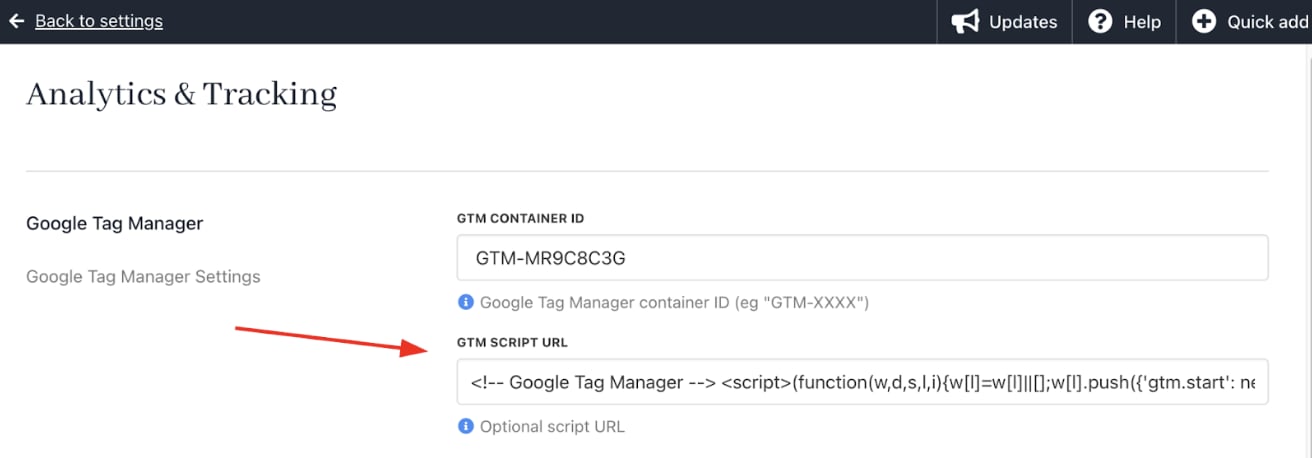
 3. Locate the `Google Tag Manager Settings` section. Paste the copied GTM script URL into the custom **GTM Script URL** field.
 4. **Save** your settings.
Upmind will now load your specified GTM script across your site, enabling tag management through Google Tag Manager.
4. **Save** your settings.
Upmind will now load your specified GTM script across your site, enabling tag management through Google Tag Manager.