> ## Documentation Index
> Fetch the complete documentation index at: https://docs.upmind.com/llms.txt
> Use this file to discover all available pages before exploring further.

# Split Bulk Orders into Separate Contract Products

> Efficient management of bulk purchases by automatically splitting into individual contracts

Splitting bulk orders into separate contract products simplifies management by treating each unit as a distinct contract product. This allows better tracking, provisioning, billing, and customer service for bulk purchases.

## Enable bulk order splitting for your brand

1. Log in to your Upmind Admin panel.
2. Navigate to **Settings** > **Order Options** under **E-commerce Settings**.
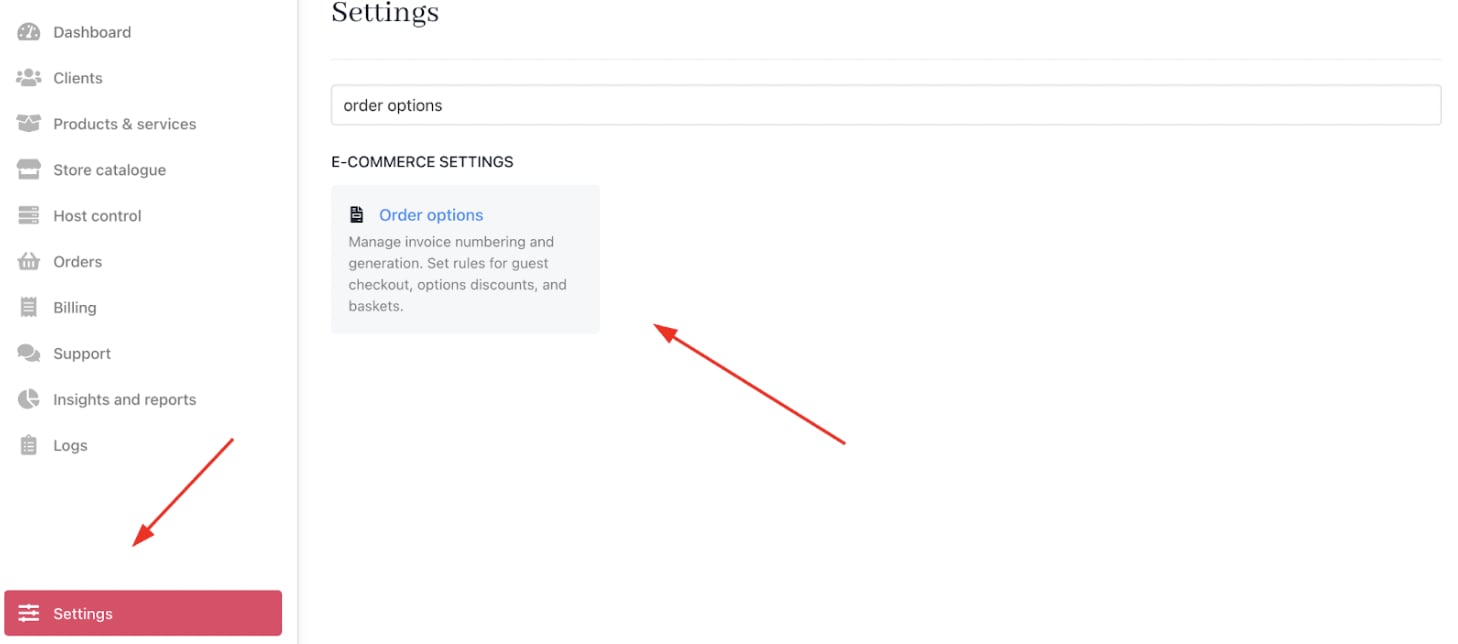
<Frame caption="Settings > E-commerce settings > Order options">
  <img src="https://mintcdn.com/upmind/wRuKrNY12tQZY8Rr/images/fb/330fd44ab1300afb.png?fit=max&auto=format&n=wRuKrNY12tQZY8Rr&q=85&s=6bfe93450238dd42a691223fdb4157b6" alt="Settings > E-commerce settings > Order options" data-og-width="1458" width="1458" data-og-height="644" height="644" data-path="images/fb/330fd44ab1300afb.png" data-optimize="true" data-opv="3" srcset="https://mintcdn.com/upmind/wRuKrNY12tQZY8Rr/images/fb/330fd44ab1300afb.png?w=280&fit=max&auto=format&n=wRuKrNY12tQZY8Rr&q=85&s=02218ffe57464553ae63cbf2ee388fc7 280w, https://mintcdn.com/upmind/wRuKrNY12tQZY8Rr/images/fb/330fd44ab1300afb.png?w=560&fit=max&auto=format&n=wRuKrNY12tQZY8Rr&q=85&s=08016fe3bd1287a1d8de773d914ca851 560w, https://mintcdn.com/upmind/wRuKrNY12tQZY8Rr/images/fb/330fd44ab1300afb.png?w=840&fit=max&auto=format&n=wRuKrNY12tQZY8Rr&q=85&s=faa2eedab9e5d0b6bd38cddffb963f65 840w, https://mintcdn.com/upmind/wRuKrNY12tQZY8Rr/images/fb/330fd44ab1300afb.png?w=1100&fit=max&auto=format&n=wRuKrNY12tQZY8Rr&q=85&s=7e4b2d69c1e6a78770bdf646b651abf9 1100w, https://mintcdn.com/upmind/wRuKrNY12tQZY8Rr/images/fb/330fd44ab1300afb.png?w=1650&fit=max&auto=format&n=wRuKrNY12tQZY8Rr&q=85&s=ea32f8461854e50fafb70fe39e23dccf 1650w, https://mintcdn.com/upmind/wRuKrNY12tQZY8Rr/images/fb/330fd44ab1300afb.png?w=2500&fit=max&auto=format&n=wRuKrNY12tQZY8Rr&q=85&s=4ba4dea1ded11e445b3494d717a8b592 2500w" />
</Frame>

3. On **Basket**, check the option *Split product into separate baskets if possible*.

<Frame caption="Basket">
  <img src="https://mintcdn.com/upmind/ObllJJl59DabnmMn/images/fb/d2d1fe1a552fbea5.png?fit=max&auto=format&n=ObllJJl59DabnmMn&q=85&s=7551e14a2d143081c50c57b7a555c5db" alt="Basket" width="1490" height="150" data-path="images/fb/d2d1fe1a552fbea5.png" />
</Frame>

4. **Save** your settings.

## Configure individual products to support bulk splitting

1. Go to **Store Catalogue** > **Products**.
2. Select the product to enable bulk splitting for.
3. Scroll to the `Product Details` section.
4. Find the setting *Can this order be in bulk?* and set it to **Yes**.
5. Tick the checkbox *Split multiple items into separate contract products*.
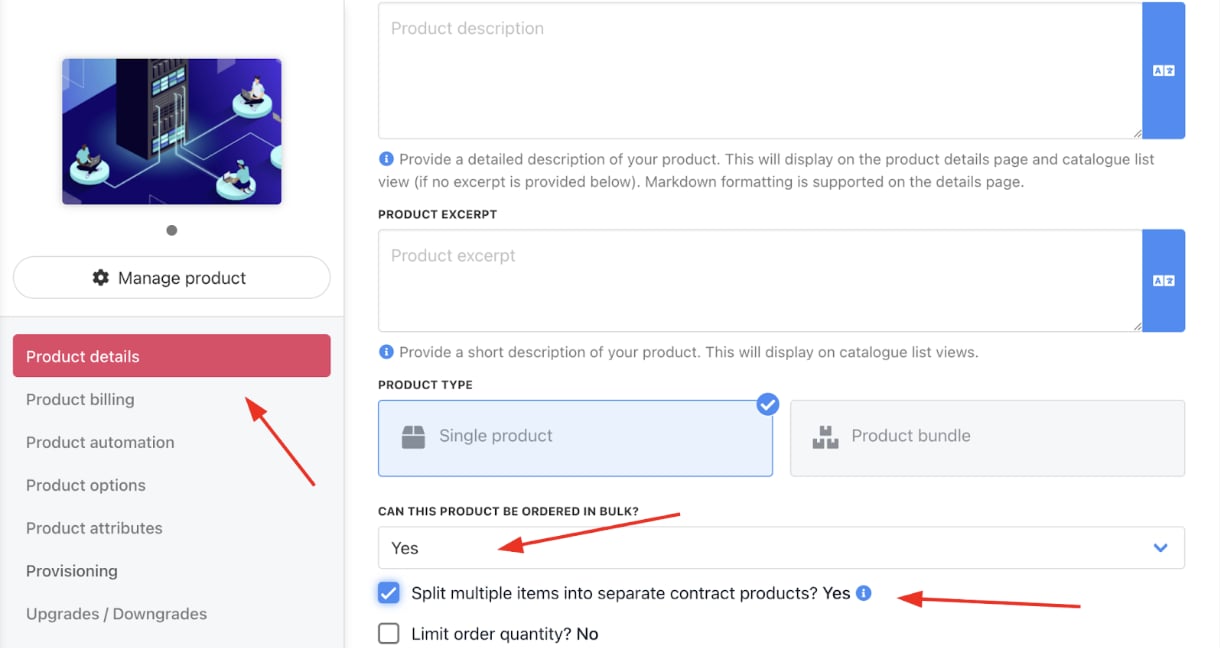
<Frame caption="Store catalogue > Product > Product details">
  <img src="https://mintcdn.com/upmind/kAlrCUxI2nwYz4_i/images/fb/19d7858edd95d77f.png?fit=max&auto=format&n=kAlrCUxI2nwYz4_i&q=85&s=515f04b1288b5c4f2f6f0ee8e8b1260c" alt="Store catalogue > Product > Product details" data-og-width="1220" width="1220" data-og-height="648" height="648" data-path="images/fb/19d7858edd95d77f.png" data-optimize="true" data-opv="3" srcset="https://mintcdn.com/upmind/kAlrCUxI2nwYz4_i/images/fb/19d7858edd95d77f.png?w=280&fit=max&auto=format&n=kAlrCUxI2nwYz4_i&q=85&s=fa3093be5c30a910732c2d014d07a6e1 280w, https://mintcdn.com/upmind/kAlrCUxI2nwYz4_i/images/fb/19d7858edd95d77f.png?w=560&fit=max&auto=format&n=kAlrCUxI2nwYz4_i&q=85&s=e0244e8f3c02b52fb1967f16d039b709 560w, https://mintcdn.com/upmind/kAlrCUxI2nwYz4_i/images/fb/19d7858edd95d77f.png?w=840&fit=max&auto=format&n=kAlrCUxI2nwYz4_i&q=85&s=9a85c35305f7cee608ecb03f6e8eda17 840w, https://mintcdn.com/upmind/kAlrCUxI2nwYz4_i/images/fb/19d7858edd95d77f.png?w=1100&fit=max&auto=format&n=kAlrCUxI2nwYz4_i&q=85&s=b631c9f8db9e189a1d7594c73579108f 1100w, https://mintcdn.com/upmind/kAlrCUxI2nwYz4_i/images/fb/19d7858edd95d77f.png?w=1650&fit=max&auto=format&n=kAlrCUxI2nwYz4_i&q=85&s=7eaa142d267d4db288b2bd7e79ea593c 1650w, https://mintcdn.com/upmind/kAlrCUxI2nwYz4_i/images/fb/19d7858edd95d77f.png?w=2500&fit=max&auto=format&n=kAlrCUxI2nwYz4_i&q=85&s=bcc27e25b54fe23a3e0023e6bdc4008b 2500w" />
</Frame>

6. Click **Save**.

When enabled, Upmind automatically creates separate contract products for each unit in a bulk order. This means every item in the bulk purchase is tracked individually from provisioning to billing and renewal.
