> ## Documentation Index
> Fetch the complete documentation index at: https://docs.upmind.com/llms.txt
> Use this file to discover all available pages before exploring further.
# How to Set Up Preselected Product Options/Attributes
> Learn how to set up preselected product options or attributes. You can offer a variety of options based on size, price, quantity, and more. Check Now in Upmind!
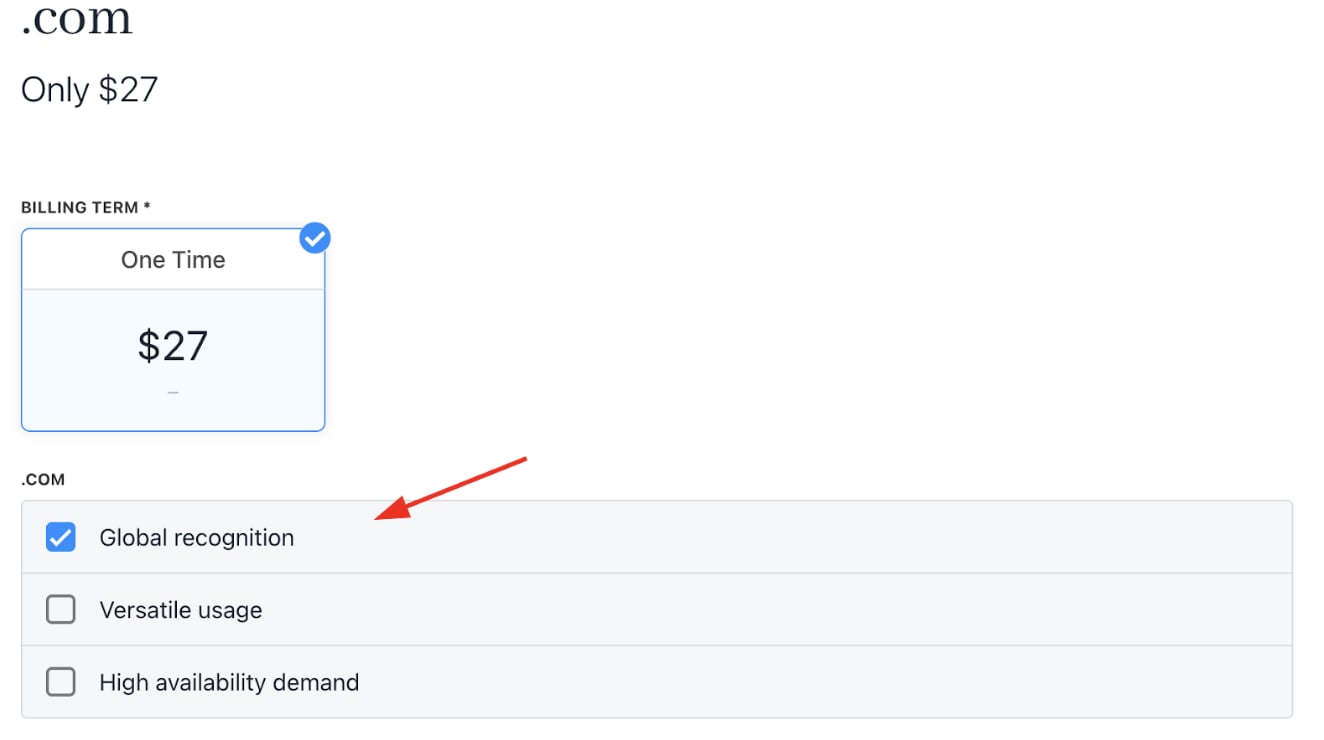
Setting default product options or attributes helps customers quickly place orders with preselected choices, simplifying the shopping experience.
1. Create the or and assign them to the target product.
2. Go to the `Product options` or `Product attributes` section on the product details page.
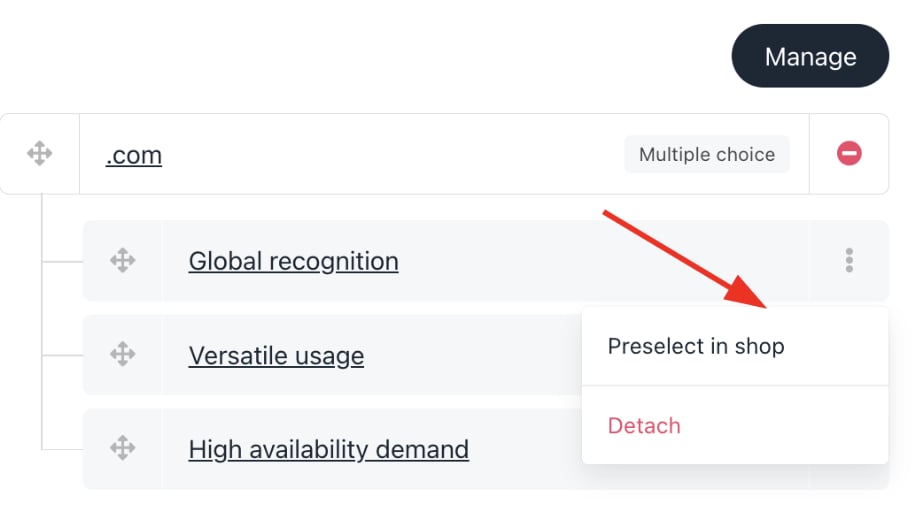
3. Click the three-dot menu next to the desired option or attribute.
4. Select **Preselect in Shop**.
 Once enabled, the product page will show the option or attribute preselected for customers in the store.