> ## Documentation Index
> Fetch the complete documentation index at: https://docs.upmind.com/llms.txt
> Use this file to discover all available pages before exploring further.

# How to Edit a Product Category

> Learn how to edit a product category in Upmind. You can update, edit, modify, or change the categories based on your store setup. Check Now!

Product categories organise your products in Upmind. Editing categories keeps your catalogue accurate and relevant.

## Access the category editor

1. Log in to the Upmind dashboard.
2. Access it from the dashboard by clicking on **Store Catalogue**.
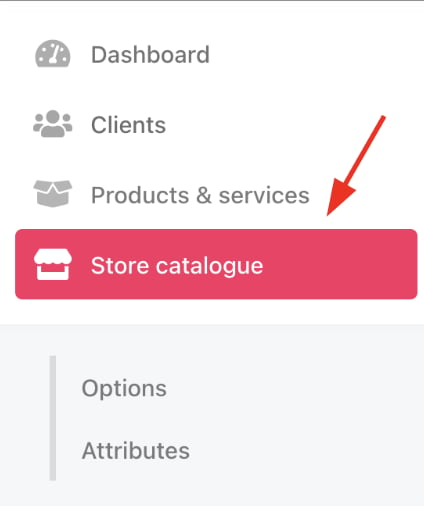
<Frame caption="Store catalogue">
  <img src="https://mintcdn.com/upmind/A-RwNPXmK_xnEEqe/images/fb/7891188177c36e55.png?fit=max&auto=format&n=A-RwNPXmK_xnEEqe&q=85&s=6130c4a3674aed9e80966112e6a9e041" alt="Store catalogue" width="424" height="506" data-path="images/fb/7891188177c36e55.png" />
</Frame>

3. You can also click **Settings** and select the **Product Catalogue** tile under **Products and Promotions**.
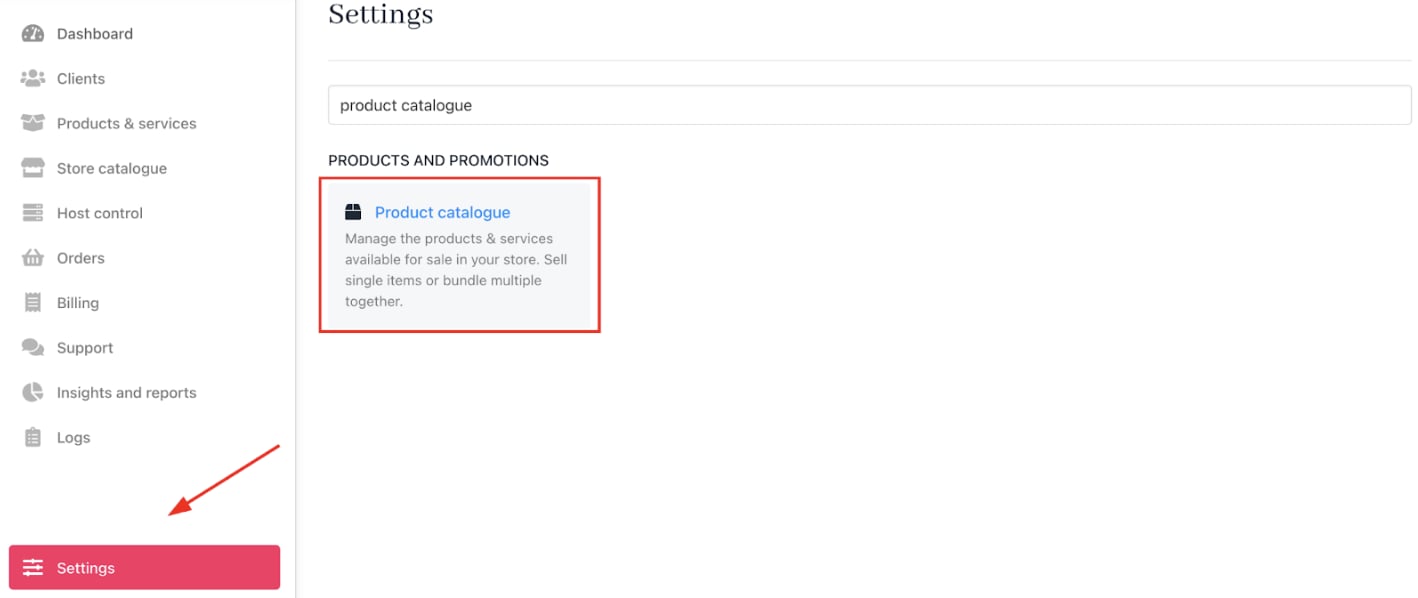
<Frame caption="Settings > Products and Promotions > Product Catalogue">
  <img src="https://mintcdn.com/upmind/bPO2bBzOxYQR4tYr/images/fb/fbcc1eefc7881f59.png?fit=max&auto=format&n=bPO2bBzOxYQR4tYr&q=85&s=a425fffade126cb837521afe723332bd" alt="Settings > Products and Promotions > Product Catalogue" data-og-width="1418" width="1418" data-og-height="598" height="598" data-path="images/fb/fbcc1eefc7881f59.png" data-optimize="true" data-opv="3" srcset="https://mintcdn.com/upmind/bPO2bBzOxYQR4tYr/images/fb/fbcc1eefc7881f59.png?w=280&fit=max&auto=format&n=bPO2bBzOxYQR4tYr&q=85&s=b5207619f9f07e9a6ea83e9c44b67603 280w, https://mintcdn.com/upmind/bPO2bBzOxYQR4tYr/images/fb/fbcc1eefc7881f59.png?w=560&fit=max&auto=format&n=bPO2bBzOxYQR4tYr&q=85&s=2de9bc59ac65e265089109abc55882d1 560w, https://mintcdn.com/upmind/bPO2bBzOxYQR4tYr/images/fb/fbcc1eefc7881f59.png?w=840&fit=max&auto=format&n=bPO2bBzOxYQR4tYr&q=85&s=e0812d07b09d7b1f7709466ba7314bc6 840w, https://mintcdn.com/upmind/bPO2bBzOxYQR4tYr/images/fb/fbcc1eefc7881f59.png?w=1100&fit=max&auto=format&n=bPO2bBzOxYQR4tYr&q=85&s=e8bff7778a11018ca1b3ec593b9d3c76 1100w, https://mintcdn.com/upmind/bPO2bBzOxYQR4tYr/images/fb/fbcc1eefc7881f59.png?w=1650&fit=max&auto=format&n=bPO2bBzOxYQR4tYr&q=85&s=9fdc361f2c5d041c9ac46e55d557e05a 1650w, https://mintcdn.com/upmind/bPO2bBzOxYQR4tYr/images/fb/fbcc1eefc7881f59.png?w=2500&fit=max&auto=format&n=bPO2bBzOxYQR4tYr&q=85&s=a344f06b7e53afaa63457b279d5b5fb2 2500w" />
</Frame>

4. Locate the category you want to edit.
5. Click the three-dot menu (ellipsis) on the category.
6. Choose **Edit** category.
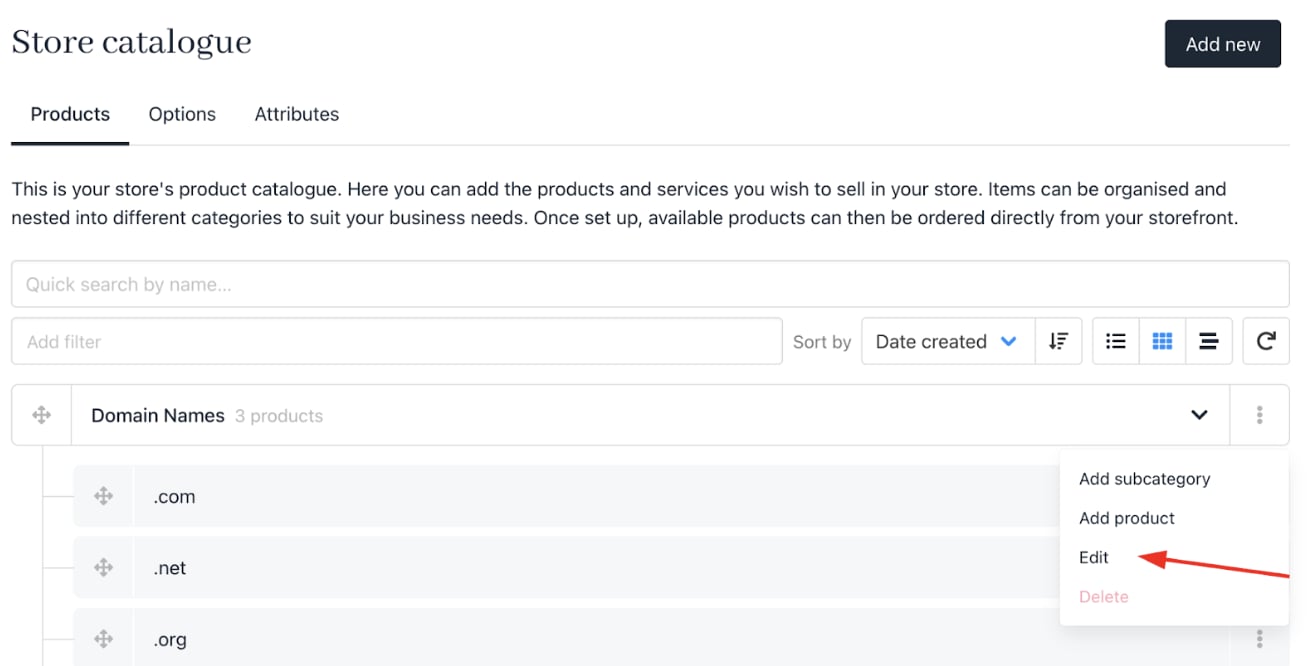
<Frame caption="Edit category">
  <img src="https://mintcdn.com/upmind/FQ1NhxALxjSHvvWW/images/fb/b1c4c1e1a0b7e8f8.png?fit=max&auto=format&n=FQ1NhxALxjSHvvWW&q=85&s=6da71f7533fcaceea469011f0fd1671f" alt="Edit category" width="1312" height="666" data-path="images/fb/b1c4c1e1a0b7e8f8.png" />
</Frame>

## Editing category details

1. Change the `Category Name` as needed.
2. Update the Category Description to reflect the category’s contents accurately.
3. Click **Update** to save changes.
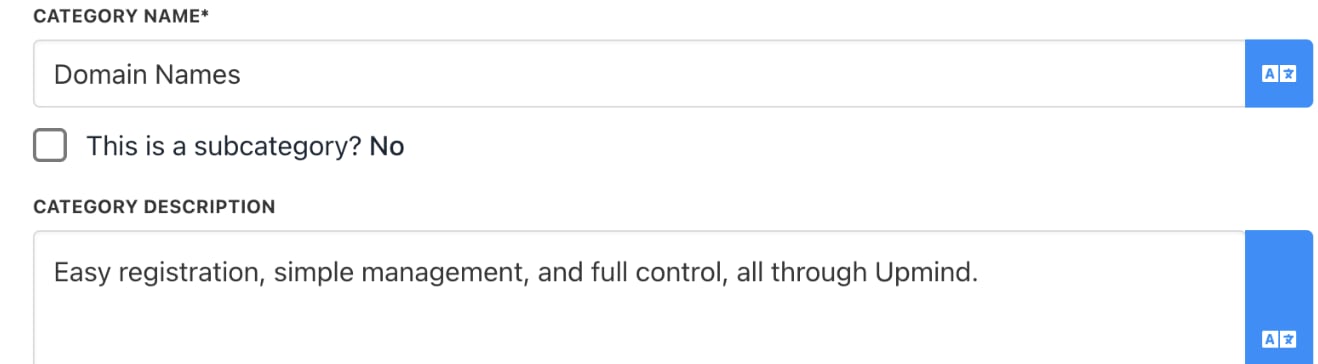
<Frame caption="Edit name and description">
  <img src="https://mintcdn.com/upmind/1xguIfYUrfespmVI/images/fb/81b5edb0f7aca61e.png?fit=max&auto=format&n=1xguIfYUrfespmVI&q=85&s=42967296b1560d030ca660502db062f9" alt="Edit name and description" width="1318" height="364" data-path="images/fb/81b5edb0f7aca61e.png" />
</Frame>

Category changes go live immediately and reflect in your storefront.
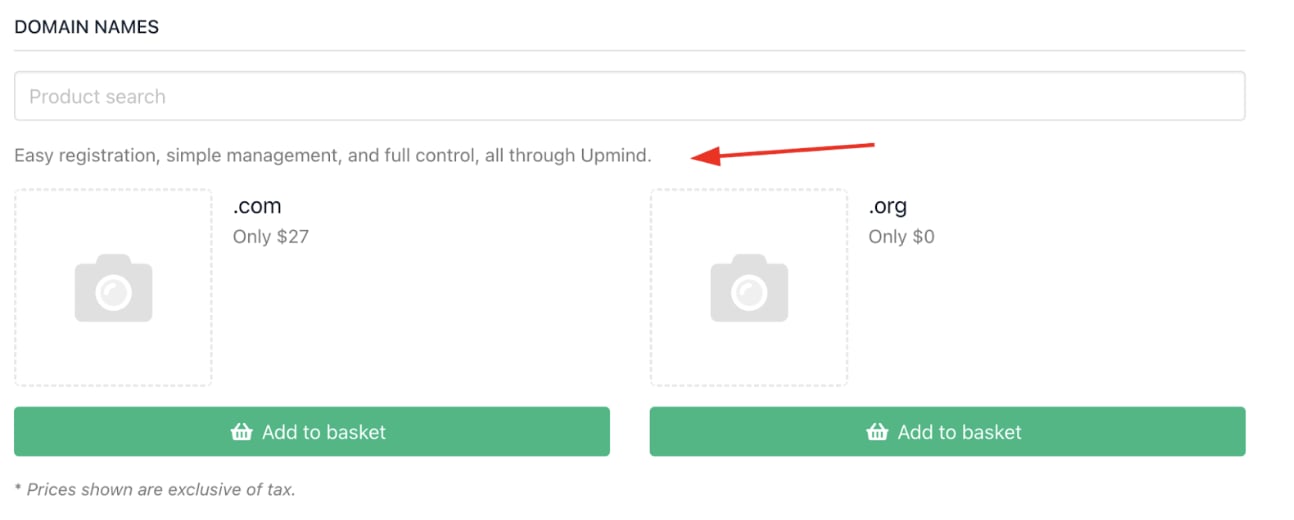
<Frame caption="Live descriptions">
  <img src="https://mintcdn.com/upmind/A-RwNPXmK_xnEEqe/images/fb/7315a6b8d5551835.png?fit=max&auto=format&n=A-RwNPXmK_xnEEqe&q=85&s=894d6327953f0beca9756ad17472f9b2" alt="Live descriptions" width="1294" height="520" data-path="images/fb/7315a6b8d5551835.png" />
</Frame>
