> ## Documentation Index
> Fetch the complete documentation index at: https://docs.upmind.com/llms.txt
> Use this file to discover all available pages before exploring further.
# How to Create Product Bundles
> Learn how to create product bundles and Add products with different sizes and prices to your e-commerce store. Give e-commerce shoppers multiple product options.
A product bundle combines two or more stand-alone products or services into a single bundled offer for sale.
Creating a bundle involves two steps:
* Create a dummy bundle category.
* Add stand-alone products or services to that category.
## Access the bundle page
1. Log in to the Upmind dashboard.
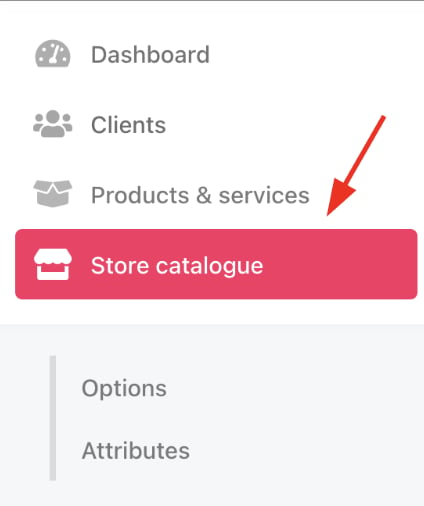
2. Access it from the dashboard by clicking on **Store Catalogue**.
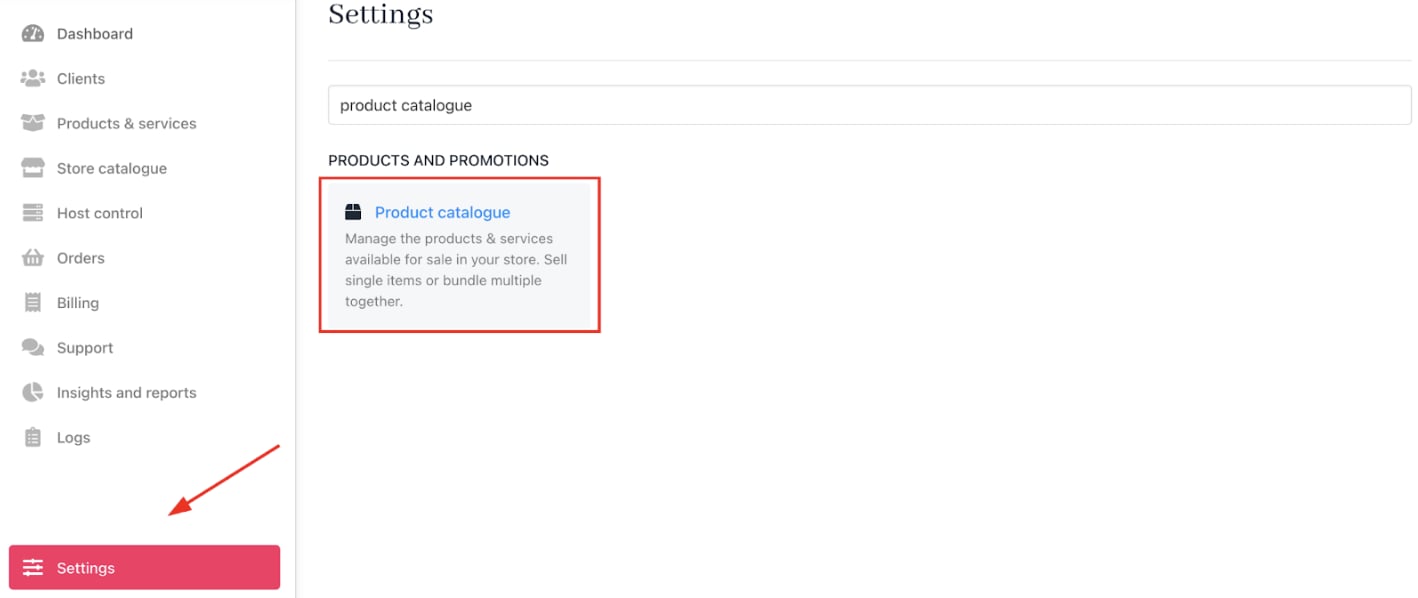
 3. You can also click **Settings** and select the **Product Catalogue** tile under **Products and Promotions**.
 4. On the `Product Catalogue` page, select the **Products** tab.
 ## Create a bundle category
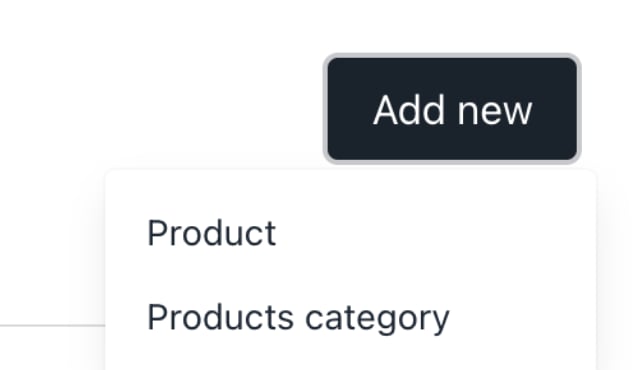
1. Click Add New > Products category.
## Create a bundle category
1. Click Add New > Products category.
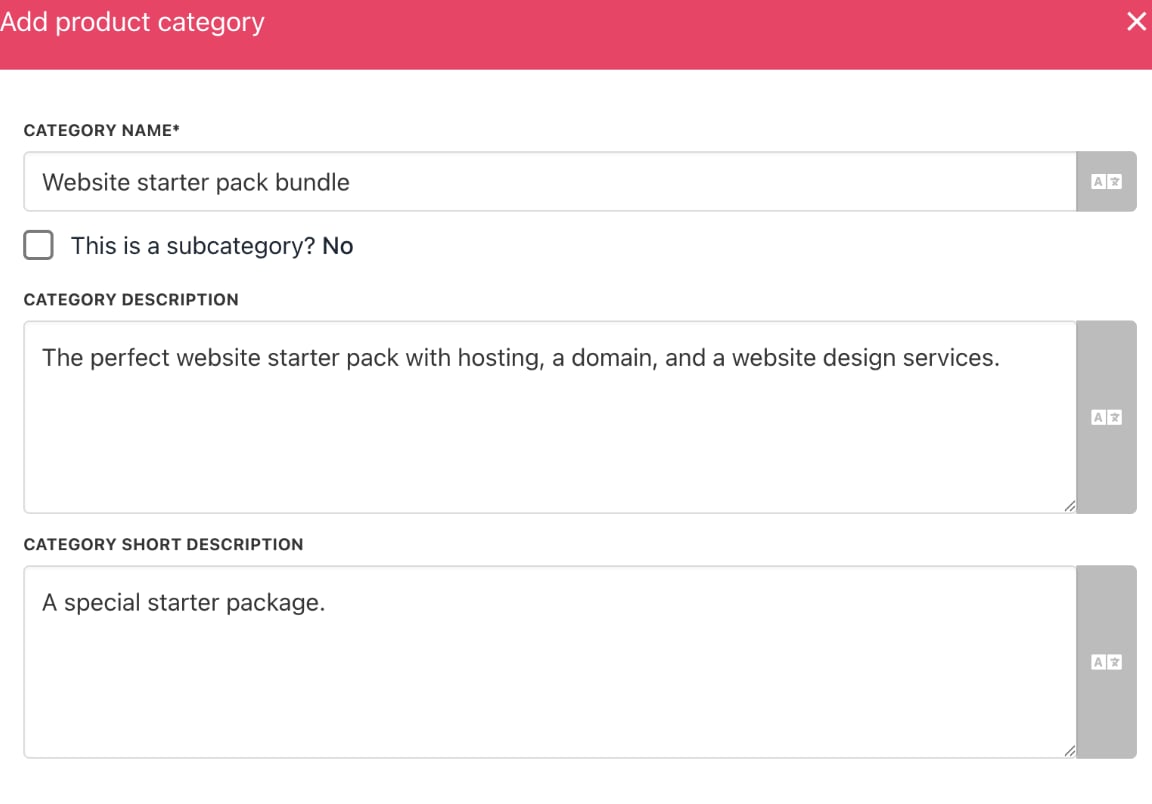
 2. Enter a unique category name for the bundle.
3. Choose to make it a subcategory. (Optional)
**Example**: If you’re selling a bundle like *Website Starter Pack*, you might want to group hosting, a domain, and a website builder as subcategories within that bundle.
2. Add a category description and a short description (up to 130 characters).
3. Click **Create**.
2. Enter a unique category name for the bundle.
3. Choose to make it a subcategory. (Optional)
**Example**: If you’re selling a bundle like *Website Starter Pack*, you might want to group hosting, a domain, and a website builder as subcategories within that bundle.
2. Add a category description and a short description (up to 130 characters).
3. Click **Create**.
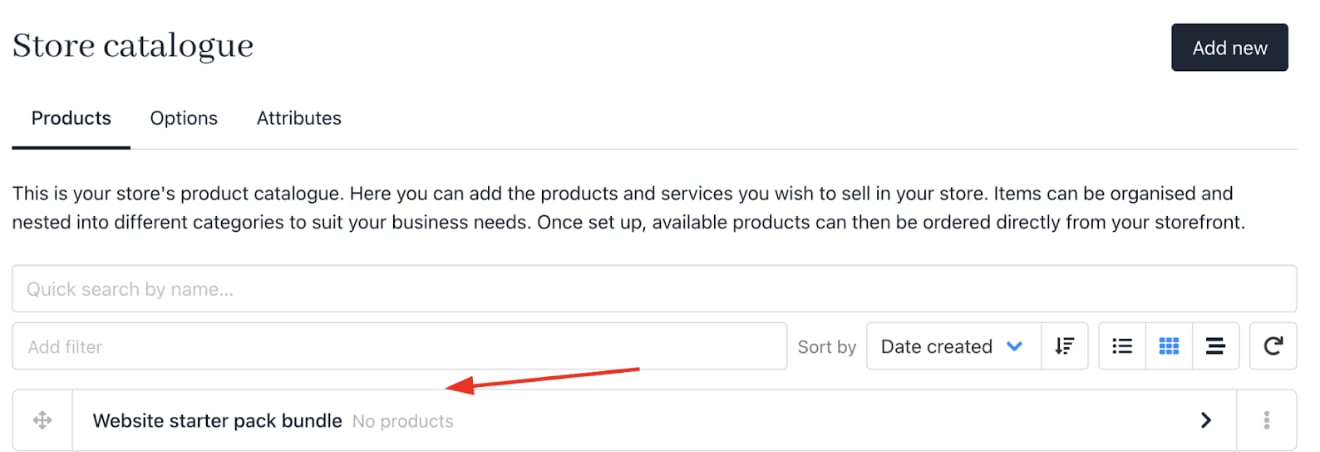
 The new bundle category will appear in the catalogue.
 ## Create a product bundle
1. Find the bundle category in the catalogue.
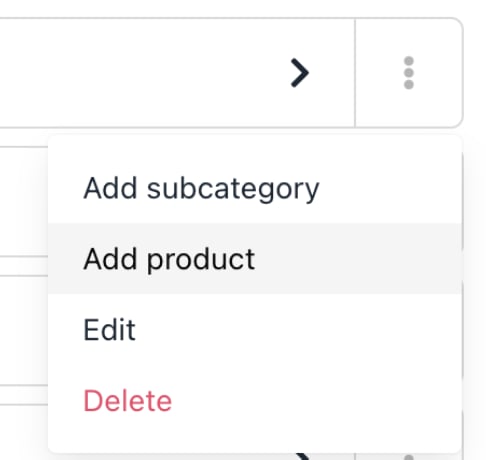
2. Click the three-dot menu and select **Add product**.
## Create a product bundle
1. Find the bundle category in the catalogue.
2. Click the three-dot menu and select **Add product**.
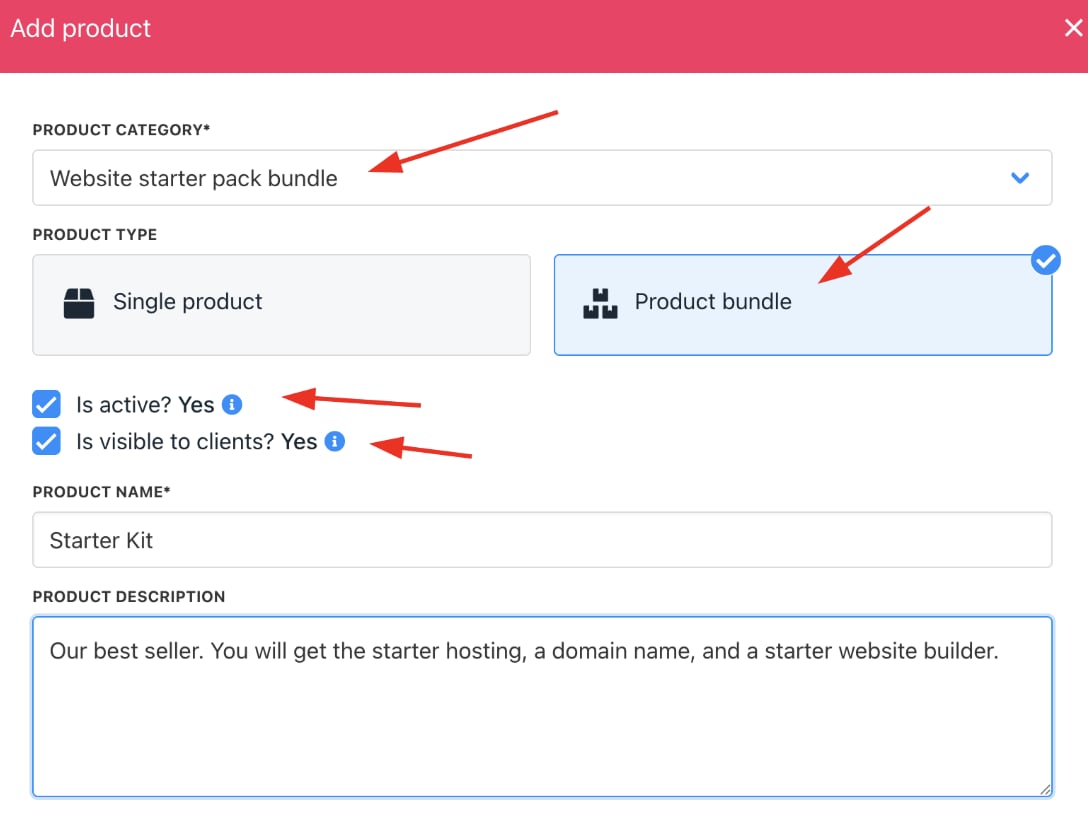
 3. Confirm the category, or select a different one.
4. Choose the `Product bundle` tile.
5. Leave visibility options checked to keep the product bundles visible to staff/customers.
6. Enter the bundle name and description (Customers can see this when they are placing the order).
7. Click **Manage**.
3. Confirm the category, or select a different one.
4. Choose the `Product bundle` tile.
5. Leave visibility options checked to keep the product bundles visible to staff/customers.
6. Enter the bundle name and description (Customers can see this when they are placing the order).
7. Click **Manage**.
 ## Add products to the bundle
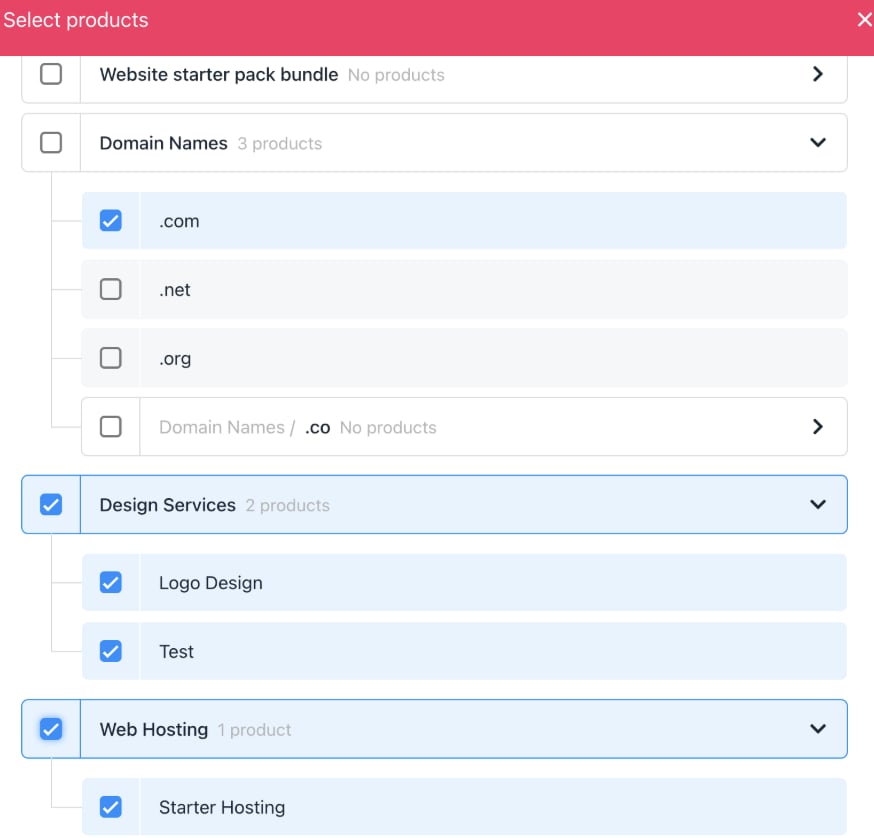
On the `Select Products` page, you can browse available products and services.
1. Expand categories as needed.
2. Check boxes for products or services to include.
3. Click **Save**.
4. Repeat to add more items if required.
5. Click **Create**.
## Add products to the bundle
On the `Select Products` page, you can browse available products and services.
1. Expand categories as needed.
2. Check boxes for products or services to include.
3. Click **Save**.
4. Repeat to add more items if required.
5. Click **Create**.
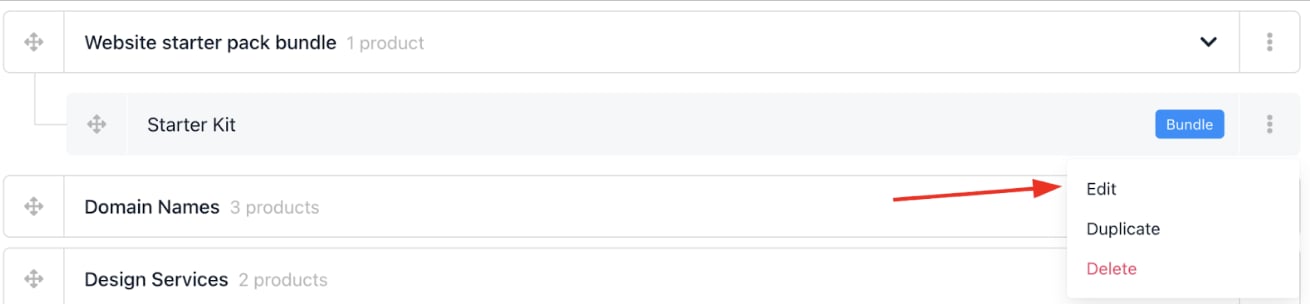
 The bundle appears in the selected category.
 ## Edit or customise bundles
Use the three-dot menu to edit bundle details or remove items.
## Edit or customise bundles
Use the three-dot menu to edit bundle details or remove items.
 ## Review and update product details
1. Review info on the **Product Details** page.
2. Add images (optional).
3. Edit descriptions as needed.
## Set pricing
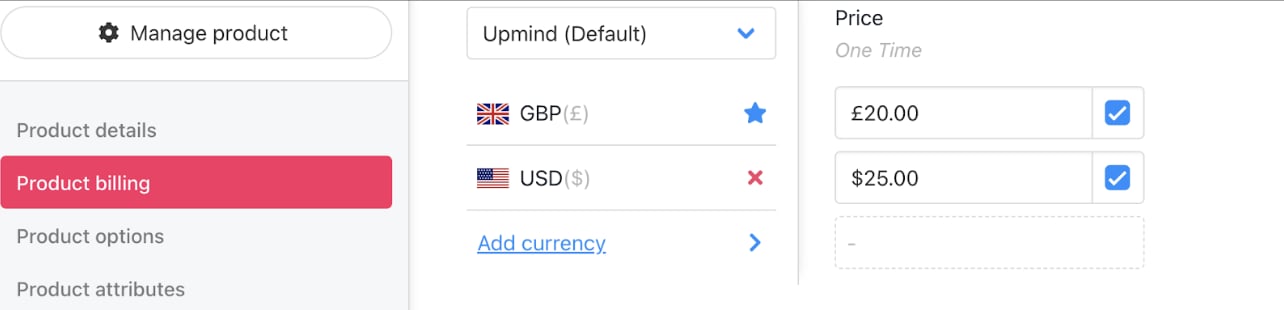
1. Click **Product Billing**.
2. Choose product type: one-off or recurring.
3. Set the bundle price and add currencies (optional).
4. Configure multi-currency settings and default payment terms.
5. Click **Save**.
## Review and update product details
1. Review info on the **Product Details** page.
2. Add images (optional).
3. Edit descriptions as needed.
## Set pricing
1. Click **Product Billing**.
2. Choose product type: one-off or recurring.
3. Set the bundle price and add currencies (optional).
4. Configure multi-currency settings and default payment terms.
5. Click **Save**.
 ## Manage bundle items
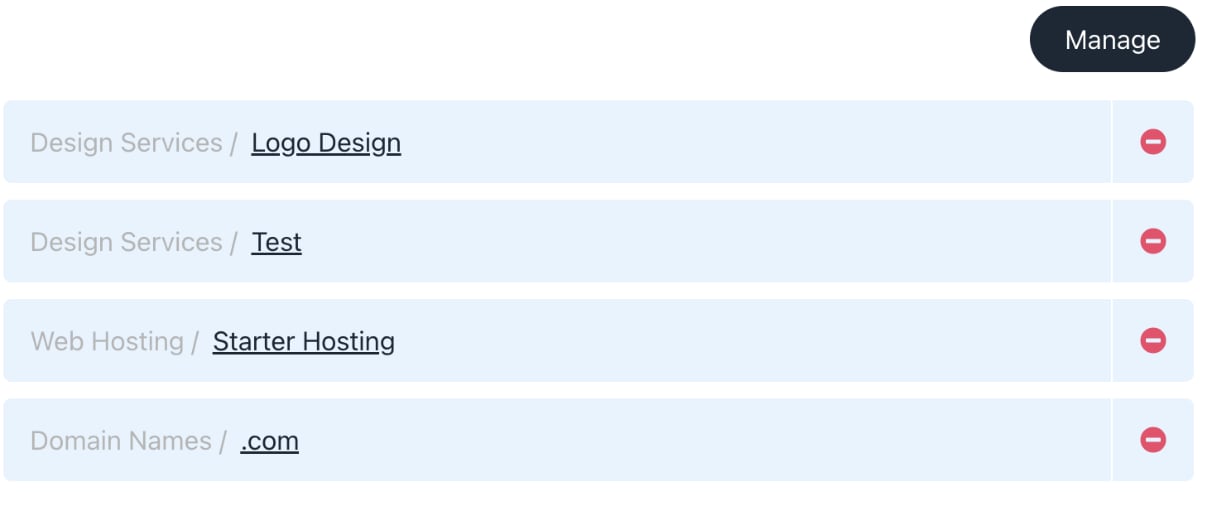
1. Scroll to the bottom to see included products or services.
2. Click **Manage** to add or remove items.
## Manage bundle items
1. Scroll to the bottom to see included products or services.
2. Click **Manage** to add or remove items.
 ## Customer view
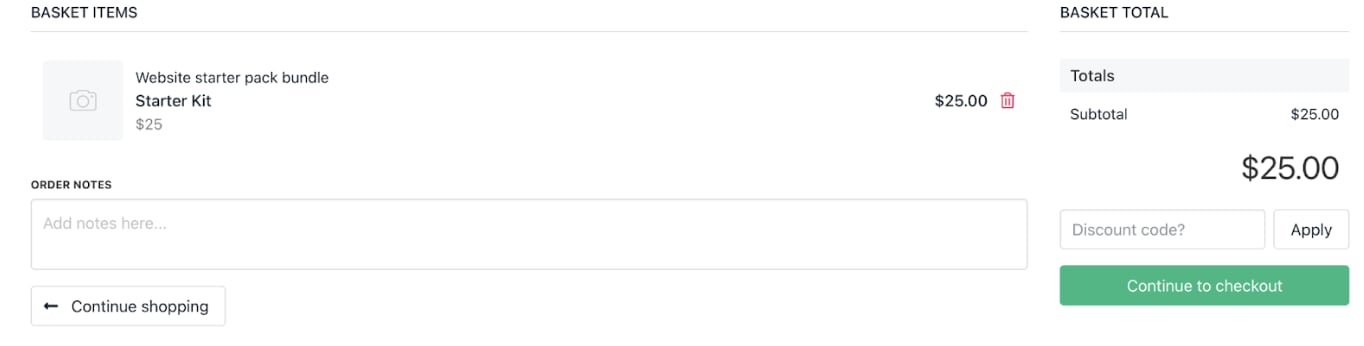
Bundles appear as one item in the store’s catalogue and basket, showing the bundle name and total price.
## Customer view
Bundles appear as one item in the store’s catalogue and basket, showing the bundle name and total price.