> ## Documentation Index
> Fetch the complete documentation index at: https://docs.upmind.com/llms.txt
> Use this file to discover all available pages before exploring further.

# How to Create Price Lists

> Learn how to create a price list for your e-commerce store. It leads you to a better product management throughout the online e-commerce store. Check Now!

By default, Upmind uses a single price list that sets basic pricing for all products and services. You can override this by creating separate price lists for more flexibility.

**Example**: If the default price is $80/month, you can charge one customer $60 and another \$85, making price customisation easy in Upmind.

The multiple price lists feature enhances product management by letting you:

* Create custom price lists for specific clients, such as:
  * Offering discounts to wholesale customers.
  * Loyalty pricing.
  * Legacy rates for existing clients.
* You can enable or disable products per client. A product is only orderable if it has a price in that client’s list, though most products already have default prices.

## Create a price list

1. Log in to Upmind.
2. Go to **Settings** > **Price Lists** under **Products and promotions**.
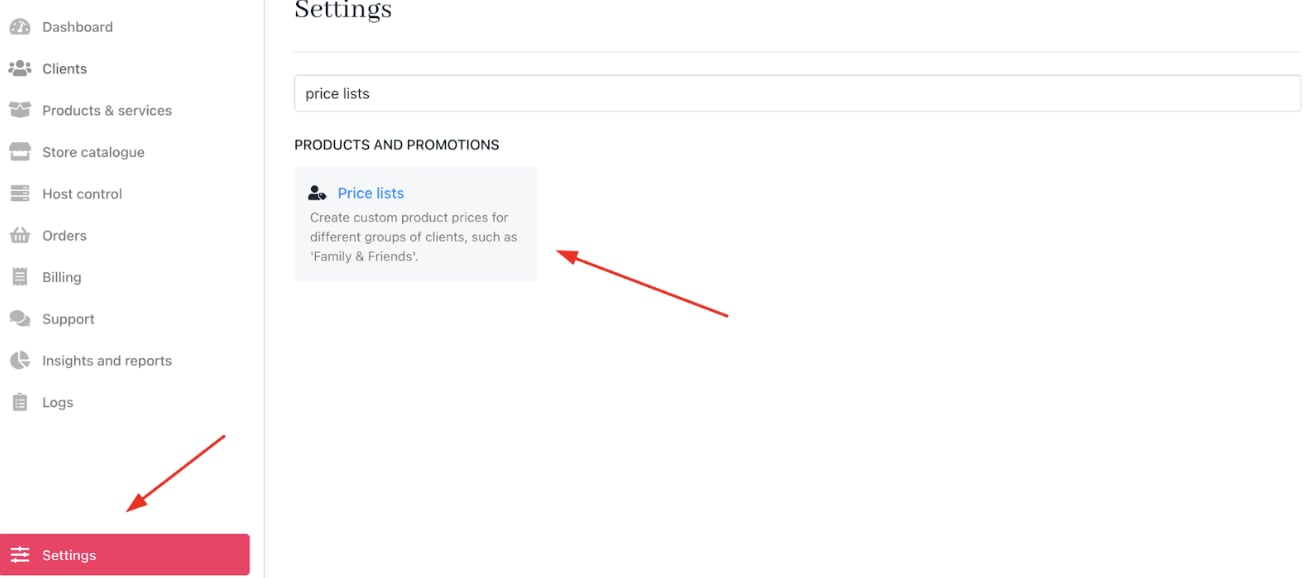
<Frame caption="Settings > Products and promotions > Price Lists under">
  <img src="https://mintcdn.com/upmind/kXD0Ya8PpcxxNm6Q/images/fb/3dab35020831977d.png?fit=max&auto=format&n=kXD0Ya8PpcxxNm6Q&q=85&s=b1db1d2fd2c8f229d65624b6940c83f5" alt="Settings > Products and promotions > Price Lists under" data-og-width="1310" width="1310" data-og-height="578" height="578" data-path="images/fb/3dab35020831977d.png" data-optimize="true" data-opv="3" srcset="https://mintcdn.com/upmind/kXD0Ya8PpcxxNm6Q/images/fb/3dab35020831977d.png?w=280&fit=max&auto=format&n=kXD0Ya8PpcxxNm6Q&q=85&s=05da11cf9a4853cd4422ec049eb3354e 280w, https://mintcdn.com/upmind/kXD0Ya8PpcxxNm6Q/images/fb/3dab35020831977d.png?w=560&fit=max&auto=format&n=kXD0Ya8PpcxxNm6Q&q=85&s=aa87d8df1966254a8a060d2b602cb847 560w, https://mintcdn.com/upmind/kXD0Ya8PpcxxNm6Q/images/fb/3dab35020831977d.png?w=840&fit=max&auto=format&n=kXD0Ya8PpcxxNm6Q&q=85&s=d25198993ae805f32b78ca922c646d3e 840w, https://mintcdn.com/upmind/kXD0Ya8PpcxxNm6Q/images/fb/3dab35020831977d.png?w=1100&fit=max&auto=format&n=kXD0Ya8PpcxxNm6Q&q=85&s=26987e3c42788be3f41f573c3e26e808 1100w, https://mintcdn.com/upmind/kXD0Ya8PpcxxNm6Q/images/fb/3dab35020831977d.png?w=1650&fit=max&auto=format&n=kXD0Ya8PpcxxNm6Q&q=85&s=53cc08eb94cb824492f5e818811dea8a 1650w, https://mintcdn.com/upmind/kXD0Ya8PpcxxNm6Q/images/fb/3dab35020831977d.png?w=2500&fit=max&auto=format&n=kXD0Ya8PpcxxNm6Q&q=85&s=d48769cee018fe38de25283615608f7d 2500w" />
</Frame>

3. Click **Add Price List**.

<Frame caption="Add price">
  <img src="https://mintcdn.com/upmind/ZsIo0APxdVb_gFS-/images/fb/2865d61e9f9ec707.png?fit=max&auto=format&n=ZsIo0APxdVb_gFS-&q=85&s=e057205d77a8e8f810774743c0b2a873" alt="Add price" width="1308" height="122" data-path="images/fb/2865d61e9f9ec707.png" />
</Frame>

4. Name the price list and click **Add**.
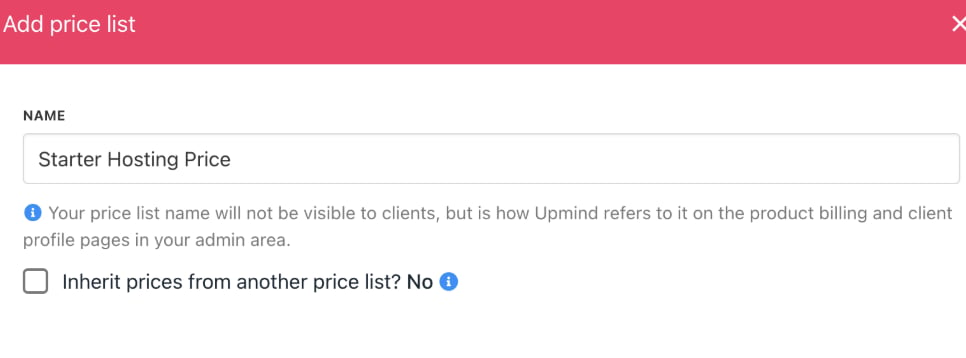
<Frame caption="Click add">
  <img src="https://mintcdn.com/upmind/Dgjmf3QWYVBR40cE/images/fb/63062778d5104ad5.png?fit=max&auto=format&n=Dgjmf3QWYVBR40cE&q=85&s=689c0a9d5812394e5911871adfb55b90" alt="Click add" width="966" height="358" data-path="images/fb/63062778d5104ad5.png" />
</Frame>

A blank price list will be created for configuration.

## Set product prices in a price list

1. Log in to the Upmind dashboard.
2. Access it from the dashboard by clicking on **Store Catalogue**.
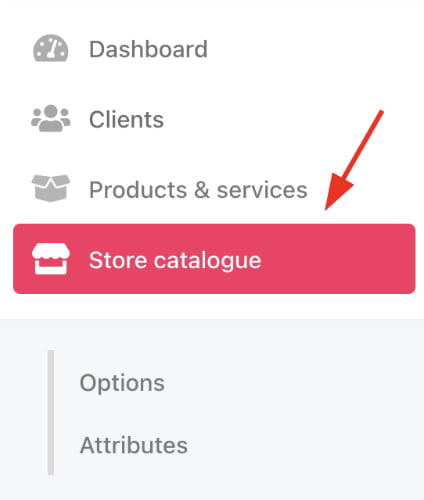
<Frame caption="Store catalogue">
  <img src="https://mintcdn.com/upmind/92wYnpdR_k6AjH3x/images/fb/54d08bf7b19186a4.png?fit=max&auto=format&n=92wYnpdR_k6AjH3x&q=85&s=2bc82ca18256c099c61335b808b3e2a3" alt="Store catalogue" width="424" height="500" data-path="images/fb/54d08bf7b19186a4.png" />
</Frame>

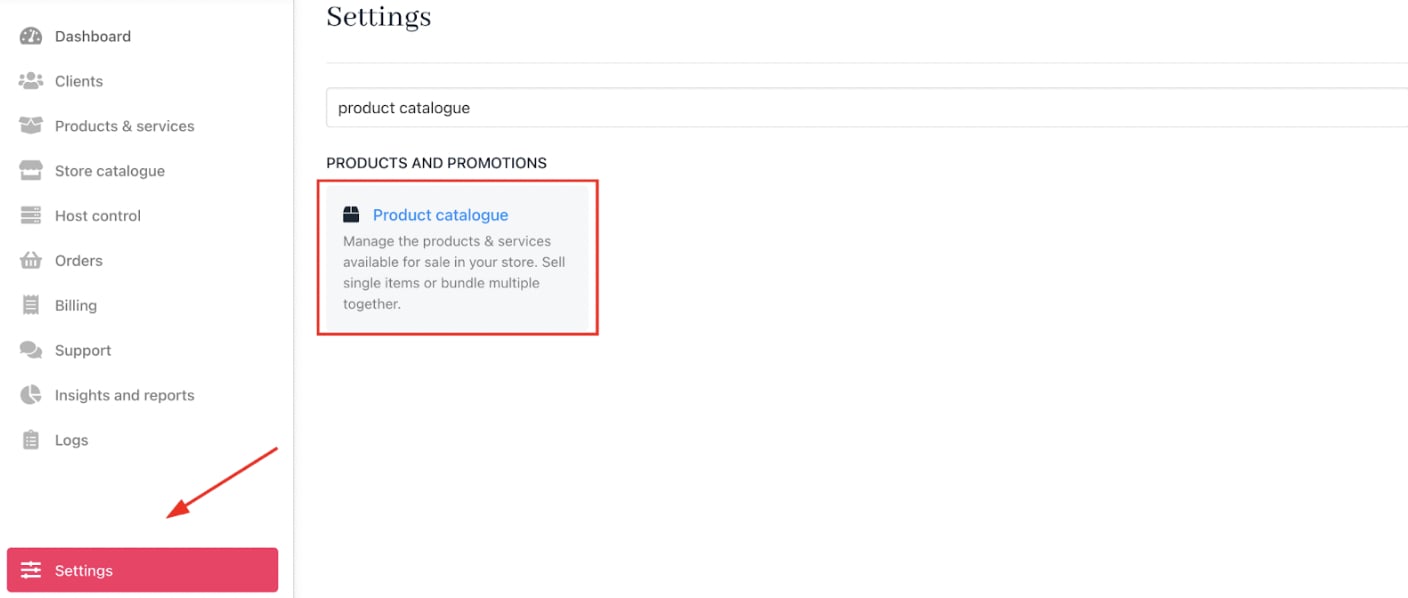
3. You can also click **Settings** and select the **Product Catalogue** tile under **Products and Promotions**.
<Frame caption="Settings > Products and Promotions > Product Catalogue">
  <img src="https://mintcdn.com/upmind/ZsIo0APxdVb_gFS-/images/fb/26ab5454d7da900c.png?fit=max&auto=format&n=ZsIo0APxdVb_gFS-&q=85&s=6a4cc7cc8e65846044c2e0b618402618" alt="Settings > Products and Promotions > Product Catalogue" data-og-width="1408" width="1408" data-og-height="598" height="598" data-path="images/fb/26ab5454d7da900c.png" data-optimize="true" data-opv="3" srcset="https://mintcdn.com/upmind/ZsIo0APxdVb_gFS-/images/fb/26ab5454d7da900c.png?w=280&fit=max&auto=format&n=ZsIo0APxdVb_gFS-&q=85&s=3eca822d3b599eee243d5f549e630487 280w, https://mintcdn.com/upmind/ZsIo0APxdVb_gFS-/images/fb/26ab5454d7da900c.png?w=560&fit=max&auto=format&n=ZsIo0APxdVb_gFS-&q=85&s=b237edcc3e171a6551ed8c93512d15fd 560w, https://mintcdn.com/upmind/ZsIo0APxdVb_gFS-/images/fb/26ab5454d7da900c.png?w=840&fit=max&auto=format&n=ZsIo0APxdVb_gFS-&q=85&s=bcb2986b704c5be5f61152a235b908ef 840w, https://mintcdn.com/upmind/ZsIo0APxdVb_gFS-/images/fb/26ab5454d7da900c.png?w=1100&fit=max&auto=format&n=ZsIo0APxdVb_gFS-&q=85&s=dbc7e10b29fe70821b7ac803fef6ca9c 1100w, https://mintcdn.com/upmind/ZsIo0APxdVb_gFS-/images/fb/26ab5454d7da900c.png?w=1650&fit=max&auto=format&n=ZsIo0APxdVb_gFS-&q=85&s=c5bc20aabe51e4b9e7a4b7467507c350 1650w, https://mintcdn.com/upmind/ZsIo0APxdVb_gFS-/images/fb/26ab5454d7da900c.png?w=2500&fit=max&auto=format&n=ZsIo0APxdVb_gFS-&q=85&s=963532a0c5c1b3a7ce0d326c1f63b6cc 2500w" />
</Frame>

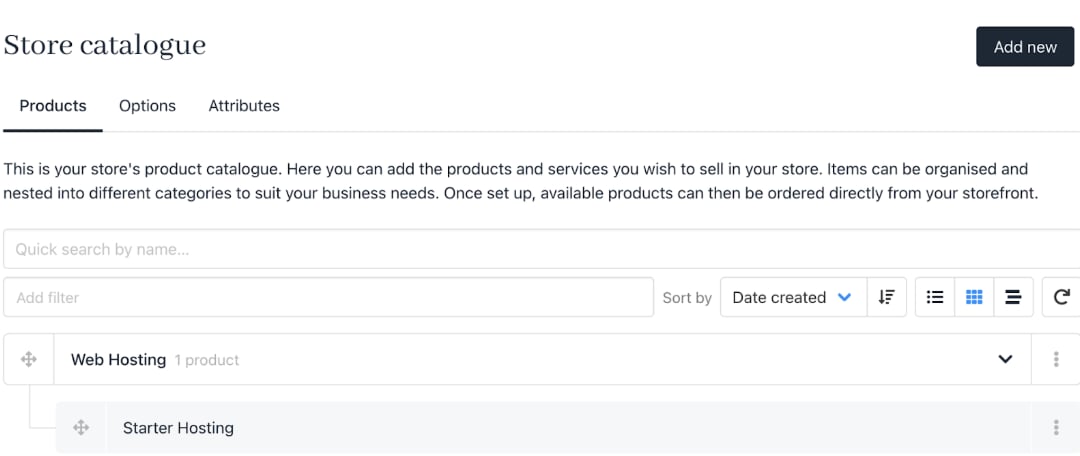
4. Choose a product to modify.

<Frame caption="Choose product">
  <img src="https://mintcdn.com/upmind/kAlrCUxI2nwYz4_i/images/fb/1e0a20e17cf1de23.png?fit=max&auto=format&n=kAlrCUxI2nwYz4_i&q=85&s=a160c4578e81f14ab4525651e0eaeefc" alt="Choose product" width="1080" height="456" data-path="images/fb/1e0a20e17cf1de23.png" />
</Frame>

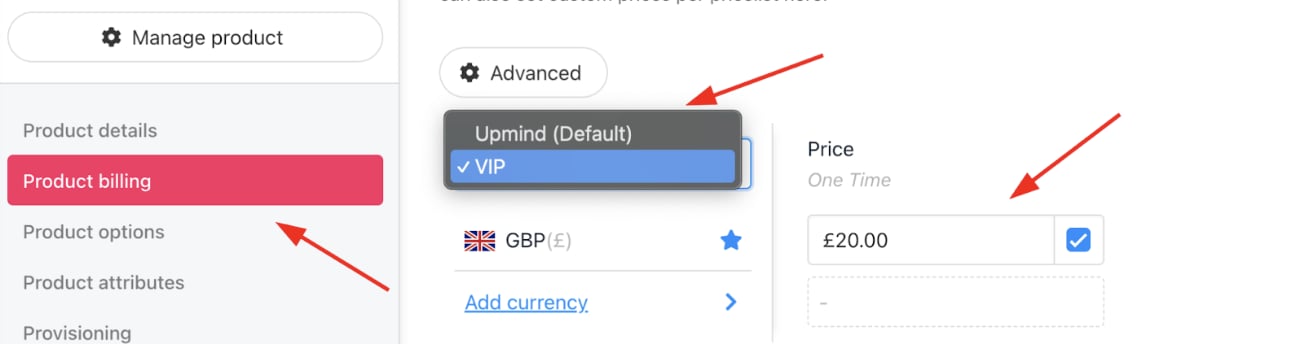
5. Open the `Product billing` panel.
6. Select the desired price list from the dropdown.
7. Add or edit prices per currency.
<Frame caption="Choose new price list and price">
  <img src="https://mintcdn.com/upmind/1xguIfYUrfespmVI/images/fb/7fac7d4f2077f789.png?fit=max&auto=format&n=1xguIfYUrfespmVI&q=85&s=8f205e5b4d918c7ed17affb47cc670c4" alt="Choose new price list and price" width="1294" height="344" data-path="images/fb/7fac7d4f2077f789.png" />
</Frame>

8. Click **Save**.

## Assign a price list to a client

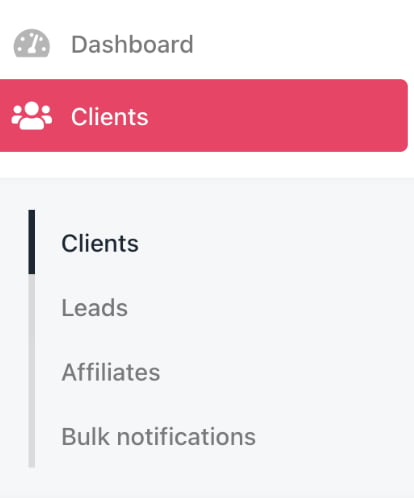
1. Go to **Clients** in the main dashboard.
<Frame caption="Dashboard > Clients">
  <img src="https://mintcdn.com/upmind/ObllJJl59DabnmMn/images/fb/cc29b59088311460.png?fit=max&auto=format&n=ObllJJl59DabnmMn&q=85&s=66b34833a44925c4d77272331045a51c" alt="Dashboard > Clients" data-og-width="414" width="414" data-og-height="498" height="498" data-path="images/fb/cc29b59088311460.png" data-optimize="true" data-opv="3" srcset="https://mintcdn.com/upmind/ObllJJl59DabnmMn/images/fb/cc29b59088311460.png?w=280&fit=max&auto=format&n=ObllJJl59DabnmMn&q=85&s=2c55442914388e6548cb737555ea25fe 280w, https://mintcdn.com/upmind/ObllJJl59DabnmMn/images/fb/cc29b59088311460.png?w=560&fit=max&auto=format&n=ObllJJl59DabnmMn&q=85&s=834227309e17f209582f79ca169a3ca9 560w, https://mintcdn.com/upmind/ObllJJl59DabnmMn/images/fb/cc29b59088311460.png?w=840&fit=max&auto=format&n=ObllJJl59DabnmMn&q=85&s=c58003428782ce891f8c38f4240d0065 840w, https://mintcdn.com/upmind/ObllJJl59DabnmMn/images/fb/cc29b59088311460.png?w=1100&fit=max&auto=format&n=ObllJJl59DabnmMn&q=85&s=4df7e772625d0201a95c56a283cd4f56 1100w, https://mintcdn.com/upmind/ObllJJl59DabnmMn/images/fb/cc29b59088311460.png?w=1650&fit=max&auto=format&n=ObllJJl59DabnmMn&q=85&s=3540a80aff87e53d1affb991bf7fd65b 1650w, https://mintcdn.com/upmind/ObllJJl59DabnmMn/images/fb/cc29b59088311460.png?w=2500&fit=max&auto=format&n=ObllJJl59DabnmMn&q=85&s=48d5da6807e6ee293859de3cb3e73253 2500w" />
</Frame>

2. Select a client.
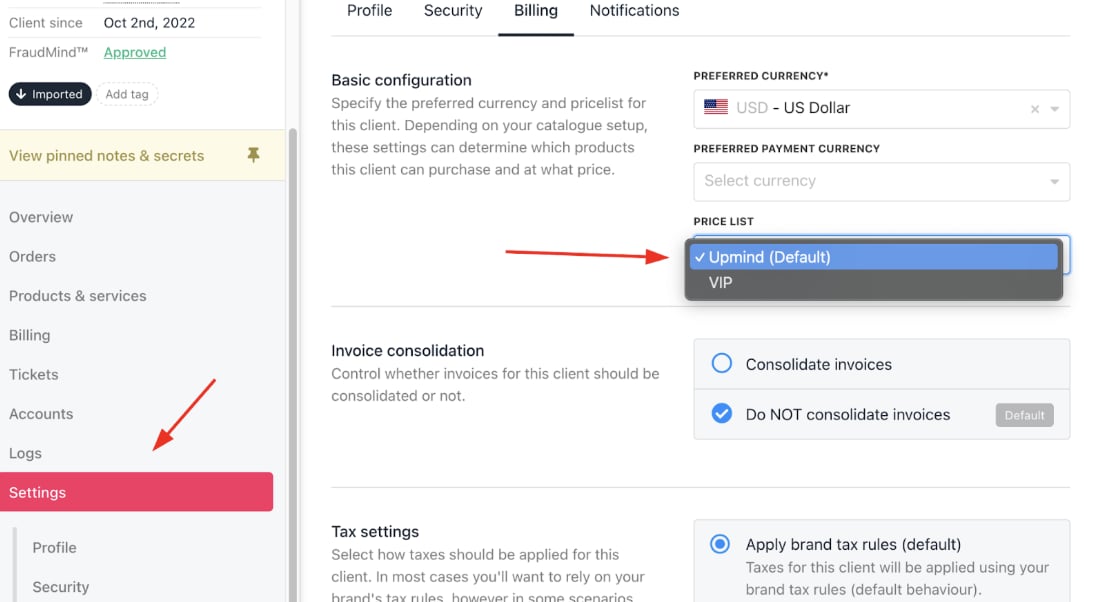
3. Click the **Settings** tab.
4. Choose the desired price list from the Price List dropdown under Billing.
5. Save the client profile.
<Frame caption="Choose price list">
  <img src="https://mintcdn.com/upmind/kAlrCUxI2nwYz4_i/images/fb/212e20223016c41a.png?fit=max&auto=format&n=kAlrCUxI2nwYz4_i&q=85&s=d3b807d94e0465b1774172346c8f03cf" alt="Choose price list" width="1094" height="602" data-path="images/fb/212e20223016c41a.png" />
</Frame>

Price changes apply to future purchases for the client and do not affect existing subscriptions.

## Use price lists to show or hide products

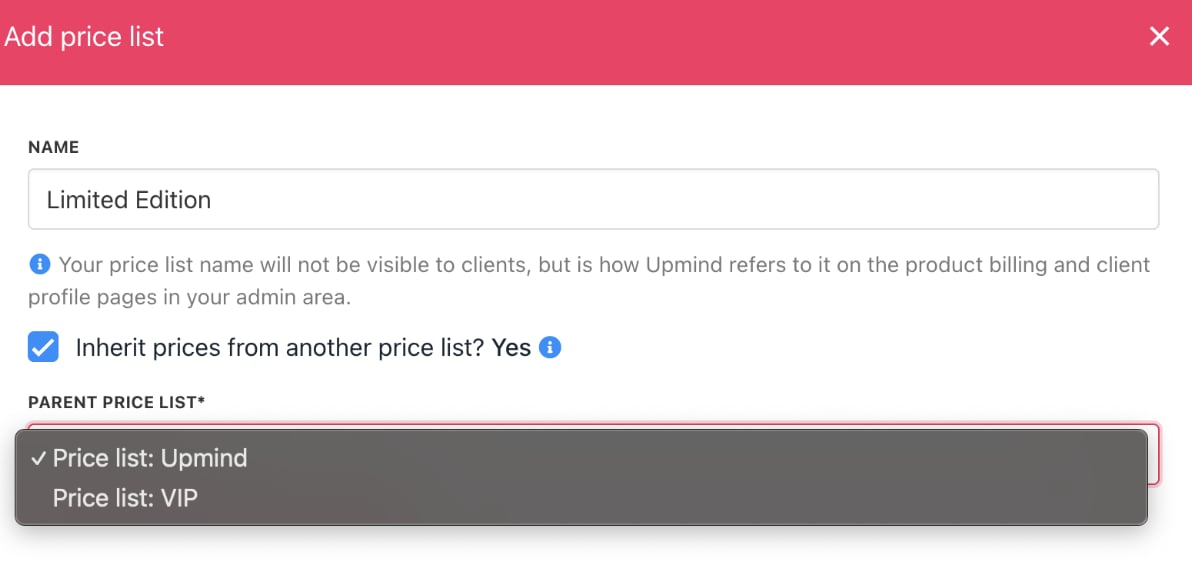
When creating a new price list, you can choose whether to inherit prices from another list:

* **Inherit prices enabled**: Products not added to this list will still use their default (or inherited) prices.
* **Inherit prices disabled**: Only products explicitly added to this price list will be visible to clients.
<Frame caption="Check box to inherit prices">
  <img src="https://mintcdn.com/upmind/JUoAg6onJmXk_-rR/images/fb/e27455f2ffb638bb.png?fit=max&auto=format&n=JUoAg6onJmXk_-rR&q=85&s=0763d59f020f3469da36dffdcfec13a4" alt="Check box to inherit prices" width="1192" height="586" data-path="images/fb/e27455f2ffb638bb.png" />
</Frame>

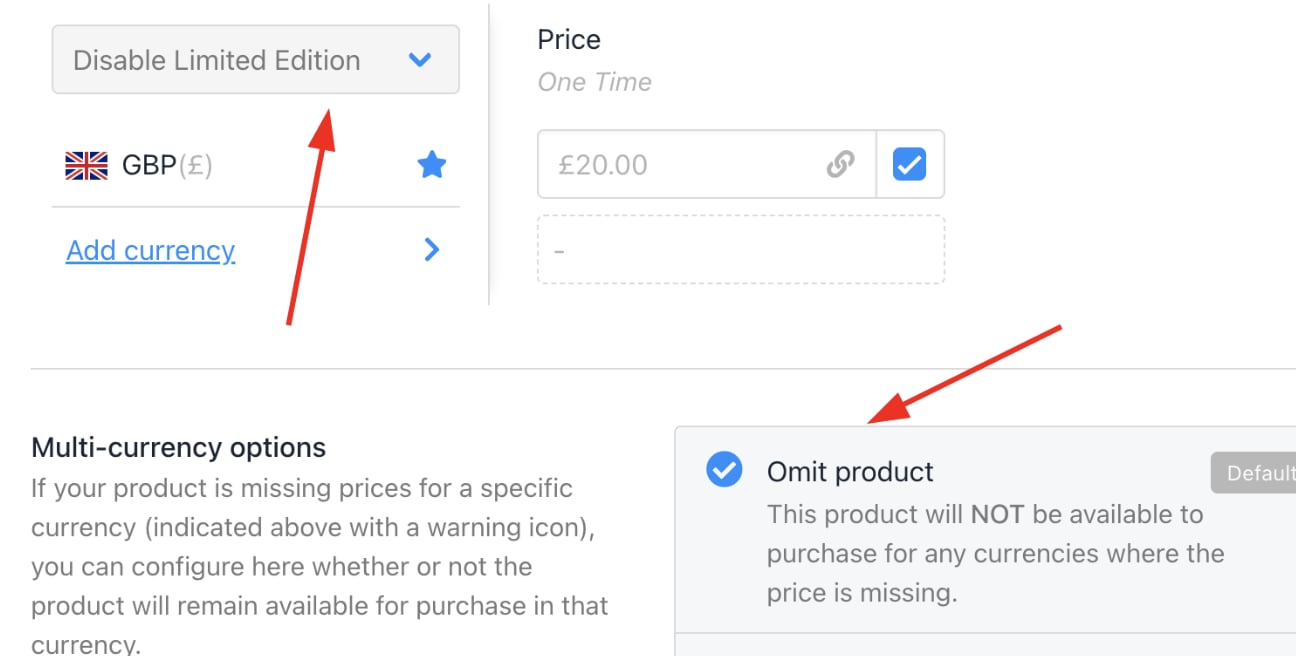
To hide a product from a client’s catalogue:

1. Open the product in `Products & Services`.
2. Select the relevant price list.
3. Clear the price and check **Omit product**.
4. Save your changes.
<Frame caption="Select omit product">
  <img src="https://mintcdn.com/upmind/2ooSxDpt6PiIGMr-/images/fb/039896d7347d668d.png?fit=max&auto=format&n=2ooSxDpt6PiIGMr-&q=85&s=ca5d14c06e162a75df39946d4e86f5e6" alt="Select omit product" width="1296" height="656" data-path="images/fb/039896d7347d668d.png" />
</Frame>

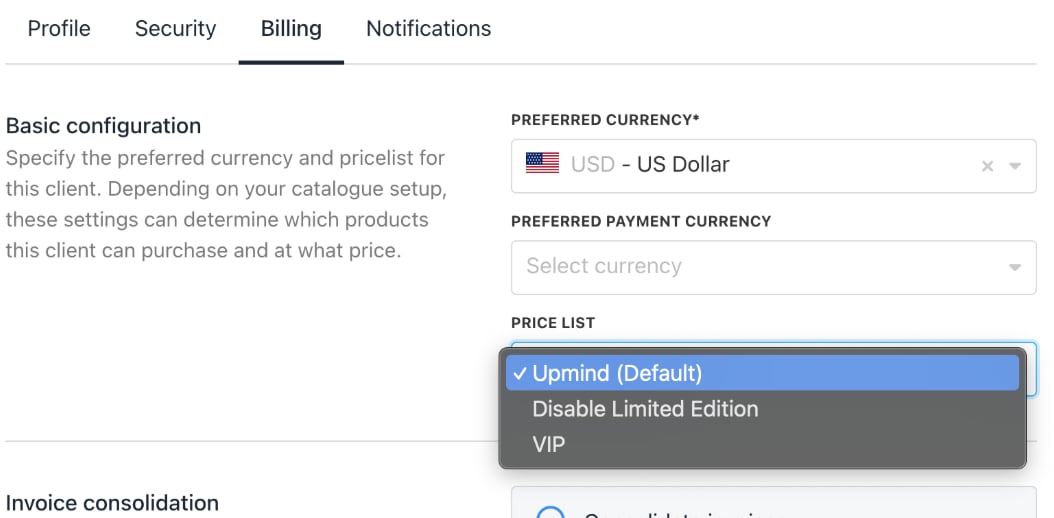
5. Assign the updated price list to the client (or client group). Clients will then only see the products that are enabled and priced in their assigned list.
<Frame caption="Apply new price list">
  <img src="https://mintcdn.com/upmind/kAlrCUxI2nwYz4_i/images/fb/1f68b4bfc134c87d.png?fit=max&auto=format&n=kAlrCUxI2nwYz4_i&q=85&s=812542261016b21477242a2d20b574ea" alt="Apply new price list" width="1054" height="518" data-path="images/fb/1f68b4bfc134c87d.png" />
</Frame>

## Client view

Clients shopping in the store will only see products that are both priced and enabled in their price list.