> ## Documentation Index
> Fetch the complete documentation index at: https://docs.upmind.com/llms.txt
> Use this file to discover all available pages before exploring further.

# How to Create a Setup Fee

> Check out how to create setup fee for your e-commerce store with ease. You can now charge for setting up the products or service to the store. Check Now!

A setup fee is an extra, one-off charge added when customers purchase select products or services. This is handled in Upmind by creating a required .

## Create the setup fee product option

1. Log in to the Upmind dashboard.
2. Access it from the dashboard by clicking on **Store Catalogue**.
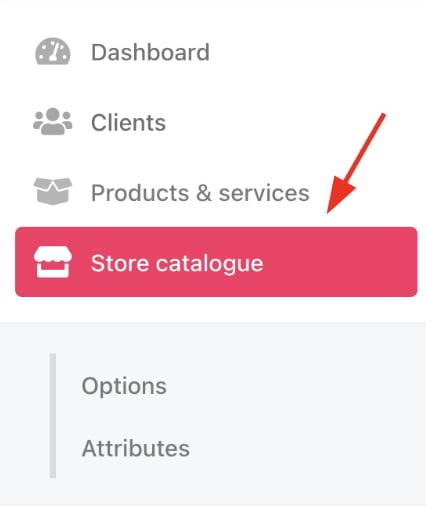
<Frame caption="Store catalogue">
  <img src="https://mintcdn.com/upmind/wRuKrNY12tQZY8Rr/images/fb/305f097b6034c63b.png?fit=max&auto=format&n=wRuKrNY12tQZY8Rr&q=85&s=6a20b89cabc5d8c349f8870b3aeef55d" alt="Store catalogue" width="426" height="506" data-path="images/fb/305f097b6034c63b.png" />
</Frame>

3. You can also click **Settings** and select the **Product Catalogue** tile under **Products and Promotions**.
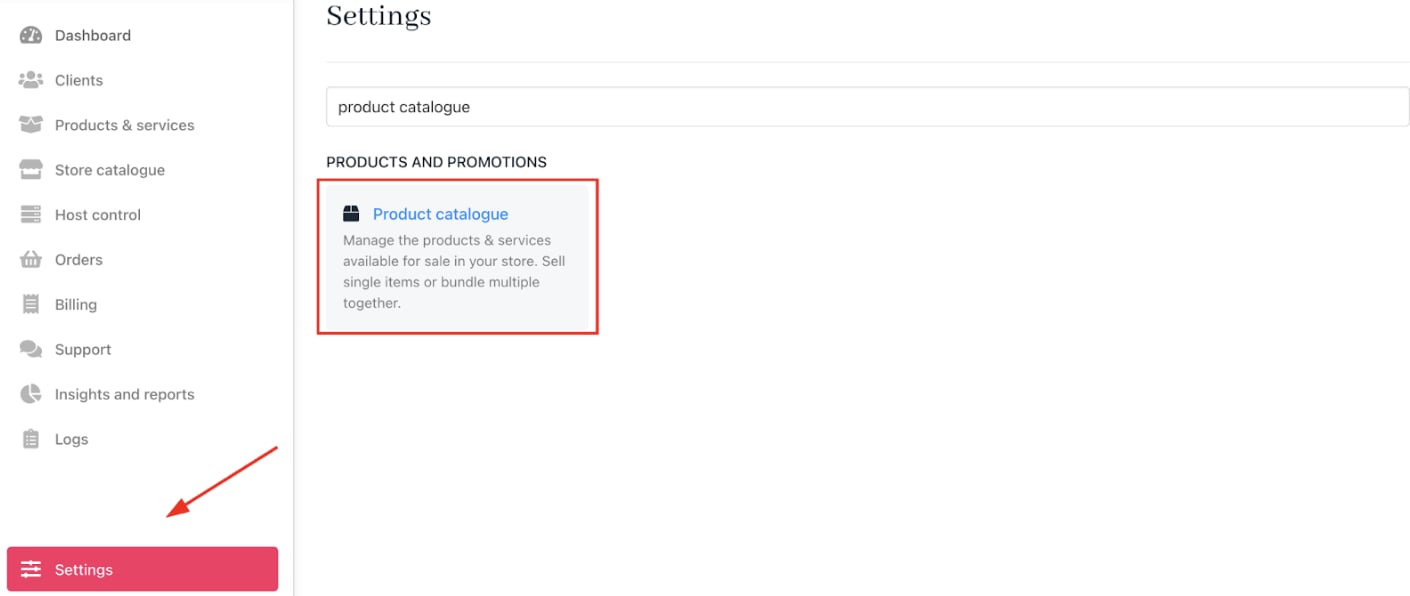
<Frame caption="Settings > Products and Promotions > Product Catalogue">
  <img src="https://mintcdn.com/upmind/A-RwNPXmK_xnEEqe/images/fb/78c8cd67c0a6a453.png?fit=max&auto=format&n=A-RwNPXmK_xnEEqe&q=85&s=60c9a64b8b4bc6e3ce350933842cd46b" alt="Settings > Products and Promotions > Product Catalogue" data-og-width="1410" width="1410" data-og-height="596" height="596" data-path="images/fb/78c8cd67c0a6a453.png" data-optimize="true" data-opv="3" srcset="https://mintcdn.com/upmind/A-RwNPXmK_xnEEqe/images/fb/78c8cd67c0a6a453.png?w=280&fit=max&auto=format&n=A-RwNPXmK_xnEEqe&q=85&s=15054256f1ec3b6576b9513d5b665cdb 280w, https://mintcdn.com/upmind/A-RwNPXmK_xnEEqe/images/fb/78c8cd67c0a6a453.png?w=560&fit=max&auto=format&n=A-RwNPXmK_xnEEqe&q=85&s=62ce5375106babb2e0b687563ce753ea 560w, https://mintcdn.com/upmind/A-RwNPXmK_xnEEqe/images/fb/78c8cd67c0a6a453.png?w=840&fit=max&auto=format&n=A-RwNPXmK_xnEEqe&q=85&s=e5b510d11ade454838ec7c8755eb8323 840w, https://mintcdn.com/upmind/A-RwNPXmK_xnEEqe/images/fb/78c8cd67c0a6a453.png?w=1100&fit=max&auto=format&n=A-RwNPXmK_xnEEqe&q=85&s=57082fed9615c7a60e43c496c4cdd299 1100w, https://mintcdn.com/upmind/A-RwNPXmK_xnEEqe/images/fb/78c8cd67c0a6a453.png?w=1650&fit=max&auto=format&n=A-RwNPXmK_xnEEqe&q=85&s=2029f81daefeacf0461342813f7757c4 1650w, https://mintcdn.com/upmind/A-RwNPXmK_xnEEqe/images/fb/78c8cd67c0a6a453.png?w=2500&fit=max&auto=format&n=A-RwNPXmK_xnEEqe&q=85&s=cbc9e3871828f509bd73abf32197fad8 2500w" />
</Frame>

4. Click the **Product Options** tab.
5. Click **Add New** and select `Product options category`.
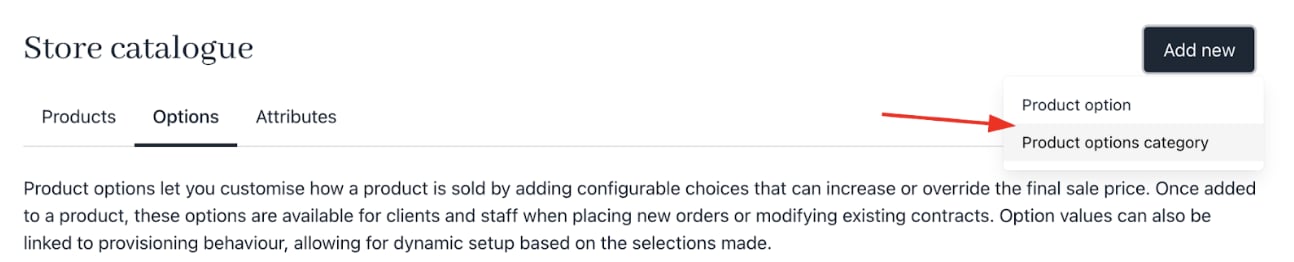
<Frame caption="Add a new product option category">
  <img src="https://mintcdn.com/upmind/ZsIo0APxdVb_gFS-/images/fb/265d2770bed7428c.png?fit=max&auto=format&n=ZsIo0APxdVb_gFS-&q=85&s=491b1938ea05986ce5340f2ce638eafd" alt="Add a new product option category" width="1294" height="262" data-path="images/fb/265d2770bed7428c.png" />
</Frame>

6. Enter a category name. The description is optional.
7. Make sure the *Is required?* checkbox is ticked to enforce selection.
8. Click **Create** to add the option category.
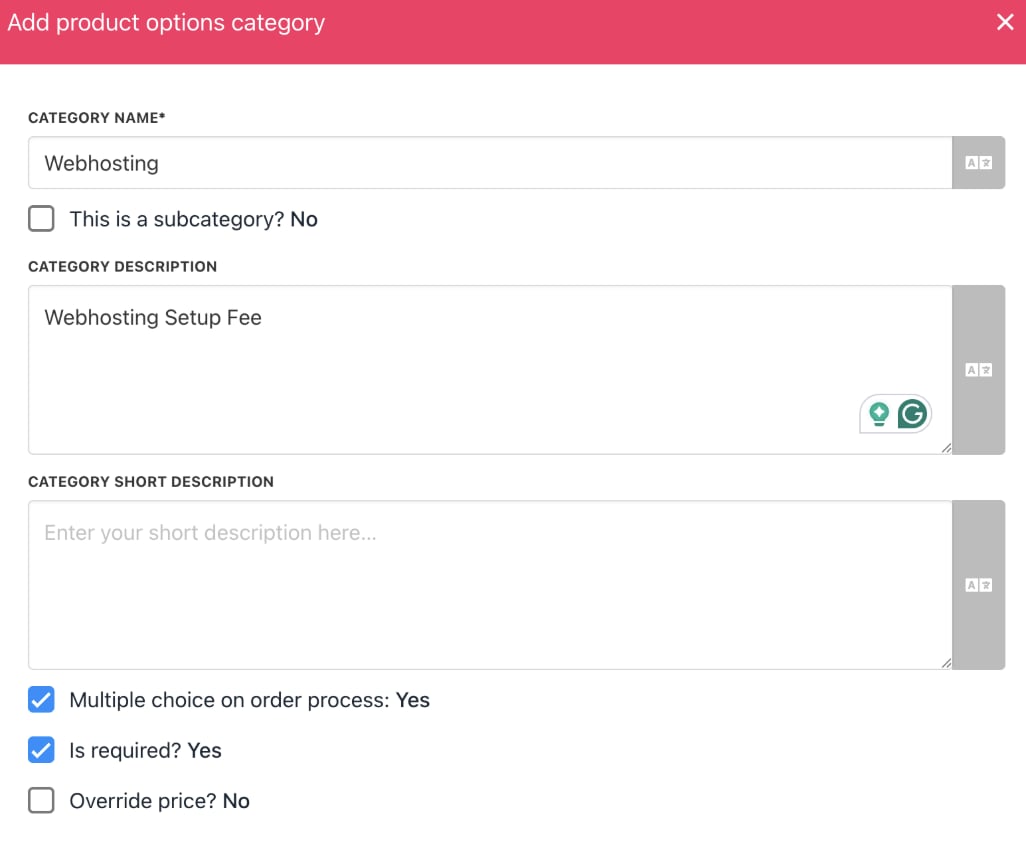
<Frame caption="Add a subcategory of product option">
  <img src="https://mintcdn.com/upmind/6knUVC8F1nK4E5CY/images/fb/c76329b852361d92.png?fit=max&auto=format&n=6knUVC8F1nK4E5CY&q=85&s=6ef23112214914628e76a0ae427510be" alt="Add a subcategory of product option" width="1026" height="858" data-path="images/fb/c76329b852361d92.png" />
</Frame>

To organise further, you may add a subcategory using the same steps.

## Add the setup fee option

1. In the `Product Options` section, click the three-dot menu next to your new category.

<Frame caption="Add product option">
  <img src="https://mintcdn.com/upmind/A-RwNPXmK_xnEEqe/images/fb/70858f90ef76bcb8.png?fit=max&auto=format&n=A-RwNPXmK_xnEEqe&q=85&s=bf9ac3daee8a8c9b427decc8508ccce4" alt="Add product option" width="1336" height="256" data-path="images/fb/70858f90ef76bcb8.png" />
</Frame>

2. Select **Add product option**.
3. Enter the name and set the desired price.
4. Click **Create**.
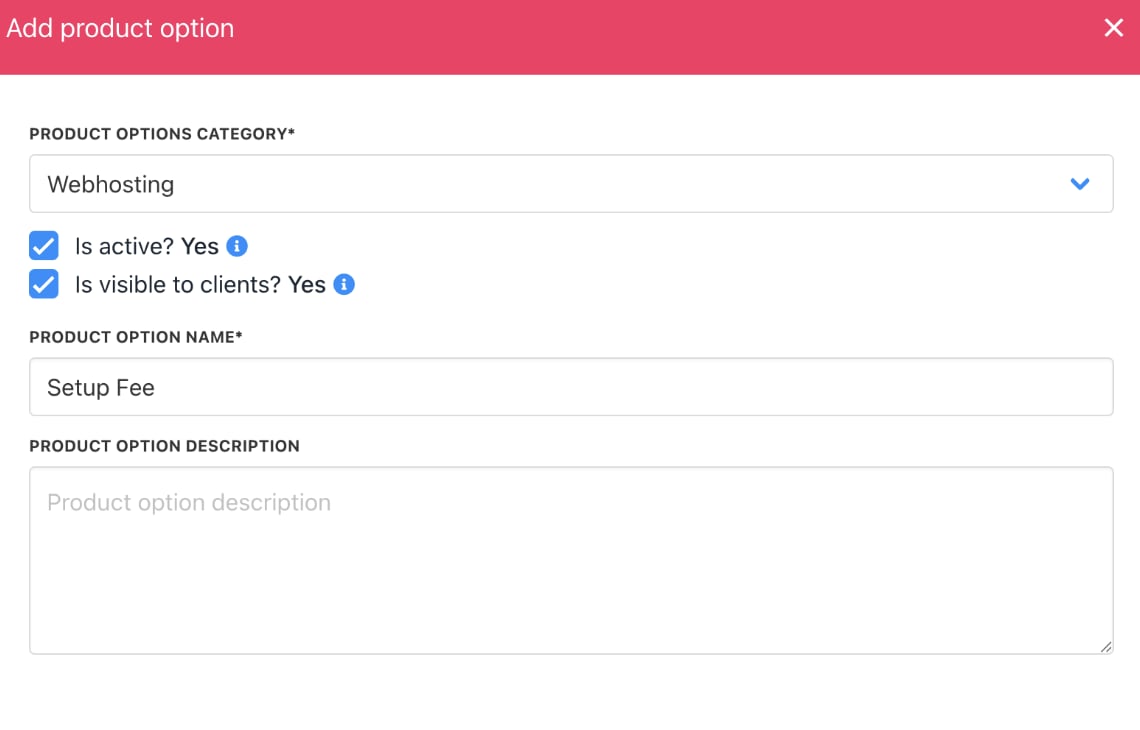
<Frame caption="Add product option">
  <img src="https://mintcdn.com/upmind/1xguIfYUrfespmVI/images/fb/7ca8e3d04d4dfa59.png?fit=max&auto=format&n=1xguIfYUrfespmVI&q=85&s=8b473dd31b5c3e4af412c2bb6ba6de79" alt="Add product option" width="1140" height="730" data-path="images/fb/7ca8e3d04d4dfa59.png" />
</Frame>

## Assign the setup fee to products

1. Go to `Store Catalogue`.
2. Select the product or service to which you want to add the setup fee.
3. Click the three-dot menu on the product and choose **Edit**.
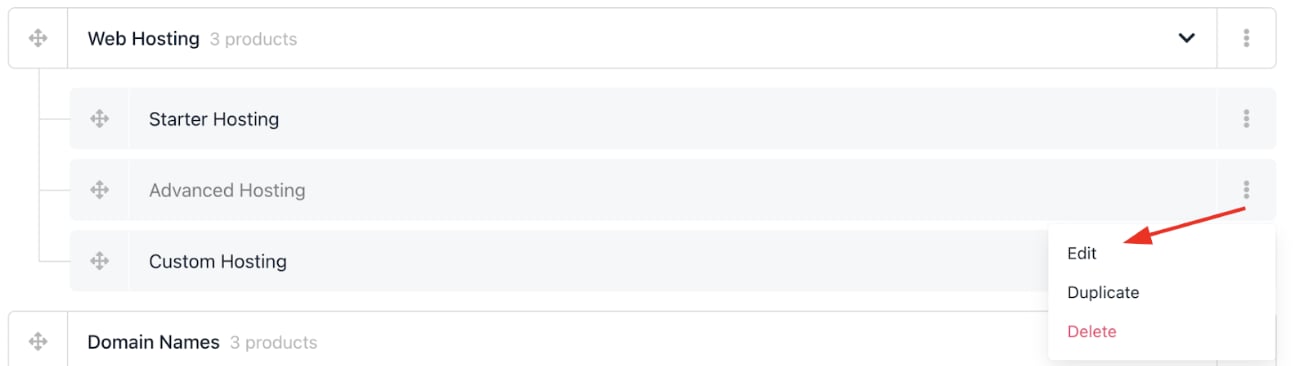
<Frame caption="Edit product">
  <img src="https://mintcdn.com/upmind/kXD0Ya8PpcxxNm6Q/images/fb/41c539a3fc028d3c.png?fit=max&auto=format&n=kXD0Ya8PpcxxNm6Q&q=85&s=50d679815f49a8d15d7f985267d6991d" alt="Edit product" width="1300" height="366" data-path="images/fb/41c539a3fc028d3c.png" />
</Frame>

4. In the product menu, go to the `Product Options` section and click **Manage**.
5. Choose the setup fee option you just created and apply it to the product.
6. **Save** your changes.
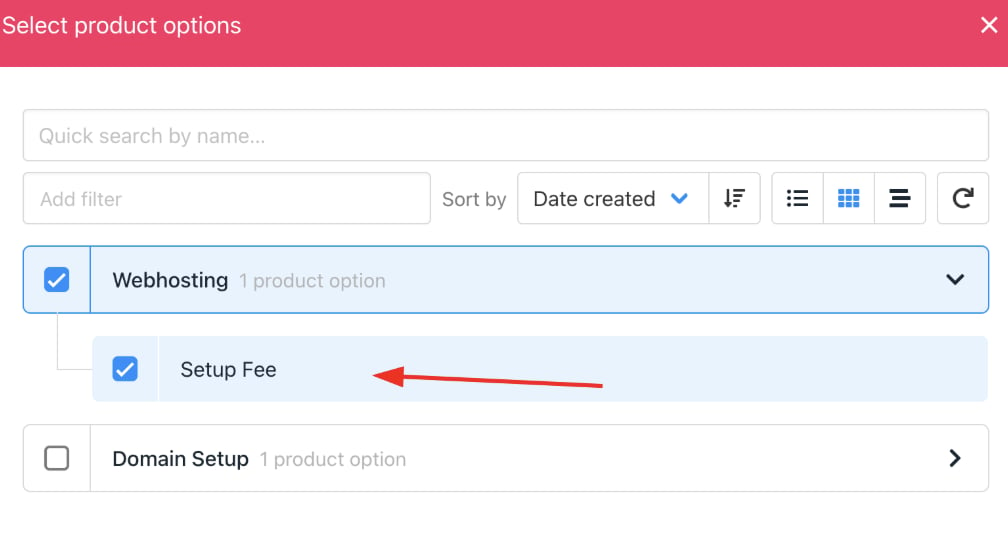
<Frame caption="Select the product option > setup fee">
  <img src="https://mintcdn.com/upmind/ZsIo0APxdVb_gFS-/images/fb/2d4ec59a47295b22.png?fit=max&auto=format&n=ZsIo0APxdVb_gFS-&q=85&s=e7fec8fd0567ab7f0f8f1ed3e0544d5d" alt="Select the product option > setup fee" data-og-width="1008" width="1008" data-og-height="542" height="542" data-path="images/fb/2d4ec59a47295b22.png" data-optimize="true" data-opv="3" srcset="https://mintcdn.com/upmind/ZsIo0APxdVb_gFS-/images/fb/2d4ec59a47295b22.png?w=280&fit=max&auto=format&n=ZsIo0APxdVb_gFS-&q=85&s=b14eb48d994f3ec8f42242d26ea5cc1a 280w, https://mintcdn.com/upmind/ZsIo0APxdVb_gFS-/images/fb/2d4ec59a47295b22.png?w=560&fit=max&auto=format&n=ZsIo0APxdVb_gFS-&q=85&s=2593125b1c9c30a9f5b8d251ec6a4acc 560w, https://mintcdn.com/upmind/ZsIo0APxdVb_gFS-/images/fb/2d4ec59a47295b22.png?w=840&fit=max&auto=format&n=ZsIo0APxdVb_gFS-&q=85&s=1ca17e2839b9d84698df87e6892d2a3f 840w, https://mintcdn.com/upmind/ZsIo0APxdVb_gFS-/images/fb/2d4ec59a47295b22.png?w=1100&fit=max&auto=format&n=ZsIo0APxdVb_gFS-&q=85&s=01d5cf4981f125a101c719467264add2 1100w, https://mintcdn.com/upmind/ZsIo0APxdVb_gFS-/images/fb/2d4ec59a47295b22.png?w=1650&fit=max&auto=format&n=ZsIo0APxdVb_gFS-&q=85&s=4bc98435f6727fc4776ebc514f423c3e 1650w, https://mintcdn.com/upmind/ZsIo0APxdVb_gFS-/images/fb/2d4ec59a47295b22.png?w=2500&fit=max&auto=format&n=ZsIo0APxdVb_gFS-&q=85&s=728ce1c1bae9af3ee667291b8277b811 2500w" />
</Frame>

Customers will see the setup fee in the order summary in their client area.
