> ## Documentation Index
> Fetch the complete documentation index at: https://docs.upmind.com/llms.txt
> Use this file to discover all available pages before exploring further.
# How to Add Recommendations
> Learn how to add recommendations on the way to check out. It enables you to cross-sell products or service without selling or marketing. Check Now!
Product recommendations engage customers by suggesting complementary items at checkout.
**Example**: Starter hosting package with a monthly subscription.
## Open the recommendations page
1. Log in to the Upmind dashboard.
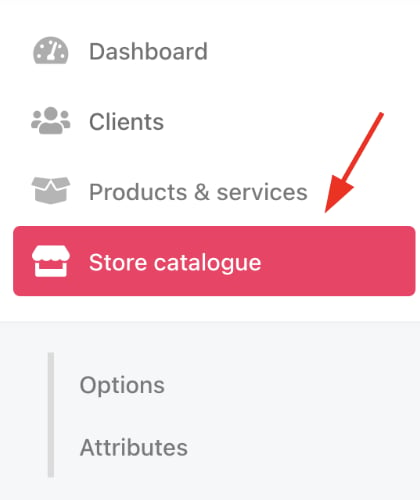
2. Access it from the dashboard by clicking on **Store Catalogue**.
 3. You can also click **Settings** and select the **Product Catalogue** tile under **Products and Promotions**.
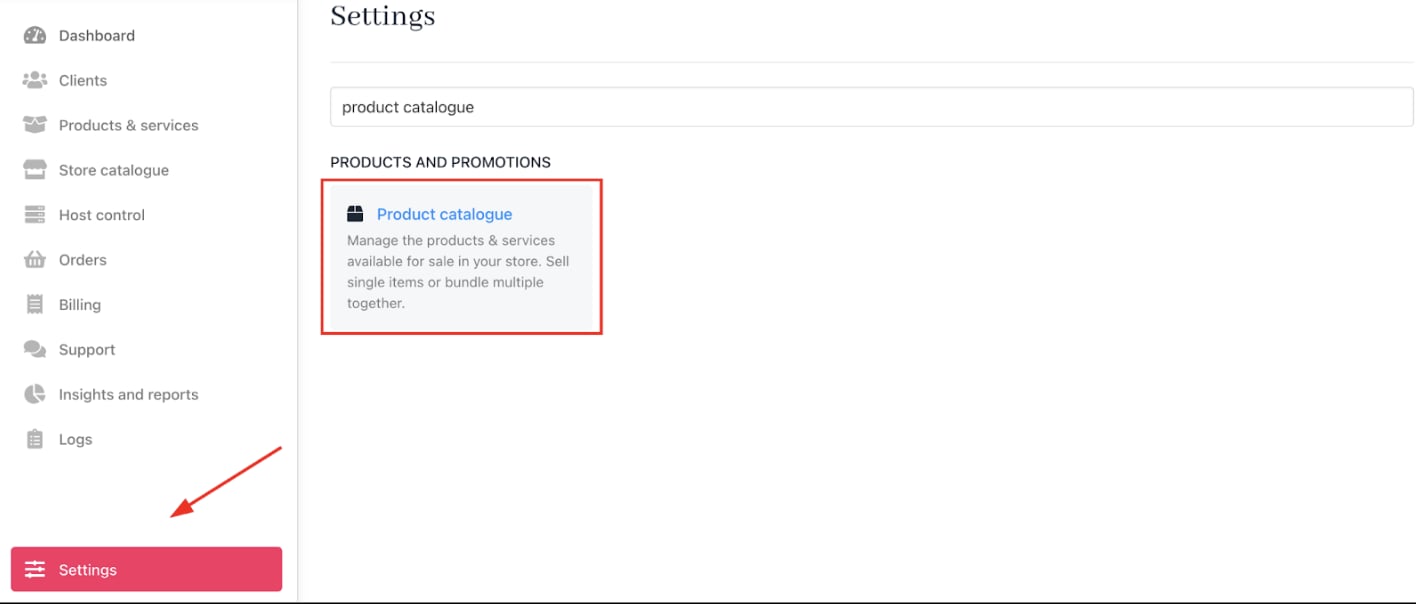 4. Select the product you want to add recommendations for.
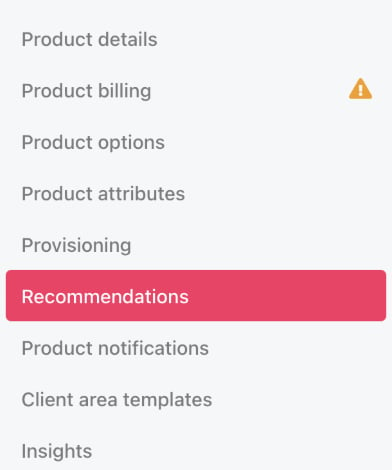
5. Click **Recommendations**.
4. Select the product you want to add recommendations for.
5. Click **Recommendations**.
 ## Create a recommendation
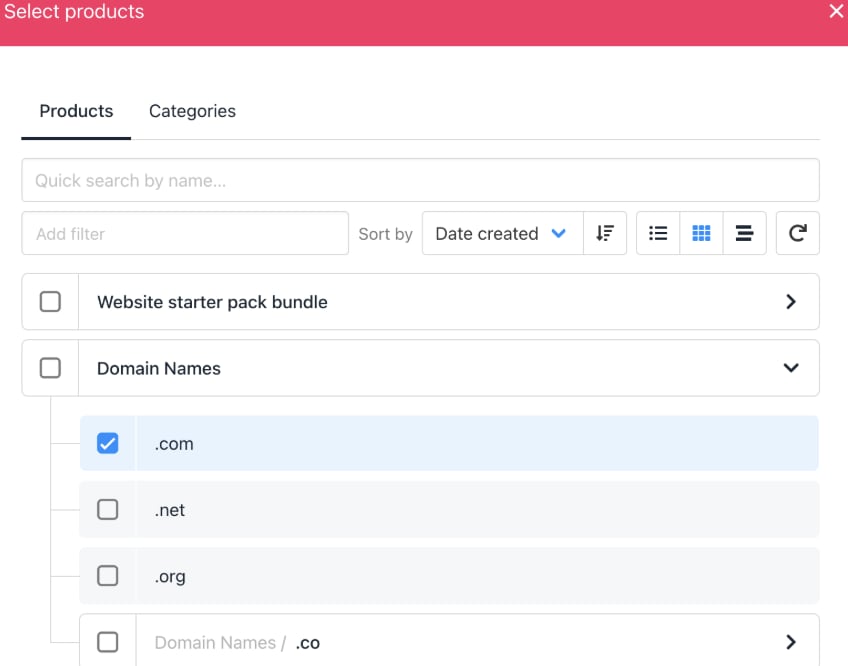
1. Click **Manage** on the `Recommendations` page.
2. Scroll through the product catalogue and select the items to recommend alongside the base product.
3. Click **Save**.
## Create a recommendation
1. Click **Manage** on the `Recommendations` page.
2. Scroll through the product catalogue and select the items to recommend alongside the base product.
3. Click **Save**.
 ## Customise recommendation text (Optional)
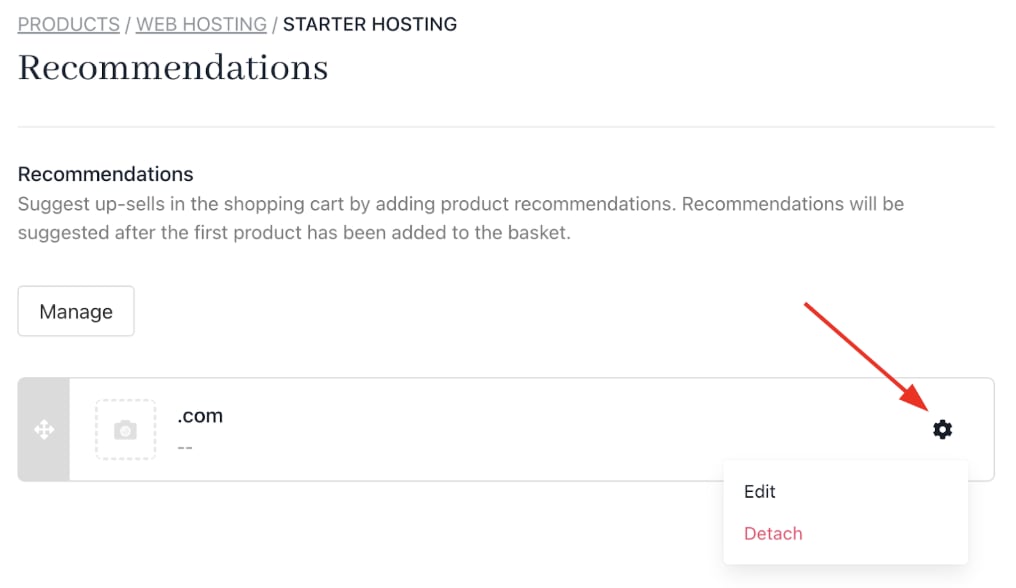
1. Click the **gear** icon to edit the description shown with the recommendation popup.
## Customise recommendation text (Optional)
1. Click the **gear** icon to edit the description shown with the recommendation popup.
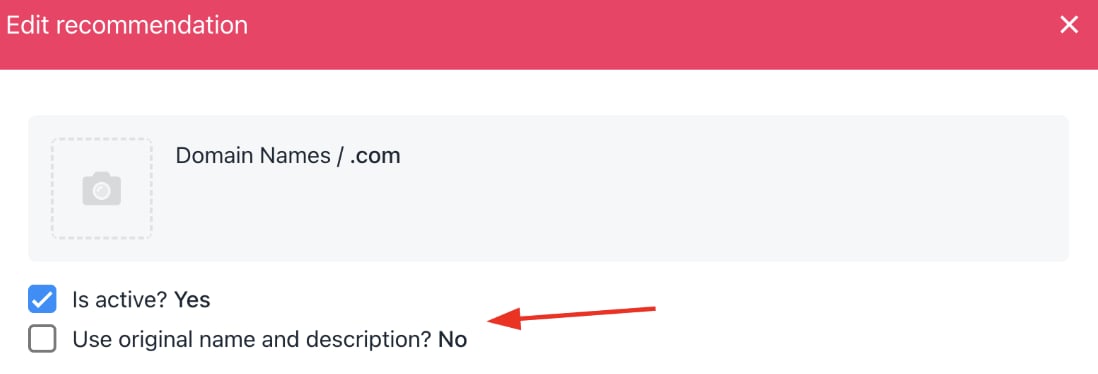
 2. To override the default product description, uncheck the box and enter custom text.
* The Is active box makes the product visible to customers and staff on the product/service order section.
2. To override the default product description, uncheck the box and enter custom text.
* The Is active box makes the product visible to customers and staff on the product/service order section.
 ## Edit the button label (Optional)
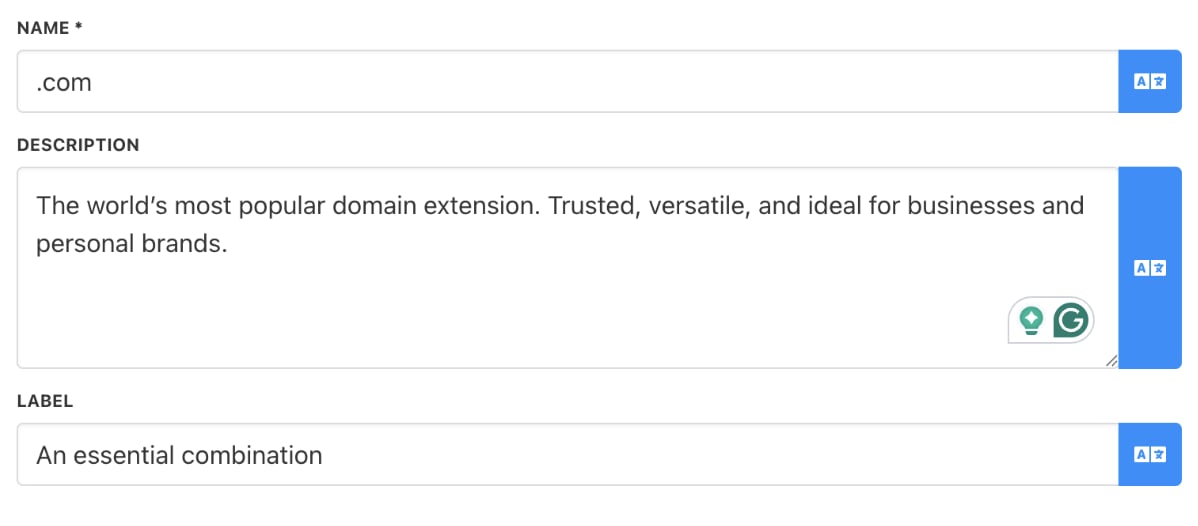
1. Click the `Label` field on the recommendation popup settings.
2. Enter custom text for the action button (default is `Add` to basket).
## Edit the button label (Optional)
1. Click the `Label` field on the recommendation popup settings.
2. Enter custom text for the action button (default is `Add` to basket).
 ## Customer experience
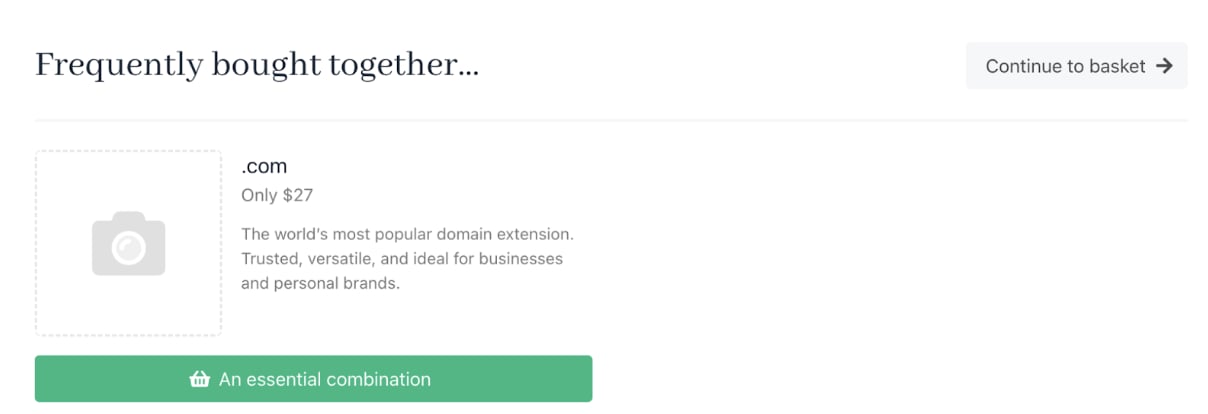
When purchasing the base product, customers see a pop-up recommending the selected products with an option to add them to their basket or proceed to checkout.
## Customer experience
When purchasing the base product, customers see a pop-up recommending the selected products with an option to add them to their basket or proceed to checkout.