> ## Documentation Index
> Fetch the complete documentation index at: https://docs.upmind.com/llms.txt
> Use this file to discover all available pages before exploring further.
# How to Add Product Options
> Learn how to add product options with different sizes and prices to your e-commerce store. Give e-commerce shoppers multiple product options easily. Check Now!
Product options represent choices that typically affect the product’s price, such as size, quality level, or support tier.
**Adding product options is a three-step process:**
* Create a list of choices on the `Product Options` page.
* Link those choices on the `Product Details` page.
* Enter unique billing info, including price, for each option.
## Access product options
1. Log in to the Upmind dashboard.
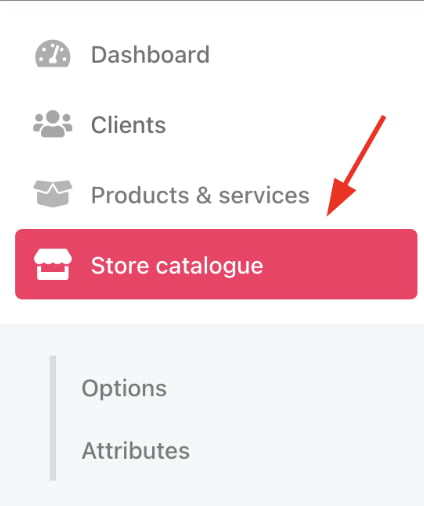
2. Access it from the dashboard by clicking on **Store Catalogue**.
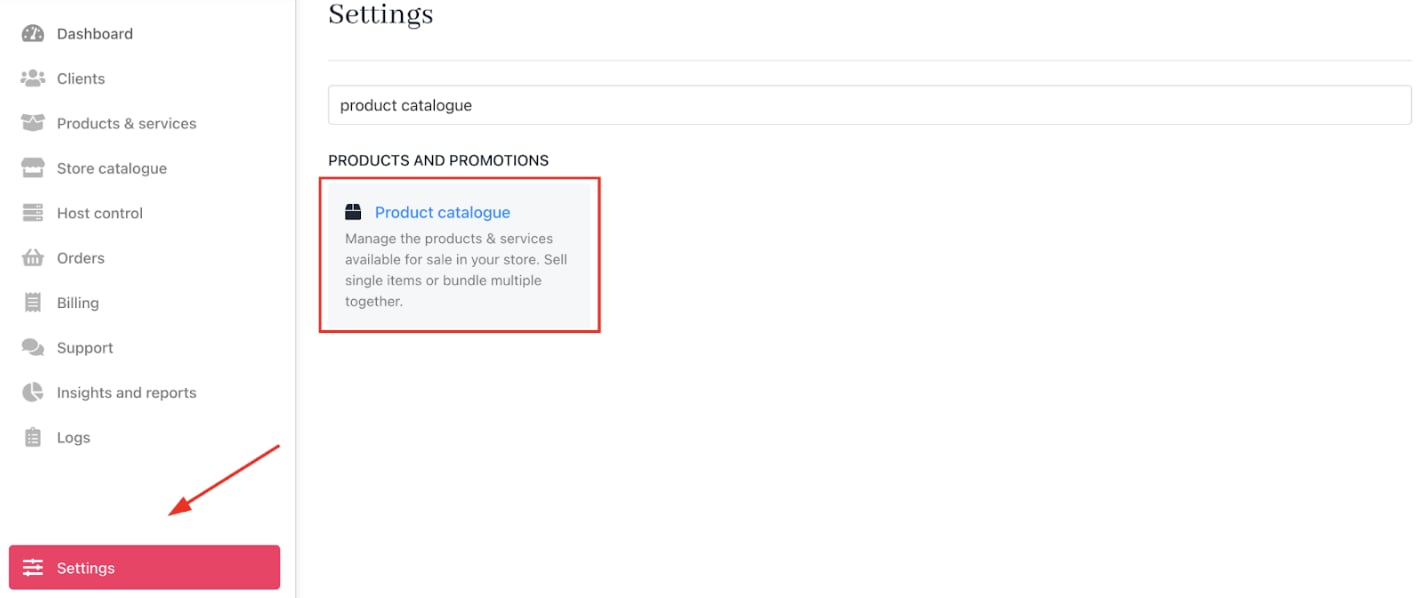
 3. You can also click **Settings** and select the **Product Catalogue** tile under **Products and Promotions**.
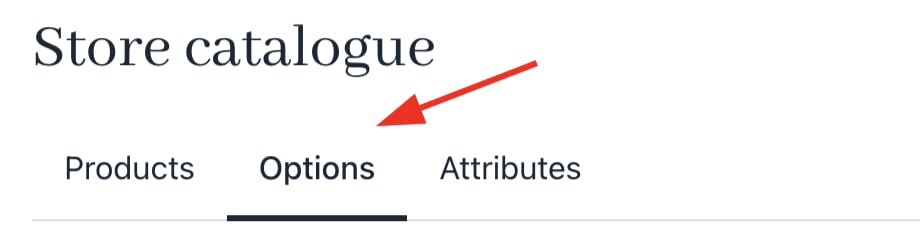
 4. Open the `Product options` tab.
 ## Creating option categories
1. Create categories to group related options.
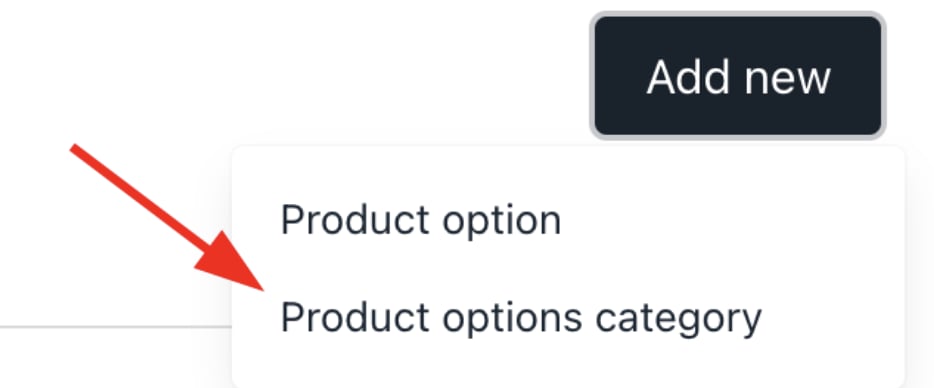
2. Click **Add New** > **Product options category**.
## Creating option categories
1. Create categories to group related options.
2. Click **Add New** > **Product options category**.
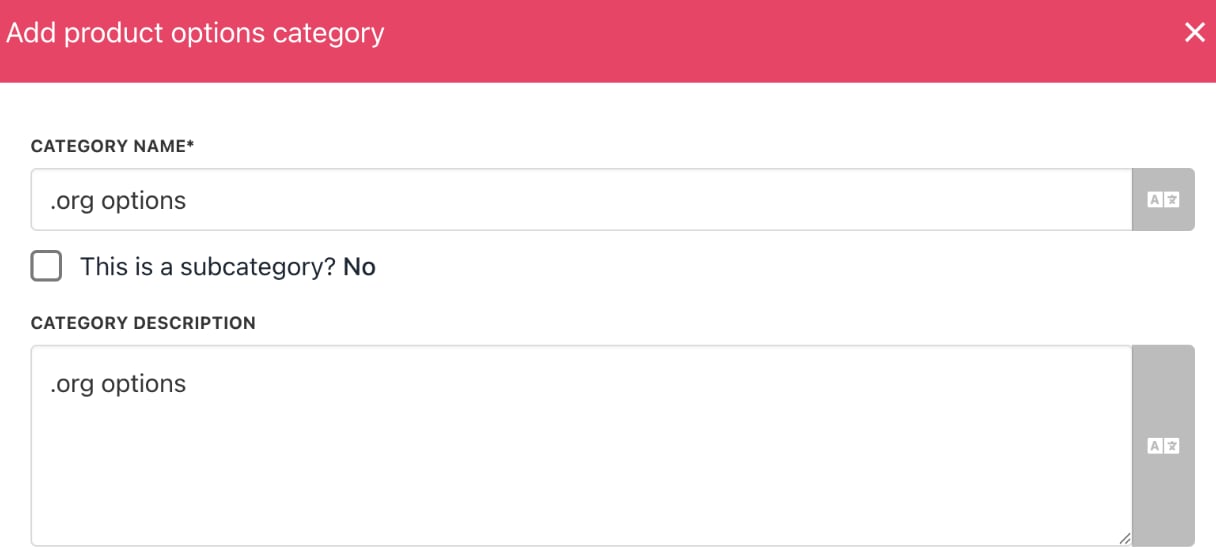
 3. Provide a unique category name.
4. Enable subcategories. (Optional)
5. Add internal descriptions (hidden from customers).
3. Provide a unique category name.
4. Enable subcategories. (Optional)
5. Add internal descriptions (hidden from customers).
 6. Choose whether to allow customers to select multiple options at once.
 7. Click **Create**.
## Adding product options
1. Select the options category.
2. Open the **three-dot menu** > **Add product option**.
7. Click **Create**.
## Adding product options
1. Select the options category.
2. Open the **three-dot menu** > **Add product option**.
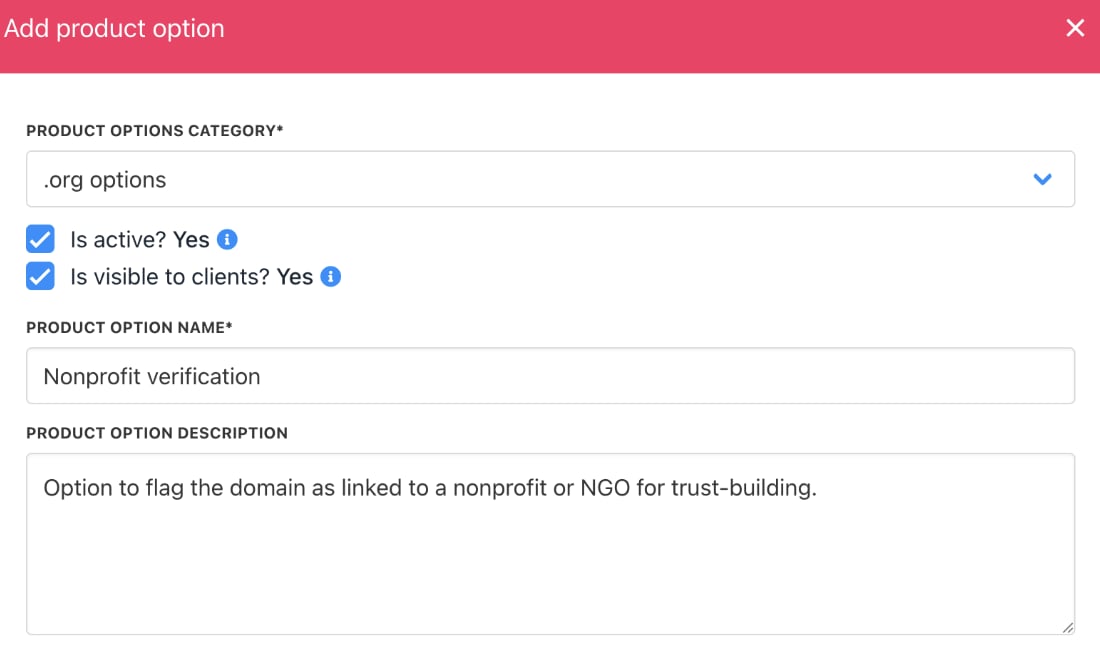
 3. Verify or change the category.
4. Check boxes to keep visibility checked for staff and customers.
5. Enter option name and description.
6. Click **Create**.
7. Repeat to add additional options.
3. Verify or change the category.
4. Check boxes to keep visibility checked for staff and customers.
5. Enter option name and description.
6. Click **Create**.
7. Repeat to add additional options.
 ## Editing options
1. Go to the `Product Options` tab and select a category.
2. View the options within that category.
3. Click the three-dot icon to edit or delete an option.
## Editing options
1. Go to the `Product Options` tab and select a category.
2. View the options within that category.
3. Click the three-dot icon to edit or delete an option.
 ## Limit order quantity for options
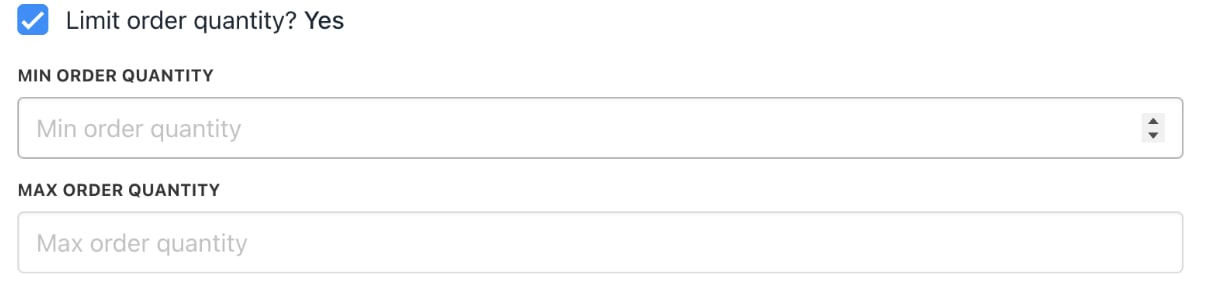
This setting controls the maximum quantity a client can buy per product option. By default, there’s no limit, but enabling it lets you set a purchase cap.
## Limit order quantity for options
This setting controls the maximum quantity a client can buy per product option. By default, there’s no limit, but enabling it lets you set a purchase cap.
 ## Setting bulk order permissions for product options
By default, customers cannot change order quantities for product options. To enable bulk orders:
1. Select **Yes** to allow quantity changes on the order page.
## Setting bulk order permissions for product options
By default, customers cannot change order quantities for product options. To enable bulk orders:
1. Select **Yes** to allow quantity changes on the order page.

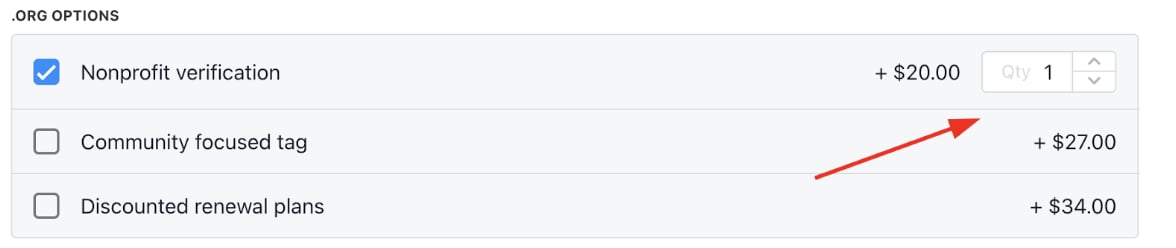 2. Select *Yes, in multiples of* and enter a number to set the minimum order quantity and increment steps. (Optional)
 On the order page, customers must order at least the minimum quantity, adjusting quantities up (▲) or down (▼) in the specified increments, using the arrows.
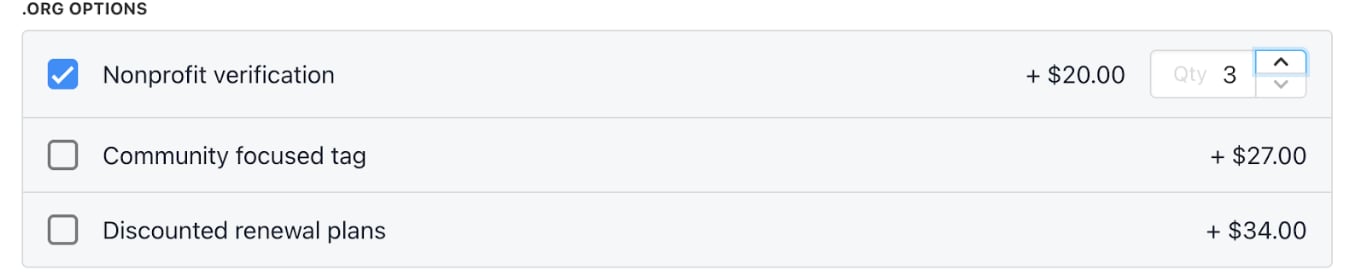 3. Click **Save** after making changes.
## Setting billing for options
1. Go to a product option and click the **three-dot menu** > **Edit**.
3. Click **Save** after making changes.
## Setting billing for options
1. Go to a product option and click the **three-dot menu** > **Edit**.
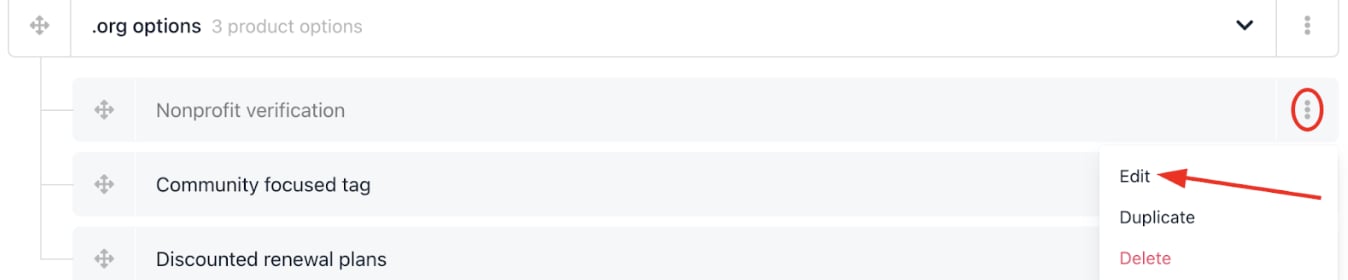 2. On the option detail page, select `Product option` billing.
3. Enter price, currency, and term.
4. **Save** changes.
2. On the option detail page, select `Product option` billing.
3. Enter price, currency, and term.
4. **Save** changes.
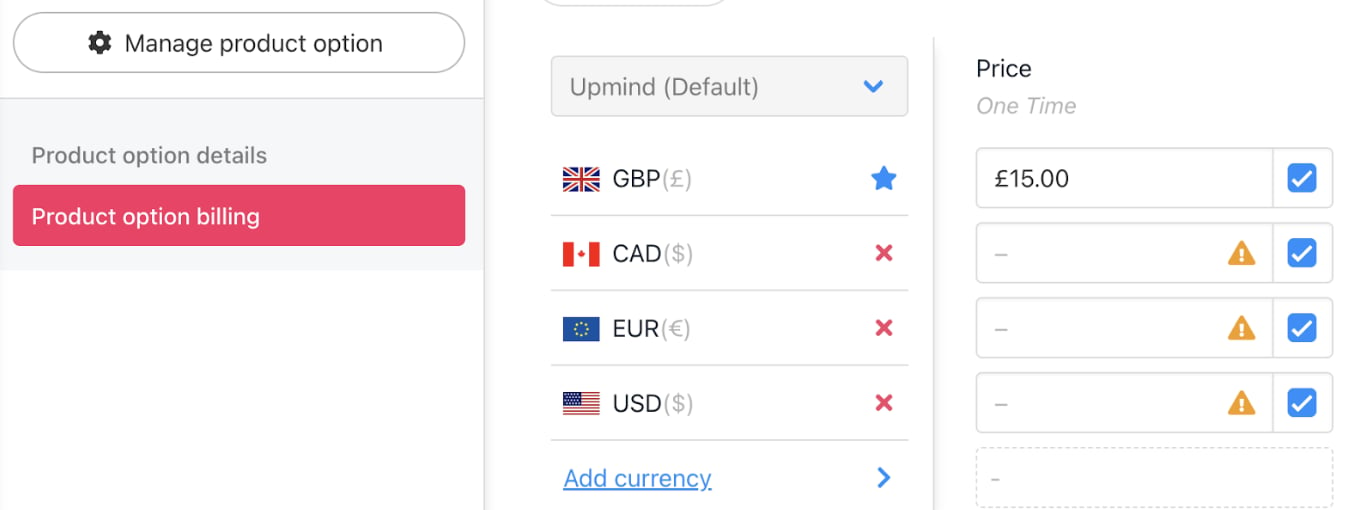 5. Repeat for other options.
## Linking options to products
You can link options to an existing product on the Product details page.
1. Navigate to `Products` tab.
2. Expand the category and select the product.
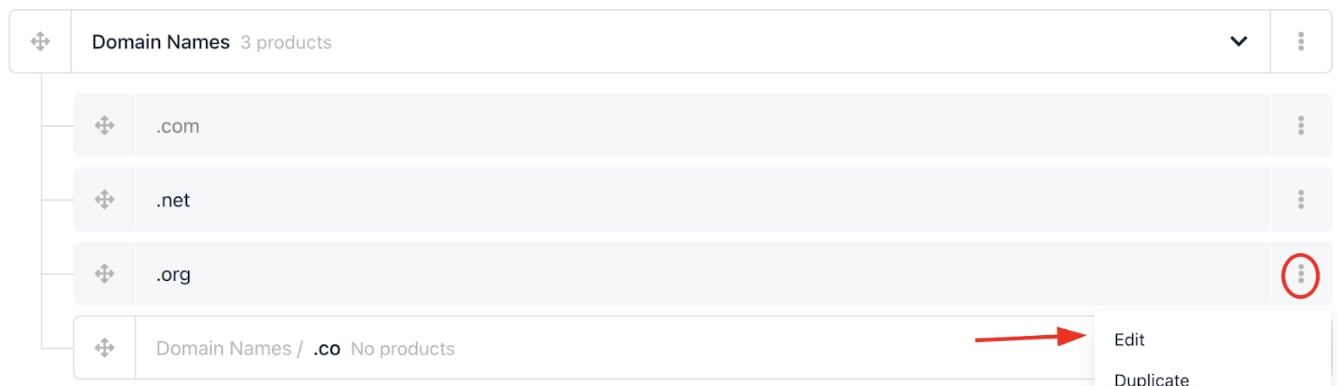
3. Click the **three-dot menu** > **Edit** to open product details.
5. Repeat for other options.
## Linking options to products
You can link options to an existing product on the Product details page.
1. Navigate to `Products` tab.
2. Expand the category and select the product.
3. Click the **three-dot menu** > **Edit** to open product details.
 ## Edit the current product price
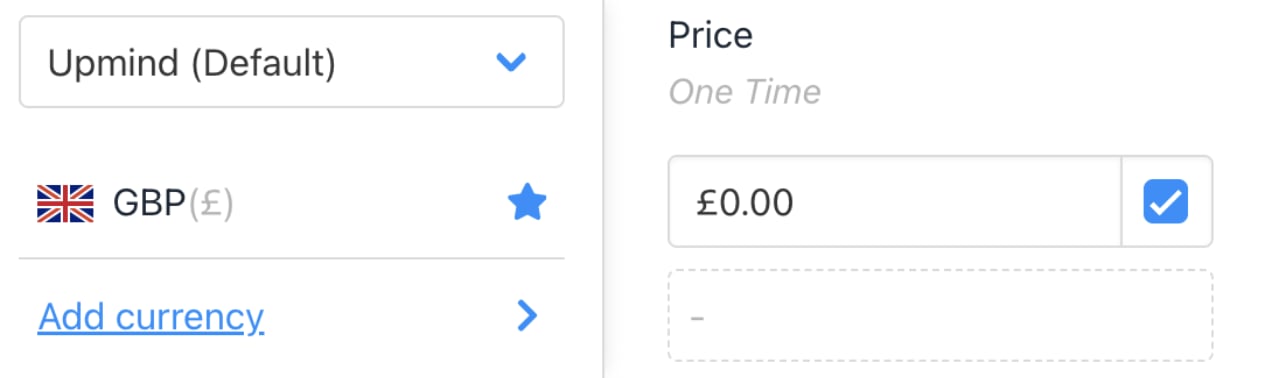
When adding options to a product, make sure its base price is set correctly. This prevents pricing errors in the client’s basket.
1. On the `Product Details` page, click **Product Billing**.
2. Check the price.
3. If it’s not zero, change it to zero and click Save.
4. Once the price is zero, proceed to the next step.
## Edit the current product price
When adding options to a product, make sure its base price is set correctly. This prevents pricing errors in the client’s basket.
1. On the `Product Details` page, click **Product Billing**.
2. Check the price.
3. If it’s not zero, change it to zero and click Save.
4. Once the price is zero, proceed to the next step.
 ## Add options
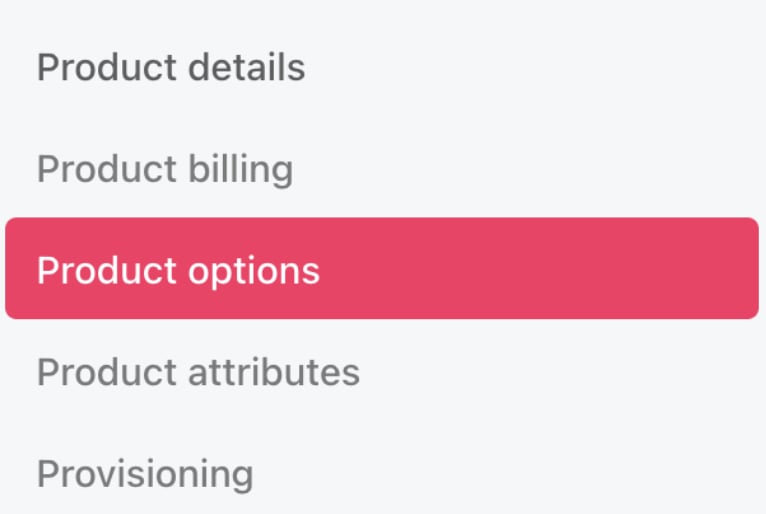
1. Click the `Product Options` menu link.
## Add options
1. Click the `Product Options` menu link.
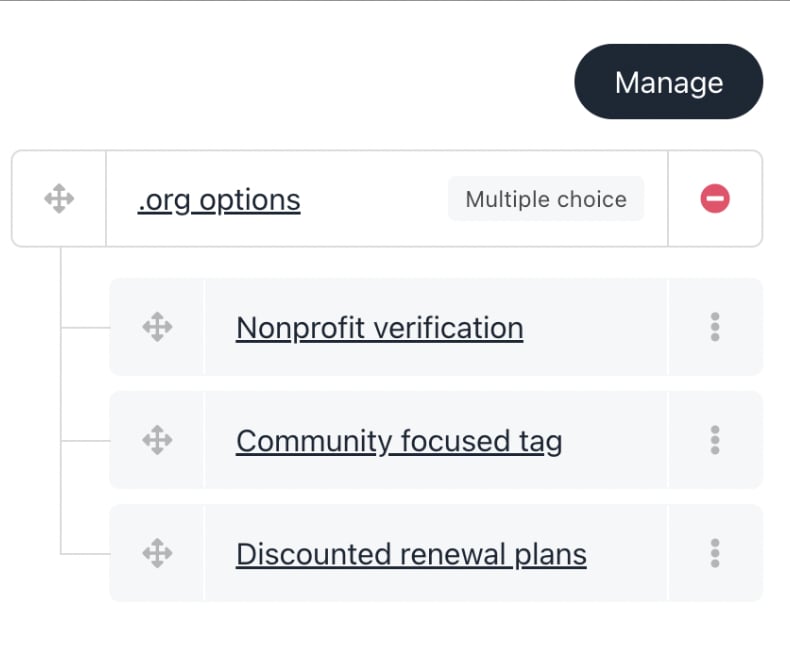
 2. Click **Manage**.
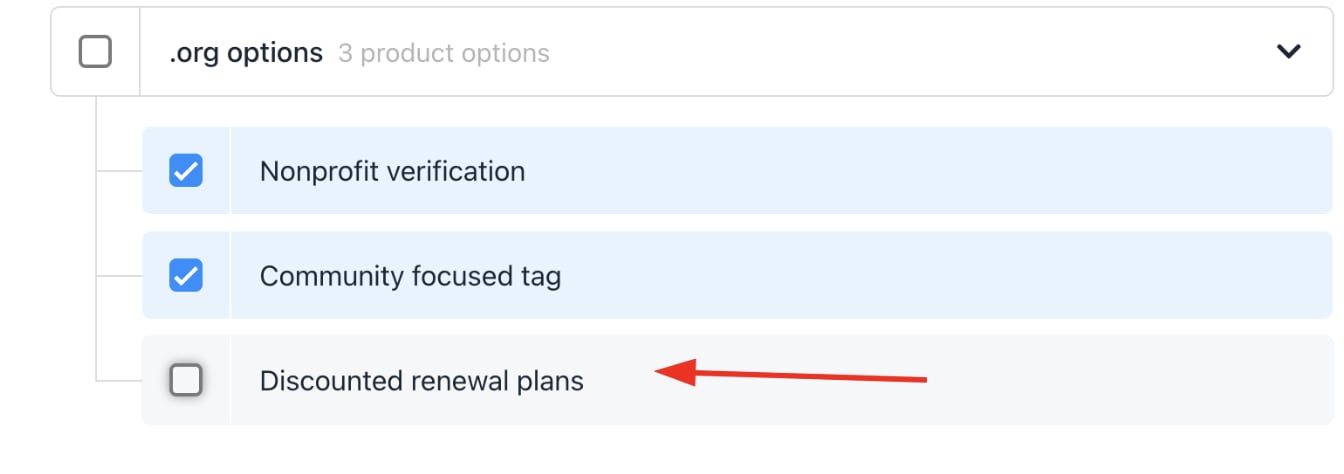
3. Select the category with the options you want to add.
4. Check the boxes next to the desired product options.
5. Click **Save** at the bottom.
2. Click **Manage**.
3. Select the category with the options you want to add.
4. Check the boxes next to the desired product options.
5. Click **Save** at the bottom.
 ### To edit or remove options
1. Click **Manage**.
2. Click the red circle to remove an option.
3. Click **Save**.
Upmind will then display the options on the product options page.
### To edit or remove options
1. Click **Manage**.
2. Click the red circle to remove an option.
3. Click **Save**.
Upmind will then display the options on the product options page.
 ## Customer view
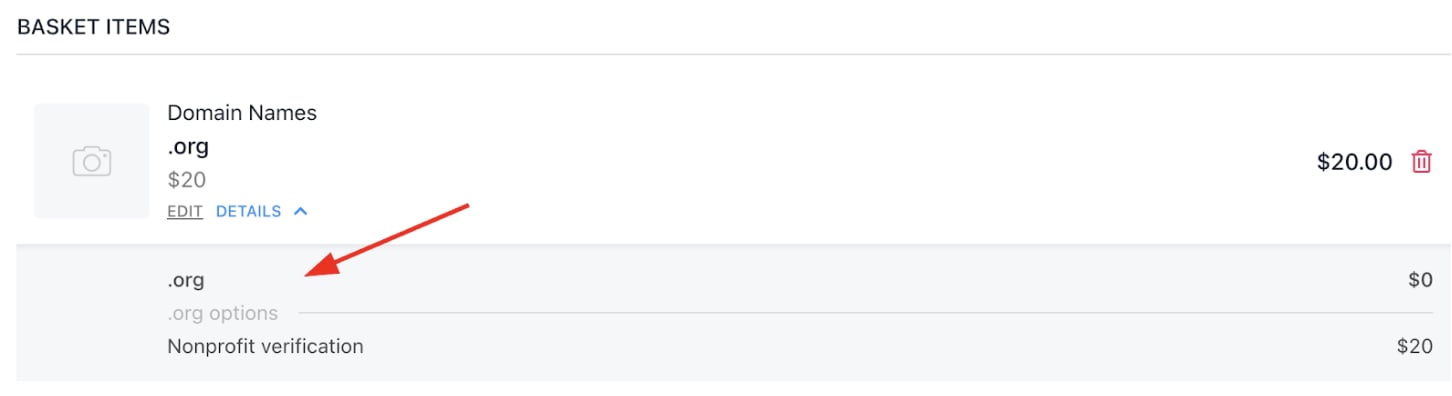
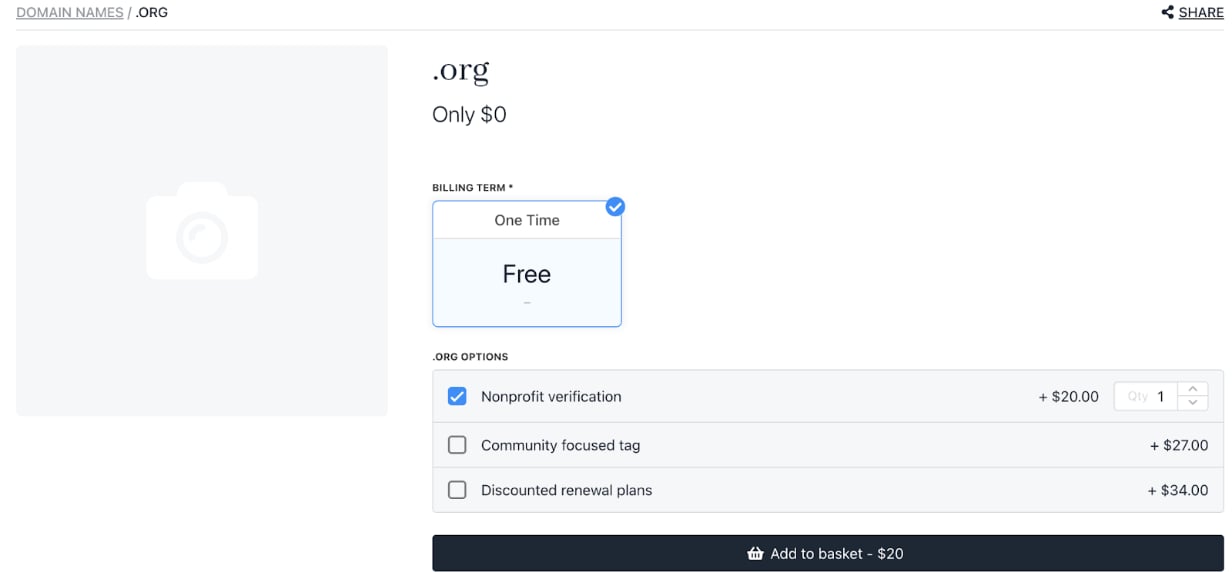
The customer page shows each product option with its price, plus the placeholder price (zero).
## Customer view
The customer page shows each product option with its price, plus the placeholder price (zero).
 On the `Basket` page, customers can:
* Click **Details** to view the chosen product option.
* Click **Edit** to change the product option.
On the `Basket` page, customers can:
* Click **Details** to view the chosen product option.
* Click **Edit** to change the product option.