> ## Documentation Index
> Fetch the complete documentation index at: https://docs.upmind.com/llms.txt
> Use this file to discover all available pages before exploring further.

# How to Add Product Billing

> Customise product prices and currencies. You can create recurring payments, decide which price displays on the customer page, and more.

Use the **Product Billing** page to define the price customers pay for each product or service.

<Note>
  If you operate internationally, you can add prices in [<u>multiple currencies</u>](/using-upmind/invoicing-and-taxes/about-multi-currency).
</Note>

Upmind supports two main pricing types:

* **One-off payment**: A single purchase with no recurring charge.

* **Recurring payment**: A subscription with automatic periodic billing (e.g. monthly subscription to a hosting plan).

## Open the product billing page

1. Log in to the Upmind dashboard.

2. Access it from the dashboard by clicking on **Store Catalogue**.
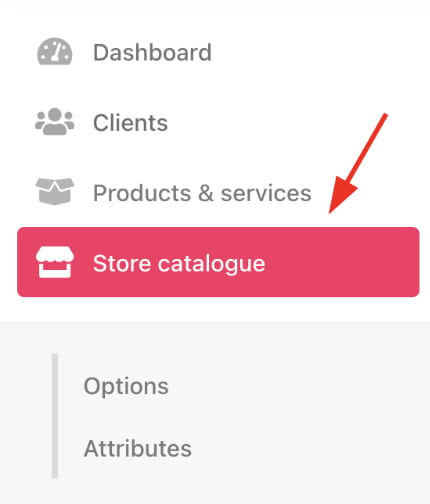
<Frame caption="Store catalogue">
  <img src="https://mintcdn.com/upmind/uxzVUXAKtJ2bRWCI/images/fb/6a4e818f63754682.png?fit=max&auto=format&n=uxzVUXAKtJ2bRWCI&q=85&s=f53c20a17c3bdf6a898c9b74892b5eba" alt="Store catalogue" width="430" height="504" data-path="images/fb/6a4e818f63754682.png" />
</Frame>

3. You can also click **Settings** and select the **Product Catalogue** tile under **Products and Promotions**.
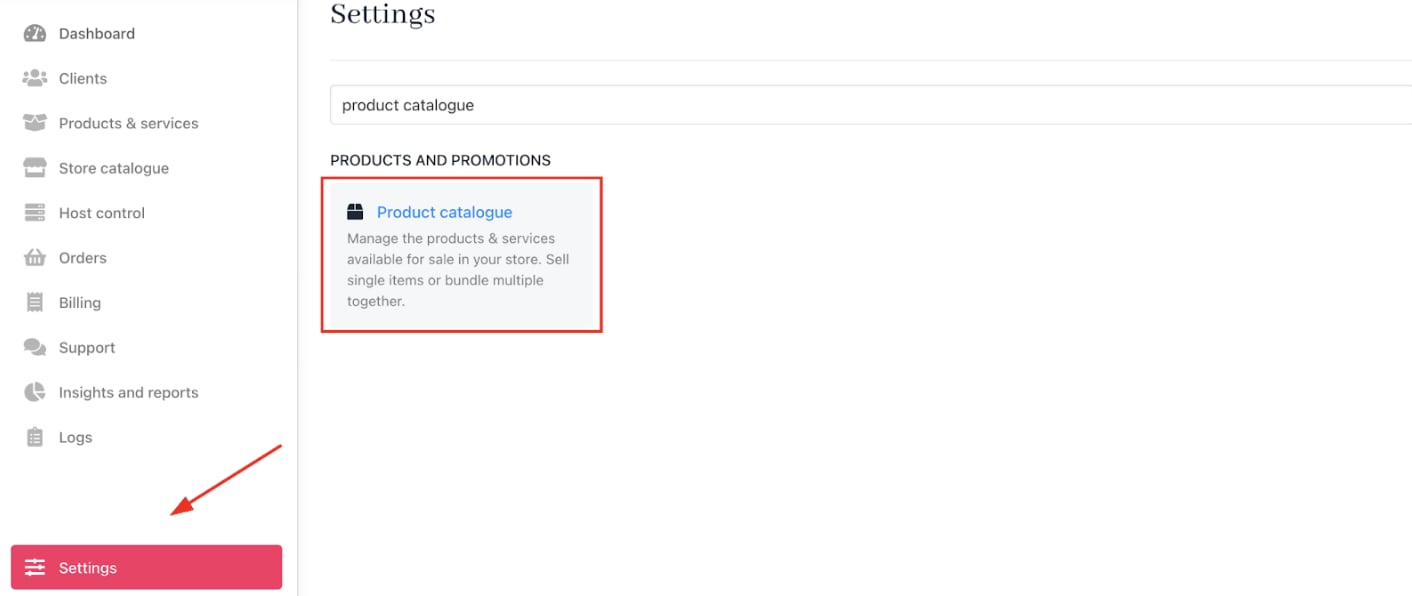
<Frame caption="Settings > Products and Promotions > Product Catalogue">
  <img src="https://mintcdn.com/upmind/JUoAg6onJmXk_-rR/images/fb/e48ed9ce6b1f7c6a.png?fit=max&auto=format&n=JUoAg6onJmXk_-rR&q=85&s=b8eb0f30db7347401cb115fd665f3637" alt="Settings > Products and Promotions > Product Catalogue" data-og-width="1412" width="1412" data-og-height="596" height="596" data-path="images/fb/e48ed9ce6b1f7c6a.png" data-optimize="true" data-opv="3" srcset="https://mintcdn.com/upmind/JUoAg6onJmXk_-rR/images/fb/e48ed9ce6b1f7c6a.png?w=280&fit=max&auto=format&n=JUoAg6onJmXk_-rR&q=85&s=90da953567b4efb9701ad8e38a20e455 280w, https://mintcdn.com/upmind/JUoAg6onJmXk_-rR/images/fb/e48ed9ce6b1f7c6a.png?w=560&fit=max&auto=format&n=JUoAg6onJmXk_-rR&q=85&s=092a78c95b2ba397ac5c9dc11590a9c7 560w, https://mintcdn.com/upmind/JUoAg6onJmXk_-rR/images/fb/e48ed9ce6b1f7c6a.png?w=840&fit=max&auto=format&n=JUoAg6onJmXk_-rR&q=85&s=3f44225ffb6a66d10b7d3d8bb26ee37f 840w, https://mintcdn.com/upmind/JUoAg6onJmXk_-rR/images/fb/e48ed9ce6b1f7c6a.png?w=1100&fit=max&auto=format&n=JUoAg6onJmXk_-rR&q=85&s=44ca84a4ecdb64f628233af581851dba 1100w, https://mintcdn.com/upmind/JUoAg6onJmXk_-rR/images/fb/e48ed9ce6b1f7c6a.png?w=1650&fit=max&auto=format&n=JUoAg6onJmXk_-rR&q=85&s=5e08d77bcfe7c226b343dff63a4d96cb 1650w, https://mintcdn.com/upmind/JUoAg6onJmXk_-rR/images/fb/e48ed9ce6b1f7c6a.png?w=2500&fit=max&auto=format&n=JUoAg6onJmXk_-rR&q=85&s=022580a5eefd46a119216b5ac0076025 2500w" />
</Frame>

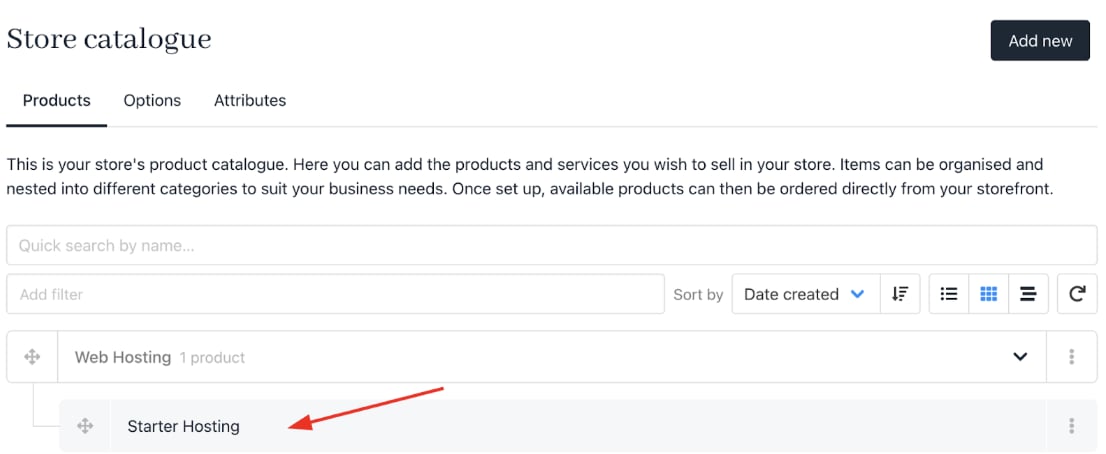
4. Open a category to find your product or service.

5. Click the product to open its `Product Details` page.
<Frame caption="Click product or service">
  <img src="https://mintcdn.com/upmind/uxzVUXAKtJ2bRWCI/images/fb/6ef077bbd06709ca.png?fit=max&auto=format&n=uxzVUXAKtJ2bRWCI&q=85&s=84fb557d1b4be581105a061250c0ff14" alt="Click product or service" width="1106" height="454" data-path="images/fb/6ef077bbd06709ca.png" />
</Frame>

<Frame caption="Product details page">
  <img src="https://mintcdn.com/upmind/ObllJJl59DabnmMn/images/fb/d25ca3fce23d02c2.png?fit=max&auto=format&n=ObllJJl59DabnmMn&q=85&s=13f438c7ce88cb4e0db2456500201e8f" alt="Product details page" width="1026" height="204" data-path="images/fb/d25ca3fce23d02c2.png" />
</Frame>

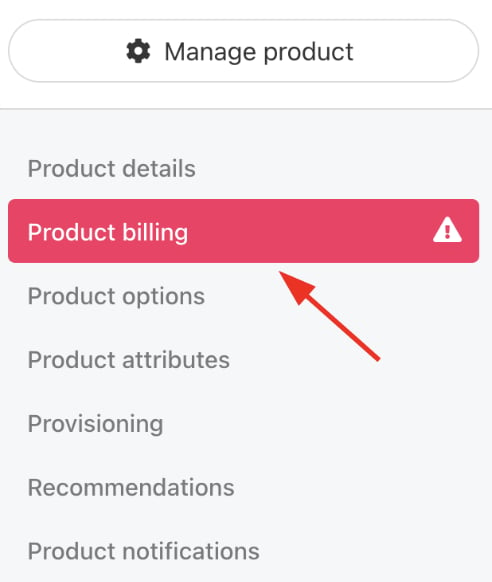
6. Select `Product billing` from the menu.
<Frame caption="Choose Product billing">
  <img src="https://mintcdn.com/upmind/pcUdSuxUJ6LgBXnd/images/fb/a7b1a2137a12971f.png?fit=max&auto=format&n=pcUdSuxUJ6LgBXnd&q=85&s=844dbca481a978ee5179008750f7342e" alt="Choose Product billing" width="492" height="582" data-path="images/fb/a7b1a2137a12971f.png" />
</Frame>

## Create a one-off payment price

1. Click the **One-off payment** tile.

<Frame caption="One-off payment tile">
  <img src="https://mintcdn.com/upmind/2ooSxDpt6PiIGMr-/images/fb/0028c5af787df022.png?fit=max&auto=format&n=2ooSxDpt6PiIGMr-&q=85&s=26483c1425cd155052a022014ea2ffaa" alt="One-off payment tile" width="1886" height="360" data-path="images/fb/0028c5af787df022.png" />
</Frame>

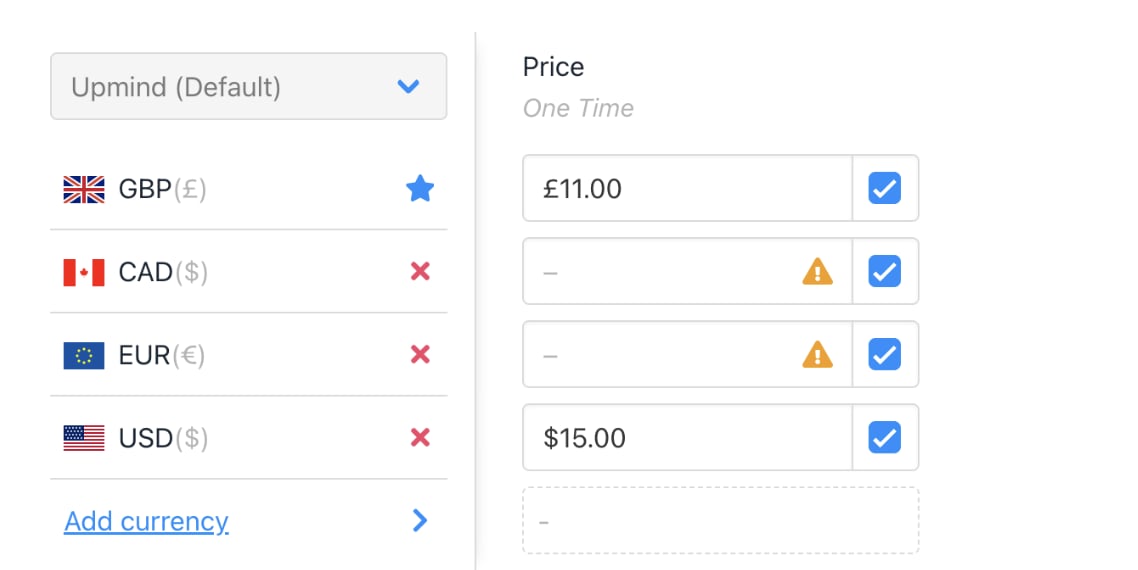
2. Enter the price for your default currency.

3. Add prices for additional currencies. (Optional)
<Frame caption="Add price for default currency">
  <img src="https://mintcdn.com/upmind/uxzVUXAKtJ2bRWCI/images/fb/6820a6916e2aa316.png?fit=max&auto=format&n=uxzVUXAKtJ2bRWCI&q=85&s=6cba660c23706284c81b30f76e6498b7" alt="Add price for default currency" width="1138" height="570" data-path="images/fb/6820a6916e2aa316.png" />
</Frame>

4. Click **Save**.

## Configure multi-currency option

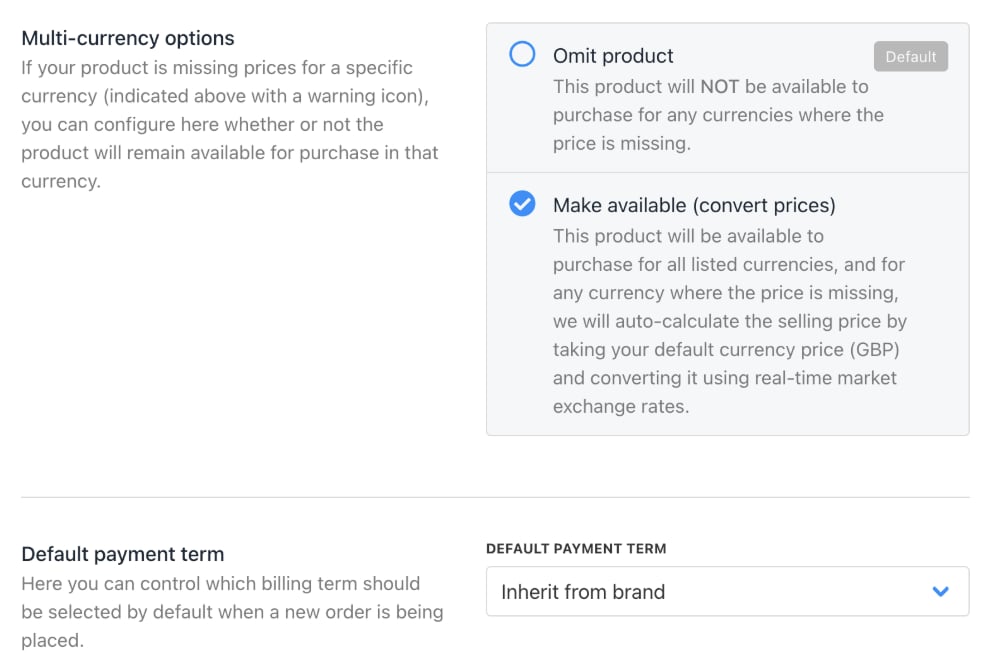
If a product doesn’t have a set price in a specific currency (for example, it’s only priced in your primary currency), you can control how Upmind handles it.

By default, it follows your brand’s settings, but you can override this per product by choosing one of three options.

* **Omit product**: Product unavailable in that currency.

* **Make available**: Automatically convert price using current exchange rates.

* **Inherit brand default**: Use your brand’s global multi-currency setting.
<Frame caption="Choose make available">
  <img src="https://mintcdn.com/upmind/6knUVC8F1nK4E5CY/images/fb/c072c8df4f51826c.png?fit=max&auto=format&n=6knUVC8F1nK4E5CY&q=85&s=50feb603aa9fb131787f0d96a351c472" alt="Choose make available" width="990" height="666" data-path="images/fb/c072c8df4f51826c.png" />
</Frame>

## Set up recurring payments

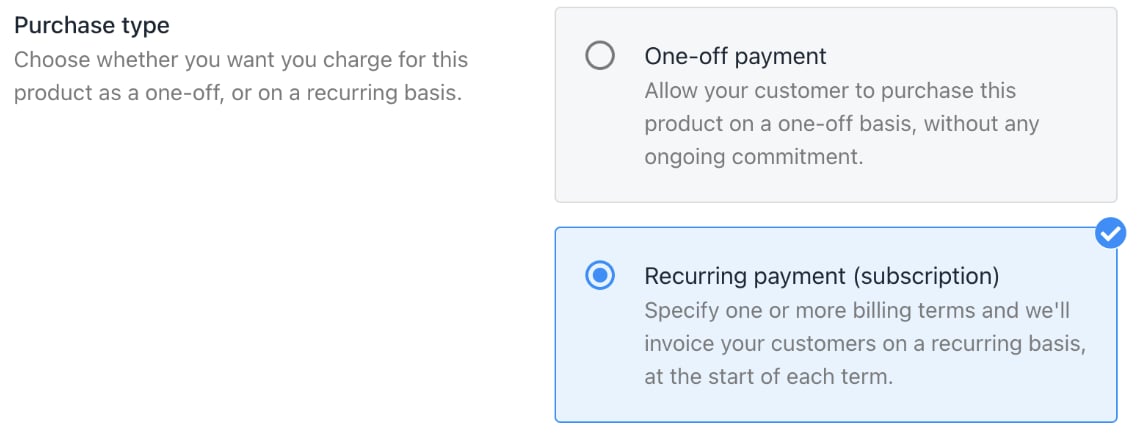
1. Click the **Recurring payment** tile.
<Frame caption="Recurring payment tile">
  <img src="https://mintcdn.com/upmind/wRuKrNY12tQZY8Rr/images/fb/37e68d2bbf694edb.png?fit=max&auto=format&n=wRuKrNY12tQZY8Rr&q=85&s=69bdcbb3b6ae89251e7cd12978b5dca9" alt="Recurring payment tile" width="1138" height="438" data-path="images/fb/37e68d2bbf694edb.png" />
</Frame>

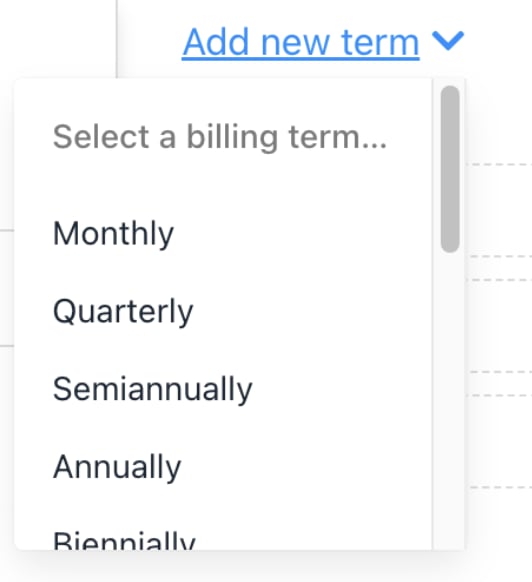
2. Scroll to the pricing section and click **Add new term**.

3. Choose a billing term from the dropdown menu (monthly, yearly, etc.)
<Frame caption="Select option on drop-down menu">
  <img src="https://mintcdn.com/upmind/FQ1NhxALxjSHvvWW/images/fb/b1805ca987081e71.png?fit=max&auto=format&n=FQ1NhxALxjSHvvWW&q=85&s=66af3962fc4ecb7bc93614aa40213049" alt="Select option on drop-down menu" width="532" height="582" data-path="images/fb/b1805ca987081e71.png" />
</Frame>

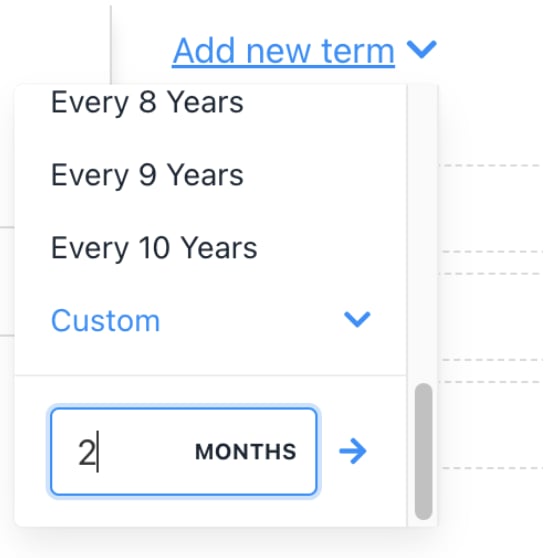
4. For custom plans, select **Custom** and enter the number of months.
<Frame caption="Enter number of months">
  <img src="https://mintcdn.com/upmind/1-uICsJi9zYpvJVH/images/fb/890c4b40a70c169c.png?fit=max&auto=format&n=1-uICsJi9zYpvJVH&q=85&s=78733d2d0d7ed54d6ff56011710499aa" alt="Enter number of months" width="544" height="558" data-path="images/fb/890c4b40a70c169c.png" />
</Frame>

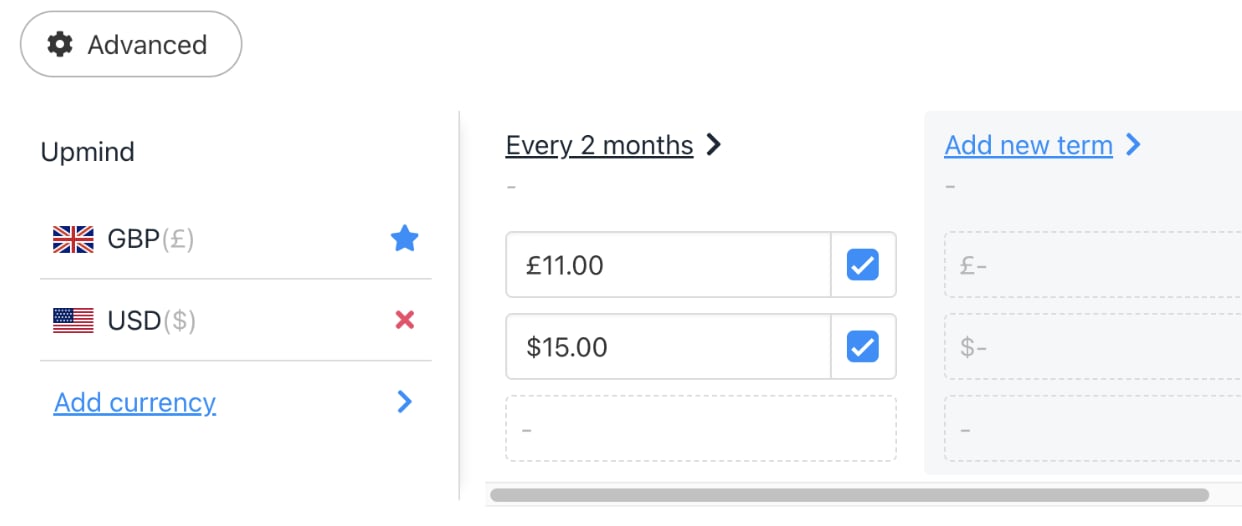
5. Add prices for each currency accordingly.

6. Add more terms if needed.
<Frame caption="Enter price for each currency">
  <img src="https://mintcdn.com/upmind/A-RwNPXmK_xnEEqe/images/fb/73533ada5e03c0eb.png?fit=max&auto=format&n=A-RwNPXmK_xnEEqe&q=85&s=6ebf63355e58449c5162a355fd3beefc" alt="Enter price for each currency" width="1242" height="526" data-path="images/fb/73533ada5e03c0eb.png" />
</Frame>

7. To delete a term, click Delete next to it.

8. Click **Save**.

## Select the default payment term

When multiple subscription options exist, you can set which term displays by default to customers.

At the bottom of the billing page, select the default.

<Frame caption="Select an option">
  <img src="https://mintcdn.com/upmind/2ooSxDpt6PiIGMr-/images/fb/0910825b5f53466b.png?fit=max&auto=format&n=2ooSxDpt6PiIGMr-&q=85&s=8d091efa22f18ac988e4fc37311cb843" alt="Select an option" width="1566" height="304" data-path="images/fb/0910825b5f53466b.png" />
</Frame>

**Lowest price**

<Frame caption="Lowest price option">
  <img src="https://mintcdn.com/upmind/uxzVUXAKtJ2bRWCI/images/fb/6a6b132cfe10c7ab.png?fit=max&auto=format&n=uxzVUXAKtJ2bRWCI&q=85&s=68bbe05d2a186b0040dd849f9251ef12" alt="Lowest price option" width="1342" height="456" data-path="images/fb/6a6b132cfe10c7ab.png" />
</Frame>

**Lowest monthly price** (**Example**: The annual one-time price averaged over 12 months often appears cheaper per month than a regular subscription.)
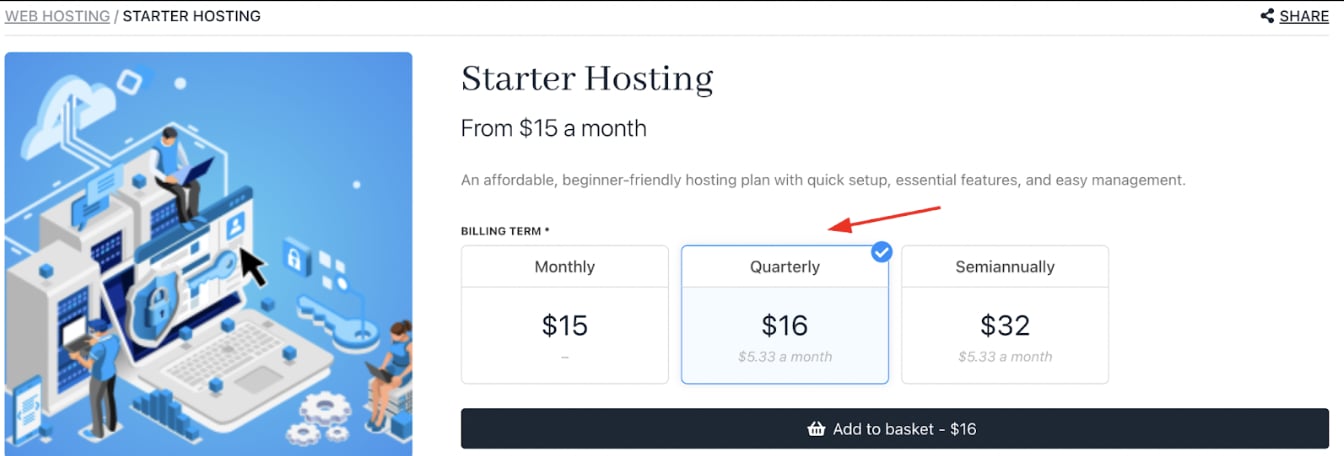
<Frame caption="Lowest monthly price">
  <img src="https://mintcdn.com/upmind/h8h5zREaX7k8Y-3x/images/fb/15ebe0238b35d580.png?fit=max&auto=format&n=h8h5zREaX7k8Y-3x&q=85&s=fd7878bd10524e4d746e17c04f429194" alt="Lowest monthly price" width="1344" height="456" data-path="images/fb/15ebe0238b35d580.png" />
</Frame>

**Highest price**

<Frame caption="Display highest price">
  <img src="https://mintcdn.com/upmind/pcUdSuxUJ6LgBXnd/images/fb/a74a15884580bc35.png?fit=max&auto=format&n=pcUdSuxUJ6LgBXnd&q=85&s=fa95ac7c72a769bbb6bb62bf2d159fda" alt="Display highest price" width="1346" height="456" data-path="images/fb/a74a15884580bc35.png" />
</Frame>