> ## Documentation Index
> Fetch the complete documentation index at: https://docs.upmind.com/llms.txt
> Use this file to discover all available pages before exploring further.
# How to Add Product Attributes
> Create product options in your e-commerce store with the product attributes feature. Check now how to add product attributes, options based on size, colour, material, and more.
Product attributes represent customisations that generally do not affect pricing, such as colour, size, or style.
Product attributes usually offer choices that don’t affect the price.
Adding product attributes requires two steps:
* Create a list of choices on the `Product Attributes` page.
* Link those choices on the `Product Details` page.
## Access the product catalogue
1. Log in to the Upmind dashboard.
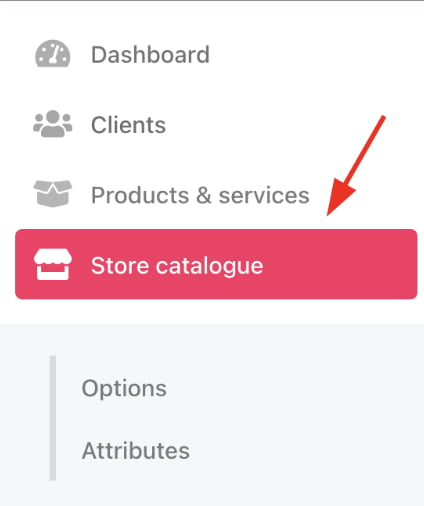
2. Access it from the dashboard by clicking on **Store Catalogue**.
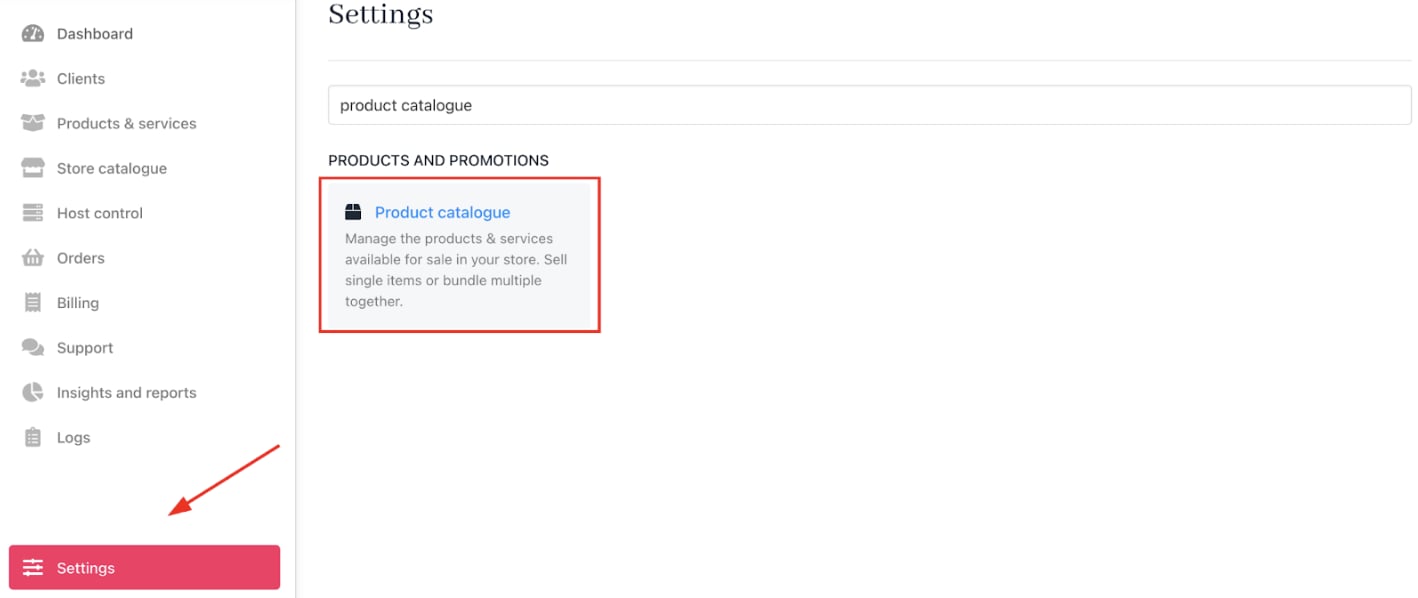
 3. You can also click **Settings** and select the **Product Catalogue** tile under **Products and Promotions**.
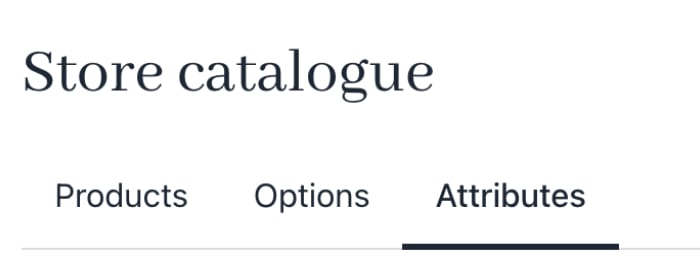
 4. Click the **attributes** tab.
 ## Creating attribute categories
A category is like a folder that groups related product attributes. If you plan to offer variations now or later, using multiple categories saves time.
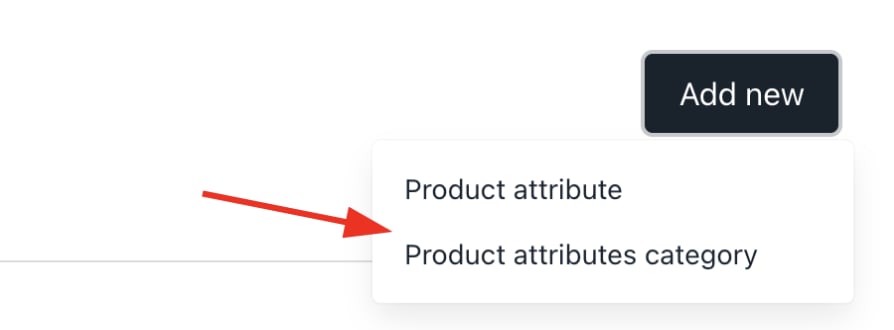
1. Click **Add New** > **Product attributes category**.
## Creating attribute categories
A category is like a folder that groups related product attributes. If you plan to offer variations now or later, using multiple categories saves time.
1. Click **Add New** > **Product attributes category**.
 2. Provide a unique name.
3. Add category description (not visible to customers).
2. Provide a unique name.
3. Add category description (not visible to customers).
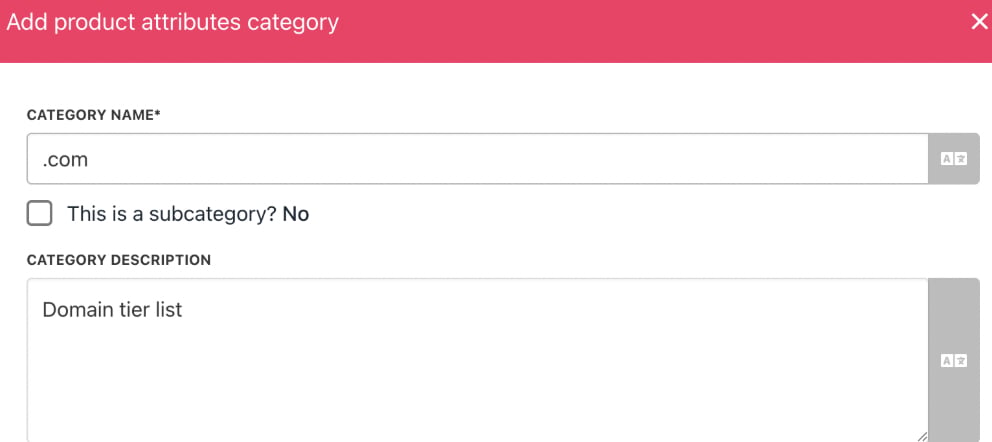 4. Allow customers to select multiple attribute options simultaneously. (Optional)
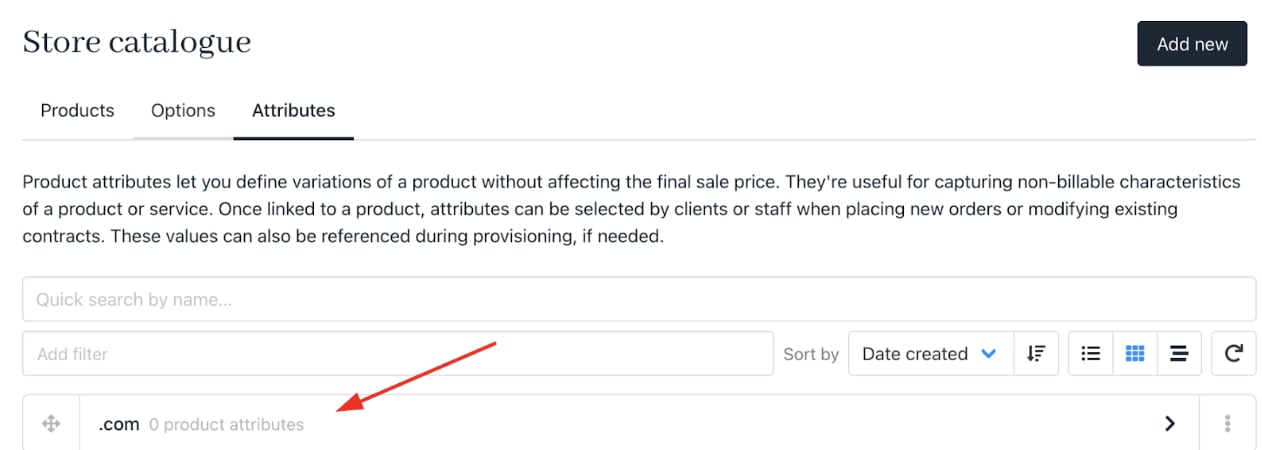
 5. Click **Create**. Upmind creates a category with zero product attributes.
 ## Adding product attributes
1. Find the attribute category.
2. Click the three-dot menu.
3. Click **Add product attribute**.
## Adding product attributes
1. Find the attribute category.
2. Click the three-dot menu.
3. Click **Add product attribute**.
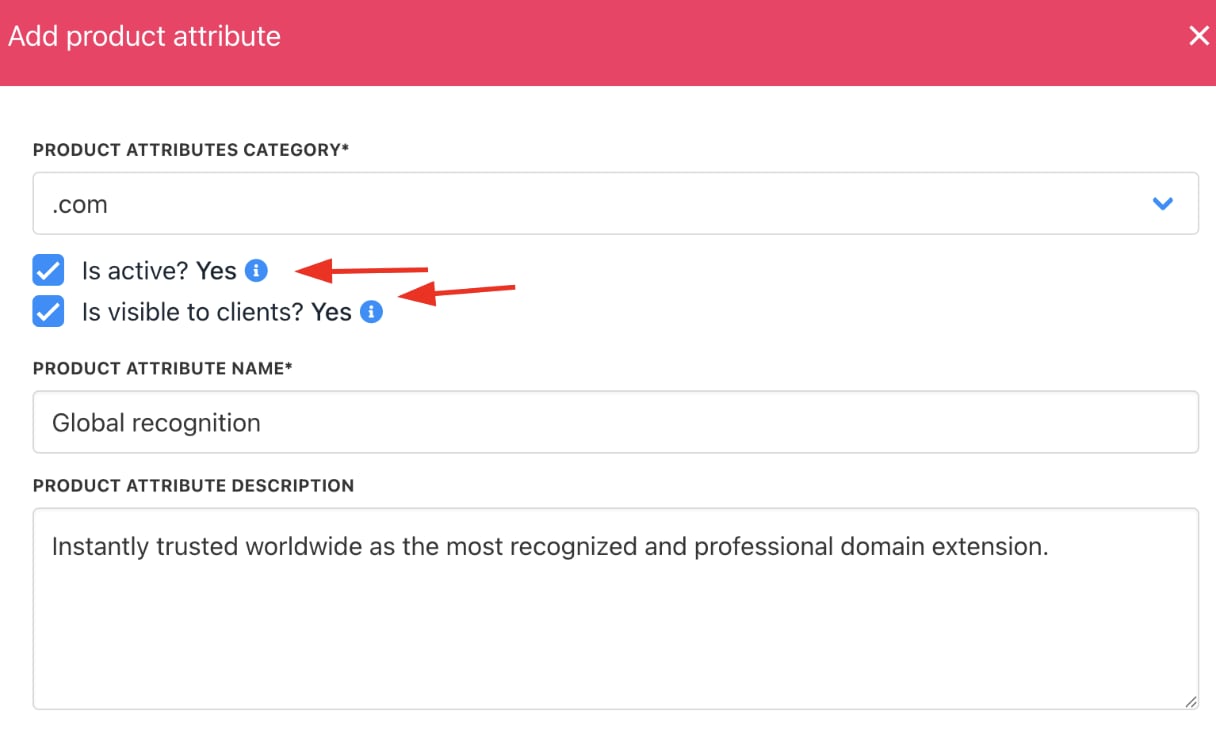
 4. Confirm the category or select a different one.
5. Ensure visibility boxes are checked (for staff and customers).
1. **Is active**: If unchecked, this product won’t appear in your store.
2. **Is visible to clients**: If unchecked, clients won’t see this product, but staff can still order it.
6. Enter the attribute’s name and description (visible to customers).
7. Click **Create**.
8. Repeat for additional attributes.
4. Confirm the category or select a different one.
5. Ensure visibility boxes are checked (for staff and customers).
1. **Is active**: If unchecked, this product won’t appear in your store.
2. **Is visible to clients**: If unchecked, clients won’t see this product, but staff can still order it.
6. Enter the attribute’s name and description (visible to customers).
7. Click **Create**.
8. Repeat for additional attributes.
 ## Editing attributes
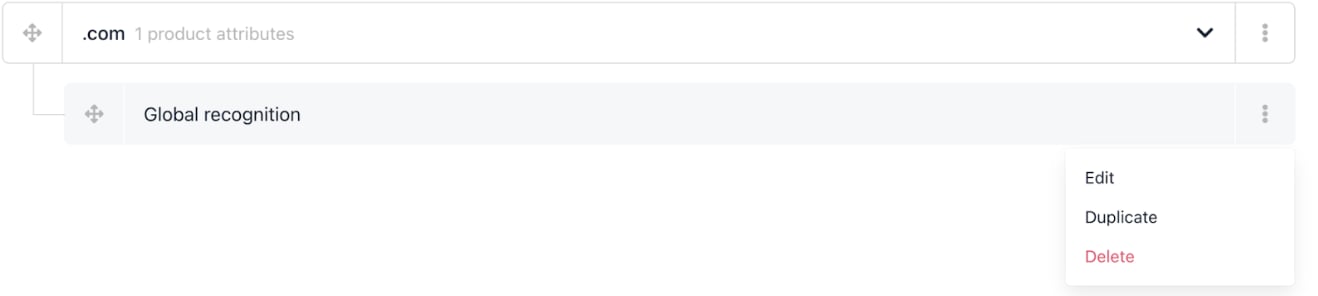
1. On the `Product attributes` tab, select a category to view attributes.
2. Use the three-dot menu to edit or delete attributes as needed.
3. You can also duplicate attributes.
## Editing attributes
1. On the `Product attributes` tab, select a category to view attributes.
2. Use the three-dot menu to edit or delete attributes as needed.
3. You can also duplicate attributes.
 ## Linking attributes to products
1. Click the **Products** tab.
2. Expand the relevant category.
## Linking attributes to products
1. Click the **Products** tab.
2. Expand the relevant category.
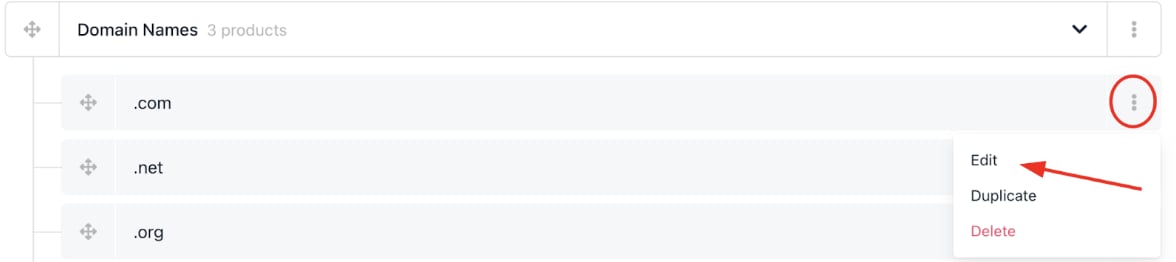
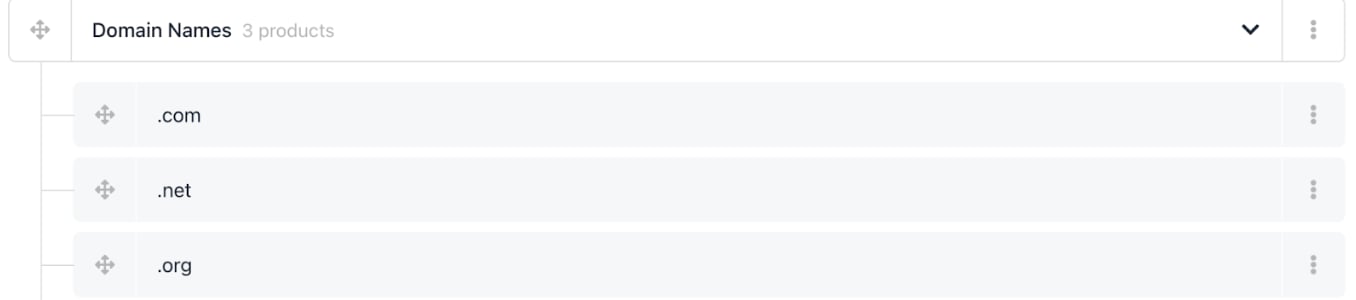 3. Select the target product and click the three-dot menu > **Edit**.
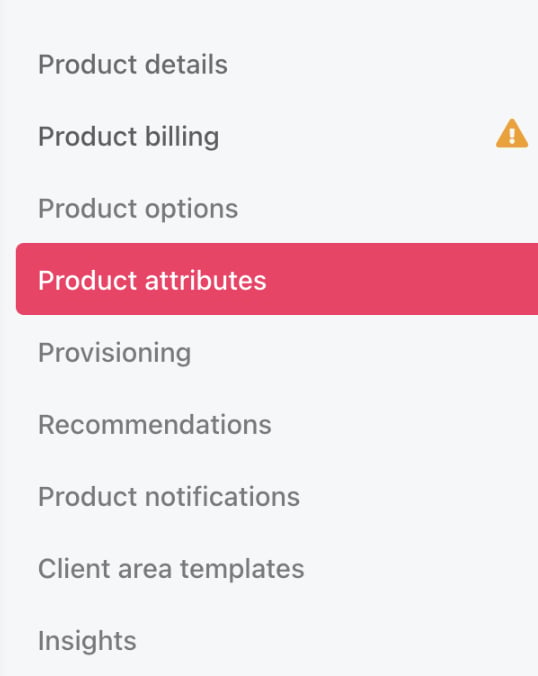
 4. Click the `Product attributes` menu link.
 5. Click **Manage**.
6. Choose the attribute category and select attributes to display.
5. Click **Manage**.
6. Choose the attribute category and select attributes to display.
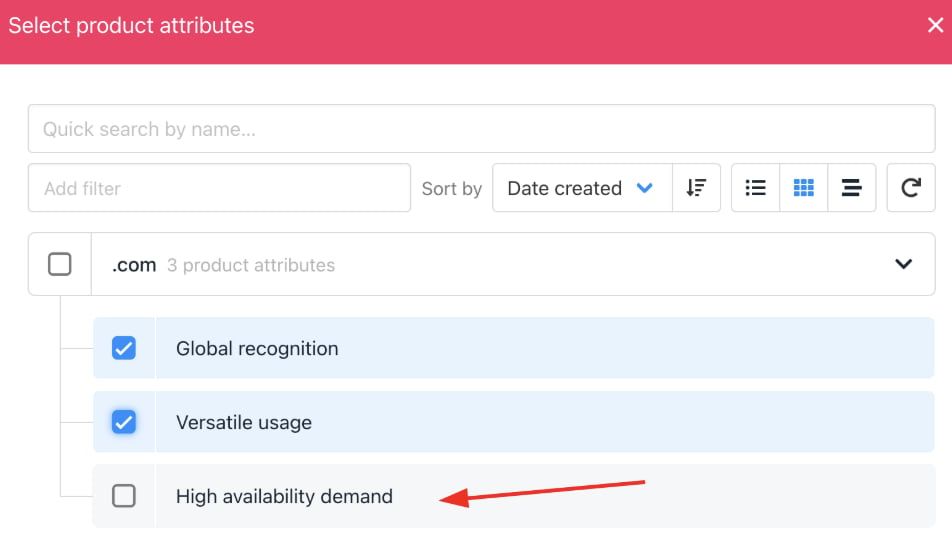 7. Save your changes.
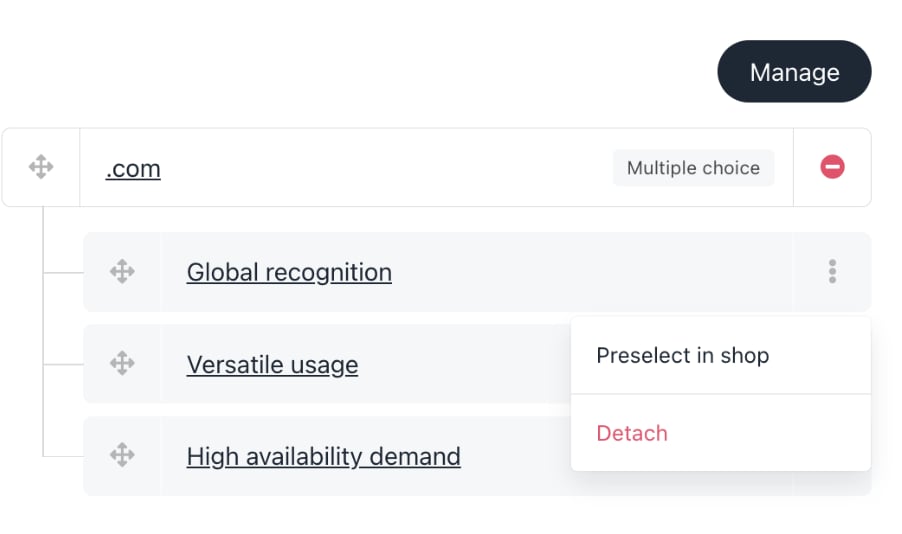
8. Click **Manage** to edit an attribute.
9. Click the red circle to delete an attribute, or choose **detach**.
7. Save your changes.
8. Click **Manage** to edit an attribute.
9. Click the red circle to delete an attribute, or choose **detach**.
 ## Customer view
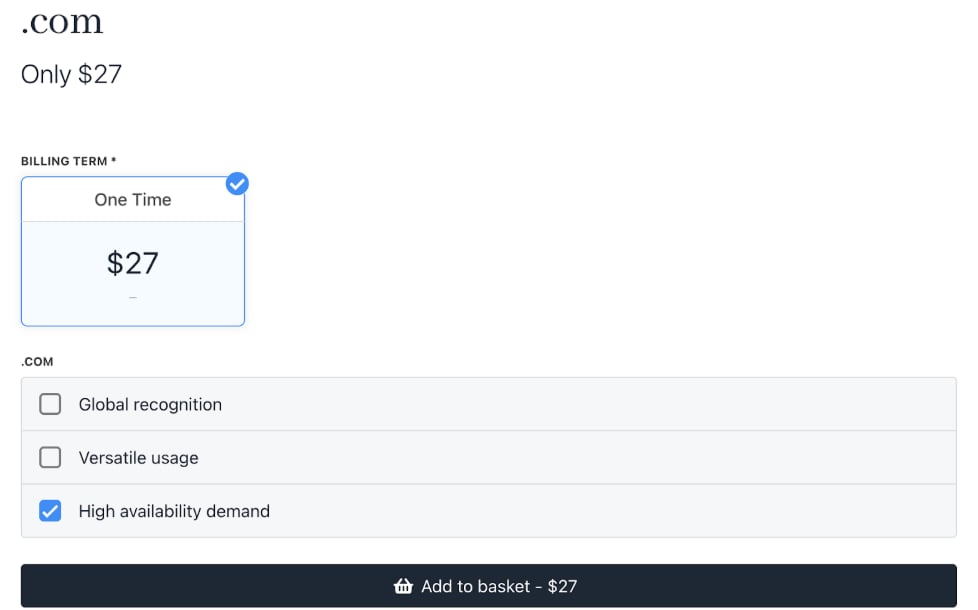
Customers will see the linked attributes as options when viewing the product, and can select them at checkout.
## Customer view
Customers will see the linked attributes as options when viewing the product, and can select them at checkout.
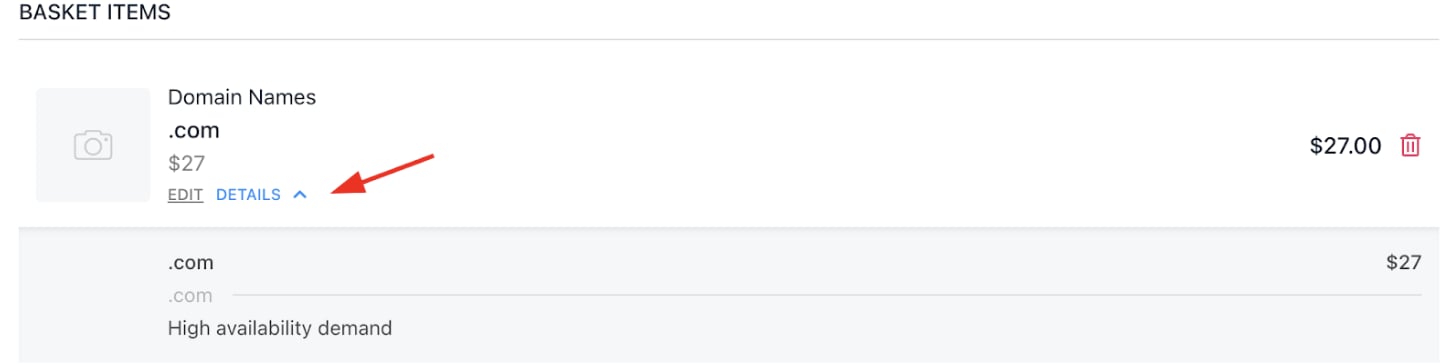
 On the `Basket` page:
* Click **Details** to view the product attribute.
* Click **Edit** to choose a different attribute.
On the `Basket` page:
* Click **Details** to view the product attribute.
* Click **Edit** to choose a different attribute.