> ## Documentation Index
> Fetch the complete documentation index at: https://docs.upmind.com/llms.txt
> Use this file to discover all available pages before exploring further.
# Create Product Notifications
> Create product notifications for your store and you can send message automatically with an update, add, delete of a product or service. Check Now!
Upmind allows you to set up automated product notifications. You can set a trigger (like a purchase), create a message (such as a thank you), and choose a channel (email, Slack, etc.).
Once configured, Upmind automatically sends the notification whenever the trigger happens.
## Create a trigger
1. Log in to the Upmind dashboard.
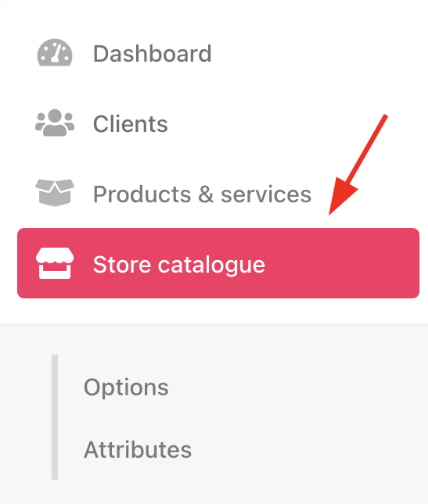
2. Access it from the dashboard by clicking on **Store Catalogue**.
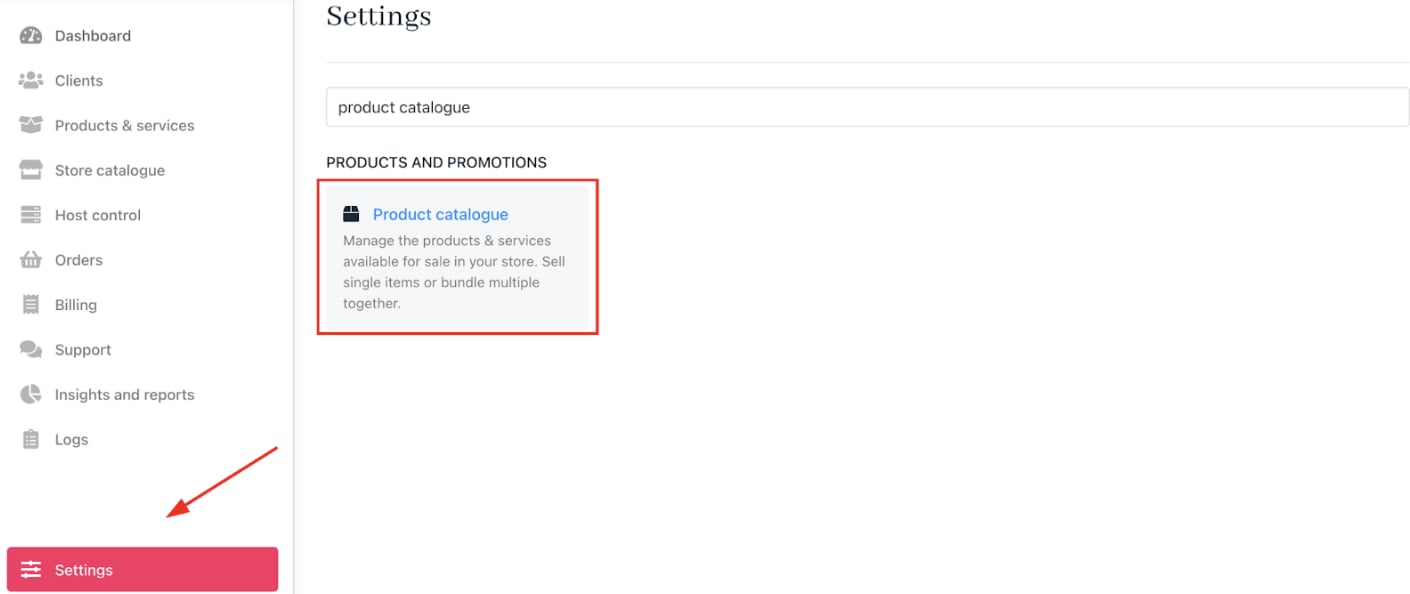
 3. You can also click **Settings** and select the **Product Catalogue** tile under **Products and Promotions**.
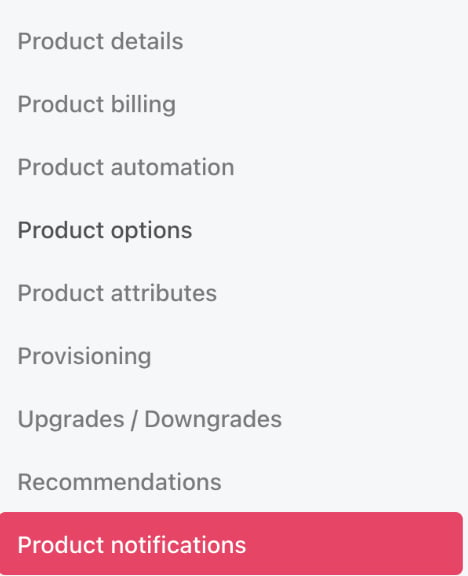
 4. Choose a product and click **Product notifications** on the product details page.
 ## Select a trigger
1. Click **Add** to create a notification.
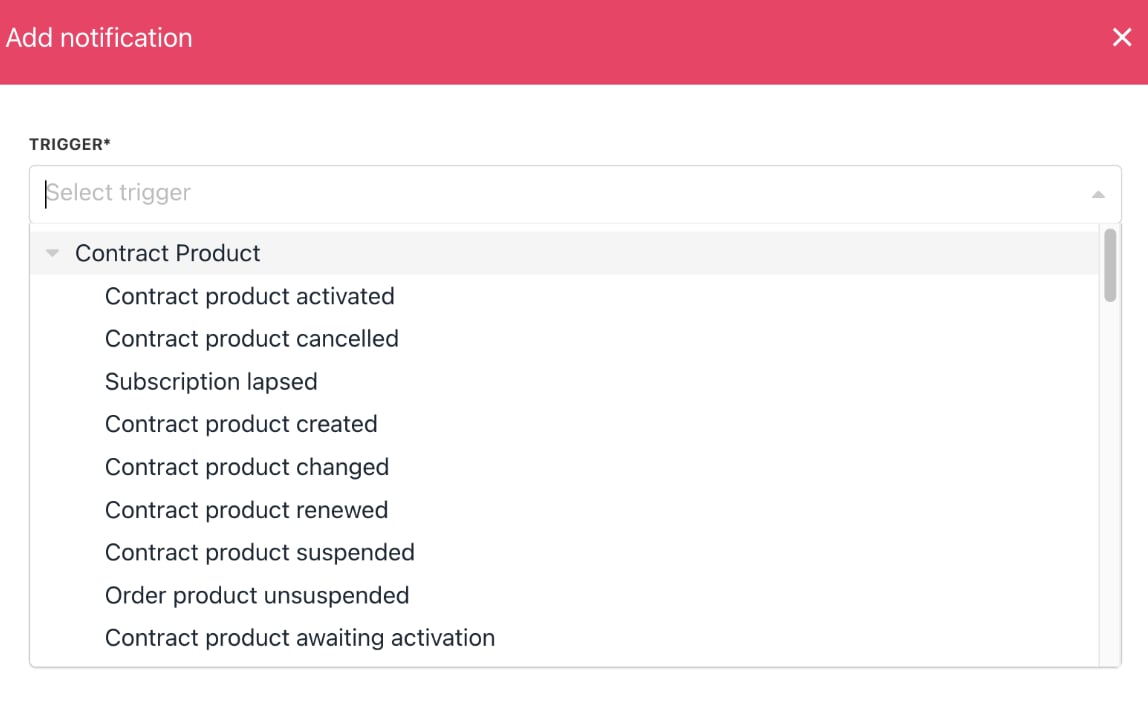
2. Click the *Trigger* field and select the event that will activate this notification (e.g. product purchased, subscription renewed).
## Select a trigger
1. Click **Add** to create a notification.
2. Click the *Trigger* field and select the event that will activate this notification (e.g. product purchased, subscription renewed).
 ## Create the notification message
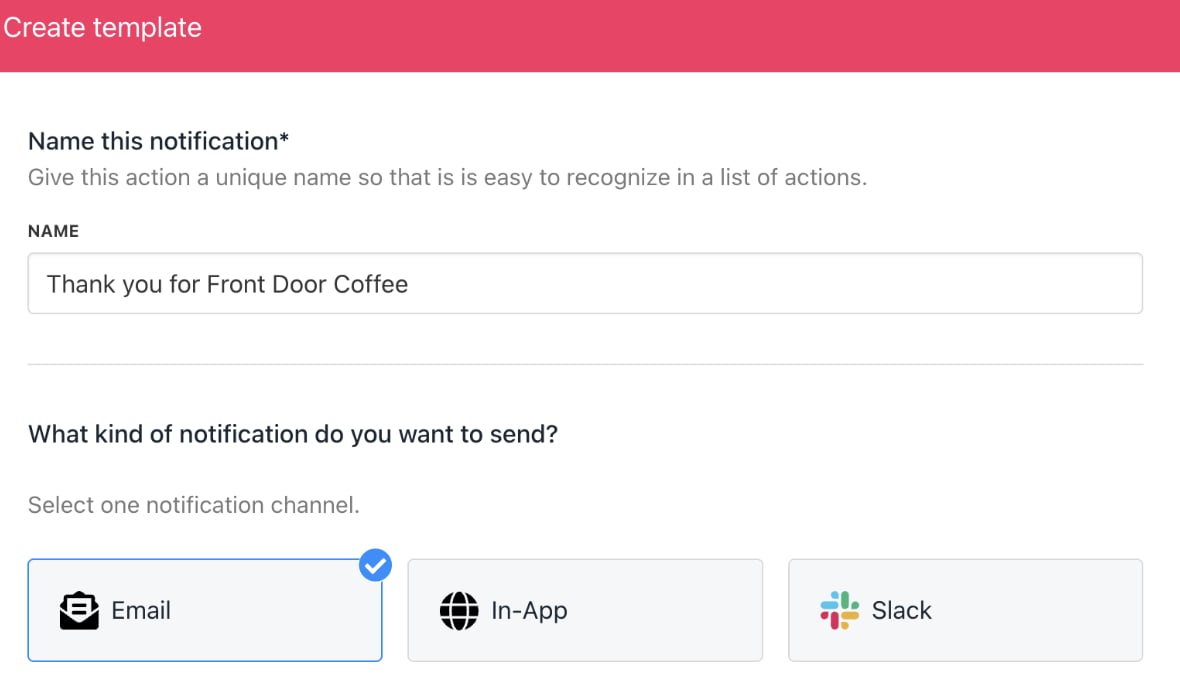
1. Enter a unique **Notification Name** (internal use only).
2. Choose the Message Type: email, in-app, or Slack (depending on what is enabled).
## Create the notification message
1. Enter a unique **Notification Name** (internal use only).
2. Choose the Message Type: email, in-app, or Slack (depending on what is enabled).
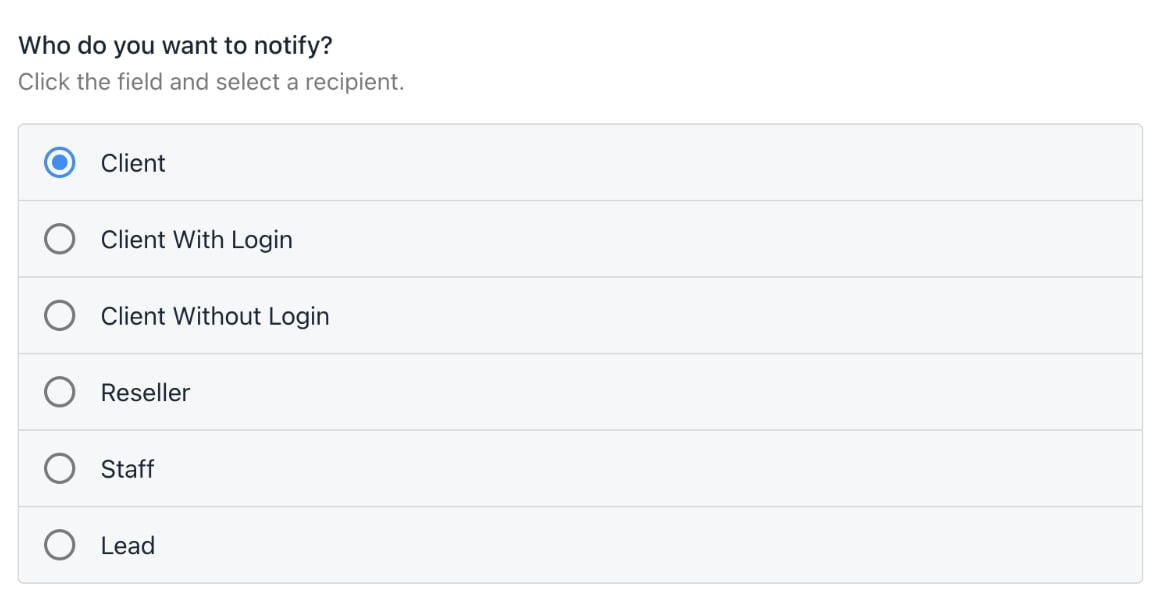
 3. Select the recipient group (clients, staff, etc.).
 4. Compose the message subject and body using text and Twig code snippets for dynamic content.
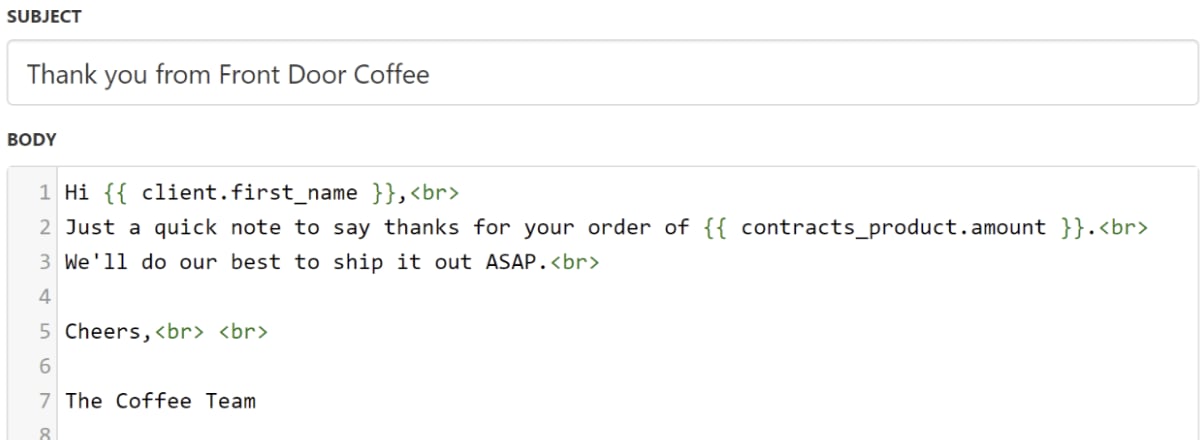 on how to format email templates.
## Save and manage notifications
1. Click **Save**, then **Create** to finalise setup.
2. Notifications will be sent automatically when triggers occur.
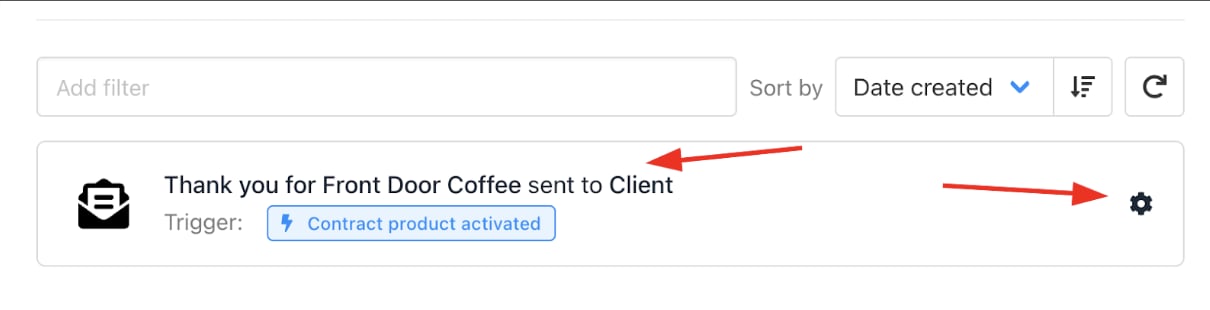
3. To edit a notification, click its name in the list.
4. To delete, use the gear icon.
on how to format email templates.
## Save and manage notifications
1. Click **Save**, then **Create** to finalise setup.
2. Notifications will be sent automatically when triggers occur.
3. To edit a notification, click its name in the list.
4. To delete, use the gear icon.
 ## Customer view
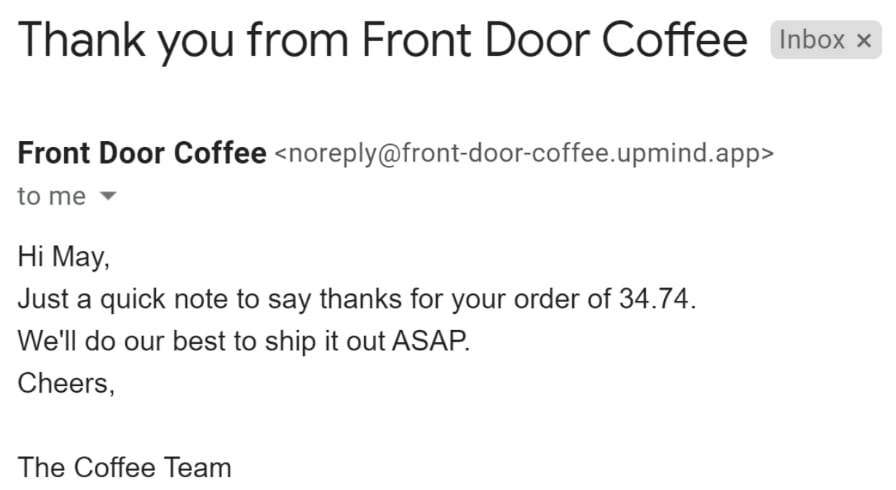
**Example**: A Thank You email sent automatically after product purchase improves communication without manual intervention.
## Customer view
**Example**: A Thank You email sent automatically after product purchase improves communication without manual intervention.