> ## Documentation Index
> Fetch the complete documentation index at: https://docs.upmind.com/llms.txt
> Use this file to discover all available pages before exploring further.

# Auto-Populating Catalogue Prices

> With the auto-populating catalogue price you can effortlessly manage subscription terms and prices within the product catalogue. Check now!

The auto-populate feature allows for rapid catalogue pricing updates, which is ideal for applying global percentage-based changes (such as promotions or seasonal rates) across your products.

## How to auto-populate prices in your product catalogue

1. Log in to the Upmind dashboard.
2. Access it from the dashboard by clicking on **Store Catalogue**.
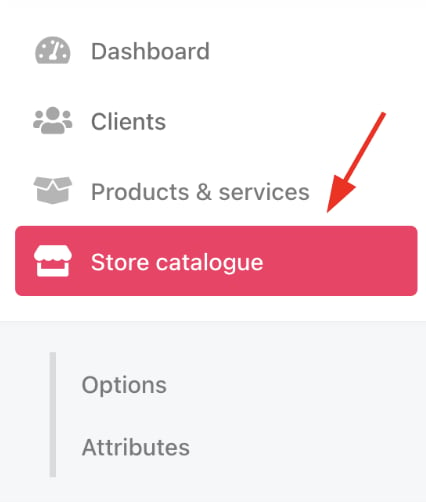
<Frame caption="Store catalogue">
  <img src="https://mintcdn.com/upmind/1-uICsJi9zYpvJVH/images/fb/87bd3caf0bf2654d.png?fit=max&auto=format&n=1-uICsJi9zYpvJVH&q=85&s=a6e372ed77368f0a43a30fbb69c2bd60" alt="Store catalogue" width="426" height="502" data-path="images/fb/87bd3caf0bf2654d.png" />
</Frame>

3. You can also click **Settings** and select the **Product Catalogue** tile under **Products and Promotions**.
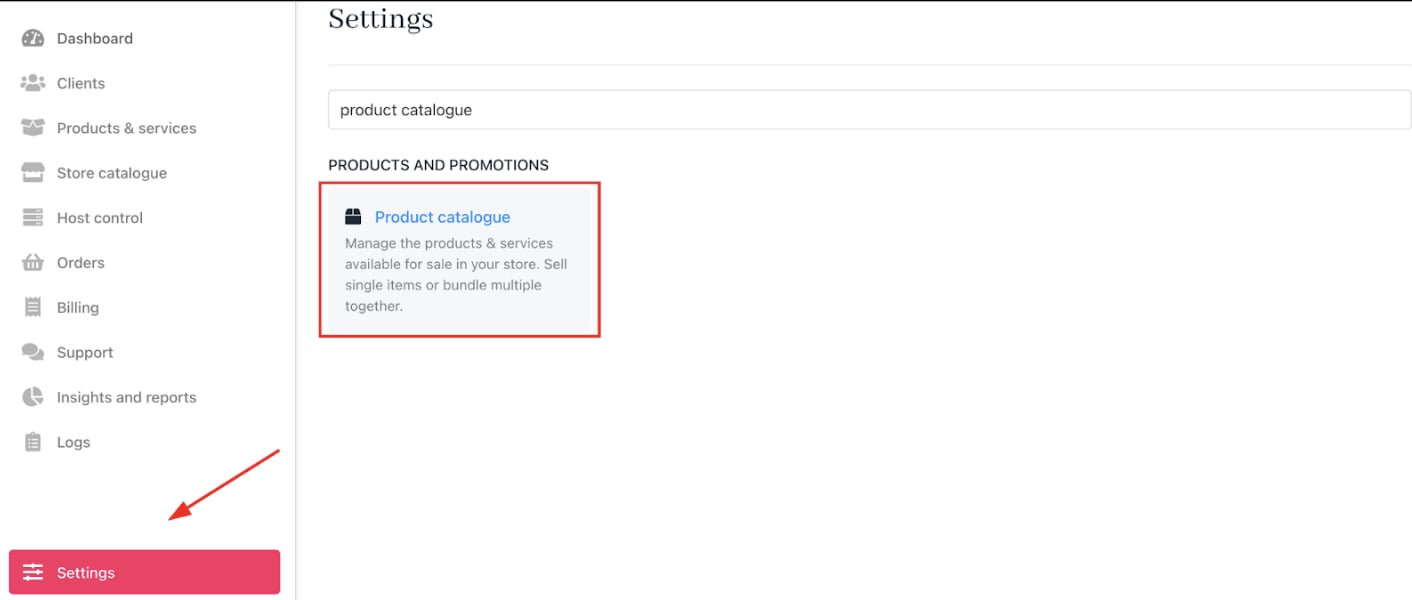
<Frame caption="Settings > Products and Promotions > Product Catalogue">
  <img src="https://mintcdn.com/upmind/pcUdSuxUJ6LgBXnd/images/fb/a50f7be5b4b689e9.png?fit=max&auto=format&n=pcUdSuxUJ6LgBXnd&q=85&s=52ba531e56fc03dc9a4cd3cd5fc34edb" alt="Settings > Products and Promotions > Product Catalogue" data-og-width="1412" width="1412" data-og-height="600" height="600" data-path="images/fb/a50f7be5b4b689e9.png" data-optimize="true" data-opv="3" srcset="https://mintcdn.com/upmind/pcUdSuxUJ6LgBXnd/images/fb/a50f7be5b4b689e9.png?w=280&fit=max&auto=format&n=pcUdSuxUJ6LgBXnd&q=85&s=fbc829bd6c691d3cd6af3d066f4042ab 280w, https://mintcdn.com/upmind/pcUdSuxUJ6LgBXnd/images/fb/a50f7be5b4b689e9.png?w=560&fit=max&auto=format&n=pcUdSuxUJ6LgBXnd&q=85&s=8964b3892af68023b5a3ec3344be7231 560w, https://mintcdn.com/upmind/pcUdSuxUJ6LgBXnd/images/fb/a50f7be5b4b689e9.png?w=840&fit=max&auto=format&n=pcUdSuxUJ6LgBXnd&q=85&s=2ab54751f2b298c8a89548e3bc42baea 840w, https://mintcdn.com/upmind/pcUdSuxUJ6LgBXnd/images/fb/a50f7be5b4b689e9.png?w=1100&fit=max&auto=format&n=pcUdSuxUJ6LgBXnd&q=85&s=9d8e4de7f2d42d398891cdf1e2598cd2 1100w, https://mintcdn.com/upmind/pcUdSuxUJ6LgBXnd/images/fb/a50f7be5b4b689e9.png?w=1650&fit=max&auto=format&n=pcUdSuxUJ6LgBXnd&q=85&s=5a41fe025d2c1f6127d60f25015a3afb 1650w, https://mintcdn.com/upmind/pcUdSuxUJ6LgBXnd/images/fb/a50f7be5b4b689e9.png?w=2500&fit=max&auto=format&n=pcUdSuxUJ6LgBXnd&q=85&s=a6ea275dcb12986d784f3eccf4ccdad7 2500w" />
</Frame>

4. Select the product to update.
5. Open `Product Billing`.
6. In `Subscription Terms`, open the *Advanced* options, then choose **Auto Populate Prices**.
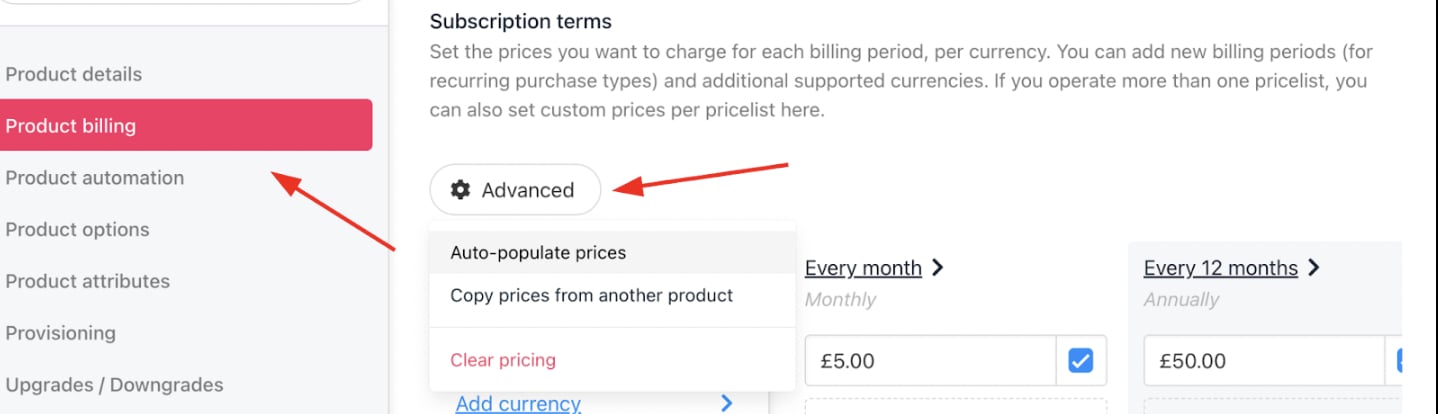
<Frame caption="Auto-populate prices">
  <img src="https://mintcdn.com/upmind/bPO2bBzOxYQR4tYr/images/fb/fae214d3aa9e4bf2.png?fit=max&auto=format&n=bPO2bBzOxYQR4tYr&q=85&s=fdf697f4531f796b00ee39fb86c232ec" alt="Auto-populate prices" width="1438" height="414" data-path="images/fb/fae214d3aa9e4bf2.png" />
</Frame>

## Customising auto-population

### Choose base term:

Select either monthly or annually.

**Example**: Setting £5/month will auto-calculate £60/year for annual term.
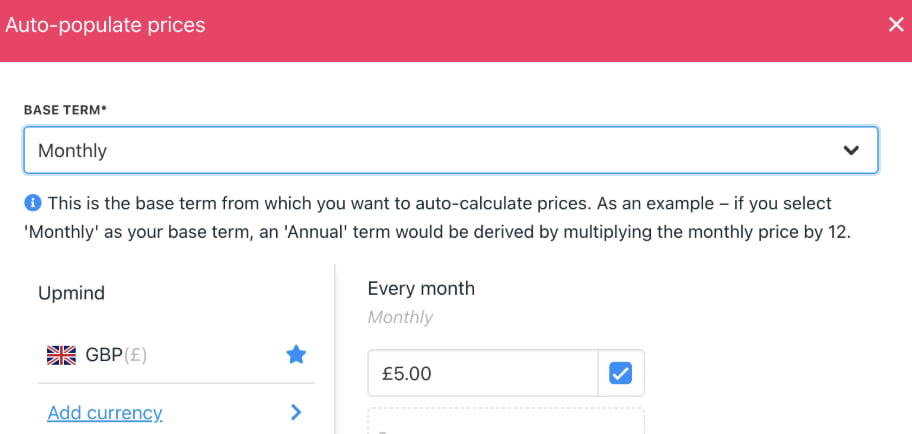
<Frame caption="Base term">
  <img src="https://mintcdn.com/upmind/VnCXiz5rboywDnvn/images/fb/db6ed0009b8f37dc.png?fit=max&auto=format&n=VnCXiz5rboywDnvn&q=85&s=5a508e4e42eba241de1c3475b94fa359" alt="Base term" width="912" height="434" data-path="images/fb/db6ed0009b8f37dc.png" />
</Frame>

### Select billing terms:

Choose which terms (quarterly, semiannual, etc.) to auto-fill with prices. Optionally, you can add percentage discounts on each calculated price per term.
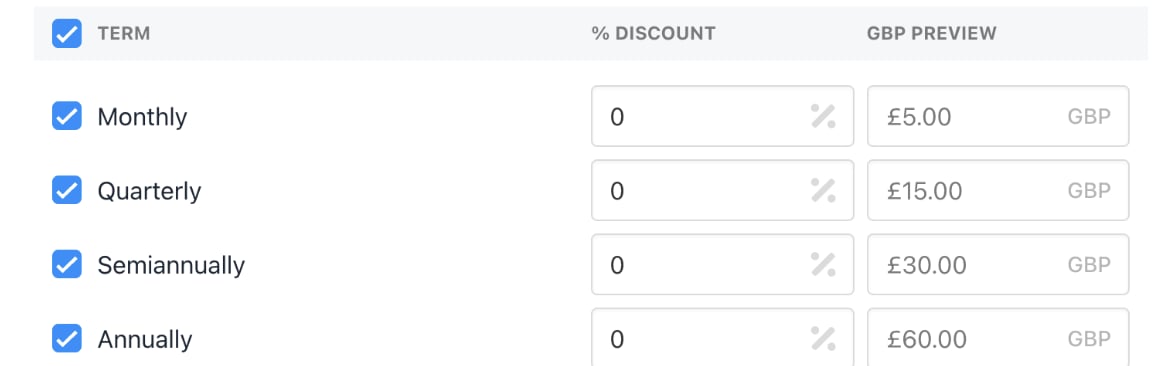
<Frame caption="Billing terms">
  <img src="https://mintcdn.com/upmind/wRuKrNY12tQZY8Rr/images/fb/34684411f7c7e260.png?fit=max&auto=format&n=wRuKrNY12tQZY8Rr&q=85&s=32c662fe6560c091940cbab1e76aa712" alt="Billing terms" width="1166" height="366" data-path="images/fb/34684411f7c7e260.png" />
</Frame>

### Overwrite existing prices:

Check the `Overwrite existing prices` box to update or retain prices for selected terms.

<Frame caption="Overwrite existing prices">
  <img src="https://mintcdn.com/upmind/pcUdSuxUJ6LgBXnd/images/fb/a7c59692710c4108.png?fit=max&auto=format&n=pcUdSuxUJ6LgBXnd&q=85&s=e7c7cd464b014529252a3c13f20fbbe3" alt="Overwrite existing prices" width="1310" height="152" data-path="images/fb/a7c59692710c4108.png" />
</Frame>

**Example**: Applying a 2% discount just to the monthly term will update only that field.

<Frame caption="Apply discount">
  <img src="https://mintcdn.com/upmind/c5sDUwEs8YpzGbjA/images/fb/971499dc35126622.png?fit=max&auto=format&n=c5sDUwEs8YpzGbjA&q=85&s=7ed752923d25371a30a60f0d77a4b803" alt="Apply discount" width="1294" height="256" data-path="images/fb/971499dc35126622.png" />
</Frame>

Clients will see updated pricing in the catalogue immediately after saving changes.
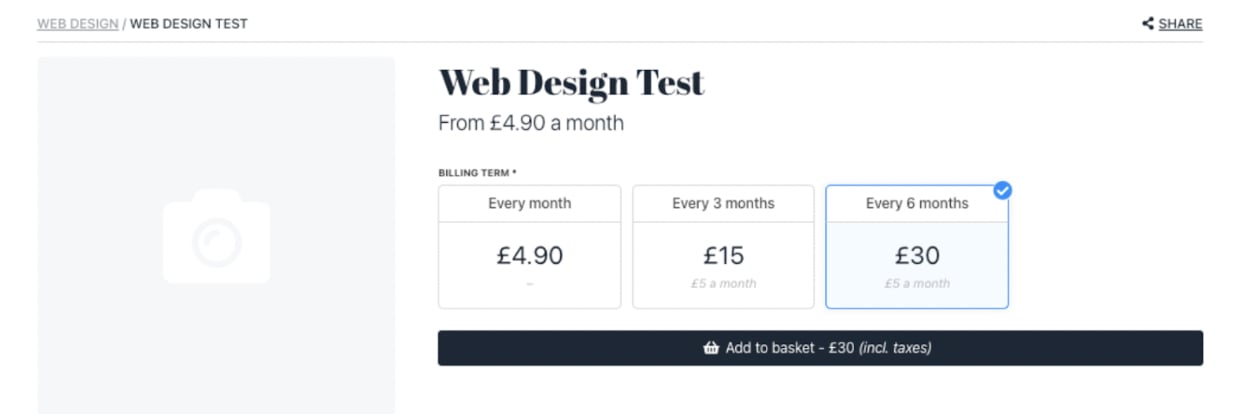
<Frame caption="Customer view">
  <img src="https://mintcdn.com/upmind/6knUVC8F1nK4E5CY/images/fb/c5a9340e20cac55d.png?fit=max&auto=format&n=6knUVC8F1nK4E5CY&q=85&s=4d172149983af579f887f3fedb9e63d7" alt="Customer view" width="1252" height="414" data-path="images/fb/c5a9340e20cac55d.png" />
</Frame>
