> ## Documentation Index
> Fetch the complete documentation index at: https://docs.upmind.com/llms.txt
> Use this file to discover all available pages before exploring further.
# How to Use Different Payment Methods
> Optimally set up payment methods on invoices
This guide will show you how to use different payment methods on [renewal invoices](/using-upmind/invoicing-and-taxes/how-to-configure-invoice-settings#recurring-invoice-generation) and set them up for [automatic payment](/using-upmind/payment-methods/how-to-set-up-automatic-payments) processing from the admin and client areas.
To learn how to add different payment gateways, follow this [guide](/using-upmind/payment-methods/payments-in-upmind/available-payment-gateways).
## Admin area
If a client’s card fails to pay a renewal invoice, staff or admins can assist by using a different payment method.
Admins can only use another saved card or add a new card for payments if the client has shared their card details and given permission.
For **PayPal** and **MercadoPago Other Payments**, it will be redirected to their respective account to complete the payment.
Here are the steps:
1. Log in to your Upmind **Admin Dashboard**.
2. Select `Clients` from the left panel.
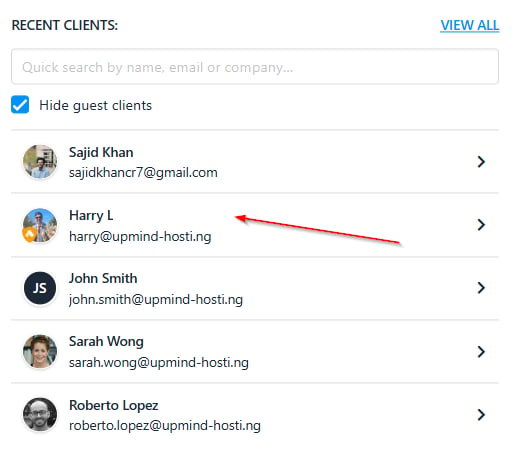
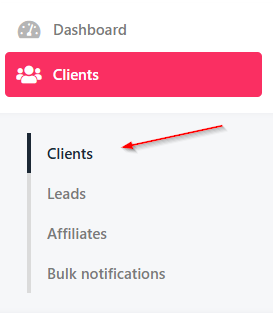 3. Click on the **Client** with the unpaid invoice.
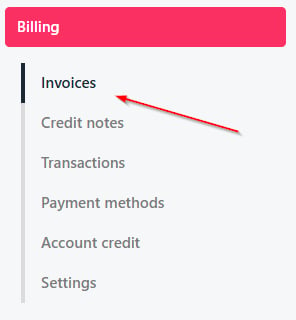
 4. Go to `Billing` and then `Invoices`.
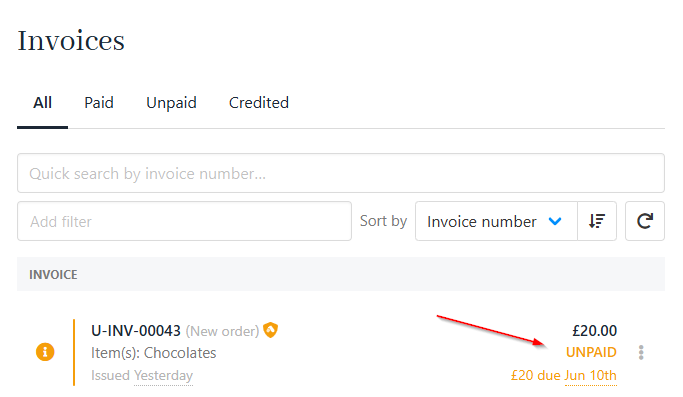
 5. Find the unpaid Invoice.
 6. Click **Pay Now**.
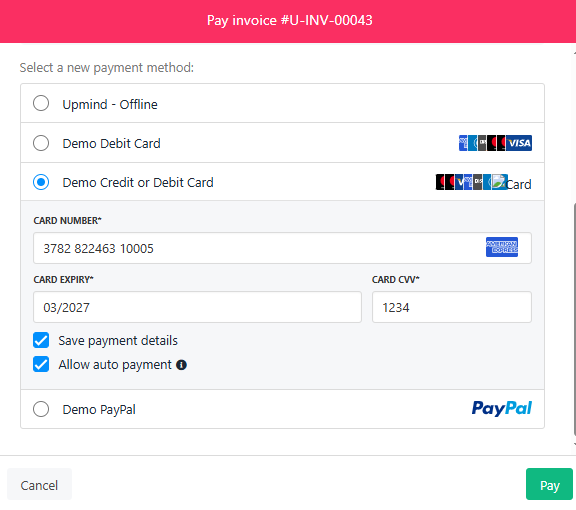
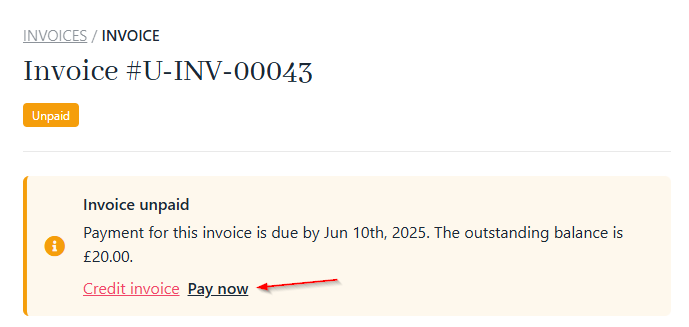 7. As an admin or staff member, you can help process a client’s payment using their saved card or any of the existing payment methods they have added. In the example shown in the screenshot, the available methods are **Stripe** and **PayPal**.
 ### How to change the default payment method from the admin area
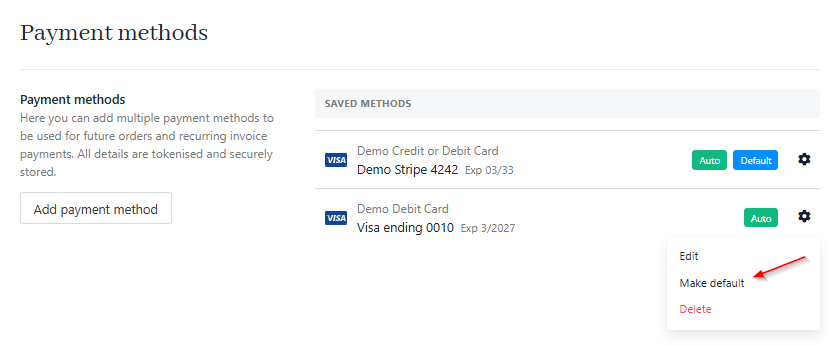
Admins can only change the default card. The automatic payment setting is applied when the card is initially added and saved.
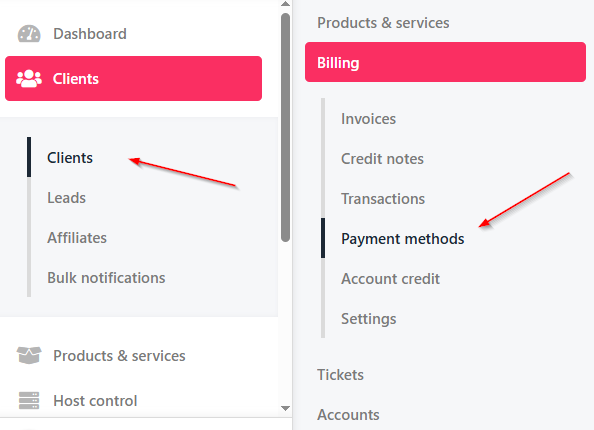
1. Select your **Client** and then go to `Payment Methods` from `Billing`.
### How to change the default payment method from the admin area
Admins can only change the default card. The automatic payment setting is applied when the card is initially added and saved.
1. Select your **Client** and then go to `Payment Methods` from `Billing`.
 2. You can make a new card automatically charge for the renewal invoice by making it the **Default**.
 ## Client area
Your client can also pay their renewal invoice using a different payment method from the client area. Here’s how to do it:
1. Log in to the **Client Area**.
2. Select `Billing` and go to `My Invoices`.
## Client area
Your client can also pay their renewal invoice using a different payment method from the client area. Here’s how to do it:
1. Log in to the **Client Area**.
2. Select `Billing` and go to `My Invoices`.
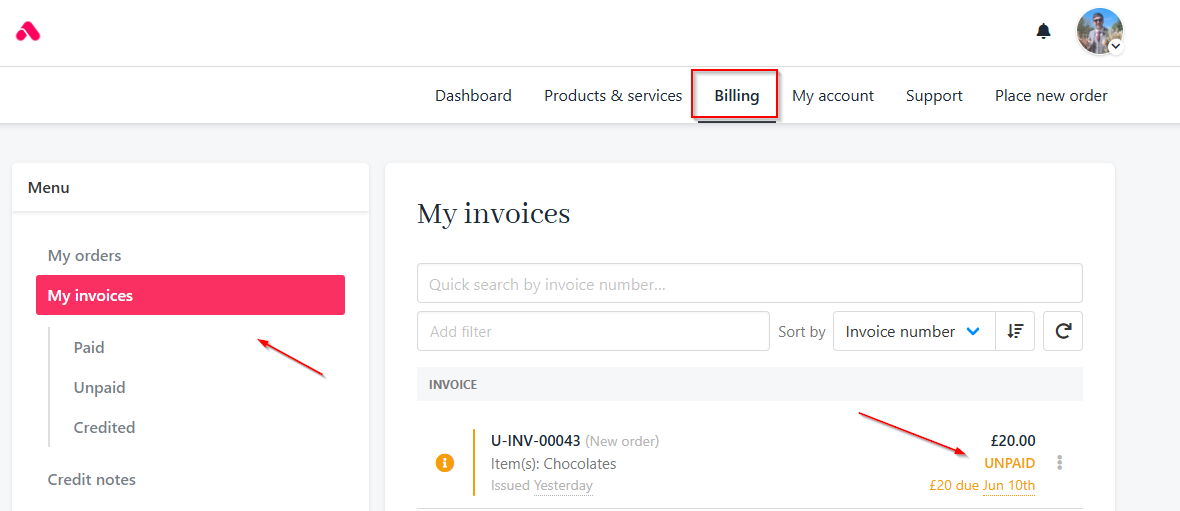 3. Select the unpaid `Invoice` and click **Pay Now**.
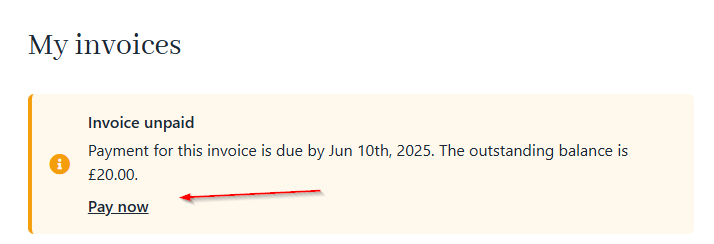 4. Similar to **Admin**, you can make the payment with the existing card or use a different payment method.
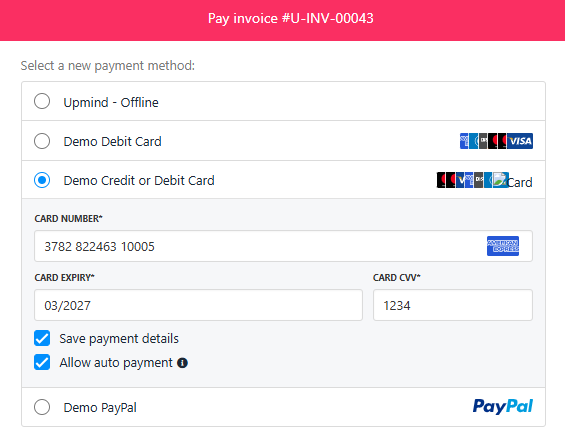 Some payment methods, like **PayPal**, cannot be saved. The client will be redirected to their PayPal account to complete the payment.
### How to change the default payment method from the client area
Clients can only change the default card. The automatic payment setting is applied when the card is initially added and saved.
1. Go to `Billing` and select `Payment Methods`.
2. You can make a new card automatically charge for the renewal invoice by making it the **Default**.
Some payment methods, like **PayPal**, cannot be saved. The client will be redirected to their PayPal account to complete the payment.
### How to change the default payment method from the client area
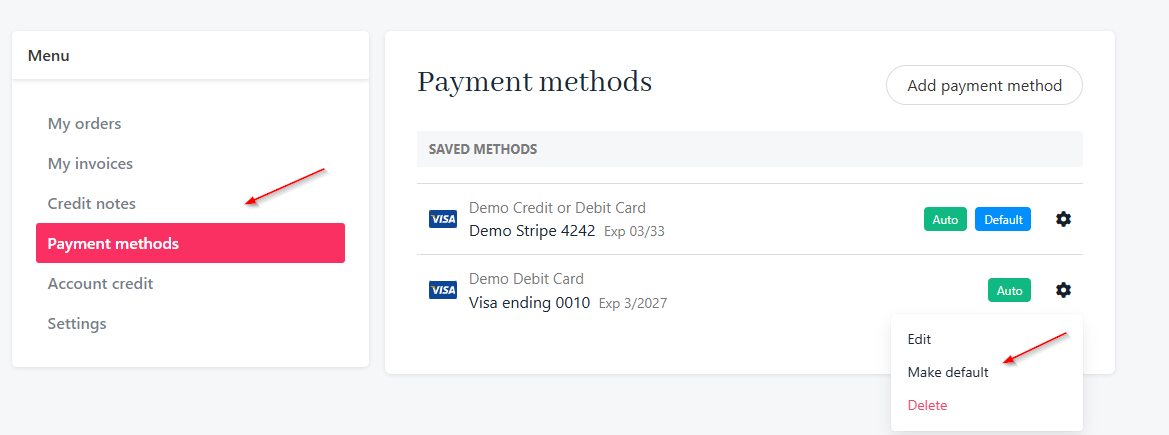
Clients can only change the default card. The automatic payment setting is applied when the card is initially added and saved.
1. Go to `Billing` and select `Payment Methods`.
2. You can make a new card automatically charge for the renewal invoice by making it the **Default**.
 ## Notify clients about card expiry
You can set up notifications to alert clients several days before their cards expire. This will help to ensure timely reminders and avoid missed payments.
This works for multiple payment methods and can be customised to your preference.
## Notify clients about card expiry
You can set up notifications to alert clients several days before their cards expire. This will help to ensure timely reminders and avoid missed payments.
This works for multiple payment methods and can be customised to your preference.
 You can also review our guide explaining [Payment Options](/using-upmind/payment-methods/payment-options-overview#/) in Upmind.
## To prevent automatic payment failure
If you have other cards saved as payments for your clients, Upmind will automatically switch to another backup card if there is an automatic payment failure on the primary one.
You can also review our guide explaining [Payment Options](/using-upmind/payment-methods/payment-options-overview#/) in Upmind.
## To prevent automatic payment failure
If you have other cards saved as payments for your clients, Upmind will automatically switch to another backup card if there is an automatic payment failure on the primary one.
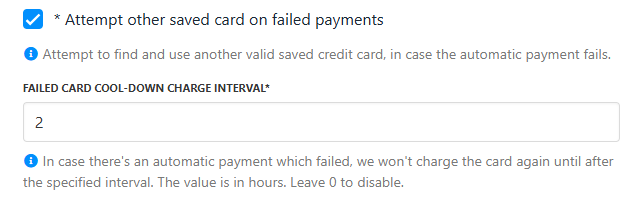 This is also the case if a contract product does not have any payment method assigned, but the client has a saved card.
You may lower or completely disable the interval time after a failed payment attempt before trying the same payment method again. The default system is set to 2.
**Example**:
1. A client has 10 invoices scheduled for auto payment today and only one card on file.
2. The payment for the 3rd invoice fails.
3. The card will be temporarily unavailable for use for the next 2 hours during the cool-down period.
## To reset payment attempts after a successful payment
When a client successfully pays an invoice, Upmind can automatically reset the payment attempts for any other unpaid or overdue invoices they have.
This means if those invoices had previously reached the maximum number of payment tries without success, the system will give them a fresh start to process payments again.
This is also the case if a contract product does not have any payment method assigned, but the client has a saved card.
You may lower or completely disable the interval time after a failed payment attempt before trying the same payment method again. The default system is set to 2.
**Example**:
1. A client has 10 invoices scheduled for auto payment today and only one card on file.
2. The payment for the 3rd invoice fails.
3. The card will be temporarily unavailable for use for the next 2 hours during the cool-down period.
## To reset payment attempts after a successful payment
When a client successfully pays an invoice, Upmind can automatically reset the payment attempts for any other unpaid or overdue invoices they have.
This means if those invoices had previously reached the maximum number of payment tries without success, the system will give them a fresh start to process payments again.
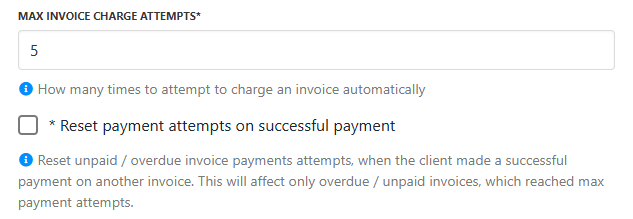 This helps avoid unnecessary payment failures and keeps billing running smoothly, ensuring clients have more chances to clear their outstanding balances automatically.