> ## Documentation Index
> Fetch the complete documentation index at: https://docs.upmind.com/llms.txt
> Use this file to discover all available pages before exploring further.
# How to Take Manual Payments
> Manually process unpaid invoices
Manual payments allow **admins** and **staff** to process **unpaid invoices** directly from the Upmind admin panel. This is useful for accepting payments when clients need assistance.
You can also set up your store to [process automatic payments](/using-upmind/payment-methods/how-to-set-up-automatic-payments#/).
## Steps to take a manual payment
## Open an invoice
The first step is to open an invoice.
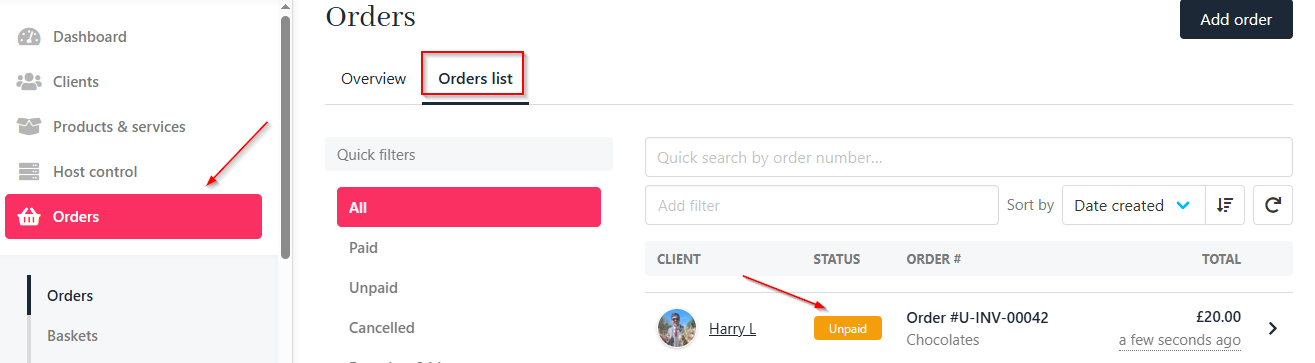
1. Log in to your **Upmind account**.
2. Click `Orders` in the left-hand menu.
3. Open the `Orders List` tab.
4. Locate and select the **unpaid invoice** you want to process.
 ## Process the payment
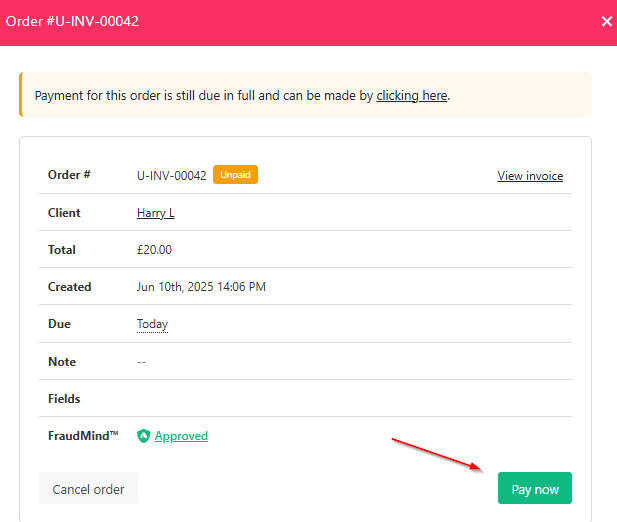
1. Click the **Pay Now** button on the invoice page.
## Process the payment
1. Click the **Pay Now** button on the invoice page.
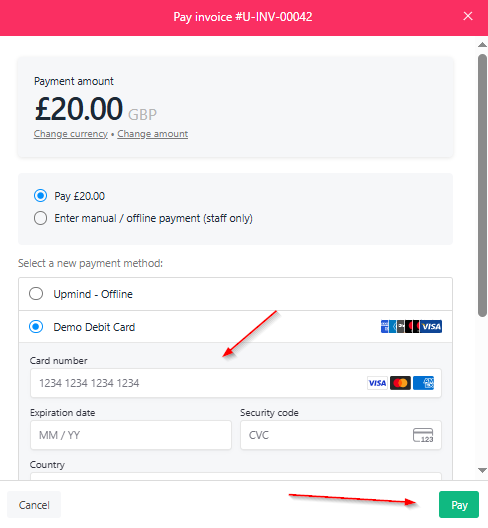
 1. Choose the **payment method**.
2. Enter the required payment details.
3. Click **Pay** to complete the transaction.
1. Choose the **payment method**.
2. Enter the required payment details.
3. Click **Pay** to complete the transaction.
 ### After payment
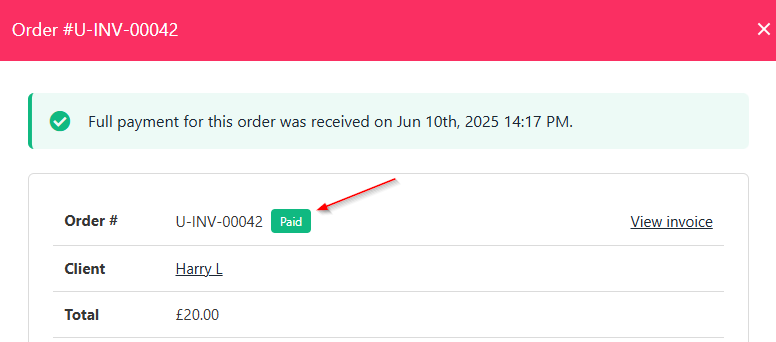
1. The invoice status automatically updates to Paid.
2. The client receives an email notification confirming payment.
### After payment
1. The invoice status automatically updates to Paid.
2. The client receives an email notification confirming payment.
 ## Handling failed payments
If a payment fails, Upmind retries based on your configured retry schedule (see [Payment Intervals](/using-upmind/payment-methods/how-to-manage-the-payment-interval-before-invoice-due-date#/)). Admins receive alerts and can manually attempt payment or contact the client. Failed card payments trigger automatic retries up to three times by default.
## Refunds and credits
You can issue refunds through the invoice details page. Refunds return funds to the original payment method. For bank transfers or cash, apply credit to the client’s account instead.
## Handling failed payments
If a payment fails, Upmind retries based on your configured retry schedule (see [Payment Intervals](/using-upmind/payment-methods/how-to-manage-the-payment-interval-before-invoice-due-date#/)). Admins receive alerts and can manually attempt payment or contact the client. Failed card payments trigger automatic retries up to three times by default.
## Refunds and credits
You can issue refunds through the invoice details page. Refunds return funds to the original payment method. For bank transfers or cash, apply credit to the client’s account instead.