> ## Documentation Index
> Fetch the complete documentation index at: https://docs.upmind.com/llms.txt
> Use this file to discover all available pages before exploring further.
# How to Set up Automatic Payments
> Configure gateways, billing, and more
**Automatic payments** make billing easier by charging the saved payment methods for clients on a set schedule. This reduces the need for manual work and helps prevent late payments.
This guide explains how to set up and customise automatic payments for your online store. Once configured, your store will be able to handle online payments automatically. Additionally, admins and store staff can [manually process any unpaid invoices](/using-upmind/payment-methods/how-to-take-manual-payments) when needed.
## Accessing payment options
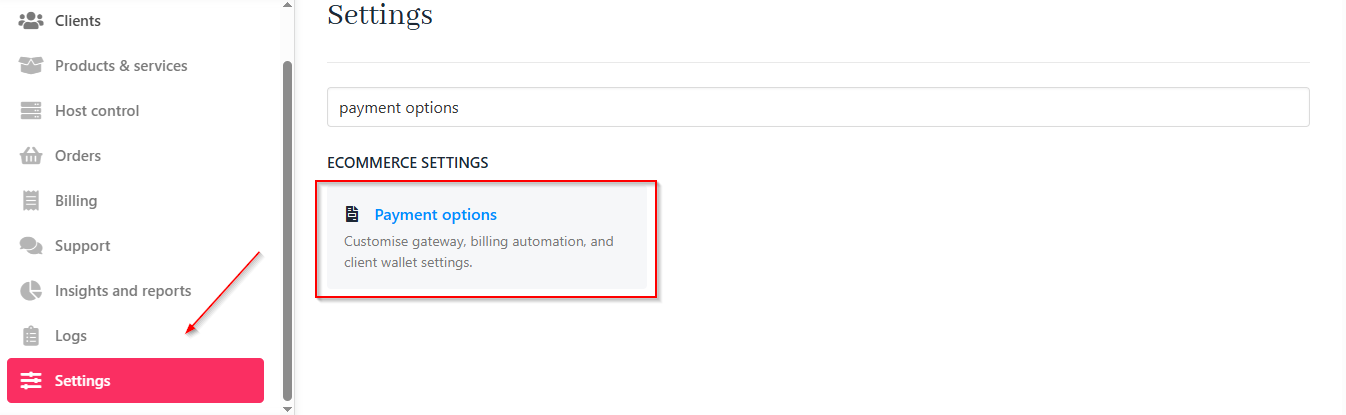
1. Log in to Upmind.
2. Click **Settings**.
3. Select the **Payment Options** tile.
 ## Customising payment settings
### Gateway settings
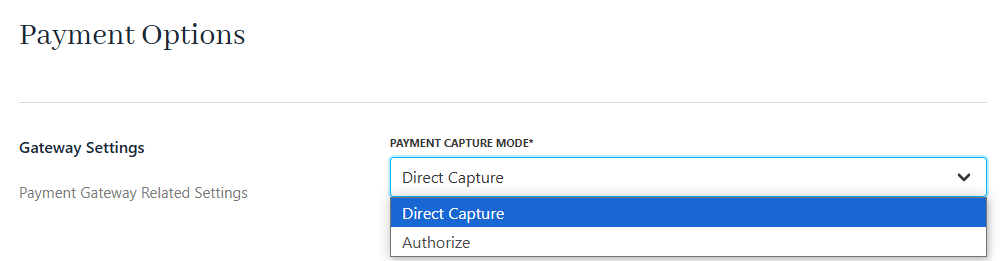
1. Choose a **Capture Mode**:
1. **Direct Capture** (default): Charges immediately.
2. **Authorize**: Places a hold, then captures after a set number of days.
## Customising payment settings
### Gateway settings
1. Choose a **Capture Mode**:
1. **Direct Capture** (default): Charges immediately.
2. **Authorize**: Places a hold, then captures after a set number of days.
 2. Set the number of days before capturing an authorised hold (not required if you select **Direct Capture**).
 3. Enable or disable partial payments.
 ### Billing automation
For payment automation, you can configure the following settings according to your needs.
1. **Max Authorization Capture Attempts**: Limit the number of tries to capture an authorised amount.
### Billing automation
For payment automation, you can configure the following settings according to your needs.
1. **Max Authorization Capture Attempts**: Limit the number of tries to capture an authorised amount.
 2. **Invoice Charge Attempt Interval Days**: Set the retry interval for failed payments to automatically charge an invoice.
 3. **Max Invoice Charge Attempts**: Limit how many times Upmind will attempt to process a payment.
 4. **Days’ Notice Before Credit Card Expiry Notification**: Notify clients with a reminder before their card expires.
 5. **Attempt Other Saved Card on Failed Payments**: Enable fallback to other stored cards if the automatic payment on the main one fails.
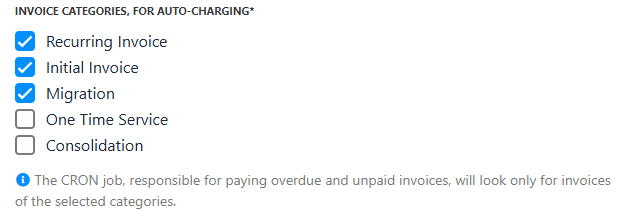
 6. **Invoice Categories for Auto-Charging**: Restrict auto-charging to selected invoice categories.
 7. **Charge Interval Before Due Date**: Start charging invoices a set number of days before their due date.
 8. **Max Days to Attempt Payment After Charge Date**: Set a limit for how long to keep automatically retrying after the charge date. This protection feature applies only to subscription clients added to the store through the Import tool.
## Enabling automatic payments for clients
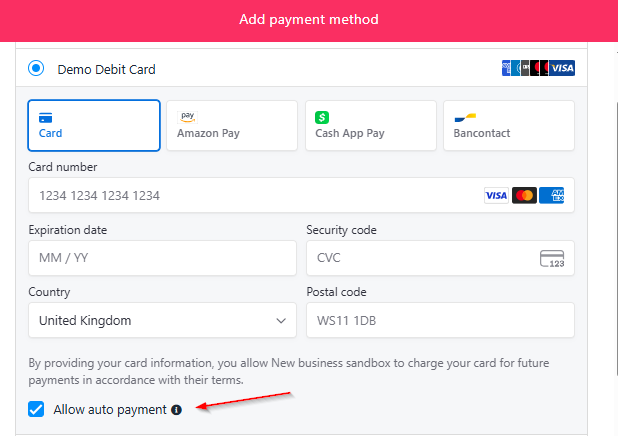
* Clients can enable automatic payments by saving a payment method in their portal and selecting **Allow Automatic Payments**.
* Admins can enforce auto-pay for specific products or clients if required.
8. **Max Days to Attempt Payment After Charge Date**: Set a limit for how long to keep automatically retrying after the charge date. This protection feature applies only to subscription clients added to the store through the Import tool.
## Enabling automatic payments for clients
* Clients can enable automatic payments by saving a payment method in their portal and selecting **Allow Automatic Payments**.
* Admins can enforce auto-pay for specific products or clients if required.
 ## Managing subscriptions and plan changes
* Automatic payments will renew subscriptions on their due date.
* For **plan changes** (e.g., upgrades or downgrades), there are additional options for additional charges or refunds. Upmind automatically calculates the balance. For more information, follow this [guide](/using-upmind/manage-client-services/how-to-change-a-subscription-service-level#/).
## Managing subscriptions and plan changes
* Automatic payments will renew subscriptions on their due date.
* For **plan changes** (e.g., upgrades or downgrades), there are additional options for additional charges or refunds. Upmind automatically calculates the balance. For more information, follow this [guide](/using-upmind/manage-client-services/how-to-change-a-subscription-service-level#/).