> ## Documentation Index
> Fetch the complete documentation index at: https://docs.upmind.com/llms.txt
> Use this file to discover all available pages before exploring further.

# How to Manage the Payment Interval Before Invoice Due Date

> Managing invoice payment timing

The payment interval determines how many days before an invoice’s due date Upmind will attempt to charge the client’s saved payment method. This helps to ensure timely payments and reduces the risk of overdue invoices.

In this guide, we'll walk you through how to manage:

1. **Payment Interval Before Due Date**

2. **Payment Interval Before Due Date with Pending Payments**

## How to set the payment interval before the due date

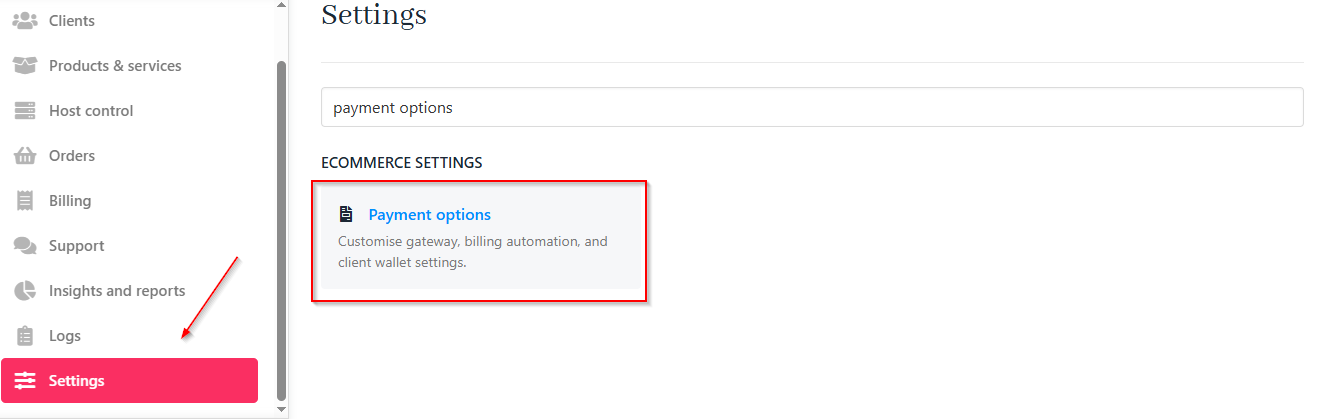
1. Go to `Settings` and select **Payment Options**.
<Frame caption="Settings > Payment options">
  <img src="https://mintcdn.com/upmind/h8h5zREaX7k8Y-3x/images/fb/16a52891cfe06ceb.png?fit=max&auto=format&n=h8h5zREaX7k8Y-3x&q=85&s=9998a72e9431611dedee7663c40eb0f2" alt="Settings > Payment options" data-og-width="1326" width="1326" data-og-height="419" height="419" data-path="images/fb/16a52891cfe06ceb.png" data-optimize="true" data-opv="3" srcset="https://mintcdn.com/upmind/h8h5zREaX7k8Y-3x/images/fb/16a52891cfe06ceb.png?w=280&fit=max&auto=format&n=h8h5zREaX7k8Y-3x&q=85&s=5c4a47c8d242eb48dd18188a81eac5a2 280w, https://mintcdn.com/upmind/h8h5zREaX7k8Y-3x/images/fb/16a52891cfe06ceb.png?w=560&fit=max&auto=format&n=h8h5zREaX7k8Y-3x&q=85&s=1322dcc4ffa86b7714fc31824363247f 560w, https://mintcdn.com/upmind/h8h5zREaX7k8Y-3x/images/fb/16a52891cfe06ceb.png?w=840&fit=max&auto=format&n=h8h5zREaX7k8Y-3x&q=85&s=b7ad5c9a63b1c25893ada3d67f9b012f 840w, https://mintcdn.com/upmind/h8h5zREaX7k8Y-3x/images/fb/16a52891cfe06ceb.png?w=1100&fit=max&auto=format&n=h8h5zREaX7k8Y-3x&q=85&s=87fa1288503806d8766452cd4b41d7cc 1100w, https://mintcdn.com/upmind/h8h5zREaX7k8Y-3x/images/fb/16a52891cfe06ceb.png?w=1650&fit=max&auto=format&n=h8h5zREaX7k8Y-3x&q=85&s=16392e3f4608c76afb88f887d2246977 1650w, https://mintcdn.com/upmind/h8h5zREaX7k8Y-3x/images/fb/16a52891cfe06ceb.png?w=2500&fit=max&auto=format&n=h8h5zREaX7k8Y-3x&q=85&s=ec8d35de3c2bcfd84eff1cb2000006d4 2500w" />
</Frame>

2. Under `Billing Automation`, find **Charge Interval Before Due Date**. This is the number of days before the invoice due date that the charge will be applied.

<Frame caption="Change interval before due date">
  <img src="https://mintcdn.com/upmind/FQ1NhxALxjSHvvWW/images/fb/aad53f80ba619950.png?fit=max&auto=format&n=FQ1NhxALxjSHvvWW&q=85&s=36674da48b11beaf3e418949ce0caad9" alt="Change interval before due date" width="636" height="104" data-path="images/fb/aad53f80ba619950.png" />
</Frame>

3. Set the **Invoice Charge Attempt Interval Days** to define how often Upmind retries failed payments.

<Frame caption="Invoice charge attempt interval days">
  <img src="https://mintcdn.com/upmind/Dgjmf3QWYVBR40cE/images/fb/5f7f778412788c38.png?fit=max&auto=format&n=Dgjmf3QWYVBR40cE&q=85&s=e989c19491f2872c0d883d828ec07da9" alt="Invoice charge attempt interval days" width="635" height="104" data-path="images/fb/5f7f778412788c38.png" />
</Frame>

4. Save your changes.

### Override payment interval for individual clients

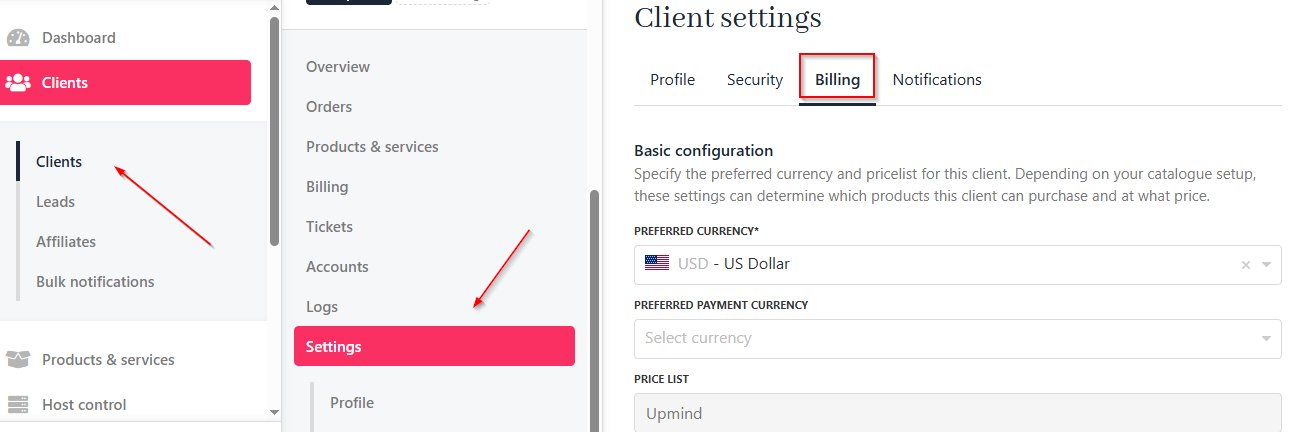
1. Go to `Clients` and select the desired client.

2. Click **Settings**, then `Billing`.
<Frame caption="Clients > Settings > Billing">
  <img src="https://mintcdn.com/upmind/c5sDUwEs8YpzGbjA/images/fb/9a49a4c9485636d5.png?fit=max&auto=format&n=c5sDUwEs8YpzGbjA&q=85&s=be71715cbeedd4263ef84ae89d2bbef8" alt="Clients > Settings > Billing" data-og-width="1312" width="1312" data-og-height="432" height="432" data-path="images/fb/9a49a4c9485636d5.png" data-optimize="true" data-opv="3" srcset="https://mintcdn.com/upmind/c5sDUwEs8YpzGbjA/images/fb/9a49a4c9485636d5.png?w=280&fit=max&auto=format&n=c5sDUwEs8YpzGbjA&q=85&s=ed9ca2b0096283ad09d5f2dd4adef2cf 280w, https://mintcdn.com/upmind/c5sDUwEs8YpzGbjA/images/fb/9a49a4c9485636d5.png?w=560&fit=max&auto=format&n=c5sDUwEs8YpzGbjA&q=85&s=6a290f3b650a0af23b5d7614c1735873 560w, https://mintcdn.com/upmind/c5sDUwEs8YpzGbjA/images/fb/9a49a4c9485636d5.png?w=840&fit=max&auto=format&n=c5sDUwEs8YpzGbjA&q=85&s=3cb247c52b85f349ca83a63e34c988e5 840w, https://mintcdn.com/upmind/c5sDUwEs8YpzGbjA/images/fb/9a49a4c9485636d5.png?w=1100&fit=max&auto=format&n=c5sDUwEs8YpzGbjA&q=85&s=6c4842058a613347a9123d35bd902fed 1100w, https://mintcdn.com/upmind/c5sDUwEs8YpzGbjA/images/fb/9a49a4c9485636d5.png?w=1650&fit=max&auto=format&n=c5sDUwEs8YpzGbjA&q=85&s=05631cb3b8d8d80314a83c24e04d93a5 1650w, https://mintcdn.com/upmind/c5sDUwEs8YpzGbjA/images/fb/9a49a4c9485636d5.png?w=2500&fit=max&auto=format&n=c5sDUwEs8YpzGbjA&q=85&s=4a01d13838600830772254f00b3477b5 2500w" />
</Frame>

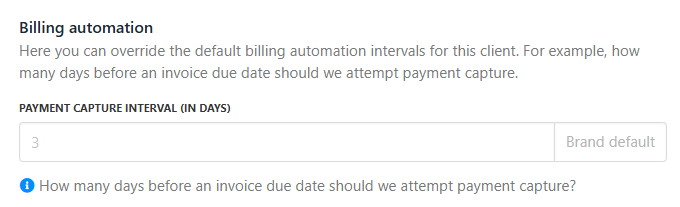
3. Scroll to `Billing Automation`.

4. Enter a custom **Payment Capture Interval (in days)** for this client.
<Frame caption="Payment capture interval for individual clients">
  <img src="https://mintcdn.com/upmind/1-uICsJi9zYpvJVH/images/fb/8ddf0184ebb1d829.png?fit=max&auto=format&n=1-uICsJi9zYpvJVH&q=85&s=327380969c0647e58b9005eb14804123" alt="Payment capture interval for individual clients" width="680" height="207" data-path="images/fb/8ddf0184ebb1d829.png" />
</Frame>

3. Click **Save**.

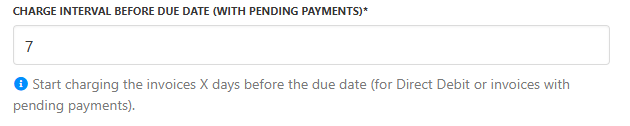
## How to set the payment interval before the due date with pending payments

In the Billing Automation section, this setting works similarly to the Charge Interval Before Due Date, but it specifically applies to:

* Direct debit payments.

* Invoices with pending payments (e.g., incomplete or failed transactions).
<Frame caption="Charge interval before due date (with pending payments)">
  <img src="https://mintcdn.com/upmind/uxzVUXAKtJ2bRWCI/images/fb/6acd64f95009bc65.png?fit=max&auto=format&n=uxzVUXAKtJ2bRWCI&q=85&s=9f0a6ae2ef59fea0b0aa3a5f4e50262c" alt="Charge interval before due date (with pending payments)" width="630" height="126" data-path="images/fb/6acd64f95009bc65.png" />
</Frame>

### Managing pending payments (purge after inactivity)

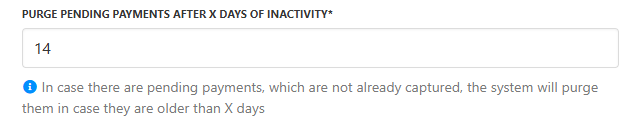
If any pending payments have not been captured, the system will automatically purge them if they are older than X days.

You can configure the Purge Pending Payment After X Days of Inactivity setting to automatically remove incomplete or abandoned payment attempts after the specified period.
<Frame caption="Purge pending payment after X days of inactivity">
  <img src="https://mintcdn.com/upmind/VnCXiz5rboywDnvn/images/fb/dc766c607d05b197.png?fit=max&auto=format&n=VnCXiz5rboywDnvn&q=85&s=d667fc31df18f493a8fba9e1afbe5481" alt="Purge pending payment after X days of inactivity" width="635" height="132" data-path="images/fb/dc766c607d05b197.png" />
</Frame>
