> ## Documentation Index
> Fetch the complete documentation index at: https://docs.upmind.com/llms.txt
> Use this file to discover all available pages before exploring further.

# How to Make Payments in Different Currencies

> Flexible transactions with many payment options

Upmind supports multi-currency payments, giving clients the flexibility to pay invoices in their preferred currency. This applies to both new orders and renewals, and is accessible from both the Client area and Admin area.

* To set the currency for payments, you can refer to this [guide](/using-upmind/invoicing-and-taxes/how-to-add-currencies-and-exchange-rates#/).

* For more details on multi-currency support in Upmind, please refer to this [guide](/using-upmind/invoicing-and-taxes/about-multi-currency).

## Paying from the client area

1. Log in to your Upmind **client portal**.

2. Navigate to the invoice for the purchased product or service from `Billing` and click **Pay Now**.
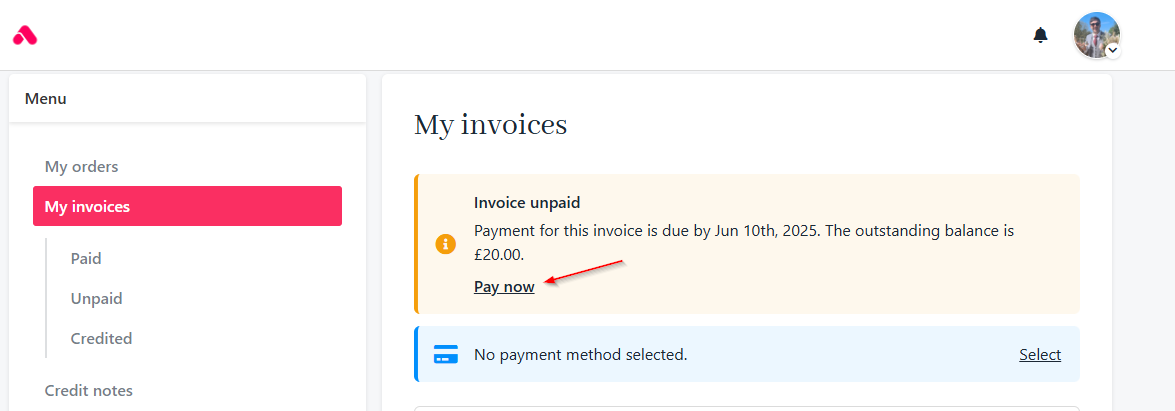
<Frame caption="Click pay now">
  <img src="https://mintcdn.com/upmind/2ooSxDpt6PiIGMr-/images/fb/006fdc2ea4b05a87.png?fit=max&auto=format&n=2ooSxDpt6PiIGMr-&q=85&s=ddad313e7dee997c497f3d155ea0c6bb" alt="Click pay now" width="1175" height="411" data-path="images/fb/006fdc2ea4b05a87.png" />
</Frame>

3. Click **Change Currency** on the invoice page.
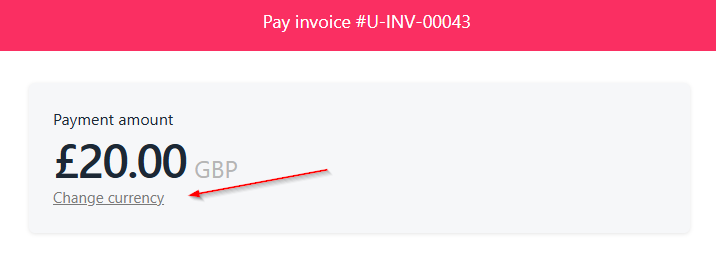
<Frame caption="Change currency">
  <img src="https://mintcdn.com/upmind/1-uICsJi9zYpvJVH/images/fb/8ac5c603d9d61721.png?fit=max&auto=format&n=1-uICsJi9zYpvJVH&q=85&s=e5317268a2e4703e0f9ccee5c71d99e6" alt="Change currency" width="716" height="253" data-path="images/fb/8ac5c603d9d61721.png" />
</Frame>

4. Select your preferred currency from the available list.
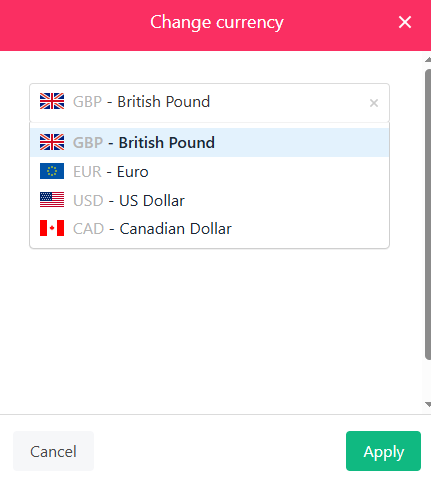
<Frame caption="Select preferred currency">
  <img src="https://mintcdn.com/upmind/bPO2bBzOxYQR4tYr/images/fb/f5711a73b0c705e6.png?fit=max&auto=format&n=bPO2bBzOxYQR4tYr&q=85&s=6b46956c890cbd20bc7dcaa942ff759b" alt="Select preferred currency" width="431" height="478" data-path="images/fb/f5711a73b0c705e6.png" />
</Frame>

5. Click **Pay** to proceed and complete the payment.

## Paying from the admin area

1. Log in to the Upmind **admin dashboard**.

2. Navigate to the client profile and under the `Billing` section, select the invoice to be paid.
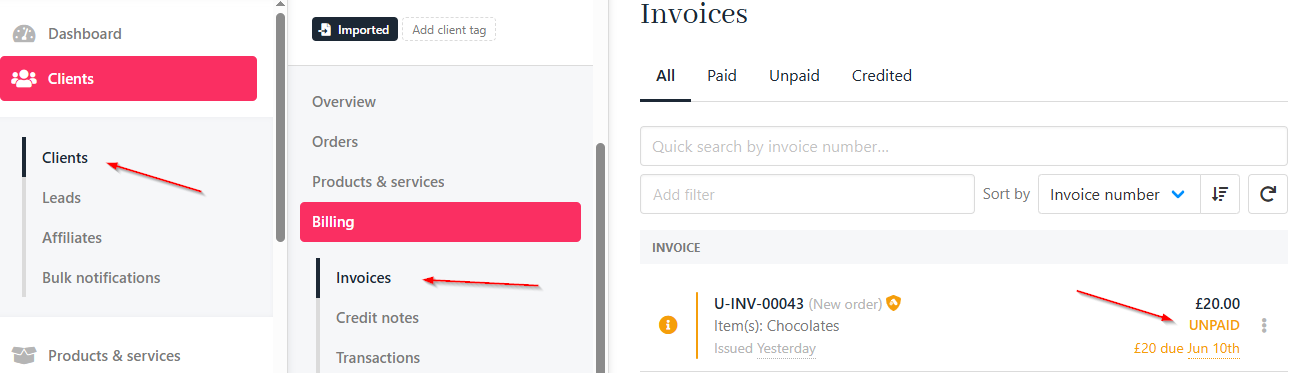
<Frame caption="Clients > Invoices">
  <img src="https://mintcdn.com/upmind/ZsIo0APxdVb_gFS-/images/fb/27e92b5d341ecd0d.png?fit=max&auto=format&n=ZsIo0APxdVb_gFS-&q=85&s=ca1d7769b7163ddb40ad5e11822ff2bd" alt="Clients > Invoices" data-og-width="1305" width="1305" data-og-height="373" height="373" data-path="images/fb/27e92b5d341ecd0d.png" data-optimize="true" data-opv="3" srcset="https://mintcdn.com/upmind/ZsIo0APxdVb_gFS-/images/fb/27e92b5d341ecd0d.png?w=280&fit=max&auto=format&n=ZsIo0APxdVb_gFS-&q=85&s=9cd6c087eb15915cd46b782db7d63be9 280w, https://mintcdn.com/upmind/ZsIo0APxdVb_gFS-/images/fb/27e92b5d341ecd0d.png?w=560&fit=max&auto=format&n=ZsIo0APxdVb_gFS-&q=85&s=91c2b7961d7a89ff96c9fd07963e9096 560w, https://mintcdn.com/upmind/ZsIo0APxdVb_gFS-/images/fb/27e92b5d341ecd0d.png?w=840&fit=max&auto=format&n=ZsIo0APxdVb_gFS-&q=85&s=c10befe2c9bf95d15318b930c2d3ccf6 840w, https://mintcdn.com/upmind/ZsIo0APxdVb_gFS-/images/fb/27e92b5d341ecd0d.png?w=1100&fit=max&auto=format&n=ZsIo0APxdVb_gFS-&q=85&s=8c070d69b2960db4bcd6e913b730a054 1100w, https://mintcdn.com/upmind/ZsIo0APxdVb_gFS-/images/fb/27e92b5d341ecd0d.png?w=1650&fit=max&auto=format&n=ZsIo0APxdVb_gFS-&q=85&s=d8aa6df1a12f8497da890d3474f8a411 1650w, https://mintcdn.com/upmind/ZsIo0APxdVb_gFS-/images/fb/27e92b5d341ecd0d.png?w=2500&fit=max&auto=format&n=ZsIo0APxdVb_gFS-&q=85&s=b4dad31e302e1a128e399701083a9235 2500w" />
</Frame>

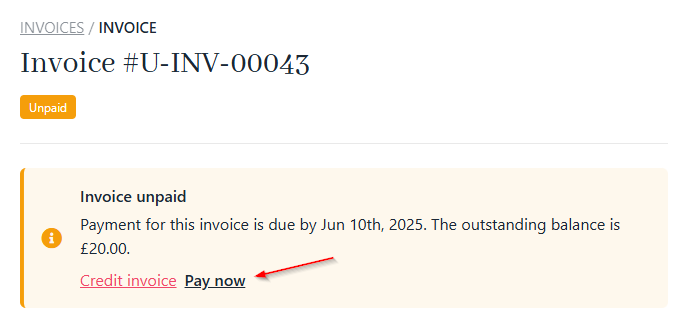
3. Click **Pay Now**.

<Frame caption="Click pay now">
  <img src="https://mintcdn.com/upmind/JUoAg6onJmXk_-rR/images/fb/de81bf5a0b48a83b.png?fit=max&auto=format&n=JUoAg6onJmXk_-rR&q=85&s=acc7e795a415af668ff5f534df4fb9dd" alt="Click pay now" width="691" height="318" data-path="images/fb/de81bf5a0b48a83b.png" />
</Frame>

4. Click **Change Currency** and choose the desired one for the transaction.
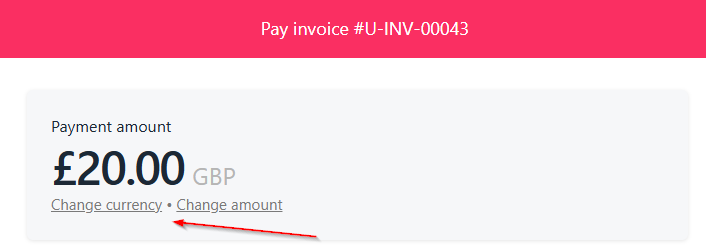
<Frame caption="Change currency">
  <img src="https://mintcdn.com/upmind/c5sDUwEs8YpzGbjA/images/fb/929c1f65208cd8df.png?fit=max&auto=format&n=c5sDUwEs8YpzGbjA&q=85&s=8368ab3a1b13375cf264a1f318b6894a" alt="Change currency" width="706" height="250" data-path="images/fb/929c1f65208cd8df.png" />
</Frame>

5. Click **Pay** to finalise the payment.

<Note>
  Currency selection is only available if the payment gateway supports the chosen currency.

  Exchange rates are automatically applied based on your store’s configuration.
</Note>