> ## Documentation Index
> Fetch the complete documentation index at: https://docs.upmind.com/llms.txt
> Use this file to discover all available pages before exploring further.
# How to Add PayPal Pro as a Payment Method
> Configure PayPal Pro
**PayPal Pro** enables direct credit or debit card payments through PayPal, acting as a full payment gateway. This is ideal if you want PayPal to process card payments directly.
However, **we recommend** using [PayPal Billing Agreements](/using-upmind/payment-methods/how-to-add-paypal-as-a-payment-method/how-to-add-paypal-billing-agreement-as-a-payment-method) as the PayPal payment method.
In this guide, we will set up PayPal Pro. You will require:
* A PayPal account
* An Upmind account
Please make sure this feature is enabled on your PayPal account. You may need to contact PayPal or check their [guide](https://developer.paypal.com/api/nvp-soap/payflow/website-payments-pro/).
## Obtaining API credentials from PayPal
1. Log in to your **PayPal Business account**.
2. Go to `Account Settings`.
3. Click **API Access** > **Update**.
4. Under **Custom checkout experience**, select **NVP/SOAP API Integration (Classic)** and click **Manage API credentials**.
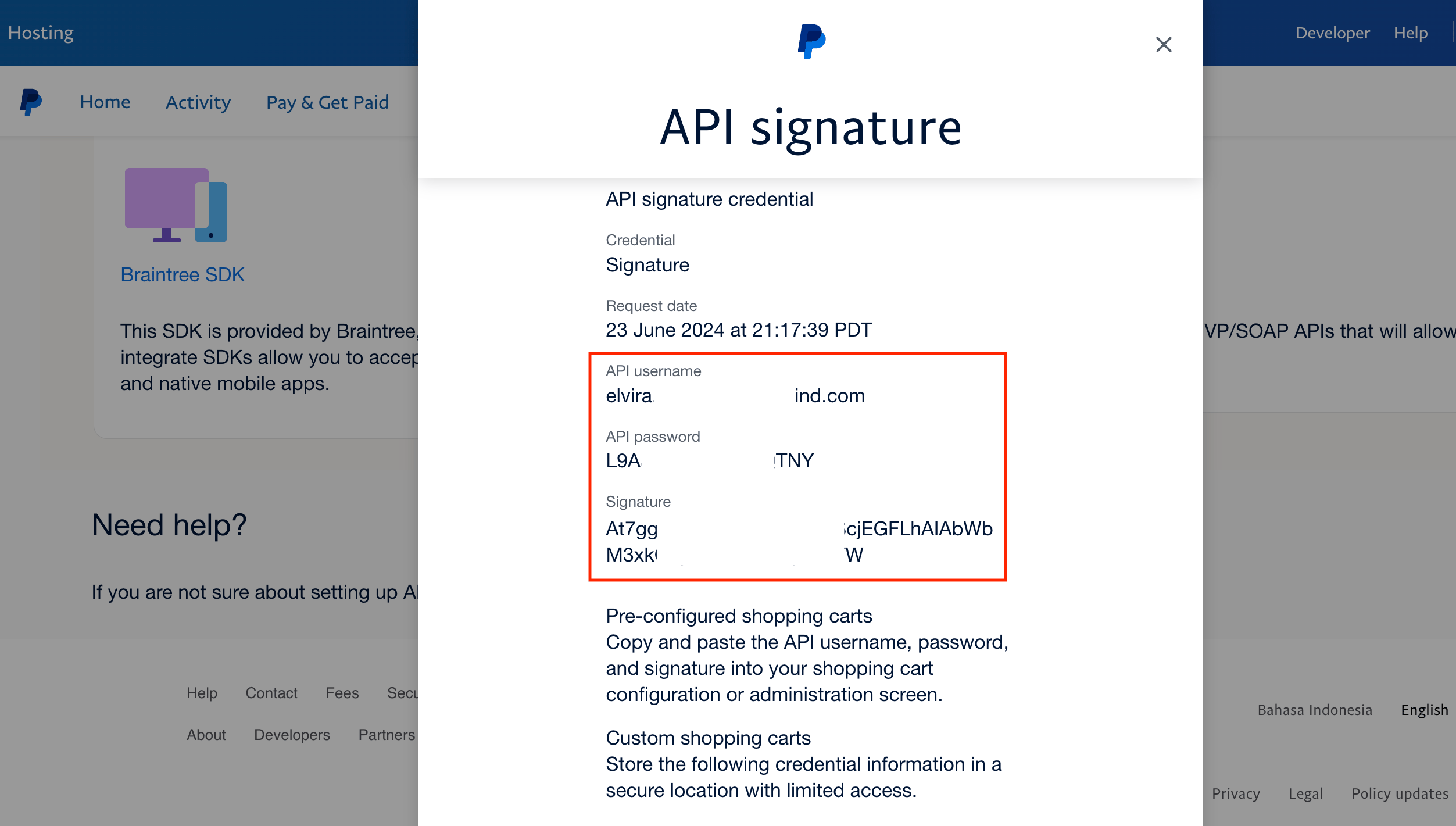
5. Copy your **API Username**, **API Password**, and **Signature**.
 ## Adding PayPal Pro in Upmind
1. In Upmind, go to **Settings** > **Payment Providers**.
2. Click **Add Payment Provider**.
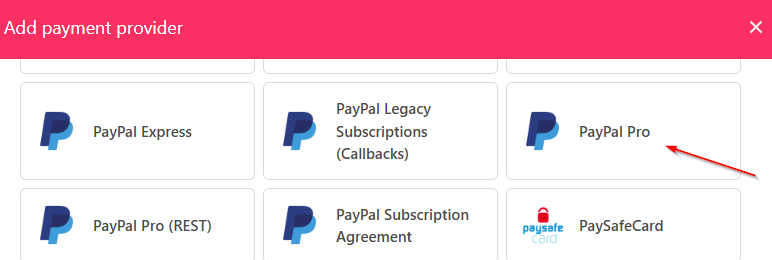
3. Choose **PayPal Pro**.
## Adding PayPal Pro in Upmind
1. In Upmind, go to **Settings** > **Payment Providers**.
2. Click **Add Payment Provider**.
3. Choose **PayPal Pro**.
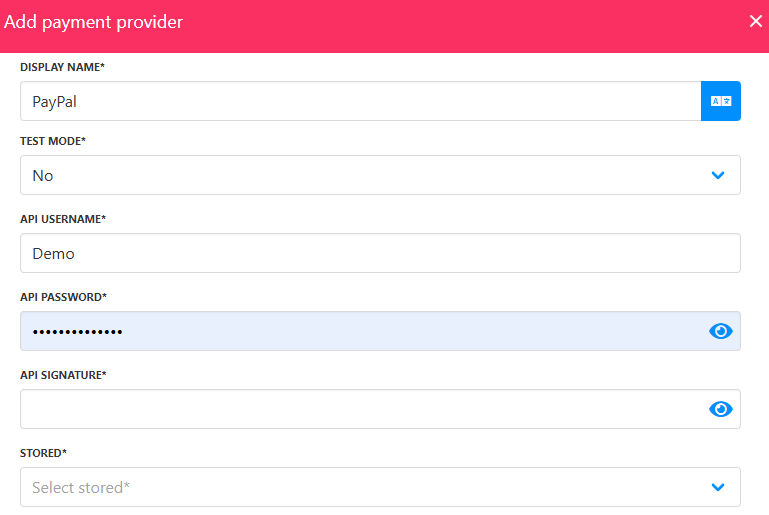
 4. Enter a display name. We suggest **PayPal**.
5. Set **Test Mode** to **No**.
6. Enter your **API credentials**.
7. Choose if you want it **Stored**.
8. Click **Test Credentials**.
9. (Optional) Add currencies and payment instructions.
10. Click **Create**.
4. Enter a display name. We suggest **PayPal**.
5. Set **Test Mode** to **No**.
6. Enter your **API credentials**.
7. Choose if you want it **Stored**.
8. Click **Test Credentials**.
9. (Optional) Add currencies and payment instructions.
10. Click **Create**.
 ## Editing PayPal Pro
To update, go to **Settings** > **Payment Providers**, click the three dots, and select **Edit**.
## Editing PayPal Pro
To update, go to **Settings** > **Payment Providers**, click the three dots, and select **Edit**.