> ## Documentation Index
> Fetch the complete documentation index at: https://docs.upmind.com/llms.txt
> Use this file to discover all available pages before exploring further.
# How to Add PayPal Billing Agreement as a Payment Method
> Configure PayPal Billing Agreement
**PayPal Billing Agreements** enable automatic recurring payments, making it the recommended PayPal integration for most Upmind users. This method supports smooth recurring billing, whether or not reference transactions are enabled in your PayPal account.
In this guide, we will set up PayPal Billing Agreement. You will require:
* PayPal Business account
* Upmind admin access
## Obtaining API credentials from PayPal
1. Log in to your PayPal Business account.
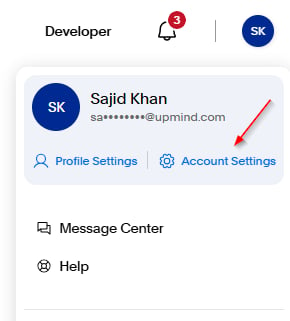
2. Go to `Account Settings` (top right)
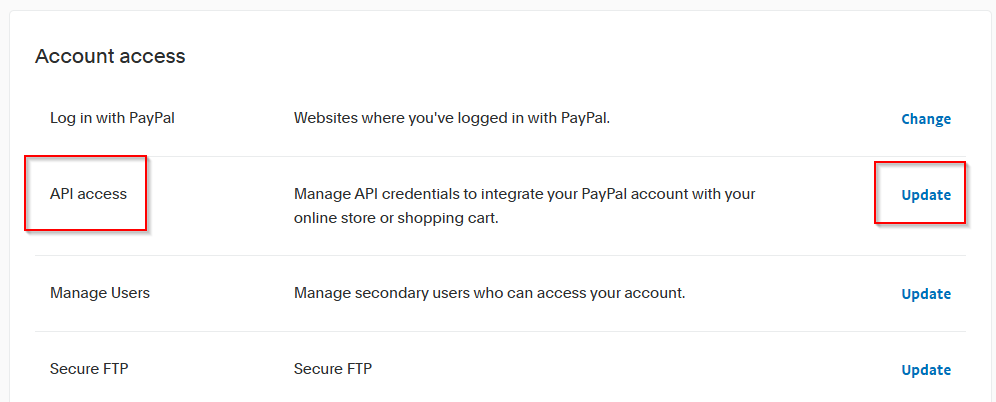
 3. Click **API Access** > **Update**.
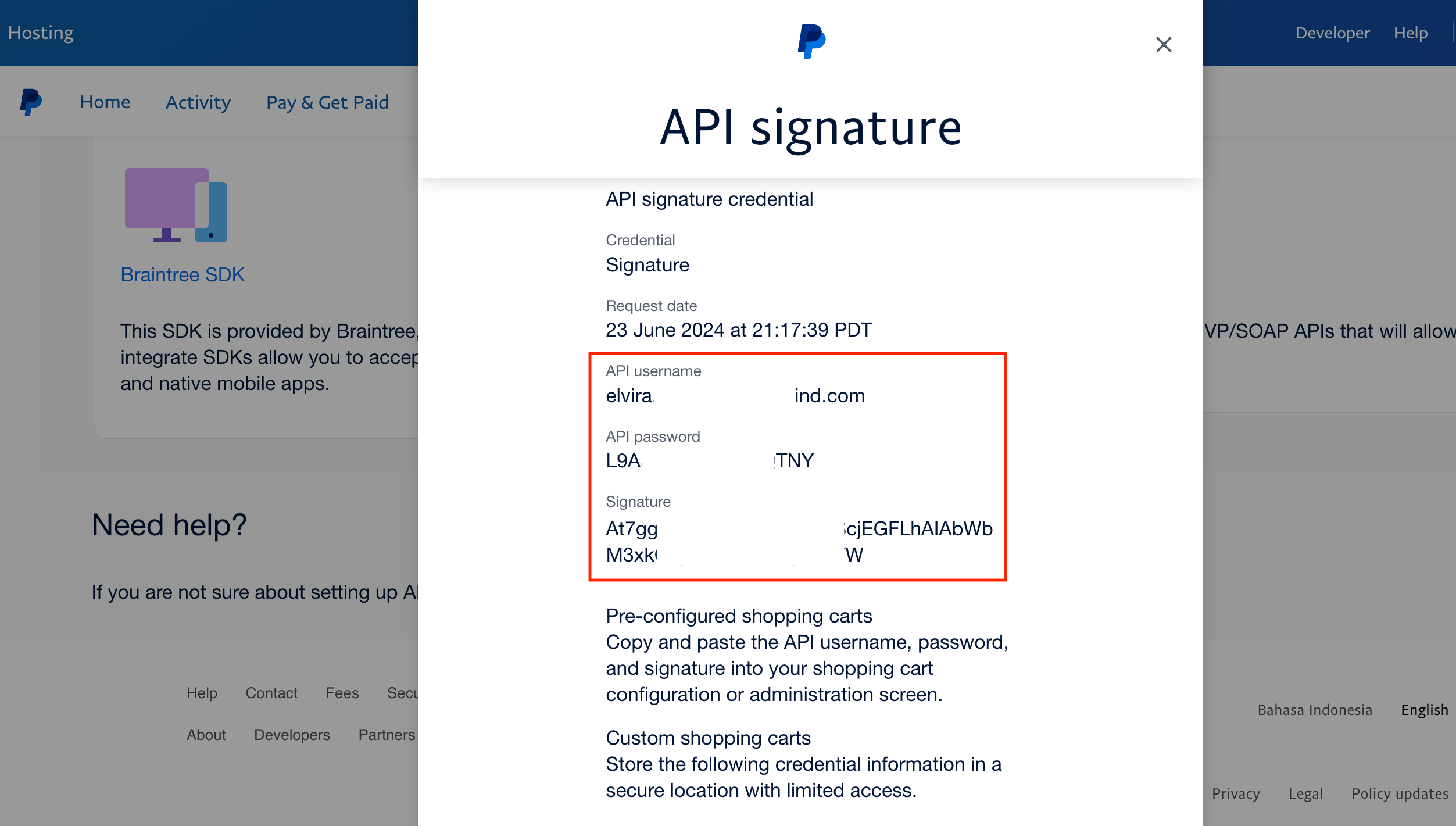
 4. Under `Custom checkout experience`, locate `NVP/SOAP API Integration (Classic)` and click **Manage API credentials**.
5. Copy your **API Username**, **API Password**, and **Signature**.
4. Under `Custom checkout experience`, locate `NVP/SOAP API Integration (Classic)` and click **Manage API credentials**.
5. Copy your **API Username**, **API Password**, and **Signature**.
 ## Adding PayPal Billing Agreement in Upmind
1. In Upmind, go to **Settings** > **Payment Providers**.
2. Click **Add Payment Provider**.
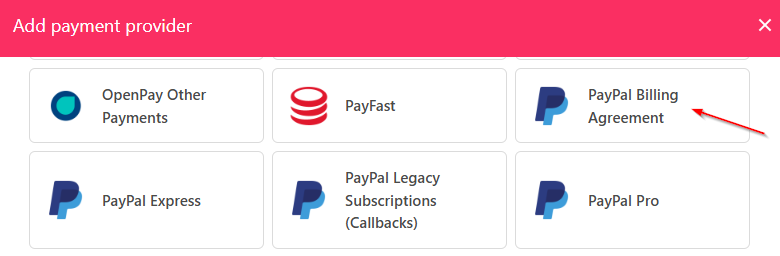
3. Select **PayPal Billing Agreement** from the list.
## Adding PayPal Billing Agreement in Upmind
1. In Upmind, go to **Settings** > **Payment Providers**.
2. Click **Add Payment Provider**.
3. Select **PayPal Billing Agreement** from the list.
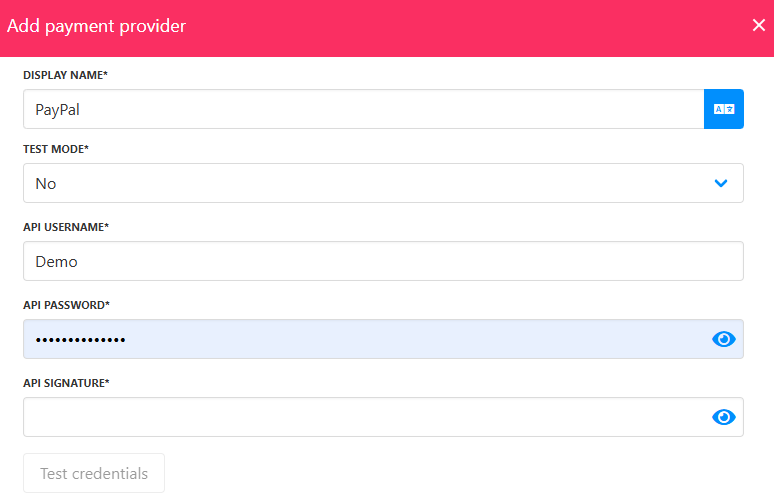
 4. Scroll down and enter a display name. We suggest **PayPal**.
5. Set **Test Mode** to **No** for live transactions.
6. Paste your **API Username**, **Password**, and **Signature** into the respective fields.
7. Click **Test Credentials** to verify the connection.
8. (Optional) Add supported currencies.
9. (Optional) Enter payment instructions for clients.
10. Click **Create** to activate the payment method.
4. Scroll down and enter a display name. We suggest **PayPal**.
5. Set **Test Mode** to **No** for live transactions.
6. Paste your **API Username**, **Password**, and **Signature** into the respective fields.
7. Click **Test Credentials** to verify the connection.
8. (Optional) Add supported currencies.
9. (Optional) Enter payment instructions for clients.
10. Click **Create** to activate the payment method.
 ## Editing PayPal Billing Agreement
To update or change settings, go to **Settings** > **Payment Providers**, click the three dots next to PayPal Billing Agreement, and select **Edit**.
## Editing PayPal Billing Agreement
To update or change settings, go to **Settings** > **Payment Providers**, click the three dots next to PayPal Billing Agreement, and select **Edit**.