> ## Documentation Index
> Fetch the complete documentation index at: https://docs.upmind.com/llms.txt
> Use this file to discover all available pages before exploring further.
# How to Add Openpay as a Payment Method
> Set up Openpay to take payments in Upmind
[Openpay](https://www.openpay.mx/) is a flexible payment gateway for Mexico that lets customers pay in interest-free instalments, supporting card payments, bank transfers, and store payments.
## Getting Openpay API credentials
1. Log in to your **Openpay** account dashboard.
2. Locate your **Merchant ID**, **Public Key**, and **Secret Key**.
 ## Adding Openpay Card as a payment provider
1. Go to **Settings** > **Payment Providers** in your admin area.
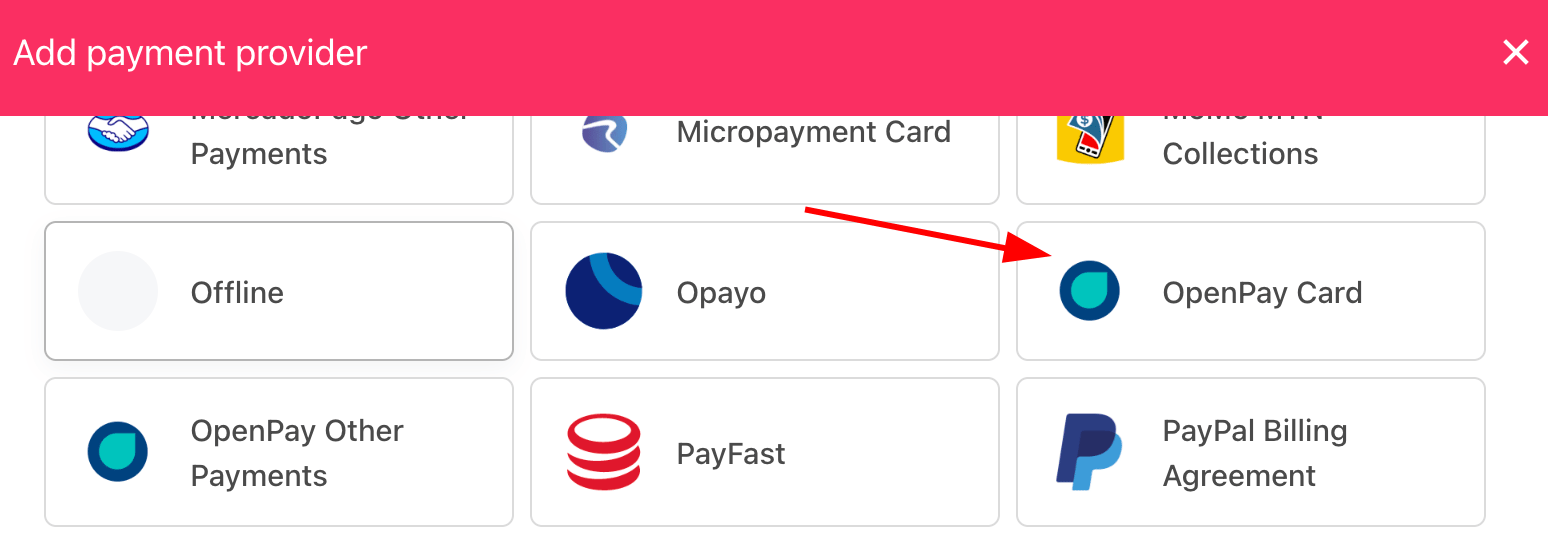
2. Click **Add Payment Provider** and select **Openpay Card**.
## Adding Openpay Card as a payment provider
1. Go to **Settings** > **Payment Providers** in your admin area.
2. Click **Add Payment Provider** and select **Openpay Card**.
 ## Configuring details
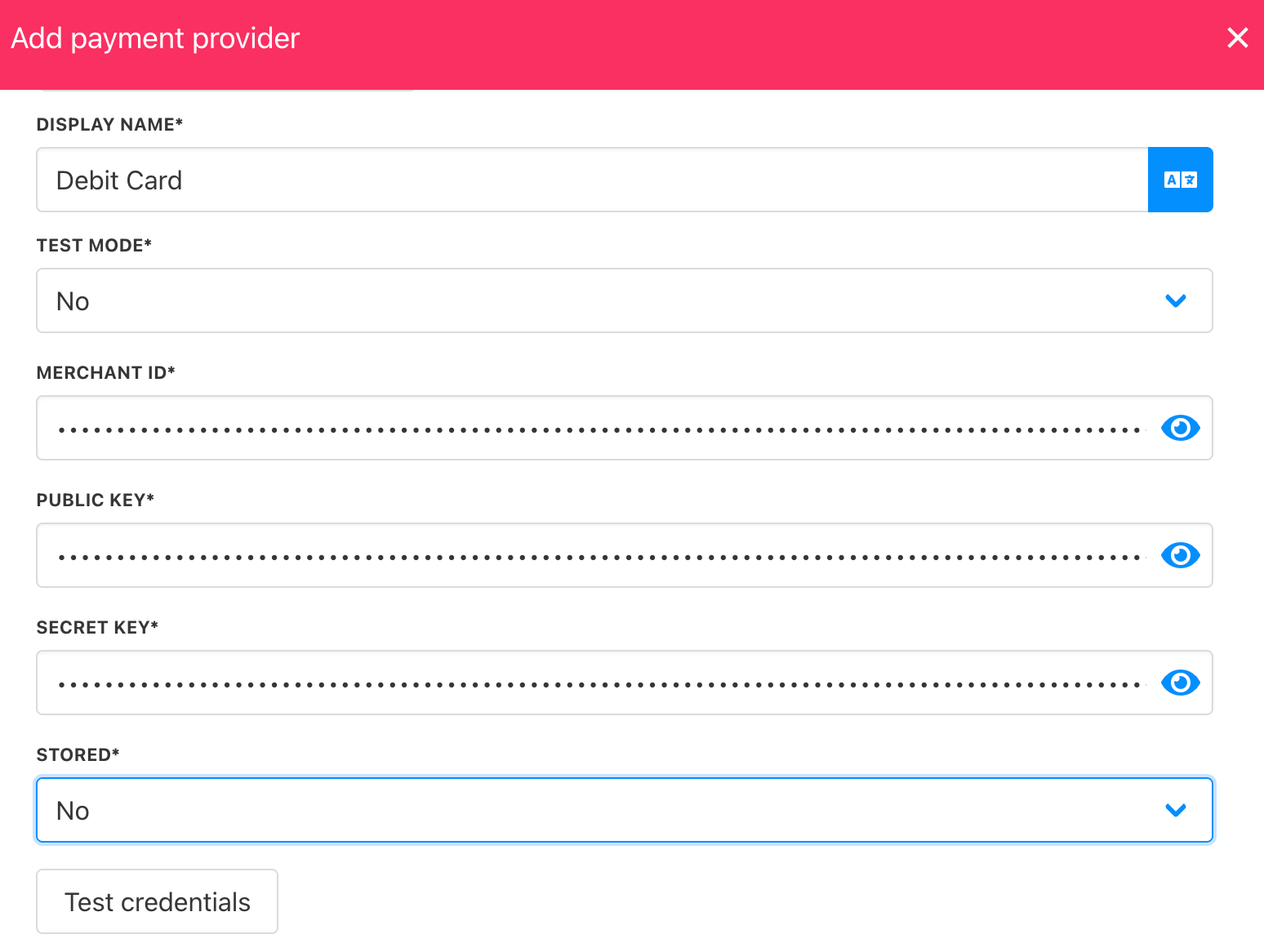
1. Enter a display name. We suggest **Debit/Credit Card**.
2. Select the appropriate **Test Mode** option.
3. Enter your **Merchant ID**, **Public Key**, and **Secret Key**.
4. Set the **Stored** field as needed.
5. Click **Test Credentials** to verify.
6. Add supported currencies.
7. (Optional) Enter payment instructions.
8. Click **Create**.
## Configuring details
1. Enter a display name. We suggest **Debit/Credit Card**.
2. Select the appropriate **Test Mode** option.
3. Enter your **Merchant ID**, **Public Key**, and **Secret Key**.
4. Set the **Stored** field as needed.
5. Click **Test Credentials** to verify.
6. Add supported currencies.
7. (Optional) Enter payment instructions.
8. Click **Create**.
 ## Adding Openpay Other Payments (Bank/Store)
1. In **Settings** > **Payment Providers**, click **Add Payment Provider**.
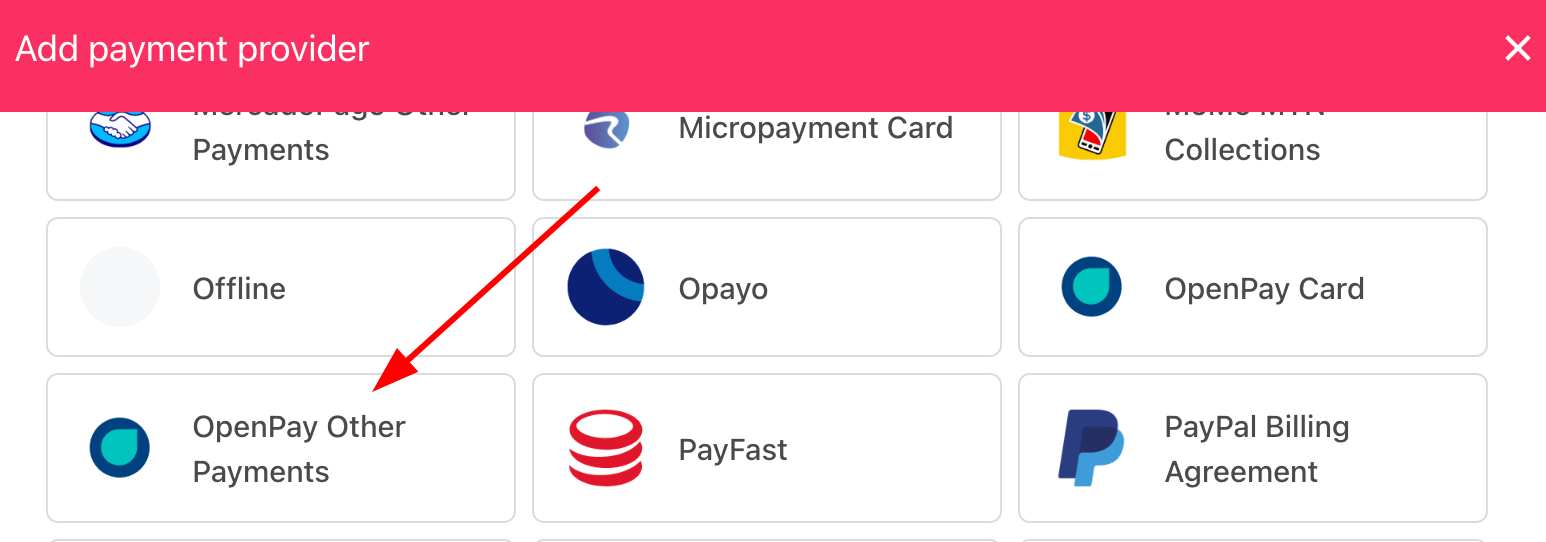
2. Select **Openpay Other Payments**.
## Adding Openpay Other Payments (Bank/Store)
1. In **Settings** > **Payment Providers**, click **Add Payment Provider**.
2. Select **Openpay Other Payments**.
 ## Configuring details
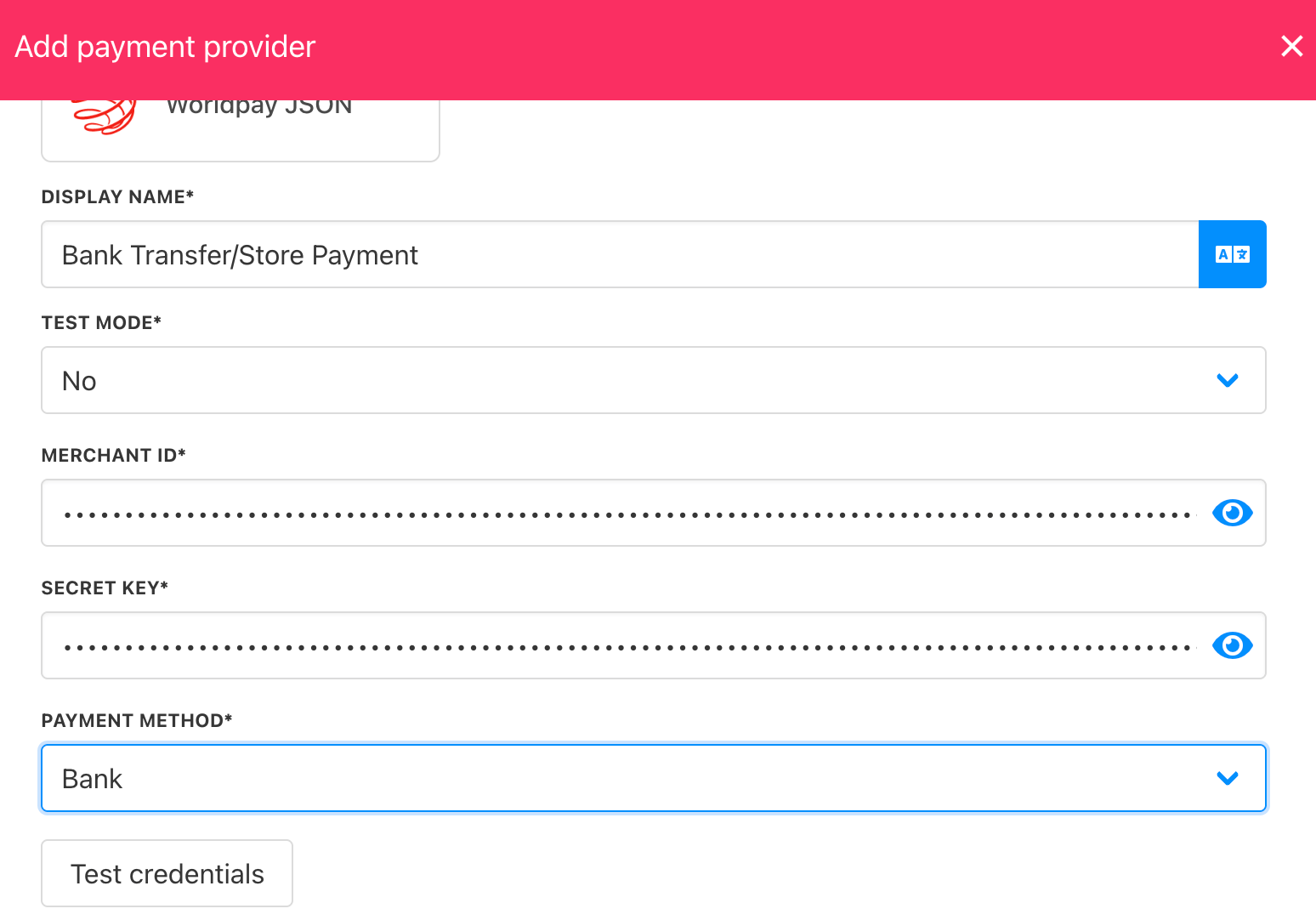
1. Enter a display name. We suggest **Bank Transfer/Store Payment**.
2. Select the appropriate **Test Mode** option.
3. Enter your **Merchant ID** and **Secret Key**.
4. Select the payment method (Bank/Store).
5. Click **Test Credentials** to verify.
6. Add supported currencies.
7. (Optional) Enter payment instructions.
8. Click **Create**.
## Configuring details
1. Enter a display name. We suggest **Bank Transfer/Store Payment**.
2. Select the appropriate **Test Mode** option.
3. Enter your **Merchant ID** and **Secret Key**.
4. Select the payment method (Bank/Store).
5. Click **Test Credentials** to verify.
6. Add supported currencies.
7. (Optional) Enter payment instructions.
8. Click **Create**.
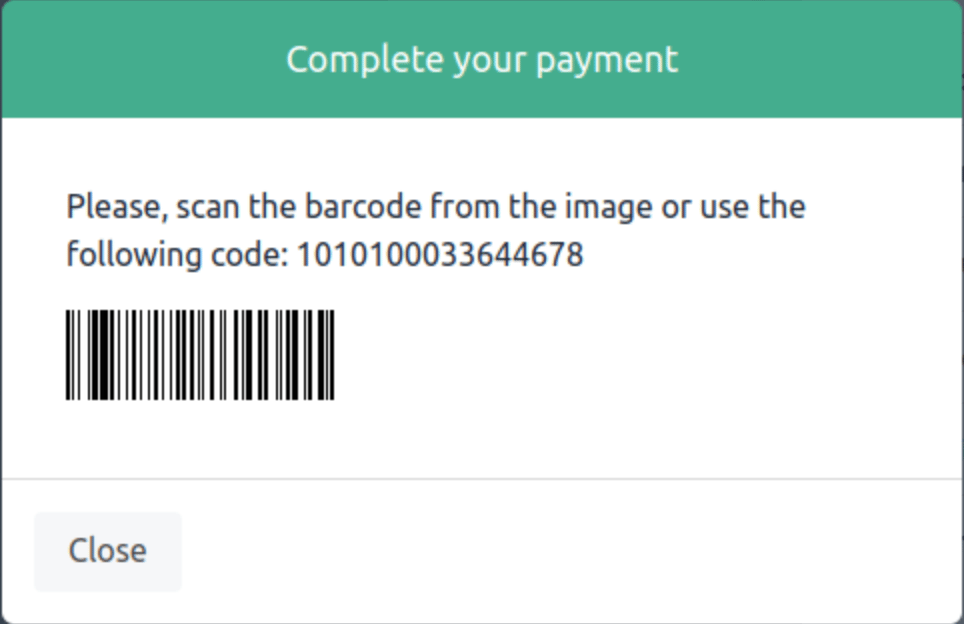
 The barcode payment option displays a scannable barcode along with the order number for easy processing:
 ## Editing the payment method
To update, go to **Settings** > **Payment Providers**, click the three dots next to the `Openpay` method, and select **Edit**.
## Editing the payment method
To update, go to **Settings** > **Payment Providers**, click the three dots next to the `Openpay` method, and select **Edit**.