> ## Documentation Index
> Fetch the complete documentation index at: https://docs.upmind.com/llms.txt
> Use this file to discover all available pages before exploring further.
# How to Add Offline as a Payment Method
> Give customers an offline option
**Offline payments** allow customers to pay via cash, check, postal order, or other offline methods. This option is valuable for businesses serving regions or clients without access to online payment solutions.
Offline payments require manual reconciliation, as there is a delay between payment and account update.
Bank transfers are sometimes considered an offline payment option, but are described in a separate **[guide](/using-upmind/payment-methods/how-to-add-payment-gateways/how-to-add-bank-transfer-as-a-payment-method#/).**
### Recommended process
Configure your store to automatically send an order confirmation with payment instructions when a customer selects this method at checkout. The order would include:
* Your company name and mailing address.
* Any relevant payment details (such as bank account or SWIFT code).
Once you confirm receipt of the offline payment, manually mark the invoice as paid and process the order.
## Adding the Offline payment provider
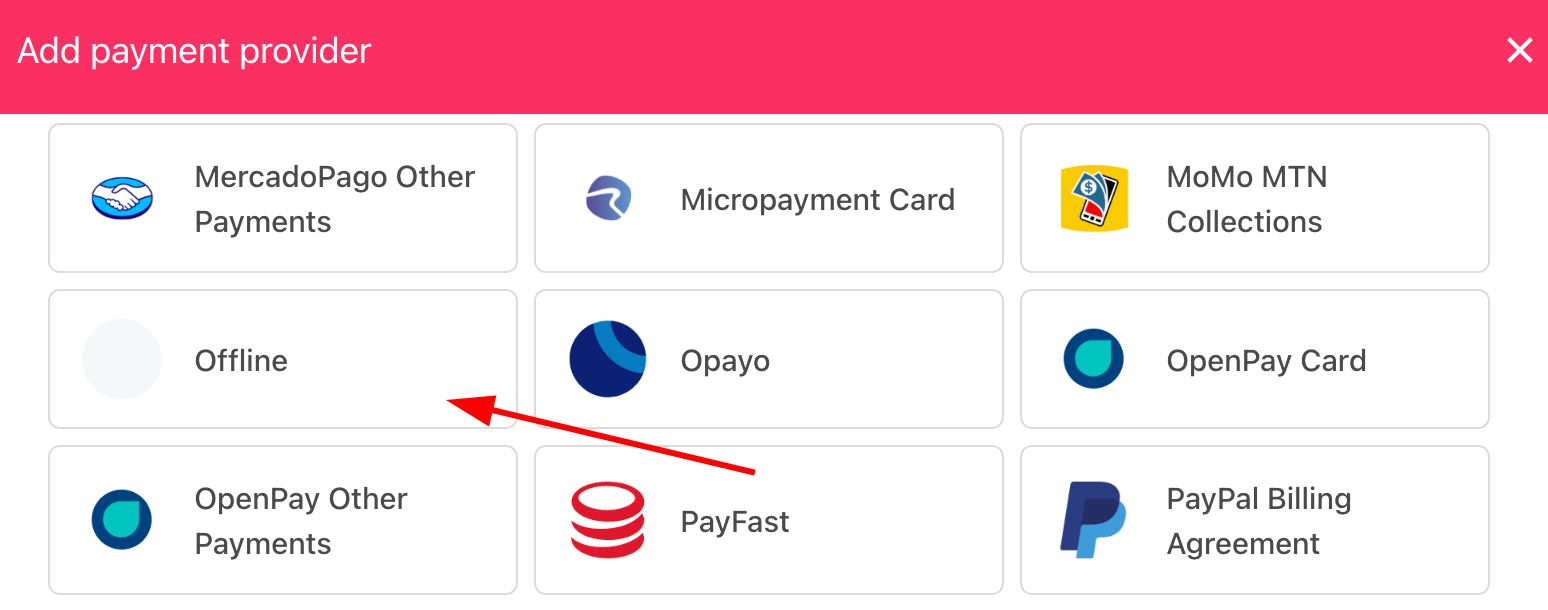
1. Go to **Settings** > **Payment Providers** in Upmind.
2. Click **Add Payment Provider**.
3. Select `Offline` from the list.
 ## Configuring details
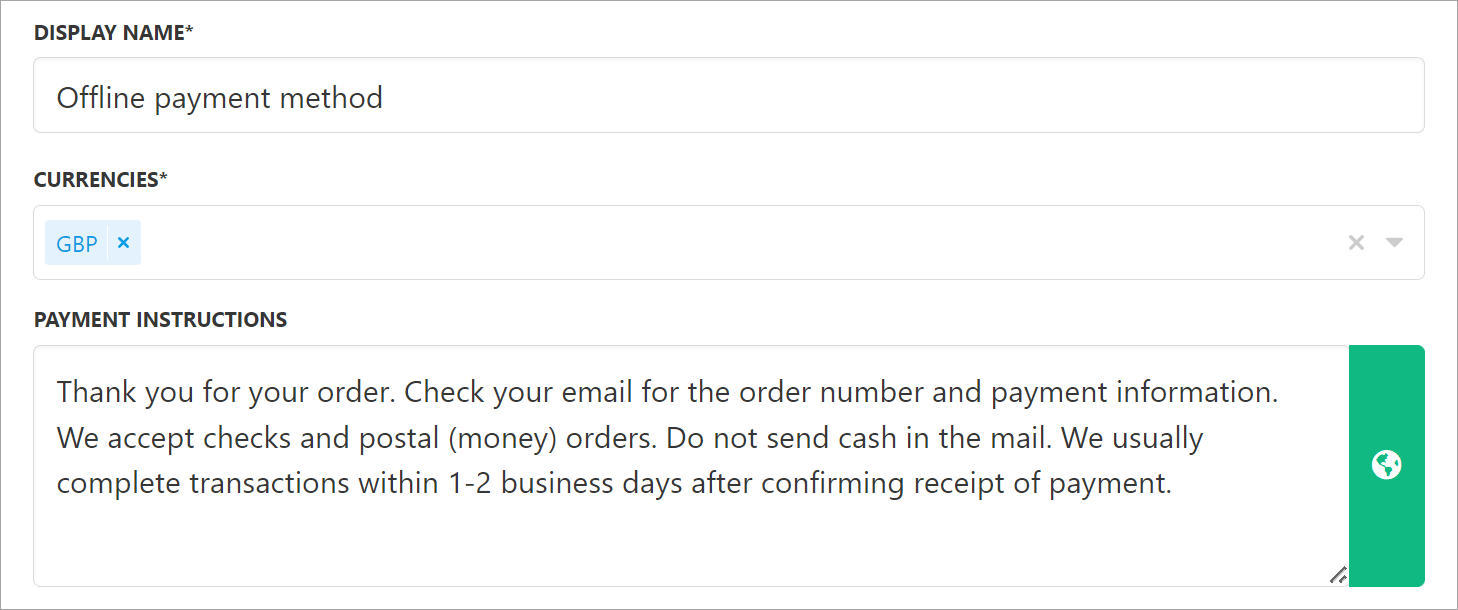
Scroll down the page and add details.
1. Enter a display name.
2. (Optional) Add supported currencies.
3. Enter clear payment instructions for your customers.
4. Click Create.
## Configuring details
Scroll down the page and add details.
1. Enter a display name.
2. (Optional) Add supported currencies.
3. Enter clear payment instructions for your customers.
4. Click Create.
 ### What the customer sees
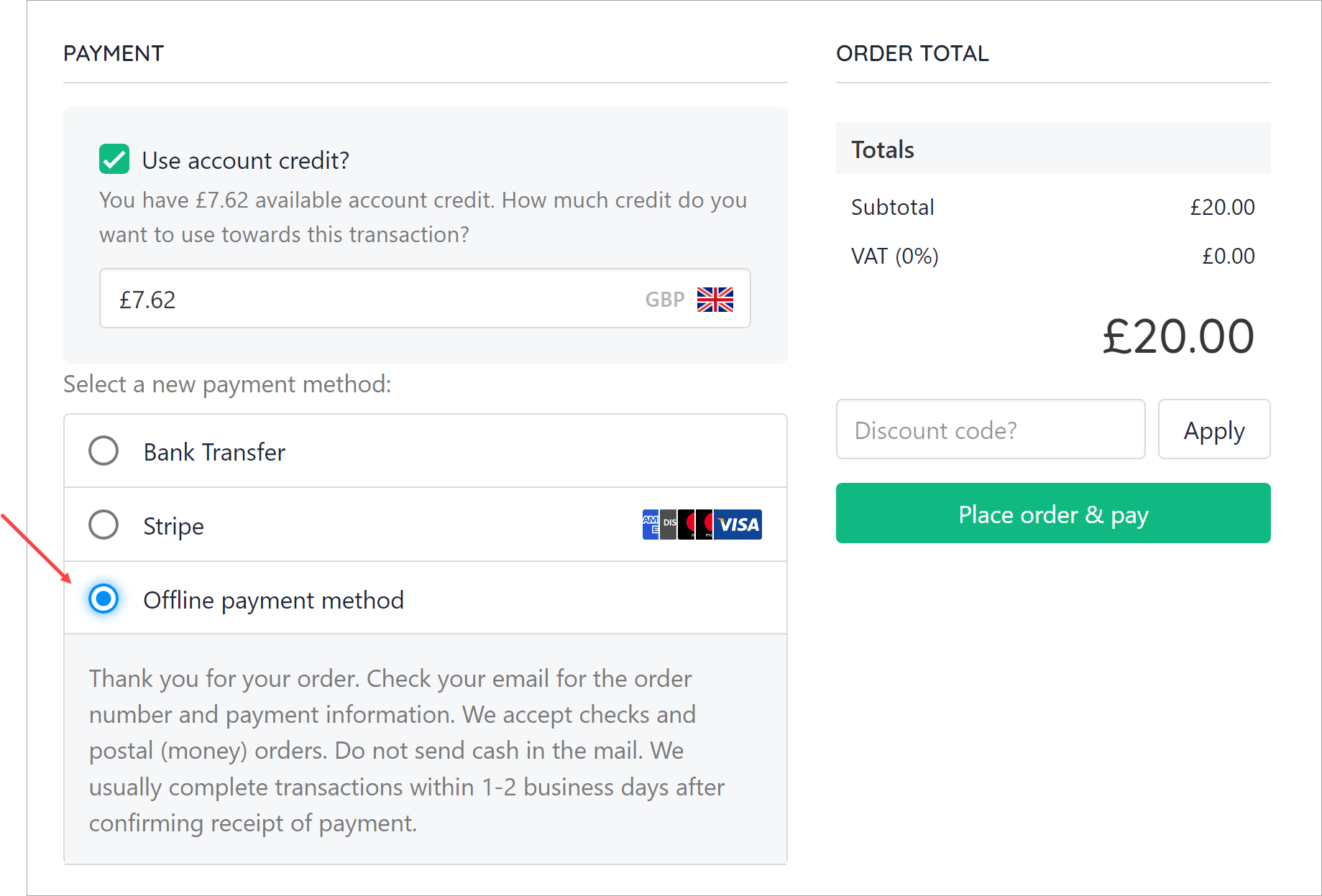
Customers see your payment instructions at checkout when choosing this method.
### What the customer sees
Customers see your payment instructions at checkout when choosing this method.
 ## Editing the payment method
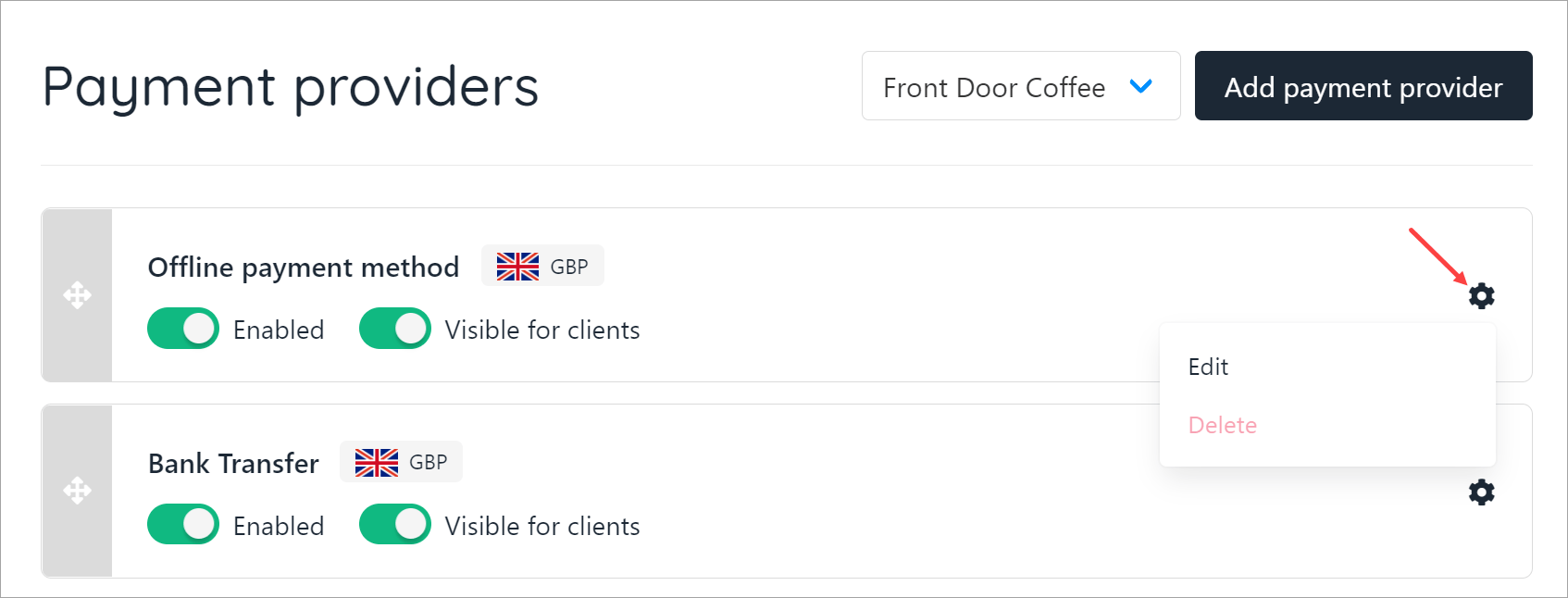
To update, go to **Settings** > **Payment Providers**, click the gear icon next to `Offline`, and select **Edit**.
## Editing the payment method
To update, go to **Settings** > **Payment Providers**, click the gear icon next to `Offline`, and select **Edit**.
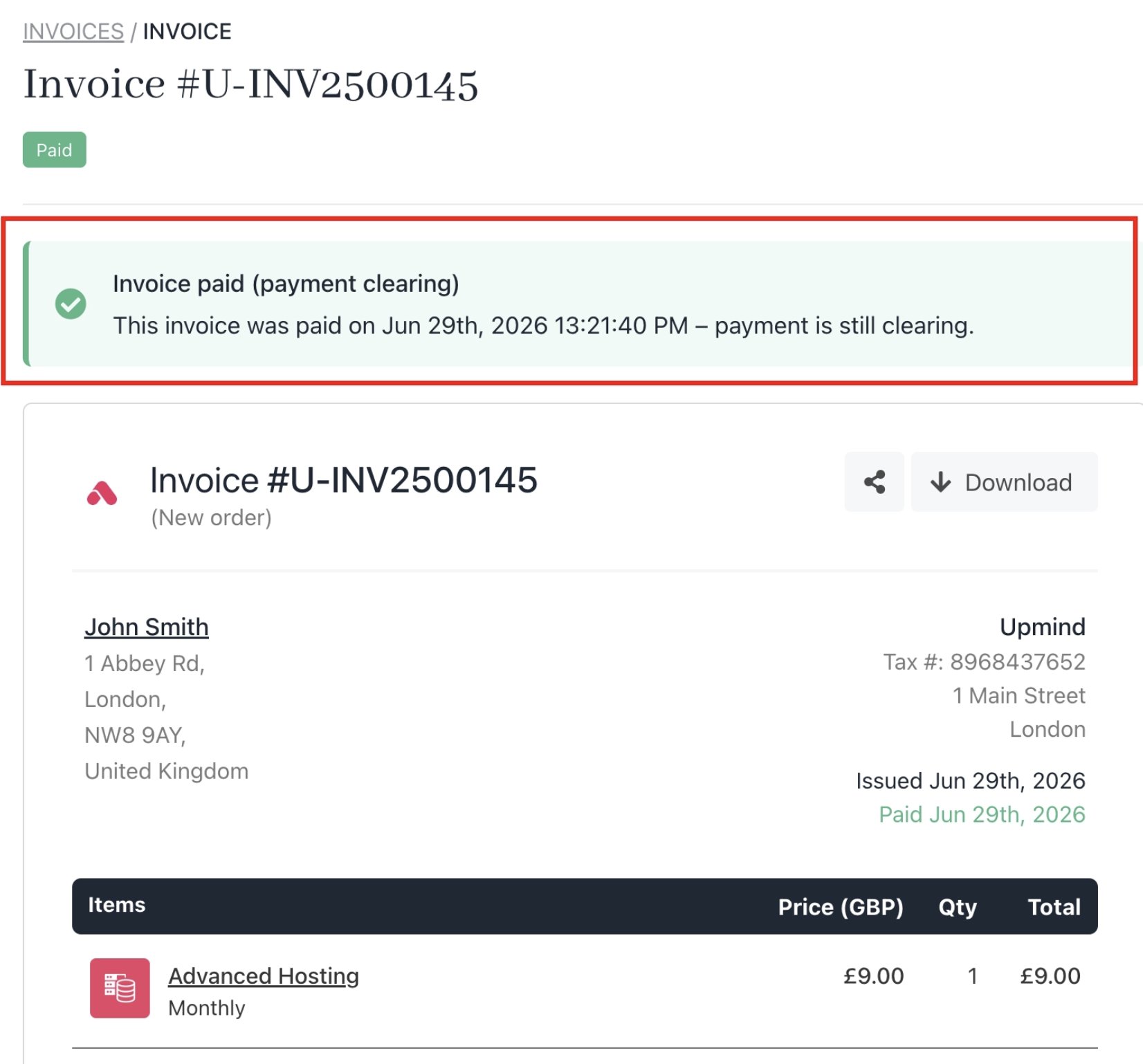
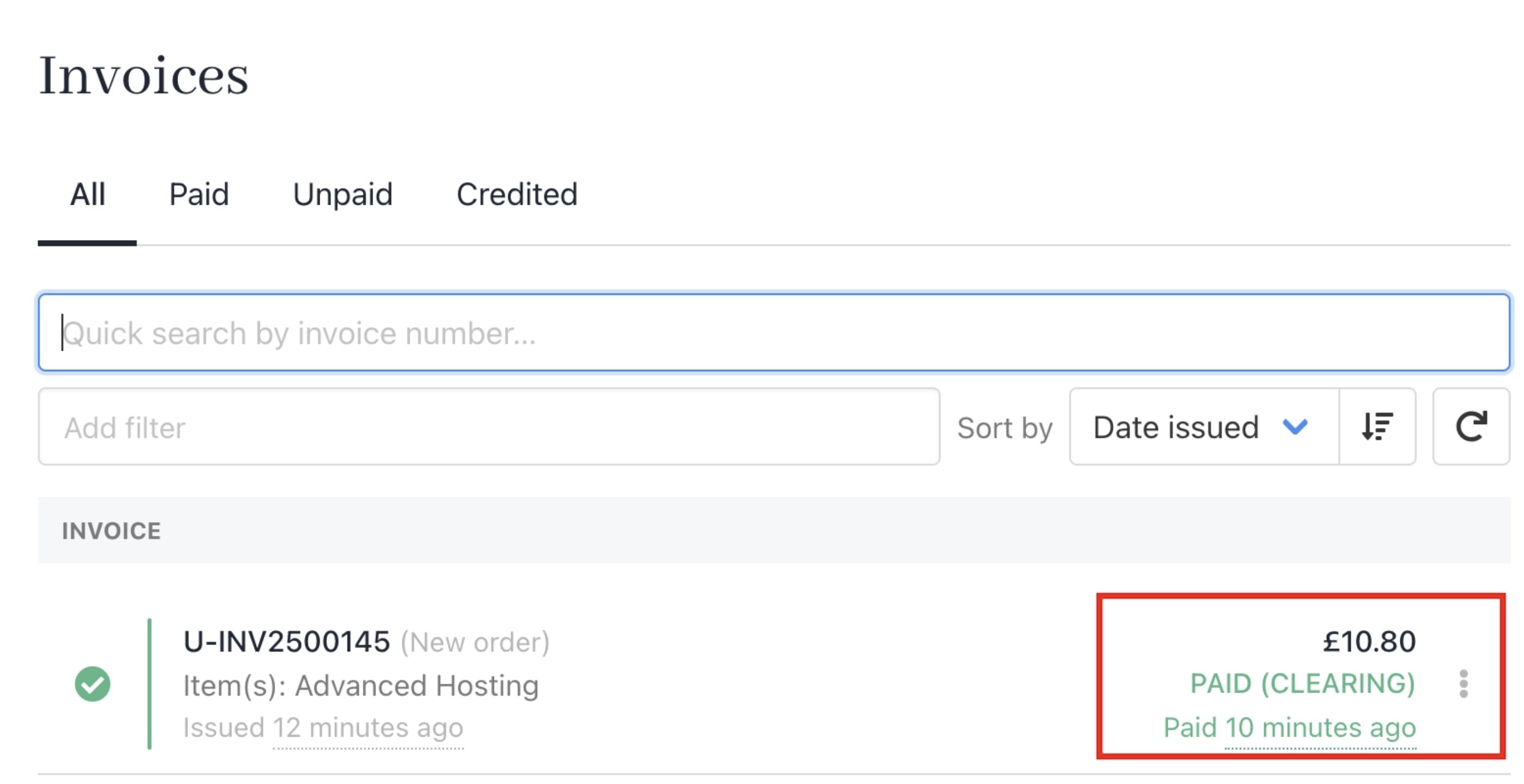
 ## Paid (clearing) invoice status
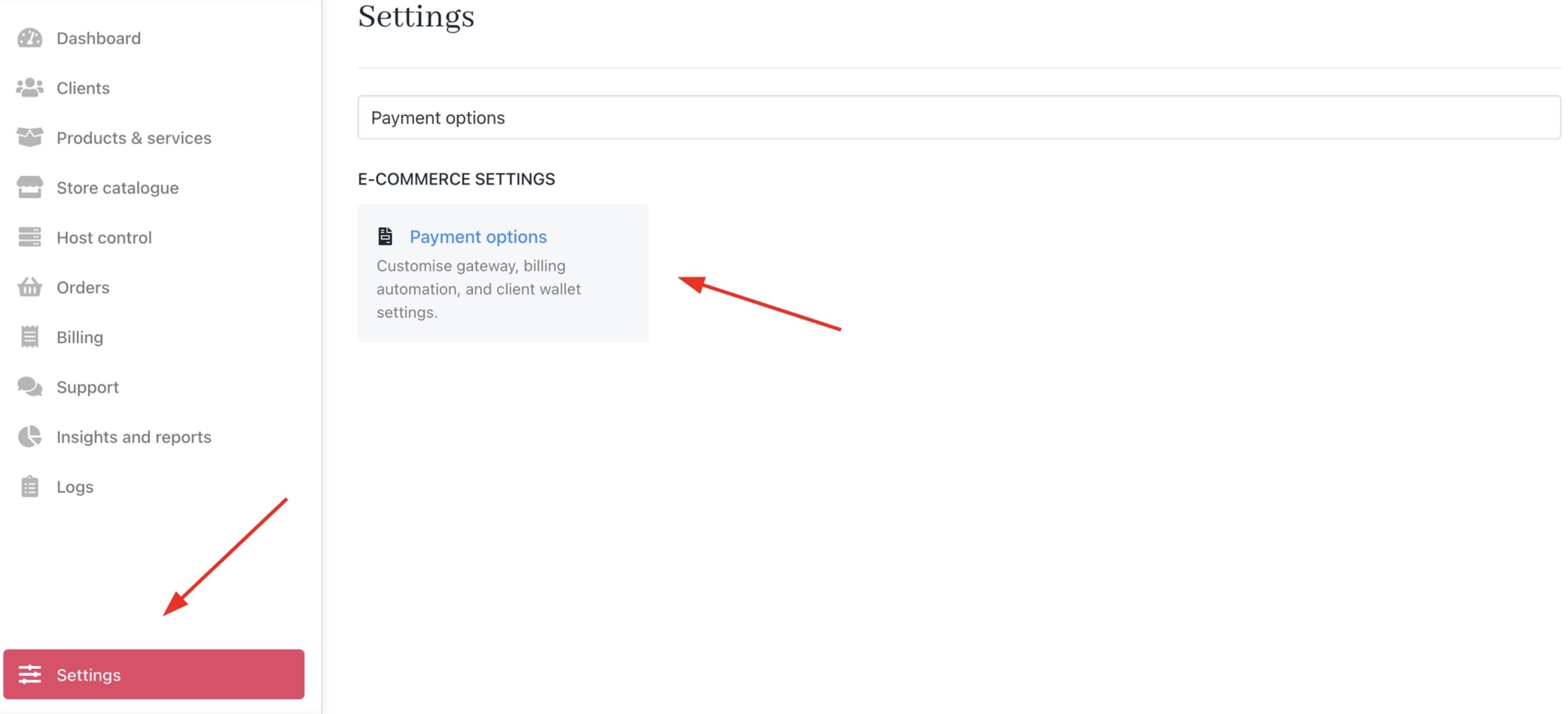
1. Go to **Settings** > **Payment Options** under **E-commerce Settings**.
## Paid (clearing) invoice status
1. Go to **Settings** > **Payment Options** under **E-commerce Settings**.
 2. In the **Gateway Settings** section, choose a payment method for the **Invoice pending payment method provider**. This specifies the payment method provider used to pay an invoice. If the selected provider requires manual or offline processing, the pending\_payment\_method property will be set to true.
 3. The invoice paid with the offline payment method will then have Paid (Clearing) status.