> ## Documentation Index
> Fetch the complete documentation index at: https://docs.upmind.com/llms.txt
> Use this file to discover all available pages before exploring further.
# How to Add Nicky as a Payment Method
*Set up Nicky to take payments in Upmind.*
[Nicky](https://nicky.me/) is a non-custodial, peer-to-peer crypto payment platform built for businesses. It lets you accept cryptocurrency payments directly into your own wallets. Nicky never holds your funds. It supports multiple wallet connections, a wide range of crypto assets, and converts prices from your local fiat currency into crypto at checkout.
## Before you begin
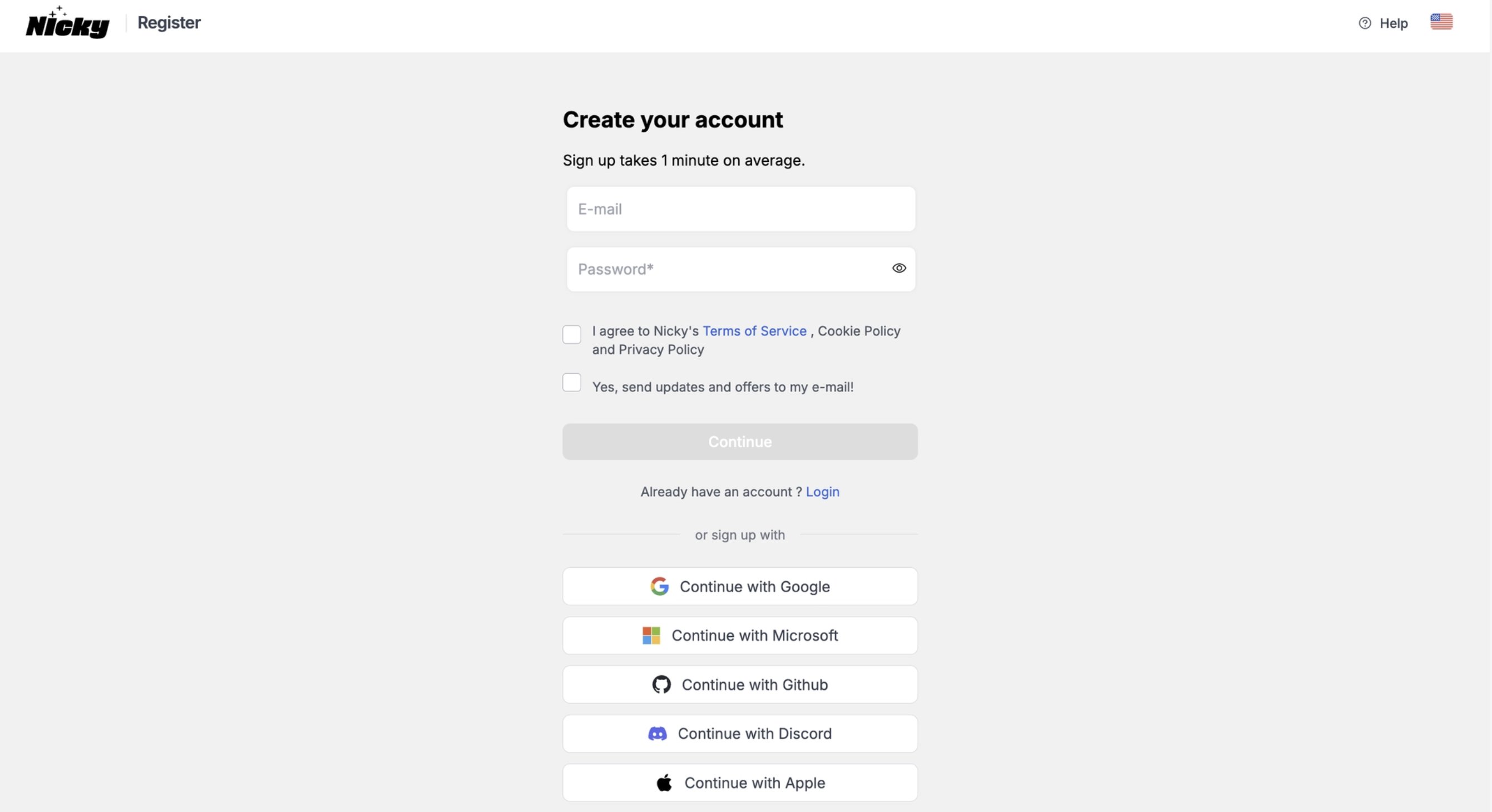
You will need an active Nicky merchant account. If you don't have one, register at [pay.nicky.me/register](https://pay.nicky.me/register), then log in to your Nicky Dashboard before proceeding.
 ## Getting Nicky credentials
To connect Nicky to Upmind, you need an API key from your Nicky Dashboard. This key is only shown once at the time of generation, so copy and store it somewhere safe before closing the screen.
1. In your Nicky Dashboard, go to **Settings > API**.
2. Click **Generate new API key**.
## Getting Nicky credentials
To connect Nicky to Upmind, you need an API key from your Nicky Dashboard. This key is only shown once at the time of generation, so copy and store it somewhere safe before closing the screen.
1. In your Nicky Dashboard, go to **Settings > API**.
2. Click **Generate new API key**.
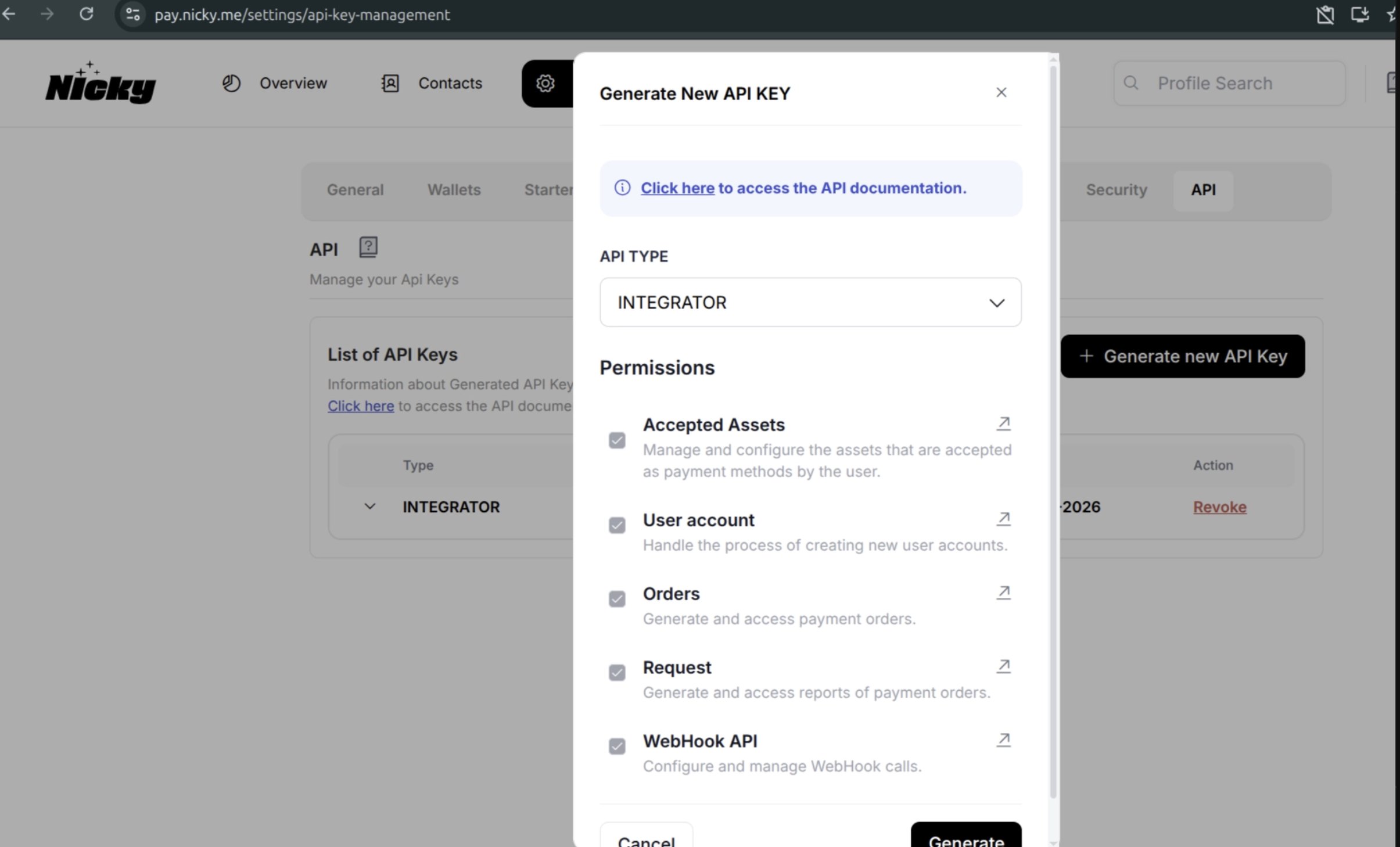 3. Copy the key immediately and keep it in a secure location. It will not be displayed again.
## Connect your wallet
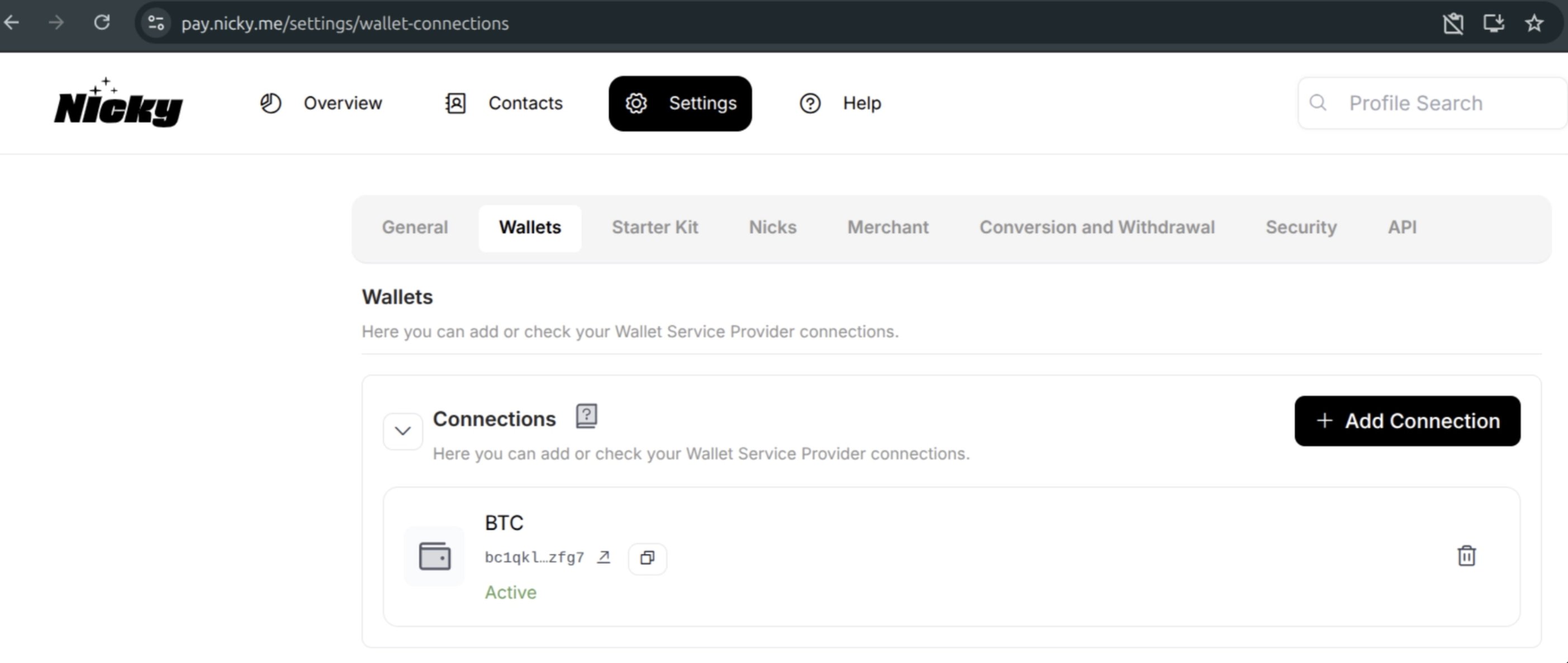
Your wallet is where all incoming payments land. You need to register at least one wallet address in Nicky before the gateway can process any transactions.
1. In your Nicky Dashboard, go to **Settings > Wallets**.
2. Click **+ Add Connection**.
3. Follow the on-screen steps to register your payment address. You can connect mobile wallet apps, exchange accounts, and cold wallets.
3. Copy the key immediately and keep it in a secure location. It will not be displayed again.
## Connect your wallet
Your wallet is where all incoming payments land. You need to register at least one wallet address in Nicky before the gateway can process any transactions.
1. In your Nicky Dashboard, go to **Settings > Wallets**.
2. Click **+ Add Connection**.
3. Follow the on-screen steps to register your payment address. You can connect mobile wallet apps, exchange accounts, and cold wallets.
 ## Set your payment route
Once your wallet is connected, you need to tell Nicky which crypto asset it should accept for that wallet address.
1. Still in **Settings > Wallets**, locate the wallet connection you just added.
2. Click **Edit Route**.
3. Confirm and set the payment asset (e.g. USDT, BTC, ETH) you want to accept for that address.
## Set your payment route
Once your wallet is connected, you need to tell Nicky which crypto asset it should accept for that wallet address.
1. Still in **Settings > Wallets**, locate the wallet connection you just added.
2. Click **Edit Route**.
3. Confirm and set the payment asset (e.g. USDT, BTC, ETH) you want to accept for that address.
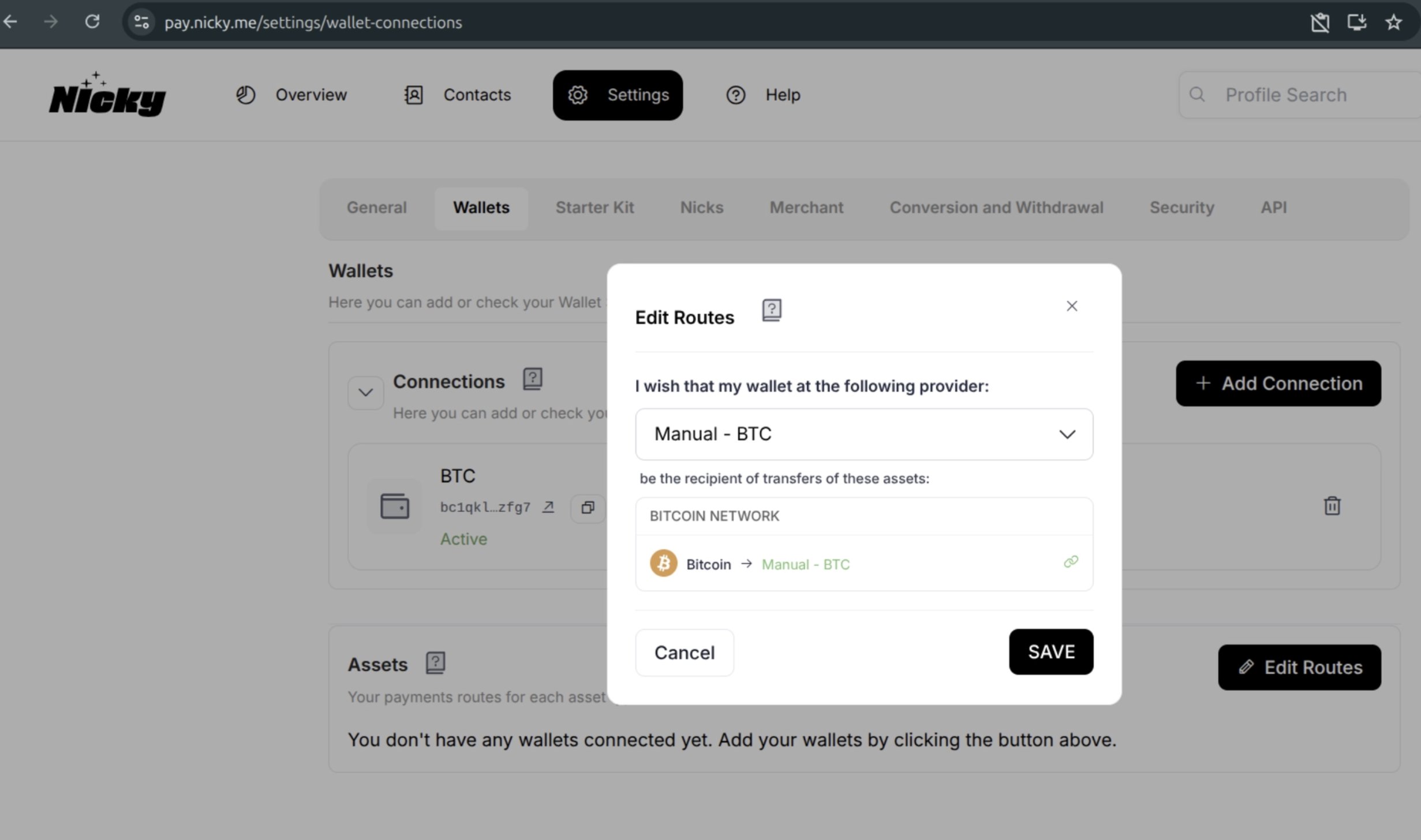 You can define separate routes for different wallets if you want to accept multiple assets to different destinations.
## Configure your accepted currencies
This step controls which fiat currencies your customers will see their price converted from when paying in crypto at checkout.
1. Go to **Settings > Merchant > Currencies**.
2. Select the fiat currencies you want to support.
You can define separate routes for different wallets if you want to accept multiple assets to different destinations.
## Configure your accepted currencies
This step controls which fiat currencies your customers will see their price converted from when paying in crypto at checkout.
1. Go to **Settings > Merchant > Currencies**.
2. Select the fiat currencies you want to support.
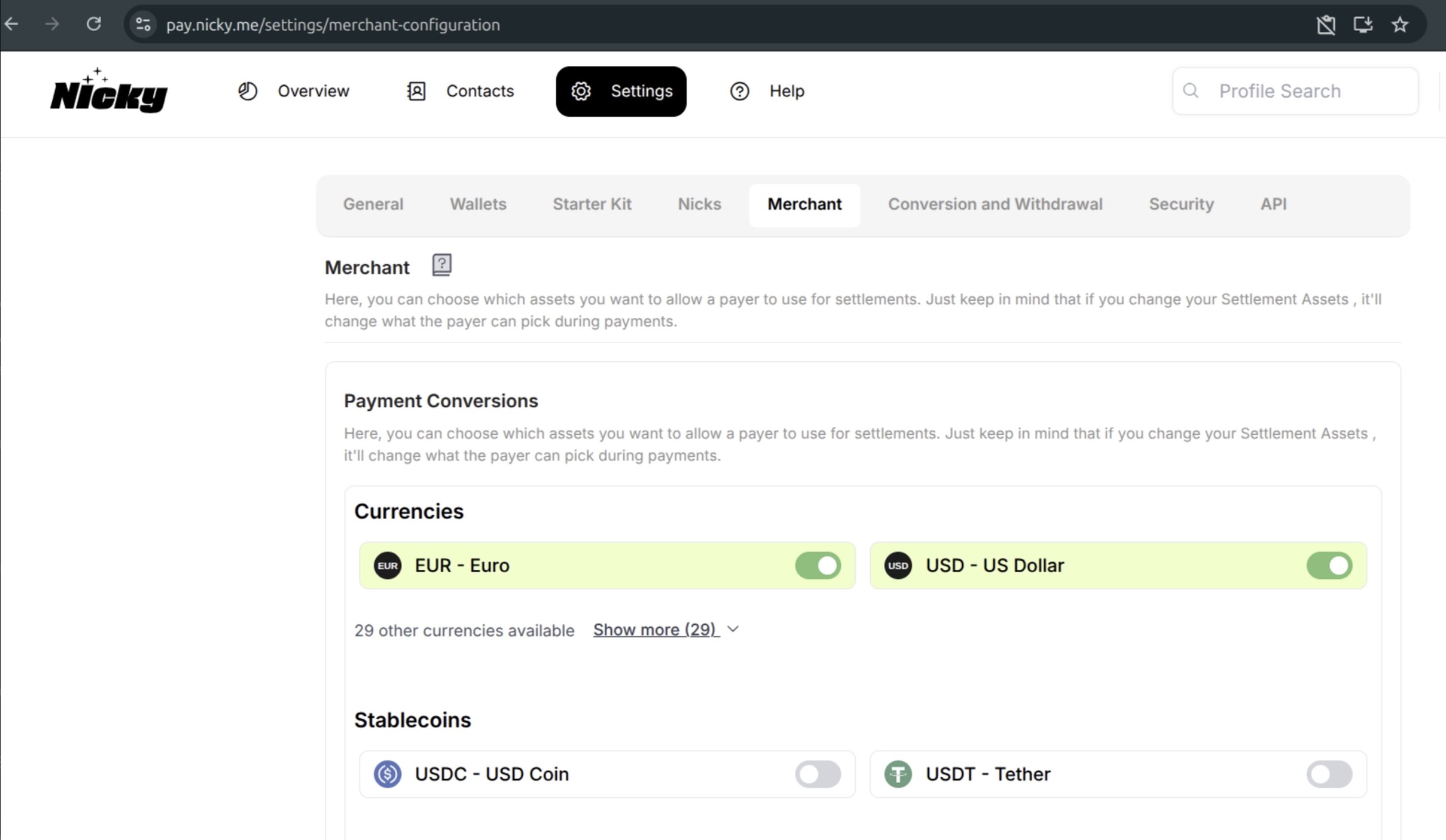 The currencies you select here must match the currencies you configure in the Nicky gateway settings in Upmind. Keep both lists in sync. This is because if a currency is active in Upmind but not enabled in Nicky, the conversion will not work for that currency.
Nicky supports the following currencies:
AED, ARS, AUD, BOB, BRL, CAD, CHF, CLP, CNY, COP, CZK, DKK, EUR, GBP, HKD, HUF, INR, JPY, KRW, NOK, NZD, PEN, PLN, RON, RUB, SEK, SGD, TRY, USD, UYU, ZAR
## **Add** Nicky **in Upmind**
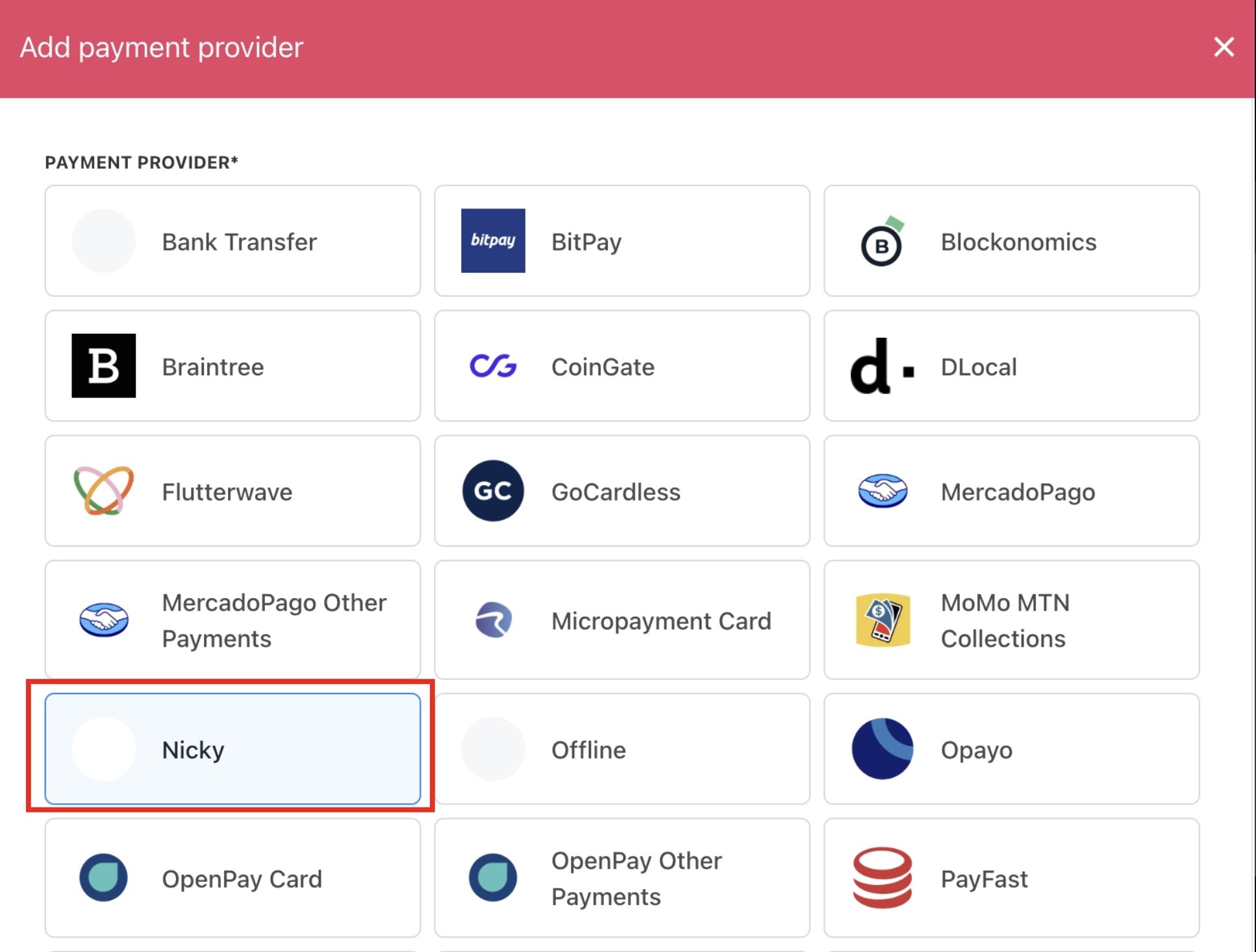
1. Go to **Settings** > **Payment Providers** in your Upmind admin panel.
2. Select **Add Payment Provider** and choose Nicky.
The currencies you select here must match the currencies you configure in the Nicky gateway settings in Upmind. Keep both lists in sync. This is because if a currency is active in Upmind but not enabled in Nicky, the conversion will not work for that currency.
Nicky supports the following currencies:
AED, ARS, AUD, BOB, BRL, CAD, CHF, CLP, CNY, COP, CZK, DKK, EUR, GBP, HKD, HUF, INR, JPY, KRW, NOK, NZD, PEN, PLN, RON, RUB, SEK, SGD, TRY, USD, UYU, ZAR
## **Add** Nicky **in Upmind**
1. Go to **Settings** > **Payment Providers** in your Upmind admin panel.
2. Select **Add Payment Provider** and choose Nicky.
 ## Configure details
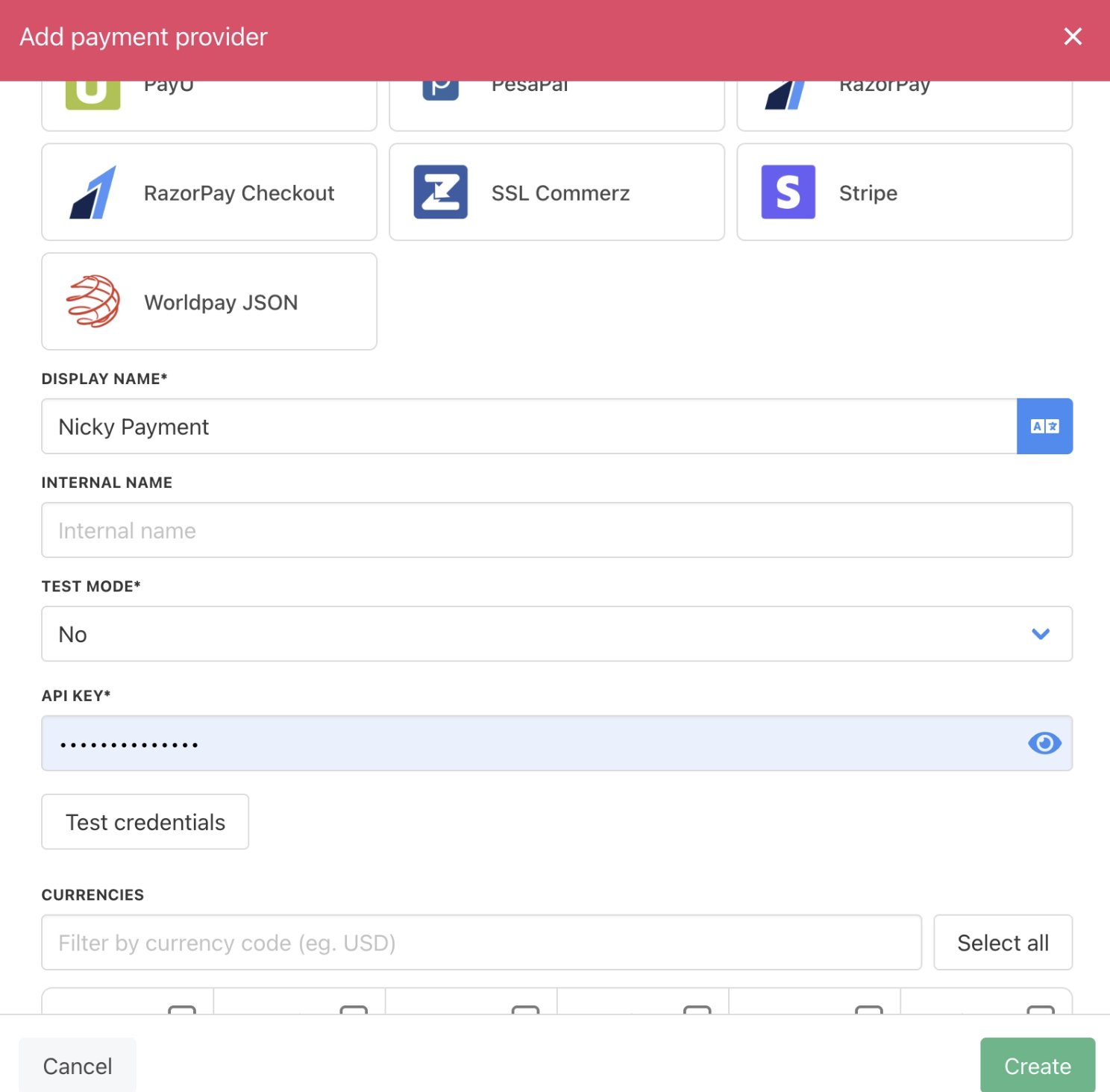
1. Enter your Nicky API credentials.
2. Set the accepted currencies to match what you configured.
3. Save the gateway.
## Configure details
1. Enter your Nicky API credentials.
2. Set the accepted currencies to match what you configured.
3. Save the gateway.
 ### How the checkout flow works
Once Nicky is active in Upmind, here is what happens when a customer completes a purchase:
1. The customer places an order and selects Nicky as the payment method.
2. They are redirected to a Nicky-hosted payment page, where they scan a QR code with their wallet app and confirm the payment.
3. At the point of redirect, Upmind creates a **pending payment** for the order.
4. When Nicky confirms the transaction, it sends a callback to Upmind, which marks the payment as complete and activates the order automatically.
5. A webhook is created automatically the first time a purchase is completed. You do not need to set this up manually.
If a customer needs to return to their payment page, the redirect link is available at any time from the **payment instructions** on the invoice screen in Upmind.
### How the checkout flow works
Once Nicky is active in Upmind, here is what happens when a customer completes a purchase:
1. The customer places an order and selects Nicky as the payment method.
2. They are redirected to a Nicky-hosted payment page, where they scan a QR code with their wallet app and confirm the payment.
3. At the point of redirect, Upmind creates a **pending payment** for the order.
4. When Nicky confirms the transaction, it sends a callback to Upmind, which marks the payment as complete and activates the order automatically.
5. A webhook is created automatically the first time a purchase is completed. You do not need to set this up manually.
If a customer needs to return to their payment page, the redirect link is available at any time from the **payment instructions** on the invoice screen in Upmind.