> ## Documentation Index
> Fetch the complete documentation index at: https://docs.upmind.com/llms.txt
> Use this file to discover all available pages before exploring further.

# How to Add Micropayment as Payment Gateway

> Set up Micropayment to take payments in Upmind

[<u>Micropayment</u>](https://www.micropayment.de/home/) is a payment method for small transactions, usually from a few cents to a few dollars. It lets businesses efficiently process low-value payments, making it ideal for digital content, online services, and microtransactions.

## Getting Micropayment credentials

1. Register and create a project in your **Micropayment** dashboard under **Projekte/Project**.
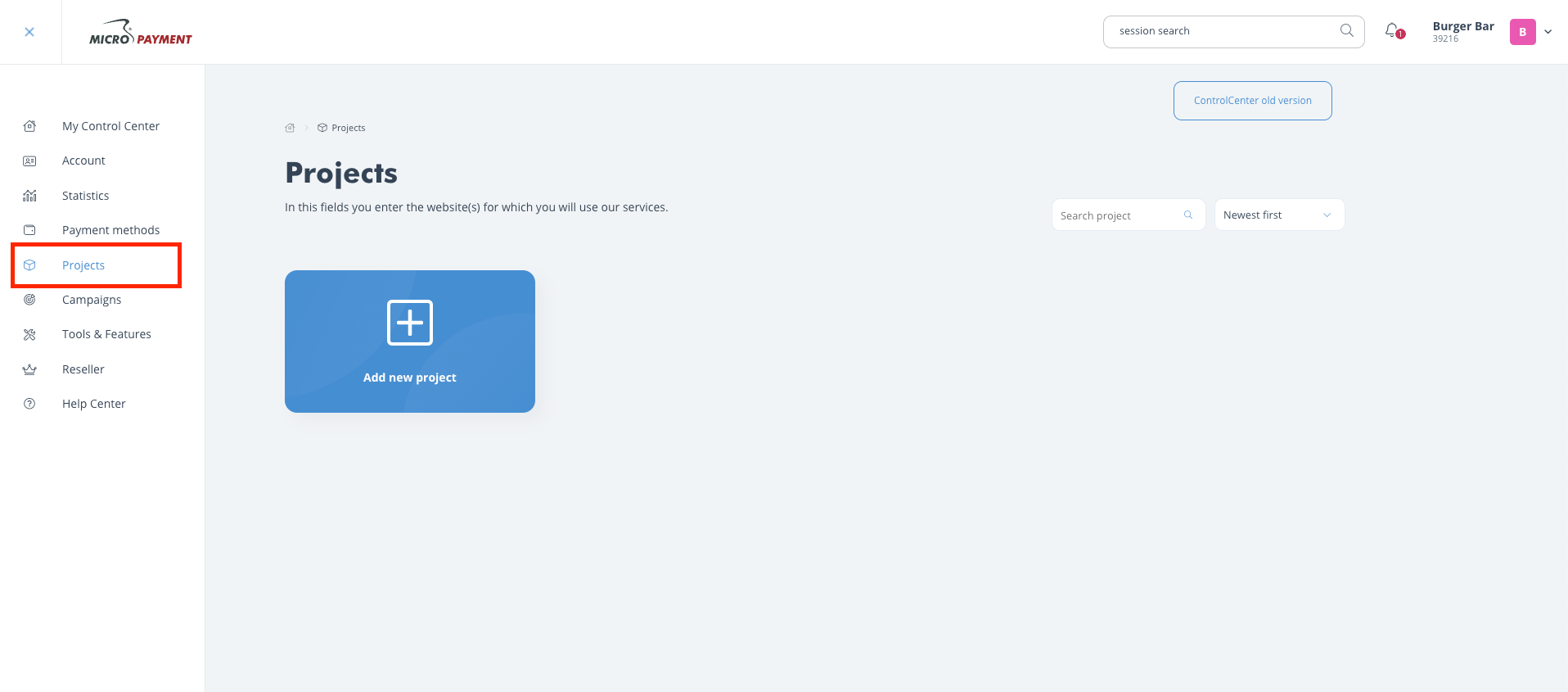
<Frame caption="Create project">
  <img src="https://mintcdn.com/upmind/VnCXiz5rboywDnvn/images/fb/d62c5a11ce6932c2.png?fit=max&auto=format&n=VnCXiz5rboywDnvn&q=85&s=58a654ba2a31524a34bedc91d859b5d5" alt="Create a Project in your Micropayment Dashboard" width="1916" height="845" data-path="images/fb/d62c5a11ce6932c2.png" />
</Frame>

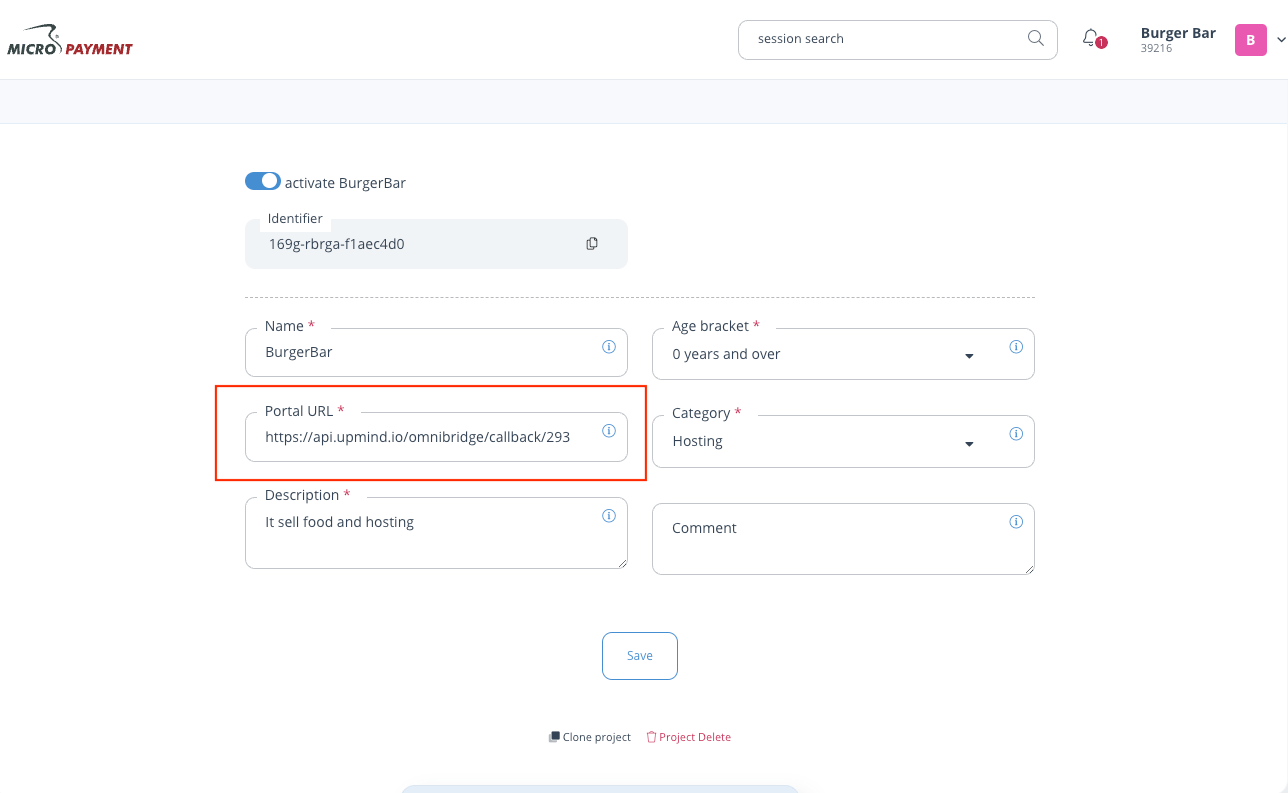
2. Copy the provider webhook URL from Upmind and paste it into the **Portal URL** field in Micropayment. This can be adjusted later.
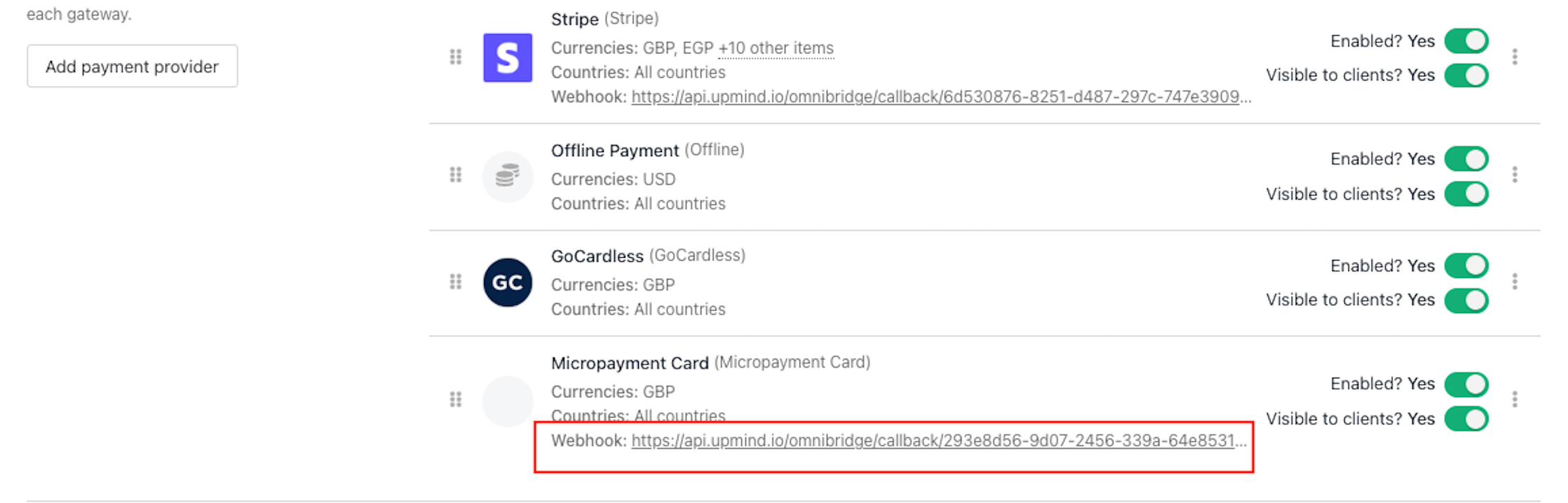
<Frame caption="Copy the webhook URL">
  <img src="https://mintcdn.com/upmind/Dgjmf3QWYVBR40cE/images/fb/5fa8d4b6b37daa7d.png?fit=max&auto=format&n=Dgjmf3QWYVBR40cE&q=85&s=efb7b209bd9771d8fdd67b2cb2497b81" alt="Copy the webhook URL" width="2236" height="718" data-path="images/fb/5fa8d4b6b37daa7d.png" />
</Frame>

<Frame caption="Paste the provider webhook URL">
  <img src="https://mintcdn.com/upmind/A-RwNPXmK_xnEEqe/images/fb/76d0f060ed28621f.png?fit=max&auto=format&n=A-RwNPXmK_xnEEqe&q=85&s=0b49cd698f1d499b55cf3cf0ae8413e7" alt="Paste the provider webhook URL from your Upmind dashboard into the Portal URL section of the project you just created in Micropayment" width="1288" height="793" data-path="images/fb/76d0f060ed28621f.png" />
</Frame>

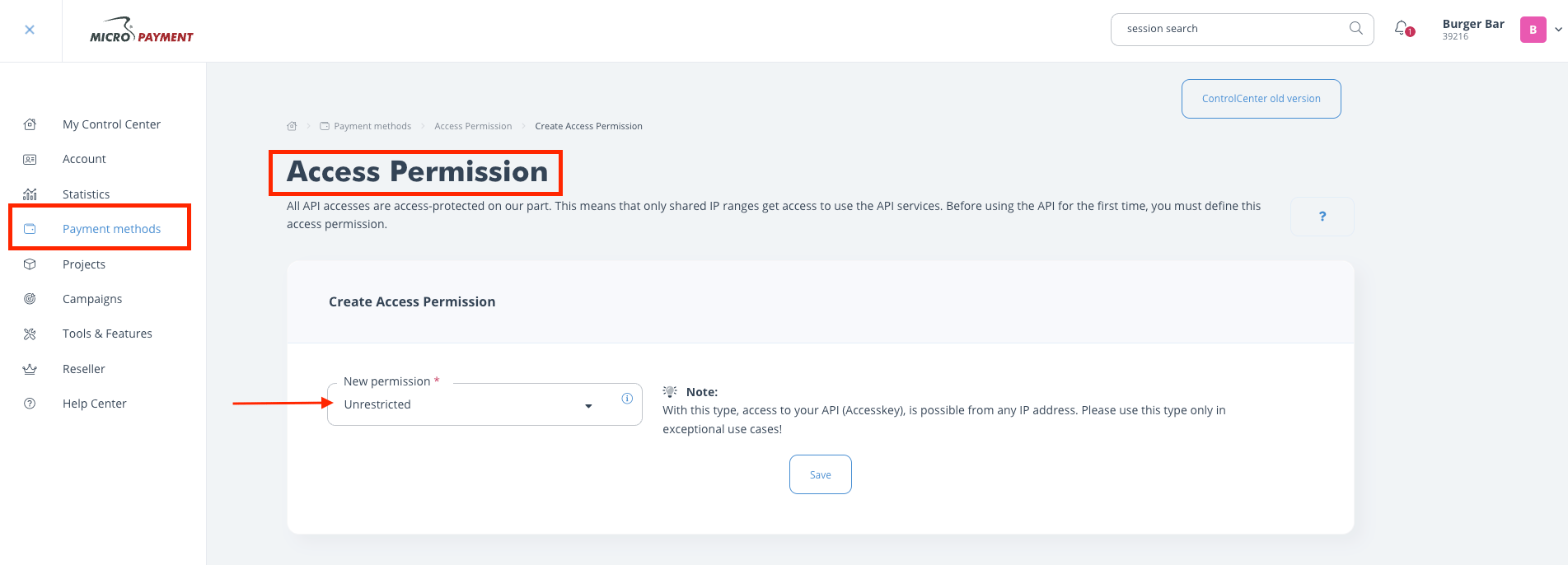
3. Go to **Payment Methods** > **Access Permission** and click **Create Permission**. Choose **Unrestricted**.
<Frame caption="Access permission">
  <img src="https://mintcdn.com/upmind/5gi4DQpw4X76kT6T/images/fb/bdfd26342f4e3e60.png?fit=max&auto=format&n=5gi4DQpw4X76kT6T&q=85&s=ddf99a4140292f3de2ca054876bc29ba" alt="Access permission" width="1903" height="686" data-path="images/fb/bdfd26342f4e3e60.png" />
</Frame>

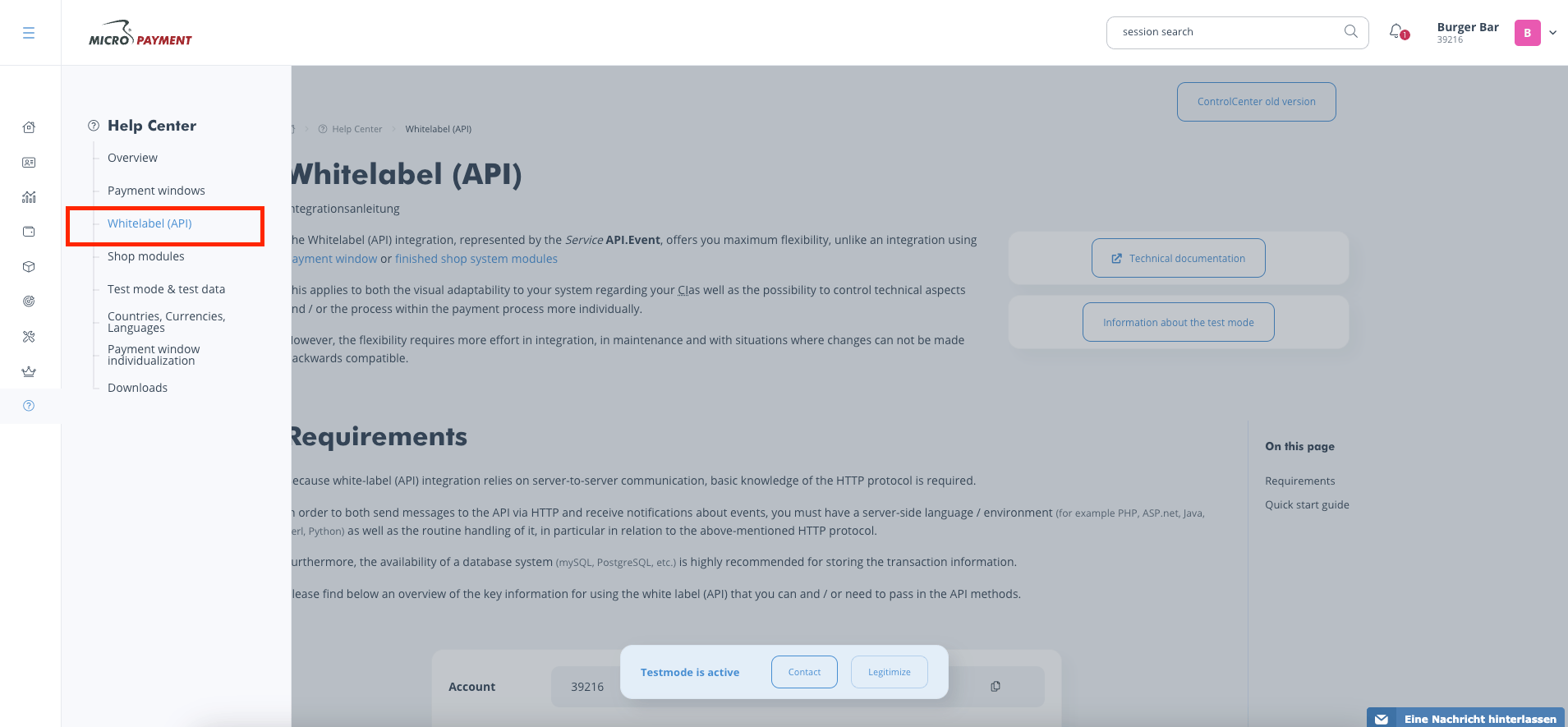
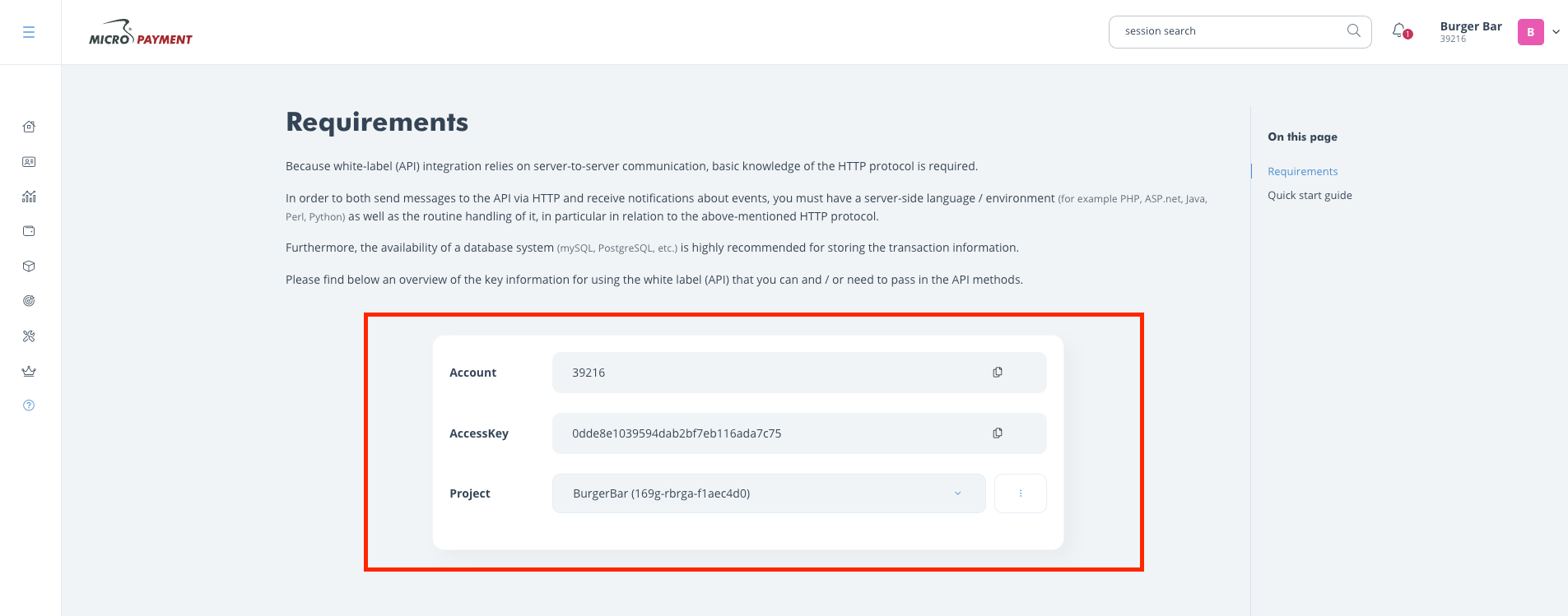
4. Find your **Account**, **Access Key**, and **Project** in **Help Center** > **Whitelabel (API)**.
<Frame caption="Help center > Whitelabel (API)">
  <img src="https://mintcdn.com/upmind/c5sDUwEs8YpzGbjA/images/fb/9a2866d1b7e3f802.png?fit=max&auto=format&n=c5sDUwEs8YpzGbjA&q=85&s=8d7ec680700e49ad54b5127bba5a174d" alt="Go to Help Center > Whitelabel (API)" data-og-width="1909" width="1909" data-og-height="885" height="885" data-path="images/fb/9a2866d1b7e3f802.png" data-optimize="true" data-opv="3" srcset="https://mintcdn.com/upmind/c5sDUwEs8YpzGbjA/images/fb/9a2866d1b7e3f802.png?w=280&fit=max&auto=format&n=c5sDUwEs8YpzGbjA&q=85&s=57bbf59682a209f3cd5565ee64affa76 280w, https://mintcdn.com/upmind/c5sDUwEs8YpzGbjA/images/fb/9a2866d1b7e3f802.png?w=560&fit=max&auto=format&n=c5sDUwEs8YpzGbjA&q=85&s=49b6e02905ff5da1f542ac3e161bf603 560w, https://mintcdn.com/upmind/c5sDUwEs8YpzGbjA/images/fb/9a2866d1b7e3f802.png?w=840&fit=max&auto=format&n=c5sDUwEs8YpzGbjA&q=85&s=42709863dc19a9e2b7606466b96e90d0 840w, https://mintcdn.com/upmind/c5sDUwEs8YpzGbjA/images/fb/9a2866d1b7e3f802.png?w=1100&fit=max&auto=format&n=c5sDUwEs8YpzGbjA&q=85&s=c8d0a62652eeee3ff29bc867628f744c 1100w, https://mintcdn.com/upmind/c5sDUwEs8YpzGbjA/images/fb/9a2866d1b7e3f802.png?w=1650&fit=max&auto=format&n=c5sDUwEs8YpzGbjA&q=85&s=d720575205c31846270e1747dacb03d5 1650w, https://mintcdn.com/upmind/c5sDUwEs8YpzGbjA/images/fb/9a2866d1b7e3f802.png?w=2500&fit=max&auto=format&n=c5sDUwEs8YpzGbjA&q=85&s=08fb7616a5cb852f95d3c6c589dfac49 2500w" />
</Frame>

<Frame caption="Account, API Key, and Project">
  <img src="https://mintcdn.com/upmind/Lh8hC132BWHpvRbz/images/fb/4e9247cba4755d6e.png?fit=max&auto=format&n=Lh8hC132BWHpvRbz&q=85&s=1183ca569a9fa8b94a3af8dfbb48ff9a" alt="The Account, Access Key, and Project information can be found in the Requirements section of the Whitelabel API." width="1905" height="749" data-path="images/fb/4e9247cba4755d6e.png" />
</Frame>

## Callbacks

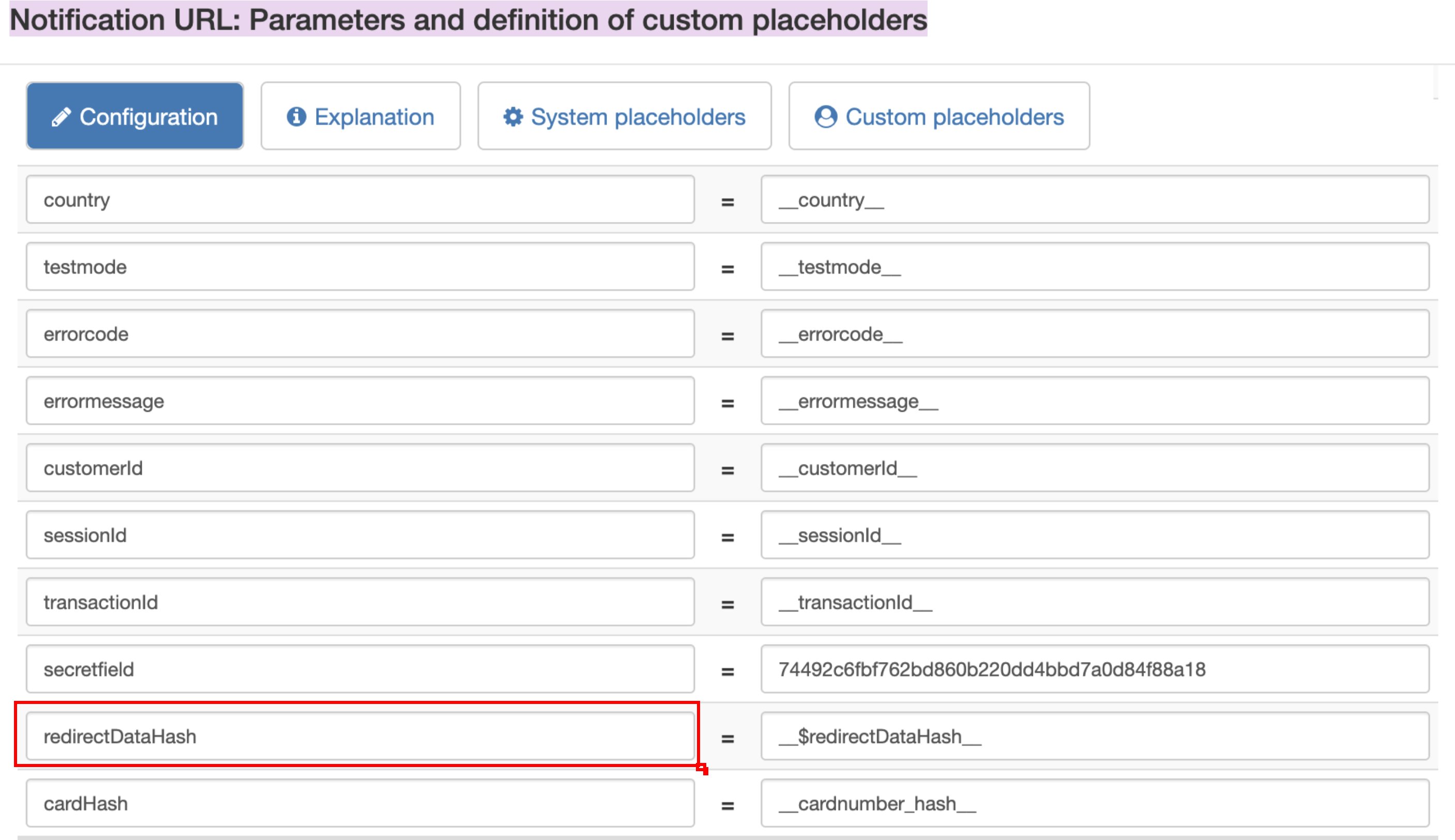
For callbacks to work, the **Micropayment** admin must set the `redirectDataHash` additional param for `notifications`.

1. Log in to the Micropayment Dashboard.
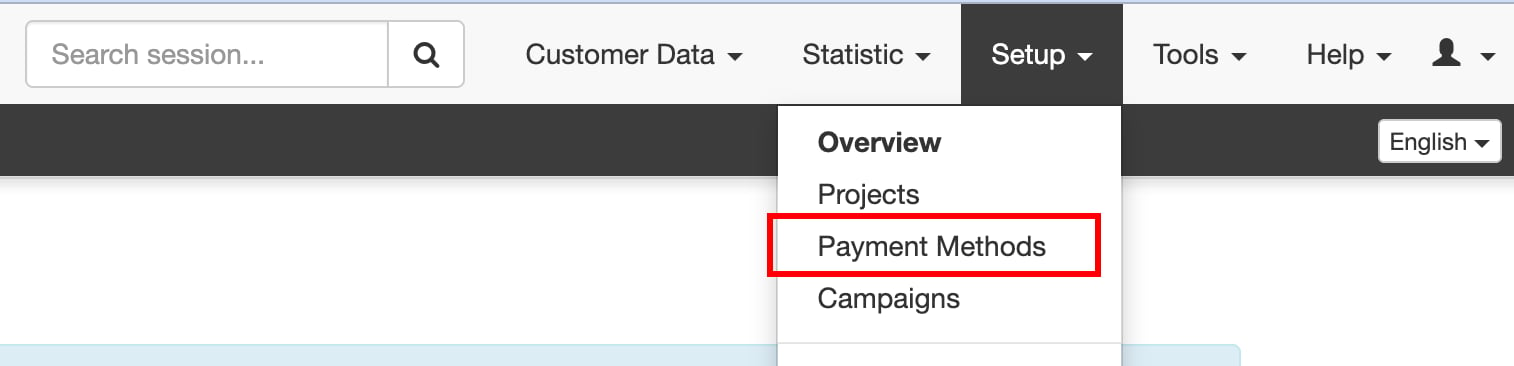
2. From the top right, select **Setup** > **Payment Methods**.
<Frame caption="Setup > Payment methods">
  <img src="https://mintcdn.com/upmind/pcUdSuxUJ6LgBXnd/images/fb/a052504534105e03.png?fit=max&auto=format&n=pcUdSuxUJ6LgBXnd&q=85&s=9b57667e5a425a1e5f38053c3201193d" alt="Setup > Payment methods" data-og-width="1514" width="1514" data-og-height="366" height="366" data-path="images/fb/a052504534105e03.png" data-optimize="true" data-opv="3" srcset="https://mintcdn.com/upmind/pcUdSuxUJ6LgBXnd/images/fb/a052504534105e03.png?w=280&fit=max&auto=format&n=pcUdSuxUJ6LgBXnd&q=85&s=7b9ba27df980fc4730a1c76005a2465b 280w, https://mintcdn.com/upmind/pcUdSuxUJ6LgBXnd/images/fb/a052504534105e03.png?w=560&fit=max&auto=format&n=pcUdSuxUJ6LgBXnd&q=85&s=ff3f95661745be2e72cc32107036a8fc 560w, https://mintcdn.com/upmind/pcUdSuxUJ6LgBXnd/images/fb/a052504534105e03.png?w=840&fit=max&auto=format&n=pcUdSuxUJ6LgBXnd&q=85&s=ba23edb0feaed7d7f2503df6ea15e5fa 840w, https://mintcdn.com/upmind/pcUdSuxUJ6LgBXnd/images/fb/a052504534105e03.png?w=1100&fit=max&auto=format&n=pcUdSuxUJ6LgBXnd&q=85&s=32829a8e6ad6cc9b8371f94a2d1d01d4 1100w, https://mintcdn.com/upmind/pcUdSuxUJ6LgBXnd/images/fb/a052504534105e03.png?w=1650&fit=max&auto=format&n=pcUdSuxUJ6LgBXnd&q=85&s=b19f452a3d70ee13c50fee0b960ae2c2 1650w, https://mintcdn.com/upmind/pcUdSuxUJ6LgBXnd/images/fb/a052504534105e03.png?w=2500&fit=max&auto=format&n=pcUdSuxUJ6LgBXnd&q=85&s=8972a3558c8a636749e907531db774cc 2500w" />
</Frame>

3. Click on **CreditCard Event** > **Edit**
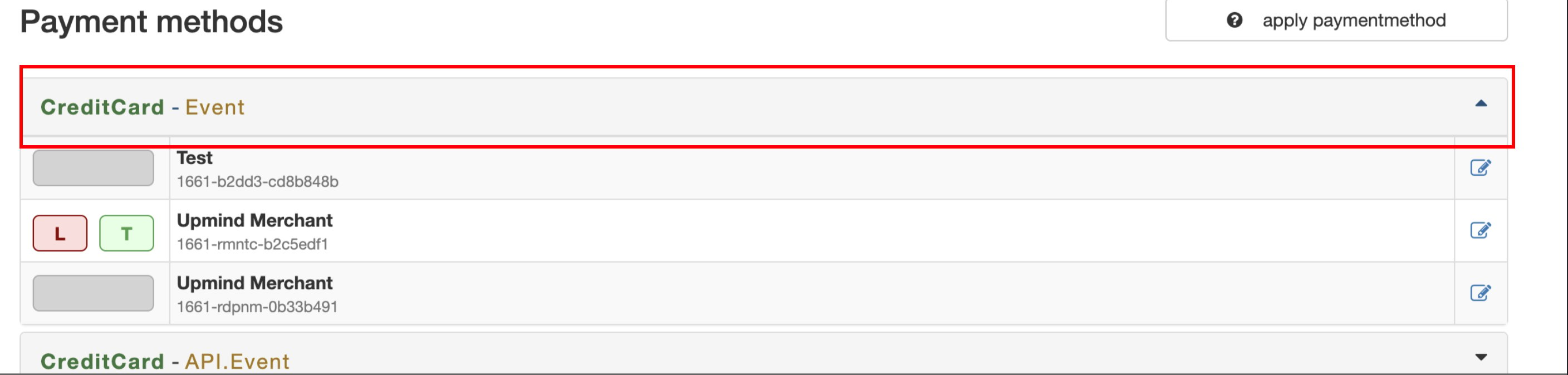
<Frame caption="CreditCard Event > Edit">
  <img src="https://mintcdn.com/upmind/z5ofg3t7by4uN44v/images/fb/f0624beb32a762ee.png?fit=max&auto=format&n=z5ofg3t7by4uN44v&q=85&s=f41795f7a9b0512568b301e53abaed83" alt="CreditCard Event > Edit" data-og-width="2816" width="2816" data-og-height="674" height="674" data-path="images/fb/f0624beb32a762ee.png" data-optimize="true" data-opv="3" srcset="https://mintcdn.com/upmind/z5ofg3t7by4uN44v/images/fb/f0624beb32a762ee.png?w=280&fit=max&auto=format&n=z5ofg3t7by4uN44v&q=85&s=91698b7e5a28af373502b914d0db2724 280w, https://mintcdn.com/upmind/z5ofg3t7by4uN44v/images/fb/f0624beb32a762ee.png?w=560&fit=max&auto=format&n=z5ofg3t7by4uN44v&q=85&s=93e6e907ae6ca3cdfb8dec527844ce90 560w, https://mintcdn.com/upmind/z5ofg3t7by4uN44v/images/fb/f0624beb32a762ee.png?w=840&fit=max&auto=format&n=z5ofg3t7by4uN44v&q=85&s=0fa3282f95f76d6915e15ae284d2e23c 840w, https://mintcdn.com/upmind/z5ofg3t7by4uN44v/images/fb/f0624beb32a762ee.png?w=1100&fit=max&auto=format&n=z5ofg3t7by4uN44v&q=85&s=ccb9c738111475cfc45cd351c584920c 1100w, https://mintcdn.com/upmind/z5ofg3t7by4uN44v/images/fb/f0624beb32a762ee.png?w=1650&fit=max&auto=format&n=z5ofg3t7by4uN44v&q=85&s=3ef40df3cbd5d1ad64145b963728e173 1650w, https://mintcdn.com/upmind/z5ofg3t7by4uN44v/images/fb/f0624beb32a762ee.png?w=2500&fit=max&auto=format&n=z5ofg3t7by4uN44v&q=85&s=9f46ccf8ceca0f0aef3cbfadbfc53fcf 2500w" />
</Frame>

4. Then on **Parameters: Notification URL** > **Edit**.

<Frame caption="Parameters: Notification URL > Edit">
  <img src="https://mintcdn.com/upmind/1xguIfYUrfespmVI/images/fb/7d8a7b606bfd502f.png?fit=max&auto=format&n=1xguIfYUrfespmVI&q=85&s=228d034ee1462883827ac76bb66cdcdc" alt="Parameters: Notification URL > Edit" data-og-width="1910" width="1910" data-og-height="342" height="342" data-path="images/fb/7d8a7b606bfd502f.png" data-optimize="true" data-opv="3" srcset="https://mintcdn.com/upmind/1xguIfYUrfespmVI/images/fb/7d8a7b606bfd502f.png?w=280&fit=max&auto=format&n=1xguIfYUrfespmVI&q=85&s=e5ee2e95ad5b6a5a33ac4ab99da179cb 280w, https://mintcdn.com/upmind/1xguIfYUrfespmVI/images/fb/7d8a7b606bfd502f.png?w=560&fit=max&auto=format&n=1xguIfYUrfespmVI&q=85&s=f084f317f75bd137c51dfc3d87828a51 560w, https://mintcdn.com/upmind/1xguIfYUrfespmVI/images/fb/7d8a7b606bfd502f.png?w=840&fit=max&auto=format&n=1xguIfYUrfespmVI&q=85&s=2de6aba7d229492fd0ca1a9567092799 840w, https://mintcdn.com/upmind/1xguIfYUrfespmVI/images/fb/7d8a7b606bfd502f.png?w=1100&fit=max&auto=format&n=1xguIfYUrfespmVI&q=85&s=100c4eda226e74a9f421fbcacb79258b 1100w, https://mintcdn.com/upmind/1xguIfYUrfespmVI/images/fb/7d8a7b606bfd502f.png?w=1650&fit=max&auto=format&n=1xguIfYUrfespmVI&q=85&s=ff83dcbdb182624f3ecdb6e9f81c6253 1650w, https://mintcdn.com/upmind/1xguIfYUrfespmVI/images/fb/7d8a7b606bfd502f.png?w=2500&fit=max&auto=format&n=1xguIfYUrfespmVI&q=85&s=a31b2a417fb5f501ad07b192470e5f43 2500w" />
</Frame>

<Frame caption="redirectDataHash additional param">
  <img src="https://mintcdn.com/upmind/Dgjmf3QWYVBR40cE/images/fb/5bb6d608376d4dc5.png?fit=max&auto=format&n=Dgjmf3QWYVBR40cE&q=85&s=29d4546d736eff9bdd4d7dd240cbe1e4" alt="redirectDataHash additional param" width="2812" height="1624" data-path="images/fb/5bb6d608376d4dc5.png" />
</Frame>

5. Whitelist Upmind's IP addresses on your Micropayment instance to allow access from Upmind:

* 91.240.229.1
* 91.240.229.2
* 91.240.229.3

## Adding Micropayment in Upmind

1. Go to **Settings** > **Payment Providers** in your admin area.

2. Click **Add Payment Provider** and select **Micropayment**.
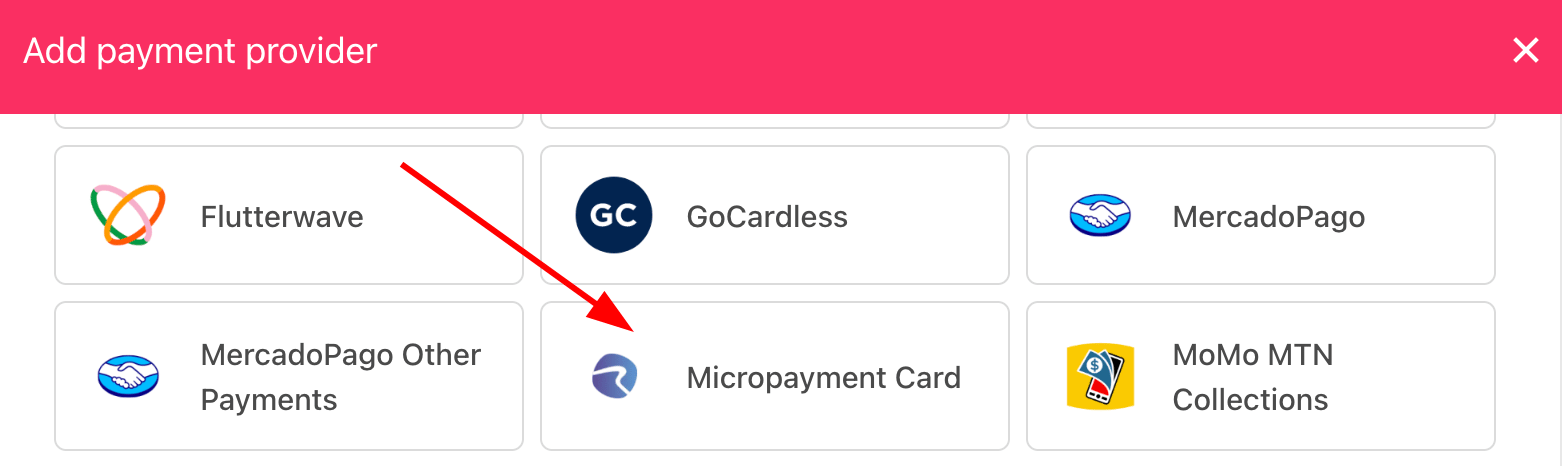
<Frame caption="Select payment provider">
  <img src="https://mintcdn.com/upmind/92wYnpdR_k6AjH3x/images/fb/54ecab3d06d8eead.png?fit=max&auto=format&n=92wYnpdR_k6AjH3x&q=85&s=00467ff20cc2a8bed9eef2e72a734ec9" alt="Select payment provider" width="1562" height="466" data-path="images/fb/54ecab3d06d8eead.png" />
</Frame>

## Configure details

1. Enter a display name. We suggest **Micropayment Card**.

2. Select the appropriate **Test Mode** option.

3. Enter your **Account**, **Access Key**, and **Project**.

4. (Optional) Click **Test Credentials** to verify.

5. (Optional) Add supported currencies.

6. (Optional) Enter payment instructions.

7. Click **Create**.
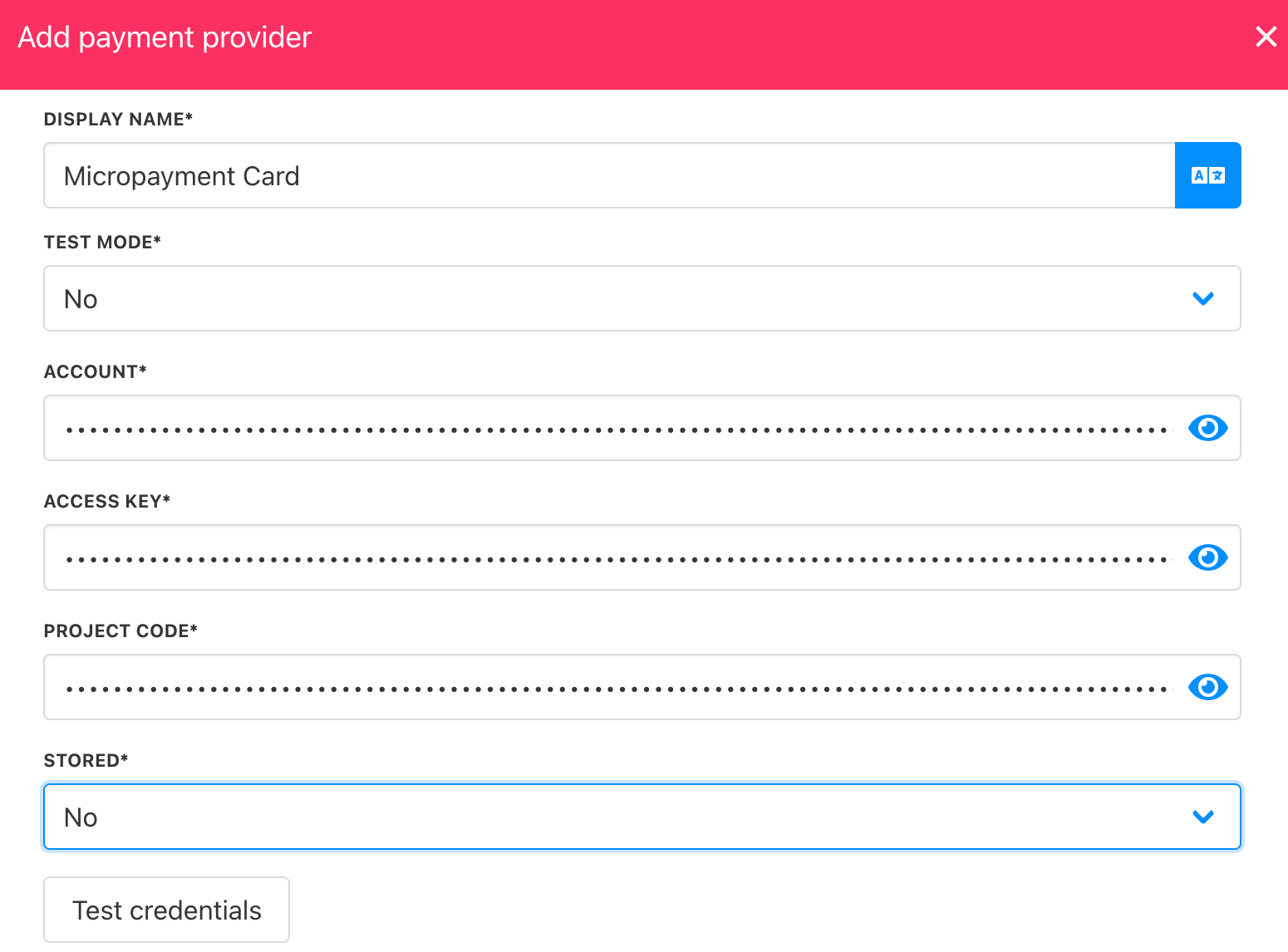
<Frame caption="Add details">
  <img src="https://mintcdn.com/upmind/1xguIfYUrfespmVI/images/fb/7fa12c57c791d6aa.png?fit=max&auto=format&n=1xguIfYUrfespmVI&q=85&s=78e2e55ec6d554d8b81b706c195c399a" alt="Add details" width="1550" height="1146" data-path="images/fb/7fa12c57c791d6aa.png" />
</Frame>

## Editing the payment method

To update, go to **Settings** > **Payment Providers**, click the three dots next to `Micropayment`, and select **Edit**.