> ## Documentation Index
> Fetch the complete documentation index at: https://docs.upmind.com/llms.txt
> Use this file to discover all available pages before exploring further.
# How to Add MercadoPago as a Payment Method
[MercadoPago](https://www.mercadopago.com.ar/) is a leading payment gateway for online transactions in Latin America, supporting credit cards and local payment methods.
Upmind supports MercadoPago for card payments and local methods based on your account. Check in your MercadoPago account.
## Getting MercadoPago credentials
1. Log in to your **MercadoPago** account.
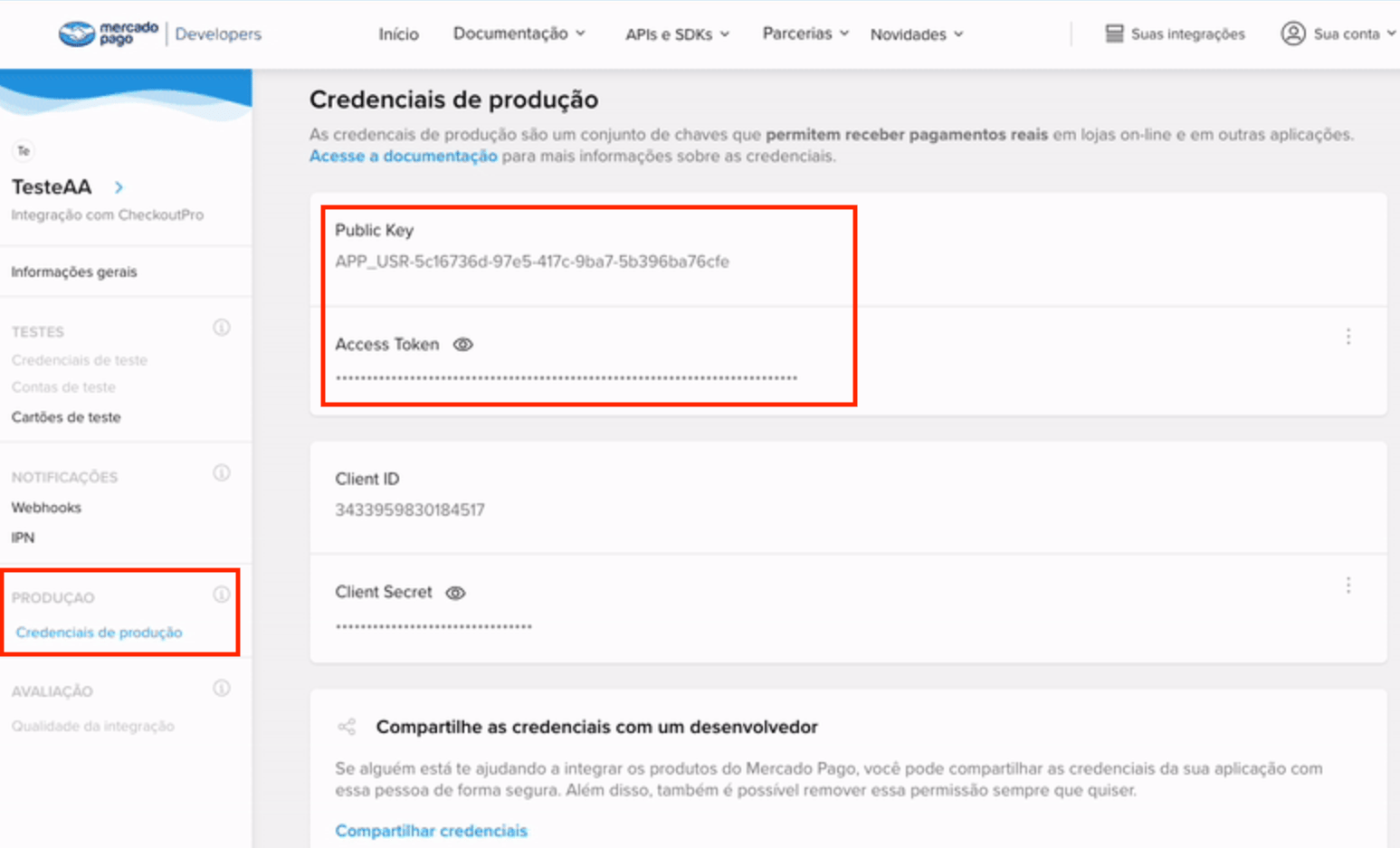
2. Go to **Your Integrations** > **Your Application** > **Production** > **Production Credentials**.
3. Copy your **Access Token** and **Public Key**.
 ## Adding MercadoPago Card in Upmind
1. Go to **Settings** > **Payment Providers** in your admin area.
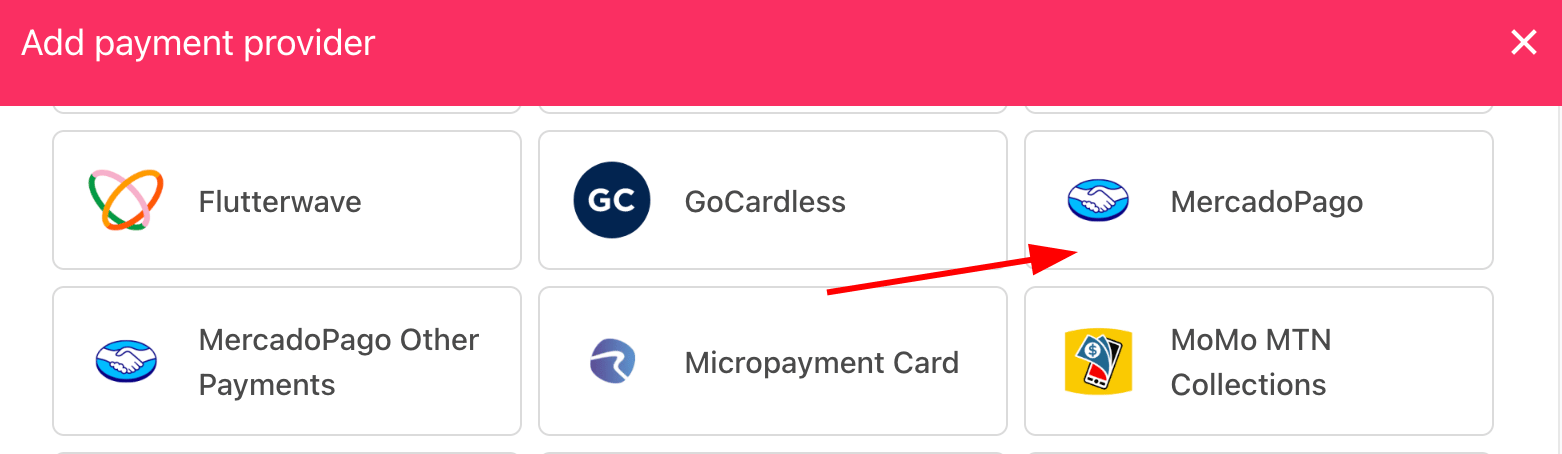
2. Click **Add Payment Provider** and choose **MercadoPago**.
## Adding MercadoPago Card in Upmind
1. Go to **Settings** > **Payment Providers** in your admin area.
2. Click **Add Payment Provider** and choose **MercadoPago**.
 ## Configure details
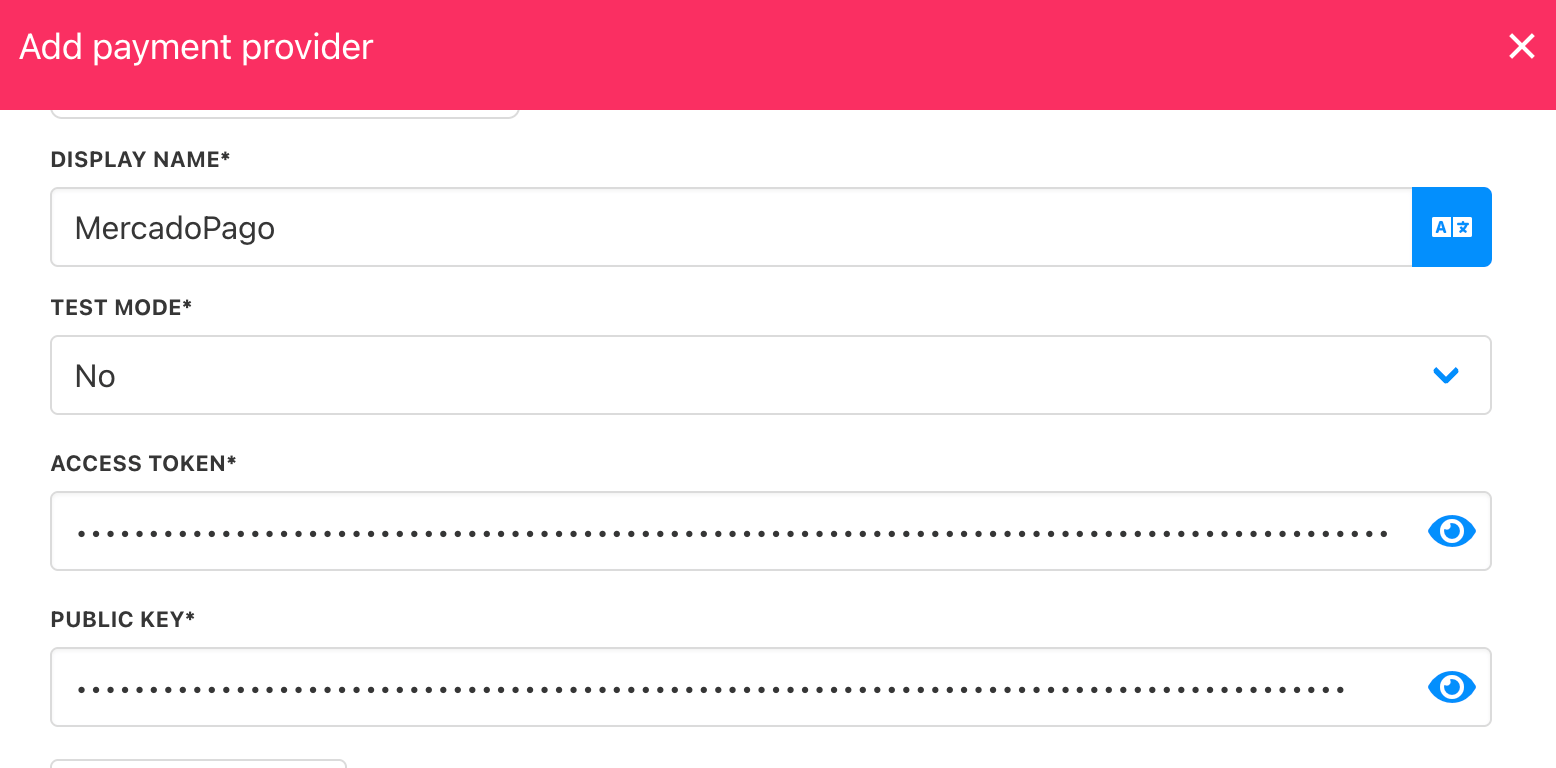
1. Enter a display name. We suggest **MercadoPago**.
2. Select **Test Mode** as needed.
3. Enter your **Access Token** and **Public Key**.
4. (Optional) Click **Test Credentials**.
5. Select the currency matching your MercadoPago account.
6. (Optional) Enter payment instructions.
7. Click **Create**.
## Configure details
1. Enter a display name. We suggest **MercadoPago**.
2. Select **Test Mode** as needed.
3. Enter your **Access Token** and **Public Key**.
4. (Optional) Click **Test Credentials**.
5. Select the currency matching your MercadoPago account.
6. (Optional) Enter payment instructions.
7. Click **Create**.
 ## Adding MercadoPago Other Payments in Upmind
1. Go to **Settings** > **Payment Providers**.
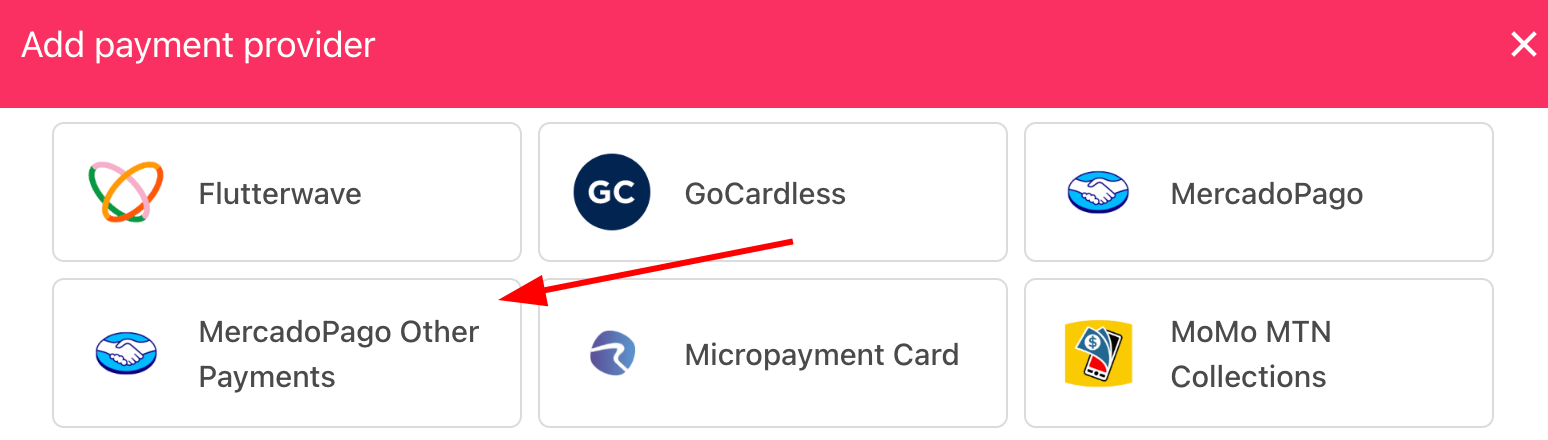
2. Choose **MercadoPago Other Payment**.
## Adding MercadoPago Other Payments in Upmind
1. Go to **Settings** > **Payment Providers**.
2. Choose **MercadoPago Other Payment**.
 ## Configure details
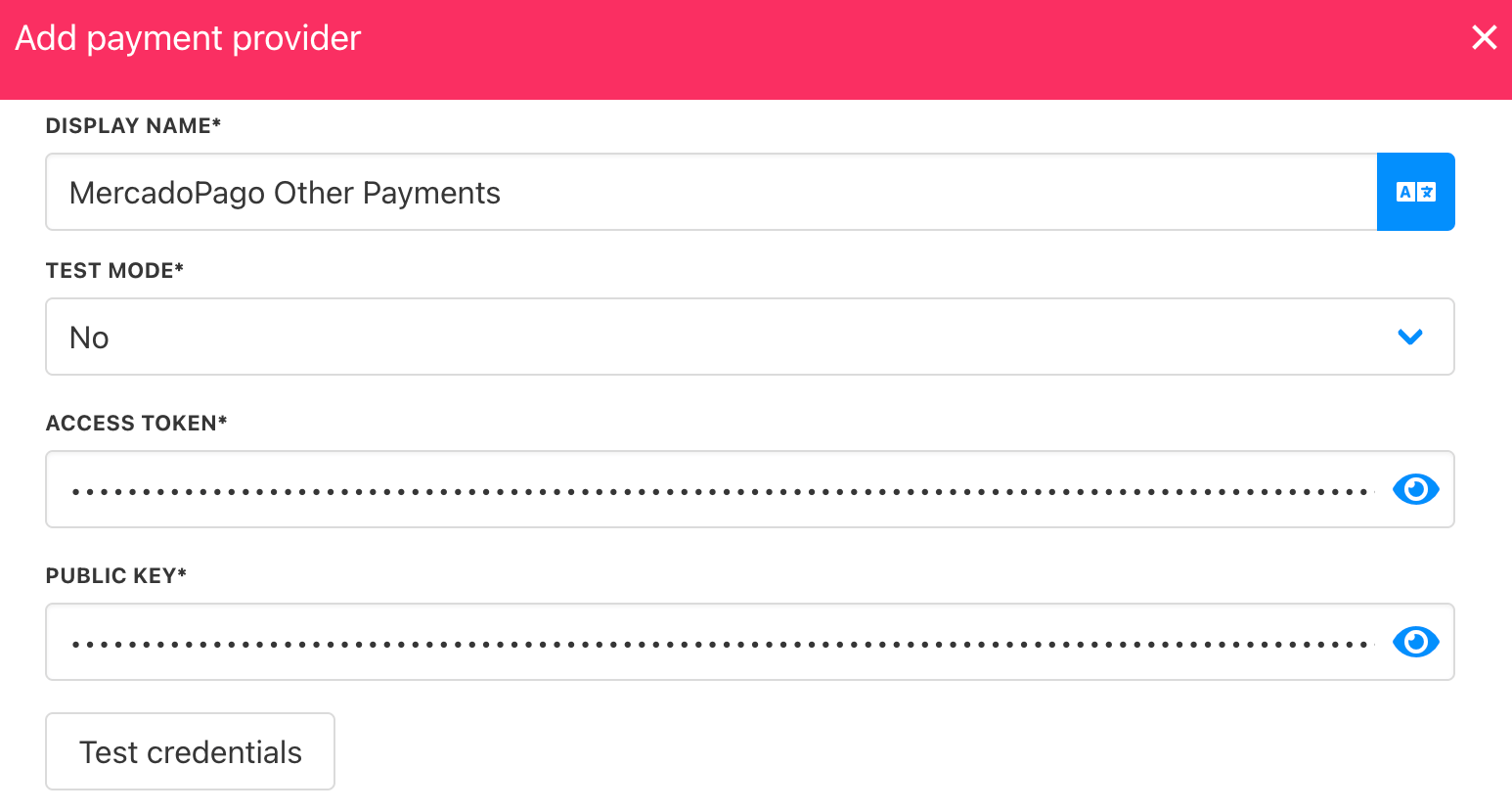
1. Enter a display name. We suggest **MercadoPago Other Payments**.
2. Select **Test Mode** as needed.
3. Enter your **Access Token** and **Public Key**.
4. (Optional) Click **Test Credentials**.
5. Select the currency matching your MercadoPago account.
6. (Optional) Enter payment instructions.
7. Click **Create**.
## Configure details
1. Enter a display name. We suggest **MercadoPago Other Payments**.
2. Select **Test Mode** as needed.
3. Enter your **Access Token** and **Public Key**.
4. (Optional) Click **Test Credentials**.
5. Select the currency matching your MercadoPago account.
6. (Optional) Enter payment instructions.
7. Click **Create**.
 When setting up MercadoPago in Upmind, select one currency that matches your MercadoPago account (e.g., MercadoPago Colombia > COP).
For multiple currencies, set up each MercadoPago account separately with its own credentials and currency (e.g., MercadoPago Argentina > ARS).
MercadoPago Other Payments redirects customers to a payment page where they can make a one-time payment using any option available in your account.
## Editing the payment method
To update, go to **Settings** > **Payment Providers**, click the three dots next to `MercadoPago`, and select **Edit**.
When setting up MercadoPago in Upmind, select one currency that matches your MercadoPago account (e.g., MercadoPago Colombia > COP).
For multiple currencies, set up each MercadoPago account separately with its own credentials and currency (e.g., MercadoPago Argentina > ARS).
MercadoPago Other Payments redirects customers to a payment page where they can make a one-time payment using any option available in your account.
## Editing the payment method
To update, go to **Settings** > **Payment Providers**, click the three dots next to `MercadoPago`, and select **Edit**.