> ## Documentation Index
> Fetch the complete documentation index at: https://docs.upmind.com/llms.txt
> Use this file to discover all available pages before exploring further.
# How to Add Flutterwave as a Payment Method
> Set up Flutterwave to take payments in Upmind
[Flutterwave](https://flutterwave.com/us/) is a leading payment gateway in Africa, supporting cards, bank transfers, mobile money, and digital wallets.
## Getting Flutterwave API credentials
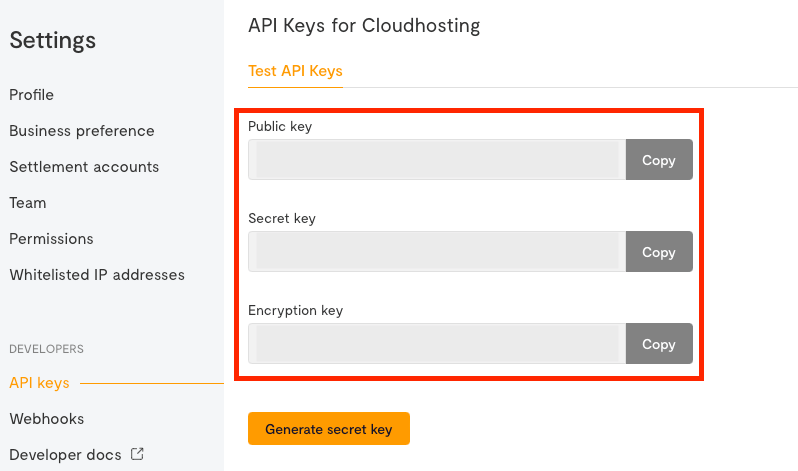
1. Log in to your **Flutterwave** account.
2. Go to **Developer** > **API Key** to find your **Public Key**, **Secret Key**, and **Encryption Key**.
 ## Adding Flutterwave as a payment provider
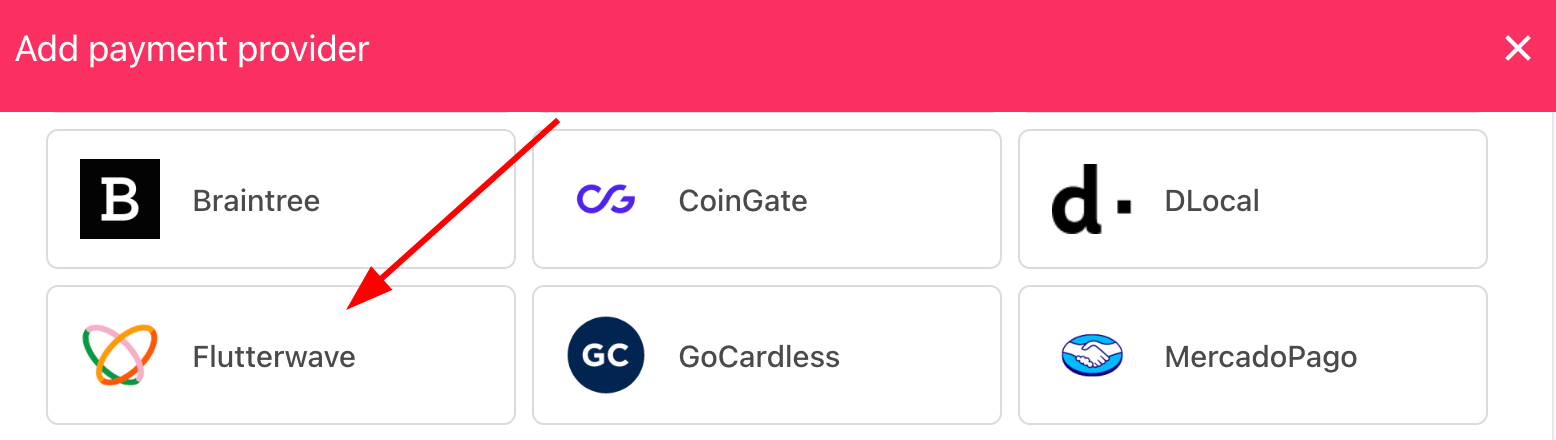
1. Go to **Settings** > **Payment Providers** in Upmind.
2. Click **Add Payment Provider** and select **Flutterwave**.
## Adding Flutterwave as a payment provider
1. Go to **Settings** > **Payment Providers** in Upmind.
2. Click **Add Payment Provider** and select **Flutterwave**.
 ## Configuring details
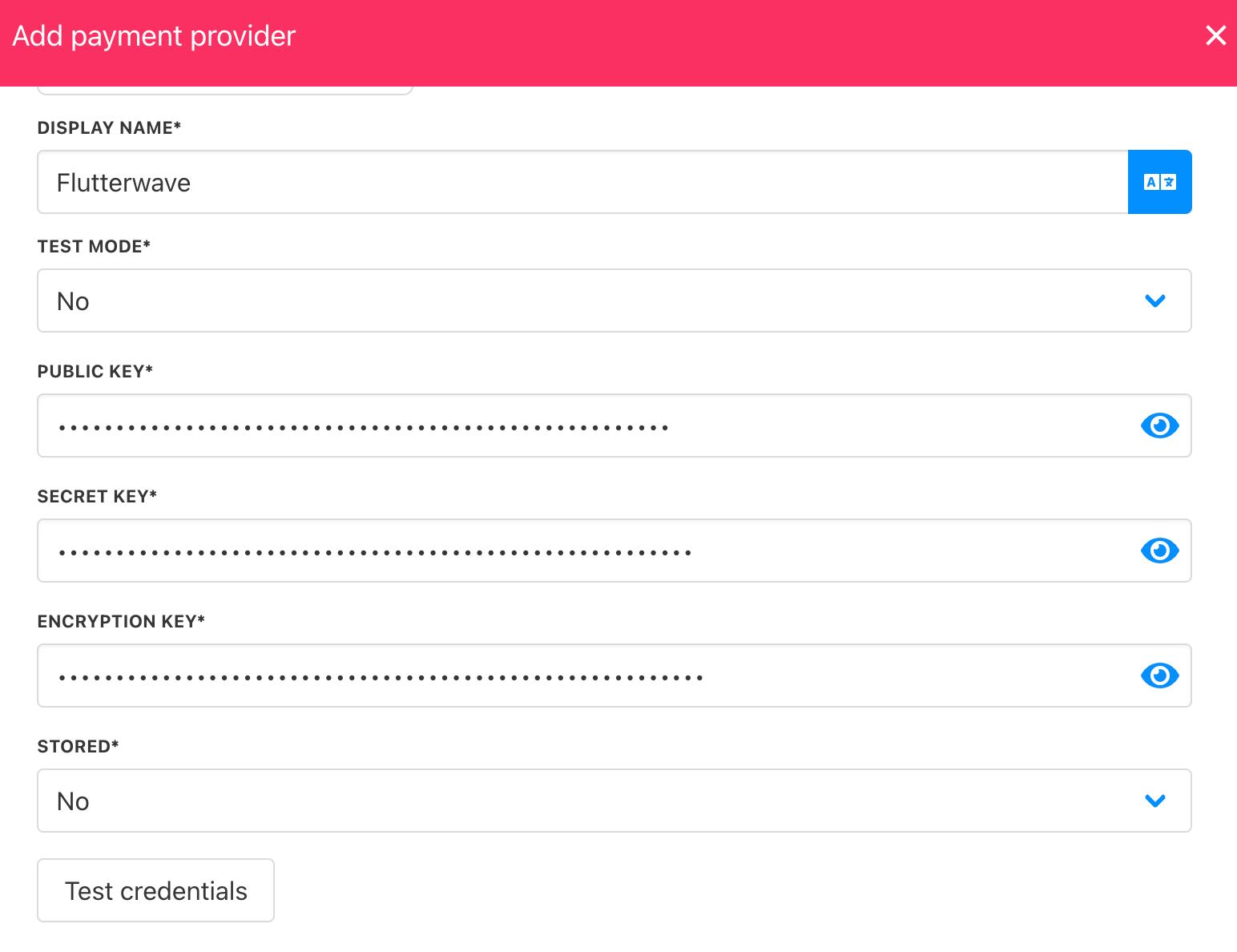
1. Enter a display name. We suggest **Flutterwave**.
2. Set **Test Mode** as needed.
3. Enter the **Public Key**, **Secret Key**, and **Encryption Key**.
4. Click **Test Credentials** to verify.
5. (Optional) Add currencies and payment instructions.
6. Click **Create**.
## Configuring details
1. Enter a display name. We suggest **Flutterwave**.
2. Set **Test Mode** as needed.
3. Enter the **Public Key**, **Secret Key**, and **Encryption Key**.
4. Click **Test Credentials** to verify.
5. (Optional) Add currencies and payment instructions.
6. Click **Create**.
 ## Editing the payment method
Go to **Settings** > **Payment Providers**, click the three dots next to `Flutterwave`, and select **Edit**.
## Editing the payment method
Go to **Settings** > **Payment Providers**, click the three dots next to `Flutterwave`, and select **Edit**.