> ## Documentation Index
> Fetch the complete documentation index at: https://docs.upmind.com/llms.txt
> Use this file to discover all available pages before exploring further.
# How to Add dLocal as a Payment Method
> Set up dLocal to take payments in Upmind
[dLocal](https://www.dlocal.com/) specialises in cross-border payments for emerging markets, enabling businesses to access customers in Latin America, Asia Pacific, the Middle East, Africa, and more. Integrating dLocal with Upmind helps you reach clients in regions where traditional banking may be limited.
## Getting dLocal credentials
1. Log in to your **dLocal** dashboard.
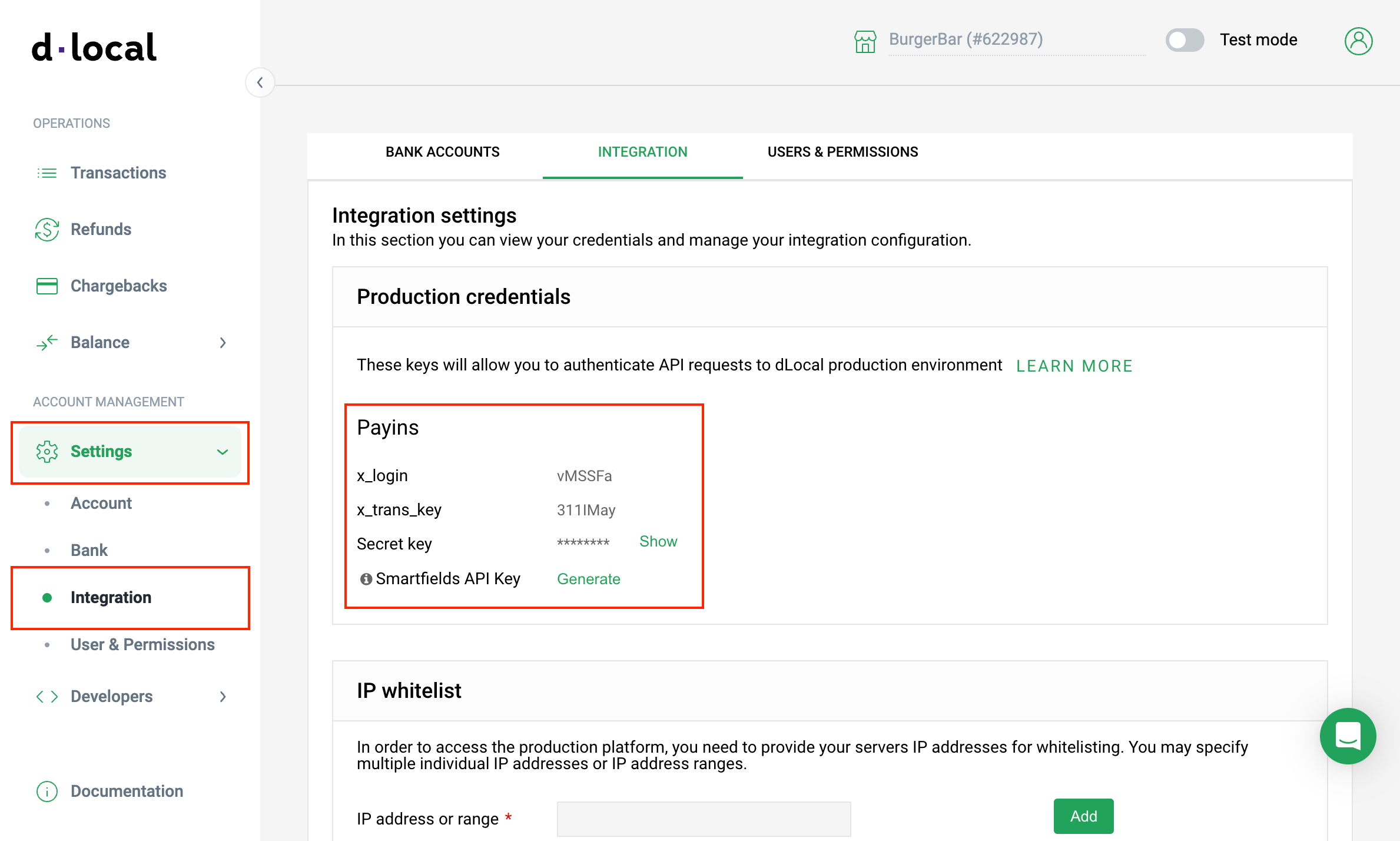
2. Navigate to **Settings** > **Integration**.
3. Locate your **x-login**, **x-trans-key**, and **secret key**.
These credentials are required for secure integration in Upmind.
 You can create a test account to try payment functionality, but live payments require account activation. For more details, refer to the dLocal .
## Adding dLocal in Upmind
1. Go to **Settings** > **Payment Providers** in your Upmind admin area.
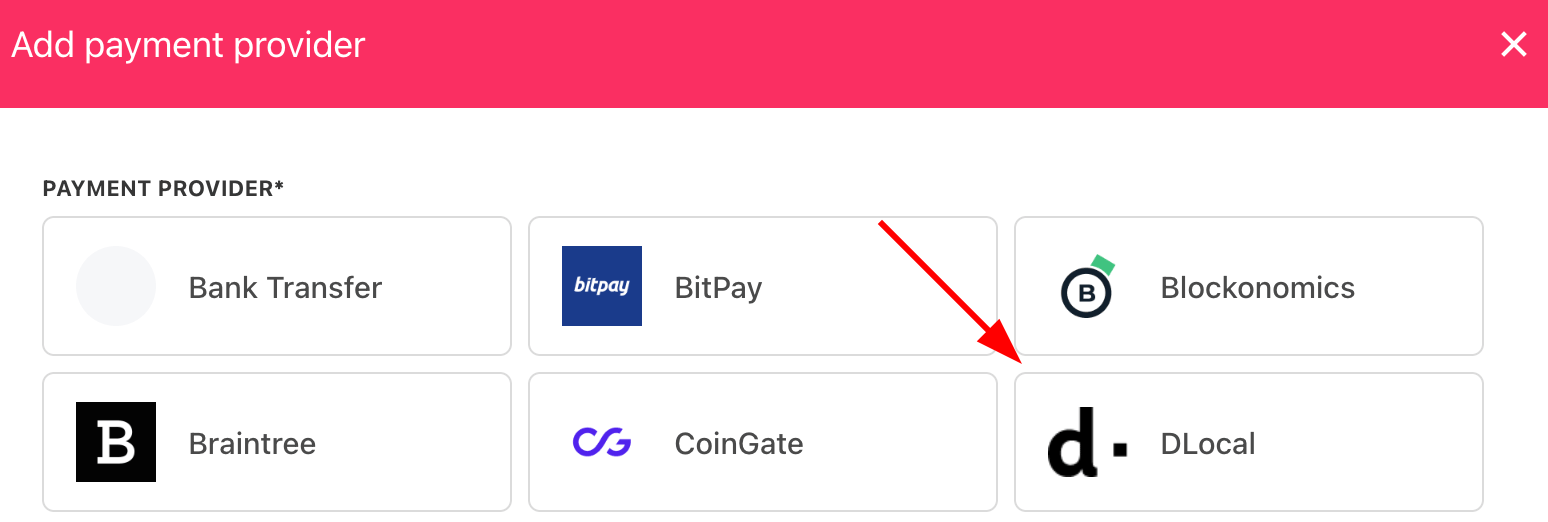
2. Click **Add Payment Provider** and select **dLocal**.
You can create a test account to try payment functionality, but live payments require account activation. For more details, refer to the dLocal .
## Adding dLocal in Upmind
1. Go to **Settings** > **Payment Providers** in your Upmind admin area.
2. Click **Add Payment Provider** and select **dLocal**.
 ## Configure details
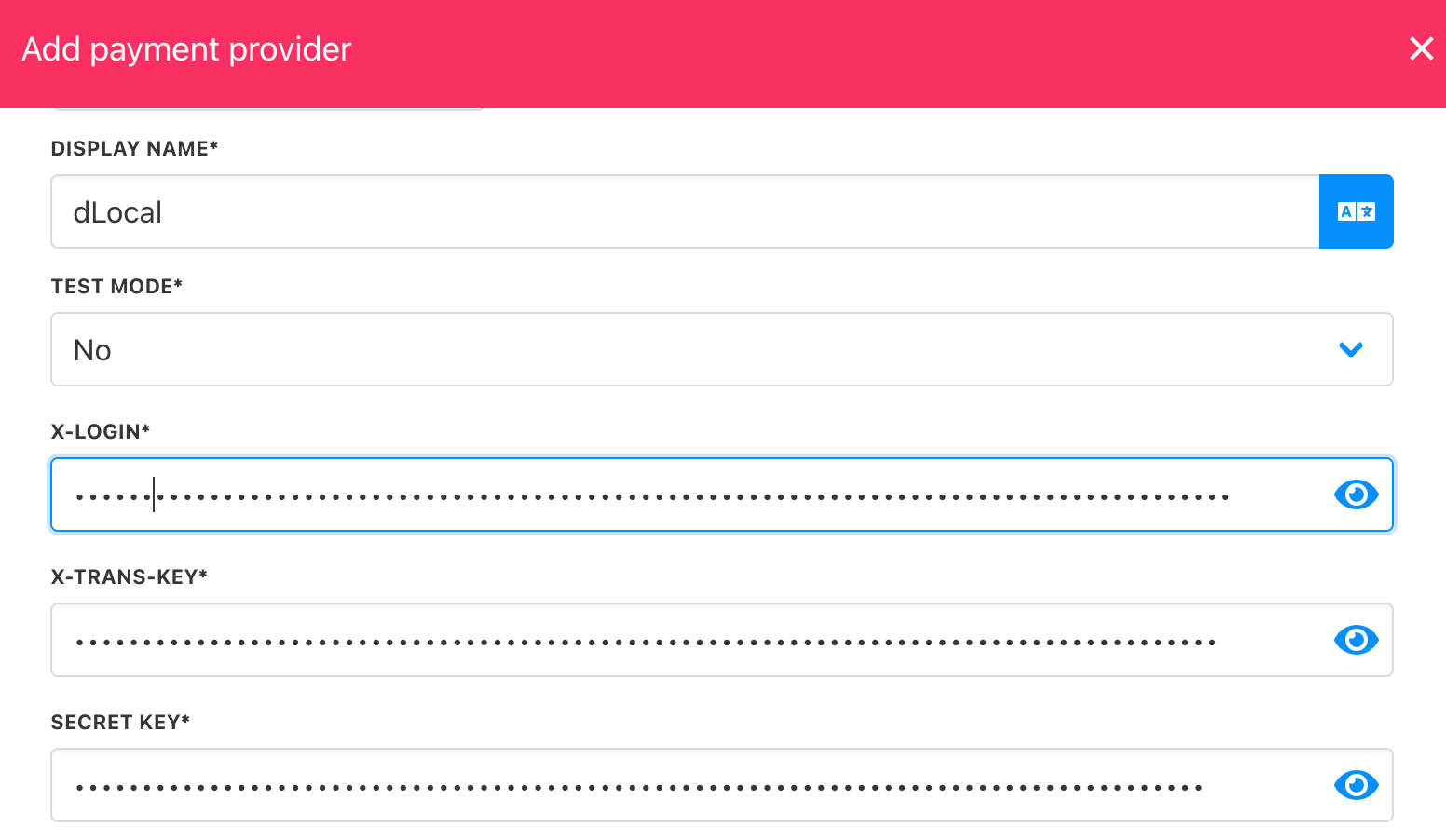
1. Enter a display name. We suggest **dLocal**.
2. Select the appropriate **Test Mode** option.
3. Enter your **x-login**, **x-trans-key,** and **secret key** from your dLocal dashboard.
4. (Optional) Click **Test Credentials** to verify your connection.
5. (Optional) Add supported currencies.
6. (Optional) Enter payment instructions for your customers.
7. Click Create to activate **dLocal**.
## Configure details
1. Enter a display name. We suggest **dLocal**.
2. Select the appropriate **Test Mode** option.
3. Enter your **x-login**, **x-trans-key,** and **secret key** from your dLocal dashboard.
4. (Optional) Click **Test Credentials** to verify your connection.
5. (Optional) Add supported currencies.
6. (Optional) Enter payment instructions for your customers.
7. Click Create to activate **dLocal**.
 ## Editing the payment method
To update, go to **Settings** > **Payment Providers**, click the three dots next to `dLocal`, and select **Edit**.
## Editing the payment method
To update, go to **Settings** > **Payment Providers**, click the three dots next to `dLocal`, and select **Edit**.