> ## Documentation Index
> Fetch the complete documentation index at: https://docs.upmind.com/llms.txt
> Use this file to discover all available pages before exploring further.
# How to Add Bank Transfer as a Payment Method
> Let customers wire money to your account
**Bank Transfer** lets customers pay by moving funds directly between bank accounts, either online or at a branch. This is a preferred option for those who do not wish to use cards online.
### Recommended process
When a customer selects bank transfer at checkout, your store should automatically send an order confirmation with your bank details. The order should include:
* Your bank name and address.
* Account number.
* SWIFT code.
After confirming the funds, manually mark the invoice as paid and process the order.
## Adding the Bank Transfer provider
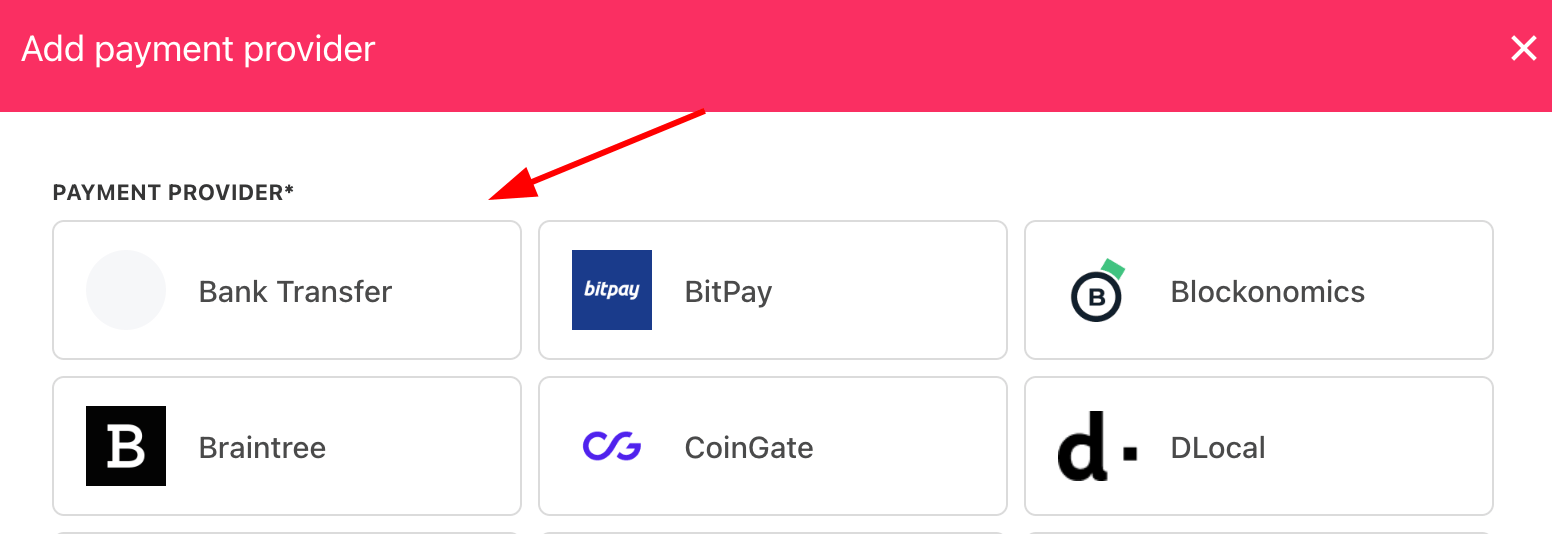
1. Go to **Settings** > **Payment Providers** in Upmind.
2. Click **Add Payment Provider**.
3. Select `Bank Transfer`.
 ## Configuring details
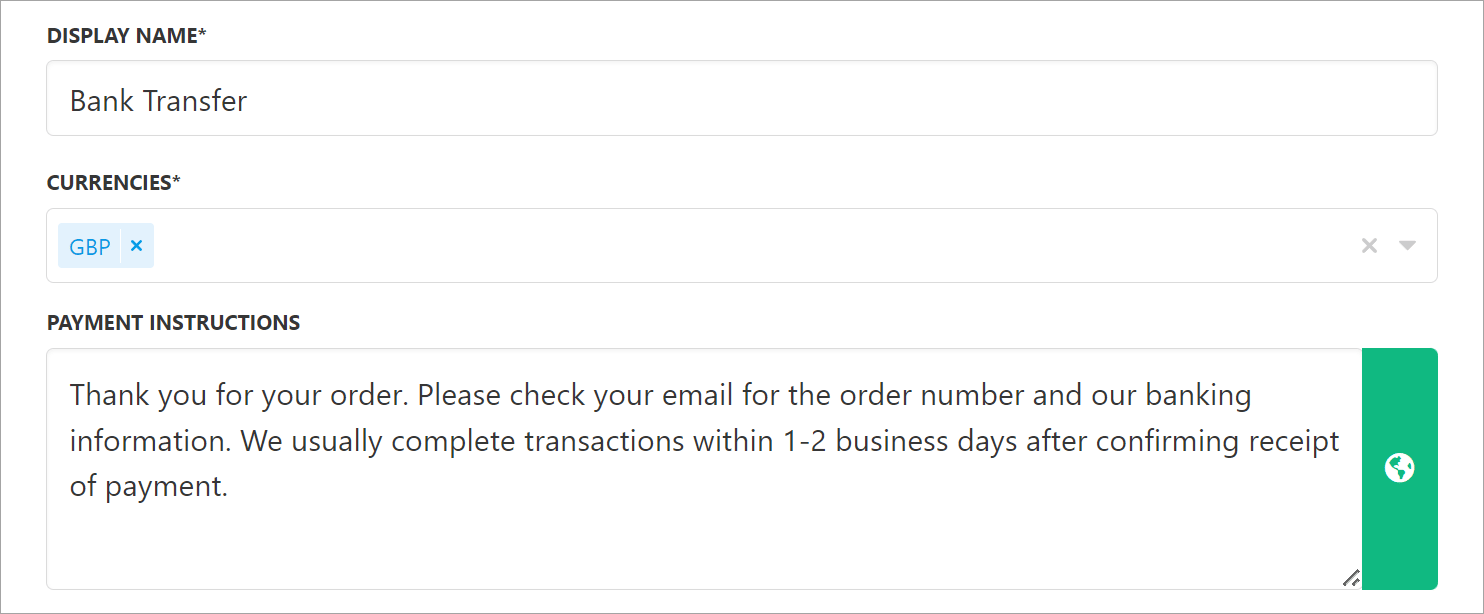
1. Enter a display name.
2. (Optional) Add supported currencies.
3. Enter payment instructions.
4. Click **Create**.
## Configuring details
1. Enter a display name.
2. (Optional) Add supported currencies.
3. Enter payment instructions.
4. Click **Create**.
 ### What the customer sees
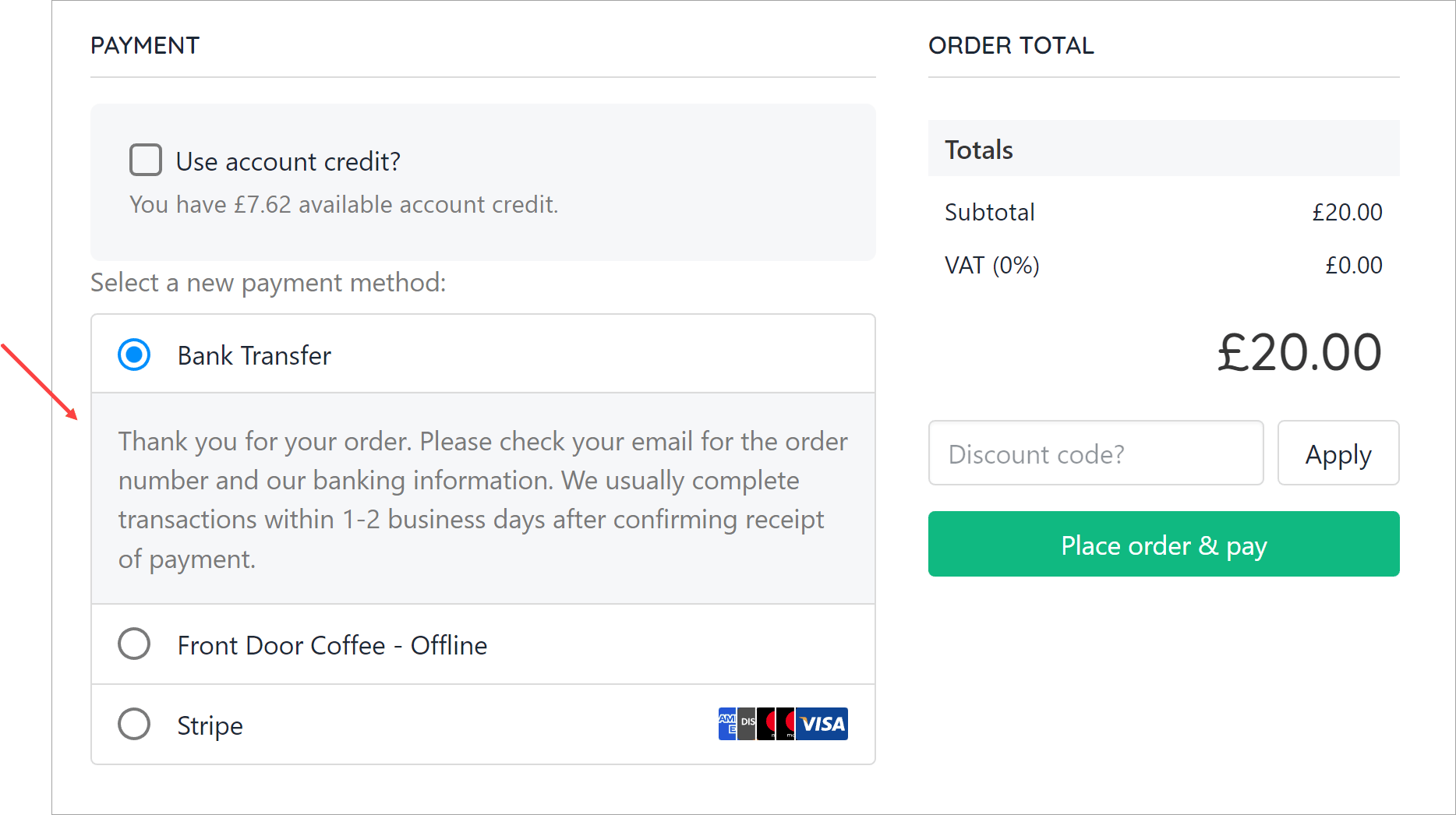
Customers see your bank transfer instructions at checkout.
### What the customer sees
Customers see your bank transfer instructions at checkout.
 ## Editing the payment method
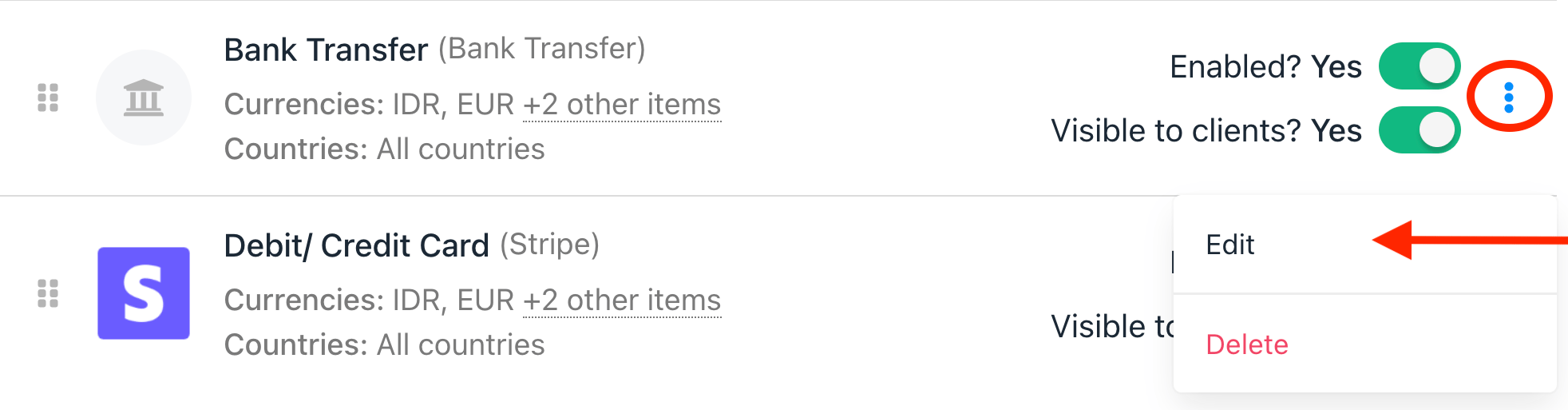
Go to **Settings** > **Payment Providers**, click the three dots next to `Bank Transfer`, and select **Edit**.
## Editing the payment method
Go to **Settings** > **Payment Providers**, click the three dots next to `Bank Transfer`, and select **Edit**.