> ## Documentation Index
> Fetch the complete documentation index at: https://docs.upmind.com/llms.txt
> Use this file to discover all available pages before exploring further.

# Adding Payment Gateways in Upmind

> Customise payment options

Adding **payment gateways** in Upmind allows you to accept a variety of payment methods in your e-commerce store. You can also control visibility, supported currencies, and provide custom instructions for each gateway.

This guide will show you how to add, edit, disable, and delete these gateways, and add payment instructions.

## **Adding a new payment gateway**

1. Log in to your Upmind admin dashboard.

2. Click **Settings** at the bottom of the left menu and select **Payment Providers**.
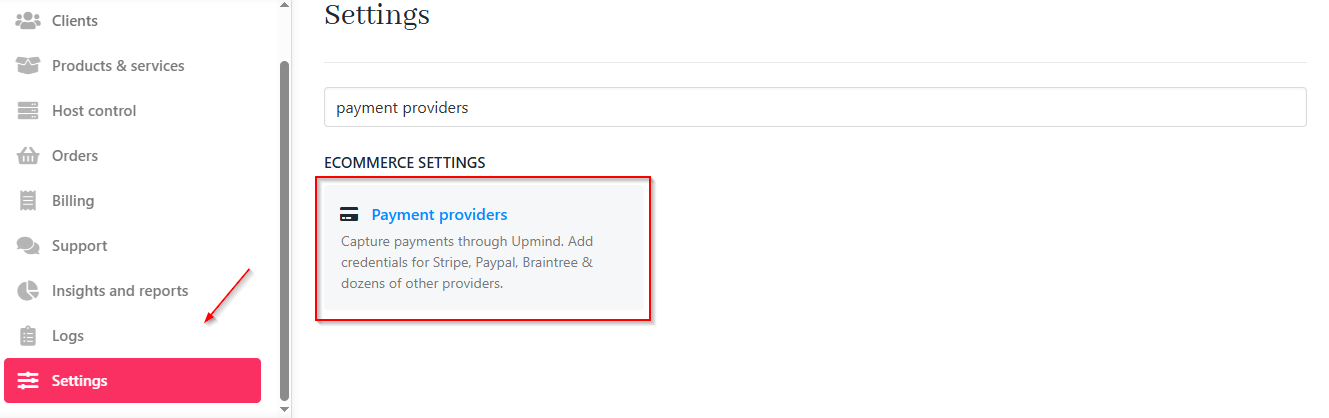
<Frame caption="Settings > Payment providers">
  <img src="https://mintcdn.com/upmind/FQ1NhxALxjSHvvWW/images/fb/a826fe089caad23b.png?fit=max&auto=format&n=FQ1NhxALxjSHvvWW&q=85&s=345e7acf760665b95b1d245ba436d057" alt="Settings > Payment providers" data-og-width="1329" width="1329" data-og-height="418" height="418" data-path="images/fb/a826fe089caad23b.png" data-optimize="true" data-opv="3" srcset="https://mintcdn.com/upmind/FQ1NhxALxjSHvvWW/images/fb/a826fe089caad23b.png?w=280&fit=max&auto=format&n=FQ1NhxALxjSHvvWW&q=85&s=e1aa7bbbe392ffbd70094c9821308c35 280w, https://mintcdn.com/upmind/FQ1NhxALxjSHvvWW/images/fb/a826fe089caad23b.png?w=560&fit=max&auto=format&n=FQ1NhxALxjSHvvWW&q=85&s=2f2be1b97e316d9c35bf5aa25763be14 560w, https://mintcdn.com/upmind/FQ1NhxALxjSHvvWW/images/fb/a826fe089caad23b.png?w=840&fit=max&auto=format&n=FQ1NhxALxjSHvvWW&q=85&s=e5af31de00b60c64b8c8e3e151a84ab7 840w, https://mintcdn.com/upmind/FQ1NhxALxjSHvvWW/images/fb/a826fe089caad23b.png?w=1100&fit=max&auto=format&n=FQ1NhxALxjSHvvWW&q=85&s=962e142a1137e640d25e0572cff15cfa 1100w, https://mintcdn.com/upmind/FQ1NhxALxjSHvvWW/images/fb/a826fe089caad23b.png?w=1650&fit=max&auto=format&n=FQ1NhxALxjSHvvWW&q=85&s=e6dae7829a92fce05ed9fc934caa3e20 1650w, https://mintcdn.com/upmind/FQ1NhxALxjSHvvWW/images/fb/a826fe089caad23b.png?w=2500&fit=max&auto=format&n=FQ1NhxALxjSHvvWW&q=85&s=3b3a41082a6675c160fa0dc1747e6cd3 2500w" />
</Frame>

3. Click **Add Payment Provider**.

<Frame caption="Add payment provider">
  <img src="https://mintcdn.com/upmind/1xguIfYUrfespmVI/images/fb/824c0872cb234535.png?fit=max&auto=format&n=1xguIfYUrfespmVI&q=85&s=cd05c7b1016277026383be94c71b1eaf" alt="Add payment provider" width="1020" height="88" data-path="images/fb/824c0872cb234535.png" />
</Frame>

4. Choose a payment provider from the list.
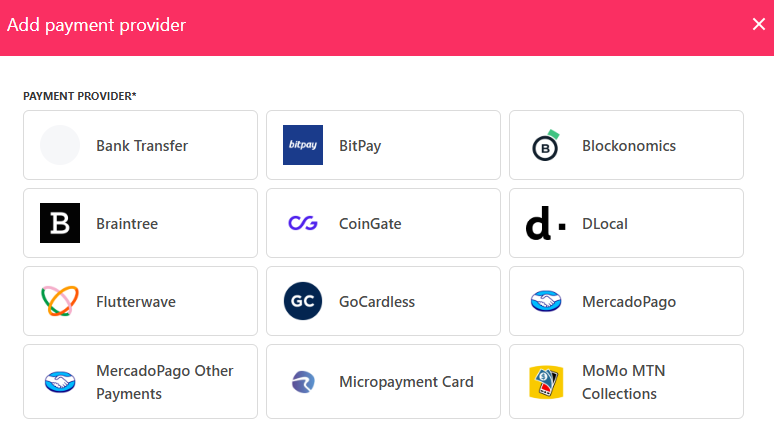
<Frame caption="Choose a payment provider">
  <img src="https://mintcdn.com/upmind/FQ1NhxALxjSHvvWW/images/fb/b08eca84e2f3c1ef.png?fit=max&auto=format&n=FQ1NhxALxjSHvvWW&q=85&s=84c77f656b7a0a57aa3dce49c6e4304c" alt="Choose a payment provider" width="774" height="425" data-path="images/fb/b08eca84e2f3c1ef.png" />
</Frame>

5. Fill in the required fields.

<Note>
  **Each payment option requires different information. We selected the Stripe option for this example. To obtain specific information, like an API key, go to your payment provider account.**
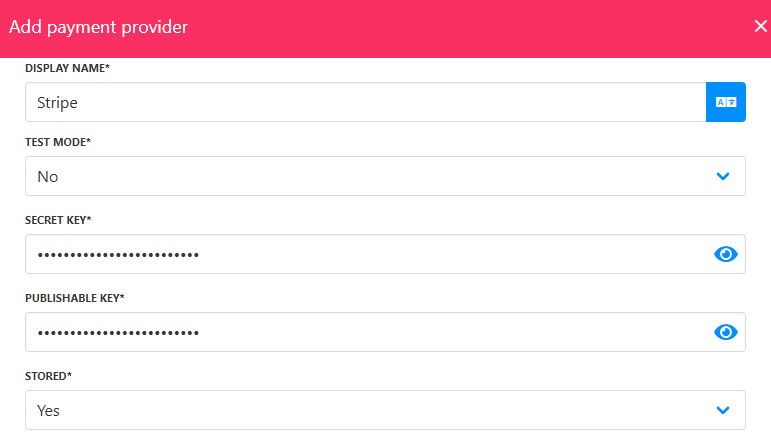
</Note>

<Frame caption="Fill in the details">
  <img src="https://mintcdn.com/upmind/bPO2bBzOxYQR4tYr/images/fb/fe469e97bbda6f50.png?fit=max&auto=format&n=bPO2bBzOxYQR4tYr&q=85&s=6feb42728e94e305137e27c9dc8490b8" alt="Fill in the details" width="771" height="440" data-path="images/fb/fe469e97bbda6f50.png" />
</Frame>

6. Test your **credentials** to confirm the correct setup. (Optional)
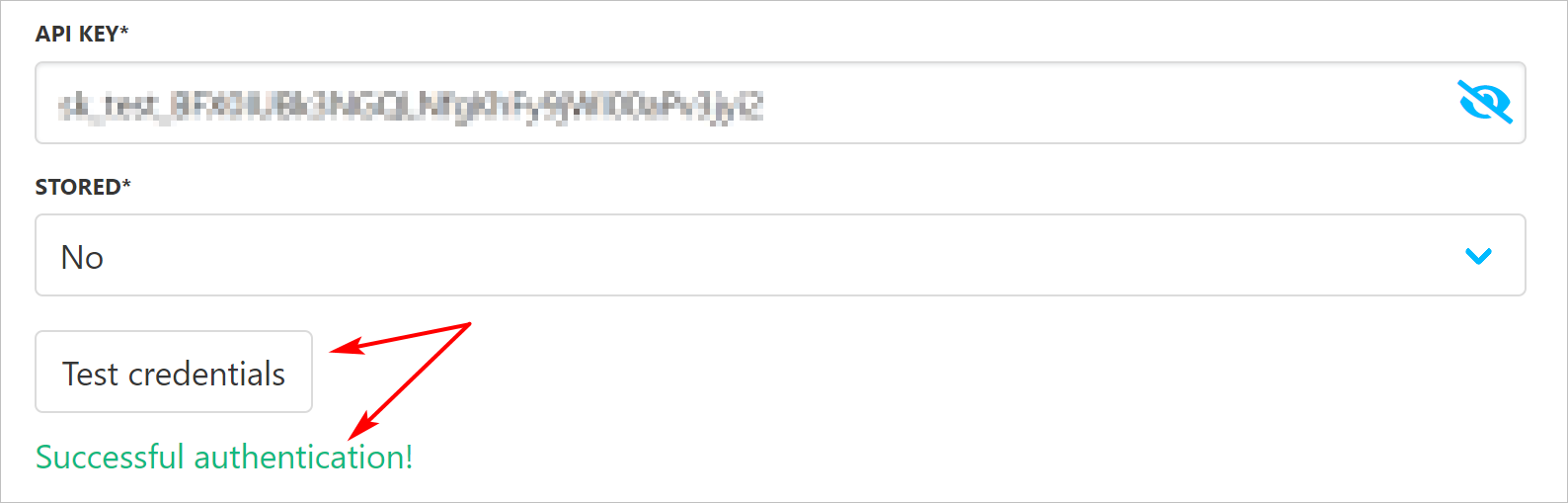
<Frame caption="Test credentials">
  <img src="https://mintcdn.com/upmind/pcUdSuxUJ6LgBXnd/images/fb/a5f2505e3491c948.png?fit=max&auto=format&n=pcUdSuxUJ6LgBXnd&q=85&s=c866ee66280be0f0b5c5c0a13667d05a" alt="1588" width="1588" height="509" data-path="images/fb/a5f2505e3491c948.png" />
</Frame>

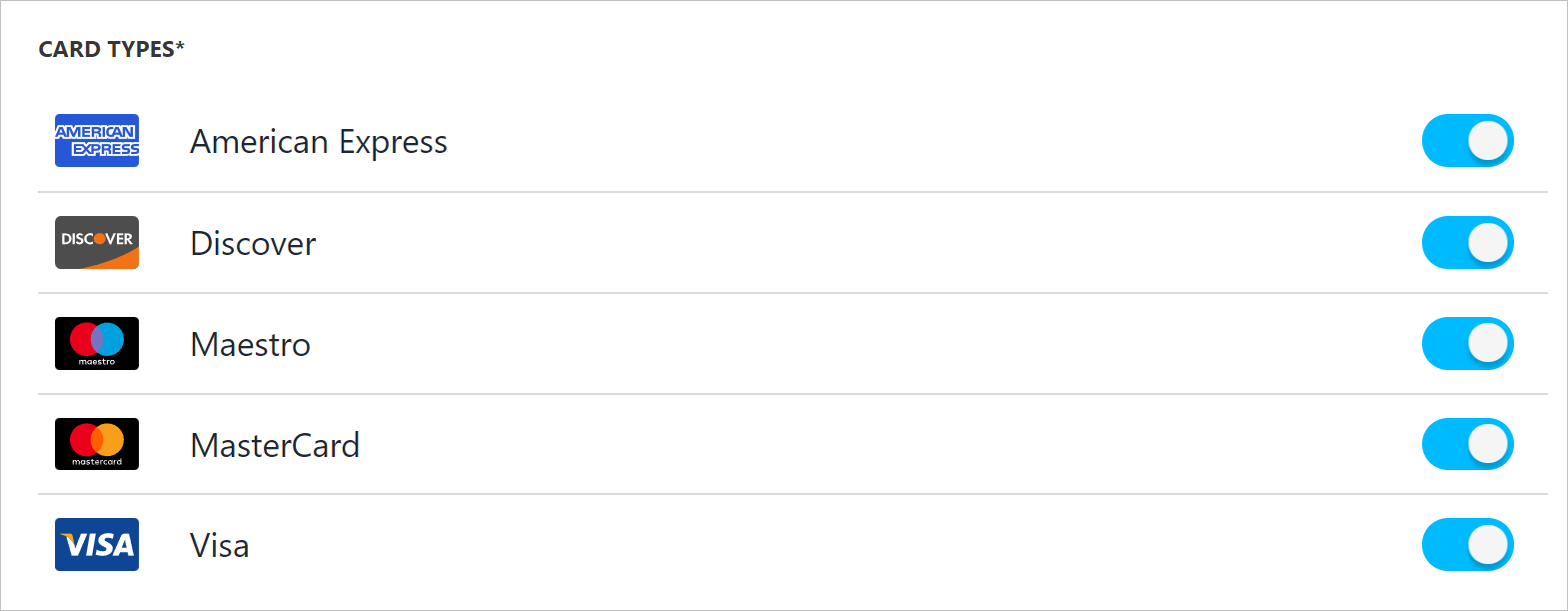
7. Use toggle switches to enable or disable credit card acceptance.
<Frame caption="Enable/disable card types">
  <img src="https://mintcdn.com/upmind/c5sDUwEs8YpzGbjA/images/fb/954cb58f454e255a.png?fit=max&auto=format&n=c5sDUwEs8YpzGbjA&q=85&s=1ce484c14c8c33cdc0d59fa8bca37f31" alt="1569" width="1569" height="611" data-path="images/fb/954cb58f454e255a.png" />
</Frame>

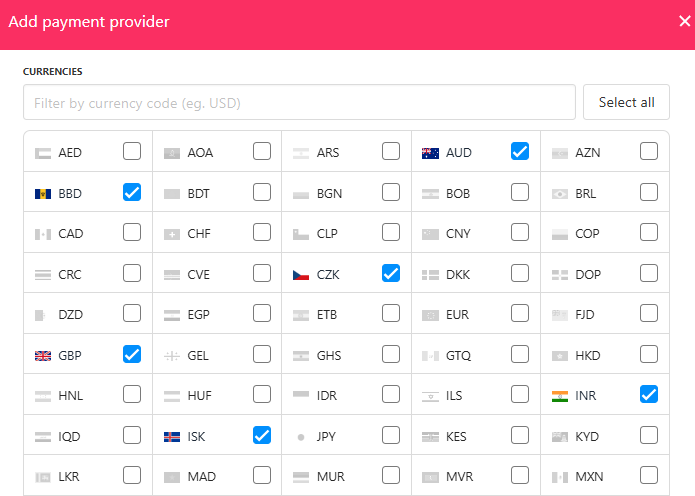
8. Select which currencies you want to accept for this gateway.
<Frame caption="Select currencies">
  <img src="https://mintcdn.com/upmind/bPO2bBzOxYQR4tYr/images/fb/fff93a6cf9cb16a6.png?fit=max&auto=format&n=bPO2bBzOxYQR4tYr&q=85&s=422fb4841437eada816cb633a7ef65b1" alt="Select currencies" width="695" height="496" data-path="images/fb/fff93a6cf9cb16a6.png" />
</Frame>

9. Specify the countries where this payment provider should be available.

<Frame caption="Enable for countries">
  <img src="https://mintcdn.com/upmind/uxzVUXAKtJ2bRWCI/images/fb/6c54a750646cfc09.png?fit=max&auto=format&n=uxzVUXAKtJ2bRWCI&q=85&s=bebfe59414079241468d014c1b2ee9dd" alt="Enable for countries" width="687" height="90" data-path="images/fb/6c54a750646cfc09.png" />
</Frame>

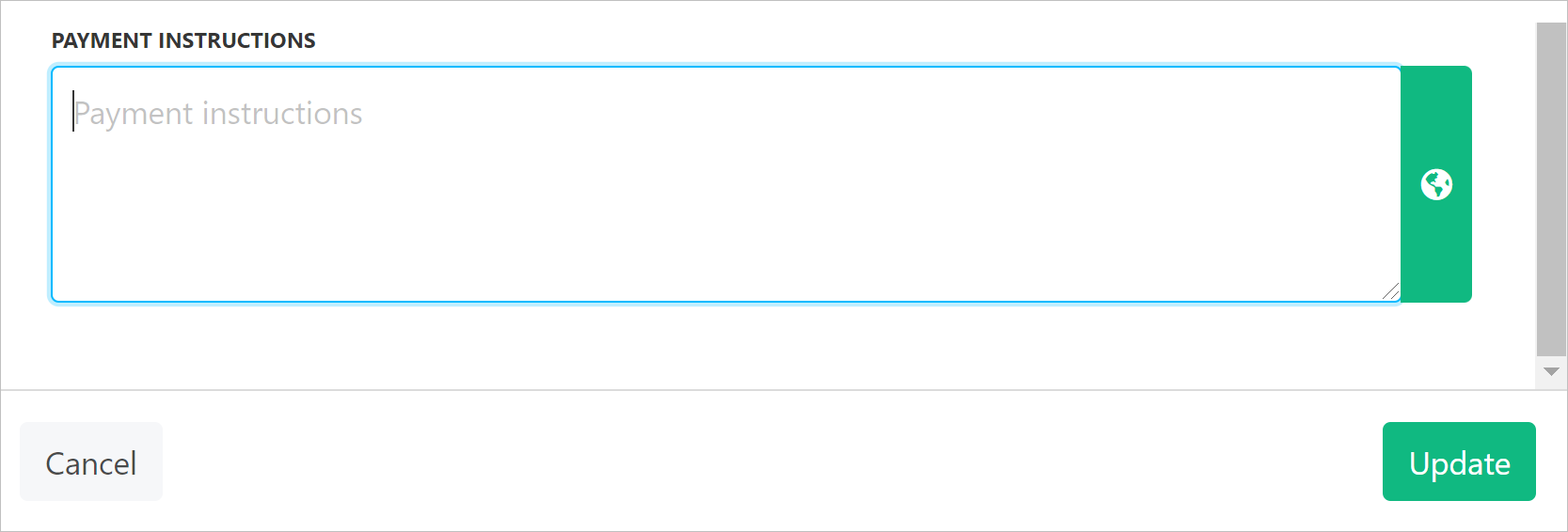
10. (Optional) Add payment instructions for clients.

11. Click **Update** to save your settings.
<Frame caption="Payment instructions">
  <img src="https://mintcdn.com/upmind/JUoAg6onJmXk_-rR/images/fb/e000e8ca089bb08f.png?fit=max&auto=format&n=JUoAg6onJmXk_-rR&q=85&s=52df3adc5c3dc2a5d61ac003436fbe4c" alt="1667" width="1667" height="566" data-path="images/fb/e000e8ca089bb08f.png" />
</Frame>

## **Editing payment visibility**

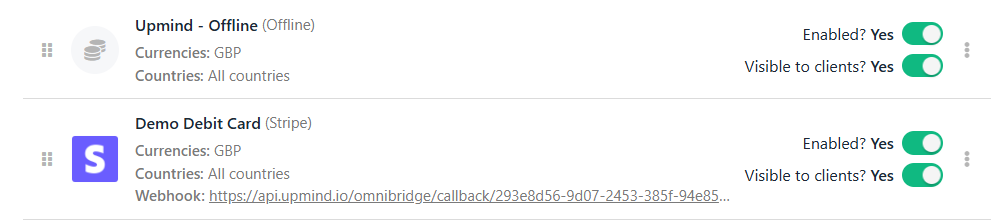
You can control which payment provider options the client can access on the checkout page.

To control visibility, toggle the switch **ON** (green) to show the gateway at checkout.
<Frame caption="Payment visibility (enabled)">
  <img src="https://mintcdn.com/upmind/VnCXiz5rboywDnvn/images/fb/d97730d368e7370f.png?fit=max&auto=format&n=VnCXiz5rboywDnvn&q=85&s=cab2a4925c653504da0d44b778a858e1" alt="Payment visibility (enabled)" width="994" height="220" data-path="images/fb/d97730d368e7370f.png" />
</Frame>

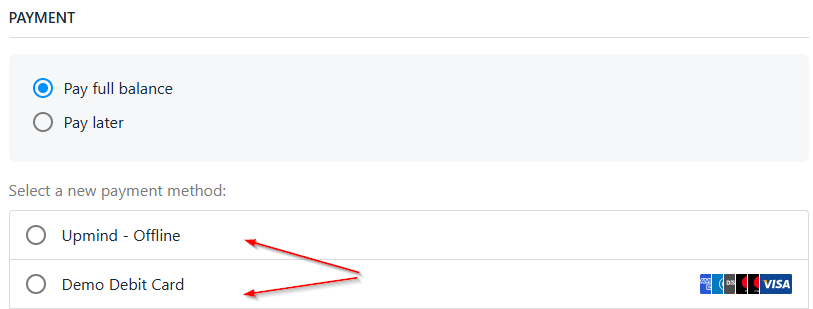
**Example**: The client sees two payment options.
<Frame caption="Multiple payment options">
  <img src="https://mintcdn.com/upmind/c5sDUwEs8YpzGbjA/images/fb/98dbafcaf7dea4ad.png?fit=max&auto=format&n=c5sDUwEs8YpzGbjA&q=85&s=97af468ff9cb8e6946506828577cdc4e" alt="Multiple payment options" width="813" height="309" data-path="images/fb/98dbafcaf7dea4ad.png" />
</Frame>

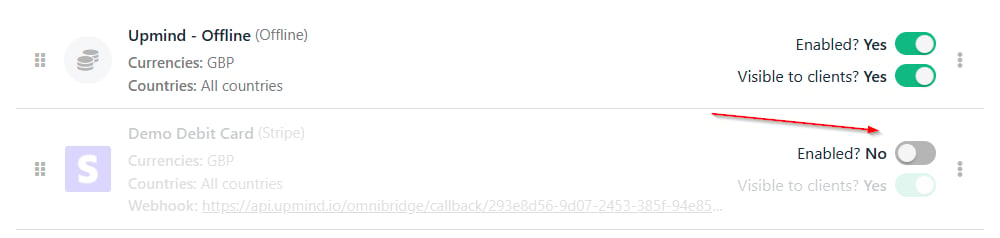
Toggle the switch **OFF** (grey) to remove the payment option from the checkout and disable the tool on your e-commerce site.
<Frame caption="Payment visibility (disabled)">
  <img src="https://mintcdn.com/upmind/FQ1NhxALxjSHvvWW/images/fb/abe2c263585044ae.png?fit=max&auto=format&n=FQ1NhxALxjSHvvWW&q=85&s=e5877efba2e12fbeeaa531a3185cac56" alt="Payment visibility (disabled)" width="1000" height="238" data-path="images/fb/abe2c263585044ae.png" />
</Frame>

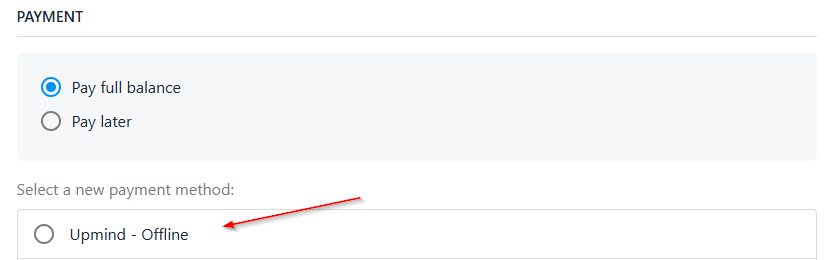
**Example**: The client sees one payment option.
<Frame caption="Single payment option">
  <img src="https://mintcdn.com/upmind/kXD0Ya8PpcxxNm6Q/images/fb/3cba2f2c50873a8a.png?fit=max&auto=format&n=kXD0Ya8PpcxxNm6Q&q=85&s=78d1c1b894e374a3e45e0daec3da22cb" alt="Single payment option" width="824" height="260" data-path="images/fb/3cba2f2c50873a8a.png" />
</Frame>

## **Editing a payment provider**

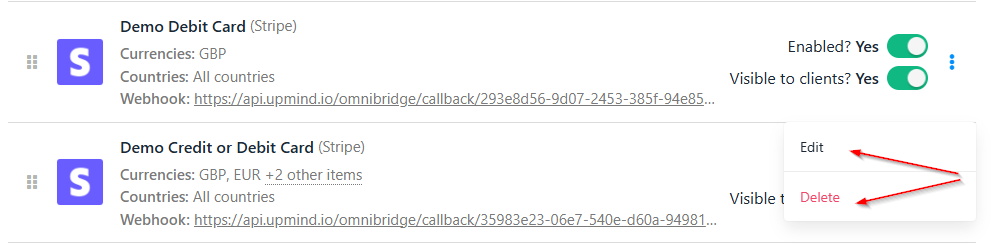
To edit an existing payment provider, locate it in the list and click the gear icon. You can also delete any payment providers.
<Frame caption="Edit payment provider">
  <img src="https://mintcdn.com/upmind/2ooSxDpt6PiIGMr-/images/fb/001a66b52b6e6630.png?fit=max&auto=format&n=2ooSxDpt6PiIGMr-&q=85&s=14a53d9f8395a3c292e2e27230948839" alt="Edit payment provider" width="993" height="244" data-path="images/fb/001a66b52b6e6630.png" />
</Frame>

Make any necessary changes and click Update.

**Example**: We add instructions for offline bank deposits.

<Frame caption="Payment instructions">
  <img src="https://mintcdn.com/upmind/kXD0Ya8PpcxxNm6Q/images/fb/41e6463bc2ccbd7c.png?fit=max&auto=format&n=kXD0Ya8PpcxxNm6Q&q=85&s=82c1dec0d9280e067751f15cc98bc42f" alt="Payment instructions" width="812" height="112" data-path="images/fb/41e6463bc2ccbd7c.png" />
</Frame>

<Note>
  **Payment provider instructions display on the checkout only if the client selects that payment option.**
</Note>
