> ## Documentation Index
> Fetch the complete documentation index at: https://docs.upmind.com/llms.txt
> Use this file to discover all available pages before exploring further.
# How Staff Can Top Up Account Credit
This guide shows you how staff can add (top up) account credit for a client through the admin area, along with some available options.
Here's how to do it:
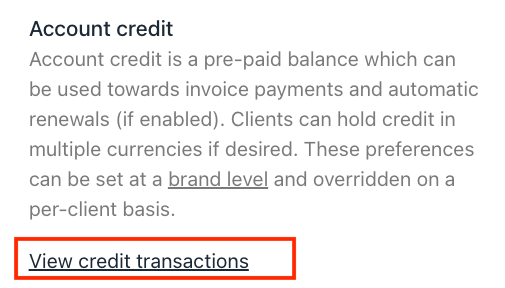
1. Go to the client’s profile > Billing > Account Credit.
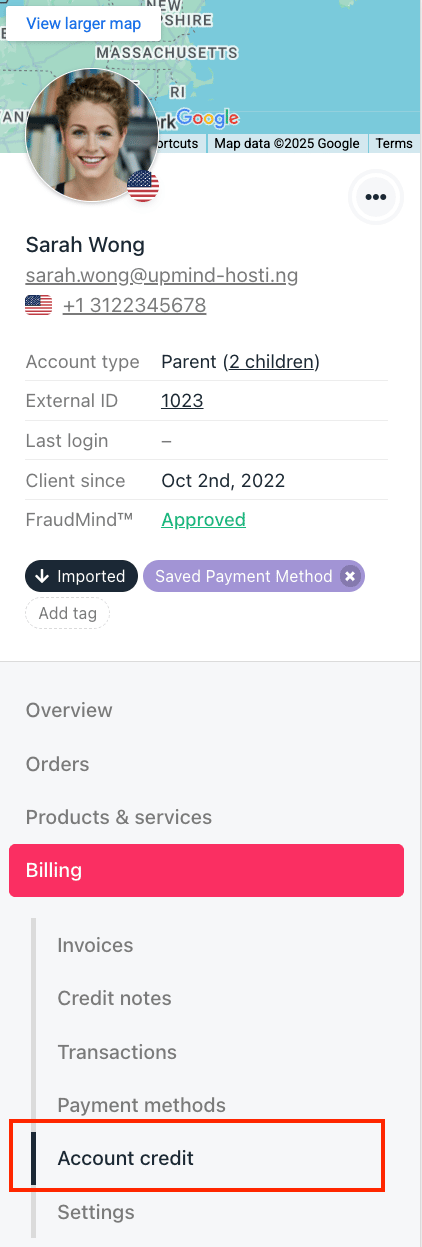 2. Click Top Up.
3. In the pop-up window, you’ll see a few options:
2. Click Top Up.
3. In the pop-up window, you’ll see a few options:
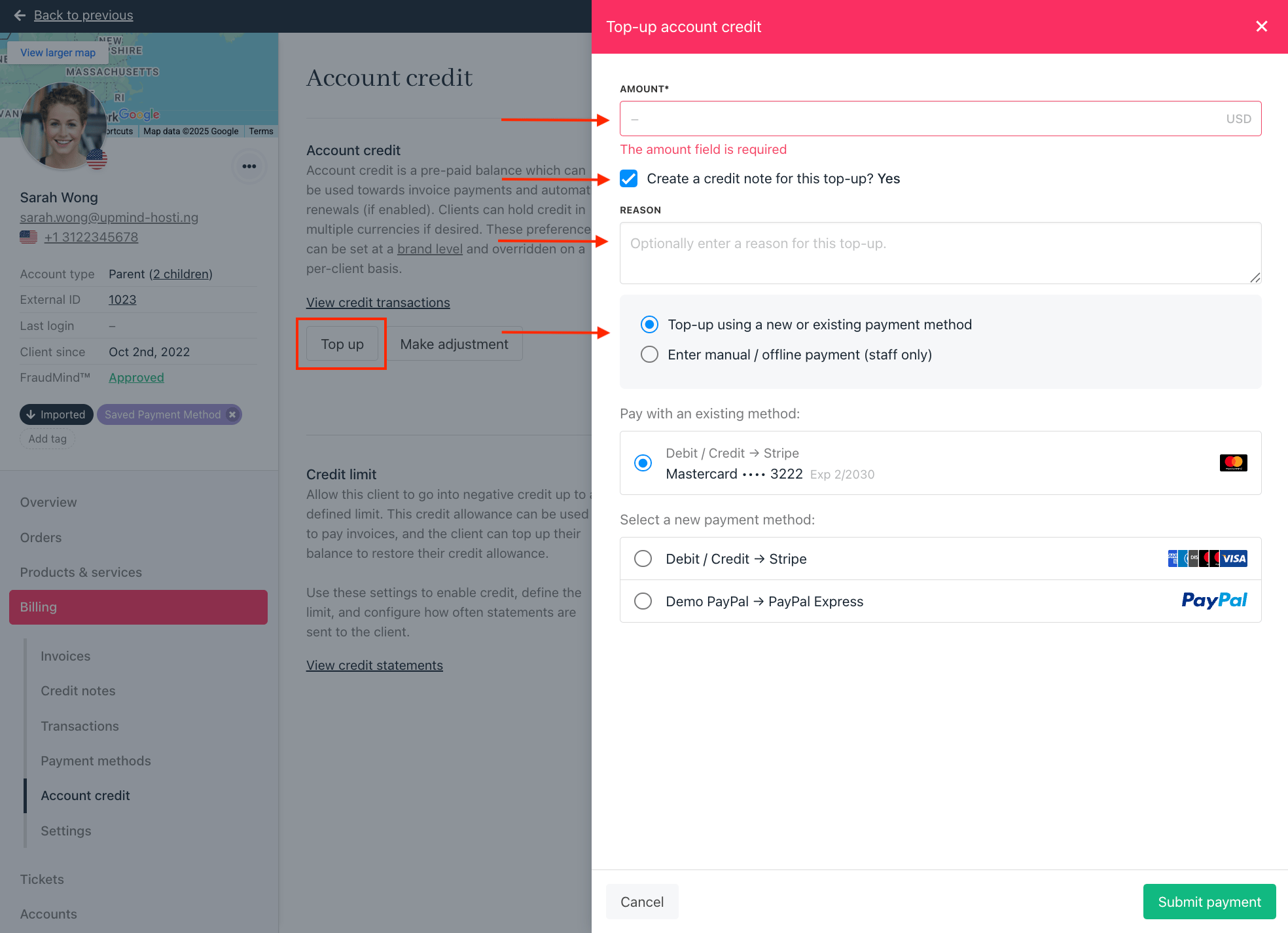 * Enter the amount to top up.
* Choose whether to create a credit note for the top-up and fill in the reason for it.
To enable this as the default option, go to `Settings` > `Payment Options` > `Client Wallet` > `Force Credit Note on Top Up.`
* Select a payment method: use a new payment method, an existing one, or record a manual/offline payment.
4. Click Submit Payment.
Once done, the client’s account credit will be updated.
## **Other Account Credit Settings**
Besides topping up, you can also manage a client's account credit with these options:
* Enter the amount to top up.
* Choose whether to create a credit note for the top-up and fill in the reason for it.
To enable this as the default option, go to `Settings` > `Payment Options` > `Client Wallet` > `Force Credit Note on Top Up.`
* Select a payment method: use a new payment method, an existing one, or record a manual/offline payment.
4. Click Submit Payment.
Once done, the client’s account credit will be updated.
## **Other Account Credit Settings**
Besides topping up, you can also manage a client's account credit with these options:
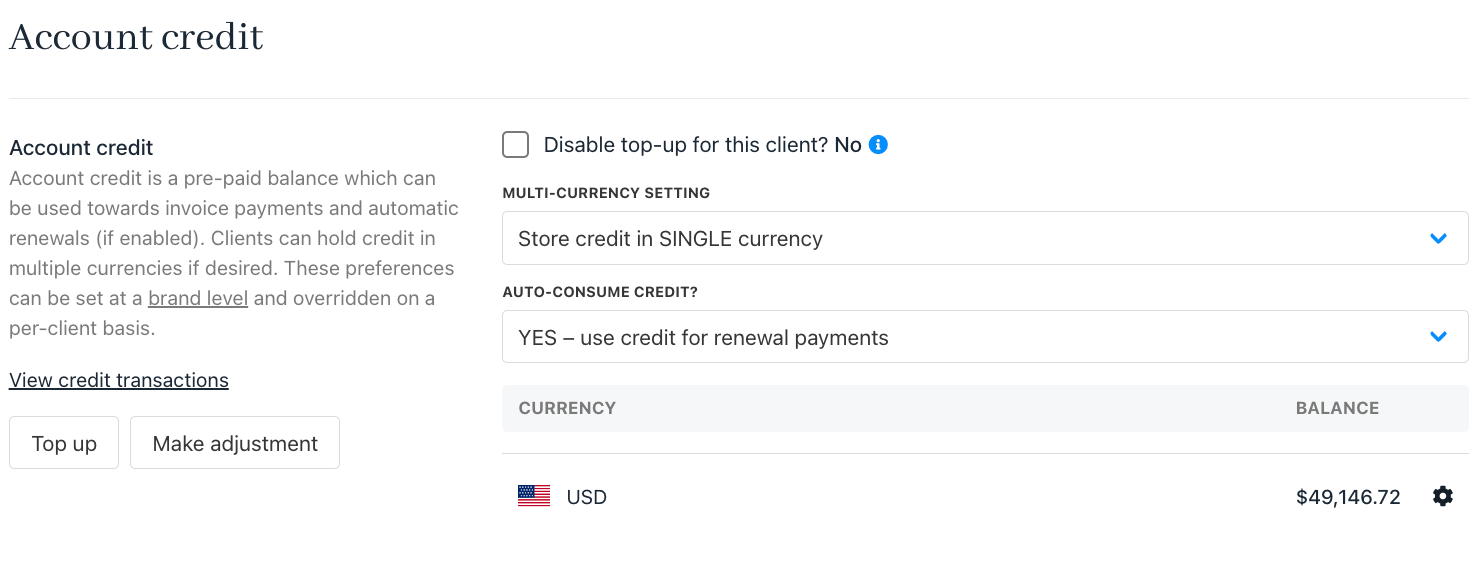 Account Credit under Client Profile in Admin Area
* Enable or disable top-up for this client.
Account Credit under Client Profile in Admin Area
* Enable or disable top-up for this client.
 * Set up multi-currency options for the client’s account credit.
 * Configure auto-consume credit
 If you choose Inherit brand default, you can review the option under `Settings` > `Payment Options` > `Client Wallet`
* Make manual adjustments to the client’s credit balance.
If you choose Inherit brand default, you can review the option under `Settings` > `Payment Options` > `Client Wallet`
* Make manual adjustments to the client’s credit balance.
 * View credit transactions to see the full history of credit usage and changes.