> ## Documentation Index
> Fetch the complete documentation index at: https://docs.upmind.com/llms.txt
> Use this file to discover all available pages before exploring further.

# Manually Adding GoCardless Mandate Tokens in Upmind

> Configure GoCardless mandate tokens

Admins and staff can manually link existing GoCardless mandates to customer accounts in Upmind by adding mandate tokens. This is helpful for clients who have set up mandates outside of the automated Upmind process.

Additionally, you can refer to this [guide](/using-upmind/payment-methods/how-to-add-payment-gateways/how-to-add-gocardless-as-a-payment-method) on how to add GoCardless as a payment method. You can also find the instructions on obtaining the GoCardless access token and setting up webhooks on this [guide](/using-upmind/payment-methods/gocardless-access-token-webhooks/manually-adding-gocardless-mandate-tokens-in-upmind).

## Getting the mandate token from GoCardless

1. Log in to your **GoCardless Dashboard** at [manage.gocardless.com](https://manage.gocardless.com/).
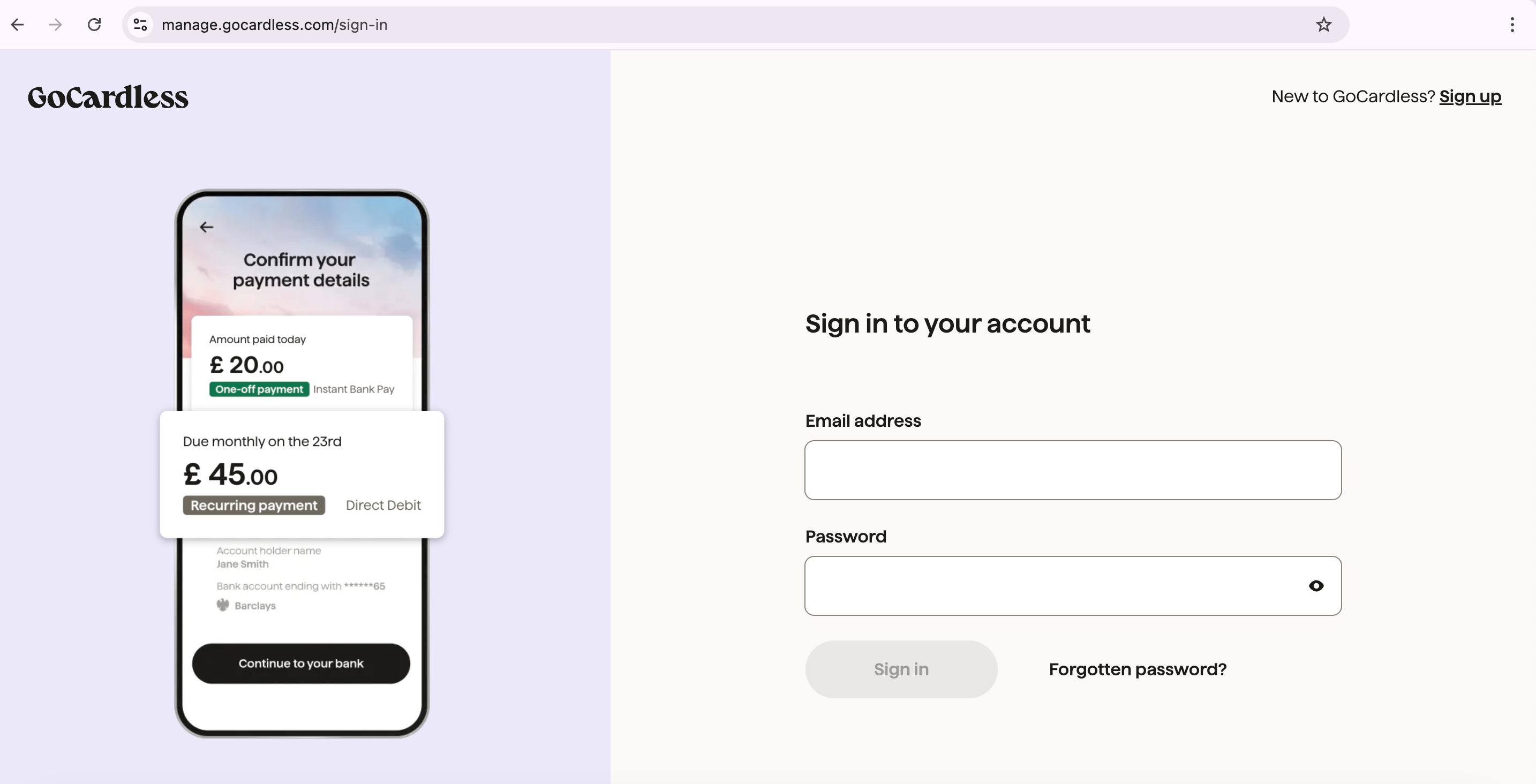
<Frame caption="GoCardless account login">
  <img src="https://mintcdn.com/upmind/FQ1NhxALxjSHvvWW/images/fb/ac59e14dfd86953e.png?fit=max&auto=format&n=FQ1NhxALxjSHvvWW&q=85&s=5f5c6d05bad55c3730ddc755915b1be2" alt="GoCardless account login" width="2868" height="1464" data-path="images/fb/ac59e14dfd86953e.png" />
</Frame>

2. In the left menu, click `Customers`.
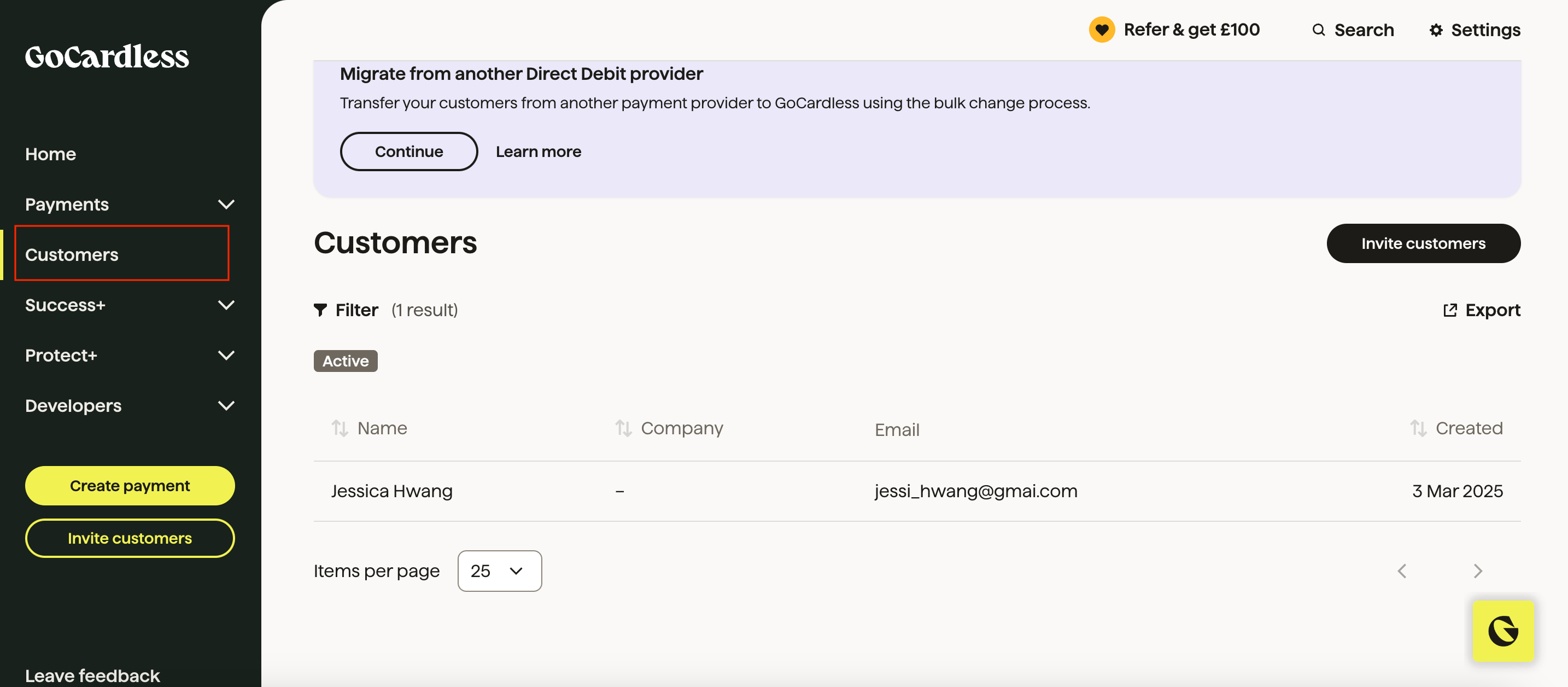
<Frame caption="Customers > Choose the customer">
  <img src="https://mintcdn.com/upmind/uxzVUXAKtJ2bRWCI/images/fb/68fc2f459c438630.png?fit=max&auto=format&n=uxzVUXAKtJ2bRWCI&q=85&s=b14729eccef73d332f739198f4a50235" alt="Customers > Choose the customer" data-og-width="2868" width="2868" data-og-height="1256" height="1256" data-path="images/fb/68fc2f459c438630.png" data-optimize="true" data-opv="3" srcset="https://mintcdn.com/upmind/uxzVUXAKtJ2bRWCI/images/fb/68fc2f459c438630.png?w=280&fit=max&auto=format&n=uxzVUXAKtJ2bRWCI&q=85&s=c3424a6bbb20f951151b9708b63f7cab 280w, https://mintcdn.com/upmind/uxzVUXAKtJ2bRWCI/images/fb/68fc2f459c438630.png?w=560&fit=max&auto=format&n=uxzVUXAKtJ2bRWCI&q=85&s=58b8ec2274fe9cd566a8b807b4c34d28 560w, https://mintcdn.com/upmind/uxzVUXAKtJ2bRWCI/images/fb/68fc2f459c438630.png?w=840&fit=max&auto=format&n=uxzVUXAKtJ2bRWCI&q=85&s=1c38918da6bd1ab4667cbeb4f6f8d2a4 840w, https://mintcdn.com/upmind/uxzVUXAKtJ2bRWCI/images/fb/68fc2f459c438630.png?w=1100&fit=max&auto=format&n=uxzVUXAKtJ2bRWCI&q=85&s=e6be47f1bb782f129cf91511a0356977 1100w, https://mintcdn.com/upmind/uxzVUXAKtJ2bRWCI/images/fb/68fc2f459c438630.png?w=1650&fit=max&auto=format&n=uxzVUXAKtJ2bRWCI&q=85&s=46cf9aa69f8f4a5ecf7a1477a4df9620 1650w, https://mintcdn.com/upmind/uxzVUXAKtJ2bRWCI/images/fb/68fc2f459c438630.png?w=2500&fit=max&auto=format&n=uxzVUXAKtJ2bRWCI&q=85&s=b6b85fbe1e20ef7028ca6652a5523a99 2500w" />
</Frame>

3. Select the customer whose mandate you want to link.

4. Click **Bank Accounts** under the customer profile.
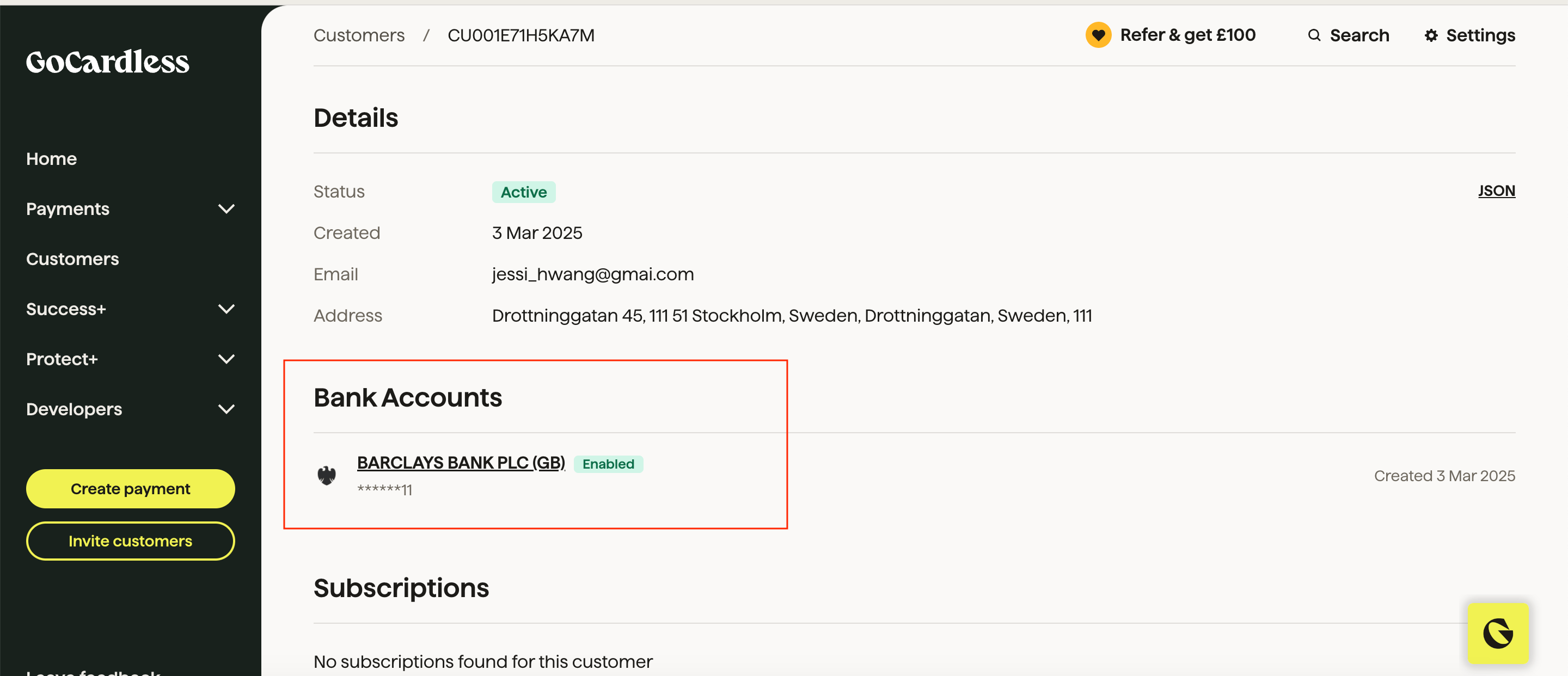
<Frame caption="Bank account under customer profile">
  <img src="https://mintcdn.com/upmind/uxzVUXAKtJ2bRWCI/images/fb/65f9670ea3d647d9.png?fit=max&auto=format&n=uxzVUXAKtJ2bRWCI&q=85&s=9611abc6001c59d0b1533dbcf35a5379" alt="Bank account under customer profile" width="2880" height="1242" data-path="images/fb/65f9670ea3d647d9.png" />
</Frame>

5. Locate and copy the **Mandate Code** (the unique identifier for the mandate).
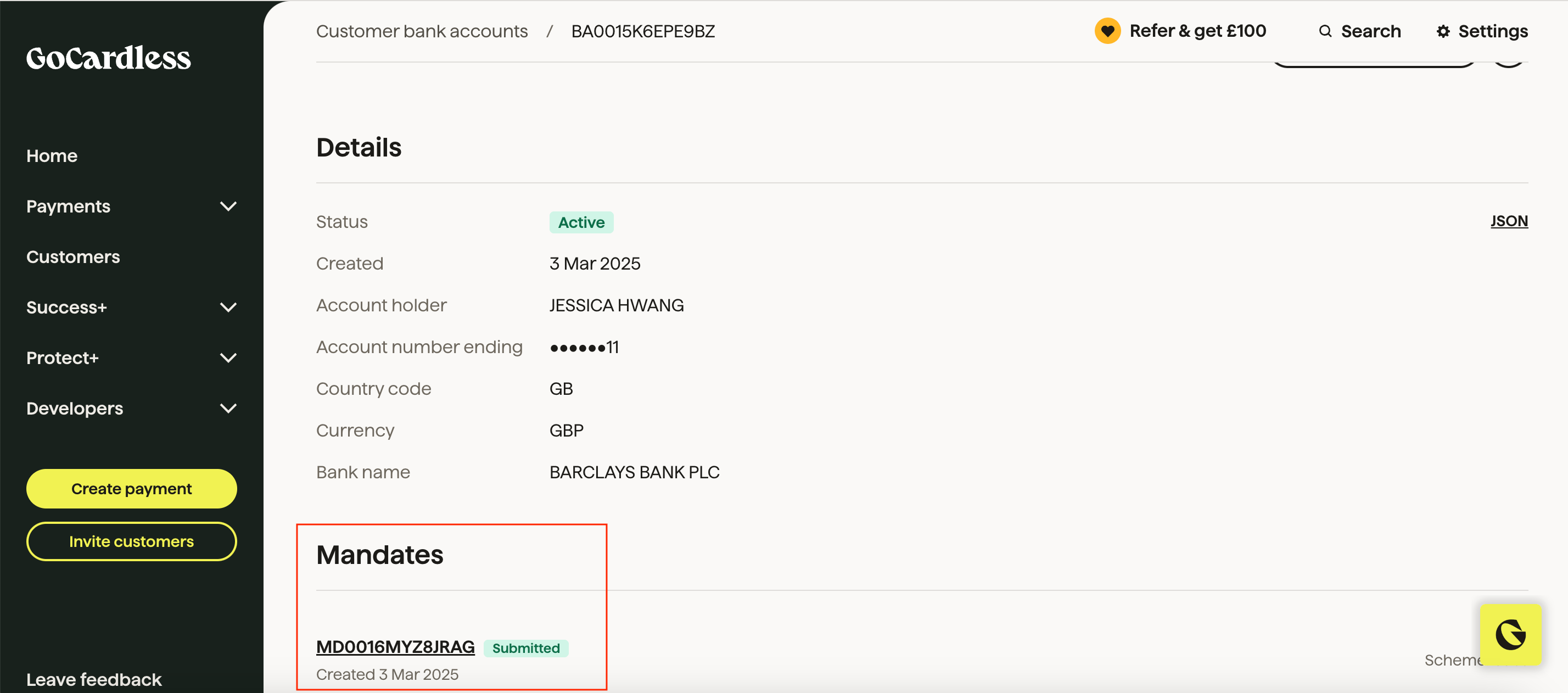
<Frame caption="Copy the mandate code">
  <img src="https://mintcdn.com/upmind/Dgjmf3QWYVBR40cE/images/fb/60b5c0c337b227fb.png?fit=max&auto=format&n=Dgjmf3QWYVBR40cE&q=85&s=677e3b54da11413ffcb4394d3cb10f80" alt="Copy the mandate code" width="2856" height="1262" data-path="images/fb/60b5c0c337b227fb.png" />
</Frame>

## Manually adding the mandate token in Upmind

1. Log in to your Upmind admin panel.

2. Select the client to whom you want to assign the mandate.

3. Go to **Billing** > **Payment Methods** and click **Add Payment Method**.
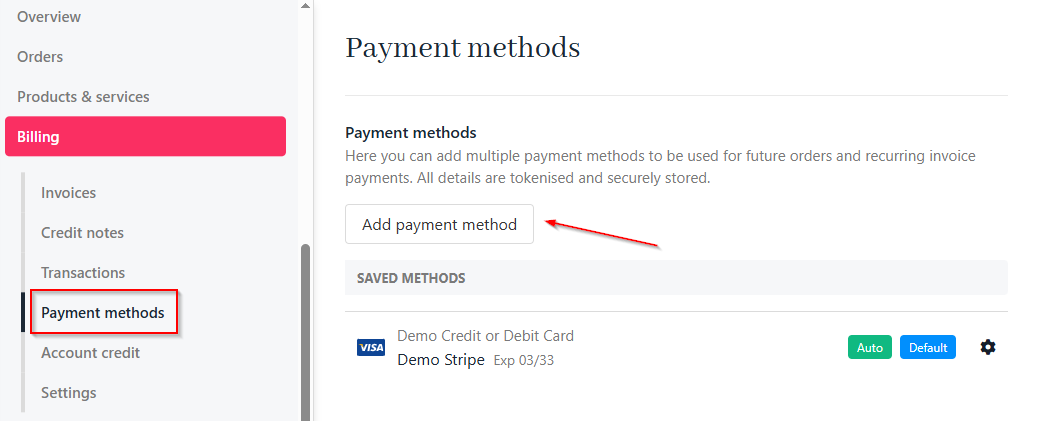
<Frame caption="Billing > Payment methods">
  <img src="https://mintcdn.com/upmind/c5sDUwEs8YpzGbjA/images/fb/95c39af3605def4e.png?fit=max&auto=format&n=c5sDUwEs8YpzGbjA&q=85&s=f6801fc043ae3077cf9dd81c3ab0031b" alt="Billing > Payment methods" data-og-width="1038" width="1038" data-og-height="421" height="421" data-path="images/fb/95c39af3605def4e.png" data-optimize="true" data-opv="3" srcset="https://mintcdn.com/upmind/c5sDUwEs8YpzGbjA/images/fb/95c39af3605def4e.png?w=280&fit=max&auto=format&n=c5sDUwEs8YpzGbjA&q=85&s=265eafe3ebc4a9b422179d904cfb47a8 280w, https://mintcdn.com/upmind/c5sDUwEs8YpzGbjA/images/fb/95c39af3605def4e.png?w=560&fit=max&auto=format&n=c5sDUwEs8YpzGbjA&q=85&s=1d9c1bac4e28adb6366a73a8bce3c8f5 560w, https://mintcdn.com/upmind/c5sDUwEs8YpzGbjA/images/fb/95c39af3605def4e.png?w=840&fit=max&auto=format&n=c5sDUwEs8YpzGbjA&q=85&s=53a6a2547e80add2a59e11ada6072a50 840w, https://mintcdn.com/upmind/c5sDUwEs8YpzGbjA/images/fb/95c39af3605def4e.png?w=1100&fit=max&auto=format&n=c5sDUwEs8YpzGbjA&q=85&s=af4e6e205280e033ed7443e2a1b7d431 1100w, https://mintcdn.com/upmind/c5sDUwEs8YpzGbjA/images/fb/95c39af3605def4e.png?w=1650&fit=max&auto=format&n=c5sDUwEs8YpzGbjA&q=85&s=dfa66d49a68649b663f207b6b9401d49 1650w, https://mintcdn.com/upmind/c5sDUwEs8YpzGbjA/images/fb/95c39af3605def4e.png?w=2500&fit=max&auto=format&n=c5sDUwEs8YpzGbjA&q=85&s=902602830b721bea96fc6f307c3b9da3 2500w" />
</Frame>

4. In the **Advanced** section, choose the option to add a mandate token manually.
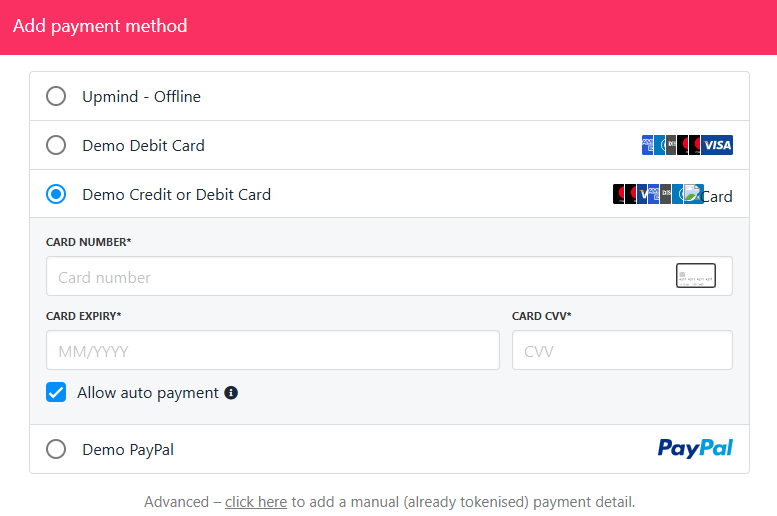
<Frame caption="Manually add mandate token">
  <img src="https://mintcdn.com/upmind/VnCXiz5rboywDnvn/images/fb/d6089355c704ade3.png?fit=max&auto=format&n=VnCXiz5rboywDnvn&q=85&s=777cf62c7209662ffe56e61670f34827" alt="Manually add mandate token" width="777" height="516" data-path="images/fb/d6089355c704ade3.png" />
</Frame>

5. Select **GoCardless** as the provider.

6. Paste the copied mandate code into the `TOKEN` field.
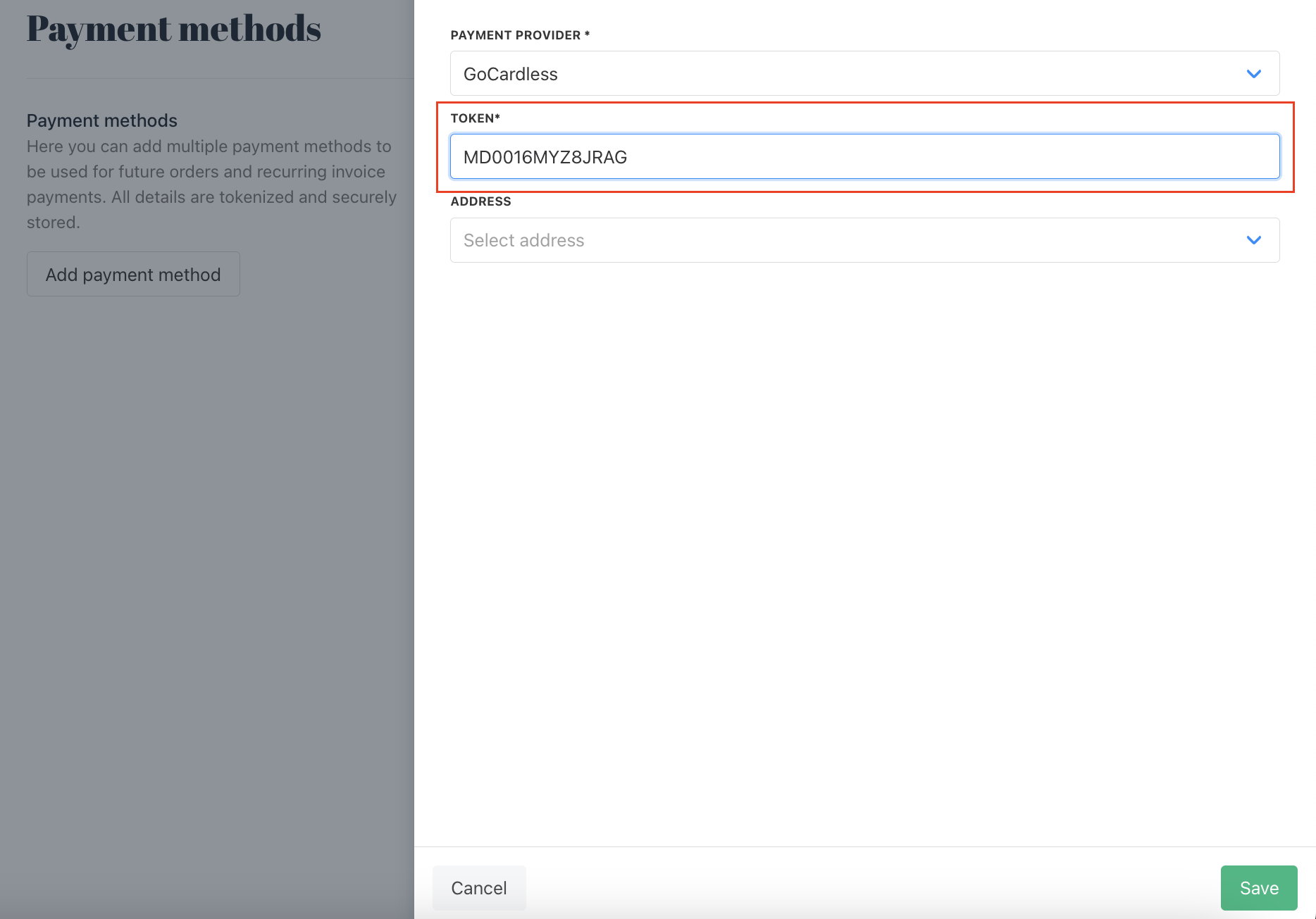
<Frame caption="Paste the mandate token">
  <img src="https://mintcdn.com/upmind/6knUVC8F1nK4E5CY/images/fb/c807e9b53cf97f0c.png?fit=max&auto=format&n=6knUVC8F1nK4E5CY&q=85&s=de5907e0371b5abfb61b5a2900256eb7" alt="Paste the mandate token" width="1868" height="1305" data-path="images/fb/c807e9b53cf97f0c.png" />
</Frame>

7. Click **Save** to store the mandate.
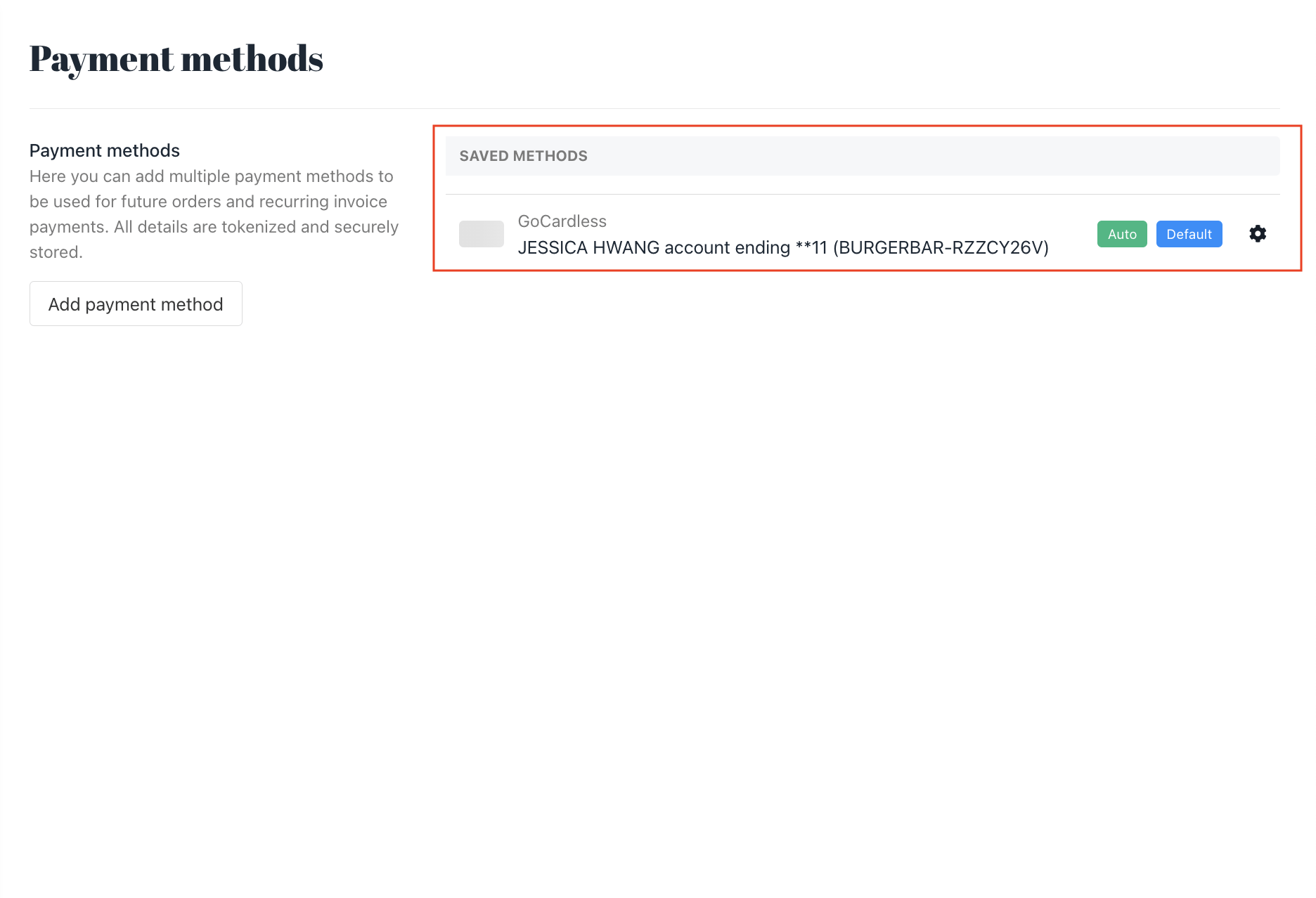
<Frame caption="Store the mandate">
  <img src="https://mintcdn.com/upmind/uxzVUXAKtJ2bRWCI/images/fb/665caf80af669b80.png?fit=max&auto=format&n=uxzVUXAKtJ2bRWCI&q=85&s=838ee5695f3216f651edff225d96d7b3" alt="Store the mandate" width="1872" height="1278" data-path="images/fb/665caf80af669b80.png" />
</Frame>
